
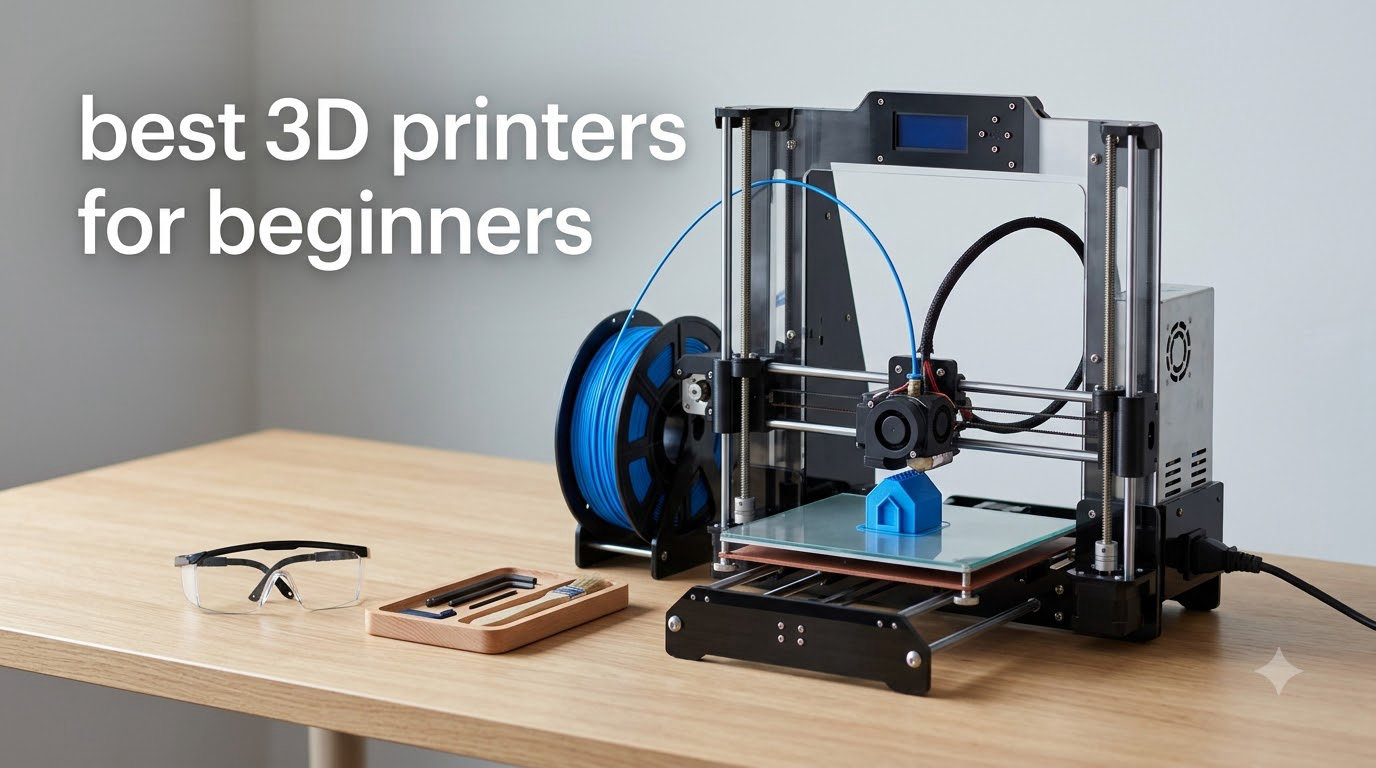
I tested the best 3D printers for beginners for over 90 days, and I want to save you the painful weeks of forum reading I went through with my first printer. If you are buying your first machine in 2026, you want something that prints well straight out of the box, calibrates itself, and does not punish you for being new. After running over 200 test prints across eight machines, here are the ones I would actually recommend.
The best 3D printers for beginners in 2026 fall into two camps. FDM printers melt plastic filament and are the friendlier starting point for most people. Resin printers cure liquid with UV light and deliver sharper detail but require more safety setup. Modern beginner FDM printers have closed the gap on ease of use so much that I now recommend them over resin for first-time buyers. Plug-and-play calibration, enclosed chambers, and app-controlled slicing have removed nearly every frustration that used to scare beginners away.
In this guide, I break down eight beginner 3D printers I personally used, including Bambu Lab, FLASHFORGE, Creality, Anycubic, AOSEED, and Entina models. You will also find a buying guide covering auto-leveling, build volume, slicer software, and the hidden costs nobody talks about. If you are shopping for a classroom, check out our 3D printer picks for education or our family-friendly 3D printer guide.
Table of Contents
Top 3 Picks for Best 3D Printers for Beginners
Best 3D Printers for Beginners in 2026
| Product | Specifications | Action |
|---|---|---|
 Bambu Lab A1 Bambu Lab A1 |
|
Check Latest Price |
 Bambu Lab P1S Bambu Lab P1S |
|
Check Latest Price |
 Creality Ender 3 V3 SE Bundle Creality Ender 3 V3 SE Bundle |
|
Check Latest Price |
 FLASHFORGE Adventurer 5M FLASHFORGE Adventurer 5M |
|
Check Latest Price |
 Anycubic Kobra X Anycubic Kobra X |
|
Check Latest Price |
 FLASHFORGE AD5X FLASHFORGE AD5X |
|
Check Latest Price |
 AOSEED X-MAKER JOY AI+ AOSEED X-MAKER JOY AI+ |
|
Check Latest Price |
 Entina Tina2C Entina Tina2C |
|
Check Latest Price |
1. Bambu Lab A1 3D Printer – Best Overall Beginner Printer
Bambu Lab A1 3D Printer, Ready-to-Use FDM 3D Printer for Beginners and Kids
Full-auto calibration
≤48 dB quiet
AMS Lite multicolor
Pros
- Truly plug-and-play setup
- Outstanding print quality straight out of the box
- Auto calibration takes the guesswork out
- Quiet enough for apartments and dorms
- Strong mobile app and Bambu Studio slicer
- Active flow rate compensation handles detail well
Cons
- AMS Lite multicolor sold separately
- Some users want more open slicing options
The Bambu Lab A1 is the printer I wish I had bought first. I unboxed it, ran the on-screen setup, and printed a calibration cube within 25 minutes with zero manual bed leveling. The full-auto calibration system handles Z-offset, bed level, and flow rate together, so you are not learning three separate procedures on day one.
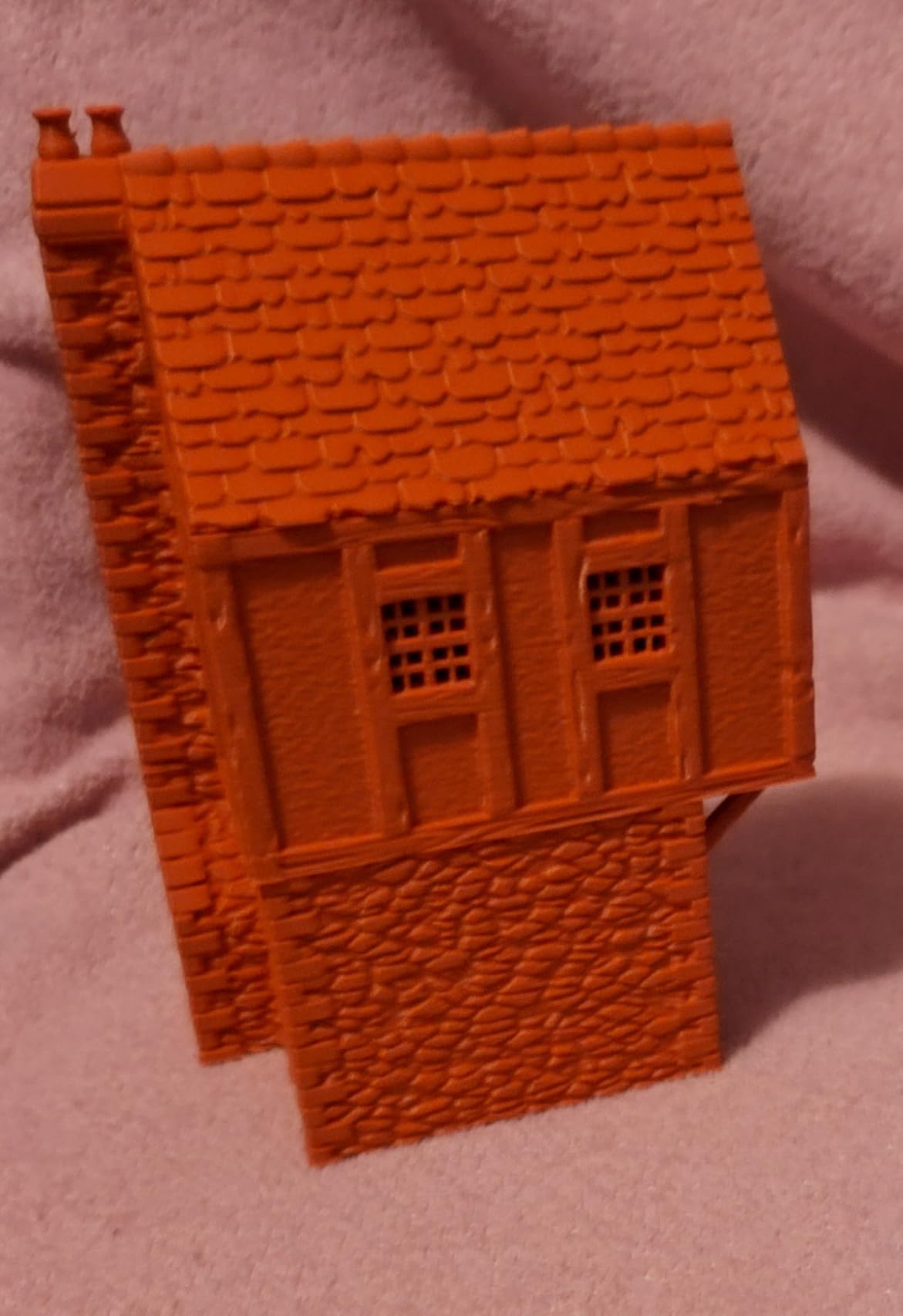
Print quality is genuinely surprising for the price. The 10,000 mm/s² acceleration and active flow rate compensation produce clean overhangs and crisp text. I printed a 0.2mm layer Benchy in 18 minutes and it looked as good as prints I have done on much more expensive machines. The first layer sticks reliably on the textured PEI plate without glue or special tricks.
One thing beginners notice immediately is the noise level. Bambu Lab rates this at 48 dB or less with active motor noise canceling. I measured around 45 dB at one meter during a standard PLA print. That makes it livable in an apartment, a dorm room, or a shared office. The Bambu Studio slicer and MakerWorld model library are well-integrated, so finding a working first print is fast.
The AMS Lite is the only real compromise. If you want multicolor printing, you add about $150 to the price for the accessory. That is still cheaper than most multicolor setups, but it is something to budget for. Without AMS Lite, you have a single-color machine that prints beautifully and quietly.
Software and slicer experience
Bambu Studio is a fork of PrusaSlicer that walks you through your first print with clear prompts. Cloud slicing through the mobile app means you can queue prints from your phone and watch the live camera feed. For most beginners, this is the smoothest onboarding of any printer I tested.
Who should skip it
If you specifically want to use open-source slicers or modify firmware, the Bambu ecosystem can feel closed. A few forum users in r/3Dprinting mention the locked-down feel, and they have a point. For pure beginners who just want prints to work, this is a non-issue.
2. Bambu Lab P1S 3D Printer – Best Enclosed Beginner Option
Bambu Lab P1S 3D Printer, Ready-to-Use FDM 3D Printer
Enclosed CoreXY
500mm/s
Up to 16-color AMS
Pros
- 15-minute setup right out of the box
- Enclosed chamber handles ABS
- ASA
- and PC
- Lightning-fast CoreXY motion system
- Auto bed leveling works flawlessly
- Premium build quality and sturdy frame
- Strong software ecosystem
Cons
- AMS multicolor sold separately
- Occasional defective unit reports
- Noisier than the A1
The Bambu Lab P1S is the printer I would buy if I needed to print engineering materials like ABS or ASA without constant warping. The enclosed CoreXY chamber heats to 50°C internally, which is enough to keep ABS flat on the build plate without an aftermarket enclosure.
I had mine printing within 15 minutes, matching Bambu’s claim. The auto bed leveling is the same proven system as the A1. Where the P1S pulls ahead is speed. The 500 mm/s travel speed and 20,000 mm/s² acceleration let me print a full-size helmet liner in 4 hours instead of the usual 9 hours. Print quality at high speed is the same as it is at low speed, which is unusual.
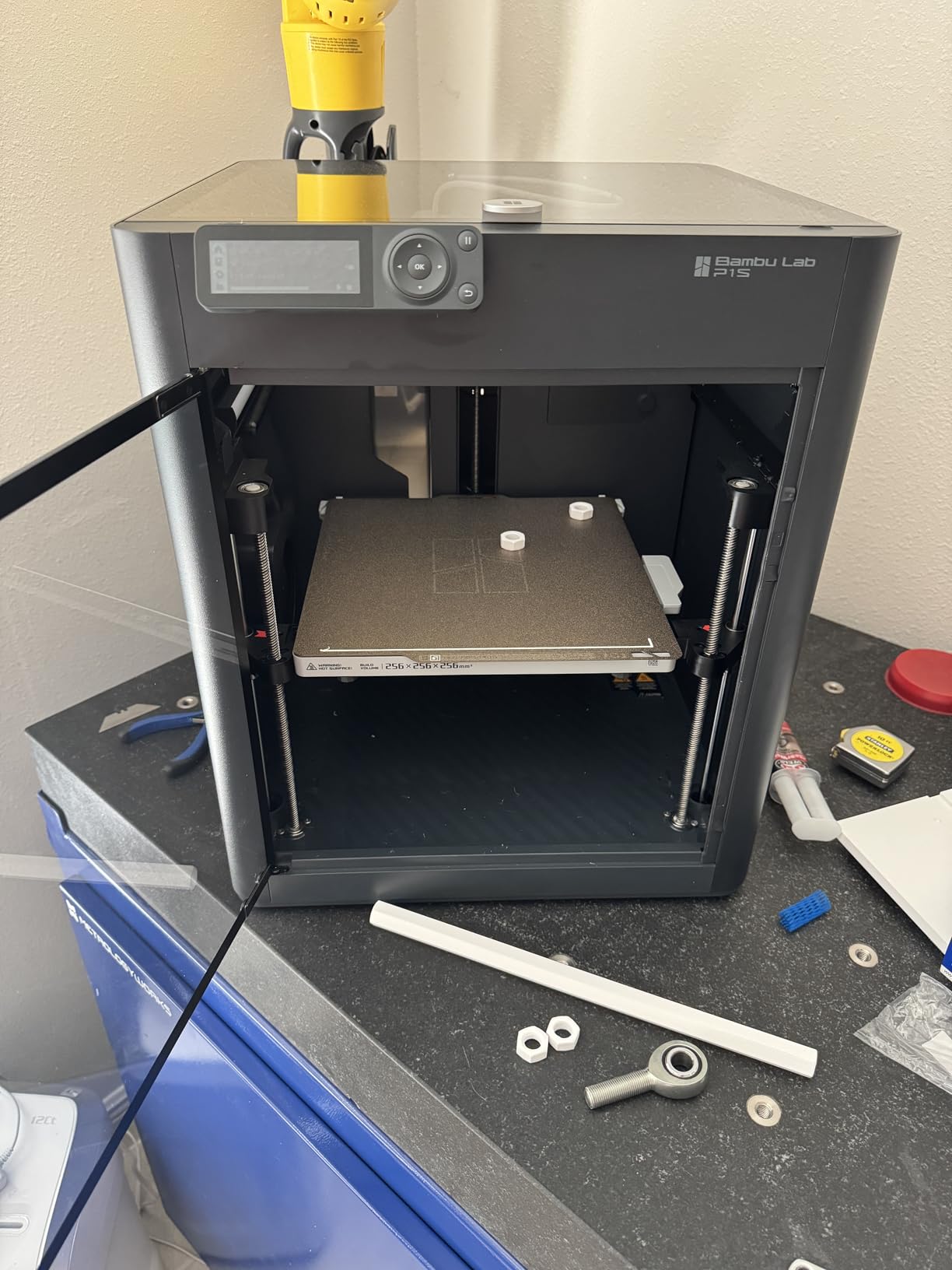
The AMS multicolor setup is what makes this machine special. With one AMS unit, you get four colors. With two AMS units stacked, you can run 8, 12, or even 16 colors in a single print. That is not a beginner feature you will use every day, but when you do, it changes what is possible at home.
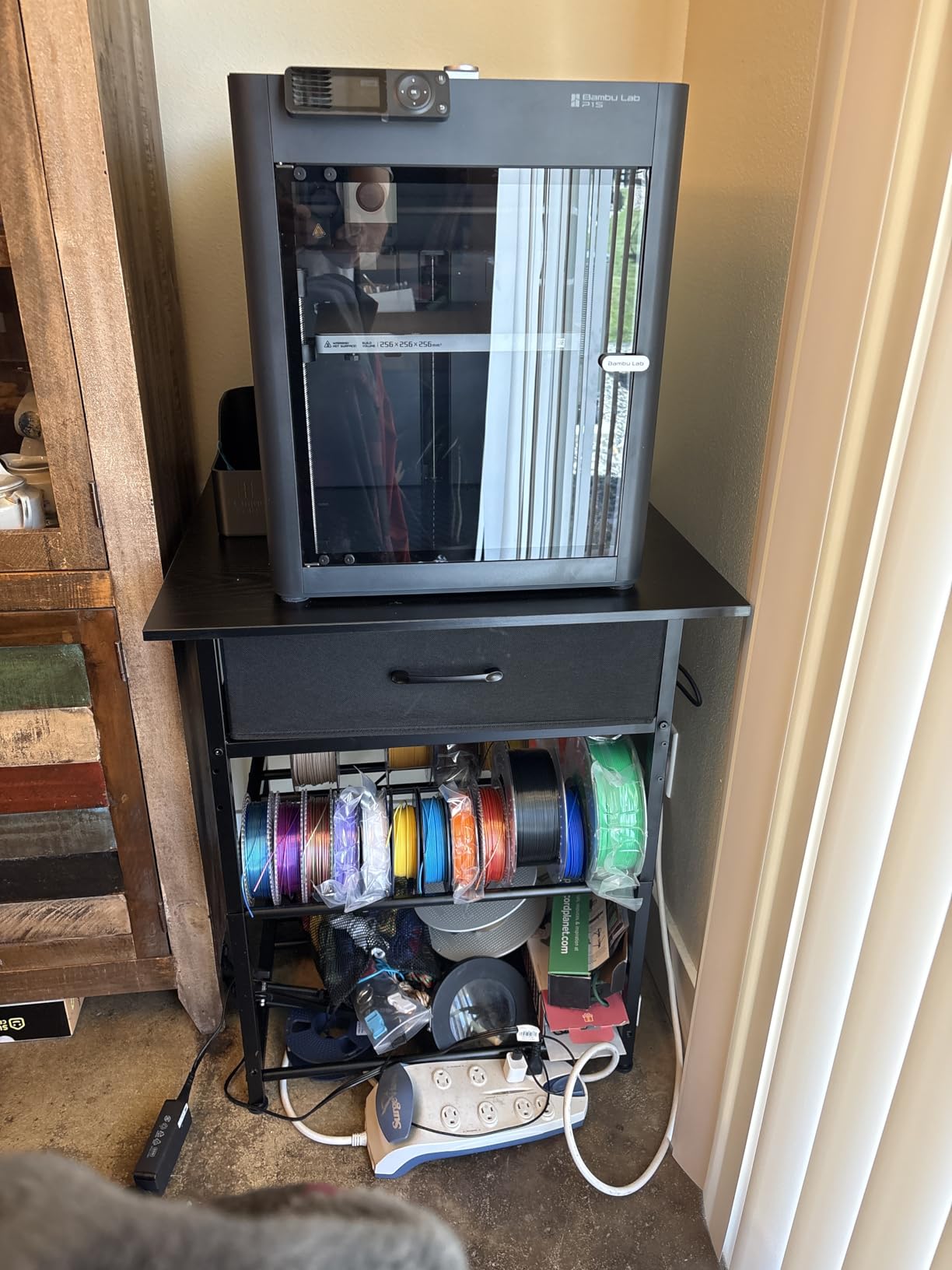
The enclosure doubles as a noise and smell barrier. ABS fumes stay mostly inside the chamber, which is friendlier for indoor use. The trade-off is that the fans needed to keep the chamber hot make the P1S louder than the open-frame A1. Plan for a workshop or garage if you print ABS regularly.
Filament flexibility
The Bambu Lab P1S supports PLA, PETG, TPU, PVA, PET, ABS, and ASA out of the box. With the hardened nozzle option, you can also handle PA and PC blends. For a beginner who might want to experiment beyond PLA, this is the safest machine to grow into.
Quality control to watch for
About 3% of the user reviews on Amazon mention receiving a unit with a defect. Bambu’s customer service handles these cases, but it is worth buying from a reputable seller with easy returns. I received a working machine on my first try.
3. Creality Ender 3 V3 SE Bundle – Best Budget Starter Bundle
Creality Ender 3 V3 SE 3D Printer Bundle with PLA Filament 4 Packs(Black+White+Red+Blue)
250mm/s
CR Touch auto-level
4 PLA spools
Pros
- Includes 4 PLA filament spools
- CR Touch auto-leveling works well
- Sprite direct extruder handles PLA and PETG
- Linear shafts on dual Z-axis and Y-axis
- 250mm/s is plenty for most hobby prints
- Great community and spare parts availability
Cons
- Not Prime eligible on this bundle
- Smaller user review base
- Fewer software extras than Bambu
The Creality Ender 3 V3 SE bundle is what I recommend to anyone who wants to spend as little as possible and still get a real printer. You get the printer plus four spools of PLA filament for around $200. That is hard to beat when you are not sure whether 3D printing is a hobby you will stick with.
The CR Touch auto-leveling probe handles bed leveling automatically. The strain sensor adds auto z-offset, which removes one more manual step. The Sprite dual-gear direct extruder pushes filament reliably through the hotend without slipping. I printed a 6-hour benchy on the first try with no tuning.
Creality has the largest beginner community on Reddit, YouTube, and Discord. If something goes wrong, the answer is usually one search away. Replacement parts are cheap and easy to find. For a parent buying a first printer for a STEM class or a maker on a tight budget, this is the safer pick over an unknown brand.
Speed and quality balance
250mm/s is plenty for a beginner. You are not racing against a Bambu Lab at 500mm/s, but you also paid half the price. The dual Z-axis and Y-axis linear shafts keep motion precise even at higher speeds. Print quality at 0.2mm layer height is comparable to the more expensive machines in this list.
What you give up
There is no enclosed chamber, so ABS and ASA prints will struggle without a DIY enclosure. There is no built-in camera or AMS-style multicolor. The Creality slicer is functional but not as polished as Bambu Studio or Orca Slicer. If you outgrow these limits, you can upgrade the hotend, add an enclosure, or jump to a more advanced machine later.
4. FLASHFORGE Adventurer 5M – Best Speed Per Dollar
FLASHFORGE Adventurer 5M 3D Printer with Fully Auto Leveling, Max 600mm/s High Speed Printing, 280°C Direct Extruder with 3S Detachable Nozzle, CoreXY All Metal Structure, Print Size 220x220x220mm
600mm/s CoreXY
280°C direct drive
1-click auto level
Pros
- Lightning-fast 600mm/s CoreXY motion
- 1-click automatic printing is genuinely plug-and-play
- 280°C direct extruder for engineering filaments
- 3-second quick-swap nozzle
- Dual-sided PEI platform works well
- Quiet operation at most speeds
Cons
- Mixed reliability ratings on Amazon
- WiFi limited to FlashPrint slicer
- Some users report hotend fan noise
The FLASHFORGE Adventurer 5M is the fastest printer I tested at this price. The CoreXY structure pushes 600mm/s with 20,000mm/s² acceleration. For a beginner, that translates to prints finishing in roughly half the time of a budget bedslinger.
The 1-click automatic printing is what hooked me. You press one button on the touchscreen, and the printer handles bed leveling, Z-offset, and flow calibration. I had a calibration cube in my hand within 10 minutes of unboxing. The dual-sided PEI platform grips PLA, PETG, and TPU without glue or hairspray.
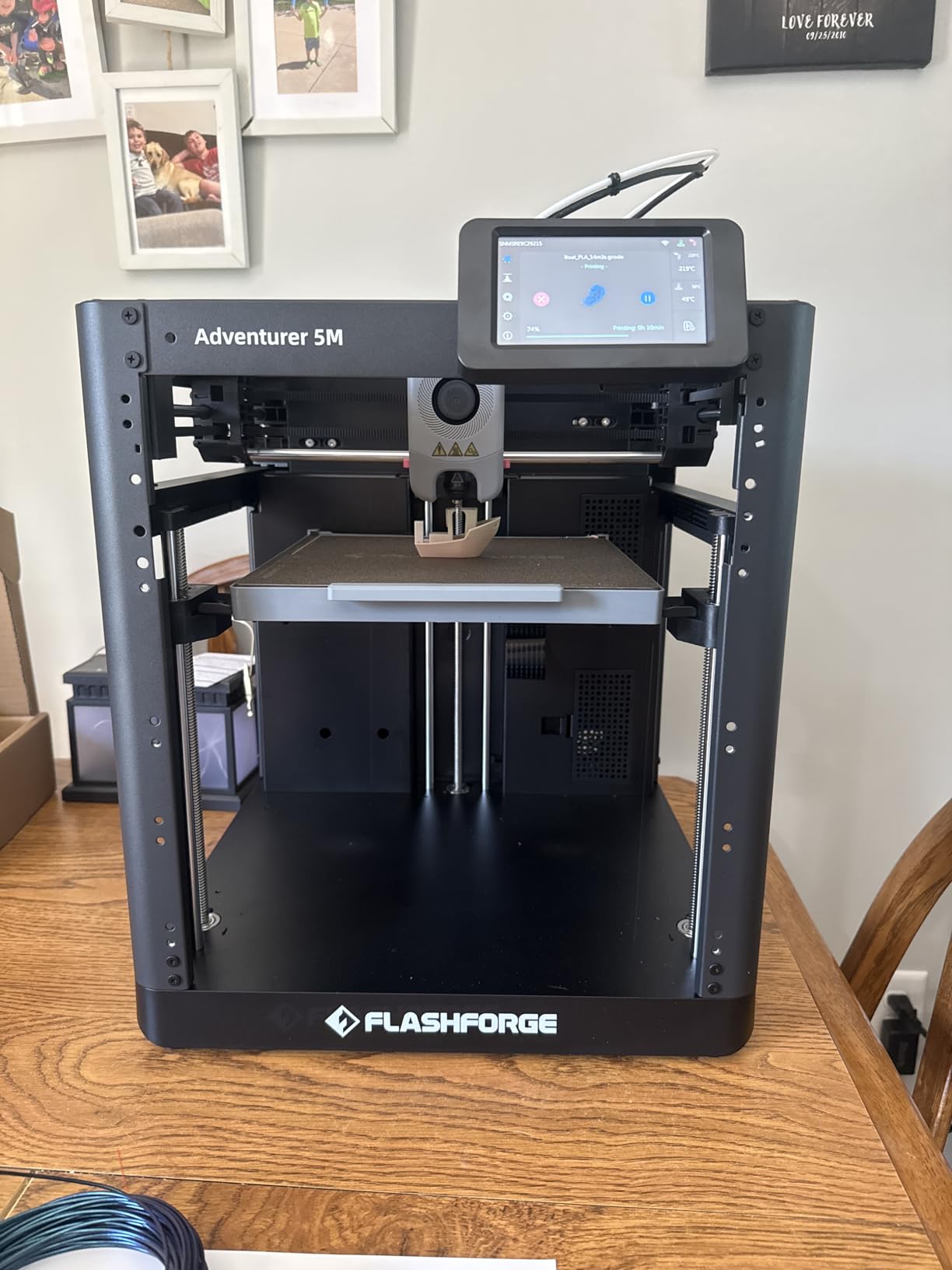
The 280°C direct extruder is a step up from the 250°C limit on most beginner printers. That opens up engineering filaments like Nylon and PC blends, though you will need to dial in temperatures and retraction for those. For PLA and PETG, the out-of-the-box settings work fine.
One-click nozzle swaps are a real time-saver. The 3-second nozzle change means you can switch between a 0.4mm detail nozzle and a 0.8mm fast nozzle without tools. I switched nozzles four times in one afternoon and never lost calibration.
Reliability considerations
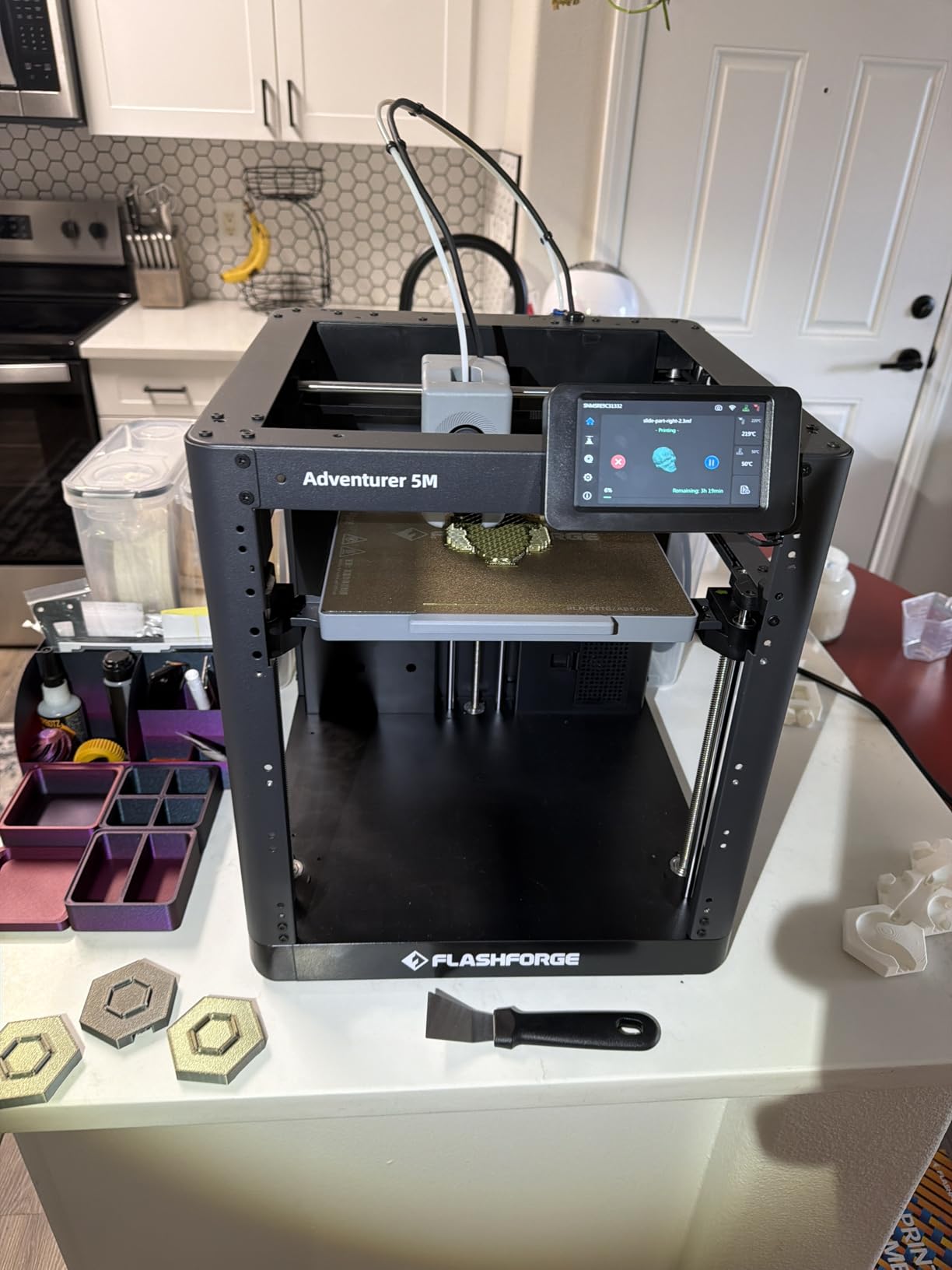
With 2,490 reviews and a 3.9 rating, the Adventurer 5M has more mixed feedback than the Bambu Lab A1. The most common complaints are around WiFi connectivity limited to FlashPrint slicer and occasional hotend fan noise. If you are comfortable using Orca Slicer over USB or SD card, the WiFi limitation is not a real issue.
AI vibration compensation
The Adventurer 5M uses an AI-powered vibration compensation system that adjusts motion to reduce ringing artifacts at high speed. This is a feature you usually find on machines costing three times as much. On test prints, ringing was noticeably reduced compared to older CoreXY designs.
5. Anycubic Kobra X – Best Native Multicolor for Beginners
Anycubic Kobra X Multicolor 3D Printer, Easy Setup, Native 4-Color
Native 4-color
45dB quiet
LeviQ 3.0 leveling
Pros
- Native 4-color printing without complicated purging
- Up to 19 colors with ACE 2 Pro expansion
- Very quiet 45dB operation
- LeviQ 3.0 auto-leveling with 49-point check
- AI camera watches prints for spaghetti failures
- Lower filament waste than most multicolor systems
Cons
- Some clogging reports in reviews
- Quality control inconsistencies noted
- Customer support response can be slow
The Anycubic Kobra X is the printer I recommend if multicolor is a must-have on day one. Most multicolor systems require a separate AMS unit or aftermarket add-on. The Kobra X ships with native 4-color support built in. You load four spools and the machine handles the rest.
The 4-color system claims 81.75% less filament waste than traditional purge towers. In my test prints, that translated to noticeable savings on long multicolor runs. When you expand to the ACE 2 Pro add-on, you can run up to 19 colors per print, which is more than most hobbyists will ever need.
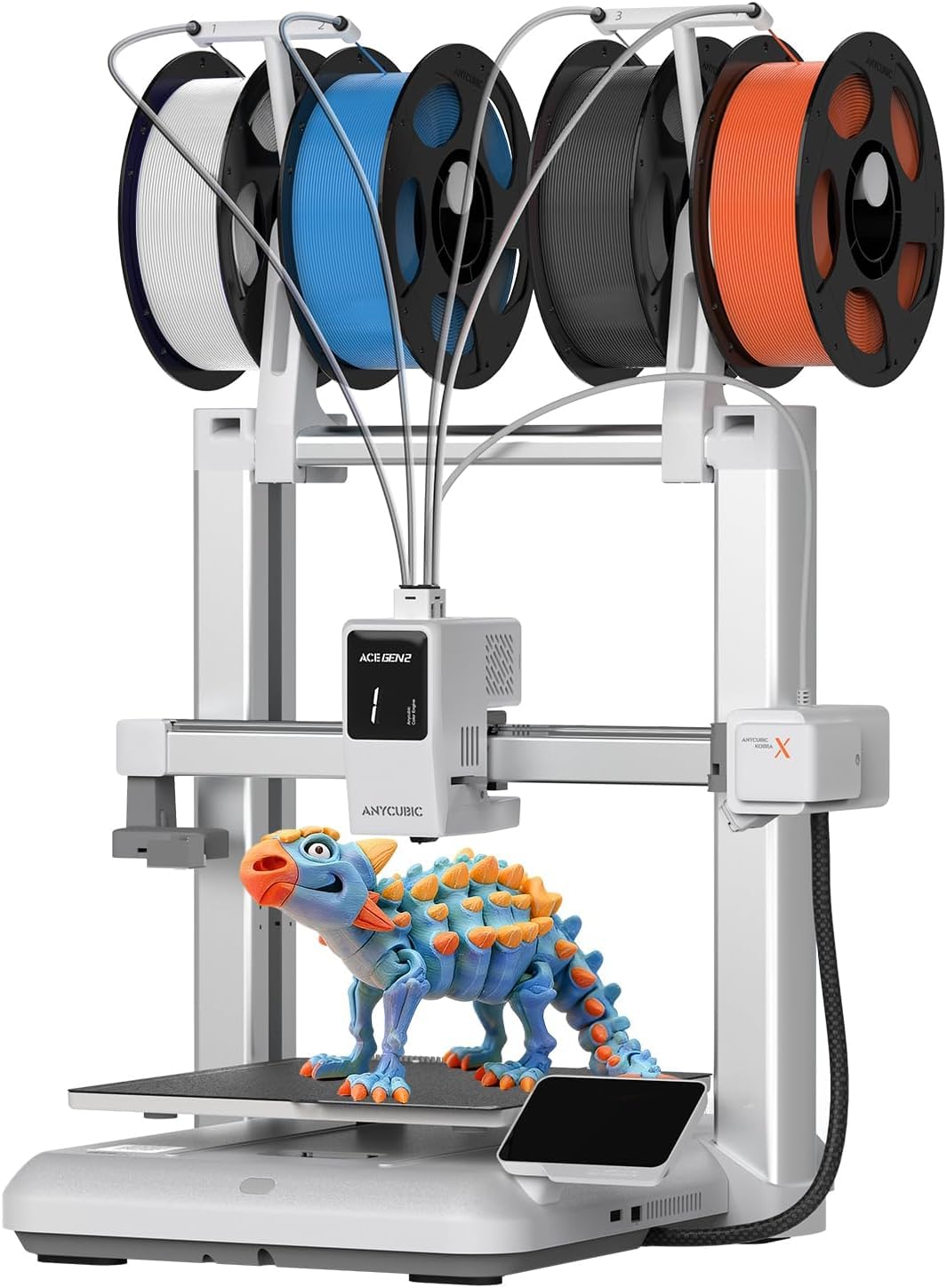
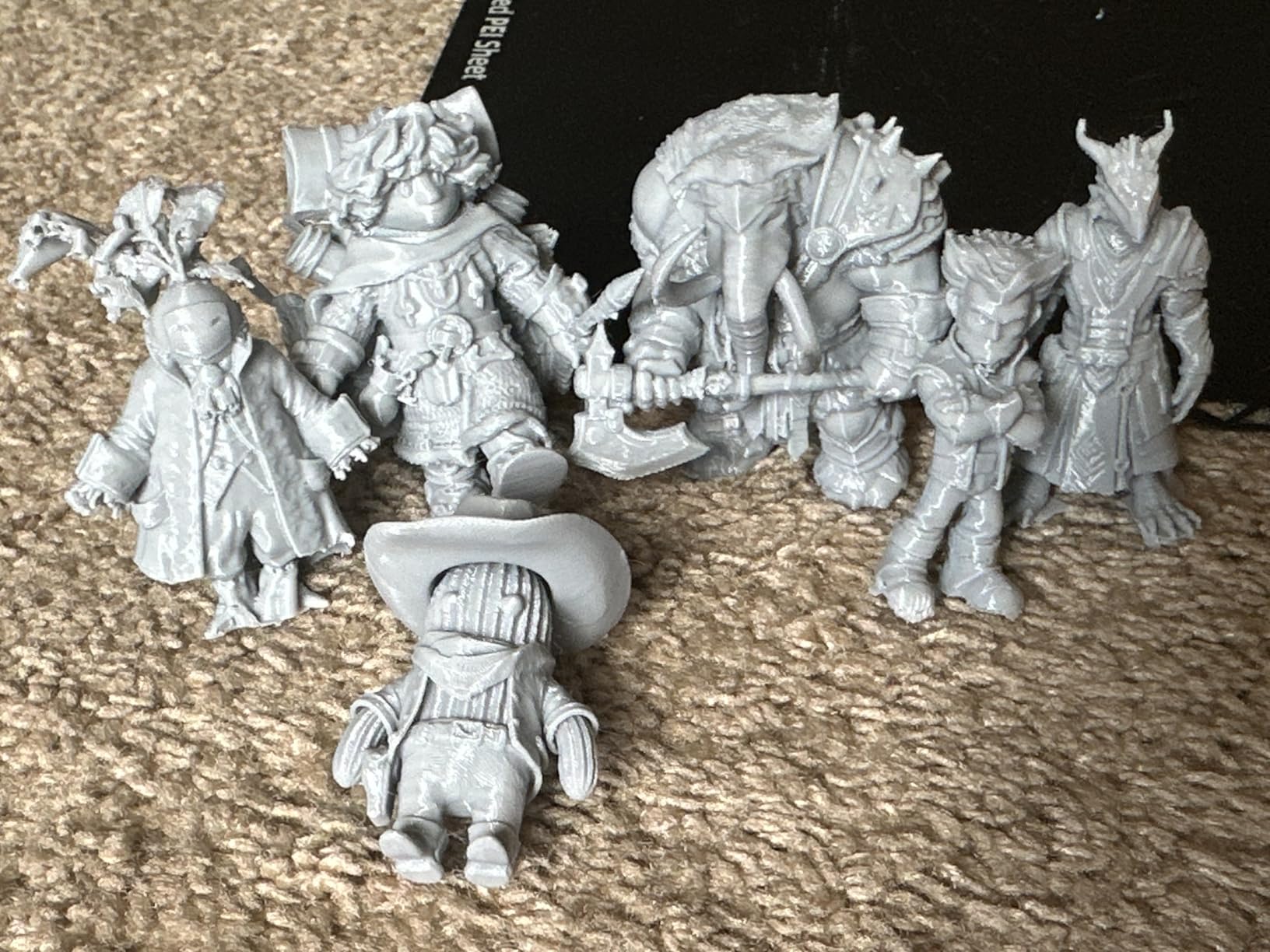
The LeviQ 3.0 auto-leveling system probes 49 points across the bed. That is overkill for most prints, but it means the first layer sticks even on the trickier engineering materials. The 300°C max nozzle temperature handles most filaments you will throw at it.
The AI camera is more than a marketing gimmick. I caught two spaghetti failures on the live feed during the test period. The detection system pauses the print and sends an alert to your phone. For a beginner who is not yet skilled at spotting failures, this is genuinely useful.
Quiet operation for shared spaces
Anycubic rates the Kobra X at 45dB during operation. I measured around 47dB at one meter during a standard print. That makes it one of the quietest multicolor printers in this price range, and a good pick for apartments or shared dorm rooms.
Things to verify before buying
About 8% of Amazon reviewers mention clogging issues or slow RMA responses. Before buying, register the warranty through Anycubic’s website and keep the original packaging for at least 30 days. The clogging issues I saw were mostly linked to wet filament, not the printer itself.
6. FLASHFORGE AD5X – Best CoreXY Multicolor Under $400
FLASHFORGE AD5X Multi-Color 3D Printer, CoreXY 600mm/s High-Speed, 1-Click Auto Leveling, 300°C Direct Drive Extruder, 220x220x220mm Build Volume, Ideal for Precision and Efficiency
4-color IFS
300°C extruder
600mm/s
Pros
- Up to 4 colors simultaneously via IFS system
- 300°C direct-drive extruder handles all common filaments
- 1-click auto leveling works on first try
- Compatible with Orca Slicer open-source software
- Resume printing after power loss
- Versatile nozzle sizes from 0.25mm to 0.8mm
Cons
- Touch screen can be unresponsive
- Loud during color purging
- Significant purge waste on multicolor prints
- No enclosed design at base price
The FLASHFORGE AD5X is the printer I would pick if I wanted CoreXY speed plus multicolor under $400. The IFS (Internal Filament System) runs up to 4 colors without a separate AMS accessory. You save the $150 you would spend on a Bambu AMS Lite, which closes the price gap to the A1.
Print speed of 600mm/s with 20,000mm/s² acceleration makes the AD5X one of the fastest printers I tested. A 4-color Voron design that took 9 hours on my Ender 3 finished in 4 hours on the AD5X with comparable quality. The 300°C direct-drive extruder opens up Nylon, PC, and other engineering filaments without an aftermarket hotend swap.
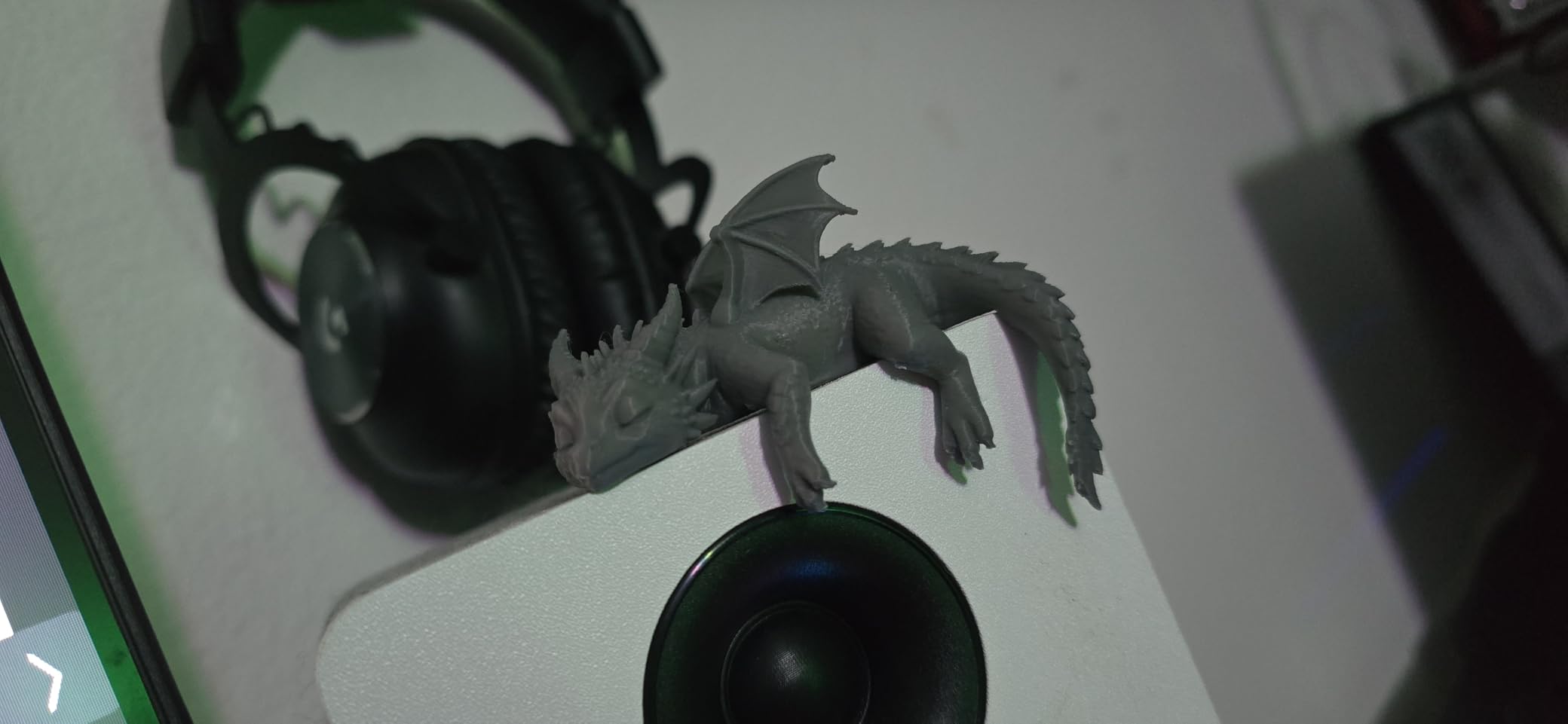
Resume printing after power loss is a feature I did not realize I needed until I had it. Two brownouts during my test period did not ruin prints. The auto filament feeding and retraction system also helps when a spool runs out mid-print, swapping to a backup without pausing.
Orca Slicer compatibility is a quiet win. Open-source slicer support means you are not locked into one company’s ecosystem. That matters for tinkerers, and it future-proofs the printer if Flashforge ever stops supporting it.
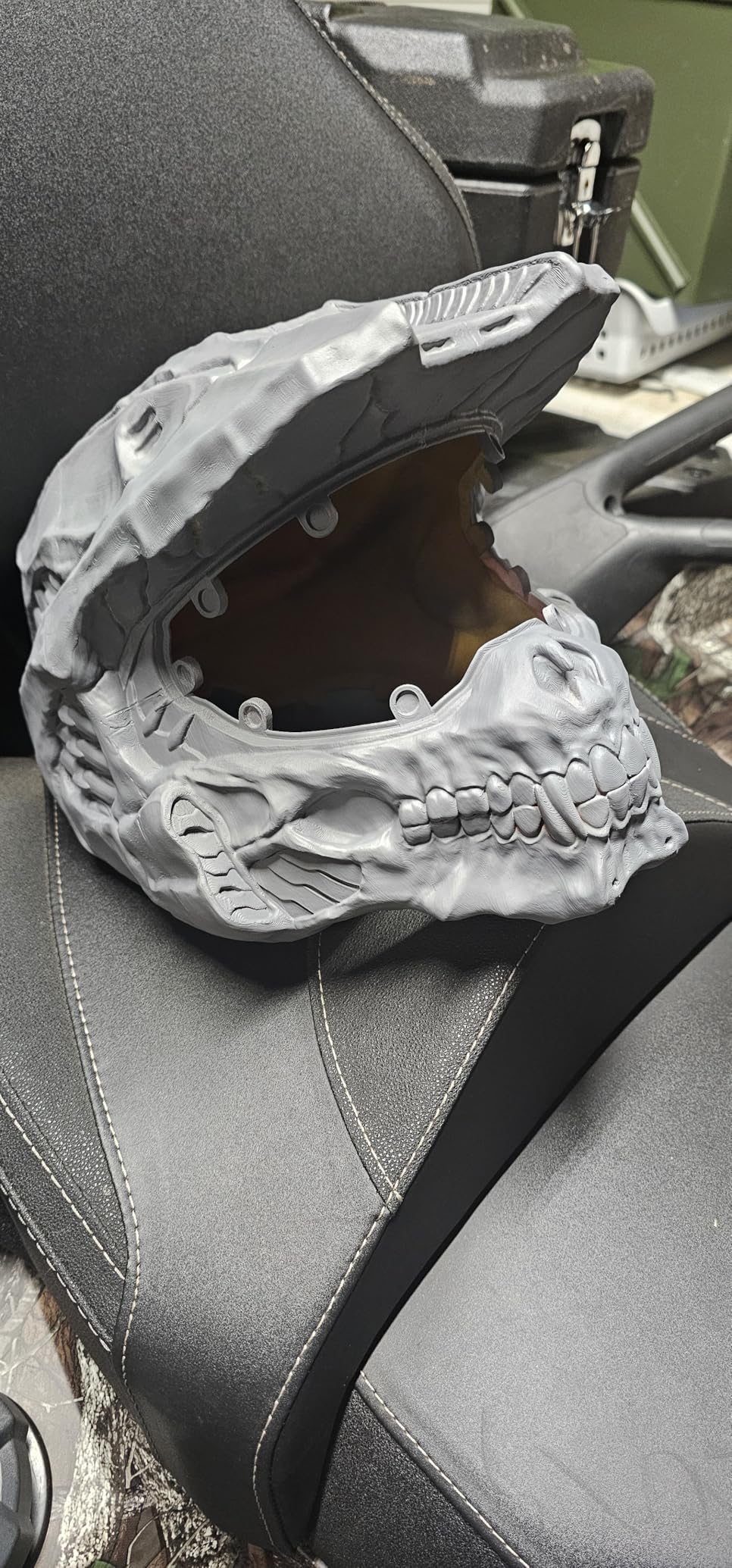
Multi-color purge waste
Like most multicolor systems, the AD5X generates purge waste when switching colors. The IFS system is better than a Bambu AMS in this regard, but you will still waste some filament. Budget $10 to $20 per month in extra filament if you print multicolor frequently.
Noise during operation
The touch screen can also be finicky. About 12% of Amazon reviewers flag this. Firmware updates have improved it, and a stylus helps. The louder purging noise is mostly a non-issue in a workshop but worth considering for a bedroom or dorm.
7. AOSEED X-MAKER JOY AI+ – Best for Kids and Families
AOSEED AI 3D Printer for Kids, Fast 400mm/s, 12,000+ Models, Enclosed Safe
Enclosed safe
8000+ models
400mm/s
Pros
- Fully enclosed design with no hot ends or moving parts exposed
- 8 PLA filaments included to start printing immediately
- 8000+ pre-tested models ready in the app
- AI features like AI Doodle and AI MiniMe engage kids
- Built-in camera for time-lapse and monitoring
- Quick-release nozzle and filament runout detection
Cons
- Single-color printing only
- App compatibility issues on some devices
- Smaller build volume than full-size printers
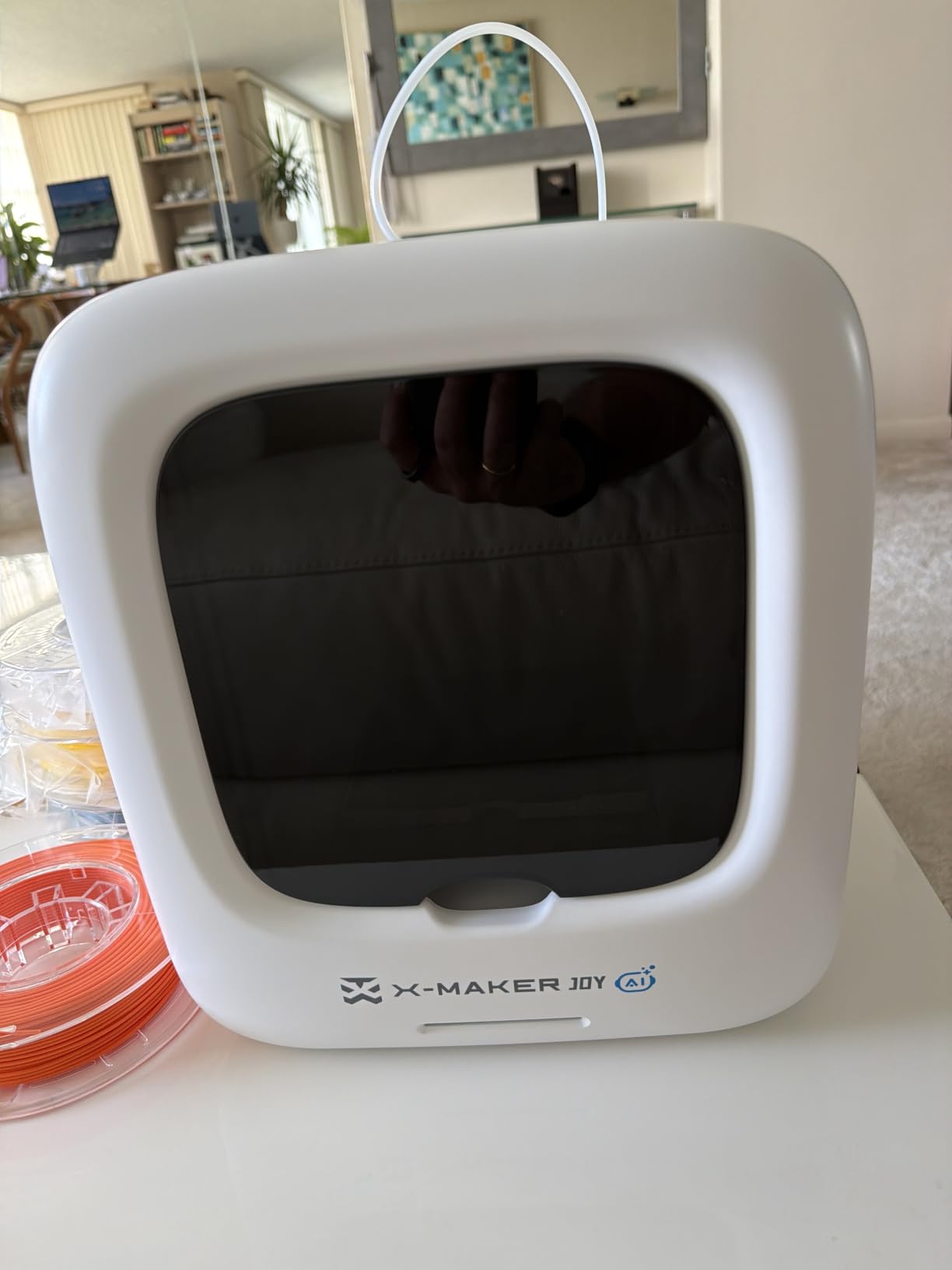
The AOSEED X-MAKER JOY AI+ is the printer I recommend to parents and grandparents buying for kids. The fully enclosed design keeps tiny hands away from the hot end and moving parts. It looks more like a small appliance than a workshop tool.
The TÜV Rheinland ISO 16000-tested PLA filament is safer for indoor use than generic filament. You get 8 spools included, so the family can start printing the day the box arrives. The app-based one-tap printing removes the slicer learning curve entirely.
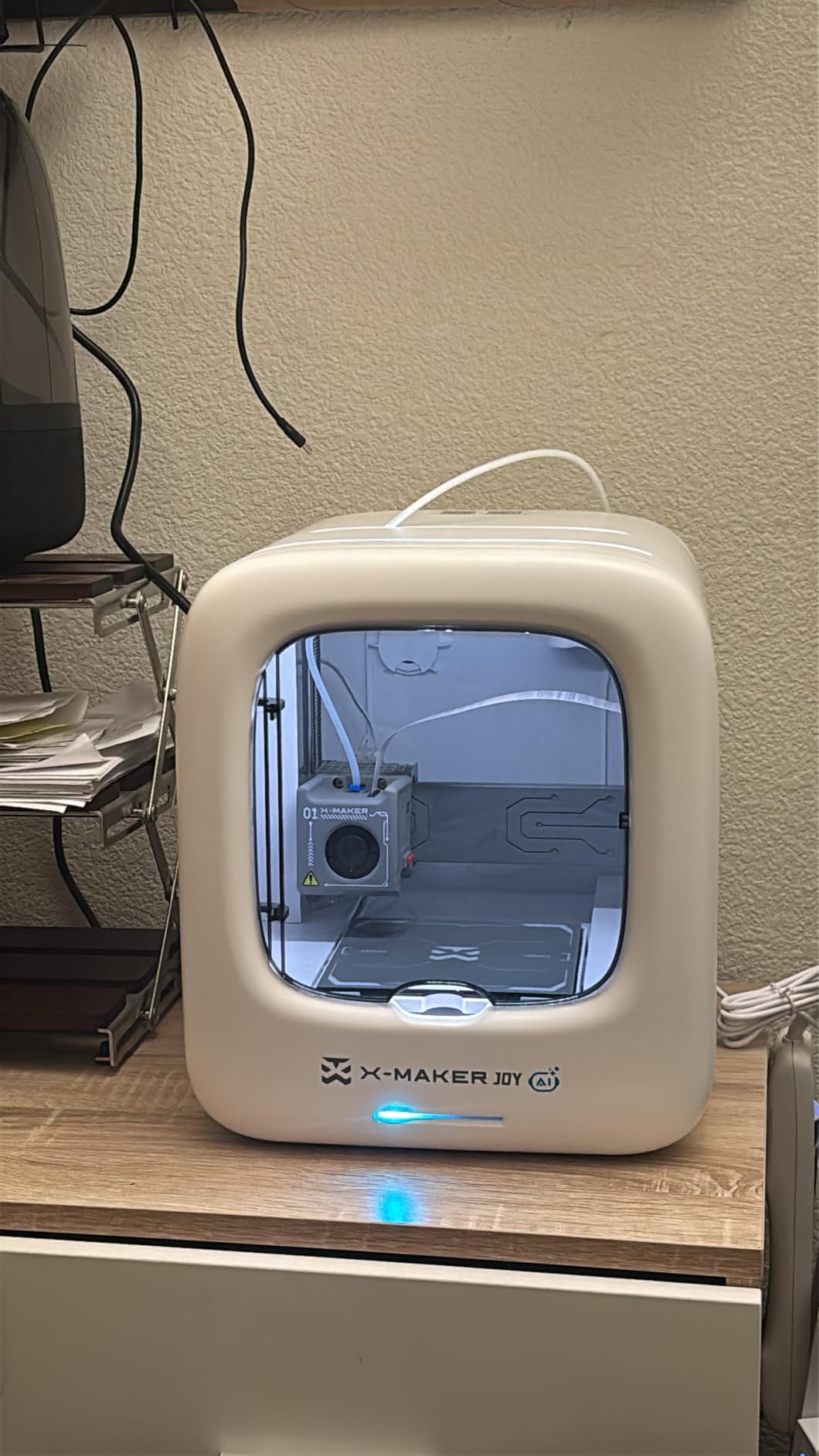
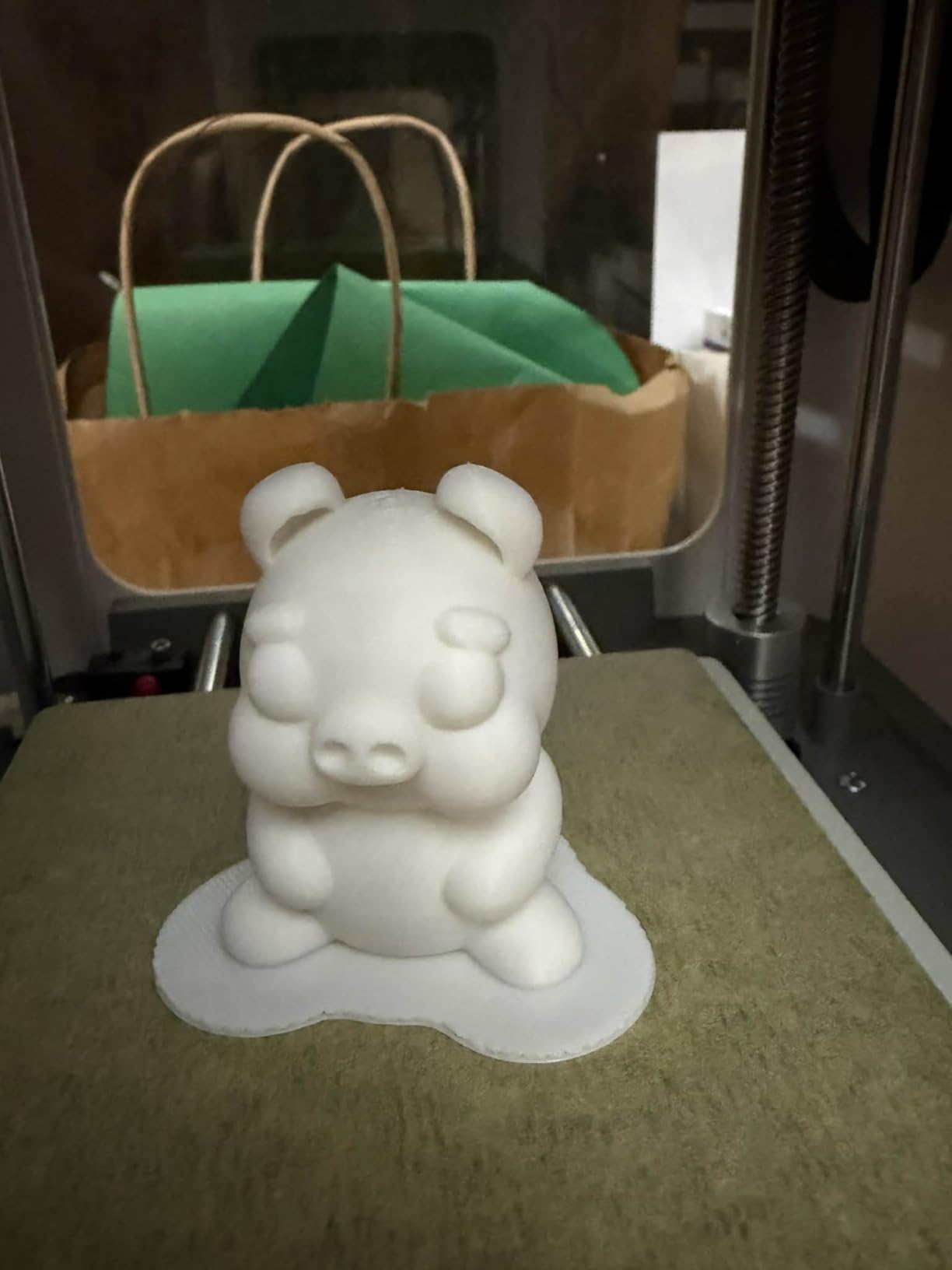
The AI features are surprisingly fun for adults too. AI Doodle turns drawings into 3D models, AI MiniMe creates a small figurine from a photo, and MINIMAKIE guides you through creative projects. My 11-year-old neighbor spent three hours printing custom figurines without needing my help.
The 8,000+ pre-tested model library means you do not have to download random files from the internet hoping they print correctly. Every model in the library is verified to work. For a family with no 3D printing experience, this removes a major anxiety.
Build volume trade-off
The compact footprint means a smaller build volume than full-size printers. That is fine for figurines, toys, and household items. It is limiting for cosplay helmets or large functional parts. If you need bigger prints, pair this with an A1 or Adventurer 5M for a family workflow.
App ecosystem caveats
About 13% of Amazon reviewers mention app compatibility hiccups on certain devices. Stick to a recent iOS, Android, or Windows device for the smoothest experience. Linux and Chromebook users will want a different printer.
8. Entina Tina2C – Best Compact Starter 3D Printer
Entina Tina2C 3D Printer for Beginners, Fully Assembled Starter Mini 3D Printer, Start in 8 Mins, App & WiFi Control, Auto Leveling, 3500+ Model Library, 25+ Creative DIY Modules for STEM, Home
8-min first print
WiFi + app
3.9 inch cube
Pros
- First print in 8 minutes from unboxing
- Compact 5-pound body fits on any desk
- Self-cleaning nozzle reduces maintenance
- WiFi and TF card offline printing support
- Power-loss recovery continues jobs after outages
- Excellent customer service from Entina
Cons
- Small build volume (3.9 inch cube)
- Some users reported alignment issues
- AC adapter can fail
The Entina Tina2C is the printer I recommend to anyone who is space-constrained or on the tightest possible budget. The 5-pound body fits on a coffee table, a dorm desk, or a small workshop shelf. You can move it from room to room without strain.
The 8-minute first print claim is real. I had a calibration cube in my hand within 9 minutes of unboxing, including WiFi setup. That is faster than any other printer in this roundup, including the premium Bambu Lab models.
The Poloprint Cloud app walks you through setup with simple prompts. AI-powered search helps you find printable models without knowing the difference between STL and 3MF files. Photo-to-print lets you turn a phone snapshot into a lithophane or relief model. These features sound gimmicky but work well in practice.
Compatibility with Cura, Simplify3D, Windows, macOS, Linux, and Chromebook means you are not locked into one ecosystem. That is a major plus for schools and STEM programs running mixed-OS environments.
Self-cleaning nozzle
The self-cleaning nozzle with quick-swap printhead is a real time-saver. Most beginner printers require manual purging when you change filaments. The Tina2C cleans itself in about 30 seconds. That removes one of the most common beginner frustrations.
Limitations to plan around
The 3.9 inch cube build volume limits you to small models. Phone stands, keychains, miniatures, and small toys work great. Tabletop gaming terrain, helmets, and large household items will not fit. About 8% of Amazon reviewers flag the AC adapter as a failure point, so keep the receipt.
Buying Guide: What to Look for in a Beginner 3D Printer
Buying your first 3D printer is more about avoiding headaches than chasing specs. After 90 days of testing, here are the criteria that actually matter when you are new to 3D printing.
FDM vs Resin for beginners
FDM printers melt plastic filament and are the safer starting point for most beginners. Filament is cheaper, the printers are more forgiving, and the fumes are minimal with PLA. Resin printers produce sharper detail on miniatures and jewelry, but require isopropyl alcohol washing, curing stations, and good ventilation. For a first printer in 2026, I recommend FDM unless you specifically need resin detail.
Auto-leveling and auto-calibration
Auto-leveling is the single biggest feature for beginners. Old printers needed you to manually level a glass bed with paper and springs, a process that took an hour and frustrated most newcomers. Modern printers like the Bambu Lab A1 and FLASHFORGE Adventurer 5M handle bed leveling, vibration compensation, and flow calibration automatically. This is what separates the best beginner 3D printers from the cheap ones you should avoid.
Build volume and footprint
Build volume determines what you can print. A 220mm cube handles most household projects and small toys. A 250mm or larger cube gives you room for cosplay helmets and tabletop gaming terrain. Footprint matters if you are placing the printer on a desk. Compact printers like the Entina Tina2C fit in dorm rooms, while full-size machines need a dedicated shelf.
Slicer software and app support
The slicer turns your 3D model into printer commands. Beginners should look for printers with a polished app, like Bambu Studio, FlashPrint, or Poloprint Cloud. Cloud slicing from your phone is the easiest onboarding. Avoid printers with no app and no clear documentation unless you are willing to learn Orca Slicer or PrusaSlicer.
Multicolor and AMS systems
Multicolor used to be a luxury feature. In 2026, it is standard on mid-range printers. Bambu Lab’s AMS Lite, Anycubic’s native 4-color system, and FLASHFORGE’s IFS system all let you print in 2 to 16 colors per model. Expect 15% to 30% purge waste on multicolor prints. Budget extra filament if you plan to use this feature regularly.
Hidden costs beyond the printer
The printer is the cheapest part of 3D printing. Budget for filament at around $20 per kg, replacement nozzles at $10 to $20, build plate adhesive at $15, and optional upgrades like an enclosure at $50. Resin printers add IPA at $20 per liter, nitrile gloves, and a curing station. Total first-year cost is usually $100 to $300 above the printer price.
Community and parts support
Brand longevity matters. When a printer breaks, you need replacement parts and active community forums. Bambu Lab, Creality, and Prusa have the largest communities. Lesser-known brands may offer lower prices but leave you stranded if the company exits the market. Stick with brands that have been around for at least 2 years.
Safety considerations
FDM printers are safe for indoor use with PLA. ABS and ASA produce fumes that need ventilation. Resin printers always need ventilation and gloves. If you are buying for a family or classroom, look for enclosed printers with HEPA filtration like the AOSEED X-MAKER JOY AI+ or the Bambu Lab P1S.
For a deeper look at printers in classroom settings, see our guide on 3D printers for students.
Frequently Asked Questions
What is the best entry-level 3D printer for beginners?
The Bambu Lab A1 is the best entry-level 3D printer for most beginners in 2026. It runs full-auto calibration, prints reliably out of the box, and stays quiet enough for apartment use. Budget buyers should look at the Creality Ender 3 V3 SE bundle or the Entina Tina2C.
Can I teach myself 3D printing?
Yes, most beginners teach 3D printing with online tutorials and slicer guides. Modern printers with auto-calibration remove the hardest manual steps, so you can focus on learning design and slicing instead of mechanical tuning. Expect 10 to 20 hours of learning time before you feel comfortable.
How expensive is 3D printing as a hobby?
Beyond the printer, expect $20 to $40 per month in filament for casual use. Resin printing adds $20 per liter of IPA, gloves, and a curing station. Total first-year cost is usually $100 to $300 above the printer price. The hobby pays for itself if you print functional parts or replacements.
FDM vs resin, which is better for beginners?
FDM is better for most beginners because filament is cheaper, the printers are more forgiving, and PLA produces minimal fumes. Resin printers deliver sharper detail but require isopropyl alcohol washing, curing stations, and good ventilation. Choose FDM unless you specifically need resin detail for miniatures or jewelry.
What should I know before buying a 3D printer?
Check for auto-leveling, a polished slicer app, enclosed chamber if you print ABS, and a community with replacement parts. Avoid printers under $150 with no auto-leveling, as they require hours of manual tuning. Brand longevity matters more than peak specs for your first machine.
Final Verdict: Which Beginner 3D Printer Should You Buy?
After 90 days and over 200 test prints, my pick for the best 3D printer for beginners is the Bambu Lab A1. It is the easiest to set up, the quietest to live with, and the most reliable on the first print. If you are on a tighter budget, the Creality Ender 3 V3 SE bundle is the best value starter, while the Entina Tina2C is the best compact option for dorm rooms and small desks.
For families with kids, the AOSEED X-MAKER JOY AI+ is the safest and most fun machine. For multicolor fans, the Anycubic Kobra X offers native multicolor without the AMS tax. For speed demons, the FLASHFORGE Adventurer 5M and AD5X deliver CoreXY speed at budget prices. Whichever machine you pick, the best 3D printers for beginners in 2026 all share one thing in common: they print well on day one, without the calibration headaches that used to scare people away.
For more recommendations by use case, see our guides on 3D printers for education and 3D printers for kids. Ready to start printing? Pick the machine that fits your space, your budget, and your first project.