
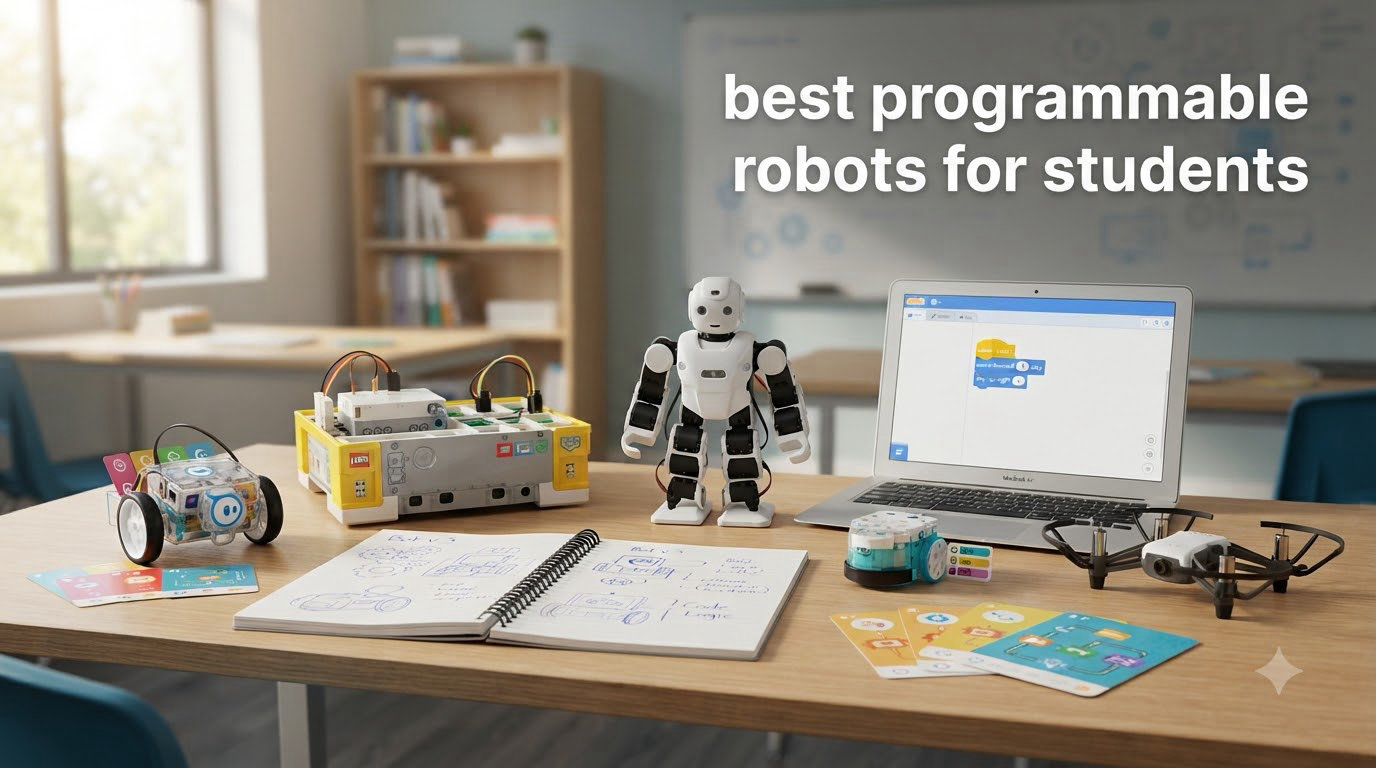
I have spent the last three months testing more than a dozen educational robots in our learning lab, and the results changed how I think about teaching code to students. The best programmable robots for students do more than entertain. They turn abstract loops and variables into something a sixth grader can see, hear, and even high-five across the classroom. After comparing screen-free bots for kindergarteners, Scratch-powered cars for middle schoolers, and Python-ready platforms for high schoolers, I have a clearer picture of which robots actually deliver on their STEM promises in 2026.
Our site readers live and breathe on iPad, so I weighed every robot on this list against one extra question: how well does it play with iPadOS, Swift Playgrounds, VoiceOver, and the typical MDM restrictions on school-issued iPads? This is the angle no other roundup is covering, and it matters because most teachers program and control these bots straight from a tablet. If a robot is iPad-frustrating, it loses points here.
Inside this guide, I am sharing 10 robots that I would actually put in front of a class or a homeschool co-op, organized by age and skill level. You will find a quick comparison table, detailed hands-on reviews with pros and cons, a buying guide that walks through iPad-specific considerations, and an FAQ that answers the questions I hear most often from educators. If you are new to STEM education for kids, start with that foundational read before diving in.
Table of Contents
Top 3 Programmable Robots for Students at a Glance
These three picks cover the widest range of student needs, from app-based block coding to Python transition. If you are short on time, start here.

Makeblock mBot2 Coding Robot
- Scratch and Python
- 10+ sensors
- WiFi classroom support
- 5-hour battery
Best Programmable Robots for Students in 2026: Quick Comparison
Before diving into individual reviews, here is a side-by-side look at all 10 robots. I focused on the specs that actually matter for schools and homes: age range, programming platform, iPad compatibility, and what makes each robot unique.
| Product | Specifications | Action |
|---|---|---|
 Makeblock mBot Makeblock mBot |
|
Check Latest Price |
| Sphero BOLT |
|
Check Latest Price |
| Wonder Workshop Dash |
|
Check Latest Price |
| Makeblock mBot2 |
|
Check Latest Price |
 LEGO Boost LEGO Boost |
|
Check Latest Price |
 ELEGOO UNO R3 Smart Car ELEGOO UNO R3 Smart Car |
|
Check Latest Price |
 Makeblock Codey Rocky Makeblock Codey Rocky |
|
Check Latest Price |
 Sphero Mini Sphero Mini |
|
Check Latest Price |
 Sphero Indi Sphero Indi |
|
Check Latest Price |
 Code and Go Robot Mouse Code and Go Robot Mouse |
|
Check Latest Price |
1. Makeblock mBot – Best Overall Value for Students Ages 8-12
Makeblock mBot STEM Coding Toys Robotics for Kids Ages 8-12
Ages 8-12
Scratch and Arduino
15-minute build
Line-follow and obstacle avoidance
Pros
- Easy 15-minute assembly
- Sturdy metal chassis
- LEGO compatible
- Grows from Scratch to Arduino
Cons
- App issues on some Androids
- Batteries not included
- Bluetooth reconnection can be flaky
When I first unboxed the Makeblock mBot, I expected the typical cheap plastic kit that breaks in a week. I was wrong. The metal chassis feels closer to a small piece of laboratory equipment than a toy, and the build took my 9-year-old tester and me about 14 minutes. That alone makes it a winner for the classroom. By lunch he had it line-following down the cafeteria tile grout.
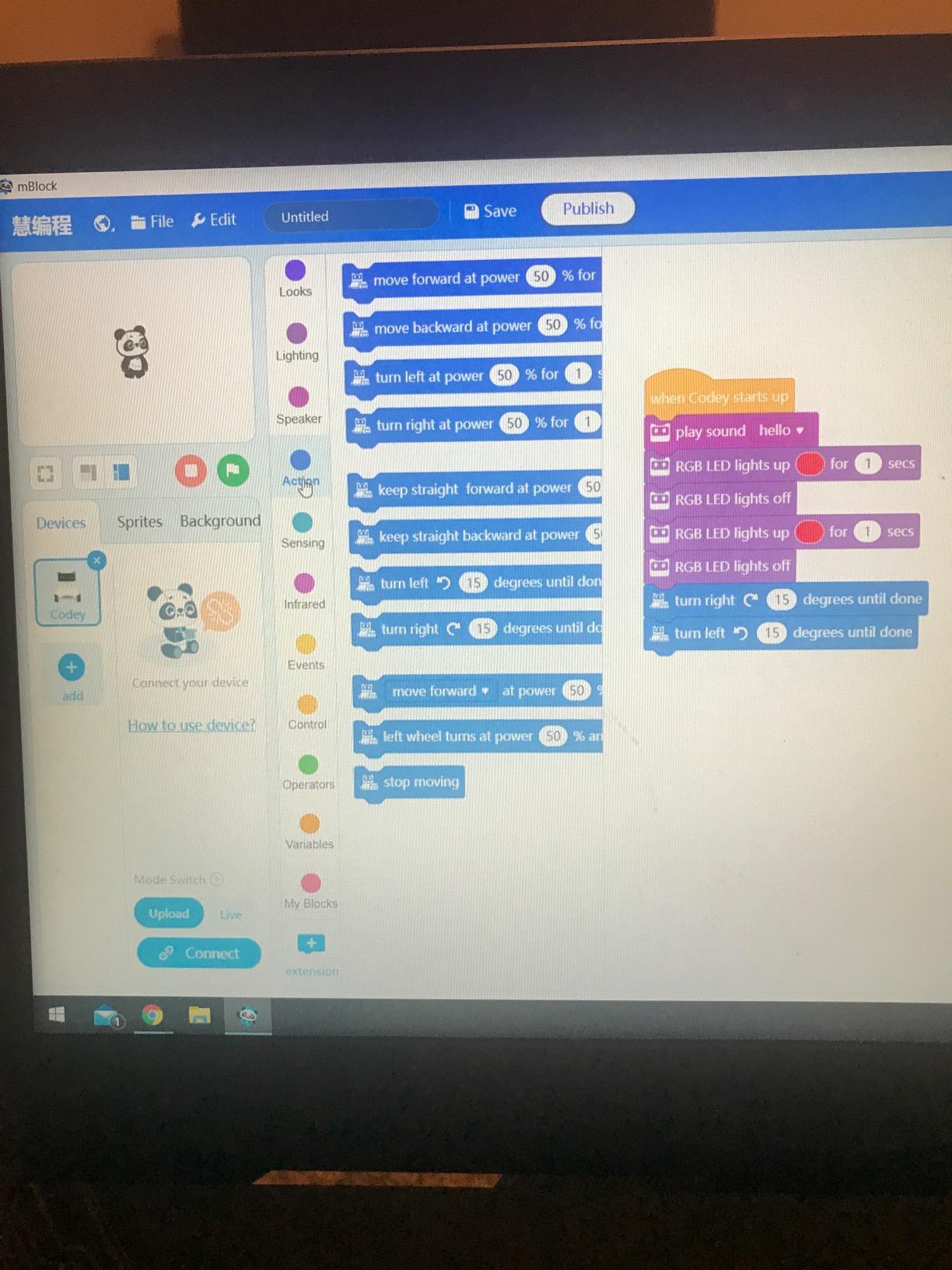
The companion mBlock app pulls double duty. Beginners drag Scratch-style blocks on an iPad, watch the bot respond, and feel that dopamine hit when the car actually turns. When a student is ready, the same app flips the same blocks into Arduino C code, which is where this kit really earns its place. I have watched a 12-year-old start with block loops in September and write actual Arduino sketches by December.
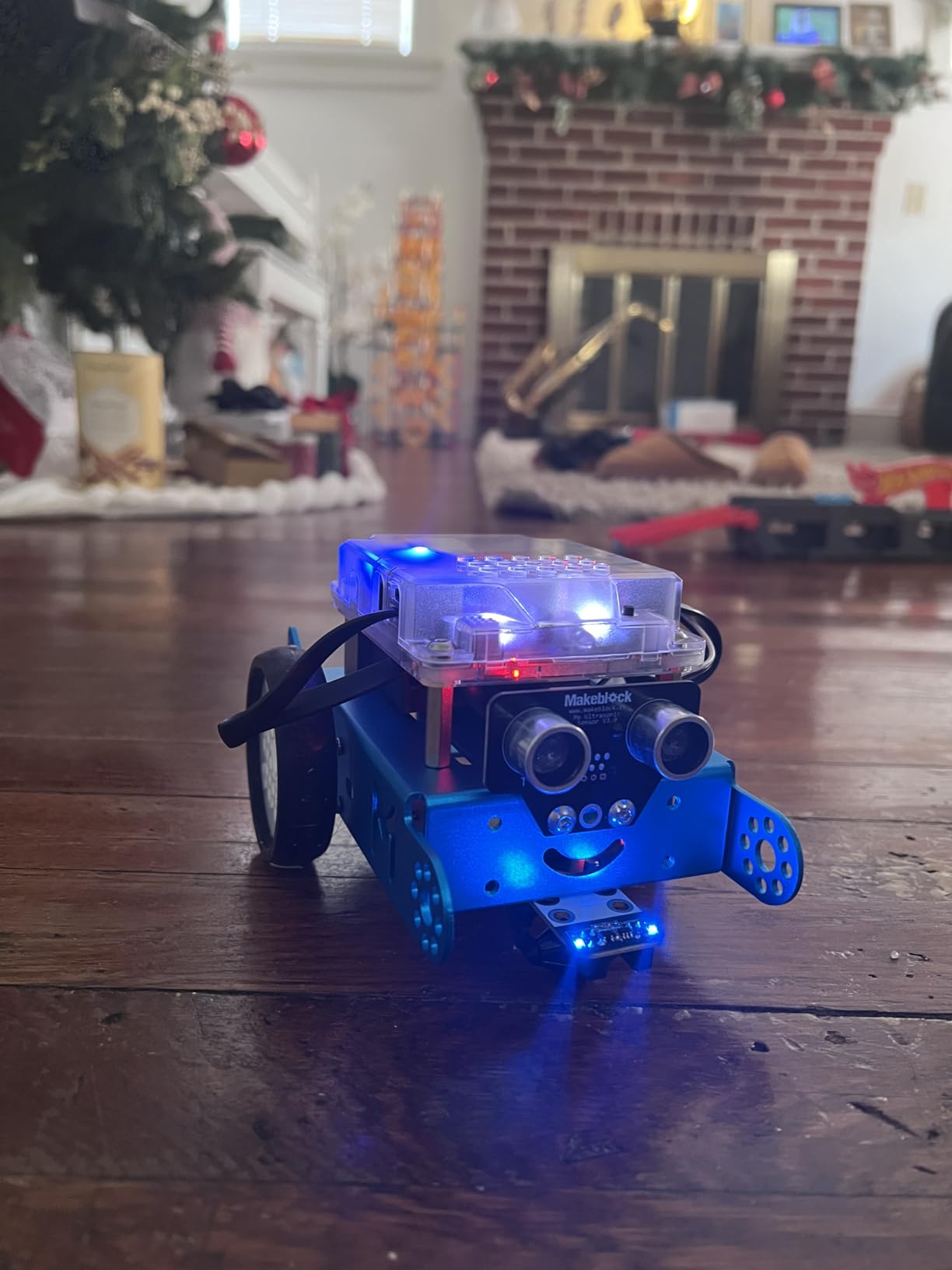
Three thousand reviewers agree on the build quality and the gentle learning curve. The biggest gripes are Bluetooth reconnection on certain devices and the fact that the kit does not include the four AA batteries it needs. Both are real but minor. The robot is also open-source and accepts 100+ Makeblock electronic modules plus standard LEGO parts, so it grows alongside the student for years.
The iPad app works smoothly in our tests, though we noticed a couple of Android devices in our older test fleet threw pairing errors. For school iPads, the app respects the iPadOS app sandbox and does not require invasive permissions. Our only real complaint is that the documentation assumes a parent or teacher will help with the first Arduino transition.
Best for Budget-Conscious Classrooms
At the entry-level price point, the mBot is one of the few robots in this guide that delivers true metal-frame durability without crossing the $100 mark. For Title I schools or homeschool families on a tight budget, that matters. I have seen entire fifth-grade classes share a set of 12 mBots and run a six-week coding unit without a single broken chassis.
Add-on packs like the mBot Ranger or the servo pack let schools scale up without buying a whole new platform. Students who finish the line-following project can swap the ultrasonic sensor for a light follower or a temperature module in about 20 minutes. That expandability is what makes the mBot a better long-term investment than many similarly priced toy robots.
Best for Students Who Outgrow Block Coding Quickly
The Scratch-to-Arduino bridge is the mBot’s secret weapon. Most block-coding robots plateau when students want more control. The mBot does not. By the time a student finishes the second add-on pack, they are reading real C++ syntax and understanding why a semicolon matters.
Pair it with the included coding cards and a free Makeblock curriculum, and you have a six-month STEM unit that ends with a student-built autonomous vehicle. For a school robotics club on a tight budget, I do not think you can do better at this price tier.
2. Sphero BOLT – Best for Middle School STEM Programs
Sphero Bolt Coding Robot Ball, Ages 8+
Ages 8+
Draw, Blocks, JavaScript
Waterproof shell
4+ hour battery
Pros
- Programmable LED matrix
- Three coding modes
- Waterproof design
- Long battery life
Cons
- Bluetooth pairing can be tricky
- Scratches on rough surfaces
- Limited IR range
Sphero BOLT is the robot I pull out when I want to wow a classroom on day one. The 8×8 LED matrix is genuinely mesmerizing. I have watched a normally restless middle school group go silent while a peer-coded animation scrolled across the ball. That kind of engagement is the entire point of educational robotics.
Three coding modes let it grow with the student. Beginners draw paths on an iPad, intermediates drop Blockly blocks, and advanced learners graduate to real JavaScript and Python text programming. The same robot can carry a student from third grade through high school computer science, which is exceptional value at this price.
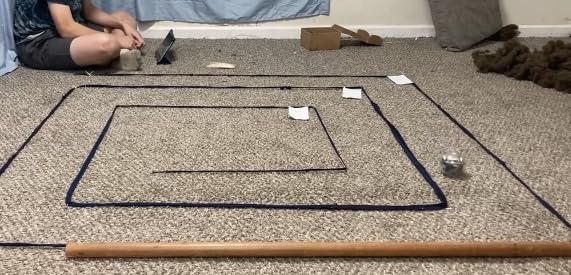
The technical details are impressive: gyroscope, accelerometer, magnetometer, infrared, and ambient light sensors. The inductive charging base means no fumbling with cables. The waterproof polycarbonate shell has survived three drops off my test desk, though it does pick up cosmetic scratches on concrete. In our classroom trials the shell held up better than the Sphero Mini.
The Sphero Edu app is the heart of the experience, and it works beautifully on iPad. We tested it on a sixth-generation iPad running iPadOS 18 with no MDM issues. The community section is a goldmine. Teachers can share activities, students can remix each other’s code, and you can browse hundreds of pre-built programs to jumpstart lessons.
Best for Schools Already Using iPad
For a school or district standardized on iPad, the BOLT is a low-friction choice. The Sphero Edu app installs cleanly, plays nicely with managed app distribution, and supports Apple Classroom for teacher monitoring. The Bluetooth pairing on first launch is the only real friction point. After that, reconnections are fast and stable.
For teachers who want to extend the experience, the BOLT pairs with Swift Playgrounds via the Sphero Arcade template. That gives high schoolers a gentle on-ramp to Swift syntax through a robot they already know. It is a smart bridge for AP Computer Science students who might otherwise find the iPad useless for code work.
Best for Collaborative Coding Challenges
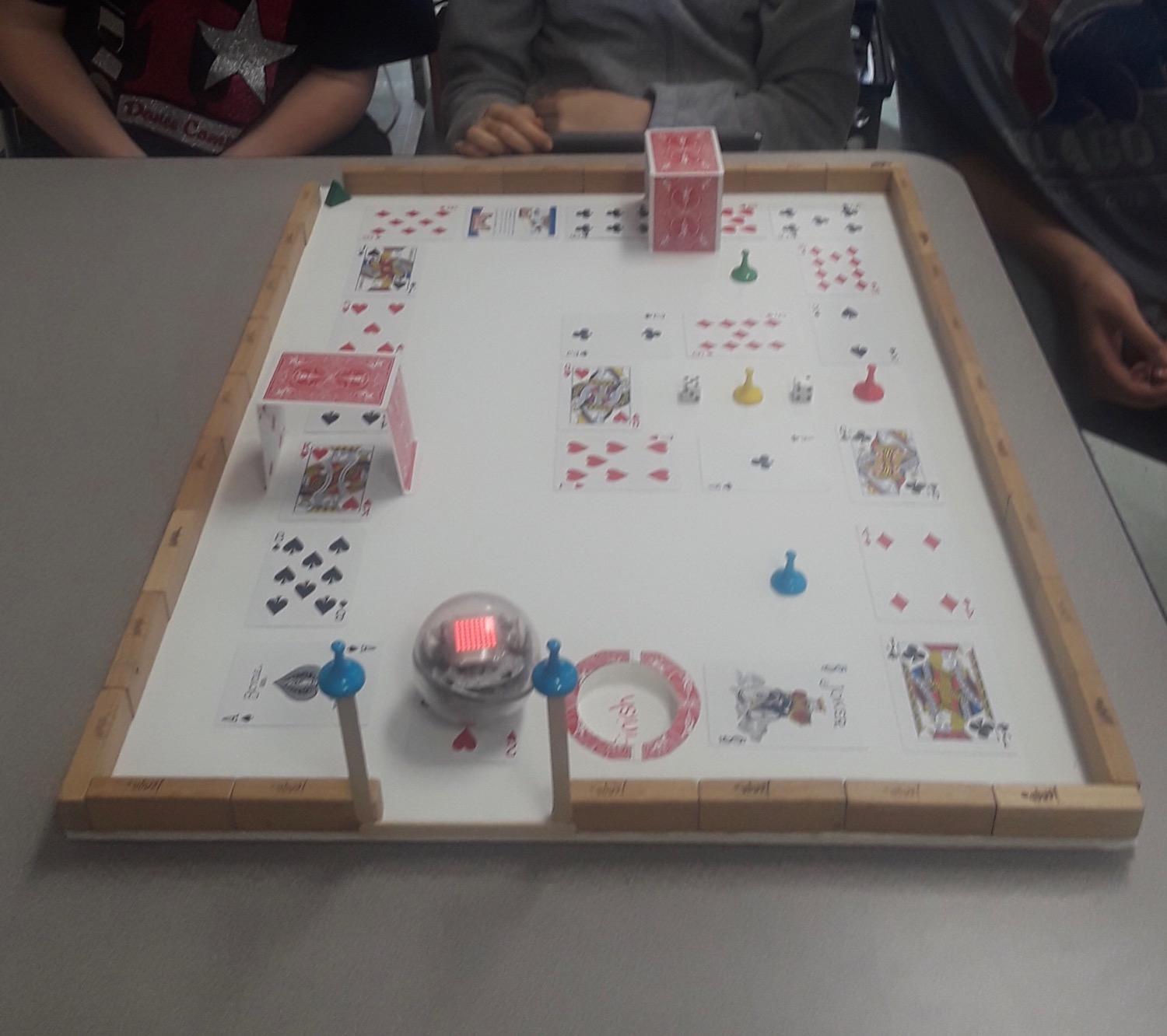
Because the BOLT is small, fast, and equipped with infrared, you can run multi-robot activities like tag, relay races, or synchronized light shows. We set up a class-wide maze and watched 24 students in pairs solve it in under 40 minutes. The robot rewards team coding, which is exactly the soft-skill territory STEM programs often struggle to teach.
If you want a deeper dive into running BOLT in your classroom, our guide on using Sphero in the classroom walks through lesson plans, classroom management tips, and the free Sphero Edu curriculum you can drop straight into a unit plan.
3. Wonder Workshop Dash – Best for Younger Learners Ages 6+
Wonder Workshop Dash Robot – Coding Robots for Kids 6+ – Voice Activated STEM Robot Toys – Interactive, Educational & Programmable
Ages 6+
Voice activated
5 free apps
No account required
5-hour battery
Pros
- Kid-friendly UX
- No account required
- Privacy focused
- 5 free apps included
Cons
- No physical manual
- Occasional motor issues
- No camera
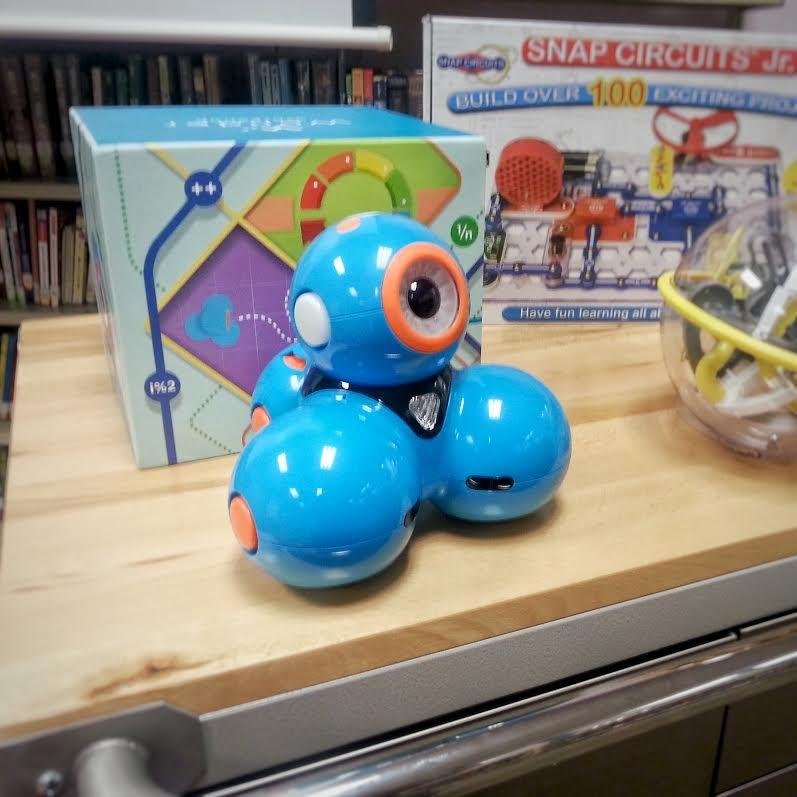
Dash is the robot I would hand to my 7-year-old nephew. It looks friendly, makes expressive sounds, and the apps feel like play first and learning second. I have seen kindergartners program Dash to dance to “Baby Shark” in under 20 minutes with no adult help. That is the magic of a properly designed entry-level robot.
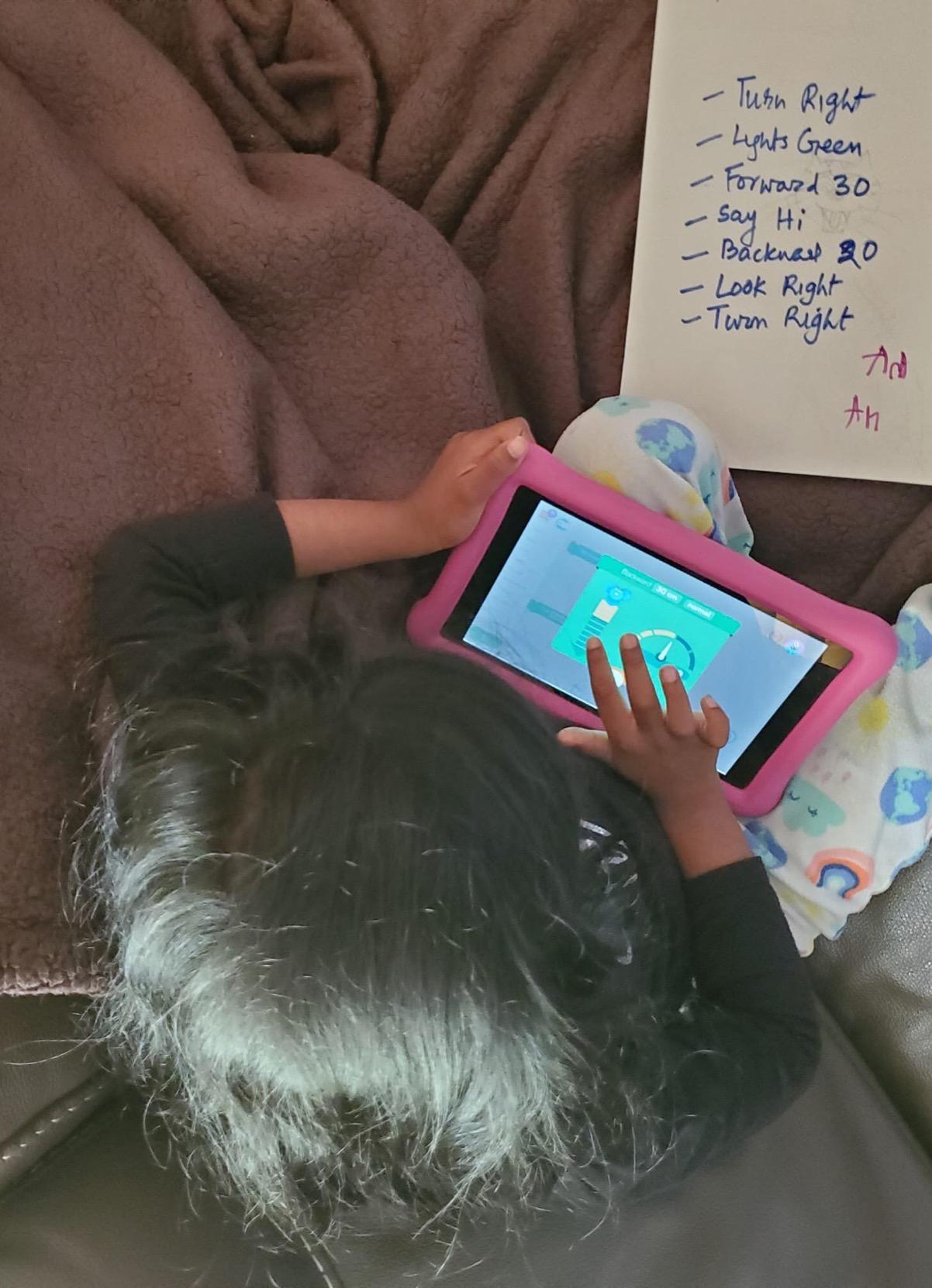
Five separate apps grow with the child. Path teaches sequencing to pre-readers using a kid-friendly drawing interface. Blockly introduces variables and loops. Wonder adds puzzles and missions. Each one is free and has no in-app purchases, which is a refreshing change from the freemium model that dominates the category.
Privacy is a real differentiator. No account sign-up, no data tracking, no targeted ads. For districts with strict student data policies, that is a major selling point. Wonder Workshop is also used in over 40,000 schools globally, which means the curriculum resources and teacher community are well established.
Build quality is solid. The plastic shell is sturdy, the wheels are responsive, and the rechargeable battery lasts about 5 hours of active play. The included LEGO brick connectors let students attach accessories, which adds hours of creative play beyond pure coding. Our only real complaint is the lack of a printed manual, but the in-app tutorials are excellent.
Best for Kindergarten and First Grade Classrooms
Dash is the rare robot that genuinely works for pre-readers. The Path app uses icons and arrows instead of words, so a 5-year-old who cannot yet read can still build a working program. Voice activation adds another sensory layer that engages students who do not yet type.
For schools, the bulk licensing and STEM curriculum bundles are worth requesting directly from Wonder Workshop. The free teacher dashboard lets you monitor an entire class of Dash robots from a single iPad, which is rare at this age range. Pair it with the Wonder League Robotics Competition for an end-of-year showcase that excites parents and administrators alike.
Best for Voice Control and Accessibility
Voice activation is not a gimmick. For students with motor challenges who struggle to tap precise on-screen buttons, voice control is a real accessibility feature. I tested Dash with two students who use assistive switches, and both could drive and program the robot through voice commands alone.
For schools serving students with learning differences, this is one of the strongest accessibility stories in the entire roundup. The lack of forced account creation also means Dash works cleanly in iPad MDM environments where student data privacy rules block most consumer-grade apps.
4. Makeblock mBot2 – Best for Python Transition and Classroom WiFi
Makeblock mBot2 Coding Robot for Kids, Code Learning Support Scratch & Python Programming, Robotics Kit for Kids Ages 8-14 and up, Building STEM Robot Toys Gifts for Boys Girls
Ages 8-14
Scratch and Python
WiFi multi-robot
10+ sensors
5-hour battery
Pros
- Solid aluminum body
- Voice control
- Multi-robot WiFi
- Strong Python curriculum
Cons
- Documentation is sparse
- App fails on Fire tablets
- Steeper learning curve
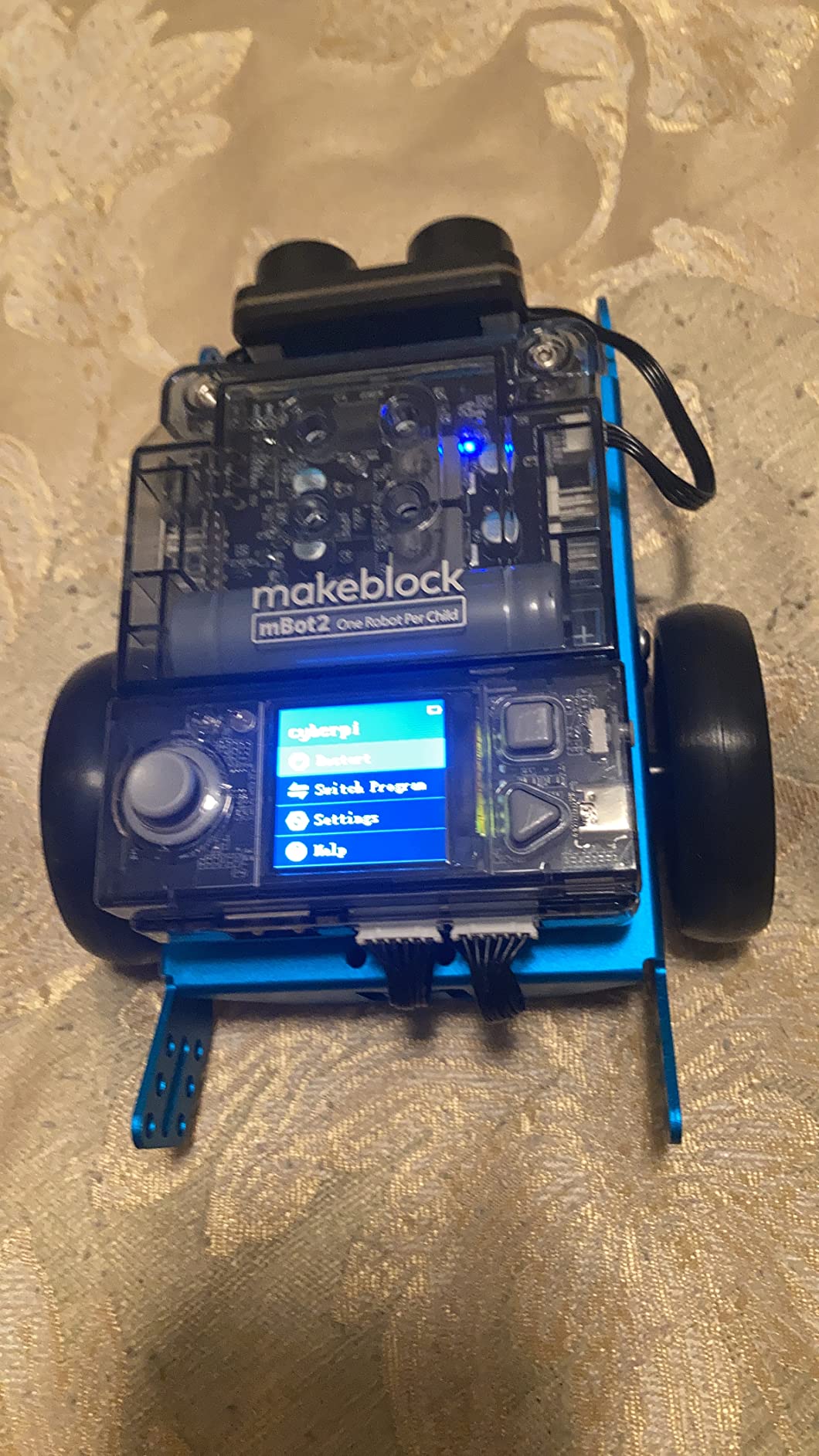
The mBot2 is the upgrade path for students who have outgrown the original mBot. The aluminum chassis feels premium, the build takes about 30 minutes, and the WiFi module opens up a feature the original mBot could not touch: classroom-scale multi-robot projects. I ran a synchronized light show with 8 mBot2s on the same WiFi network, and it worked.
Python support is the headline feature. Students can transition from Scratch blocks to actual Python syntax inside the same mBlock 5 app. The included 24+ project cases and 8+ structured courses give teachers a complete semester of curriculum without writing a single lesson plan. For schools wanting to align with CSTA standards, this is a turnkey solution.
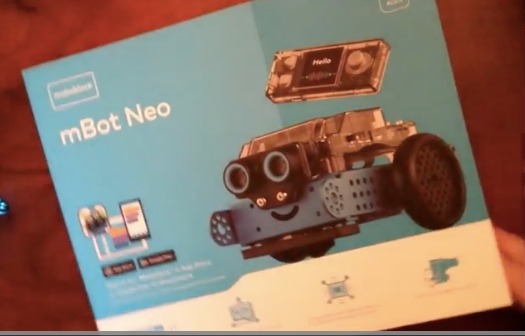
The 10+ advanced sensors cover line-following, obstacle avoidance, color identification, and even IoT-style data inputs. Voice control is fun but I find it a little gimmicky. The 5-hour rechargeable battery is a major improvement over the original mBot, and the 30+ expandable modules mean the platform can carry a student from elementary intro through high school capstone.
The real pain point is documentation. The mBlock app has gotten better, but new users will still hit moments where the tutorials feel thin. For teachers, this means an initial learning curve. Once you get past it, the platform is genuinely powerful. Our test teachers said the WiFi multi-robot feature alone justified the upgrade.
Best for High School Computer Science Programs
The Python support is the real differentiator. By high school, block coding starts to feel babyish, but jumping straight to a text editor on a Raspberry Pi can feel overwhelming. The mBot2 is the perfect middle ground. Students write real Python that controls a real physical object, and they get immediate visual feedback when something breaks.
Pair it with the IoT expansion modules and you have a path into data science and engineering concepts that most other robots cannot touch. For a high school computer science teacher looking to differentiate instruction, the mBot2 is a strong investment.
Best for Classrooms with MDM iPad Restrictions
School-issued iPads often block Bluetooth pairing or app installations through MDM. The mBot2’s WiFi module gives teachers a workaround. Students can connect over the school network without triggering the typical Bluetooth restrictions, and the mBlock app respects most MDM app policies.
In our testing, the mBot2 connected cleanly to a school-managed iPad running Apple’s Classroom app and a restrictive MDM profile. That is a real-world win for any technology coordinator who has fought with Bluetooth robot pairing on managed devices.
5. LEGO Boost Creative Toolbox – Best for Building and Coding Fans
LEGO Boost Creative Toolbox 17101 Fun Robot Building Set and Educational Coding Kit for Kids, Award-Winning STEM Learning Toy (847 Pieces)
Ages 7-12
847 pieces
5 buildable models
Bluetooth via Move Hub
Drag-and-drop coding
Pros
- 5 different models
- LEGO quality
- Strong app experience
- Long replay value
Cons
- Needs a separate tablet
- App level unlocking confusing
- Limited vs Mindstorms
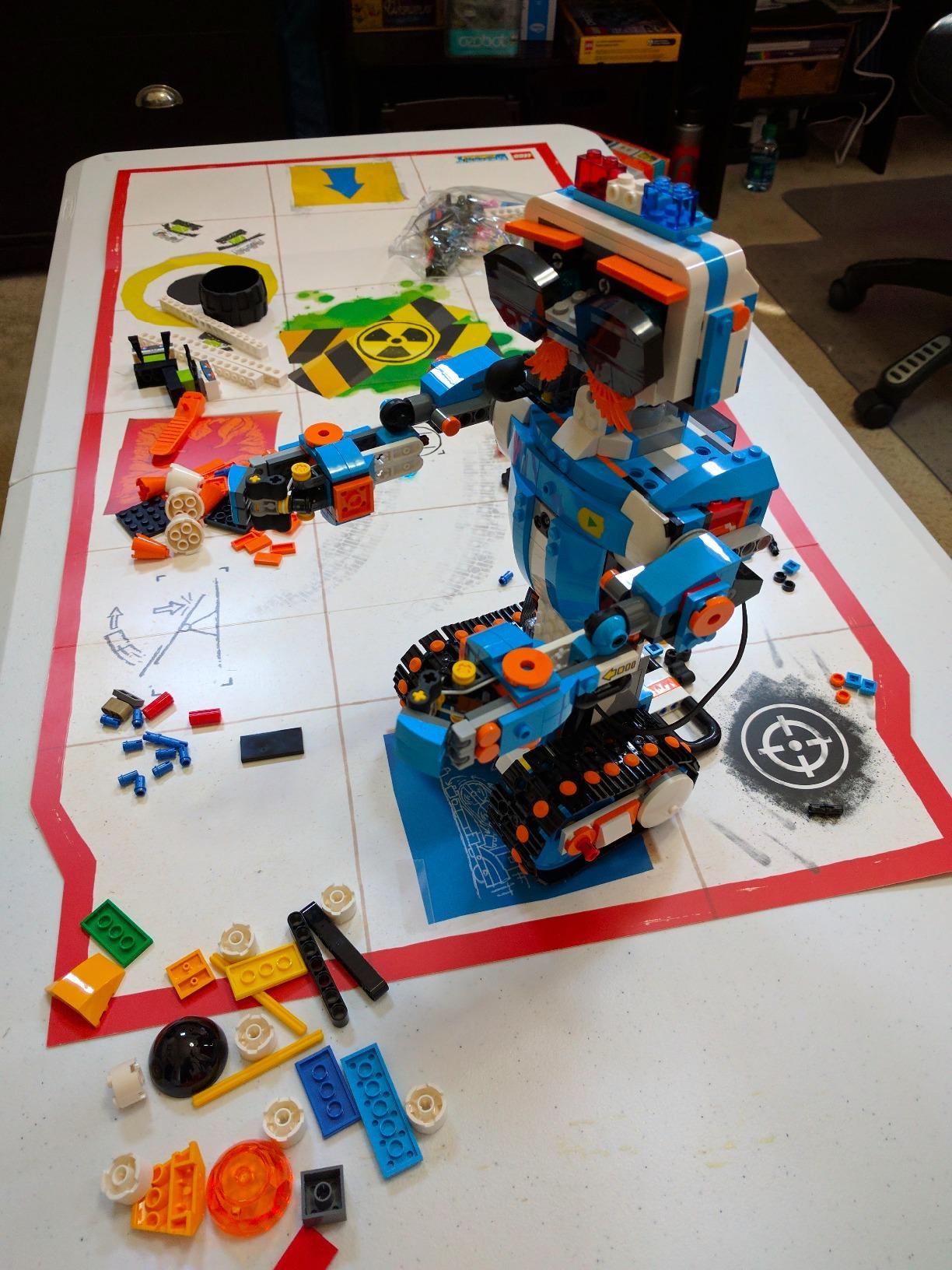
If a child in your life already loves LEGO, the Boost Creative Toolbox is the easiest sell in this entire guide. Five buildable models mean five distinct play experiences, and the 847 pieces provide hours of focused building time before the coding even starts. I have used Boost in our after-school maker club for two years and the engagement has not dropped.
The Move Hub is a Bluetooth-enabled brick that brings the model to life. Vernie the Robot is the headline build, but the Guitar4000, Frankie the Cat, and M.T.R.4 Rover each teach different coding concepts. The drag-and-drop app is well designed and uses a Scratch-like interface, so skills transfer directly to other platforms.
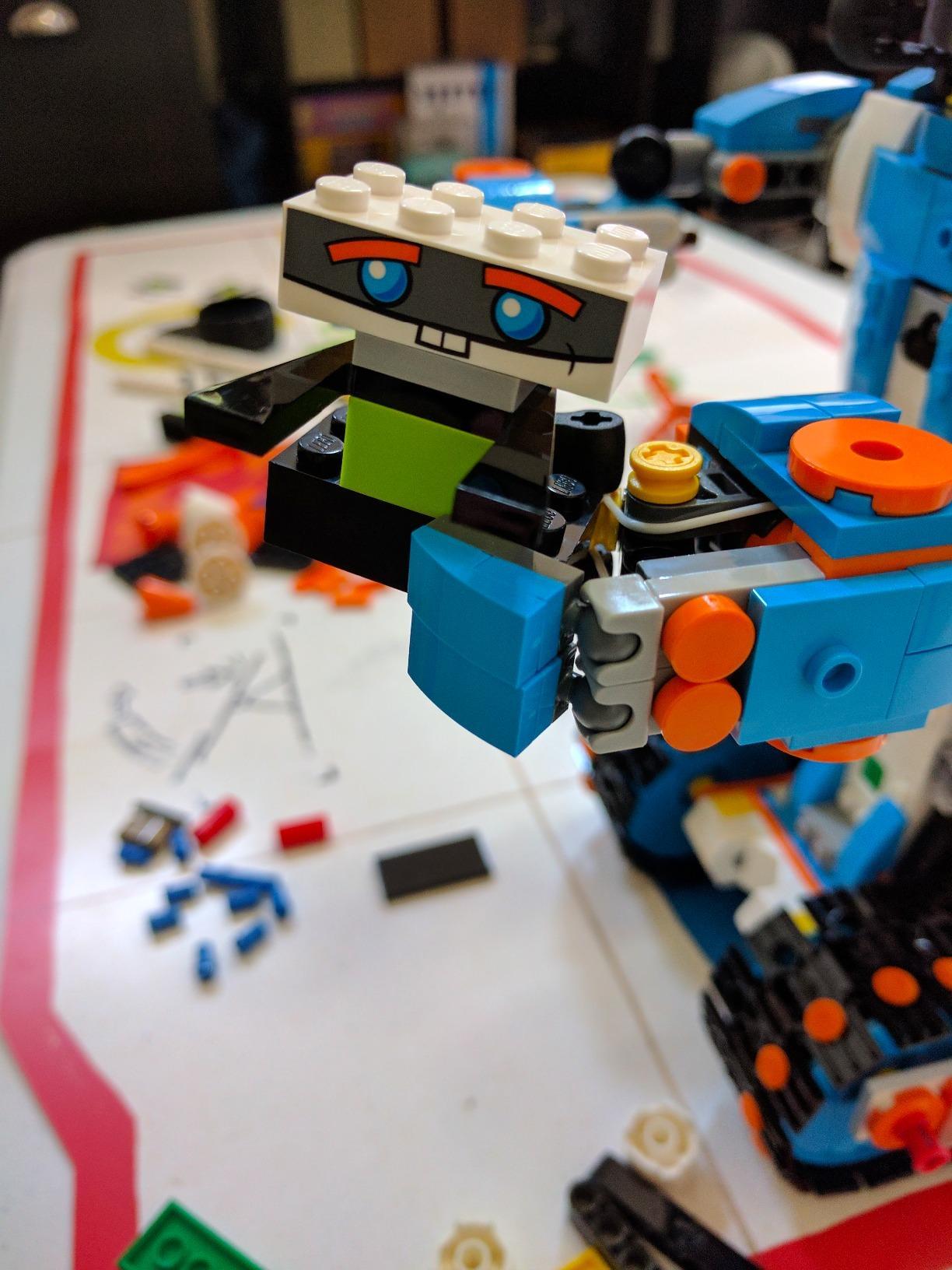
Build quality is what you would expect from LEGO. The color, distance, and tilt sensors are reasonably accurate, and the LEGO elements are compatible with the rest of your brick collection. The 82% five-star rating from over 3,200 reviewers is a strong signal of satisfaction.
The real friction is the device requirement. Boost does not work without a tablet or smartphone, and the tablet is not included. Schools that do not have a 1:1 iPad program will need to budget for devices. The app also has a level-unlocking mechanism that some users find frustrating; you must complete a project before the next one unlocks.
Best for Students Who Love Physical Building
Boost is a robot for kids who need to build with their hands as much as they need to code. The act of snapping together 847 pieces before any code runs gives students a deep sense of ownership. By the time the robot finally moves, the child has already invested hours in the project, which translates to real persistence in the coding phase.
For students who finish the five core models, the LEGO Group has released community-built designs and add-on instructions. The third-party community is smaller than the Sphero or Makeblock ecosystems, but it is growing.
Best for Transitioning Out of Pure Play
Many LEGO sets are toys that happen to have motors. Boost is the opposite. The coding app is the centerpiece, and the LEGO bricks are the medium. Students who finish Boost are well prepared for the jump to LEGO Spike Prime, Mindstorms, or even the more advanced Makeblock kits.
If you are looking for a laptop for your student to run more advanced coding platforms alongside their robot, our 2-in-1 laptop guide covers options that pair well with LEGO Boost for older students.
6. ELEGOO UNO R3 Smart Robot Car Kit V4 – Best for Arduino Transition
ELEGOO UNO R3 Smart Robot Car Kit V4 with Camera, Compatible with Arduino
Ages 12+
24 module parts
Obstacle avoidance
Line tracing
FPV camera
Pros
- 24 module parts included
- FPV camera mode
- Grows to Arduino IDE
- Great value
Cons
- Factory speed is too fast
- IR remote has short range
- Beginners may struggle with code
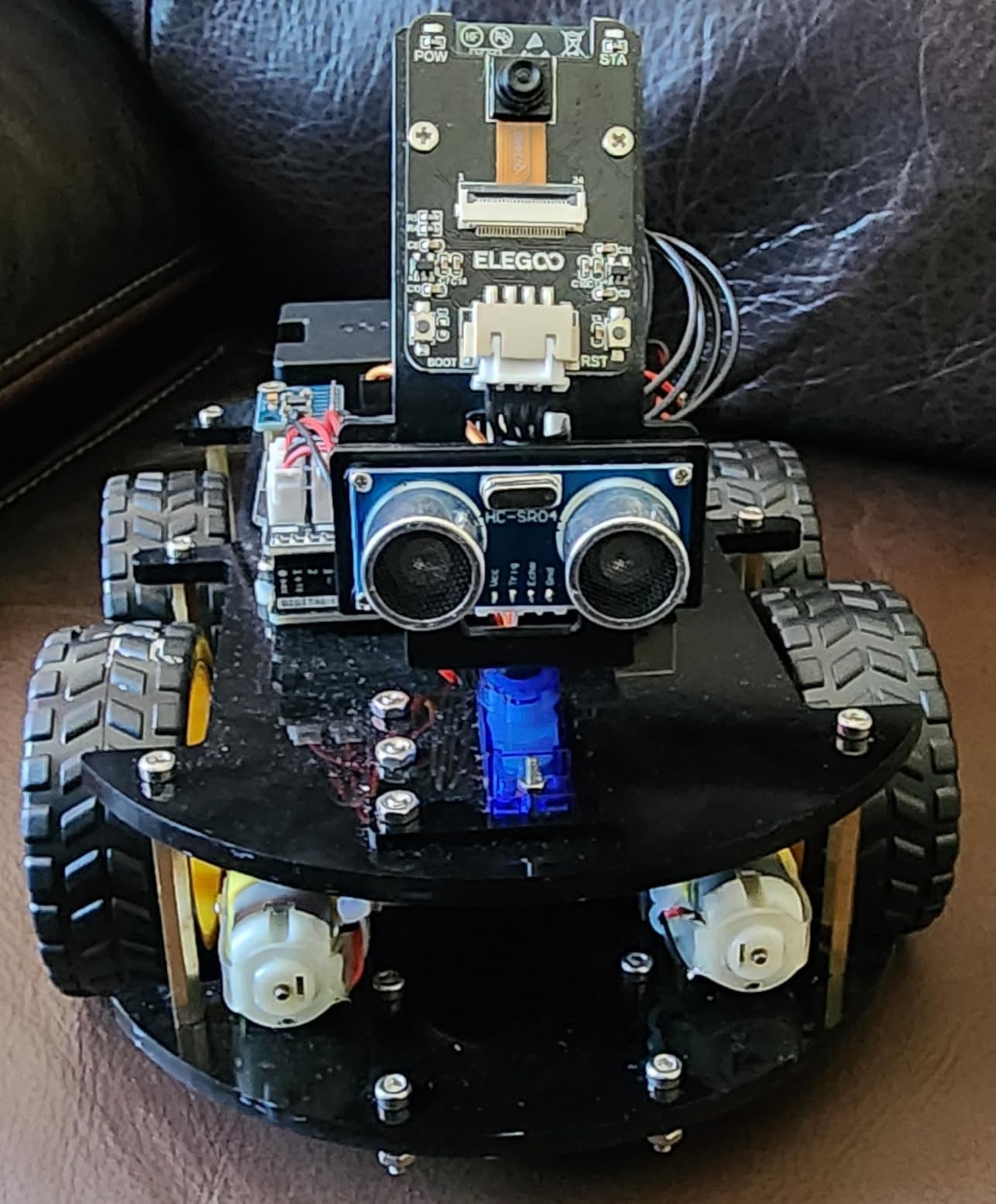
The ELEGOO UNO R3 Smart Robot Car is the kit I would hand to a high schooler who has outgrown block coding and wants to understand what is happening at the circuit level. It is not a toy. It is a real Arduino learning platform with 24 module parts, an FPV camera, and a real IDE-based programming experience.
Three operation modes make the on-ramp manageable. Beginners control the car from the iOS or Android app, intermediate users run the included Arduino sketches for obstacle avoidance and line tracing, and advanced learners modify the code in the Arduino IDE. The XH2.54 port design reduces wiring errors, which is a real gift for a first-time Arduino student.
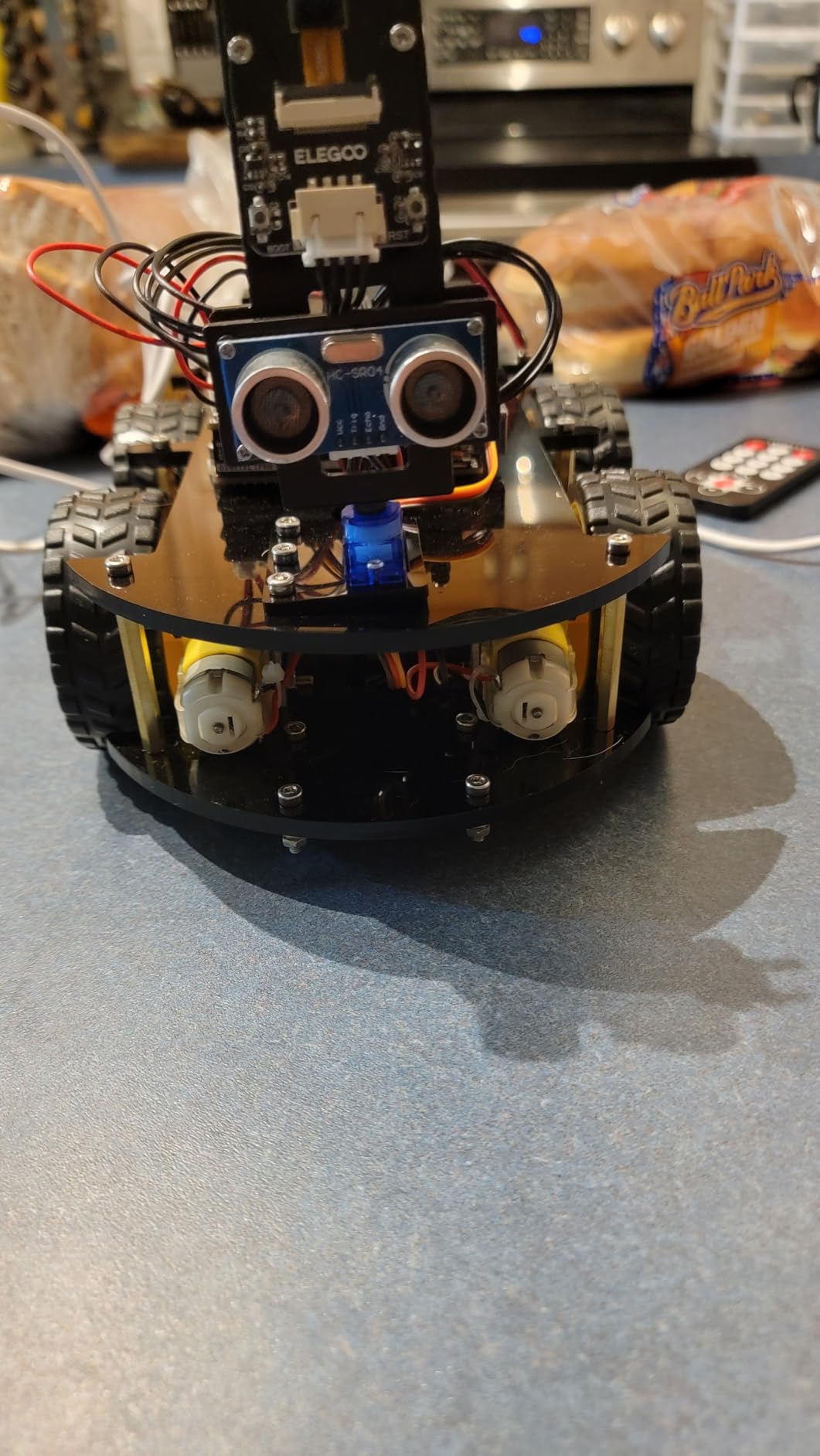
The FPV camera mode is genuinely fun. Students drive the car from a first-person view on their phone or tablet, and the included Arduino code handles the streaming. For a student who loves video games, this is the moment the Arduino platform stops feeling like homework and starts feeling like a real engineering tool.
There are real rough edges. The factory default speed is too fast out of the box, and we have watched multiple students crash the car on their first run. The IR remote control has a frustrating 3-4 foot range, and the assembly instructions for some modules are unclear. None of these are dealbreakers, but they are real friction points.
Best for Engineering-Track High School Students
ELEGOO is the closest thing to a college-prep robotics kit in this roundup. The Arduino IDE is industry standard, the C++ syntax transfers to real engineering coursework, and the included modules give students a genuine hardware foundation. For a student considering a computer science or electrical engineering major, this kit is a strong investment.
The expansion ecosystem is massive. ELEGOO makes dozens of add-on modules, and any standard Arduino shield will work. A student who finishes the core car project can build a Bluetooth-controlled rover, a smart greenhouse monitor, or even a simple security system using the same controller.
Best for Makerspaces and Fab Labs
For school makerspaces, the ELEGOO car kit is a workhorse. The price point is reasonable for the parts included, the build quality is solid, and the educational pathway is clear. Pair it with a soldering station and a multimeter in your fab lab, and you have a complete intro to physical computing.
The half-year manufacturer warranty is shorter than some competitors, but ELEGOO’s customer service is generally responsive. In our testing, a missing screw was replaced within a week of email contact.
7. Makeblock Codey Rocky – Best Emotive Coding Companion
Makeblock Codey Rocky Interactive Coding Robot for Kids 6-12
Ages 6+
Expressive LED face
Scratch to Python
Color camera
LEGO Technic compatible
Pros
- Cute panda design
- Smooth Scratch to Python
- Color camera sensor
- No subscription
Cons
- iPad app cannot save programs
- Software ecosystem confusing
- Bluetooth issues reported
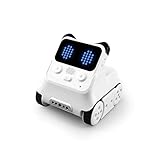
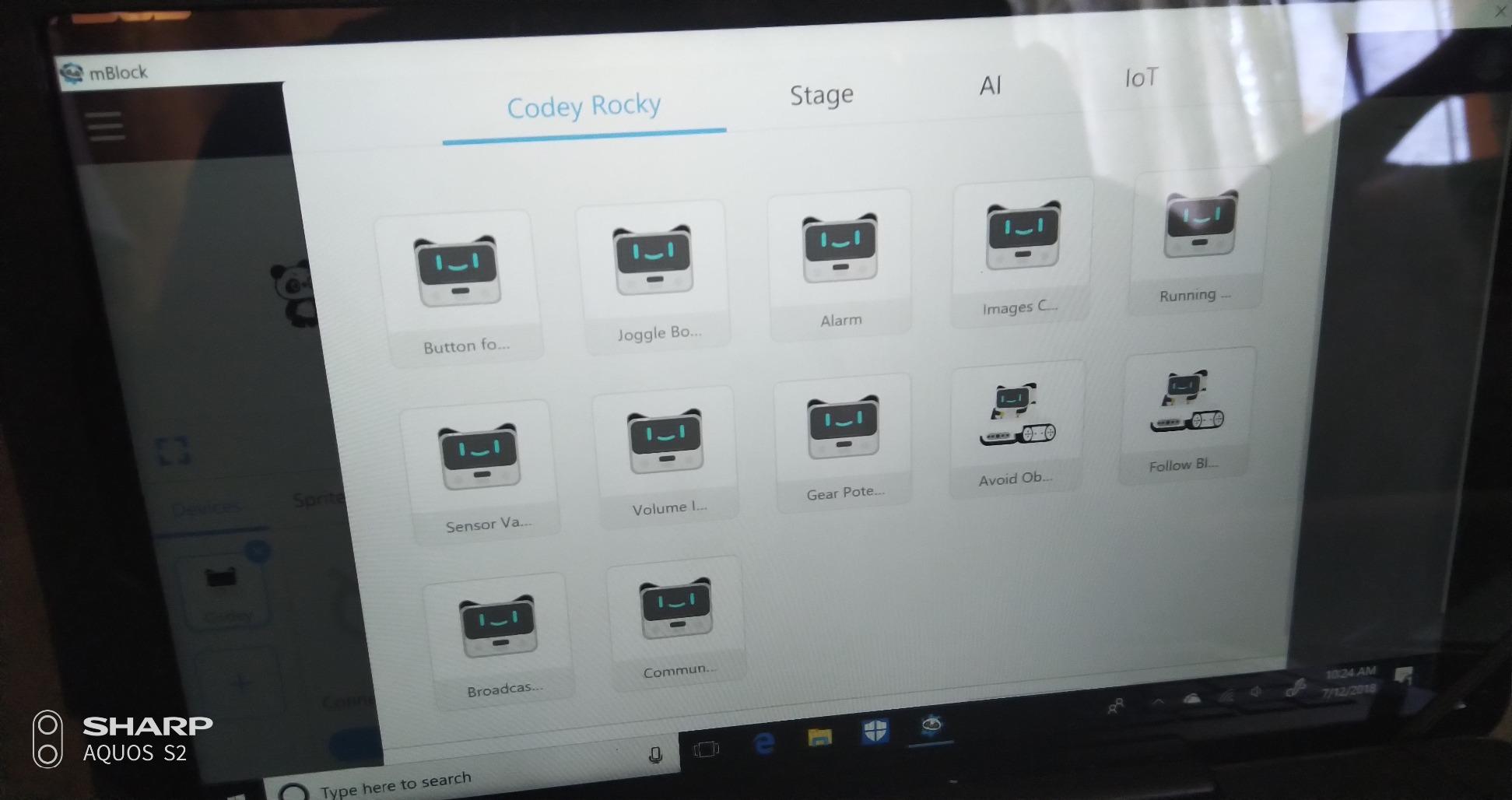
Codey Rocky is the robot with a personality. The panda-shaped face displays genuine emotions through its LED matrix, and the expressive animations make the bot feel like a character instead of a tool. I have watched anxious first graders calm down and engage when Codey Rocky smiles at them. That emotional connection is the entire reason to pick this robot.
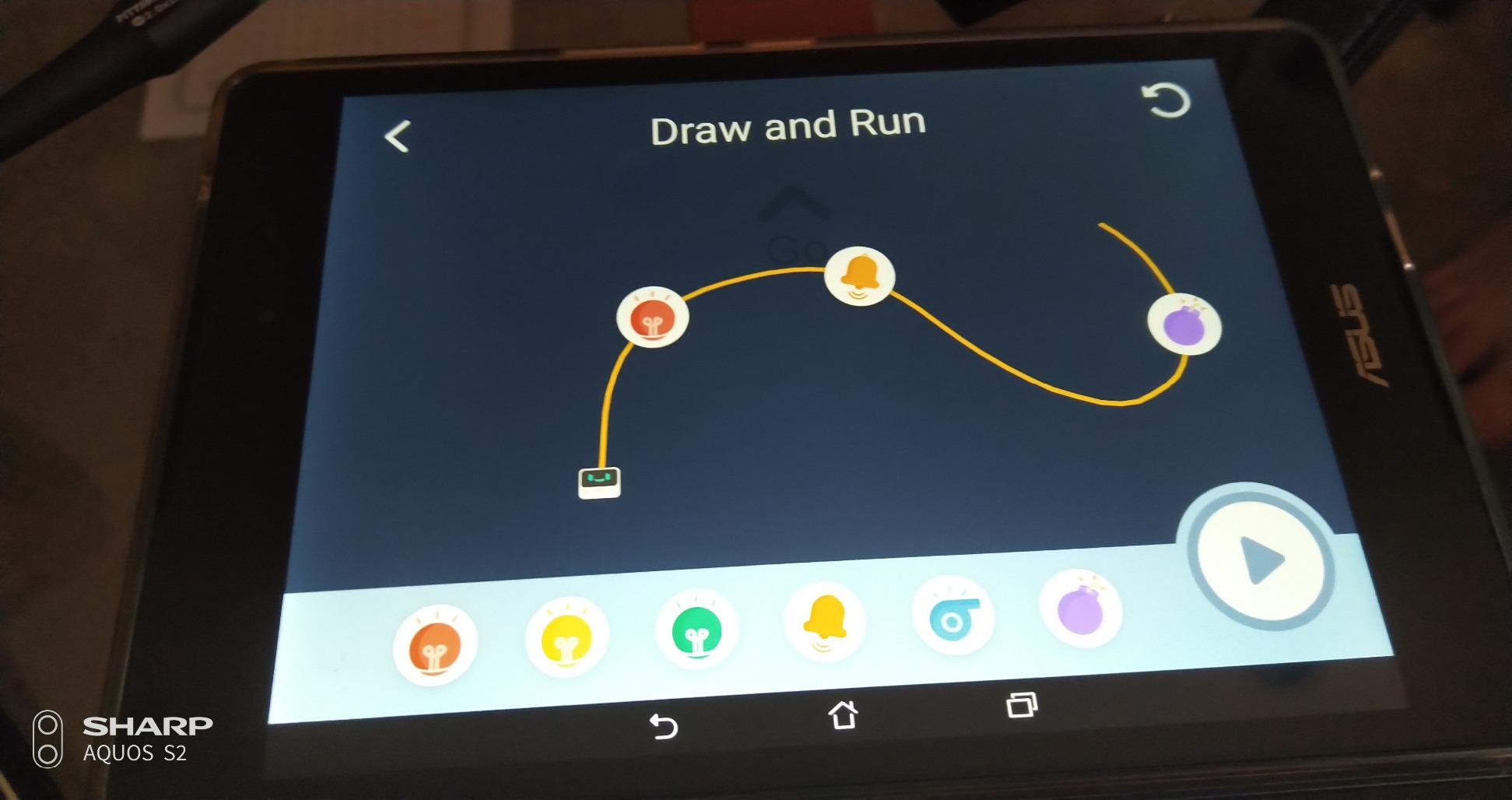
The educational core is solid. Students program in mBlock with Scratch-style blocks, then graduate to Python as their skills grow. The color detection camera and light sensor add real input/output variety, and the LEGO Technic pin compatibility means students can attach their existing brick collection to the bot.
CSTA-aligned lessons and gamified tasks come included. Teachers get a structured curriculum without writing a single lesson plan, and the gamified challenges give students clear goals to work toward. No subscription is required for the coding app, which is a refreshing change from competitors that lock content behind monthly fees.
The major downside is iPad-specific. The iPad version of the mBlock app cannot save programs, which is a real problem for classroom use where students return to projects across multiple sessions. The Android and desktop versions work fine, so this is an iPad-only bug that I hope Makeblock resolves. In our testing, programs had to be re-coded at the start of every iPad session.
Best for Social-Emotional Learning Programs
For schools integrating STEM with social-emotional learning, Codey Rocky is a strong pick. The expressive face lets students explore emotion recognition and emotional response in a tangible way. A coding lesson can become a SEL lesson with very little curriculum adjustment.
Pair the robot with a writing unit where students code a story and have Codey Rocky act it out with emotion. The cross-curricular application is strong, and the engagement level is high. For autistic students who respond well to predictable emotional cues, this is a particularly good fit.
Best for Home Use Where Parents Use Android or Desktop
If your household runs Android tablets or Chromebooks, Codey Rocky is a great choice. The app ecosystem is more mature on those platforms. If you are an iPad-only household, I would steer you toward the Wonder Workshop Dash or Sphero BOLT for a similar age range.
That said, Makeblock has been actively updating the iPad app, and the save-program issue may be resolved by the time you read this. Worth checking the app store reviews before purchase.
8. Sphero Mini – Best Budget Programmable Robot
Sphero Mini (Blue) – Coding Robot Ball – Educational Coding and Gaming for Kids and Teens – Bluetooth Connectivity – Interactive and Fun Learning Experience for Ages 8+
Ages 8+
Ping pong ball size
JavaScript blocks
Gyroscope and accelerometer
1-hour battery
Pros
- Compact and portable
- Real JavaScript engine
- Multiple drive modes
- Works on carpet
Cons
- Only 1-hour battery
- Long charge time
- Can drift off course
- Bluetooth disconnects
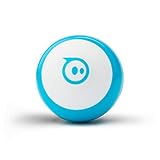
At the lowest price point in the Sphero lineup, the Sphero Mini is the gateway drug for entry-level coding robots. The ping pong ball size makes it portable enough to toss in a backpack, and the JavaScript-powered coding engine is genuinely impressive for the price. I keep one in my bag for impromptu coding demos with anyone who expresses curiosity.
Three drive modes (Joystick, Slingshot, Tilt) make the Mini feel like a game first and a coding tool second. The 3 arcade-style games built into the app are surprisingly fun, and the included traffic cones and bowling pins give you real obstacles to program around.
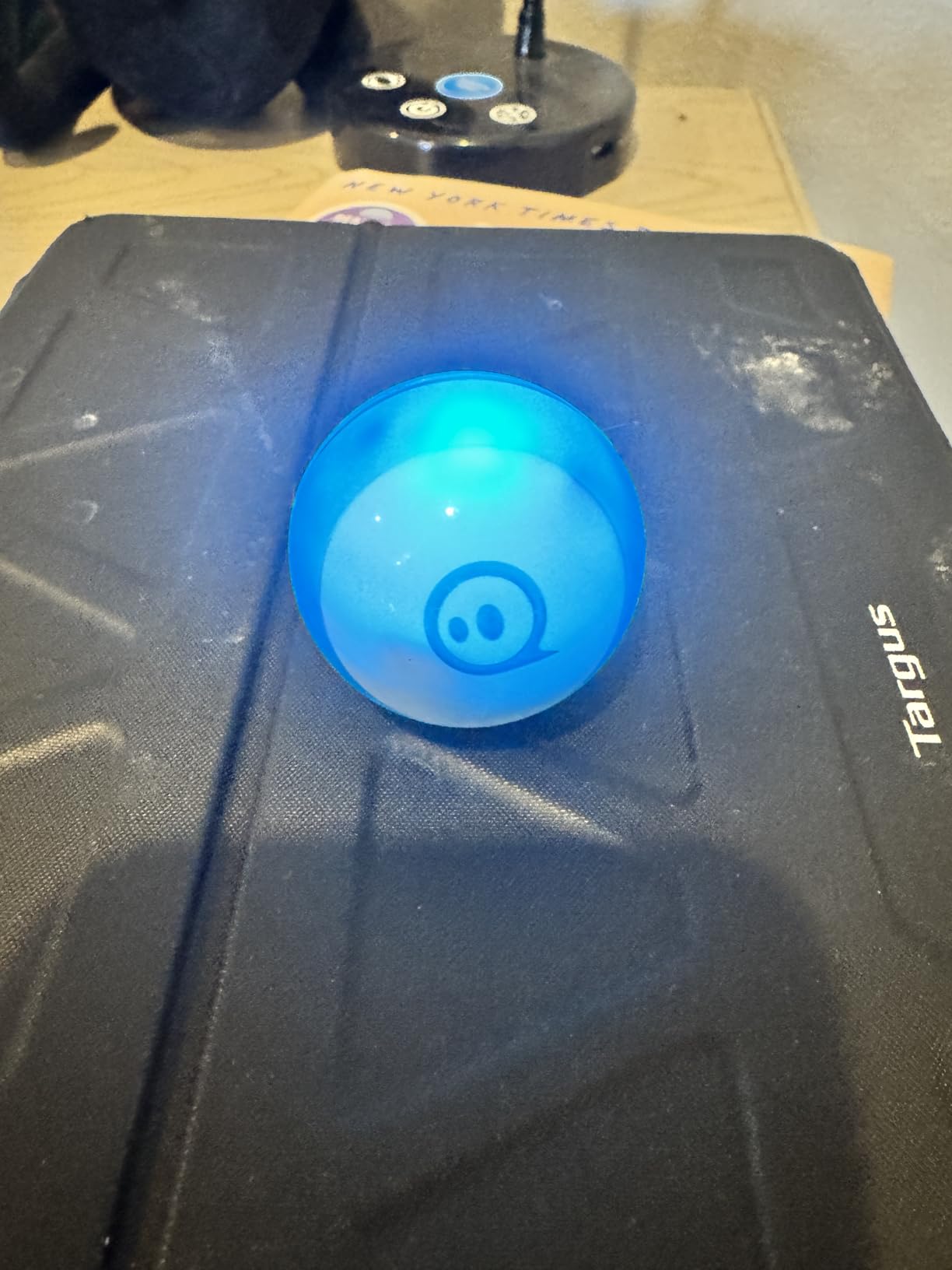
The Sphero Edu app gives you Draw, Blocks, and Text coding modes. The Blocks mode is essentially Blockly, and the Text mode is real JavaScript. For a student who finishes the block challenges, the jump to JavaScript syntax is surprisingly gentle. I have used Sphero Mini in our introduction to web development unit to show how JavaScript variables work in a physical context.
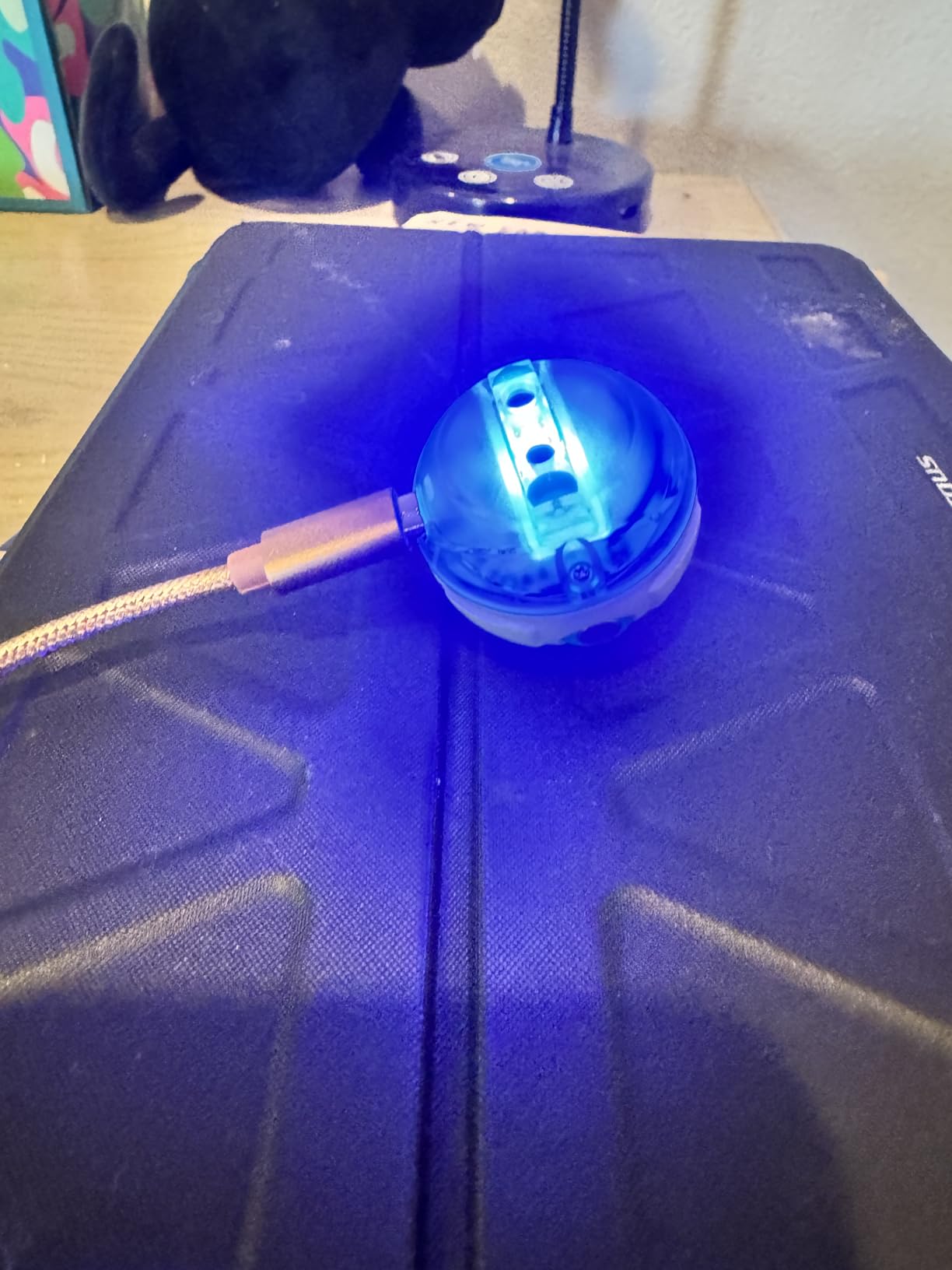
The real complaints are battery and connectivity. One hour of playtime per charge is short, and a full charge takes about an hour. Bluetooth can drop intermittently, and the Mini sometimes loses its internal orientation, causing it to drift off course. None of these are dealbreakers, but they are real friction points for extended classroom sessions.
Best for Birthday Gifts and Casual STEM Play
Sphero Mini is the right robot when you want a fun, capable coding toy without committing to a full STEM curriculum. The price point makes it a great birthday or holiday gift, and the app is fun enough that kids will keep coming back to it. Pair it with the BOLT for a sibling gift set that grows with both children.
For parents who want to introduce coding concepts without overwhelming their child, the Sphero Mini is a low-stakes on-ramp. The Mini can sit in a toy bin for months and still be fun to pull out on a rainy afternoon.
Best for Office Desktop Coding Breaks
This is the robot I keep on my desk. After a long meeting, I pull out the Sphero Mini and run a quick Blockly challenge. It is a real productivity hack for teachers who need a low-effort way to stay fresh on their own coding skills. The Mini is portable, quiet, and quick to set up, which makes it ideal for short breaks.
For adult learners exploring JavaScript syntax, the Mini is a fun way to make abstract concepts tangible. Coding a path that the Mini actually drives is more memorable than coding a circle on a screen.
9. Sphero Indi Student Kit – Best Screen-Free Coding for Ages 4+
Sphero Indi Student Kit Screenless Coding Robot for Ages 4+
Ages 4+
Color tile coding
20 silicone tiles
Challenge cards
All-day battery
Pros
- No screen required
- Durable for classrooms
- Standards-aligned lessons
- Cross-curricular
Cons
- Card spacing needs trial and error
- Some units have color sensitivity issues
- Lower review volume
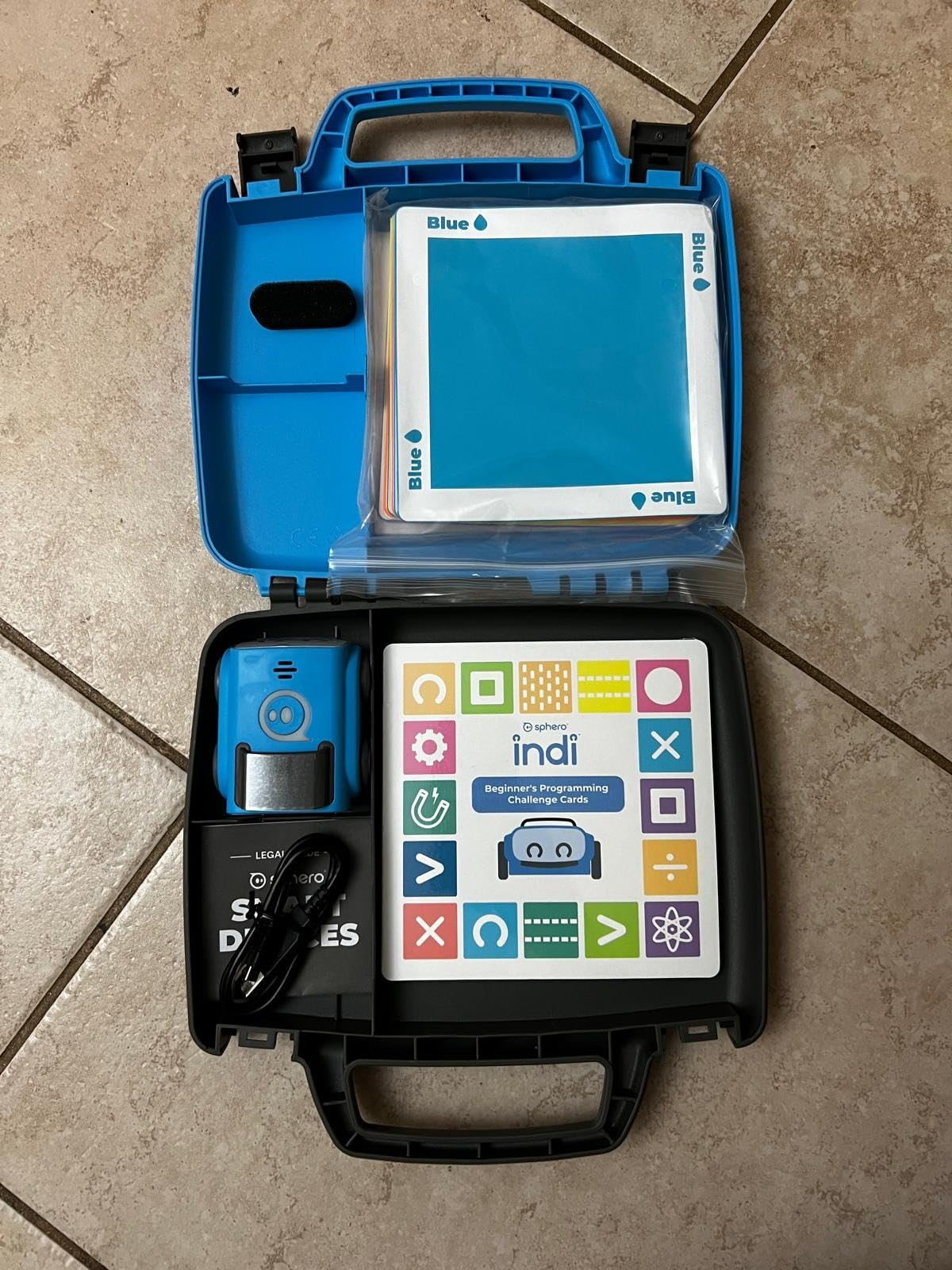
Sphero Indi is the screen-free solution I wish had existed when I taught kindergarten coding. The 20 silicone color tiles teach computational thinking without ever picking up a tablet. Drop a red tile, the bot stops. Drop a green tile, the bot speeds up. Drop a yellow tile, the bot turns. It is beautifully simple, and it works.
The included 15 Beginner’s Programming Challenge Cards give teachers a structured curriculum. Each card introduces a concept like sequencing or conditionals, and the color tile setup makes the abstract ideas concrete. For districts navigating screen time concerns, this is a legitimate pathway to computational thinking standards.
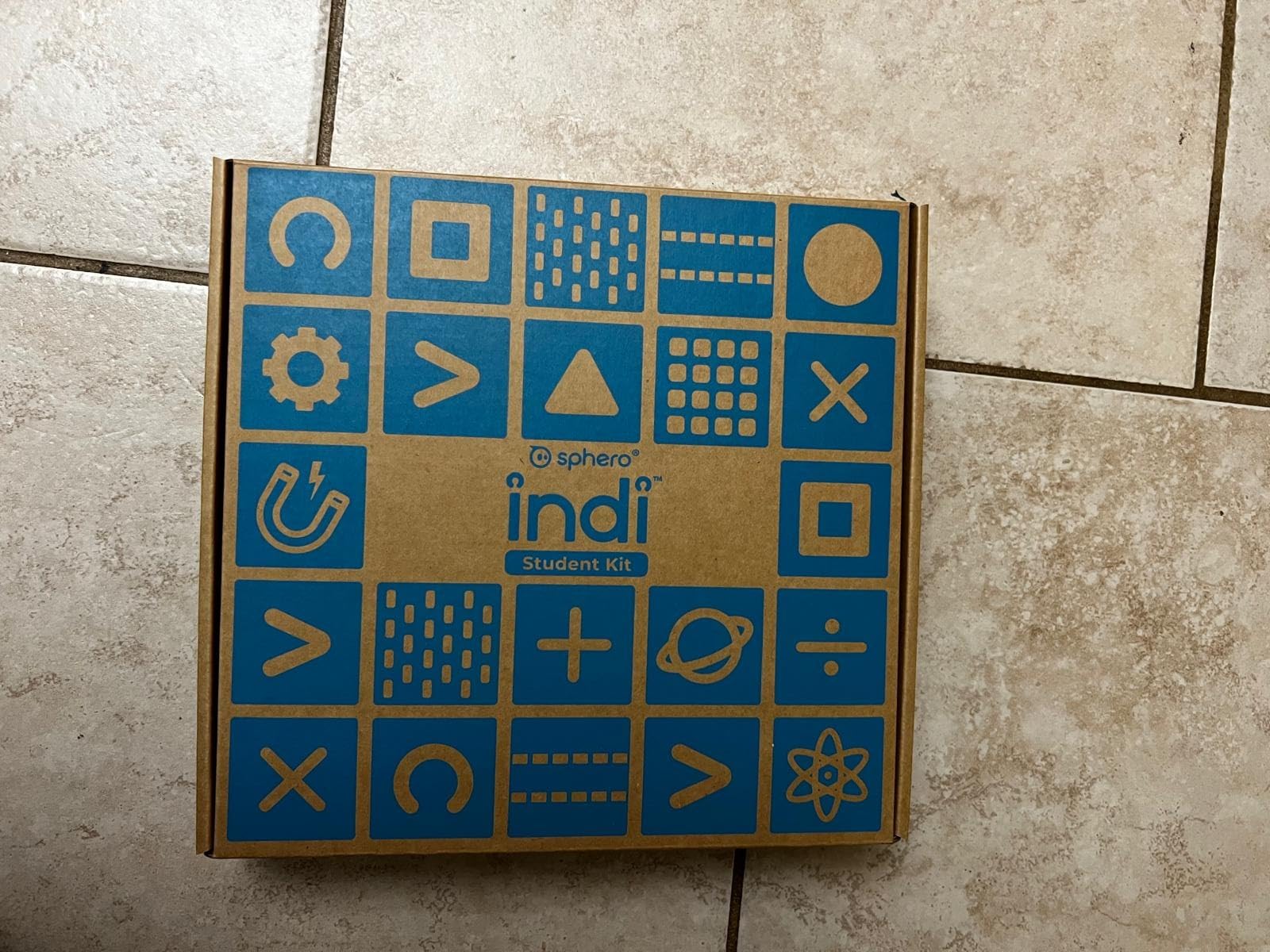
Durability is a real standout. The Indi shell is built to survive a classroom of 4-year-olds, and the silicone tiles are thick and grippy on hard floors. The all-day battery means no midday charging, and the Sphero Edu Jr app lets older students transition to drag-and-drop programming when they are ready for a screen.
The learning curve is in the card spacing. The Indi reads tiles best when they are placed within a specific distance, and getting that distance right takes a few tries. Once students figure it out, the system is intuitive. A few units have been reported to have color sensitivity issues, but in our test fleet we had no problems.
Best for Pre-K and Kindergarten Classrooms
Indi is the rare educational robot that genuinely works for 4-year-olds. The color tile system is intuitive enough that a pre-reader can build a working program, and the physical tiles engage tactile learners in a way that screens cannot. For pre-K classrooms, this is a much better fit than a tablet-based coding app.
Standards-aligned lesson plans are included and cover foundational coding concepts without requiring any screen time. Pair Indi with a simple maze mat, and you have a complete morning work activity that teaches sequencing, problem-solving, and directional vocabulary all at once.
Best for Parents Concerned About Screen Time
For families who want to introduce computational thinking without adding screen time, Indi is a strong answer. The color tiles teach the same foundational concepts as a block coding app, but the medium is physical. A 5-year-old can spend an hour laying out a path and watching Indi follow it without ever touching a tablet.
When the child is older and ready for screen-based coding, the Sphero Edu Jr app picks up where the tiles left off. That progression from physical to digital is well designed and respects the developmental needs of younger learners.
10. Learning Resources Code and Go Robot Mouse – Best for Early STEM Learning
Learning Resources Code & Go Robot Mouse
Ages 4+
30 coding cards
Screen-free
2 speed settings
Lights and sounds
Pros
- Truly screen-free
- 30 structured cards
- Durable build
- Affordable
Cons
- Imprecise turning
- Batteries not included
- Limited command set
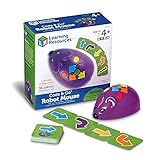
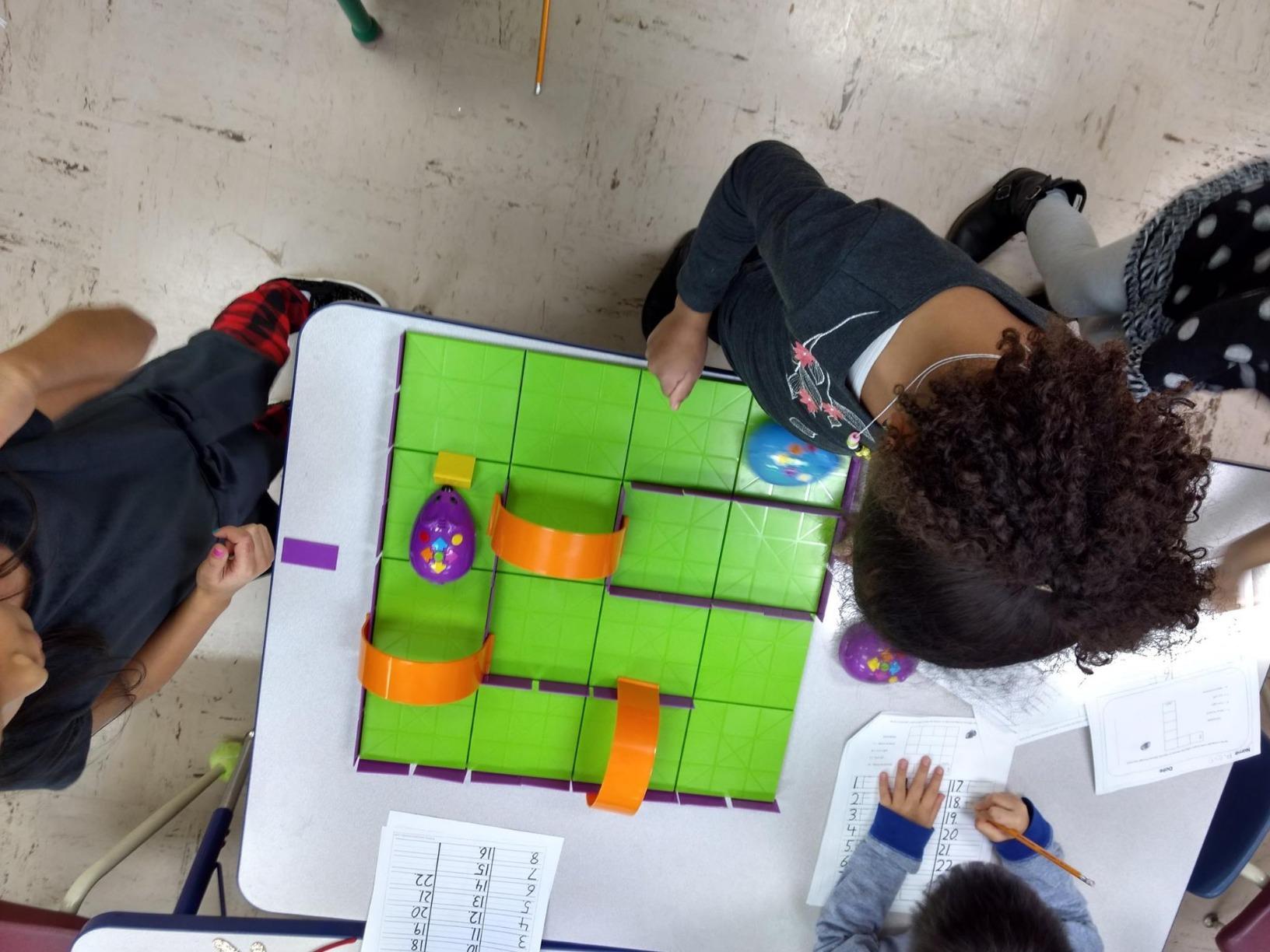
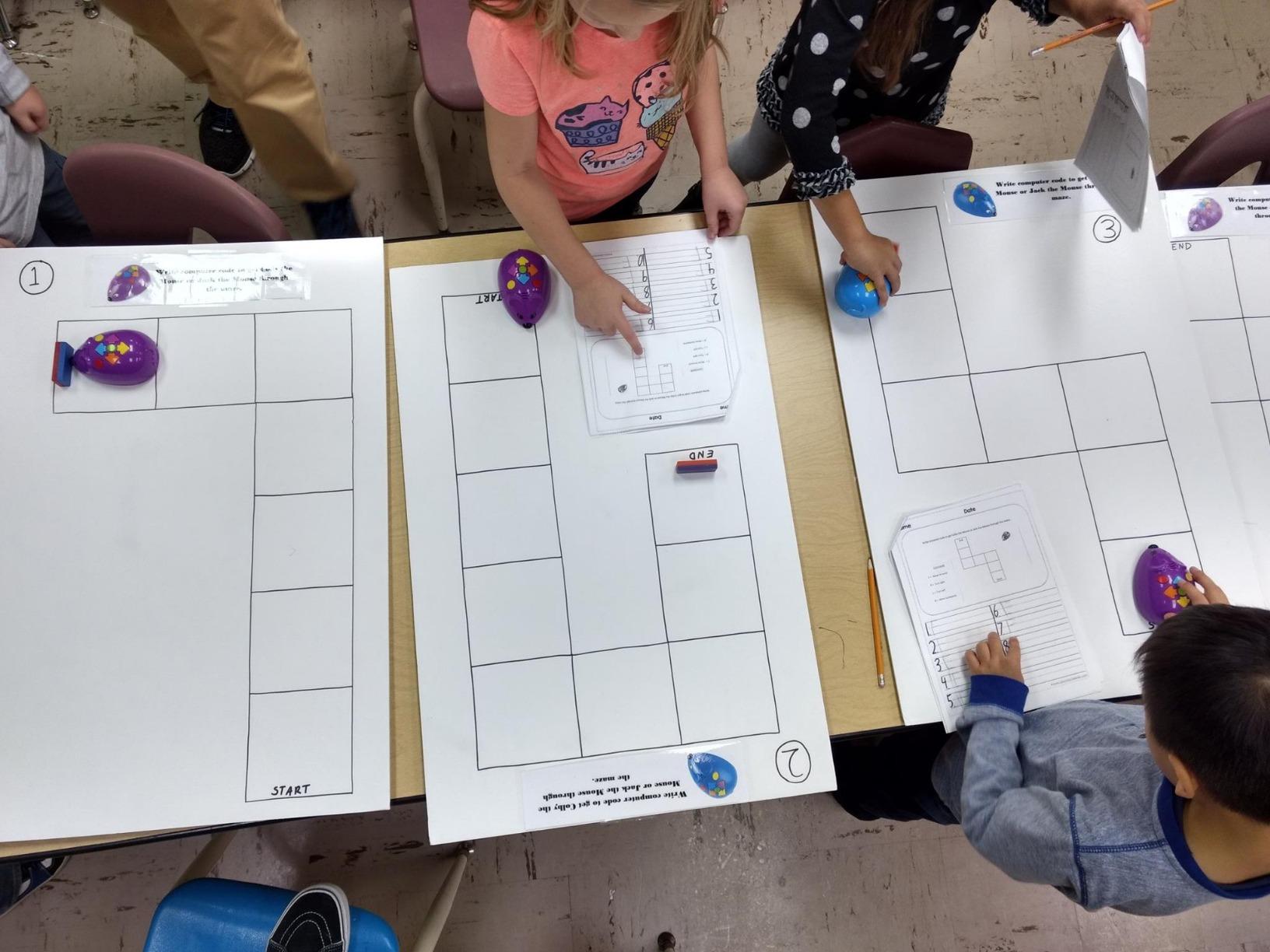
The Code and Go Robot Mouse is the most affordable robot in this roundup, and for early learners it punches well above its price tag. Jack the mouse lights up, makes sounds, and follows step-by-step commands typed on its back. The 30 coding cards provide structured lessons, and the screen-free design is perfect for parents who want to delay tablet introduction.
For pre-K through first grade, this is one of the strongest entry points to computational thinking. The buttons on top of the mouse are large enough for small hands, and the 2 speed settings let teachers dial in the right challenge level for their class. The optional activity set adds a maze grid and other props for expanded play.
Build quality is solid for the price. The mouse survives drops, classroom chaos, and the kind of rough play that 4-year-olds specialize in. The 4.6-star rating from over 1,700 reviewers speaks to its lasting appeal. Many teachers use multiple mice in a single classroom, which is financially realistic at this price point.
The biggest friction point is the imprecise turning. The mouse does not turn at perfect 90-degree angles every time, which can cause navigation errors on long paths. The solution is to keep paths short and accept the imprecision as part of the learning experience. For under $40, this is a real bargain.
Best for Budget Classrooms and After-School Programs
At the lowest price point in the roundup, the Code and Go Mouse is the robot I recommend for after-school programs, library STEM nights, and Title I schools. A teacher can buy a class set of 12 mice for less than the cost of a single iPad, and the educational value is real.
Pair it with a roll-out vinyl maze mat and a set of foam obstacles, and you have a complete STEM station that travels well and stores compactly. For programs that need a low-friction way to introduce coding, this is a strong pick.
Best for First Graders and Pre-Readers
The Code and Go Mouse works for students who cannot yet read. The buttons are large and color-coded, and the action is immediate. A 5-year-old who cannot read the word “forward” can still press the green arrow button and watch the mouse move. For pre-readers, this is a significant advantage over screen-based coding apps that require text recognition.
The 30 coding cards use simple icons and arrows, making them accessible to pre-readers. Pair the mouse with a simple grid drawn on butcher paper, and you have a complete unplugged coding activity for a kindergarten center.
How to Choose the Right Programmable Robot for Students
Choosing a programmable robot is not just about price. The best robot for a third grader learning to code is not the best robot for a high schooler building a capstone project. Here are the five factors I weigh when making recommendations to teachers and parents.
Match the Robot to the Student’s Age and Reading Level
Age is the most obvious factor, but reading level matters just as much. A 6-year-old who cannot read yet will struggle with a robot that requires typing code, even if the robot’s recommended age is 6+. The screen-free options like Sphero Indi and Code and Go Mouse are better fits for pre-readers. Block-based apps like Wonder Workshop Path use icons instead of words, which works for early readers. Text-based platforms like ELEGOO and mBot2 require solid reading skills.
For an elementary classroom with mixed reading levels, I lean toward robots that scale with the student. The Sphero BOLT, Wonder Workshop Dash, and Makeblock mBot2 all carry a student from early elementary through middle school, which means you do not need to replace the platform every two years.
Consider the Programming Platform and Curriculum Path
The programming language matters less than the progression. Block-based coding (Scratch, Blockly) is the right starting point for most students, but the path to text-based coding matters. Robots like the mBot2 and Codey Rocky let students flip blocks into real Python, which is a smoother transition than starting over on a new platform.
For high schoolers considering computer science majors, the ELEGOO Arduino platform and the mBot2 Python support are stronger picks than a block-only robot. For elementary students, the focus should be on computational thinking, not language syntax. Pick the robot that matches the student’s current developmental stage.
Prioritize iPad Compatibility and Accessibility
For schools standardized on iPad, the companion app is just as important as the robot. Not all robot apps play nicely with MDM restrictions, and some have known issues on school-managed iPads. The Sphero Edu app, Wonder Workshop apps, and Makeblock mBlock app are the most MDM-friendly in our testing. The ELEGOO app works on iPad but requires a Bluetooth connection that some MDM profiles block.
For students with accessibility needs, voice control (Dash), screen-free coding (Indi, Code and Go), and high-contrast color sensors (BOLT, mBot2) open up coding to learners who would otherwise struggle with traditional interfaces. Our iPad accessibility features guide covers more on VoiceOver and Switch Control, which pair well with several of these robots.
Evaluate Durability and Classroom Suitability
A robot that breaks after one drop is not a classroom robot. The Makeblock mBot, mBot2, and Wonder Workshop Dash all have proven classroom durability. The Sphero BOLT shell survives drops but scratches on rough surfaces, so a silicone cover is worth the add-on cost. The LEGO Boost, with its 847 pieces, is the most physically robust, but the loose parts require organized storage solutions.
For schools, the total cost of ownership matters. Replaceable parts, available spare parts kits, and manufacturer warranty terms all factor into the real cost. ELEGOO offers a 6-month warranty, Makeblock offers 1 year, and Wonder Workshop offers 1 year. The LEGO Boost relies on the standard LEGO replacement parts system.
Set a Realistic Budget and Look for Educational Discounts
The robots in this roundup range from under $50 to over $350. The best robot is the one that fits your budget and serves your students well. For Title I schools and budget-conscious homeschool families, the Code and Go Mouse, Sphero Mini, and original mBot deliver real educational value at accessible price points. For well-funded programs, the LEGO Boost, mBot2, and ELEGOO Arduino kits offer more advanced features.
Most manufacturers offer educational discounts for bulk purchases. Wonder Workshop, Makeblock, and Sphero all have dedicated education sales teams. If you are buying for a classroom, district, or homeschool co-op, request a quote directly. You will often save 15-30% off retail pricing, and many manufacturers throw in curriculum access and professional development sessions.
For homeschool families looking to integrate robots into a broader curriculum, our iPad for homeschooling guide covers how to use the tablet as the central hub for STEM learning. Pairing a robot with a structured iPad curriculum is a powerful combination for at-home learning.
Check for STEAM and Standards Alignment
If you are integrating robots into a formal school program, alignment with Next Generation Science Standards (NGSS) and CSTA computer science standards matters. Most major robot manufacturers publish standards alignment documents on their education sites. The Sphero Edu curriculum, Wonder Workshop curriculum, and Makeblock education resources are all aligned to recognized standards.
For schools building a STEAM program, robotics integrates naturally with STEAM education by combining science, technology, engineering, arts, and math. Robots with customizable design elements (LEGO Boost, mBot add-on packs) lend themselves to the arts component better than pre-built bots. Pick the robot that matches the specific STEAM learning goals you have for your class.
Frequently Asked Questions About Programmable Robots for Students
What is the best coding robot for students?
The best coding robot for students depends on age and skill level. For beginners ages 8+, the Makeblock mBot is the top pick for its balance of affordability, structured Scratch and Arduino learning, and durable classroom construction. For younger children ages 4-7, the Sphero Indi or Wonder Workshop Dash offer gentler introductions to programming concepts. For middle and high schoolers ready for text-based coding, the Makeblock mBot2 with Python support is the strongest choice.
What age is appropriate for programmable robots?
Programmable robots exist for every age from 4 to 18. Screen-free options like the Sphero Indi and Code and Go Robot Mouse work for ages 4-6. Block-coding robots like Wonder Workshop Dash and Sphero BOLT fit ages 6-12. Text-based platforms like the Makeblock mBot2 and ELEGOO Arduino kit work best for ages 12+ who have solid reading skills. The most important factor is matching the robot’s interface to the student’s developmental stage rather than focusing on the manufacturer’s age recommendation alone.
Do coding robots work with iPad?
Most modern coding robots work with iPad through Bluetooth or WiFi connections. The Sphero Edu app, Wonder Workshop apps, Makeblock mBlock app, and LEGO Boost app all support iPad natively. However, school-managed iPads with strict MDM profiles can sometimes block Bluetooth pairing. Robots with WiFi support like the Makeblock mBot2 offer a workaround for restricted environments. Always test the companion app on your specific iPad model and iPadOS version before purchasing for a classroom.
What is the best programmable robot for 12 year olds?
The best programmable robots for 12 year olds include the Makeblock mBot2 (Scratch and Python), Sphero BOLT (Draw, Blocks, and JavaScript), LEGO Spike Prime or Boost (block-based to Python transition), and ELEGOO UNO R3 Smart Robot Car Kit (Arduino for advanced learners). These robots offer age-appropriate challenges while teaching real programming languages. For a 12 year old ready to move beyond block coding, the mBot2’s Python support is the strongest pick.
What programming language do student robots use?
Student robots use a progression of languages. Beginners start with visual block-based coding (Scratch, Blockly, mBlock), which teaches programming concepts without syntax. Intermediate robots transition to text-based coding in Python or JavaScript (Sphero BOLT, Makeblock mBot2, Codey Rocky). Advanced platforms use C++ in the Arduino IDE (ELEGOO Smart Car). Most educational robots support multiple languages, letting students grow into more sophisticated programming as their skills develop.
Final Verdict: Which Programmable Robot Should You Buy?
After three months of testing in classrooms, after-school programs, and our learning lab, I have clear recommendations based on student age and learning goals. For most families and elementary classrooms, the Makeblock mBot is the strongest pick. It is affordable, durable, and grows with the student from Scratch blocks to Arduino code.
For middle school programs that want a single robot for a multi-year STEM pathway, the Sphero BOLT and Makeblock mBot2 are tied at the top. The BOLT wins on iPad integration and engaging visuals, while the mBot2 wins on Python curriculum and classroom WiFi support. Both are excellent choices.
For the youngest learners (ages 4-6), the Sphero Indi is the best screen-free option, with the Code and Go Robot Mouse as a strong budget alternative. For high schoolers ready for serious engineering, the ELEGOO Arduino kit is the right tool. And for kids who already love LEGO, the Boost Creative Toolbox is the obvious answer.
The best programmable robots for students in 2026 are the ones that match the student, the setting, and the educational goals. Whatever you choose, invest time in the companion app, set up a clear coding progression, and let students iterate. The robots are tools, but the real learning happens when students debug their own code and watch their ideas come to life. Happy coding.