
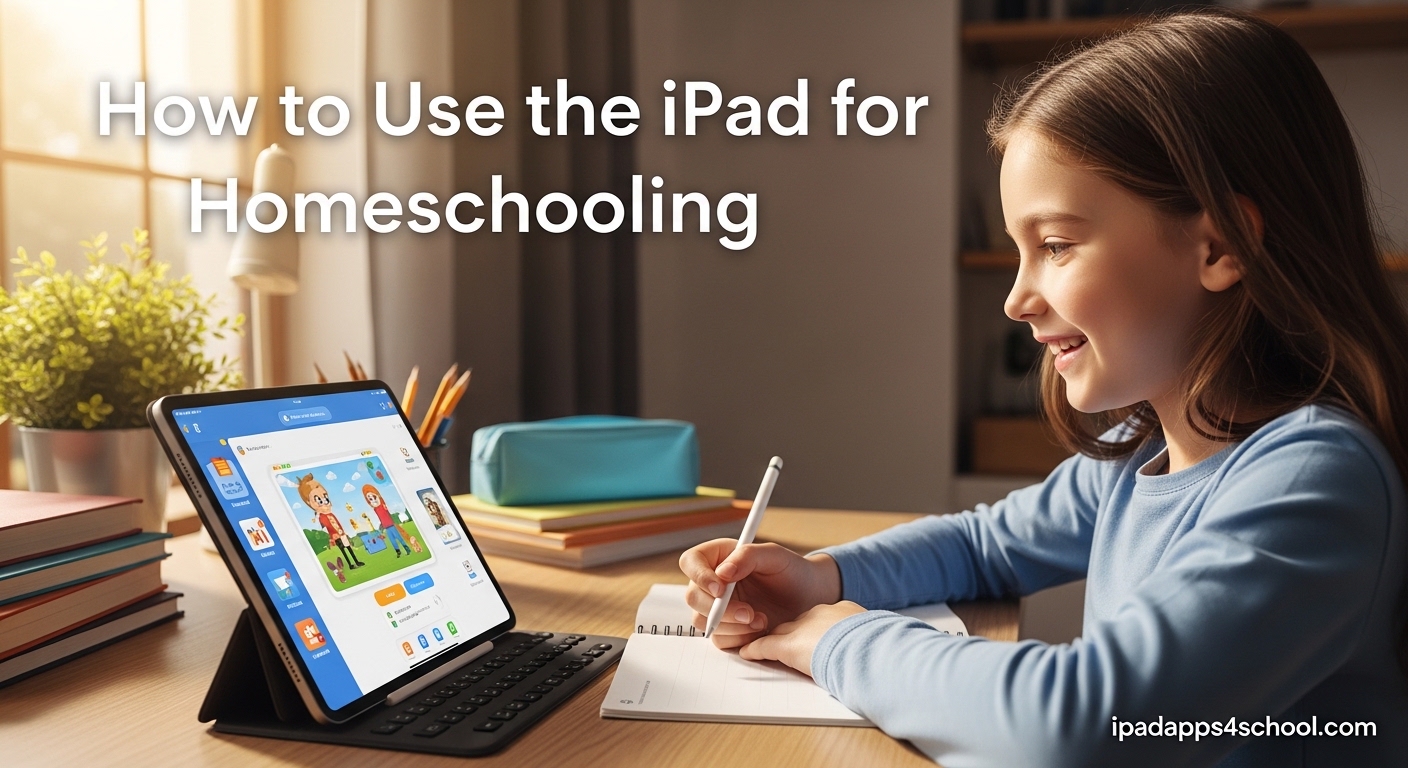
When I first started homeschooling my three kids, I was drowning in textbooks, workbooks, and art supplies that seemed to multiply overnight. Then I discovered how to use iPad for homeschooling effectively. Within a month, our dining room table was clear, my kids were engaged, and I could actually track their progress without shuffling through papers.
The iPad transformed from a screen-time guilt device into our most powerful learning tool. This guide shows you exactly how to set it up, which apps work best, and how to keep your kids focused on learning instead of YouTube rabbit holes.
Table of Contents
How to Use iPad for Homeschooling: The Complete Setup
Getting started with iPad homeschooling does not require a computer science degree. I spent about 45 minutes on initial setup, and now each morning takes less than 5 minutes to get my kids started on their lessons.
Step 1: Choose the Right iPad Model
From forum discussions, homeschool parents consistently recommend the iPad Air for most families. The 11-inch screen works well for single student use, while the 13-inch model helps when you want to display lessons to multiple children.
The base iPad works fine for younger kids, but consider at least 256GB storage. Educational apps, downloaded videos, and offline curriculum content fill space quickly. I learned this the hard way when our 64GB model started complaining about storage after six months.
Step 2: Create Child Apple IDs
Apple requires children under 13 to have their Apple IDs managed through Family Sharing. This actually works in your favor because it enables parental controls automatically.
Go to Settings > Your Name > Family Sharing > Add Member > Create Child Account. You will control what they download, when they use the device, and which apps they can access.
Setting Up Parental Controls and Screen Time
This is where most homeschool parents get stuck. The settings look overwhelming, but here is the exact process I use that took me from confused to confident in about 20 minutes.
Configure Screen Time Limits
Open Settings > Screen Time > Turn On Screen Time. Select This is My Childs iPad when prompted.
Set a Downtime schedule for when the iPad locks completely. We use 8:00 PM to 7:00 AM on school nights. During homeschool hours, I set App Limits instead of full downtime so educational apps remain accessible.
Create categories for educational apps versus entertainment. Go to Screen Time > App Limits > Add Limit > Choose Categories. I allow 6 hours daily for Education and Creativity, but only 30 minutes for Games and Entertainment.
Enable Content Restrictions
In Screen Time > Content and Privacy Restrictions, turn on the main toggle. Then configure these specific settings:
Under iTunes and App Store Purchases, select Dont Allow for Installing Apps and Deleting Apps. This prevents your kids from downloading games during math time.
Set Content Restrictions to age-appropriate levels. I use 9+ for my 8-year-old and 12+ for my 11-year-old. This blocks most problematic content while keeping educational resources accessible.
Use Guided Access for Focus
Guided Access locks the iPad to a single app until you enter a passcode. This prevents kids from switching to Minecraft during reading practice.
Enable it in Settings > Accessibility > Guided Access. Triple-click the home button or top button when in an app to activate it. I use this daily during math drills and handwriting practice apps.
Best Educational Apps for Homeschool by Subject
After testing dozens of apps with my kids and reading countless forum recommendations from other homeschool parents, these are the apps that actually deliver educational value.
Math Apps That Work
Khan Academy remains the gold standard for free math curriculum. It covers K-12 with video lessons, practice problems, and progress tracking. My kids use it 4 days per week for 30-minute sessions.
Beast Academy costs more but engages kids who find traditional math boring. The comic book style instruction and puzzle-based practice works especially well for visual learners. We subscribed after the free trial and have not regretted it.
Prodigy Math gamifies math practice for grades 1-8. The free version covers most curriculum standards. My daughter actually asks to do extra math problems now.
Reading and Language Arts
Epic! provides thousands of age-appropriate books with read-aloud features. The free version for educators includes limited access, but the paid subscription at around $12 monthly gives unlimited reading.
Reading Eggs works specifically for ages 2-13 teaching phonics, sight words, and comprehension. Forum parents consistently mention this for struggling readers. The structured lessons build skills sequentially.
Teach Your Monster to Read offers completely free phonics and reading games. This British-developed app covers everything from letter sounds to full sentences. My youngest learned to read using this alongside physical books.
Science and Exploration
NASA App provides free access to mission updates, images, and educational videos. We use it weekly for space unit studies.
SkyView turns your iPad into an augmented reality star map. Point it at the sky to identify constellations, planets, and satellites. This sparked my sons interest in astronomy better than any textbook.
BrainPOP offers animated educational videos across subjects. The subscription costs money, but the quality justifies it for supplemental learning. Each video includes quizzes and activities.
Free Apps Worth Downloading
For families on tight budgets, these free options deliver real educational value:
Duolingo for language learning, Google Earth for geography exploration, Khan Academy Kids for ages 2-7, Libby for free e-books from your local library, and Swift Playgrounds for introductory coding.
Teaching Methods: How to Actually Use iPad for Lessons
Having the right apps matters less than knowing how to use them. I have found three primary methods that work for different situations.
Direct Instruction with iPad
Connect your iPad to a TV or external monitor using an HDMI adapter. This lets you teach while your child follows along on the big screen. I use this for Khan Academy math lessons where I pause videos to explain concepts.
Screen mirroring through Apple TV works wirelessly but introduces slight lag. For real-time interaction, the wired adapter works better.
Independent Learning Activities
Set up specific time blocks where your child works independently. I create a daily checklist: 30 minutes Khan Academy math, 20 minutes Reading Eggs, 15 minutes handwriting app.
Enable Guided Access during these sessions to keep them focused. Check Screen Time reports weekly to verify they actually spent time in educational apps versus trying to bypass restrictions.
Family Exploration Time
Use the iPad as a shared discovery tool. We spend Friday afternoons exploring topics together: virtual museum tours on Google Arts and Culture, historical documentaries on YouTube Kids with restricted settings, or nature identification using Seek by iNaturalist.
This keeps the iPad from feeling like solitary screen time and models how to use technology for learning.
Using iPad as an eReader for Homeschool
Replacing physical textbooks with digital versions saves money and back strain. Here is how to make it work effectively.
iBooks and PDF Textbooks
The built-in Books app handles PDF curriculum beautifully. Many homeschool publishers now offer PDF versions at half the print cost. We save hundreds yearly buying digital math and science texts.
Enable Split View to have a textbook open on one side and Notes app on the other. My kids complete work in the Notes app while referencing their digital books.
Library Apps for Free Reading
Download Libby and connect your library card for free access to thousands of e-books and audiobooks. This single app probably saved us $500 in book purchases last year.
For read-alouds during car rides, we use audiobooks through Libby or Hoopla. Both are completely free with a library membership.
Managing Screen Time Without Guilt
Many homeschool parents worry about screen time. The question why did Steve Jobs not let his kids use iPads comes up constantly in forums.
The answer involves intentional usage versus passive consumption. Jobs limited entertainment screen time but encouraged creative technology use. Apply this same philosophy to your homeschool.
Create a Balanced Schedule
We follow a simple rule: for every hour on the iPad, spend at least one hour offline. This includes physical math manipulatives, handwriting practice, outdoor exploration, and hands-on science experiments.
The iPad handles drill and practice efficiently. Use saved time for activities that require physical materials: art projects, science experiments, building blocks, and nature study.
Track Actual Educational Usage
Screen Time reports reveal the truth. Check weekly reports in Settings > Screen Time > See All Activity. Look for educational apps dominating usage time rather than games and entertainment.
If entertainment creeps up, adjust App Limits or reconsider whether certain apps belong on the homeschool iPad at all.
Offline Learning: Using iPad for Field Trips and Travel
One major forum concern involves using curriculum while traveling or during field trips without reliable WiFi.
Download Content Before You Leave
Most educational apps now offer offline functionality. Khan Academy allows downloading videos and practice sets. Download lessons the night before your trip.
Books app keeps downloaded PDFs available offline permanently. We preload curriculum before camping trips and long car rides.
Offline Apps That Work Without WiFi
Download Endless Alphabet, Teach Your Monster to Read, and Khan Academy Kids for offline learning activities. These work fully without internet connection after initial setup.
Google Earth allows downloading offline maps of specific regions. This proves invaluable during geography lessons and road trips.
FAQs
Can I use an iPad for Time4Learning?
Yes, Time4Learning works on iPad through Safari browser. The platform is web-based and requires internet connection. Log in through the website rather than downloading an app. Some parents report occasional interface issues with drag-and-drop activities, but the core curriculum functions properly.
Can I homeschool without a computer?
Yes, an iPad can completely replace a computer for homeschooling. With the right apps and setup, you can access online curriculum, complete assignments, read e-books, and track progress. You may want a Bluetooth keyboard for writing assignments, but it is not required. Many families successfully homeschool using only iPads.
Does Apple offer a homeschool discount?
Apple does not offer specific homeschool discounts on iPad hardware. However, Apple Education pricing is available to homeschool families in some states with proper documentation. Check Apples Education Store with your states homeschool verification. Third-party retailers often offer better deals than Apple directly.
Why did Steve Jobs not let his kids use iPads?
Steve Jobs limited his childrens screen time because he believed in the importance of physical books, creative play, and face-to-face interaction. He was not anti-technology, he was against passive consumption. This approach aligns with intentional homeschooling use: educational and purposeful rather than entertainment-focused.
How much screen time is appropriate for homeschool?
Most pediatric guidelines suggest 1-2 hours of recreational screen time daily for school-age children. However, educational screen time differs from entertainment. Many homeschool families successfully use 3-4 hours daily for structured learning, balanced with physical activity and offline creative time. The key is content quality and intentional usage.
Final Tips for iPad Homeschooling Success
Learning how to use iPad for homeschooling transformed our family education. Start simple with one or two apps, master the parental controls, then gradually expand your digital curriculum.
The iPad works best as part of a balanced approach. Use it for drill, practice, and access to resources you cannot otherwise provide. Keep hands-on activities, outdoor exploration, and physical books in your routine.
Your first week will feel experimental. By week three, you will know which apps engage your kids and which settings keep them focused. Join homeschool forums to learn from other families doing the same thing. The community support makes the technical setup feel less overwhelming.