
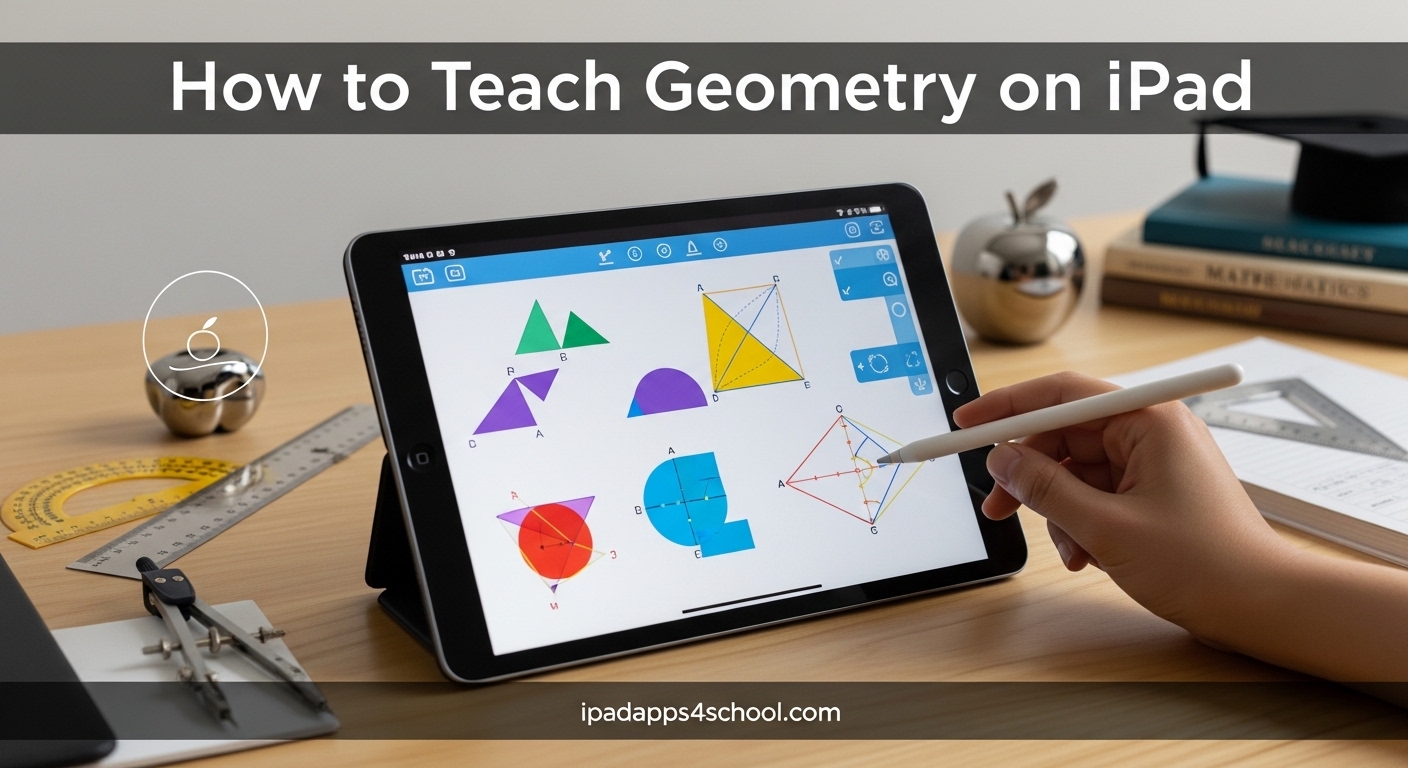
Teaching geometry on iPad has transformed how I approach math lessons in my classroom. After five years of experimenting with different apps and techniques, I can confidently say that the iPad offers tools that paper and physical manipulatives simply cannot match. Students who struggled with spatial concepts suddenly understood angles and polygons when they could manipulate them with their fingertips.
This guide walks you through everything you need to teach geometry on iPad effectively. Whether you are new to tablet teaching or looking to refine your approach, you will find practical strategies, app recommendations, and classroom activities that work.
Table of Contents
Why iPad Is Ideal for Teaching Geometry
The iPad bridges the gap between physical manipulatives and abstract concepts. Students can draw, measure, rotate, and resize shapes instantly without erasing or starting over. This immediate feedback loop accelerates understanding.
Apple Pencil transforms the experience further. Precision drawing becomes possible, letting students create accurate geometric constructions that would be frustrating with a finger or traditional stylus. I have seen students produce cleaner work on iPad than they ever managed with compass and straightedge.
Virtual manipulatives solve storage and distribution problems too. No more rubber bands breaking, protractors getting lost, or paper models wearing out. Every student has identical, perfect tools that never run out.
Essential Apps and Tools for Geometry Teaching
Not all geometry apps are created equal. Here are the tools I use weekly, organized by purpose and cost.
Free Apps That Deliver Results
Geoboard by Math Learning Center remains my go-to for introducing shapes and area concepts. The virtual rubber bands snap to pegs, making polygon creation intuitive. Students can fill shapes with colors and calculate area without physical band limitations.
Freeform, Apple’s built-in whiteboard app, has become surprisingly powerful for geometry. I use it for quick sketches during lessons and for student collaborative work. The infinite canvas means never running out of space, and Stage Manager on iPad lets me keep Freeform open alongside other apps.
Shape Lab offers an open sandbox for shape exploration. Students can create, combine, and transform shapes while seeing real-time measurements update. This works beautifully for discovery-based lessons.
Paid Apps Worth the Investment
Geometry Pad justifies its cost for advanced work. The precision measurement tools, construction capabilities, and export options make it suitable for middle and high school geometry. Students can create constructions that mirror traditional compass-and-straightedge work.
GeoGebra spans from basic shapes through calculus. The geometry tools integrate with algebra and graphing, making it ideal for showing connections between concepts. The free version handles most classroom needs.
Consider organizing iPad for school by creating a dedicated folder for these geometry apps. Quick access matters when you are in the middle of a lesson.
Step-by-Step Methods to Teach Geometry on iPad
Here is the workflow I have refined over hundreds of lessons. Adapt these steps to your specific app and lesson goals.
Step 1: Set Up Your Workspace
Launch your chosen app and configure the grid settings. Most apps offer square, isometric, or no grid options. Square grids help with right angles and area calculations. Isometric grids support triangle and hexagon work.
Enable any measurement displays you want students to see. Real-time length and angle readouts help students discover relationships independently.
Step 2: Demonstrate Basic Constructions
Start with simple shapes. Draw a line segment, then construct a perpendicular bisector. Most apps have dedicated tools for perpendicular and parallel lines. Show students how to use these rather than estimating by eye.
Demonstrate polygon creation by plotting vertices precisely. Emphasize that dragging to resize maintains angle relationships, which helps students see geometric properties in action.
Step 3: Incorporate Apple Pencil Techniques
Teach students to use the double-tap gesture on Apple Pencil to switch between tools quickly. This saves enormous time during constructions.
Show how to draw shapes freehand and let the app recognize and correct them to perfect geometry. This feature, available in apps like Freeform, bridges the gap between rough sketching and precise mathematics.
Practice zooming with pinch gestures while drawing. Precise work requires getting close to the screen, and students need to know how to navigate efficiently.
Step 4: Guide Discovery Activities
Rather than telling students that triangle angles sum to 180 degrees, have them draw triangles, measure angles, and record data. The iPad makes this data collection fast and accurate.
Use the screenshot function to capture student work for discussion. AirPlay or screen mirroring lets you display individual iPad screens to the whole class for analysis.
Practical Classroom Activities by Grade Level
These activities have worked consistently in my classroom. Adjust complexity based on your students’ needs.
Elementary (Grades K-2): Shape Recognition and Creation
Have students use Geoboard to create shapes you name aloud. They screenshot their work and label vertices with the drawing tools. This combines listening, creation, and vocabulary reinforcement.
Create “shape hunts” where students find examples of geometry in their environment using the iPad camera, then trace over the shapes using markup tools. This connects digital and physical worlds.
Upper Elementary (Grades 3-5): Area and Perimeter Exploration
Challenge students to create polygons with specific areas using Geoboard. Because the app calculates area automatically, students can focus on the relationship between shape and measurement rather than computation.
Use Shape Lab to explore how changing one dimension affects perimeter while keeping area constant. The visual feedback makes abstract relationships concrete.
Middle School (Grades 6-8): Constructions and Transformations
Have students recreate traditional compass-and-straightedge constructions using Geometry Pad. They can screenshot each step to create instruction guides for peers.
Explore transformations by having students draw shapes, then use rotation and reflection tools to create tessellations. Export these as images for classroom displays.
Assessment Strategies
Digital portfolios work beautifully for geometry assessment. Students save screenshots of their constructions with voice recordings explaining their reasoning. This captures understanding that written tests miss.
Use screen recording to have students demonstrate constructions while narrating their steps. This shows process, not just product.
FAQ
What is the best method to teach geometry?
The most effective geometry teaching combines concrete manipulation with abstract reasoning. Start with hands-on exploration using virtual manipulatives, guide students to discover patterns through measurement and experimentation, then formalize learning with precise vocabulary and proofs. The iPad excels at the exploration phase because students can test hypotheses instantly without material limitations.
What is the best math app for geometry?
Geoboard by Math Learning Center is the best free option for elementary through middle school. It handles shapes, area, and perimeter intuitively. For advanced constructions and high school geometry, Geometry Pad offers precision tools that mirror traditional compass-and-straightedge work. Freeform works surprisingly well as a general-purpose whiteboard for quick sketches and demonstrations.
What is the 3/4/5 rule in geometry?
The 3/4/5 rule refers to a right triangle where sides measure 3, 4, and 5 units. Because 3 squared plus 4 squared equals 5 squared (9 + 16 = 25), this triangle always contains a 90-degree angle. Builders and carpenters use this Pythagorean triple to create perfect right angles without protractors. Students can verify this on iPad by constructing triangles with these side lengths and measuring the angles.
Can geometry be self-taught?
Yes, geometry can be self-taught with the right resources. iPad apps provide immediate feedback that textbooks cannot match. Students can experiment with constructions, see instant measurements, and discover theorems through exploration. Apps like GeoGebra include tutorials and guided activities. However, having periodic check-ins with a teacher or mentor helps catch misconceptions early and provides accountability.
Conclusion
Teaching geometry on iPad has made my math lessons more engaging and effective. Students who once dreaded geometry now ask to create shapes and solve problems. The combination of precise tools, immediate feedback, and creative possibilities changes how young minds approach spatial reasoning.
Start small. Pick one app, try one activity, and build from there. Your students will guide you toward what works best in your specific classroom context. The investment in learning these tools pays dividends in student understanding and engagement.
If you have questions about specific apps or activities, explore our related guides on organizing iPad for school and Stage Manager on iPad to optimize your teaching workflow. Happy teaching!