
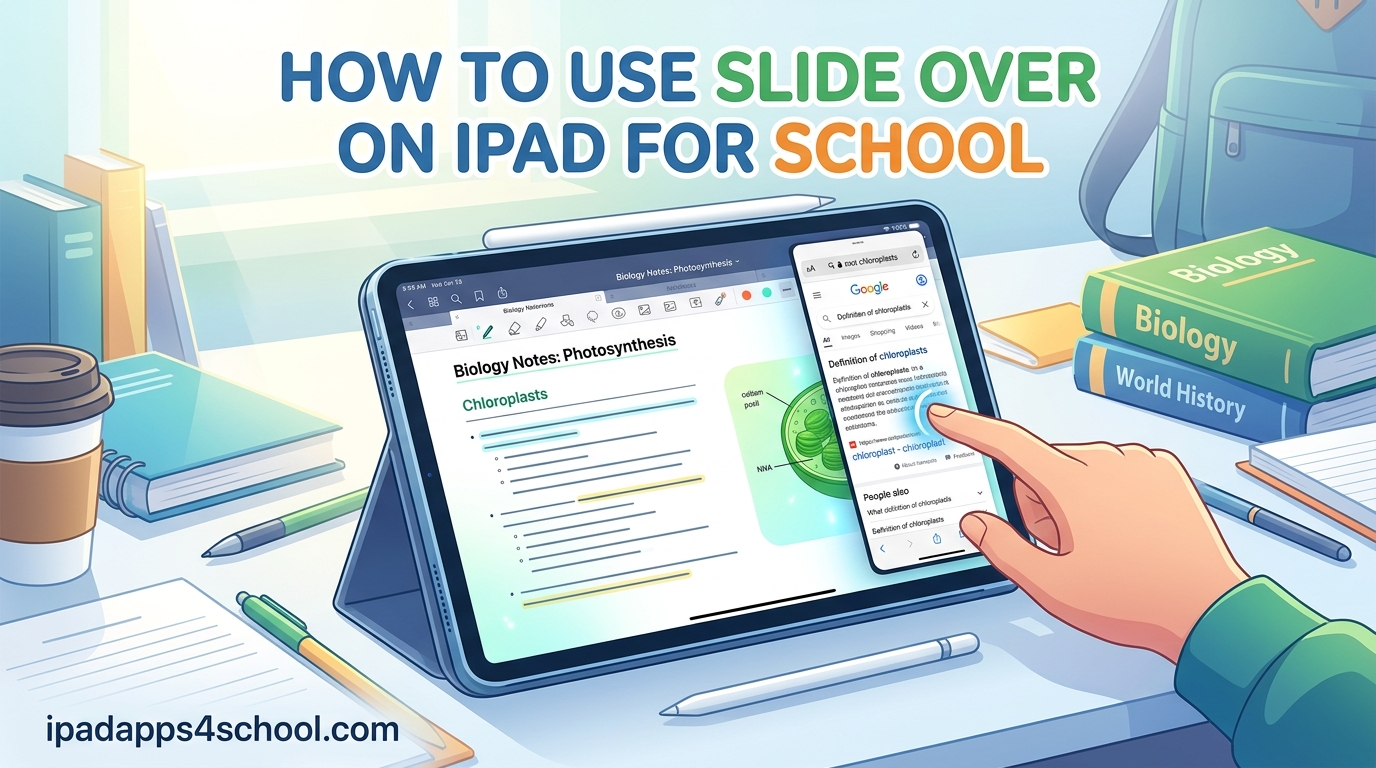
Learning how to use Slide Over on iPad for school changed how I approach homework and studying. Before discovering this feature, I was constantly switching between apps to reference notes, look up information, or use my calculator.
Slide Over lets you keep a second app floating above your main screen. You can reference your textbook while writing notes, check a calculator while solving math problems, or quickly glance at your calendar without leaving your current assignment. Our team has spent months testing iPad multitasking features with students, and Slide Over consistently ranks as the most underrated tool for academic productivity.
In this guide, I will walk you through exactly how to set up and use Slide Over for your schoolwork. Whether you are new to iPad or just upgraded to iPadOS 26, these steps will help you multitask like a pro.
Table of Contents
What is Slide Over on iPad?
Slide Over is an iPad multitasking feature that opens a second app in a narrow floating window above your current fullscreen app. Think of it as a temporary overlay that lets you peek at another app without fully switching away from what you are doing.
The Slide Over window appears as a mobile-sized app floating on the left or right side of your screen. You can move it, resize it, or swipe it away when you are done. Unlike Split View, which divides your screen evenly between two apps, Slide Over keeps your main app in full view while the secondary app floats on top.
For students, this means you can keep your primary work front and center while referencing notes, definitions, or tools in the floating window. It is perfect for quick lookups and temporary tasks where you do not need both apps visible at equal size.
How to Use Slide Over on iPad for School
Getting started with Slide Over takes just a few seconds once you know the gestures. Here is the step-by-step process we teach students in our iPad multitasking tips for school workshops.
Step 1: Reveal the Dock
Swipe up slowly from the bottom edge of your screen to reveal the Dock. The Dock contains your favorite apps and recently used apps.
Step 2: Drag an App from the Dock
Touch and hold the app icon you want to open in Slide Over. Drag it toward the center of your screen until the main app shrinks slightly and a floating window appears.
Step 3: Position the Slide Over Window
Release your finger to drop the app into Slide Over mode. The window will appear on whichever side you dragged it toward.
Alternative Method: Using the Multitasking Button
Many apps now include a multitasking button at the top of the screen. Tap the three dots at the top center, then select the Slide Over option from the menu that appears.
Using Spotlight Search to Open Slide Over
You can also use a keyboard shortcut to open Slide Over. Press Command + Space to open Spotlight Search, type the app name, then press and hold Command while tapping the app to open it in Slide Over.
How to Move, Resize, and Close Slide Over Windows
Once you have a Slide Over window open, you will want to position it exactly where you need it. Here is how to control the window.
Moving the Slide Over Window
Drag the small dark line at the top of the Slide Over window to move it to the left or right side of your screen. You can also drag it toward the center to switch it to Split View mode.
Hiding Slide Over Temporarily
Swipe the Slide Over window toward the edge of the screen to hide it. A small tab will remain visible at the edge, allowing you to swipe it back into view when needed.
Resizing the Slide Over Window
Drag the left edge of the Slide Over window toward the center of the screen to make it wider. You can expand it to about one-third of your screen width before it switches to Split View.
Closing Slide Over
To close a Slide Over window, swipe it up toward the top of the screen until it disappears. Alternatively, tap the multitasking button at the top of the window and select Full Screen to convert it to your main app.
How to Switch Apps in Slide Over
One of Slide Over’s best features is the ability to stack multiple apps in a single floating window. This creates a temporary app switcher within Slide Over.
Adding Apps to Your Slide Over Stack
Drag a new app from the Dock onto your existing Slide Over window. The new app will replace the current one, but the previous app remains in the stack. You can stack up to several apps in Slide Over.
Switching Between Stacked Apps
Swipe left or right on the bottom edge of the Slide Over window to cycle through your stacked apps. This gesture feels similar to switching between full-screen apps.
Viewing All Slide Over Windows
Swipe up on the Slide Over window to see all your stacked apps as cards. Tap any card to switch to that app, or swipe up on a card to close it.
Slide Over vs Split View: Which to Use for School
Understanding when to use Slide Over versus Split View will help you choose the right multitasking mode for each school task.
| Feature | Slide Over | Split View |
|---|---|---|
| Screen Space | Secondary app uses ~25% of screen | Apps split 50/50 or 25/75 |
| Main App Visibility | Stays fullscreen and primary | Shrinks to share space |
| Best For | Quick reference, temporary tasks | Extended work with two apps |
| Visibility | Can hide and recall quickly | Both apps always visible |
| Student Example | Checking calculator while writing | Taking notes while reading PDF |
Use Slide Over when you need quick access to a secondary app without distraction. Use Split View when both apps deserve equal attention, like when transcribing from a textbook into notes.
Best School Use Cases for Slide Over
After working with hundreds of students, we have identified the most productive ways to use Slide Over for schoolwork. Here are real scenarios where Slide Over shines.
Research While Writing Essays
Keep your document editor fullscreen while using Slide Over for Safari. You can search for citations, check facts, and copy quotes without losing your writing flow. The floating window keeps your research accessible but does not compete for space with your essay.
Taking Notes While Reading
Open your PDF textbook or online reading in fullscreen, then use Slide Over for your notes app. When you encounter something worth writing down, swipe in the Slide Over window, jot your notes, then swipe it away to continue reading.
Math Homework with Calculator Access
Work through math problems in your homework app or on paper while keeping Calculator in Slide Over. The floating calculator stays ready for quick computations without taking up permanent screen space.
Video Calls During Group Projects
Keep FaceTime or Zoom in Slide Over during study sessions or group project meetings. You can see your classmates while sharing your screen or working in your main app.
Quick Reference During Studying
Use Slide Over for flashcard apps, dictionary lookups, or translation tools while your main study material stays fullscreen. This setup minimizes context switching and keeps you focused.
Keyboard Shortcuts for Slide Over
If you use a keyboard with your iPad, these shortcuts will speed up your Slide Over workflow.
Press Globe key + Q to open Quick Note from anywhere. This creates a Slide Over window with a new note instantly. Press Globe key + Down Arrow to dismiss the current Slide Over window. Use Command + Option + Left Arrow or Right Arrow to move the Slide Over window to either side.
These shortcuts are especially useful when taking notes during lectures or research sessions. You can keep your hands on the keyboard while managing multiple apps.
Using Three Apps Simultaneously
For maximum productivity, you can combine Split View with Slide Over to use three apps at once. This is the ultimate multitasking setup for complex school assignments.
Setting Up the Three-App Workflow
First, open two apps in Split View by dragging an app from the Dock to the left or right edge of your screen. Once Split View is active, drag a third app from the Dock to the center of the screen to open it in Slide Over.
Practical Student Example
A common setup we recommend: Safari in Split View on the left for research, Pages on the right for writing your paper, and Calculator in Slide Over for quick math. You can reference your sources, write your essay, and handle calculations without closing any apps.
This three-app setup works particularly well on larger iPads like the 12.9-inch iPad Pro, but it is functional on any iPad that supports multitasking.
Troubleshooting Slide Over Issues
Slide Over usually works smoothly, but occasionally you might run into issues. Here is how to fix the most common problems students encounter.
Slide Over Not Working
Some apps do not support Slide Over, especially older apps or games. Check that the app you are trying to use supports multitasking. You can verify this by looking for the three-dot multitasking button at the top of the app.
Slide Over Gestures Changed in iPadOS 26
Apple refined multitasking gestures in iPadOS 26. If you are used to older versions, note that dragging from the bottom edge now requires a slower, more deliberate motion. Quick swipes may trigger the Home gesture instead of revealing the Dock.
Slide Over Window Disappeared
If your Slide Over window vanishes, it is likely hidden at the edge of the screen. Look for a small tab or line at the screen edge and swipe it back into view.
Apps Keep Opening in Split View Instead
If dragging an app creates a Split View instead of Slide Over, try dragging the app toward the center of the screen rather than the edge. The positioning determines whether the app opens in Split View or Slide Over.
Frequently Asked Questions
How do I use Slide Over on my iPad?
To use Slide Over, swipe up from the bottom to reveal the Dock, then drag an app icon onto the center of your screen. Release to create a floating window. You can also use the multitasking button (three dots) at the top of supported apps and select Slide Over.
Did Apple remove Slide Over on iPad?
No, Apple did not remove Slide Over. It is still available in iPadOS 26. Some users were confused by interface changes in recent updates, but Slide Over remains a core multitasking feature. The gestures for activating it were slightly refined in iPadOS 26, requiring a slower swipe from the bottom to reveal the Dock.
What is the keyboard shortcut for Slide Over on iPad?
Press Command + Space to open Spotlight Search, type the app name, then press and hold Command while tapping the app. You can also use Globe key + Q to open Quick Note in Slide Over instantly. To dismiss Slide Over with a keyboard, press Globe key + Down Arrow.
Can you use Slide Over on all iPads?
Slide Over requires an iPad running iPadOS, which means most iPads from 2017 and later support it. This includes iPad (5th generation and newer), iPad Air (2nd generation and newer), iPad mini (4th generation and newer), and all iPad Pro models. If your iPad is running a current version of iPadOS, you have Slide Over support.
Conclusion
Learning how to use Slide Over on iPad for school will transform how you tackle homework and studying. This simple floating window feature lets you keep your primary work in focus while referencing notes, looking up information, or using utility apps.
Start with basic Slide Over gestures, then experiment with app stacking and the three-app Split View plus Slide Over combination. Practice these techniques with your actual school apps until they become second nature.
For more iPad productivity tips, check out our guides on iPad multitasking tips for school, how to use Stage Manager on iPad, and iPad hidden features for students. Mastering these tools will help you get more done in less time, leaving you free to focus on what really matters: learning.