
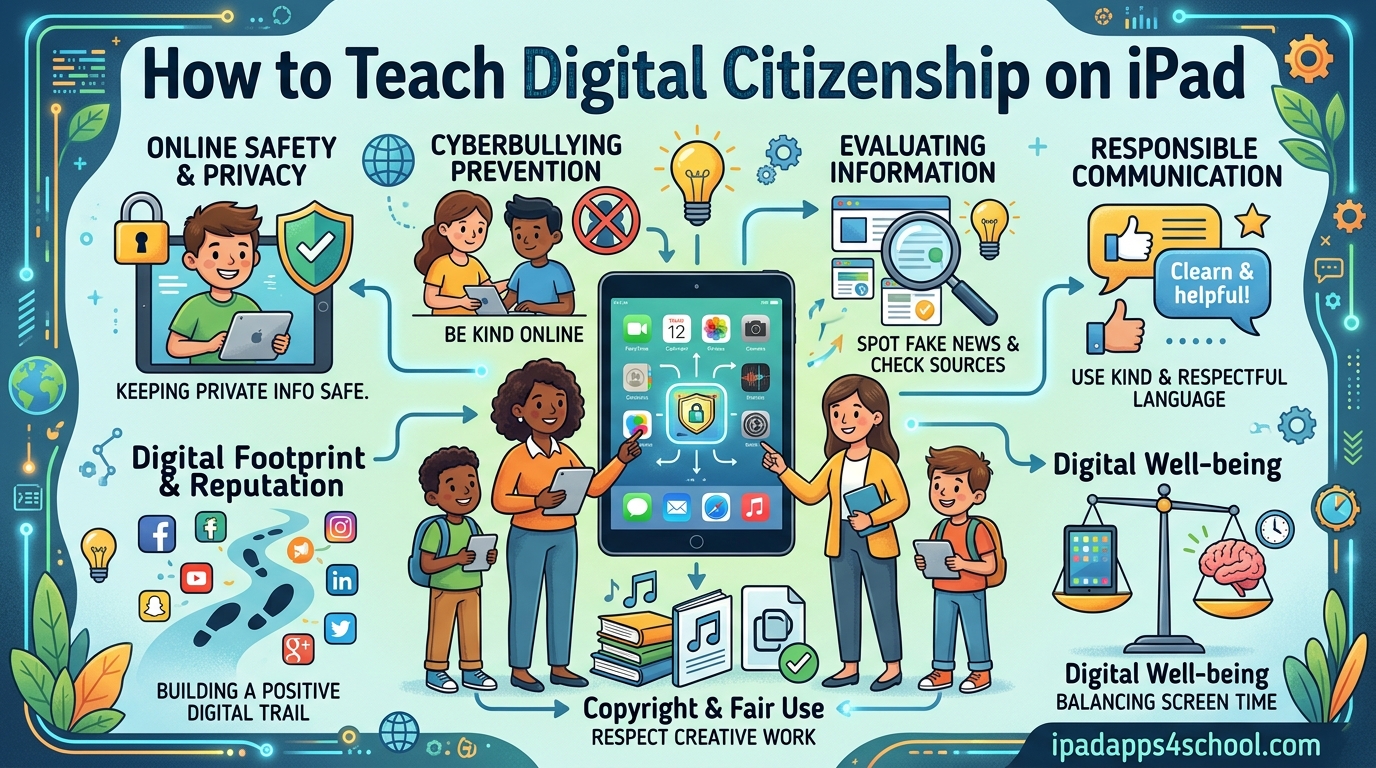
Teaching digital citizenship on iPad has become one of the most important responsibilities for educators in today’s classrooms. With schools increasingly deploying 1:1 iPad programs, students as young as kindergarten are navigating digital spaces before they fully understand the consequences of their actions online.
As someone who has worked with elementary and middle school classrooms implementing iPad curricula, I have seen firsthand how gaps in digital citizenship knowledge lead to problems. Students change iPad names to inappropriate things, send AirDrop requests to strangers, or share personal information without thinking. These behaviors are teachable moments, and this guide will walk you through exactly how to teach digital citizenship on iPad effectively.
By the end of this article, you will have a clear framework for introducing digital citizenship skills, step-by-step iPad configurations for student safety, recommended apps for interactive learning, and practical activities your students will actually engage with. Whether you are teaching kindergarteners their first iPad lessons or preparing middle schoolers for responsible social media use, you will find actionable strategies here.
Table of Contents
What is Digital Citizenship?
Digital citizenship is the responsible use of technology to participate in digital spaces safely, ethically, and effectively. It goes far beyond simply telling students not to do something wrong online. True digital citizenship encompasses understanding your digital footprint, protecting your privacy, communicating respectfully, and recognizing inappropriate content or behavior.
The International Society for Technology in Education (ISTE) has established a widely-adopted framework that defines nine core elements of digital citizenship. These elements provide a structured way to think about what students need to learn. When we teach digital citizenship on iPad, we are essentially helping students develop skills across all nine of these areas.
The challenge many teachers face is that digital citizenship curriculum often assumes students already know how to operate their devices. Forum discussions reveal a common frustration: students cannot use keyboards properly but are expected to learn digital citizenship concepts. This creates a disconnect where students understand the theory but struggle with the practical execution. This guide bridges that gap by starting with foundational device skills before moving into deeper citizenship topics.
Another important aspect of digital citizenship is recognizing that it is not a one-time lesson but an ongoing conversation. Students need repeated exposure to these concepts at age-appropriate levels throughout their schooling. The skills they learn in kindergarten will build upon themselves as they grow older and encounter more complex digital situations.
The 9 Elements of Digital Citizenship Explained
Understanding the nine elements helps you structure lessons that cover all aspects of responsible technology use. Here is a breakdown of each element and what it means for iPad users in your classroom.
Digital Access refers to ensuring all students have equal access to technology and the internet. In your classroom, this means considering whether all students have reliable internet at home, providing offline alternatives when needed, and being aware of the digital divide that exists in your community. Some students may have never used an iPad before, while others use them daily at home. Creating a level playing field requires intentional planning and differentiation.
Digital Etiquette covers the expectations for appropriate online behavior. On iPad, this includes how students communicate in shared documents, how they respond to others in video calls, and how they handle disagreements in learning management systems. Many students do not realize that text-based communication can come across as harsh or rude without the nuance of voice and body language. Explicitly teaching digital communication etiquette helps prevent misunderstandings and conflicts.
Digital Commerce involves understanding the basics of buying and selling online, including recognizing advertising, making safe purchases, and understanding in-app purchases. Even young students encounter ads and microtransactions in free games. Teaching students to recognize when someone is trying to sell them something and how to make informed decisions protects them from manipulative marketing tactics designed to exploit children.
Digital Rights and Responsibilities mean students understand what they are entitled to as online users and what obligations they have to others. This includes respecting copyright, attributing sources properly, and understanding their privacy rights. Students should learn that they have the right to keep certain information private while also respecting the privacy of others. This balance is crucial in an age where sharing personal information online has become so common.
Digital Literacy focuses on the ability to find, evaluate, and create information online. For iPad users, this means teaching students how to search effectively, distinguish reliable sources from unreliable ones, and cite their sources correctly. A student who cannot evaluate whether a website is trustworthy is vulnerable to misinformation and manipulation. These skills take deliberate instruction and practice.
Digital Law addresses the legal aspects of technology use, including copyright infringement, plagiarism, and respecting intellectual property. Students need to understand that online actions have real legal consequences. Many students copy images and text without thinking about permissions because they do not realize that digital content is still owned by someone. Teaching digital law helps students develop respect for creative work.
Digital Communication is about choosing the right communication channel for different situations and understanding how messages can be interpreted. iPad users need to learn this especially for email and messaging apps, where tone is easily misunderstood. Students should understand when to use email versus instant messaging, when a phone call might be more appropriate, and how to handle difficult conversations digitally.
Digital Health and Wellness covers physical and psychological well-being in relation to technology. Screen time management, posture, eye strain, and recognizing when technology use is becoming problematic all fall under this element. Our team has noticed that students often do not realize how much time they spend on devices until they actively track it. Helping students develop awareness of their technology habits empowers them to make healthier choices.
Digital Security encompasses protecting personal information, creating strong passwords, recognizing phishing attempts, and understanding how to stay safe from malware or hacking attempts. For students using iPad, this includes understanding app permissions and privacy settings. Many apps request access to camera, microphone, contacts, and location data unnecessarily. Teaching students to question these permissions builds security awareness.
Why Teach Digital Citizenship with iPad?
iPads present unique opportunities and challenges for digital citizenship education. The touch interface, cameras, microphones, and constant internet connection make these devices powerful but also potentially risky in untrained hands.
Elementary students who use school iPads often treat the devices casually because they look like toys. They do not instinctively understand that the iPad is a window to the entire internet and all its risks. Touch screens feel intuitive, which can lead to accidental purchases, inappropriate content access, or unintended sharing. Without explicit instruction, students assume the device will keep them safe automatically.
Middle school students, on the other hand, often feel overly confident in their technology skills but lack the judgment that comes with experience. They may know how to navigate apps and games expertly but not understand the long-term consequences of their digital footprint. This confidence without wisdom is particularly dangerous because they are more likely to take risks they do not fully understand.
Our team has observed that schools investing in 1:1 iPad programs without corresponding digital citizenship training see more incidents of inappropriate AirDrop usage, name-changing pranks, and accidental privacy exposure. When we proactively teach digital citizenship on iPad, we reduce these incidents significantly because students understand why the rules exist rather than viewing them as arbitrary restrictions.
Another reason iPad-specific training matters is that students use these devices for different purposes than a shared classroom computer. They create, communicate, and collaborate directly from their iPads. This means digital citizenship is not an abstract concept but something that affects their daily work and relationships. The intimacy of having a personal device makes the lessons more relevant and memorable.
iPads also follow students home in many cases, blurring the line between school and personal use. Parents often struggle with managing school-issued devices, reporting that these iPads cause chaos at home. By teaching digital citizenship skills at school, you equip students to make better choices even outside the classroom environment.
Getting Started: iPad Settings for Student Safety
Before diving into lessons, you need to configure iPad settings appropriately for student use. Here are the essential steps to set up school iPads for safe learning environments. Taking time to configure these settings properly prevents problems before they start and gives you peace of mind during classroom activities.
Step 1: Configure Content and Privacy Restrictions
Go to Settings, then Screen Time, then Content and Privacy Restrictions. Enable these restrictions and set a passcode that only teachers know. This prevents students from installing apps, making purchases, or accessing explicit content. You can also restrict Safari, Camera, and AirDrop functionality depending on your classroom needs.
Within Content Restrictions, pay attention to the allowed content ratings. Set these to match the age group you are teaching. For elementary students, you might restrict everything to G-rated content. For middle school, you may allow more flexibility while still blocking adult content. Review these settings annually as students mature.
Step 2: Set Up Guided Access
Guided Access locks the iPad to a single app, which is incredibly useful for younger students or testing situations. Enable this feature in Settings, Accessibility, Guided Access. You can set a passcode and specify which app students should use. This prevents accidental navigation away from learning content.
For younger students, Guided Access becomes a safety net that allows them to explore freely without accidentally leaving the intended app. For testing situations, it ensures students cannot access other apps or information during assessments. Our team uses Guided Access daily for kindergarten through second grade with great success.
Step 3: Configure AirDrop and Sharing Settings
AirDrop can be a major source of inappropriate content sharing among students. Set AirDrop to “Receiving Off” or “Contacts Only” through Control Center or Settings. Teach students explicitly about why this setting exists and what constitutes appropriate sharing.
The problem with AirDrop in classrooms is that it is so easy to use that students share content impulsively without thinking. A photo meant for one friend might end up shared with dozens of nearby devices. By restricting AirDrop, you eliminate this source of distraction and potential embarrassment. When you need to share files, use approved classroom platforms instead.
Step 4: Review App Permissions
Check which apps have access to Location Services, Contacts, Photos, and Microphone. For most classroom purposes, students do not need these permissions enabled in learning apps. Explain to students why you are making these choices and involve them in understanding the reasoning.
Walking students through privacy settings teaches them to ask questions about their own devices. When they see that you have disabled location services for certain apps, they learn that this is a normal precaution rather than suspicion. This builds habits they will carry to their personal devices.
Step 5: Establish iPad Naming Conventions
One often overlooked aspect is the iPad name, which shows up when sharing via AirDrop or connecting to other devices. Some students change these names to inappropriate things as pranks, which creates embarrassing situations when devices appear in sharing menus. Establish clear guidelines about appropriate iPad names and check them regularly.
We recommend establishing a naming formula like “School initials-Class Number-First Name” or using numbers assigned by the school. This makes devices identifiable while maintaining professionalism. Include this in your acceptable use policy and check names during monthly device audits.
Top Digital Citizenship Apps for iPad
Several apps make teaching digital citizenship engaging and interactive for students. Here are the best options available, including both free and paid resources. Using apps for digital citizenship education makes the content more memorable than lectures alone because students actively participate in their learning.
Common Sense Media offers a comprehensive free app called Digital Compass that teaches digital citizenship through interactive story scenarios. Students make choices and see the consequences of their decisions in a safe environment. The companion app for educators provides lesson plans and assessment tools. This aligns perfectly with the ISTE framework and works well for elementary through middle school students.
Google’s Be Internet Awesome is completely free and includes Interland, an online game that teaches internet safety through four mini-games covering phishing, password strength, kind communication, and protecting personal information. The curriculum is self-paced and works well for classrooms with varying experience levels. Teachers appreciate the ready-made lesson plans that require minimal preparation.
Apple’s own Learn to Student iPad guide provides built-in tutorials covering many aspects of digital citizenship. The Everyone Can Create series includes projects that teach responsible content creation and sharing. These resources leverage native iPad features without requiring additional downloads, making them ideal for schools with limited budgets or bandwidth restrictions.
BrainPOP’s Digital Citizenship collection covers topics including cyberbullying, internet safety, and privacy with animated videos and accompanying quizzes. Schools with BrainPOP subscriptions can access these resources, and individual teachers can request free trials. The familiar BrainPOP characters make the content approachable for students who might otherwise tune out.
For screen time management specifically, the Screen Time iPad settings themselves are powerful teaching tools. Walk students through how to check their own usage, set limits on specific apps, and understand how their habits affect their overall wellbeing. Having students analyze their own screen time data makes the abstract concept of digital health concrete and personal.
Additional free resources include the Digital Citizenship Foundation’s curriculum materials, which provide lesson plans organized by grade level and topic. These materials supplement app-based learning with classroom activities and discussion prompts that deepen understanding.
Classroom Activities and Implementation Tips
Teaching digital citizenship on iPad works best when students can practice skills in realistic scenarios. Here are activities our team has found effective across different grade levels. The key is making digital citizenship feel relevant rather than a set of arbitrary rules imposed by adults.
Create a Digital Citizenship Pledge specific to your classroom. Have students collaborate to write expectations for iPad use, including rules about appropriate app usage, communication standards, and consequences for violations. When students create the rules themselves, they are more likely to follow them. Display the pledge prominently and refer to it regularly when discussing digital behavior.
Run AirDrop Permission Exercises where students practice sending and receiving files appropriately. Set up stations where students must send a specific image or document to a partner using correct procedures. Debrief afterward about what went well and what could be improved. This directly addresses a pain point many teachers encounter where students share content impulsively without considering appropriateness.
Use Scenario-Based Discussions presenting common situations like receiving a message from an unknown person, seeing a classmate cyberbullied, or accidentally accessing inappropriate content. Ask students what they would do and discuss consequences of different choices. These conversations normalize digital citizenship as an ongoing discussion rather than a one-time lesson. Keep scenarios age-appropriate and relevant to situations your students actually face.
Implement Digital Footprint Walks where students search their own names (with parent permission) and discuss what information is publicly available about them. Talk about how this information got there and what they can do to protect their future digital identities. This activity makes abstract concepts like digital footprints tangible and personal.
For cyberbullying specifically, create clear escalation procedures. Students should know exactly what to do if they witness or experience bullying on their iPad. This includes documenting evidence, telling a trusted adult, and using blocking or reporting features appropriately. Having a written procedure removes the uncertainty about what to do in the moment.
Age-Appropriate Implementation Strategies
Different age groups require different approaches to digital citizenship education. One size does not fit all when teaching students about responsible technology use. Tailoring your approach ensures students remain engaged and actually absorb the lessons rather than tuning out content that feels either too basic or too advanced.
For elementary students in kindergarten through second grade, focus on foundational concepts like keeping personal information private, being kind in digital spaces, and asking an adult before clicking on anything unfamiliar. Use simple language and lots of repetition. At this age, students respond well to characters and stories that model good behavior. Consider using picture books or animated stories that demonstrate digital citizenship principles.
Third through fifth graders can handle more complex topics like understanding that their online actions have consequences, recognizing advertising tactics, and beginning to understand digital footprints. They can also start taking more responsibility for their own device management and troubleshooting. Give them age-appropriate choices about their learning to build ownership.
Middle school students often resist lessons that feel juvenile. Frame digital citizenship around real-world scenarios they care about: social media, gaming, and communicating with friends. Acknowledge that they already know a lot about technology and build on that knowledge rather than talking down to them. At this level, focus on critical thinking and ethical decision-making rather than basic rules.
Regardless of age, involve parents in the conversation. Send home information about what you are teaching and why. Give parents tools to continue the conversation at home, especially regarding screen time management which often becomes a challenge with school-issued devices. Parent buy-in dramatically increases the consistency of digital citizenship messaging students receive.
Free vs Paid Digital Citizenship Resources
Schools often operate with limited budgets, so knowing which digital citizenship resources are free versus paid helps you plan instruction effectively. Many excellent resources cost nothing, while others require subscriptions that may or may not fit your school budget.
Free resources include Google’s Be Internet Awesome with its complete curriculum and Interland game. Common Sense Media’s basic resources are free, though their premium curriculum requires a subscription. Apple’s built-in iPad tutorials cost nothing since they come with the device. The Digital Citizenship Foundation provides free lesson plans and materials.
Paid resources worth considering include BrainPOP’s full digital citizenship collection, which offers comprehensive video libraries and assessment tools. Common Sense Media’s premium curriculum provides additional lesson plans and family engagement resources. TypingMaster Pro helps students build keyboard skills that support digital citizenship by ensuring they can communicate effectively online.
We recommend starting with free resources and only purchasing paid tools if your specific needs require them. Many schools find that free resources provide sufficient content when combined with teacher-created materials tailored to your student population.
Assessment and Ongoing Evaluation
Like any curriculum, digital citizenship instruction benefits from assessment that measures student understanding and identifies areas needing more attention. Assessment does not need to feel like testing; it can be part of the learning process itself.
Observation during iPad activities gives you insight into how students apply digital citizenship principles in real time. Are they sharing appropriately? Do they ask before clicking links? Are they treating classmates with respect in digital communications? Taking notes during activities helps you identify patterns that need classwide instruction versus individual coaching.
Student self-assessments where students reflect on their own digital citizenship behaviors encourage metacognition. Asking students to rate their own abilities and set goals for improvement makes them active participants in their development rather than passive recipients of instruction.
Scenario-based assessments present students with situations and ask them to explain what they would do. This reveals their reasoning process and helps you understand whether they truly understand the principles behind the rules. These work well as discussion starters or written reflections.
FAQs
What is the digital citizenship program for students?
Digital citizenship programs teach students to use technology responsibly by covering nine key areas: digital access, etiquette, commerce, rights, literacy, law, communication, health, and security. Programs like Common Sense Media and Google’s Be Internet Awesome provide structured curricula aligned with ISTE standards for K-12 education.
How to teach digital citizenship to students?
Start by configuring iPad settings for safety, then introduce core concepts using age-appropriate language. Use apps like Digital Compass or Interland for interactive learning. Run regular discussions about real scenarios students might encounter. Create classroom pledges and establish clear escalation procedures for issues like cyberbullying.
What is the use of iPad in elementary school?
iPads in elementary school serve multiple purposes: accessing educational apps, creating multimedia projects, practicing typing and digital skills, and learning to collaborate through shared documents. They prepare students for a technology-rich future while requiring explicit instruction in responsible use.
How do I configure iPad settings for student safety?
Enable Content and Privacy Restrictions in Screen Time settings. Set up Guided Access to lock students into specific apps. Configure AirDrop to Contacts Only or turn it off entirely. Review and restrict app permissions for Location Services, Camera, and Microphone. Establish clear iPad naming conventions and regularly check that students have not changed device names to inappropriate things.
Conclusion
Teaching digital citizenship on iPad requires both technical configuration and meaningful conversation. By setting up iPad settings properly, using engaging apps and activities, and tailoring your approach to student age levels, you can create a classroom environment where responsible technology use becomes second nature.
The goal is not to fear technology but to use it thoughtfully and responsibly. When students understand why digital citizenship matters, they make better choices even when you are not watching. That is the foundation of lasting digital responsibility that will serve them throughout their lives.
Start with one or two changes this week, whether that means configuring Screen Time restrictions or introducing a classroom discussion about digital footprints. Build from there, and watch your students become confident, responsible digital citizens who navigate technology with wisdom and integrity.