
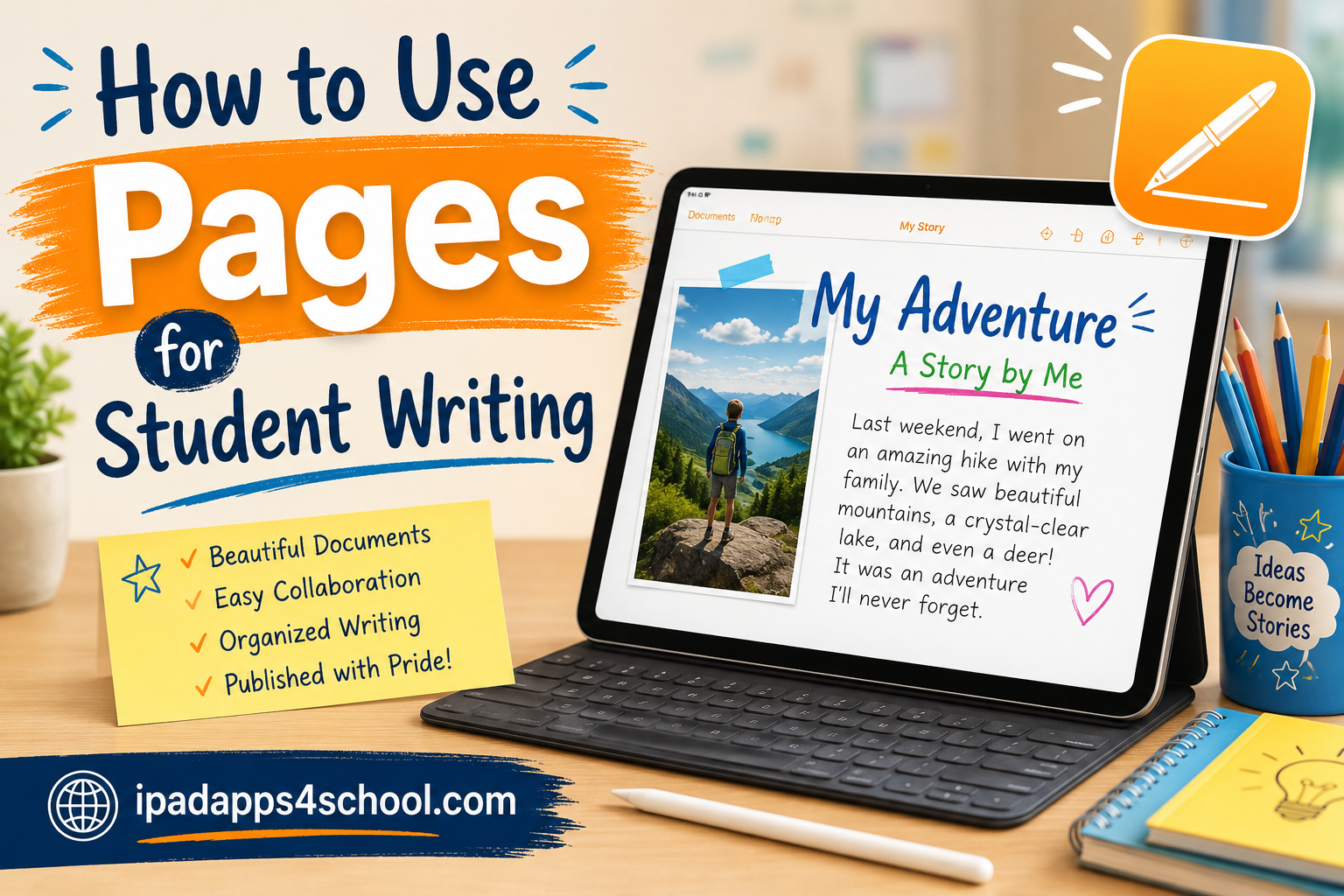
Pages is Apple’s free word processing app that comes pre-installed on every iPad, making it the perfect tool for students to write essays, reports, and creative projects without downloading anything extra. Whether you are in elementary school or college, Pages provides a clean, intuitive interface that helps you focus on your writing while offering powerful formatting tools when you need them. In this guide, I will walk you through everything you need to know about how to use Pages for student writing, from basic setup to advanced features like Apple Pencil integration and collaboration.
I have helped dozens of students get started with Pages over the past three years, and the feedback is always the same: once they learn a few key tricks, writing on the iPad becomes faster and more enjoyable than using paper or other apps. You will discover how to create professional-looking documents, organize your schoolwork, and even collaborate with classmates in real-time. If you want to explore more iPad apps for your studies, there are many tools available to complement your writing workflow.
Table of Contents
What Is Pages and Why Should Students Use It
Pages is Apple’s native word processor designed specifically for iPad, iPhone, and Mac devices. Unlike Microsoft Word or Google Docs, Pages comes pre-installed on every iPad, which means you can start writing immediately without spending money on subscriptions or waiting for downloads.
Students love Pages because it syncs seamlessly across all their Apple devices through iCloud. You can start writing an essay on your iPad during lunch, continue on your iPhone on the bus ride home, and finish on a Mac or PC at home. Everything stays updated automatically.
The app is particularly powerful for student writing because it combines simplicity with professional features. You get beautiful templates, easy formatting tools, and the ability to export your work in formats teachers actually want, including Microsoft Word documents and PDFs.
Another advantage is the integration with iPad hidden features for students like Split View and Apple Pencil support. These features make Pages more versatile than basic note-taking apps when you need to create formal documents.
Getting Started with Pages on Your iPad
Opening Pages for the first time might feel overwhelming with all the template options displayed, but the process is actually straightforward once you know where to begin. Here is exactly how to start your first document.
Step 1: Open the Pages App
Find the Pages icon on your iPad Home screen, it looks like an orange document with a white pen. Tap it once to open the app.
If you cannot find it, swipe down from the middle of your Home screen and type “Pages” in the search bar. The app should appear at the top of your results.
Step 2: Create a New Document
When Pages opens, you will see the document manager with all your existing files. Tap the plus (+) button in the top-right corner to create something new.
This opens the template chooser, which is where you select what type of document you want to create.
Step 3: Choose Your Starting Point
For most student writing, tap “Blank” to start with a clean page. However, if you are writing something specific like a report or letter, scroll through the template categories to find a matching design.
The “Education” category has templates specifically designed for student projects and assignments.
Step 4: Start Writing
Once your document opens, tap anywhere on the white page to place your cursor and begin typing using the on-screen keyboard. The page will expand automatically as you write more content.
Step 5: Name Your Document
Tap “Untitled” at the top of the screen and type a descriptive name like “History Essay – Week 3” so you can find it easily later. Pages saves automatically, so you never have to worry about losing your work.
How to Use Pages for Student Writing: Core Features
Now that you have a document open, let me show you the essential features that make Pages perfect for student writing. These tools will help you write faster and create better-looking assignments.
Basic Text Editing
Pages handles all the standard text editing you expect from any word processor. Tap to place your cursor, then type your content. Double-tap a word to select it, or tap and drag to select multiple sentences or paragraphs.
The on-screen keyboard includes helpful shortcuts. Hold down keys for special characters, or use the dictation button (microphone icon) to speak your text instead of typing it.
Find and Replace
When editing longer papers, use the Find feature to locate specific words or phrases. Tap the magnifying glass icon at the top right, type your search term, and Pages will highlight every instance in your document.
This is especially helpful when you realize you have misspelled a character name throughout your story, or need to change a technical term in a research paper.
Word Count Tracking
Teachers often assign papers with specific word count requirements. Pages makes this easy with a built-in word counter. Tap the three dots (…) menu at the top right, then select “Word Count” from the options.
A small counter appears at the bottom of your screen showing words, characters, and page count. You can move this counter around or hide it when you do not need it.
Spell Check and Proofing
Pages automatically underlines misspelled words in red as you type. Tap an underlined word to see spelling suggestions. You can also enable autocorrect in your iPad settings to fix common typos automatically.
For grammar and style improvements, consider using iPad multitasking tips for school to run Pages alongside a grammar checking app in Split View.
Formatting Your Documents Like a Pro
Good formatting makes your writing easier to read and helps you get better grades. Pages gives you professional formatting tools that are surprisingly easy to use.
Working with Fonts and Sizes
Select any text by tapping and dragging across it, then tap the paintbrush icon to open the Format panel. Here you can change fonts, adjust sizes, apply bold or italics, and modify text color.
For school papers, stick with readable fonts like Helvetica, Georgia, or Times New Roman in 12-point size. Teachers appreciate consistency and readability over fancy styling.
Using Paragraph Styles
Styles are one of Pages’ most powerful features for students. Instead of manually formatting each heading, apply a style and Pages handles the formatting automatically.
Select your title text, then tap “Title” in the Format panel. For section headings, use “Heading” styles. Body paragraphs should use the “Body” style. This keeps your document looking consistent throughout.
Line and Paragraph Spacing
Most teachers want double-spaced essays. To set this, select your text, open the Format panel, tap “Spacing,” and adjust the line spacing to 2.0. You can also add space before or after paragraphs to separate sections.
Lists and Organization
Create bulleted or numbered lists by selecting text and tapping the list button in the Format panel. This is perfect for outlining essays, listing research sources, or organizing project steps.
Apple Pencil and Handwriting Features
One feature that sets Pages apart from other writing apps is its integration with Apple Pencil. If you have an iPad that supports Apple Pencil, you can combine handwriting with typed text seamlessly.
Using Scribble to Convert Handwriting
Scribble is a game-changing feature that converts your handwriting into typed text automatically. With Scribble enabled in your iPad settings, you can write directly in any text field in Pages using your Apple Pencil.
Write naturally across the page, and your handwriting transforms into typed text in real-time. This is perfect for students who prefer writing by hand but need a digital document for submission.
Handwritten Annotations
Sometimes you want to add handwritten notes, drawings, or diagrams to your documents. Tap the plus (+) button in the toolbar, select “Drawing,” and use your Apple Pencil to sketch directly on the page.
This is excellent for adding math equations, diagramming science concepts, or creating visual storyboards for creative writing projects.
Markup Existing Text
Use Apple Pencil to annotate and mark up your drafts. Circle sections that need revision, draw arrows between related ideas, or highlight important points with different colored inks.
Many students find that handwriting annotations help them spot problems they miss when only reading on screen.
Templates That Save Time
Pages includes dozens of templates designed for different types of documents. Learning which templates work best for school assignments can save you hours of formatting time.
Essay and Report Templates
Under the “Education” category, you will find templates specifically designed for student essays and reports. These come with pre-formatted title pages, headers, and body text styles that match academic standards.
Using a template ensures your document starts with professional formatting already in place.
eBook Templates for Creative Projects
Some teachers assign digital book projects or creative stories. Pages includes eBook templates with beautiful layouts, chapter organization, and even cover page designs.
These templates can be exported as actual ePub files that open in Apple Books, letting you create professional-looking digital books.
Creating Your Own Templates
If you frequently write the same type of assignment, create a custom template. Format a document exactly how you want it, including your preferred fonts, spacing, and heading styles.
Then tap the three dots menu and select “Save as Template.” This template will appear in your template chooser for future use.
Collaborating with Classmates and Teachers
Group projects become much easier when everyone can work on the same document simultaneously. Pages includes collaboration features that let multiple students edit a document together.
Sharing Documents
Tap the share button (square with an arrow) at the top of your document. Choose how you want to send the invitation, via Messages, Mail, or by copying a link.
When sharing, select “Collaborate” instead of “Send Copy” to let others edit the document with you.
Real-Time Editing
Once shared, multiple students can edit the document simultaneously. You will see colored cursors showing where each person is working. Changes appear instantly for everyone viewing the document.
This eliminates the confusion of emailing different versions back and forth.
Comments and Feedback
Teachers and classmates can add comments to your work without changing the text itself. Select a section of text, tap “Add Comment,” and type your feedback.
Comments appear as yellow sticky notes in the margin. Tap them to read the full comment or reply to start a conversation thread about specific sections.
Exporting and Submitting Your Work
Most teachers require assignments in specific formats. Pages makes it easy to export your work in whatever format your teacher requests.
Sending as Microsoft Word
Many teachers require Word documents (.docx). Tap the three dots menu, select “Export,” then choose “Word.” Pages converts your document perfectly, preserving all formatting, styles, and images.
The exported file can be submitted through learning management systems like Canvas, Google Classroom, or via email.
Creating PDFs
PDF is the best format for final submissions because it preserves your exact formatting regardless of what device opens it. Export to PDF from the same Export menu.
PDFs are also harder to accidentally edit, making them ideal for finished work.
ePub for Digital Books
If you created an eBook or digital story, export as ePub to share it with classmates or publish to Apple Books. This format preserves page layouts and lets readers view your work in the Books app.
Student Writing Workflows That Work
After helping many students optimize their writing process, I have found a few workflows that consistently produce better results. Here are proven methods for different types of assignments.
The Essay Writing Workflow
Start with a blank document and create a simple outline using bullet points. Convert each bullet to a heading, then fill in paragraphs under each section.
Keep your research materials open in Safari using iPad multitasking tips for school while you write. Drag and drop quotes directly from web pages into your Pages document.
Notes vs Pages Workflow
For quick ideas and brainstorming, use the Notes app. When you are ready to write formally, copy your notes and paste them into Pages for proper formatting and organization.
This approach gives you the speed of Notes for capturing thoughts and the power of Pages for finished documents.
Research Paper Organization
Use the table of contents feature to navigate long research papers. Apply Heading styles throughout your document, then enable the table of contents view to jump between sections quickly.
This keeps large projects manageable and helps you maintain logical flow. For more tools to enhance your school productivity, check out our collection of school iPad apps.
Frequently Asked Questions
How to use Pages for writing?
Open the Pages app on your iPad, tap the plus button to create a new document, and start typing. Use the Format panel (paintbrush icon) to style your text with fonts, sizes, and colors. Save your work by giving it a descriptive name at the top of the screen.
Can I convert Pages to Word?
Yes. Tap the three dots menu in Pages, select Export, then choose Word. Pages converts your document to .docx format while preserving all formatting, styles, and images. This allows you to submit assignments to teachers who require Microsoft Word documents.
Is Pages a good writing app for students?
Pages is excellent for student writing. It is free, pre-installed on iPads, and offers professional formatting tools. The app syncs across devices, supports Apple Pencil for handwritten notes, and exports to formats teachers require including Word and PDF.
What can I do with the Pages app?
With Pages, you can write essays, create reports, design eBooks, collaborate on group projects, add images and drawings, format academic papers, track word counts, and export to multiple formats. The app also supports Apple Pencil for handwriting and annotation.
How do I use Apple Pencil with Pages?
Enable Scribble in your iPad Settings to convert handwriting to text automatically. You can also tap the plus button and select Drawing to add handwritten annotations, sketches, or diagrams directly on your Pages document.
Conclusion
Learning how to use Pages for student writing opens up a world of possibilities for creating professional schoolwork on your iPad. From basic essays to collaborative research projects, Pages provides all the tools you need without costing a penny.
Start with simple documents, experiment with templates and styles, then gradually incorporate advanced features like Apple Pencil integration and collaboration. With practice, you will find Pages becomes your go-to app for all your student writing needs.