
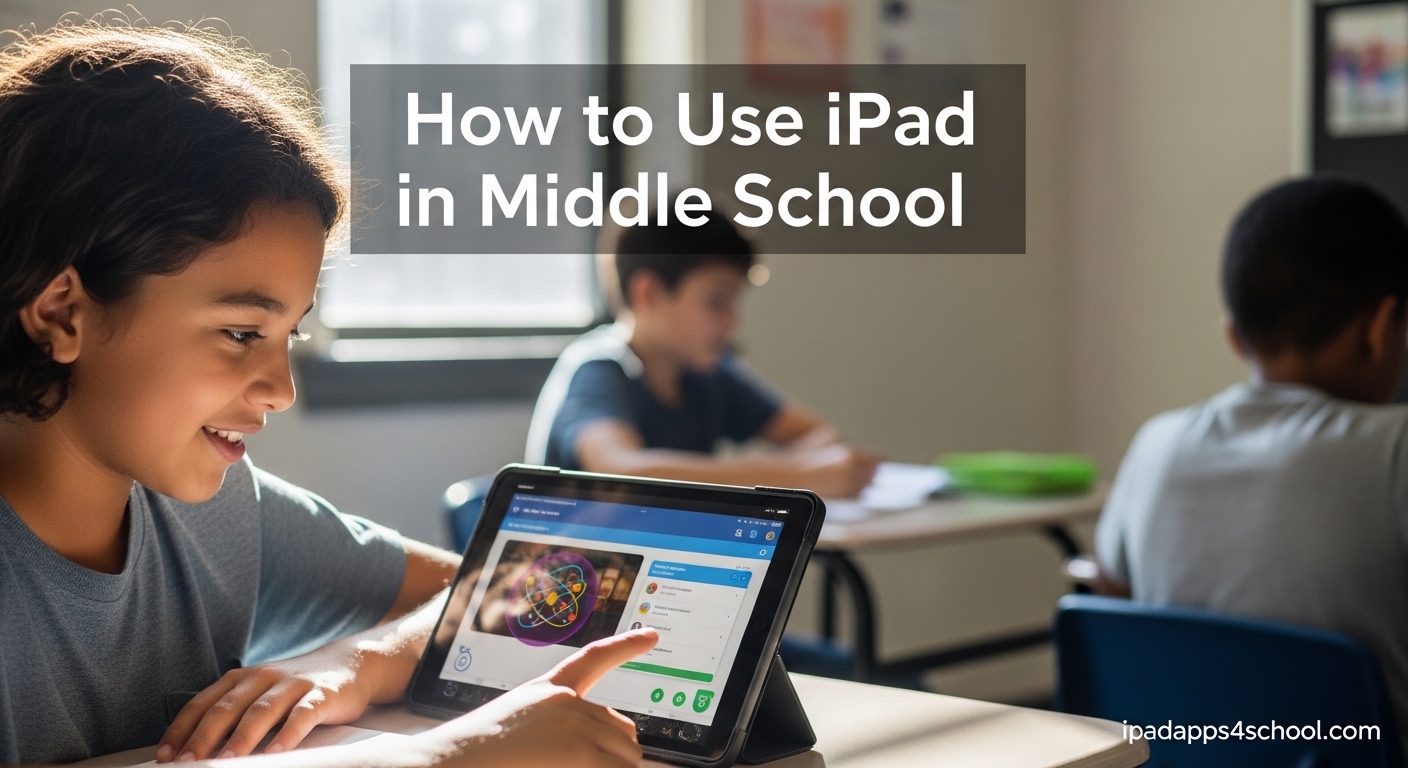
Middle school marks a turning point in how students interact with technology. During these formative years, the habits you build around your iPad can shape how you learn and collaborate for years to come. Our team has spent time in classrooms, talking to teachers and students, and we have seen firsthand how the right approach transforms the iPad from a distraction into a powerful learning companion.
This guide walks you through everything you need to know about using your iPad in middle school, from the first time you open the box to mastering features that most students never discover. Whether you are just starting sixth grade or heading into eighth, you will find practical tips you can use immediately.
Table of Contents
Why iPad Skills Matter for Middle School Success
Let us be honest with you. Most students use their iPad like an oversized iPhone. They download a few note apps, watch the occasional lecture video, and maybe type up an assignment. They scroll through social media, play games, and treat the device as an entertainment portal first.
Teachers notice this right away. When we speak with educators, they consistently report that students lack the foundational skills to use iPads productively. That gap creates real consequences for your grades and your ability to manage schoolwork efficiently.
Here is what changes when you learn to use your iPad properly. You can keep all your assignments organized in one place. You can switch between your research browser and your writing app without losing your train of thought. You can collaborate with classmates on group projects without endless email threads. These skills compound, and by high school, you will be miles ahead of peers who never took the time to learn their device properly.
In this guide, you will learn how to set up your iPad for school success, discover multitasking features that save time, find the best apps for middle school learning, and build habits that help you focus when it matters most.
Setting Up Your iPad for School Success
The first hour with your iPad matters more than you might think. A few minutes spent on the right settings now saves hours of frustration later. Here is what we recommend enabling first.
Essential Settings to Enable Right Away
Open Settings and work through this checklist. Enable iCloud Drive so your documents automatically sync across all your devices. Turn on automatic updates so your apps always have the latest features and security patches. Configure your Apple ID with your school email if your district provides one, or set up Family Sharing if your parents need visibility into your app purchases and screen time.
We suggest turning on the Files app and connecting to your school cloud storage on day one. This single step prevents the chaos of emailing documents to yourself or losing assignments because your iPad died before you could save.
Configuring Focus Mode and Screen Time
Screen Time settings give you control over how you spend your time on your iPad. Both you and your parents can configure these settings, which makes them powerful tools for building healthy habits.
Focus Mode deserves your attention. When you turn on Focus, notifications from games and social media vanish until you are ready for them. We recommend creating a Study Focus mode that silences everything except messages from family members and apps you use for homework. Your iPad becomes a dedicated learning tool in an instant.
Organizing Your Home Screen for Quick Access
Your home screen should reflect what you actually need for school. Move your note-taking app, calendar, and browser to the front page. Create a folder called “School” and fill it with apps you use for assignments. Keep games and entertainment apps in a separate folder on a later page, out of immediate sight.
If you want a deeper dive into organization strategies, check out our guide on how to organize your iPad home screen for school success.
Setting Up the Notes App for Assignments
The built-in Notes app deserves more attention than it typically gets from students. You can create separate folders for each subject, use tags to mark important assignments, and snap photos of handwritten notes to keep everything searchable.
Notes also syncs with iCloud, meaning whatever you create on your iPad appears on your Mac, your phone, or any device signed into your Apple ID. This seamless access means you never have to worry about forgetting an assignment at home because you wrote it on your school iPad.
How to Use iPad Multitasking Features
Here is where most students fall short. The iPad has remarkable capabilities for running multiple apps at once, yet the majority of students use one app at a time and switch between them manually. Learning these multitasking features alone can transform how quickly you complete assignments.
Split View for Research and Writing
Split View lets you run two apps side by side. Imagine reading a webpage in Safari while typing your essay in Notes, both visible at once. No more switching back and forth. No more losing your place when you check a citation.
To activate Split View, swipe one app from the top of the screen and drag it to the left or right edge. The other app remains in place, and you can adjust the divider to give one app more screen real estate. Our team found this especially useful when writing research reports, cutting assignment time significantly.
You can also master iPad multitasking with our dedicated guide that covers additional techniques.
Slide Over for Quick Reference
Slide Over works differently from Split View. Instead of splitting the screen, a third app floats above your current app in a compact card. You can swipe from the edge of the screen to peek at a reference document, then swipe it away when you no longer need it.
This works beautifully for keeping a calculator, dictionary, or email open while you work in your main app. Once you start using Slide Over, you will wonder how you ever managed without it.
Stage Manager for Multiple Projects
Stage Manager organizes your apps into groups on the left side of the screen, with your active app enlarged on the right. It takes some getting used to, but students who master it report feeling much more in control of complex assignments with multiple documents open.
You can group related apps together. Open Safari, Notes, and Messages when working on a group project, and Stage Manager keeps that cluster ready for you. Switch to your study cluster when preparing for an exam, and your iPad instantly transforms into a focused workspace.
For a complete walkthrough, see our guide on how to use Stage Manager effectively on your iPad.
Apple Pencil Integration Tips
If your school provides an Apple Pencil or you have your own, you have unlocked an incredible tool for note-taking. The iPad recognizes handwriting, which means you can write notes by hand and search for them later using keywords.
Many students find handwriting helps them remember information better than typing. Our team compared both approaches over several weeks, and the handwriting group consistently performed better on recall tests. The iPad gives you the best of both worlds: handwritten notes that never get lost and digital searchability when you need to find something quickly.
Best Apps for Middle School Learning
Choosing the right apps matters more than most students realize. A poorly designed app wastes your time and frustrates you. A great app feels natural to use and actually helps you learn. Here are the categories you need to fill, with app suggestions that work well for middle school students.
Note-Taking Apps That Actually Help
Beyond the built-in Notes app, consider these options. GoodNotes lets you write on PDFs, which teachers frequently distribute as worksheets or reading packets. Notability offers audio recording synced to your notes, so you can record a lecture and tap on any word later to hear what was said at that moment. Both apps cost money, but school districts sometimes provide them free through Apple School Manager.
The free options work too. Google Keep syncs with your school Google account and includes color-coded labels. Microsoft OneNote offers powerful organization with notebooks, sections, and pages that mirror how students naturally think about subjects.
Assignment and Calendar Management
Missing assignments destroy grades faster than anything else. You need a system that shows you what is due and when. We recommend the calendar app built into iPadOS because it automatically syncs with Google Calendar if your school uses Google Workspace.
Add every assignment the moment your teacher announces it. Include the due date, the subject, and any attached files. Block time on your calendar for homework sessions. This habit alone prevents more missed assignments than any other single change you can make.
Reference and Research Tools
Your iPad makes research faster than using a library computer or waiting for a desktop to boot. Safari includes a reading mode that strips away website clutter, making articles easier to digest. The built-in dictionary app offers definitions, thesaurus entries, and Word of the Day notifications that quietly build your vocabulary.
For science and history research, Wikipedia works as a starting point, but verify information with primary sources when possible. The Purdue OWL website helps with citation formatting, which teachers will ask you to do more frequently as you progress through middle school.
Subject-Specific Learning Apps
Math students should explore Photomath or Symbolab for checking homework problems step by step. These apps do not replace learning; they show you where you went wrong so you can correct mistakes before tests. Science students benefit from apps that simulate experiments too dangerous or expensive to run in a classroom.
Language learning apps like Duolingo work well for foreign language classes. Even fifteen minutes of daily practice builds fluency faster than cramming before a test. The key is consistency, not intensity.
Staying Organized on Your iPad
Organization separates students who feel constantly stressed about assignments from those who always know exactly where their work stands. Your iPad offers tools to build an organization system that scales with your workload.
Creating Folders and Using Tags
Folders on your iPad work like physical file cabinets. Create one for each subject, and inside those, create subfolders for major units or chapters. By the end of a semester, you will know exactly where to find last month’s science lab report.
Tags add another dimension. In the Files app and Notes app, you can apply colored tags to mark items as urgent, submitted, or needing revision. Search by tag when you need to find everything due this week across all your subjects.
File Organization Best Practices
Name your files consistently. Include the subject, assignment title, and date. “Science_LabReport_Ocellations_092523” tells you everything at a glance. “Lab4” creates confusion when you have five labs due in one week.
Use the iCloud Drive folder structure your school provides. Many districts set up a shared folder for turning in assignments and a personal folder for work in progress. Learn where to save things on day one, and resist the temptation to save everything to your iPad desktop.
iCloud Drive for School Documents
iCloud Drive ensures your documents exist in two places at once: on your iPad and in the cloud. If your iPad breaks, you buy a new one, or you need to access a file from your phone, everything remains available. This backup protection gives you peace of mind and prevents the panic of a lost assignment.
Three storage tiers come with iCloud: 5GB free, 50GB for seventy-nine cents per month, and 200GB shared with your family. Most students find the 50GB plan sufficient for all school documents and app data.
Managing Distractions and Staying Focused
Your iPad can send you down rabbit holes that consume hours without you noticing. Social media, games, and video apps compete for your attention constantly. Learning to manage these distractions deliberately separates successful students from those who constantly struggle with procrastination.
Setting Up Focus Mode for Classes
Focus Mode deserves a place in every student’s toolkit. Configure it to allow notifications only from specific contacts, like parents or teachers, and from specific apps you need for the current class. When Focus is on, TikTok, Instagram, and games go silent.
Create multiple Focus profiles. School Focus allows educational apps and messages from your parents. Homework Focus allows everything except entertainment. Wind Down Focus limits everything to help you sleep. Your iPad becomes context-aware, automatically adjusting based on what you are trying to do.
App Limits and Screen Time
Screen Time settings let you set daily limits on specific apps. We recommend setting a fifteen-minute daily limit on social media apps as a starting point. When the limit expires, the app grays out and requires your password to continue. Most students find this friction enough to reconsider opening the app at all.
Review your Screen Time weekly. Look at the report showing which apps consumed most of your time. This data often surprises students who did not realize they spent ninety minutes on games when they intended to study for thirty minutes.
Building Study Routines
Routines remove decision fatigue. Instead of deciding when to study, you simply follow the routine you built yesterday. We suggest starting with a fifteen-minute session after dinner, regardless of whether you have homework. Use the time to review notes, organize files, or get ahead on reading.
Gamified focus apps like Forest offer a twist: you grow a virtual tree while staying in the app, and the tree dies if you leave. This sounds silly, but our team found it effective for students who struggle with the temptation to check their phone every few minutes.
Collaborating on Group Projects
Group projects teach skills that matter beyond school, but coordinating with teammates often frustrates students more than the actual work. Your iPad offers built-in tools that make collaboration much smoother when you know how to use them.
Using SharePlay and Freeform
Freeform, the free app from Apple, creates an infinite canvas where multiple people can draw, add images, and write notes simultaneously. Students use it for brainstorming sessions, organizing research, and building visual storyboards together. Everyone sees changes in real time, eliminating the confusion of sending revised documents back and forth.
SharePlay works with FaceTime, letting you watch videos, listen to music, or study together even when apart. For group projects, SharePlay combined with Freeform creates a virtual study session where teammates contribute from different locations.
Google Drive and Microsoft Teams Tips
Most schools use either Google Workspace or Microsoft 365 for document collaboration. Both platforms let multiple people edit the same file at once, with changes saved automatically and previous versions preserved.
The key habit: always work inside the shared folder, never download a file to work on it locally, and upload your changes when finished. Downloaded files create version conflicts that waste time and occasionally cause data loss.
Effective Communication Apps
Group chat apps keep everyone connected, but they also create noise. Set boundaries with your group early. Agree on which platform to use for what purpose: Messages for quick questions, email for formal communication with teachers, and the shared folder for document collaboration.
Many students find it helpful to mute group chats during class and check them during designated breaks. This prevents the anxiety of constant notifications while ensuring you do not miss important updates from teammates.
Creative Projects and Multimedia
Middle school assignments increasingly ask students to demonstrate learning through creative formats. Video presentations, digital art, and podcast recordings often replace traditional written reports. Your iPad handles all of these natively with professional-quality results.
Video Projects with iMovie
iMovie comes free on every iPad and produces videos that look polished. Students use it for everything from book reports to science fair demonstrations to historical reenactments. The interface simplifies complex editing tasks: drag clips onto a timeline, add transitions, include music from the built-in library, and export in resolutions up to 4K.
Planning saves more time than any editing technique. Write a simple script or storyboard before filming. Know what you want to say in each scene. This preparation prevents the frustration of filming hours of footage only to realize you missed essential shots.
Digital Art with Procreate
Procreate costs money but ranks among the most powerful art apps available on any device. Students use it for illustration assignments, graphic design projects, and creative expression. The app supports Apple Pencil pressure sensitivity, meaning your strokes behave like real brushes, pens, or pencils.
Free alternatives exist if budget matters. The built-in Markup tool in Photos offers basic drawing capabilities. Adobe Fresco provides a limited free tier. However, serious art students consistently tell us Procreate’s one-time purchase pays for itself within the first month of use.
Presentations and Slideshows
Keynote, Apple’s presentation app, runs on iPad and creates visually impressive slideshows. Templates simplify the design process while ensuring your presentation looks professional. Add animations, video clips, and interactive charts to hold your audience’s attention.
Practice your presentation on your iPad before presenting to the class. This rehearsal catches timing issues and awkward transitions you might miss while planning.
Digital Citizenship for Middle Schoolers
Every post you make, every comment you leave, and every search you conduct contributes to your digital footprint. Middle school is when this footprint starts becoming permanent, which makes learning responsible technology habits critical during these years.
Online Safety Basics
Never share your password with friends, even close ones. Passwords belong to you alone, and sharing them creates situations where friends can accidentally or intentionally access your accounts, impersonate you, or change settings without your knowledge.
Verify before sharing personal information. Legitimate websites and teachers never ask for your home address, phone number, or Social Security number via email or message. If something feels off, talk to a parent or trusted adult before proceeding.
Understanding Digital Footprints
Everything you post online potentially stays there forever. Even disappearing stories and deleted posts can be screenshotted, shared, and preserved by others. Colleges, universities, and future employers increasingly review applicants’ social media presence during admissions and hiring processes.
Ask yourself whether you would be comfortable with your parents, teachers, and future employers seeing what you are about to post. If the answer is no, reconsider posting it at all.
Responsible Social Media Use
Social media offers connection with friends and access to communities that share your interests. It also creates comparison traps that damage mental health, addiction mechanisms designed to capture your attention, and echo chambers that reinforce existing beliefs without exposing you to new perspectives.
We recommend limiting social media use to designated times rather than checking constantly. Following accounts that inspire learning, creativity, or physical activity creates a more constructive feed than algorithmically curated content designed to maximize engagement.
Cyberbullying Awareness
If you experience cyberbullying, screenshot the evidence immediately before the content disappears. Block the person engaging in harmful behavior. Report the behavior to the platform and to a trusted adult at school. You do not have to face it alone, and you do not have to respond to harassment.
If you witness cyberbullying directed at someone else, avoid amplifying the harmful content by sharing or commenting. Privately reach out to the person being targeted to offer support. Stand up against bullying rather than passively watching it happen.
FAQ
What are some iPad tricks for middle school students?
Key tricks include using Split View to run two apps side by side, activating Slide Over for quick reference checks, setting up Focus Mode to block distractions during study time, and using the Apple Pencil with handwriting-to-text conversion in Notes. Learning keyboard shortcuts on a connected keyboard also speeds up typing significantly.
How do I stop distractions on my school iPad?
Configure Screen Time to set daily limits on entertainment apps, create a dedicated Focus Mode profile for studying that blocks social media and games, and move distracting apps to a folder on a later home screen page. Building study routines at consistent times each day also reduces the temptation to procrastinate with entertainment.
What apps do middle school students need?
Essential apps include a note-taking app like Notes or GoodNotes, a calendar app for assignment tracking, a reference app like the built-in Dictionary, and subject-specific apps like Photomath for math. Google Drive or Microsoft OneDrive for cloud document storage and FileVault for secure file management are also highly recommended.
How can I use my iPad more effectively for homework?
Start by organizing your home screen for school use, enable iCloud sync for all documents, use Split View to research and write simultaneously, and set up Focus Mode before starting homework sessions. Creating consistent study routines and using the calendar app to block homework time each day builds lasting productivity habits.
Final Tips for iPad Success
Learning to use your iPad effectively for school takes time, and you will not master everything in a single afternoon. Pick one or two techniques from this guide to try this week. Once those become habits, add one or two more. Gradual improvement compounds into significant change.
The students who thrive with technology in middle school share one trait: they treat their iPad as a serious tool rather than a toy. They configure it deliberately, learn its features actively, and use it intentionally. That mindset shift transforms your device from something that competes for your attention into something that amplifies your capabilities.
For more strategies on getting the most from your iPad, browse all how-to guides on our site. You can also explore discover hidden iPad features that most students never find, or dig deeper into master iPad multitasking with our dedicated tutorials.