
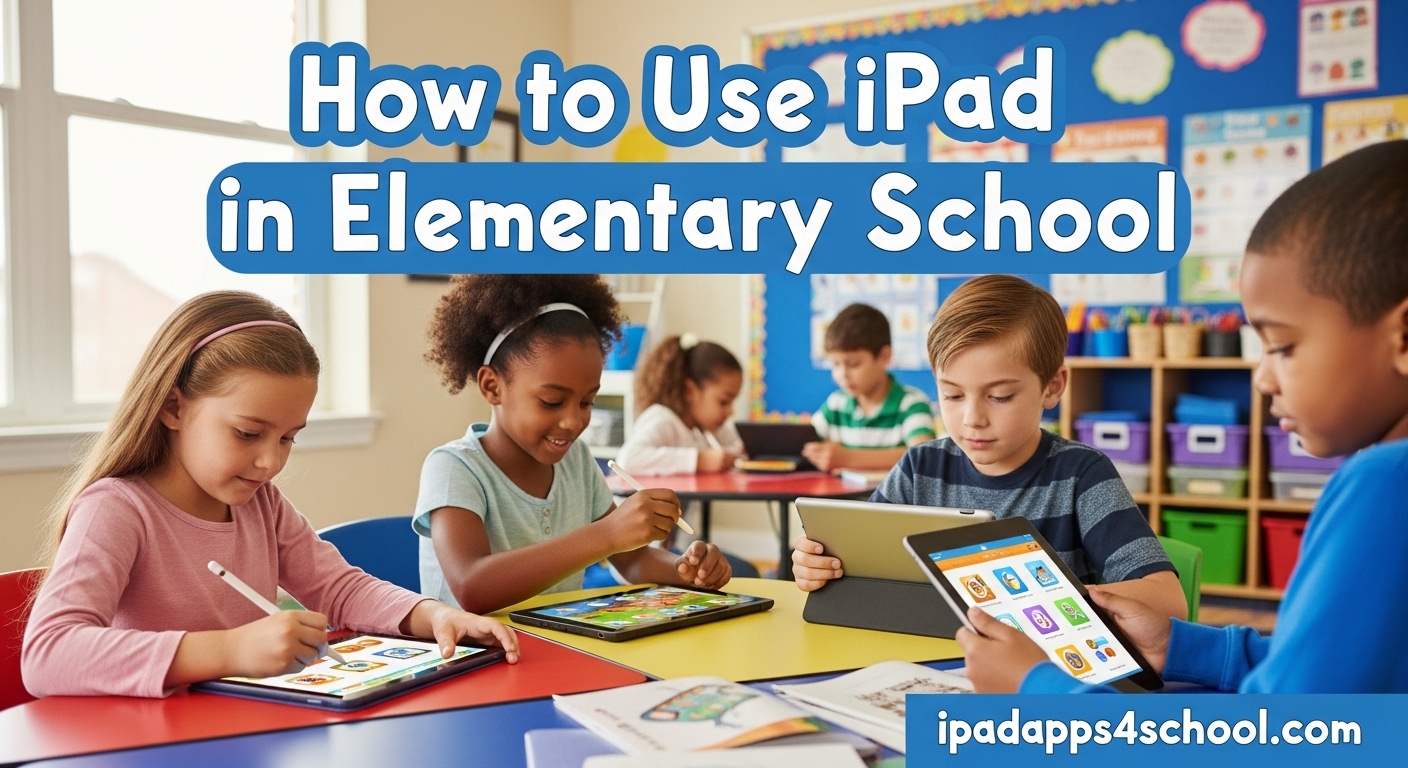
iPads have become one of the most versatile tools in elementary school classrooms. From kindergarten through fifth grade, these devices offer interactive learning experiences that can accommodate different learning styles while building essential digital literacy skills from an early age. Whether you are a teacher setting up your first classroom iPad station or a parent wondering how your child is using technology at school, this comprehensive guide covers everything you need to know about using iPads effectively in elementary education.
In this article, you will find practical strategies for classroom integration, age-appropriate activities for different grade levels, built-in iPad features that require no additional apps, and real-world tips from teachers who have successfully navigated the challenges of device management in young learners’ classrooms.
Table of Contents
Getting Started: Setting Up iPads for Classroom Use
Before diving into activities and lessons, proper iPad setup is essential for smooth classroom management. Teachers who have implemented iPad programs successfully recommend starting with these foundational steps.
Essential Settings for School iPads
- Guided Access: This built-in feature allows you to lock an iPad to a single app, preventing students from wandering into other apps during lessons. To enable it, go to Settings > Accessibility > Guided Access.
- Screen Time: Configure Screen Time settings to restrict app downloads and purchases. This prevents students from adding games or changing settings during class time.
- Apple TV Mirroring: If you have an Apple TV in your classroom, you can mirror your iPad screen to the whole-class display, making it easy to demonstrate activities without having students crowd around a single device.
- Camera and Photos: Ensure the Camera app is easily accessible for student creation projects, and set up a shared photo album for classroom work.
Device Management Essentials
One of the biggest pain points teachers report is the actual logistics of distributing and collecting iPads. Here are strategies that work:
- Number each iPad and have students responsible for their assigned device
- Create a charging station with labeled slots for each iPad
- Establish clear routines for when iPads come out and go away
- Use a timer or visual cue to signal iPad time beginning and ending
Built-in iPad Features Every Teacher Should Know
You do not need to spend hours searching for the perfect app. iPad includes many built-in features that can be used immediately to support students in the elementary grades. These tools are especially valuable because they require no additional purchases or downloads.
Speak Selection and Text-to-Speech
One of the most powerful accessibility features for young learners is Speak Selection. Students can select any text in any app and have it read aloud. This supports beginning readers, English language learners, and students who benefit from auditory processing. To enable it, go to Settings > Accessibility > Spoken Content > Speak Selection.
Markup
The Markup tool is built into many apps including Photos, Notes, and Screenshots. Students can draw, highlight, and annotate images and documents. This is perfect for:
- Labeling diagrams in science class
- Highlighting reading passages for comprehension questions
- Showing work on math problems
- Creating visual responses to stories
Freeform
The Freeform app (free on all iPads) provides an infinite canvas for collaboration. Students can add drawings, text, images, documents, and more in a single workspace. This supports:
- Brainstorming sessions
- Group research projects
- Story mapping and planning
- Visual problem-solving
Camera and Photos
The iPad camera is a powerful learning tool that students can use to document learning, create digital portfolios, and capture observations for science and nature studies. The Photos app also includes built-in editing tools for basic adjustments.
Keynote
Keynote is Apple’s presentation app, and it is far more versatile than many teachers realize. Students can use it to:
- Create digital storytelling projects
- Build interactive books
- Design science presentations
- Present research projects
Grade-Level Strategies: K-2 vs 3-5 Approaches
Elementary school encompasses a wide range of developmental stages, and iPad use should look different for kindergarten students than for fifth graders. Here is how to approach iPad integration across these grade levels.
| Grade Level | Recommended iPad Use | Best Features | Time Limits |
|---|---|---|---|
| Kindergarten-1st Grade | Short, guided activities with teacher direction; skill-building with letters, numbers, and basic concepts | Speak Selection, Camera, simple drawing apps, read-aloud features | 10-15 minutes max |
| 2nd-3rd Grade | Longer activities, some independent work, introduction to creation projects | All above plus Freeform, Notes, Keynote, collaborative work | 15-25 minutes |
| 4th-5th Grade | Project-based learning, research skills, digital citizenship responsibility | All features plus student choice in creation tools, multi-app projects | 30-45 minutes |
For K-2 Students
Younger students benefit most from iPad use when it is short, highly guided, and connected to concrete learning objectives. According to forum discussions among kindergarten teachers, iPads work best in K-2 when used for:
- Tracking data on student progress and needs
- Practice with foundational skills (letter recognition, number sense, phonics)
- Listening to stories and interacting with read-aloud features
- Simple creation activities like taking photos of classroom projects
For 3-5 Students
Older elementary students can handle more complexity and longer projects. Research shows that students in grades 3-5 are ready for:
- Project-based learning incorporating multiple apps
- Research projects using the web and reference apps
- Digital storytelling and multimedia presentations
- Collaborative work using shared documents and Freeform
- Coding and computational thinking activities
Classroom Integration: Subject-by-Subject Ideas
Integrating iPads across the curriculum does not require expensive apps or complex lesson plans. Here are practical ways to bring iPad learning into different subject areas.
English Language Arts (ELA)
- Reading Comprehension: Use Speak Selection to have students follow along with text as it is read aloud. This supports fluency development and comprehension.
- Vocabulary Building: Students can use the Camera app to photograph new words they encounter, then add them to a personal vocabulary dictionary in Notes.
- Creative Writing: Use Keynote to create illustrated stories, or Freeform for story mapping and planning.
- Digital Storytelling: Combine photos, voice recordings, and text to create multimedia stories about personal experiences or creative fiction.
Mathematics
- Math Practice: Use the built-in Calculator app for computation practice, and explore math apps that provide adaptive feedback.
- Visual Math: Use Markup to annotate and show work on math problems. Students can photograph their paper work and add voice explanations.
- Data and Graphing: Students can collect data in science or social studies, photograph results, and use markup tools to create visual representations.
Science
- Nature Exploration: Take iPads outside to photograph plants, animals, and weather phenomena. Students can create digital nature journals.
- Documentation: Record observations over time, creating photo journals of plant growth or weather patterns.
- Research: Use Safari with guided search to explore science topics, with teachers setting appropriate boundaries.
Social Studies
- Virtual Field Trips: Explore maps, historical sites, and cultural locations using the Maps app and web resources.
- Timeline Creation: Use Keynote to create historical timelines with images and text.
- Cultural Studies: Photograph and document family traditions, community celebrations, and cultural artifacts.
Engaging Activities: Low-Prep Ideas That Work
Teachers value strategies that require minimal preparation but deliver high engagement. Apple Education has developed several “low-lift, no-prep” activities that work well in elementary classrooms.
ABC Brainstorm
This quick strategy activates prior knowledge and gets students thinking creatively. Students choose a topic and come up with a word or phrase for each letter of the alphabet related to that topic. This can be done collaboratively in Freeform or on paper. It works across all subjects and grade levels.
In the Wild
This activity connects learning to the real world by having students find examples of concepts outside the classroom. For example, a teacher might ask students to find and photograph things that demonstrate forces of motion, or objects that show geometric shapes. Students bring their photos back to discuss as a class using Apple TV mirroring.
Thin Slide
Challenge students to explain a concept in just three slides or three images. This activity builds conciseness and deep understanding because students must identify the most essential elements of a topic. It works particularly well for reviewing before assessments or summarizing lessons.
Quick Takes
Students use the Camera app to record short video responses to prompts. “Quick Takes” supports formative assessment and gives every student a voice, including shy students who may not raise their hands in class discussions. Teachers can review videos later or share selected clips with the class.
Additional Engaging Activities
- App Smashing: Combine multiple apps to create something one app cannot do alone. For example, take a photo in the Camera app, annotate it in Markup, and add it to a presentation in Keynote.
- Digital Portfolios: Students collect their best work throughout the year in the Photos app, organized by subject or by date.
- Partner Practice: Pairs of students take turns teaching each other concepts using the iPad as their visual aid.
Classroom Management Tips for Device Use
Managing iPad use in elementary classrooms is one of the biggest challenges teachers face. Forum discussions among educators reveal common pain points and practical solutions that work.
Addressing Distraction
The most common concern teachers express is students becoming distracted on iPads. Here are evidence-based strategies to address this:
- Use Guided Access: This feature locks the iPad to a single app, preventing students from opening games or other distractions during instruction.
- Clear Purpose: Every iPad session should have a specific, achievable goal. When students know exactly what they should be doing, they are less likely to wander off task.
- Visual Monitoring: Position your teaching area so you can see student screens easily. A quick glance should allow you to notice off-task behavior.
- Timer and Transitions: Use a visible timer to signal when iPad time is ending. This helps students mentally prepare to transition away from the device.
The 5 Cs of Media Use
The American Academy of Pediatrics provides guidance through the 5 Cs framework for media use in young children:
- Curate: Choose high-quality, age-appropriate content and apps
- Champion: Model good media habits for your children or students
- Connect: Use media together and discuss what children are watching or doing
- Communicate: Talk openly about media use and set clear expectations
- Collaborate: Work with other parents and teachers to share best practices
Parent Communication
Teachers report that parents often have questions and concerns about iPad use at school. Proactive communication helps build trust:
- Share learning objectives for iPad activities
- Explain classroom management strategies
- Provide suggestions for iPad use at home that reinforce classroom learning
- Be transparent about screen time and how it is limited during school hours
The 3/2-1 Reflection Method for iPad Lessons
One effective way to structure iPad-based lessons is using the 3/2-1 reflection method. This strategy ensures students process what they have learned and gives teachers valuable formative assessment data.
3/2/1 Method:
- 3 things you learned — Students identify three new concepts or skills they gained from the lesson
- 2 things you want to know more about — This surfaces student interests and areas that may need reteaching
- 1 question you still have — Students articulate confusion or areas for deeper exploration
Students can record their responses using the Notes app, or share verbally as a class discussion starter. This method works particularly well after research projects, multimedia creation activities, or concept introduction lessons.
Frequently Asked Questions
How can iPads be used in the classroom?
iPads can be used in elementary school classrooms in many ways: for interactive skill practice, documentation of learning through photos and videos, creation of multimedia projects, research and reference, formative assessment through tools like Quick Takes, and whole-class instruction through Apple TV mirroring. The key is starting with clear learning objectives rather than using technology for its own sake.
What is the 3/2-1 method for teachers?
The 3/2/1 reflection method is a formative assessment strategy where students identify 3 things they learned, 2 things they want to know more about, and 1 question they still have. This gives teachers insight into student understanding while helping students consolidate their learning. It can be used with or without technology, but iPads make it easy for students to record and share their reflections.
Should iPads be used in primary schools?
Research on touchscreen devices in early childhood education shows both potential benefits and concerns. When used appropriately for short, guided periods with clear learning objectives, iPads can support skill development and engagement in primary grades. The key is balance — iPads should complement, not replace, hands-on activities, outdoor play, social interaction, and reading physical books. The American Academy of Pediatrics recommends careful attention to screen time limits and content quality for young children.
What are some iPad tricks for elementary teachers?
Essential iPad tricks for elementary teachers include: using Speak Selection to support reading, enabling Guided Access to lock devices to single apps, using Apple TV mirroring for whole-class demonstrations, trying the ABC Brainstorm strategy for engagement, using the Camera app for Quick Takes video responses, and combining multiple apps (app smashing) for richer projects. Built-in features like Markup, Freeform, and Keynote require no additional purchases and offer powerful learning tools.
How do I stop students from getting distracted on iPads?
Prevention strategies include using Guided Access to lock the iPad to the learning app, giving every student a specific task with clear success criteria, keeping sessions short especially with younger students, and positioning yourself where you can see student screens. When students do become distracted, a gentle redirect to the specific task, combined with proximity (moving close to that student), usually works. Avoid public shaming for off-task behavior — private reminders are more effective and preserve student dignity.
“Integrating iPads and laptops into elementary school classrooms enhances learning by providing interactive and engaging educational experiences.” — Reddit r/kindergarten community discussion
Conclusion
Using iPads effectively in elementary school requires more than just having devices — it demands thoughtful integration strategies, age-appropriate expectations, and solid classroom management routines. The good news is that you do not need expensive apps or complex systems to get started. iPads come equipped with powerful built-in features like Speak Selection, Markup, Freeform, and Camera that can transform learning experiences without any additional cost.
The most successful elementary iPad implementations share common elements: clear learning objectives for every device session, consistent routines for handling devices, grade-appropriate expectations and time limits, and regular reflection using methods like 3/2/1. Whether you are teaching kindergarteners basic concepts or fifth graders complex research projects, iPads can be a valuable tool when used thoughtfully.
Remember that iPads should complement, not replace, the hands-on learning, social interaction, and outdoor experiences that are essential for young learners’ development. When used as part of a balanced approach to education, iPads can help elementary students build digital literacy skills, engage more deeply with content, and take ownership of their learning.