
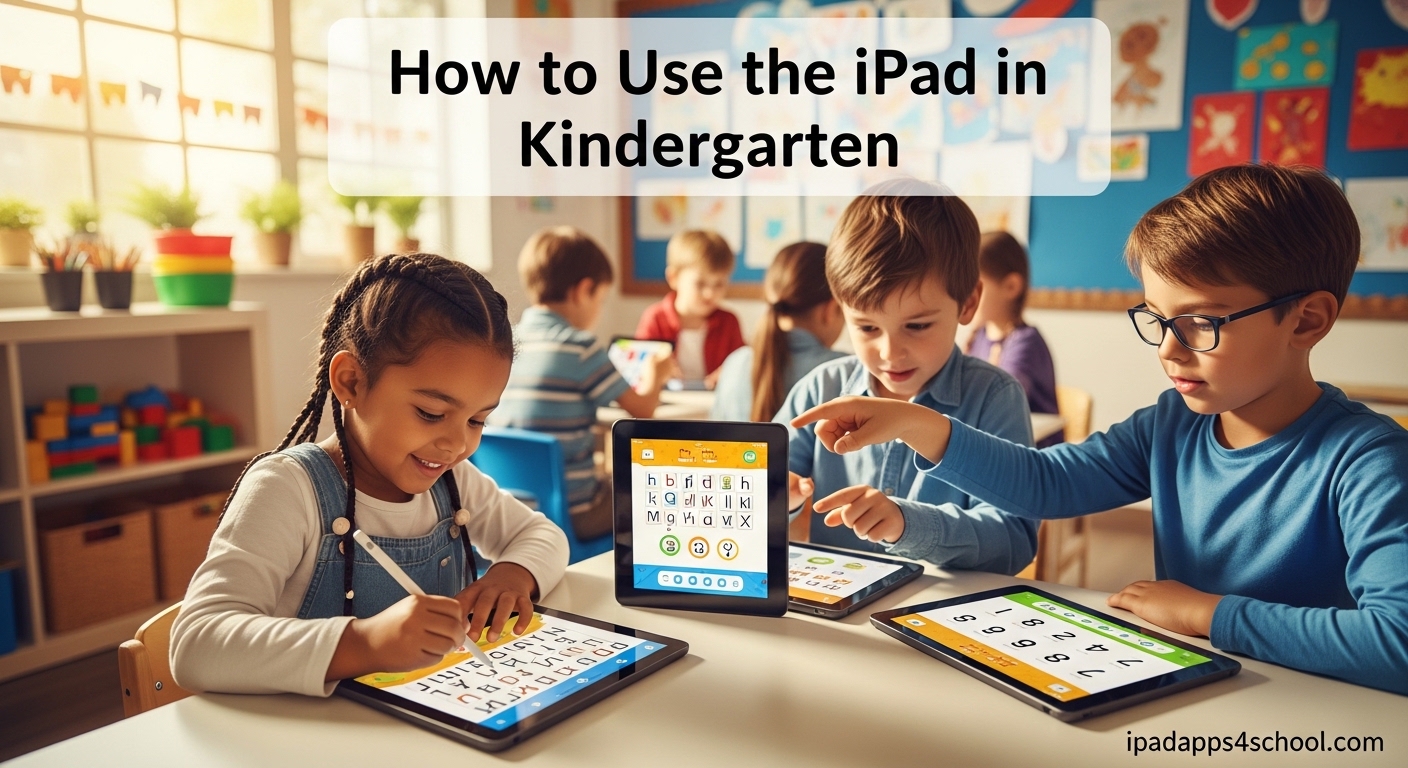
Learning how to use iPad in kindergarten can transform your classroom into an engaging, interactive learning environment. iPads offer young learners hands-on experiences with literacy, math, and creative activities while building essential digital skills for their future. In this guide, I will share practical strategies that I have seen work in real kindergarten classrooms.
Kindergarten teachers often ask whether iPads belong in early childhood education. The answer is yes when used thoughtfully. iPads can supplement traditional teaching methods, provide differentiated instruction, and give students opportunities to explore concepts at their own pace. The key is balancing screen time with hands-on activities and maintaining clear classroom management procedures.
This guide covers everything you need to know about integrating iPads into your kindergarten classroom. You will learn the basics of introducing iPads to 5-year-olds, specific activities for literacy and math, classroom management strategies, and how to set up devices safely using Guided Access.
Table of Contents
Getting Started: iPad Basics for Kindergarteners
Before diving into activities, teach your students the fundamentals of using an iPad. Start by identifying the different parts of the device. Show them the home button, power button, volume controls, and the camera. Let them practice turning the iPad on and off safely.
Demonstrate basic touch screen gestures that kindergarteners need to master. Teach them how to tap, swipe, drag, and pinch. Use simple language like “gentle tap” and “slow swipe” to help them understand the right amount of pressure and speed. Practice these gestures together as a whole class before students use devices independently.
Create visual reminders for your classroom. I have seen teachers make anchor charts showing proper iPad handling, including using two hands to carry the device and setting it down gently on tables. Post these near your technology center so students can reference them during iPad time.
Introducing iPads for the First Time
When introducing iPads to kindergarteners for the first time, keep the lesson short and focused. Start with a 10-minute whole-class demonstration. Show one or two simple apps and model exactly how students should interact with the device. Let students ask questions and share observations.
Consider having students practice with paper iPad templates first. Cut out paper rectangles and have students practice tapping and swiping motions on the paper versions. This builds muscle memory before they handle the real devices.
How to Use iPad in Kindergarten: Classroom Integration Strategies
Successful iPad integration in kindergarten requires thoughtful planning about when and how students use the devices. You have several options for structuring iPad time in your classroom.
Whole Class Instruction
Project your iPad onto a screen or interactive whiteboard for whole-class lessons. This works well for introducing new apps, modeling activities, and guiding students through step-by-step instructions. Apps like NearPod allow you to control what students see on their individual devices while you teach from the front of the room.
Whole class instruction also works when using iPads for shared reading experiences. Display interactive storybooks and let students take turns coming up to tap on words or pictures. This keeps everyone engaged while teaching proper iPad interaction.
Small Group Rotations
Many kindergarten teachers use iPads during center rotations or Daily 5 time. Set up a technology center where 4-6 students work on iPads for 15-20 minute blocks. This keeps group sizes manageable and allows you to focus on other small groups for reading or math instruction.
Plan specific activities for each rotation. For example, during literacy centers, some students might work on letter formation apps while others practice phonics games. Clear expectations about which apps to use prevent students from getting distracted.
Center-Based Learning
Create a dedicated iPad center in your classroom where students can explore educational apps during free choice time. Stock this center with 2-4 iPads and rotate apps weekly to maintain interest. Include headphones so students can work without disturbing others.
Label the center with visual instructions showing which apps are currently available. Use icons or screenshots so pre-readers can identify their choices. Include a timer or sand timer to help students manage their time at the center.
1:1 Device Programs
Some schools provide individual iPads for each kindergarten student. If you work in a 1:1 environment, establish clear routines for device distribution and collection. Teach students to retrieve their assigned iPad from a charging cart and return it properly at the end of each session.
With 1:1 devices, you can assign differentiated activities based on each student’s skill level. Struggling readers might work on letter sounds while advanced students practice sight words. The iPad becomes a tool for personalized learning.
Literacy Activities Using iPad in Kindergarten
iPads offer countless opportunities for developing early literacy skills. From letter recognition to reading comprehension, young learners can practice essential skills through interactive apps and activities.
Letter Formation and Handwriting
Apps that teach proper letter formation help kindergarteners develop fine motor skills and handwriting foundations. Look for apps that guide students through stroke order with visual and audio cues. Many apps provide haptic feedback, vibrating when students trace correctly.
Combine digital practice with traditional writing. After students practice letters on the iPad, have them write the same letters on paper or whiteboards. This reinforces the connection between digital and physical writing.
Phonics and Reading
Phonics apps help students learn letter sounds and blending. Choose apps that progress systematically through phonics skills, starting with single letter sounds and moving to CVC words and beyond. Many apps include games that make practice feel like play.
Interactive storybooks bring reading to life for kindergarteners. Apps that highlight words as they are read aloud help students connect spoken and written language. Look for stories with comprehension questions or activities that extend the learning.
Word Work and Sight Words
Build sight word recognition with apps that let students practice reading and spelling high-frequency words. Many apps use games like memory matching, word searches, or spelling bees to make practice engaging. Track student progress to identify words that need additional practice.
Create digital word walls by having students take photos of classroom objects and label them. This connects reading and writing to their immediate environment. Students can share their word collections with classmates during sharing time.
Math Activities and Games on iPad
Math concepts come alive when kindergarteners interact with them digitally. iPads provide visual representations of abstract concepts and immediate feedback that helps young learners understand numbers and operations.
Number Sense and Counting
Counting apps with manipulatives help students visualize numbers. Look for apps that let students drag and count objects, match quantities to numerals, and practice one-to-one correspondence. Many apps include number lines and ten frames to build conceptual understanding.
Number recognition games help students identify numerals quickly. Apps that show numbers in different fonts and formats prepare students for seeing numbers in various contexts. Include subitizing activities where students recognize quantities without counting.
Basic Operations
Kindergarteners can begin exploring addition and subtraction through story problems and interactive games. Choose apps that use pictures and objects to represent problems concretely. Students should be able to see and manipulate the items they are adding or taking away.
Pattern recognition apps build algebraic thinking. Students complete shape patterns, color patterns, and growing patterns. Many apps let students create their own patterns to share with classmates.
Measurement and Geometry
Geometry apps introduce shapes and spatial reasoning. Students sort shapes by attributes, complete puzzles, and explore how shapes combine to form new figures. Some apps use augmented reality to let students manipulate 3D shapes.
Measurement activities help students compare lengths, weights, and capacities. Virtual rulers and balance scales let students practice measurement skills even when physical materials are limited. Connect these digital experiences to hands-on measurement with real objects.
Creative Activities and Digital Storytelling
iPads unlock creativity for young learners through drawing apps, digital storytelling tools, and multimedia creation. These activities develop communication skills alongside technical abilities.
Drawing and Art Apps
Drawing apps let kindergarteners create without the mess of traditional art supplies. Students can experiment with colors, shapes, and textures digitally. Many apps include stamp features that let young artists add pre-made images to their creations.
Combine digital and physical art by having students draw on iPads first, then recreate their designs with crayons or paint. Or scan physical artwork into the iPad and have students add digital elements. This blending of traditional and digital art creates unique projects.
Digital Storytelling
Even kindergarteners can create digital stories using simple book creation apps. Students draw pictures, add text or voice recordings, and arrange pages to tell stories. This builds narrative skills while giving students ownership of their learning.
Record students reading their stories aloud. This creates artifacts of their reading progress throughout the year. Share these digital books with families to strengthen the home-school connection.
Classroom Management Tips for iPad Time
Managing iPads with 5 and 6-year-olds requires clear procedures and consistent expectations. Establish routines from day one to prevent technology from becoming a distraction.
Setting Clear Rules
Create 3-5 simple rules for iPad use and post them prominently. Rules might include using two hands to carry devices, staying on approved apps, keeping volume low, and asking for help when stuck. Use pictures alongside words so all students can understand.
Practice transitions repeatedly. Teach students exactly how to put away iPads, where to store them, and what to do while waiting for others to finish. Use countdowns and verbal cues to signal the end of iPad time.
Handling Technical Issues
Young children will encounter technical difficulties. Train a few responsible students as tech helpers who can assist peers with common problems like frozen apps or low batteries. This builds leadership while reducing interruptions to your teaching.
Create a signal system for students who need help. A red cup on the desk or a hand signal lets you know someone needs assistance without them calling out. Address issues quickly to keep the rest of the class engaged in their activities.
Setting Up iPad Restrictions with Guided Access
Apple’s Guided Access feature is essential for kindergarten classrooms. It locks students into a single app and disables the home button, preventing accidental exits and unauthorized app switching.
Enabling Guided Access
To set up Guided Access, go to Settings, then Accessibility, then Guided Access. Turn on the feature and set a passcode that students cannot guess. You can also set a time limit for how long students can use the locked app.
When students are ready to use an app, triple-click the home button or side button to start Guided Access. Adjust settings to disable areas of the screen or motion controls if needed. Students cannot leave the app until you triple-click again and enter your passcode.
Screen Time and Content Restrictions
Use Screen Time settings to control what students can access on classroom iPads. Disable app installation, deletion, and in-app purchases. Limit access to specific apps and websites that you have approved for educational use.
Set up separate restrictions for different times of day if needed. You might allow more app choices during free choice time while limiting options during instructional time. Document your settings so substitute teachers can maintain the same boundaries.
Screen Time Guidelines for Kindergarten
Parents and teachers often ask about appropriate screen time for 5 and 6-year-olds. Understanding current recommendations helps you make informed decisions about iPad use in your classroom.
Recommended Limits
The American Academy of Pediatrics recommends limiting screen time for children ages 2-5 to one hour per day of high-quality programming. However, this recommendation focuses on entertainment screen time rather than educational use.
In the classroom, quality matters more than quantity. Twenty to thirty minutes of focused educational iPad time spread throughout the day is reasonable for kindergarteners. Break this into smaller chunks during center rotations rather than one long session.
Balancing Digital and Hands-On Learning
The most effective kindergarten classrooms blend digital and traditional activities. For every iPad activity, provide hands-on alternatives that teach the same skills. Students might practice letter formation on the iPad and then write with chalk outside.
Prioritize physical movement and social interaction throughout the day. iPads should supplement, not replace, blocks, dramatic play, outdoor time, and collaborative projects. Monitor how much of your day involves screens and adjust as needed.
Communicating with Parents
Keep parents informed about iPad use in your classroom. Send home a letter explaining when and why students use iPads, what apps they access, and how screen time is managed. Address common parent concerns about excessive technology use.
Invite parents to observe iPad time or try the apps at home. Transparency builds trust and helps families understand that classroom technology use is purposeful and supervised. Share examples of student learning that resulted from iPad activities.
FAQs
Does kindergarten use iPads?
Yes, many kindergarten classrooms use iPads as educational tools. Schools integrate iPads for literacy activities, math practice, creative projects, and skill development. Usage varies by district, with some providing 1:1 devices and others sharing iPads among multiple classrooms. Teachers typically use iPads during center rotations, small group instruction, or whole-class lessons projected on screens.
Should my 5 year old have an iPad?
Whether a 5-year-old should have a personal iPad depends on family circumstances and usage plans. For educational purposes, school-provided iPads supervised by teachers are recommended. At home, limit recreational screen time to age-appropriate amounts and prioritize high-quality educational content. Parental controls and co-viewing with adults help ensure positive experiences. The focus should be on balancing digital activities with physical play, reading, and social interaction.
What is the best app for kindergarten on iPad?
The best apps for kindergarten depend on learning goals. For literacy, apps like Teach Your Monster to Read and Endless Alphabet build phonics skills. For math, Motion Math and Todo Math develop number sense. Creative apps like Draw and Tell and Book Creator let students express themselves. Choose apps that are age-appropriate, free of advertisements, and aligned with your curriculum standards.
How can iPads be used in the classroom?
iPads can be used in kindergarten classrooms for whole-class instruction projected on screens, small group rotations during center time, individual practice during independent work, and creative projects like digital storytelling. Teachers use iPads for interactive read-alouds, math games, letter formation practice, and assessment. Apps like Seesaw and ClassDojo help with parent communication and student portfolios.
How much screen time should kindergarteners have?
Educational screen time in kindergarten classrooms typically ranges from 20-30 minutes daily, broken into smaller sessions. The American Academy of Pediatrics recommends limiting entertainment screen time for ages 2-5 to one hour daily. Classroom use focuses on educational content rather than entertainment. Quality of screen time matters more than exact minutes, with interactive, teacher-guided activities being preferable to passive consumption.
What is Guided Access on iPad?
Guided Access is an iPad feature that locks users into a single app and disables the home button. Teachers enable it by triple-clicking the home button and setting a passcode. This prevents students from accidentally exiting educational apps, accessing inappropriate content, or making unauthorized purchases. Guided Access is essential for classroom management with young children using shared devices.
Conclusion: Making iPads Work in Your Kindergarten Classroom
Learning how to use iPad in kindergarten requires thoughtful planning, clear expectations, and a balance between digital and hands-on learning. When integrated intentionally, iPads become powerful tools for engaging young learners and personalizing instruction.
Start with the basics, introduce apps gradually, and establish solid management procedures. Focus on quality educational content that supports your curriculum goals. Remember that iPads supplement rather than replace traditional kindergarten activities like play, social interaction, and hands-on exploration.
With proper setup using Guided Access, reasonable screen time limits, and a variety of literacy, math, and creative activities, iPads can enhance your kindergarten classroom. The strategies outlined in this guide have worked for teachers across the country. Adapt them to fit your specific students, resources, and teaching style for the best results.
1 thought on “How to Use iPad in Kindergarten (October 2026)”