
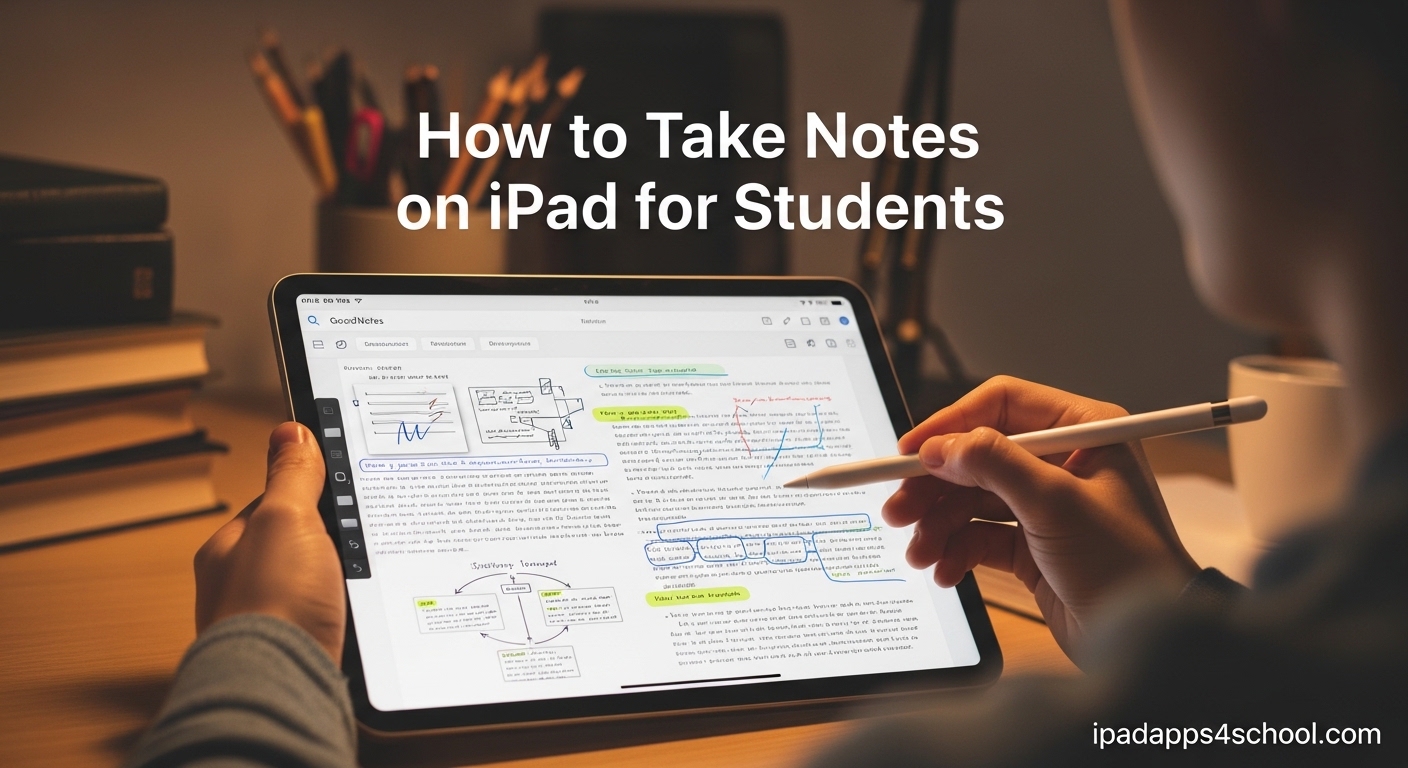
When I started college three years ago, I was drowning in paper notebooks and losing track of lecture notes within weeks. Switching to digital note-taking on my iPad changed everything. This guide on how to take notes on iPad for students covers everything I wish I had known from day one.
Taking notes on iPad combines the flexibility of handwriting with the organization of digital files. You can search your handwritten notes, back them up automatically, and access them from any device. Whether you are in high school, college, or graduate school, this guide will walk you through the entire process from setup to advanced techniques.
Before diving in, make sure to organize your iPad home screen so your note-taking apps are always one tap away. This simple step will save you time during lectures when seconds matter.
Table of Contents
Getting Started: How to Take Notes on iPad for Students
Starting with iPad note-taking requires three basic components: an iPad, a note-taking app, and ideally an Apple Pencil for handwriting. You do not need the latest iPad Pro to take excellent notes. Many students use the base iPad or iPad Air with great results.
The Apple Pencil transforms your iPad into a digital notebook. First-generation Apple Pencil works with base iPad models, while second-generation pairs with iPad Air and Pro. If budget is tight, third-party styluses from brands like Logitech work reasonably well, though they lack pressure sensitivity.
Configure your iPad settings before your first class. Enable Palm Rejection in Settings > Apple Pencil to prevent stray marks while writing. Turn on iCloud backup for your notes app to ensure nothing gets lost. Set up iPad multitasking tips for school so you can reference textbooks alongside your notes.
Choosing Between Free and Paid Apps
Apple Notes comes free with every iPad and handles basic note-taking well. For advanced features like PDF annotation, audio recording, and custom templates, paid apps like GoodNotes and Notability cost between $10-15 one-time or small annual subscriptions. Based on forum discussions, most serious students find the investment pays for itself within a semester.
Start with free options to learn your workflow. Once you understand how you take notes, upgrading becomes an easier decision. Many students use Apple Notes for quick captures and a dedicated app like GoodNotes for class notes.
Best Note-Taking Apps for Students
Selecting the right app determines your entire note-taking experience. After testing dozens of options and reading thousands of student reviews from forums like r/iPad and r/EngineeringStudents, four apps consistently rise to the top for academic use.
GoodNotes 6 leads in popularity among college students for its realistic handwriting feel and powerful organization features. Notability excels for students who record lectures alongside handwritten notes. Apple Notes serves budget-conscious students surprisingly well. CollaNote offers a capable free alternative for those testing digital note-taking before committing financially.
GoodNotes 6: The Student Favorite
GoodNotes dominates university campuses for good reason. The app mimics paper notebooks with tabs, folders, and realistic page turns. Handwriting recognition lets you search every word you write, even in messy cursive.
Key features for students include unlimited notebooks, customizable paper templates (lined, grid, dotted, Cornell notes), and powerful PDF annotation. The Lasso tool lets you select handwriting and move it anywhere on the page. Import textbook PDFs and annotate them directly alongside your class notes.
GoodNotes uses a one-time purchase model or optional subscription for AI features. Most students find the base version sufficient for academic needs.
Notability: Best for Lecture Recording
Notability pioneered audio-synced notes, a game-changer for lecture-heavy courses. Record audio while taking notes, then tap any word later to hear exactly what the professor said at that moment.
The app handles multi-media notes better than competitors. Insert web clips, photos, GIFs, and sketches seamlessly. Math students appreciate the built-in equation editor.
Notability switched to a subscription model in 2026, which frustrated existing users. However, for students recording hours of lectures weekly, the audio sync feature often justifies the cost.
Apple Notes: The Free Powerhouse
Do not overlook the built-in Apple Notes app. It improved dramatically in recent iPadOS versions and now supports handwriting, document scanning, and basic PDF markup.
Apple Notes shines for quick capture and iCloud syncing across all your devices. The Quick Note feature (accessed by swiping up from the corner with Apple Pencil) lets you jot thoughts instantly without opening the full app. Folder organization and tagging keep everything searchable.
For students on tight budgets, Apple Notes handles 80% of note-taking needs without spending a dollar.
CollaNote: The Free Alternative
CollaNote emerged from student communities as a surprisingly capable free option. The app supports handwriting, PDF annotation, audio recording, and even collaborative notes.
Forum users consistently recommend CollaNote for students testing whether digital note-taking fits their style before purchasing premium apps. While the interface lacks polish compared to paid competitors, the core functionality rivals them for basic academic use.
App Comparison Summary
Choose GoodNotes for comprehensive organization and handwriting search. Pick Notability if recording lectures matters most. Start with Apple Notes if budget limits your options. Try CollaNote before committing to any paid app.
Apple Pencil Tips for Handwriting
Handwriting on iPad feels different from paper, but with the right techniques, you will write naturally within weeks. The key lies in adjusting your grip, pressure, and expectations.
Hold your Apple Pencil like a regular pen or pencil. The stylus detects tilt and pressure, so you can create thick or thin lines by adjusting how hard you press. This pressure sensitivity makes your handwriting look more natural and varied.
Improving Your Digital Handwriting
Your handwriting will look worse initially. This frustrates every student transitioning to iPad note-taking. Expect an adjustment period of two to three weeks before your digital writing matches your paper writing.
Zoom in while writing, then zoom out to review. Most students write at 150-200% zoom for precision, then view pages at normal zoom for reading. This technique dramatically improves legibility.
Practice consistently in your chosen app. Muscle memory develops through repetition. Many students report their iPad handwriting eventually exceeds their paper handwriting because erasing and redoing encourages refinement.
Screen Protector Recommendations
Forum discussions consistently highlight one accessory that transforms the writing experience: matte screen protectors. Paper-like textured screen protectors add friction between the Pencil tip and glass, creating resistance similar to paper.
Popular brands include Paperlike, Bellemond, and cheaper Amazon alternatives. Students describe the difference as night and day. Without texture, the Pencil slides too smoothly across glass. With texture, you gain control comparable to premium paper notebooks.
Replace your Pencil tips every 6-12 months if using textured protectors. The friction wears down plastic tips faster than smooth glass.
Using Scribble for Quick Text
Enable Scribble in Settings > Apple Pencil. This feature converts handwriting to typed text in any text field. Write in search boxes, URLs, or document titles, and iPadOS converts it instantly.
Scribble bridges the gap between handwriting and typing. You maintain the cognitive benefits of handwriting while gaining the searchability of typed text.
Organizing Your Notes for School
Organization separates usable note archives from digital junkyards. Without structure, you will waste precious study time hunting for specific lectures. With structure, you will find any note within seconds.
Create a folder system by semester, then by course. Within each course folder, organize by lecture date or topic. Most students use a naming convention like “YYYY-MM-DD – Topic Name” for chronological sorting.
Template Systems for Consistency
Templates accelerate note-taking and ensure consistency. GoodNotes and Notability both offer template libraries. Cornell notes templates work perfectly for lecture capture, with sections for main notes, cues, and summaries.
Create custom templates for recurring scenarios. Lab report templates, reading notes templates, and project planning templates save setup time every session. Once you design a template that works, duplicate it for each new assignment.
Color-code your subjects visually. Assign each course a distinct color for folders and notebook covers. This visual association helps your brain switch contexts quickly when reviewing multiple subjects.
Quick Notes for Capture
iPadOS includes a feature called Quick Notes that revolutionizes spontaneous capture. Swipe up from the bottom corner with your Apple Pencil (or set a keyboard shortcut) to open a floating note window instantly.
Quick Notes work anywhere, even over other apps. Copy text from Safari, jot a thought during a video call, or calculate numbers without leaving your current context. Later, organize Quick Notes into permanent notebooks.
Explore more capture methods in our guide to hidden iPad features for students.
Tagging and Search Strategies
Handwriting recognition technology searches your handwritten notes. GoodNotes and Notability both index every word you write. Type “photosynthesis” in search and find that biology lecture from three months ago instantly.
Supplement handwriting with strategic tags. Add typed keywords at the top of each page: course code, date, topic, and key concepts. This hybrid approach maximizes discoverability while maintaining handwriting benefits.
Multitasking While Taking Notes
The iPad excels at combining resources during study sessions. Unlike paper notebooks, you can reference textbooks, videos, and websites alongside your notes without spreading materials across a desk.
Split View lets you open two apps side by side. Drag a textbook PDF on the left while taking notes on the right. Slide Over creates a floating window for quick reference. Stage Manager (on newer iPads) organizes multiple apps like a desktop computer.
Split Screen Setup for Lectures
During remote or recorded lectures, Split View maximizes efficiency. Open your video on one side and your note app on the other. Pause, rewind, and take comprehensive notes without switching contexts.
For textbook study, place the textbook PDF on the left and notes on the right. Read a section, summarize key points in your own words on the right. This active recall technique improves retention significantly compared to passive highlighting.
Learn advanced window management in our complete guide to Stage Manager for iPad students.
PDF Annotation Workflow
Most courses distribute PDF readings, slides, or worksheets. Import these directly into your note app and annotate them. Circle key terms, add margin notes, and highlight important passages just like paper.
The advantage over paper? Searchability and permanence. Your annotations stay with the document permanently. Export annotated PDFs to submit assignments or share with study groups.
Combine annotation with note creation. Import a lecture slide deck, annotate during class, then create a separate summary document synthesizing the key concepts in your own words.
Reference Management
Research projects require managing dozens of sources. Use your note app as a research hub. Create a dedicated notebook for each project. Import PDFs, add commentary, and link related ideas.
The Lasso tool in GoodNotes or lasso selection in Notability lets you extract handwritten notes and rearrange them. Cluster related ideas visually, then export organized summaries.
Backup and Sync Strategies
Digital notes only help if they survive device failures, loss, or theft. One student on r/iPad described losing an entire semester of notes when their iPad died without backups. Do not let this happen to you.
Enable automatic iCloud backup for your notes app. GoodNotes, Notability, and Apple Notes all sync to iCloud. Verify sync works by checking that notes appear on your iPhone or Mac immediately after creating them on iPad.
Export Options for Safety
Cloud sync protects against device failure but not against account issues. Periodically export your notes to secondary storage. Most apps support exporting notebooks as PDFs for archiving.
Export weekly during critical periods like finals. Save exports to Google Drive, Dropbox, or external storage. This redundancy ensures your academic work survives any scenario.
Set calendar reminders for monthly exports. Automating this habit prevents the “I will back up later” trap that claims so many students.
Cross-Platform Considerations
If you use Windows or Android devices alongside your iPad, ensure your backup strategy supports them. PDF exports work universally. Some apps like OneNote offer true cross-platform sync, though with fewer iPad-specific features.
Students in mixed-device environments should standardize on PDF exports for portability. This approach sacrifices some app-specific features but guarantees access on any device.
FAQ
How do college students take notes on an iPad?
College students typically use apps like GoodNotes, Notability, or Apple Notes with an Apple Pencil to take handwritten notes during lectures. They organize notes by course in digital folders, import lecture slides and PDFs for annotation, and use Split Screen to reference textbooks while writing. Many also record lectures with audio sync features for later review.
What do students use for notes on iPad?
The most popular apps among students are GoodNotes 6 for organization and handwriting search, Notability for lecture recording with audio sync, and Apple Notes for free basic note-taking. CollaNote serves as a capable free alternative. An Apple Pencil is considered essential by most serious note-takers.
What is the best way to take notes on an iPad?
The best approach combines an Apple Pencil for handwriting, a dedicated note app like GoodNotes or Notability, and a systematic organization method using folders by semester and course. Use templates for consistency, enable auto-backup to iCloud, and practice regularly to improve your digital handwriting within 2-3 weeks.
Can I take handwritten notes on my iPad?
Yes, you can take handwritten notes on iPad using an Apple Pencil and apps like GoodNotes, Notability, or Apple Notes. The iPad supports pressure-sensitive handwriting that mimics pen on paper, especially with a textured screen protector. Handwriting recognition lets you search your handwritten notes later.
Is an iPad better than a laptop for note-taking?
iPads excel at handwritten notes and flexibility, while laptops work better for extensive typing. Many students use both: iPad for lectures and reading, laptop for essay writing and research. For STEM subjects with diagrams and equations, iPad with Apple Pencil often outperforms laptops.
Do I need an Apple Pencil to take notes on iPad?
While not strictly required, an Apple Pencil dramatically improves the note-taking experience on iPad. It enables natural handwriting, palm rejection, and pressure-sensitive drawing. You can type notes with a keyboard or use a third-party stylus, but most students find the Apple Pencil essential for serious academic use.
These questions reflect the most common concerns from students researching how to take notes on iPad for students on forums and search engines. If your question is not answered here, check our other iPad guides for more specific topics.
Remember that every student develops their own workflow. The apps and techniques that work for an engineering major differ from those serving an English literature student. Experiment, adapt, and settle on systems that match your learning style.
Learning to take notes on iPad represents an investment in your academic future. The time spent mastering these tools pays dividends throughout your educational journey and beyond into professional life.