
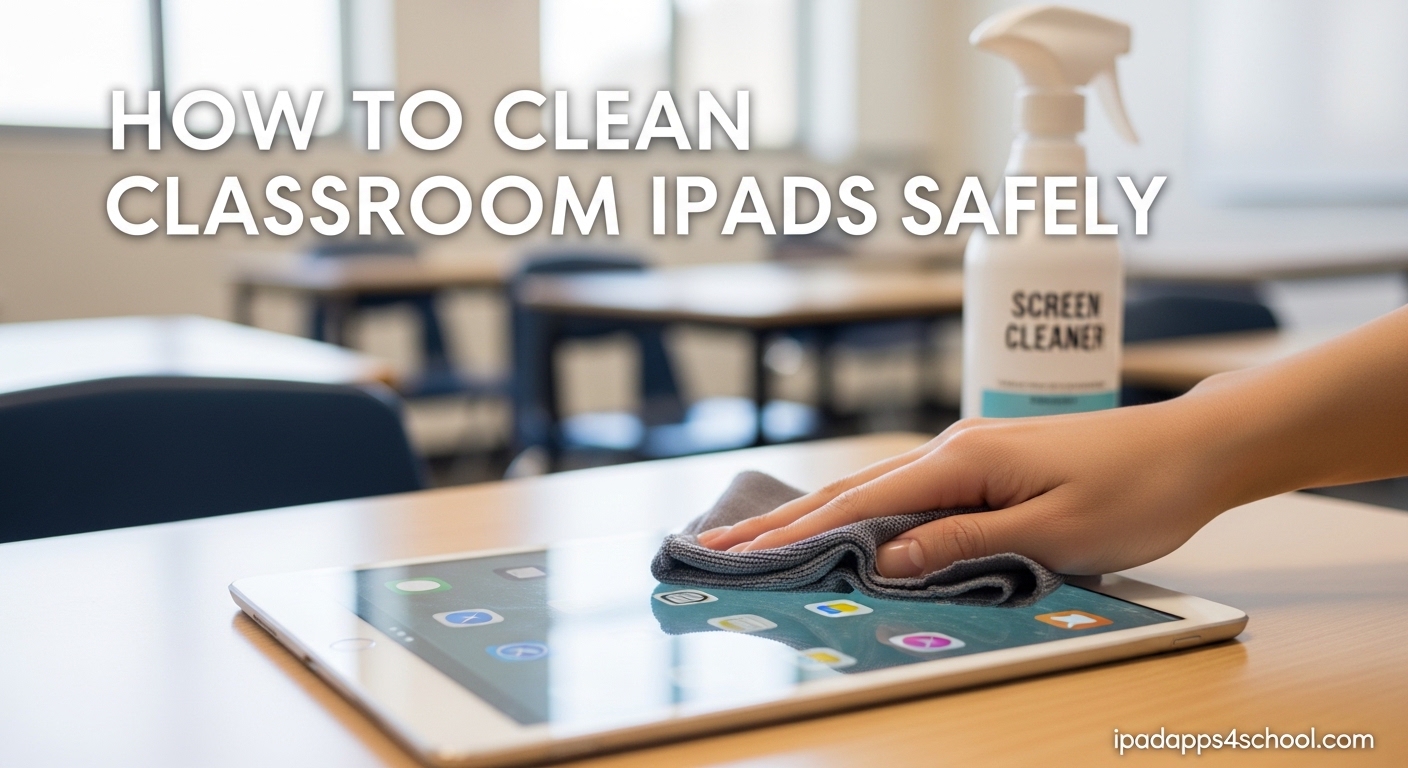
Keeping shared devices clean in school settings is essential for student health and device longevity. Learning how to clean classroom iPads safely protects both your technology investment and the students who use these devices daily. This guide covers everything teachers, students, and administrators need to know about maintaining hygienic iPads without causing damage.
I have worked with school IT departments on device maintenance protocols, and the most common mistake I see is well-meaning staff using improper cleaning products that damage screens or void warranties. The good news is that with the right approach, cleaning classroom iPads is straightforward and can even become part of student responsibility training.
Table of Contents
Why Regular iPad Cleaning Matters in Classrooms
Shared technology in schools creates unique hygiene challenges. Multiple students touching the same screen throughout the day transfers germs, oils, and dirt between users. A study by the University of Arizona found that shared electronics can harbor more bacteria than a public restroom. For classrooms with 1:1 iPad programs or shared device carts, this reality makes proper cleaning protocols essential.
Beyond health concerns, regular maintenance extends device life. Fingerprints and accumulated grime affect screen visibility, making it harder for students to see content clearly. Over time, improper cleaning with harsh chemicals can strip the oleophobic coating that helps repel oils and keeps screens responsive to touch.
Apple devices represent a significant investment for school districts. A typical K-12 classroom might have 30 iPads valued at over $12,000 total. Protecting this investment through proper care justifies the few minutes needed for routine cleaning. When students learn to respect and maintain their devices, you also build a culture of responsibility around technology use.
Understanding the Difference: Cleaning vs Sanitizing vs Disinfecting
Before diving into procedures, understanding three distinct processes helps you choose the right approach for each situation.
What Is Cleaning?
Cleaning removes visible dirt, dust, fingerprints, and smudges from surfaces. This process uses soap or detergent with water to physically remove debris. For iPads, a soft, slightly damp cloth removes everyday grime that accumulates from student use. Cleaning does not kill germs, but it removes them from surfaces along with dirt.
What Is Sanitizing?
Sanitizing reduces bacteria on surfaces to safe levels as determined by public health standards. This process uses weaker chemicals than disinfecting and works well for routine maintenance between heavy-use periods. For classroom iPads, sanitizing with 70% isopropyl alcohol wipes provides sufficient germ reduction for daily student rotation without harsh chemicals.
What Is Disinfecting?
Disinfecting kills germs on surfaces using EPA-registered chemicals. This process is necessary when someone has been sick or during flu season. For school devices, disinfecting with approved wipes kills viruses and bacteria that might spread between students. However, disinfecting more frequently than necessary can wear down protective screen coatings.
When to Use Each Method
For daily classroom use, start with cleaning to remove visible dirt. Sanitize between different student groups or classes. Disinfect only when someone using the device has been ill, or during peak illness seasons. Understanding these distinctions prevents over-treating devices while maintaining proper hygiene standards.
How to Clean Classroom iPads Safely: Step-by-Step Guide
Following proper procedure prevents damage while ensuring thorough cleaning. Share these steps with students and staff who handle classroom devices.
Step 1: Power Down and Unplug
Always turn off the iPad completely before cleaning. This prevents accidental touches from activating apps or changing settings during the process. If the device is charging, unplug it and allow it to cool for a few minutes. Heat from charging can cause cleaning solutions to evaporate too quickly, leaving streaks.
Step 2: Remove the Case
If the iPad has a protective case, remove it carefully. Cases trap dirt and germs along the edges and back of the device. Clean the case separately according to its material type. Silicone cases wipe clean easily with alcohol wipes, while fabric cases may need different treatment based on manufacturer instructions.
Step 3: Choose Your Cleaning Material
Select either a soft, lint-free microfiber cloth or an approved alcohol wipe. If using a cloth, lightly dampen it with water or 70% isopropyl alcohol solution. The cloth should be moist, not wet. Excess liquid poses the greatest risk to device internals through openings like the charging port, speaker grilles, or headphone jack.
Step 4: Wipe Surfaces Gently
Use gentle, circular motions to wipe the screen and back of the iPad. Avoid pressing hard, which can stress the screen and internal components. Pay special attention to areas where hands rest most frequently, including the edges and back of the device. These areas accumulate the most oils and germs.
Step 5: Clean Around Openings Carefully
Be extremely cautious around ports, buttons, and cameras. Never insert cloth material into openings. For these areas, use a dry cotton swab or compressed air to remove debris without introducing moisture. If using compressed air, hold the can upright and use short bursts to avoid forcing liquid propellant into the device.
Step 6: Allow Proper Drying Time
Let the iPad air dry for at least 5 minutes before powering it back on or reattaching the case. This ensures any residual moisture evaporates completely. Never use heat sources like hair dryers to speed drying, as heat can damage internal components and battery health.
Step 7: Reassemble and Store Properly
Once completely dry, reattach the case and power on the device to verify it functions normally. Store cleaned iPads in their designated locations, ready for the next use. For devices going back into shared carts, ensure they are fully dry before stacking or storing to prevent moisture transfer between units.
Safe Products to Use on School iPads
Apple provides specific guidance on approved cleaning products. Using only these materials protects both the device and your warranty coverage.
70% Isopropyl Alcohol Wipes
Pre-moistened wipes containing 70% isopropyl alcohol are Apple-approved for cleaning hard, nonporous surfaces of iPads. These wipes effectively kill germs while evaporating quickly to minimize moisture risk. Look for individual packets or canisters specifically labeled for electronics cleaning. Many schools purchase these in bulk for classroom use.
75% Ethyl Alcohol Wipes
Similar to isopropyl alcohol, ethyl alcohol wipes at 75% concentration safely clean iPad surfaces. Some educators prefer these for their slightly milder odor compared to isopropyl variants. Both types achieve the same germ-killing effectiveness while being safe for device screens and coatings.
Clorox Disinfecting Wipes
Standard Clorox Disinfecting Wipes without bleach are approved by Apple for use on iPad surfaces. Avoid any bleach-containing variants, which can damage the finish and coating. These wipes are readily available in most school supply closets and provide a convenient option for quick sanitizing between classes.
Microfiber Cleaning Cloths
Soft, lint-free microfiber cloths work well for daily cleaning and smudge removal without chemicals. Dampen the cloth with distilled water for light cleaning, or use it dry to buff away fingerprints. Microfiber traps dirt in its fibers rather than pushing it around like paper towels or cotton rags. Purchase dedicated cloths for each classroom to prevent cross-contamination.
Distilled Water
When plain water is needed to moisten cleaning cloths, always use distilled water. Tap water contains minerals that can leave streaks or residue on screens. Distilled water is inexpensive and available at grocery stores. Keep a spray bottle in classrooms specifically for this purpose.
Products and Materials to Avoid
Certain products can permanently damage iPad screens, coatings, or internal components. Never use these materials on school devices.
Bleach and Hydrogen Peroxide
Bleach-based cleaners and hydrogen peroxide solutions are too harsh for iPad surfaces. These chemicals can strip the oleophobic coating, discolor the aluminum body, and potentially seep into openings to corrode internal components. Even diluted bleach solutions pose significant risk to device longevity.
Ammonia and Window Cleaners
Standard glass cleaners like Windex contain ammonia and alcohol concentrations that exceed safe levels for electronics. These products can cloud the screen coating and cause permanent damage over repeated use. The ammonia fumes can also affect students with respiratory sensitivities when used in classroom environments.
Abrasive Cloths and Paper Towels
Never use paper towels, tissues, or rough fabrics to clean iPad screens. These materials contain wood fibers that can scratch the surface. Over time, repeated use of abrasive materials creates visible scratches that affect touch sensitivity and visibility. Students often grab whatever is available, so training them to use only microfiber cloths is essential.
Aerosol Sprays and Compressed Air
Never spray any cleaner directly onto an iPad. Liquid can pool and seep into openings before you wipe it away. If using compressed air, hold the can upright and use short bursts. Tilting the can releases liquid propellant that can freeze components on contact or leave residue inside the device.
Household and Industrial Cleaners
Avoid all-purpose cleaners, antibacterial sprays, and industrial-grade disinfectants not specifically approved for electronics. These often contain solvents or concentrations that damage coatings. When in doubt, check if the product lists electronics as safe on its label. If it does not mention tablets or smartphones, do not use it on iPads.
Recommended Cleaning Schedule for Classrooms
Establishing a routine keeps devices hygienic without becoming burdensome. Adjust this schedule based on your specific classroom usage patterns.
Daily Sanitizing Between Classes
For shared iPad carts used by multiple classes daily, quick sanitizing between groups maintains hygiene without significant time investment. Assign a student helper or take 2 minutes at transition times to wipe screens with an alcohol wipe. This practice became standard in many schools after increased awareness of shared surface transmission.
Weekly Deep Cleaning Routine
Once per week, perform a thorough cleaning of all classroom iPads following the complete 7-step process outlined earlier. Remove cases, clean all surfaces including backs and edges, and check for any damage or issues. Friday afternoons work well for this task, leaving devices clean and ready for Monday morning.
Monthly Maintenance Inspections
Monthly, have students or IT staff inspect iPads for buildup in ports, case damage, or screen issues that might need attention. This proactive approach catches small problems before they become expensive repairs. Document any damage and address it promptly to maintain device functionality.
Assigning Student Responsibilities
Involving students in device care builds ownership and reduces cleaning workload for teachers. Older students can handle sanitizing wipes responsibly, while younger students can learn to use microfiber cloths for daily fingerprint removal. Create simple checklists students follow, teaching them proper technique alongside responsibility.
Troubleshooting Common Cleaning Issues
Even with proper technique, issues sometimes arise. Here is how to handle the most common problems.
Removing Streaks and Residue
If your iPad screen looks streaky after cleaning, you likely used too much liquid or the wrong type of cloth. Buff the screen with a dry microfiber cloth using light, circular motions. For stubborn residue, slightly dampen the cloth with distilled water and buff again, then finish with a dry section of the cloth.
Dealing with Stubborn Fingerprints
Oils from skin can be surprisingly persistent. For tough fingerprints, use a fresh 70% isopropyl alcohol wipe and let the solution sit on the mark for 10 seconds before wiping. This brief contact time breaks down oils more effectively. Never scrub aggressively, as this can damage the coating.
What to Do If Moisture Gets Inside
If liquid enters the charging port or other openings, immediately power off the device and do not attempt to charge it. Gently shake the iPad with the opening facing down to encourage drainage. Let it air dry for at least 24 hours in a warm, dry location. Do not use rice or heat sources. If problems persist after drying, contact your school IT department for evaluation.
Protecting the Oleophobic Coating
The oleophobic coating on iPad screens naturally wears down over time with normal use. Harsh chemicals accelerate this wear. If you notice screens becoming harder to clean or showing smudges more readily, the coating may be degrading. While you cannot restore the factory coating without professional reapplication, avoiding harsh chemicals preserves what remains. Consider screen protectors for heavily used classroom devices to extend coating life.
If you encounter persistent technical issues with your devices while cleaning, check our guide on troubleshooting your iPad for additional maintenance tips.
FAQ
Can I use alcohol wipes to clean my iPad?
Yes, you can use alcohol wipes to clean your iPad safely. Apple specifically approves using 70% isopropyl alcohol wipes or 75% ethyl alcohol wipes on the hard, nonporous surfaces of iPads. These wipes effectively kill germs while being safe for the screen coating when used as directed. Always ensure the wipe is only moist, not dripping wet, and avoid getting moisture in any openings.
How to clean an iPad without damaging it?
To clean an iPad without damage, always power down the device first and unplug it from charging. Use only soft, lint-free microfiber cloths or approved alcohol wipes. Never spray liquids directly onto the device. Wipe gently using circular motions without pressing hard. Avoid bleach, ammonia, abrasive materials, and household cleaners. Allow the device to dry completely before powering it back on. Never insert anything into ports or openings.
Is it safe to use Lysol wipes on iPad screen?
Standard Lysol Disinfecting Wipes without bleach are generally safe for iPad surfaces, similar to Clorox Disinfecting Wipes which Apple approves. However, avoid Lysol wipes containing bleach or harsh chemicals. The safest approach is using wipes specifically labeled for electronics or those containing 70% isopropyl alcohol. If unsure about a specific Lysol product, test on a small corner of the case first or stick with Apple-approved 70% alcohol wipes.
How often should classroom iPads be cleaned?
Classroom iPads should be sanitized daily between different student users or classes, with a deeper cleaning performed weekly. High-touch shared devices benefit from sanitizing wipes between each use during flu season. Weekly deep cleaning should include removing cases and cleaning all surfaces thoroughly. Monthly maintenance checks help identify any issues early. Adjust frequency based on usage patterns and illness outbreaks in your school.
What cleaning products are safe for iPads?
Safe cleaning products for iPads include 70% isopropyl alcohol wipes, 75% ethyl alcohol wipes, non-bleach Clorox Disinfecting Wipes, soft lint-free microfiber cloths, and distilled water. These products are approved by Apple for use on hard, nonporous surfaces of iPad devices. Always avoid products containing bleach, ammonia, hydrogen peroxide, or abrasive materials that can damage the screen coating.
Can students clean their own school iPads?
Yes, students can safely clean their own school iPads with proper training and supervision. Older students can handle alcohol wipes responsibly, while younger students can use microfiber cloths for daily fingerprint removal. Teaching students proper cleaning technique builds device responsibility and reduces the cleaning burden on teachers. Provide clear instructions and demonstrate the correct procedure before allowing independent cleaning.
Conclusion
Learning how to clean classroom iPads safely is an essential skill for modern educators managing shared technology. By following Apple-approved methods using 70% isopropyl alcohol wipes and soft microfiber cloths, you protect both student health and your school’s device investment. Remember the key principles: power down before cleaning, avoid harsh chemicals, never spray liquids directly on devices, and ensure complete drying before use.
Establish a consistent cleaning schedule that includes daily sanitizing between classes and weekly deep cleaning sessions. Involve students in the process to build responsibility and reduce teacher workload. With proper technique and the right products, maintaining hygienic classroom iPads becomes a simple routine rather than a burden.
For more tips on managing school technology effectively, see our guide on organizing iPad settings for school. Clean, well-maintained devices create a better learning environment for everyone in your classroom.