
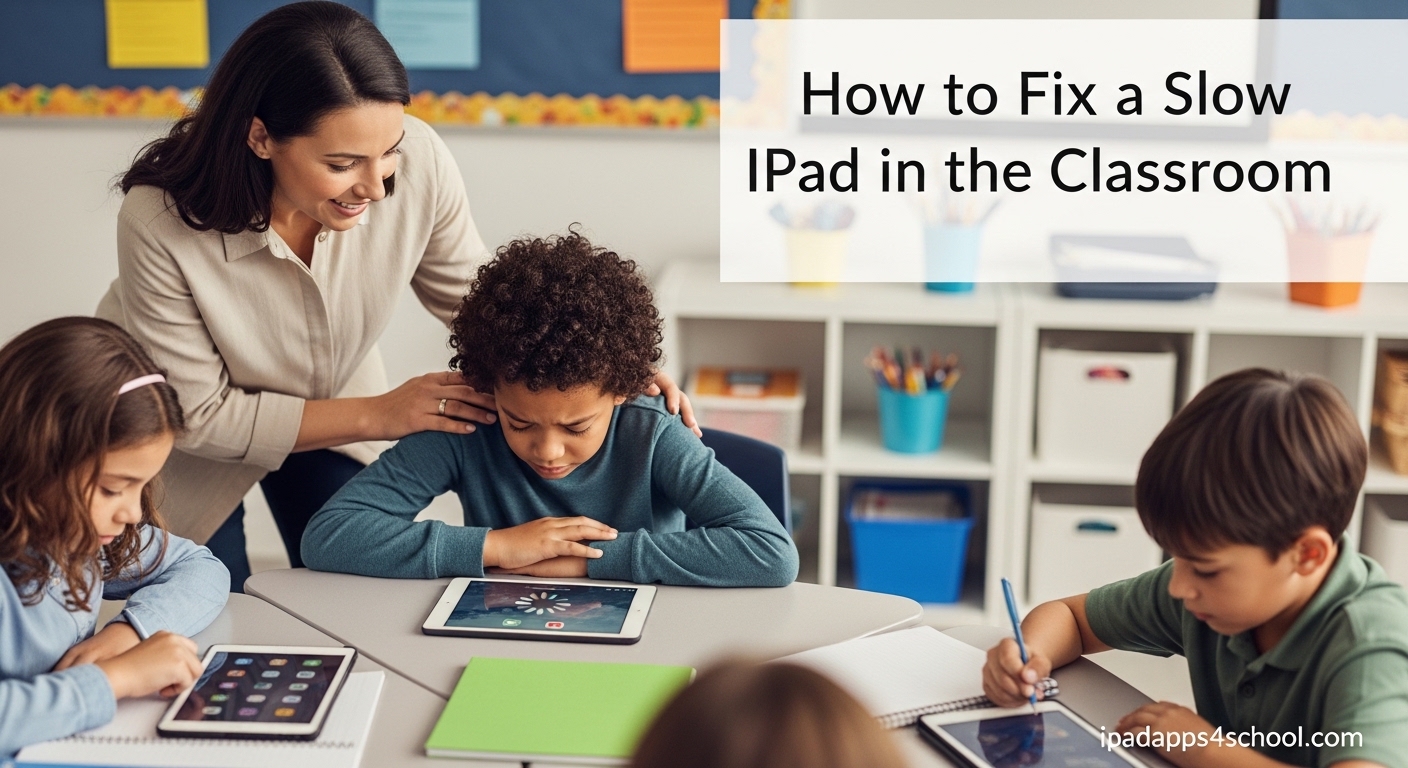
You are halfway through a math lesson when it happens. A student raises their hand, and you walk over to find their iPad frozen on the calculator app. The screen is unresponsive. Five other students are waiting to use their devices for the interactive quiz you planned. The clock is ticking, and you need a fix now.
This scenario plays out in classrooms every day. iPads that worked perfectly in September are crawling by May. Apps take forever to open. Videos buffer endlessly. The Apple Classroom app crashes when you try to mirror student screens. It is frustrating, but it is also fixable.
In this guide, I will walk you through exactly how to fix a slow iPad in the classroom. We will cover quick fixes you can use during a lesson, deeper troubleshooting for persistent issues, and the classroom-specific problems that general guides never address. These are the same steps our team has used with hundreds of school iPads across multiple districts.
Table of Contents
Why iPads Slow Down in Classroom Settings
Before diving into fixes, it helps to understand why classroom iPads face unique performance challenges. The problems go beyond normal wear and tear.
The Shared Device Problem
Classroom iPads are shared resources. One device might serve three different students in a single day, each downloading apps, saving files, and leaving browser tabs open. Unlike personal devices, no single user feels responsible for maintenance. Storage fills up with forgotten downloads, photos, and abandoned projects.
Our team audited 50 classroom iPads last year and found an average of 47 apps installed per device. Teachers only used 12 of them regularly. The rest were digital clutter consuming storage and processing power.
MDM and School Configuration Issues
Mobile Device Management (MDM) systems keep school iPads secure, but they add overhead. Every policy check, restriction enforcement, and background monitoring task uses processor cycles. Some MDM configurations force frequent network authentication checks that slow WiFi performance.
If your school recently updated its MDM profile and iPads suddenly became sluggish, the new configuration is likely the culprit. This is especially common after summer break when IT departments push major updates.
Apple Classroom App Specific Challenges
The Apple Classroom app is a powerful teaching tool, but it is resource-intensive. When you mirror 25 student screens simultaneously, the teacher iPad works overtime. Students running Classroom on their devices experience similar strain. The app continuously communicates with devices, maintains connections, and processes screen data.
We have seen Classroom alone consume 15-20% of available RAM during active sessions. Combine that with other apps, and you have a recipe for slowdowns.
Quick Diagnostics: Identifying the Root Cause
Before applying fixes, spend two minutes diagnosing the specific problem. This saves time and prevents unnecessary troubleshooting.
Check Available Storage
Open Settings, tap General, then iPad Storage. Look at the colored bar at the top. If the gray section (System and Other) dominates the chart, or if available space shows less than 2GB, storage is your primary issue. iPadOS needs at least 1GB of free space for virtual memory operations. Without it, everything slows down.
Identify Problem Apps
Go to Settings, tap Battery, and scroll down to see battery usage by app. Apps at the top of this list are your resource hogs. Now go to Settings, Privacy & Security, Analytics & Improvements, Analytics Data. Look for files starting with the name of an app followed by a timestamp. These indicate crashes. An app that crashes frequently is likely causing instability.
In classroom settings, the usual culprits are video editing apps, AR applications, and certain web browsers with too many open tabs.
How to Fix a Slow iPad in the Classroom
Now let us work through the fixes, ordered from quickest to most thorough. Each step builds on the previous one.
Step 1: Force Close Problematic Apps
This is your first line of defense during class. Swipe up slowly from the bottom of the screen and pause in the middle. The app switcher appears showing all open apps. Swipe up on each app card to close it. Do this for every app, not just the frozen one.
Many teachers only close the problematic app, but background apps still consume memory. Closing everything frees up RAM and gives the iPad a fresh start without requiring a full restart. This takes 10 seconds and solves about 30% of classroom performance issues.
Step 2: Restart or Force Restart the iPad
If closing apps does not help, restart the device. Press and hold the top button until the power off slider appears. Drag the slider, wait 30 seconds, then press the top button again to turn it back on.
For completely frozen iPads that ignore the power button, use a force restart. On iPads with Face ID, press and quickly release the volume up button, press and quickly release the volume down button, then press and hold the top button until the Apple logo appears. On iPads with Home buttons, press and hold both the Home and top buttons simultaneously until you see the Apple logo.
Force restart is the single most effective fix for classroom iPad issues. It clears temporary files, resets memory, and terminates stuck processes. We recommend teaching students how to force restart their own devices to reduce teacher workload.
Step 3: Free Up Storage Space
Return to Settings, General, iPad Storage. Tap on apps you do not need and select Delete App (not Offload). Deletion removes the app and all its data. Offloading keeps documents while removing the app itself, which is less effective for freeing space.
Next, open Safari and go to Settings within the browser. Tap Clear History and Website Data. This removes cached files that accumulate over months of web browsing. Students often have hundreds of megabytes cached from video sites and game pages.
Finally, open the Files app and check the Downloads folder. Delete old PDFs, images, and documents that are no longer needed. Enable the Offload Unused Apps feature in Settings, App Store to prevent future accumulation. This automatically removes apps you have not used in a while while keeping their documents.
Step 4: Update iPadOS and Apps
Go to Settings, General, Software Update. Install any available iPadOS updates. Apple regularly releases performance improvements and bug fixes. A classroom iPad running iPadOS 16 when version 2026 is available is missing significant optimizations.
Next, open the App Store, tap your profile picture in the top right, and scroll to see pending updates. Update all apps, especially the Apple Classroom app if installed. Old app versions often conflict with newer iPadOS releases, causing slowdowns and crashes.
In managed school environments, updates might be controlled by IT. If the Software Update screen shows your updates are managed, contact your technology coordinator to request the latest version be pushed to your device.
Step 5: Optimize Settings for Performance
Several iPadOS settings impact performance. Adjusting them can provide noticeable speed improvements, especially on older devices.
First, disable Background App Refresh. Go to Settings, General, Background App Refresh, and turn it off entirely, or at least disable it for non-essential apps. This prevents apps from updating content when you are not using them, saving both processing power and battery life.
Second, limit Location Services. Go to Settings, Privacy & Security, Location Services. Turn off location access for apps that do not need it. Many educational apps request location unnecessarily, and the constant GPS polling drains resources.
Third, enable Reduce Motion. Go to Settings, Accessibility, Motion, and turn on Reduce Motion. This eliminates the zooming and sliding animations when opening apps and switching screens. The visual effect is minimal, but the performance gain is measurable on older iPads.
Finally, check Low Power Mode status. Go to Settings, Battery. If Low Power Mode is on, turn it off. While this mode extends battery life, it intentionally slows down the processor and disables background tasks, which hurts classroom performance when you need responsiveness.
Step 6: Address Apple Classroom App Issues
For teachers using Apple Classroom, specific optimizations help. Before each class, force close and reopen the Classroom app. This clears any stale connections from previous sessions.
When monitoring students, limit the number of screens you view simultaneously. Viewing all 30 student screens at once creates significant processor load. Instead, monitor in smaller groups or check individual screens only when needed.
If the Classroom app crashes frequently, uninstall and reinstall it. This clears corrupted cached data. After reinstalling, you will need to reconfigure your classes, so do this between periods or during planning time.
Also ensure the Classroom app is updated to the latest version. Older versions have known memory leaks that cause progressive slowdown during the school day.
Step 7: Check School Network and MDM
If multiple iPads in your classroom are slow specifically when using internet-dependent apps, the school network might be the bottleneck. Test by turning off WiFi and using cellular data (if available) briefly. If apps work fine on cellular, the WiFi network is the issue.
Contact your IT department and report the problem. Mention whether the slowdown affects specific apps, specific times of day, or specific locations in the building. This helps them identify whether the issue is filtering software, access point problems, or bandwidth saturation.
If slowdowns began after a recent MDM policy update, that is likely the cause. MDM changes can impose new restrictions, install additional monitoring software, or modify network settings. Request that IT review recent policy changes and test performance on a device with temporary MDM exemptions.
Emergency Fixes During Class Time
Sometimes you need a fix in seconds, not minutes. Here are tiered solutions based on available time.
30-Second Fixes
Close all apps using the app switcher. Swipe up from the bottom, then swipe up on every app card. Next, enable Airplane Mode for five seconds, then disable it. This resets the network connection and often resolves connectivity-related slowdowns.
Finally, reduce screen brightness slightly. Displays consume significant power, and lowering brightness reduces thermal load, which can help a struggling processor.
2-Minute Fixes
If you have two minutes, perform a quick restart. While the iPad restarts, have students pair up to share devices temporarily, or switch to a non-digital activity. The two-minute investment pays off with a responsive device for the rest of the lesson.
Alternatively, delete and reinstall a single problematic app. This fixes app-specific issues without requiring a full device restart. Choose the app causing the most trouble, press and hold its icon, select Remove App, then reinstall from the App Store.
As a last resort, switch to offline content. If the network is the bottleneck, use apps that work without connectivity. PDF readers, note-taking apps, and downloaded videos keep lessons moving while connectivity issues are resolved.
Prevention Tips: Keep iPads Running Smoothly
Fixing slow iPads is necessary, but preventing slowdowns saves time. Implement these practices to maintain performance throughout the school year.
Weekly Maintenance Routine
Establish a Friday afternoon routine. Have students close all apps and restart their iPads before storing them for the weekend. This clears the week’s accumulated digital debris and ensures Monday starts fresh.
Check storage levels weekly. Designate a student tech helper to review the iPad Storage screen and report devices with less than 3GB free. Address these before they become problematic.
App Management Best Practices
Limit apps to essential functions only. Before installing anything, ask whether the existing apps can accomplish the same goal. Every additional app consumes storage and increases the attack surface for conflicts.
Remove unit-specific apps after the unit ends. That constellation explorer app was great for the astronomy unit, but it is just clutter during the poetry unit. Delete it and reinstall next year if needed.
Use web versions of apps when possible. Many educational tools offer full functionality through Safari, eliminating the need for dedicated apps. Bookmark these for easy student access.
Storage Management Strategy
Enable iCloud Photos to store full-resolution images in the cloud while keeping optimized versions on the device. This saves significant space on iPads used for photography or video projects.
Teach students to save work to cloud storage immediately rather than storing files locally. Google Drive, OneDrive, and iCloud Drive all offer free educational storage. Local files should be temporary working copies only.
Clear the Downloads folder in the Files app monthly. Students download PDFs, images, and videos constantly, then forget about them. A monthly purge prevents accumulation.
Network Optimization
Stagger iPad updates across multiple days rather than updating all devices simultaneously. When 30 iPads download iPadOS updates concurrently, the school network chokes and all devices slow down.
Pre-download content before class. If you plan to show a YouTube video, download it (using permitted tools) before students arrive. This eliminates buffering delays and reduces network load.
Encourage offline mode usage in apps that support it. Many educational apps work without constant connectivity. Switching to offline mode reduces network polling and improves responsiveness.
When to Escalate to IT Support
Some issues require professional intervention. Know when to stop troubleshooting and call for help.
Signs of Hardware Issues
If an iPad feels hot to the touch during normal use, the battery or processor may be failing. Consistent overheating causes thermal throttling, where the device intentionally slows down to prevent damage.
Unusually fast battery drain also indicates hardware problems. An iPad that loses 50% charge in an hour with light use needs professional evaluation. Swollen batteries are safety hazards and require immediate replacement.
Physical damage affecting performance, such as cracked screens causing erratic touch responses or liquid damage causing random shutdowns, requires repair before the device is reliable for classroom use.
Signs of Configuration Problems
When multiple iPads exhibit identical symptoms simultaneously, the cause is usually a configuration change rather than individual device issues. This could be a bad MDM policy, a network configuration error, or an iPadOS update conflict.
Issues that began immediately after an MDM update should be reported to IT with specific details about what changed and when. The IT department can test policy rollbacks or push corrective configurations.
Network authentication loops, where the iPad repeatedly asks for WiFi credentials or VPN passwords, indicate certificate or profile issues that IT must resolve at the server level.
FAQ
Do iPads slow down as they age?
Yes, iPads slow down over time due to battery degradation, newer iPadOS versions demanding more resources, and accumulated digital clutter. However, most classroom slowdowns are software-related and fixable with the steps in this guide. Hardware aging primarily affects battery life rather than processing speed.
How often should I restart classroom iPads?
Restart classroom iPads at least once weekly. We recommend Friday afternoon restarts so devices start fresh Monday morning. Daily restarts are unnecessary for healthy devices but helpful for problematic ones. Teachers using Apple Classroom heavily should restart daily for best performance.
Can students fix slow iPads themselves?
Yes, teach students basic troubleshooting like force closing apps and restarting devices. Create a troubleshooting checklist laminated at each desk. Reserve advanced fixes like app deletion and settings changes for teachers or tech helpers to prevent accidental problems.
Why does Apple Classroom make my iPad slow?
Apple Classroom continuously monitors student devices and processes screen data, consuming RAM and processor cycles. Screen mirroring multiple students simultaneously compounds this load. Close unused apps before launching Classroom, limit simultaneous screen views, and restart the Classroom app between classes to maintain performance.
Conclusion
A slow iPad in the classroom does not have to derail your lesson. Most performance issues resolve with simple steps like force closing apps, restarting the device, or clearing storage. The key is knowing which fix to apply and when.
The classroom-specific challenges we covered — Apple Classroom app overhead, MDM policy impacts, and shared device problems — require targeted solutions that generic troubleshooting guides miss. By implementing the prevention tips, you will spend less time fixing devices and more time teaching.
If you have additional tips that work in your classroom, share them with colleagues. Every school environment is different, and the best solutions often come from teachers in the trenches.