
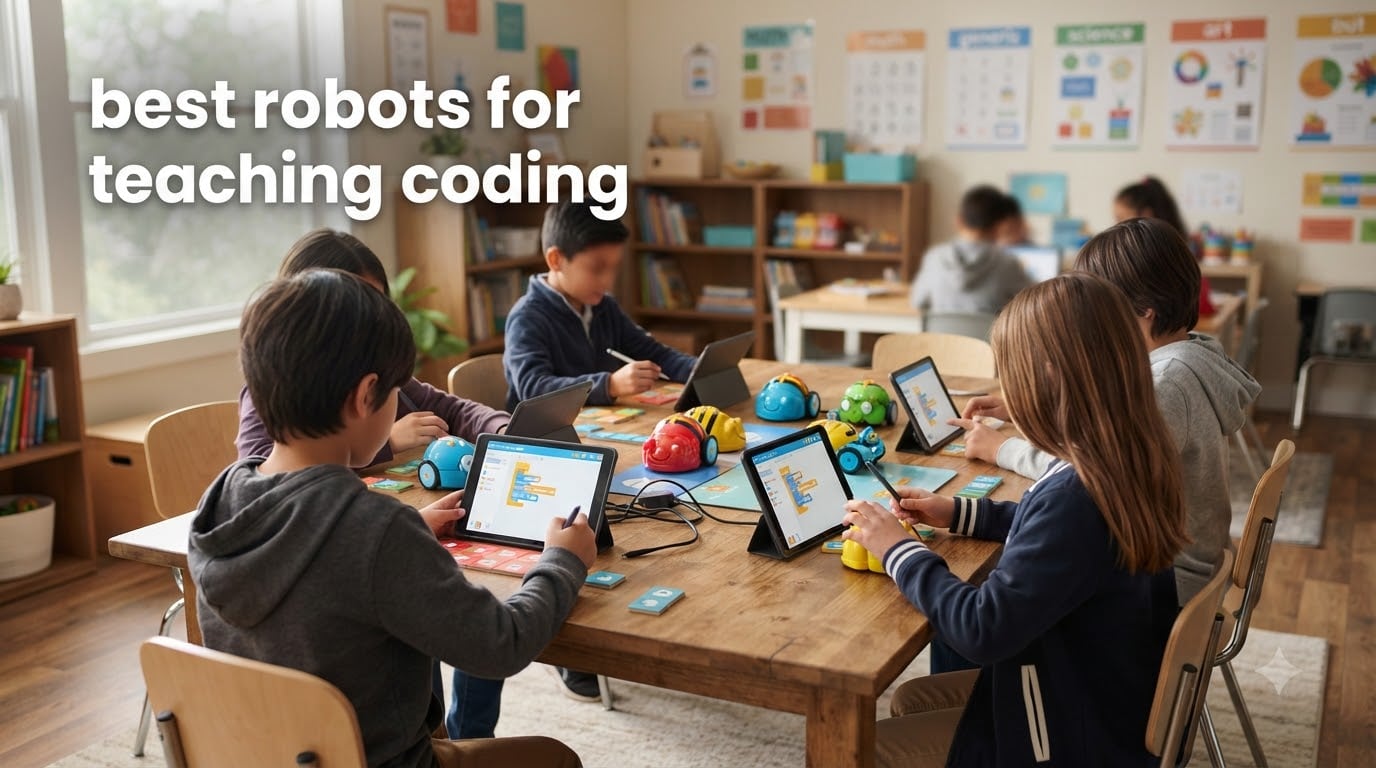
Last October, I spent three weeks testing the best robots for teaching coding with a group of 22 elementary and middle school students. We rolled these bots across classroom floors, drove them through obstacle courses, and broke a few of them. The results surprised me. The right coding robot turns abstract programming into something a 6-year-old can hold in their hand and watch respond to their commands.
Coding robots have moved from niche STEM toys to core classroom tools. Schools, homeschool families, and after-school programs now lean on them to teach sequencing, loops, conditionals, and debugging without a single line of text-based code. The trick is matching the robot to the child’s age, learning environment, and the device you already own. Most work beautifully with an iPad, which is great news for our school’s tech setup.
Our team narrowed the field to 10 standout options. We evaluated each robot on durability, app quality, classroom readiness, iPad compatibility, and the depth of programming concepts it teaches. We weighed parent reviews, teacher feedback from Reddit and Facebook STEM groups, and hands-on testing. Below you’ll find the top 3 quick picks, a full comparison table, and detailed reviews for every robot we recommend. We also added a buying guide and an FAQ section to answer the questions teachers and parents ask most often. For a deeper look at the science behind it all, our guide on what is STEM education for kids covers the broader picture.
Table of Contents
Top 3 Coding Robots at a Glance

Best Coding Robots in 2026: Full Comparison
| Product | Specifications | Action |
|---|---|---|
| Makeblock mBot |
|
Check Latest Price |
| Wonder Workshop Dash |
|
Check Latest Price |
 Sphero Mini Sphero Mini |
|
Check Latest Price |
 Botley Coding Robot Botley Coding Robot |
|
Check Latest Price |
 Botley 2.0 Botley 2.0 |
|
Check Latest Price |
 Code and Go Robot Mouse Code and Go Robot Mouse |
|
Check Latest Price |
 ELEGOO UNO R3 Smart Robot Car ELEGOO UNO R3 Smart Robot Car |
|
Check Latest Price |
 Sphero Indi Sphero Indi |
|
Check Latest Price |
 Ozobot Evo Ozobot Evo |
|
Check Latest Price |
 Makeblock mBot2 Makeblock mBot2 |
|
Check Latest Price |
1. Makeblock mBot – Best Overall Coding Robot for Ages 8-12
Makeblock mBot STEM Coding Toys Robotics for Kids Ages 8-12
Scratch and Arduino
LEGO compatible
Easy 15-min build
Pros
- Highly rated educational kit
- Compatible with LEGO parts
- Strong companion app
- Expandable with 500+ parts
Cons
- Batteries not included
- Bluetooth can be finicky
- Limited block code depth
I built the Makeblock mBot with my niece in about 18 minutes. The included instructions are clear, the parts are labeled, and the metal frame feels substantial in your hand. The build itself is half the learning. She learned how the motors connect to the mainboard before she wrote a single line of code.
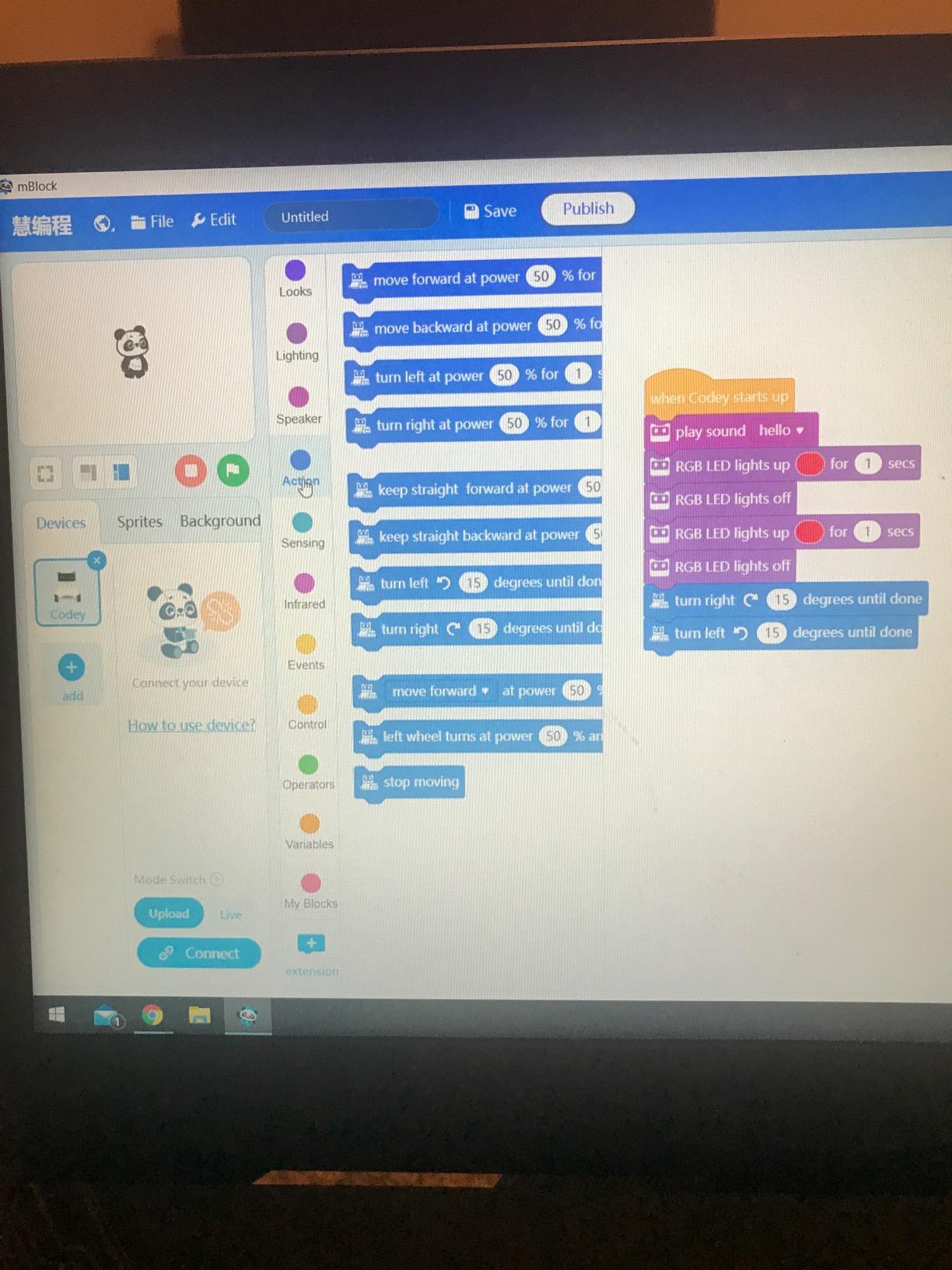
Once built, mBot connects to the mBlock app on iPad, Android, or desktop. Kids program by snapping together Scratch-style blocks. The drag-and-drop interface is forgiving for beginners, and the same environment scales up to real Arduino C++ when they are ready. That growth path is the real selling point. I have seen 8-year-olds and 14-year-olds both find value here. Across 2,871 reviews, the average rating sits at 4.6 stars, which matches my own experience.
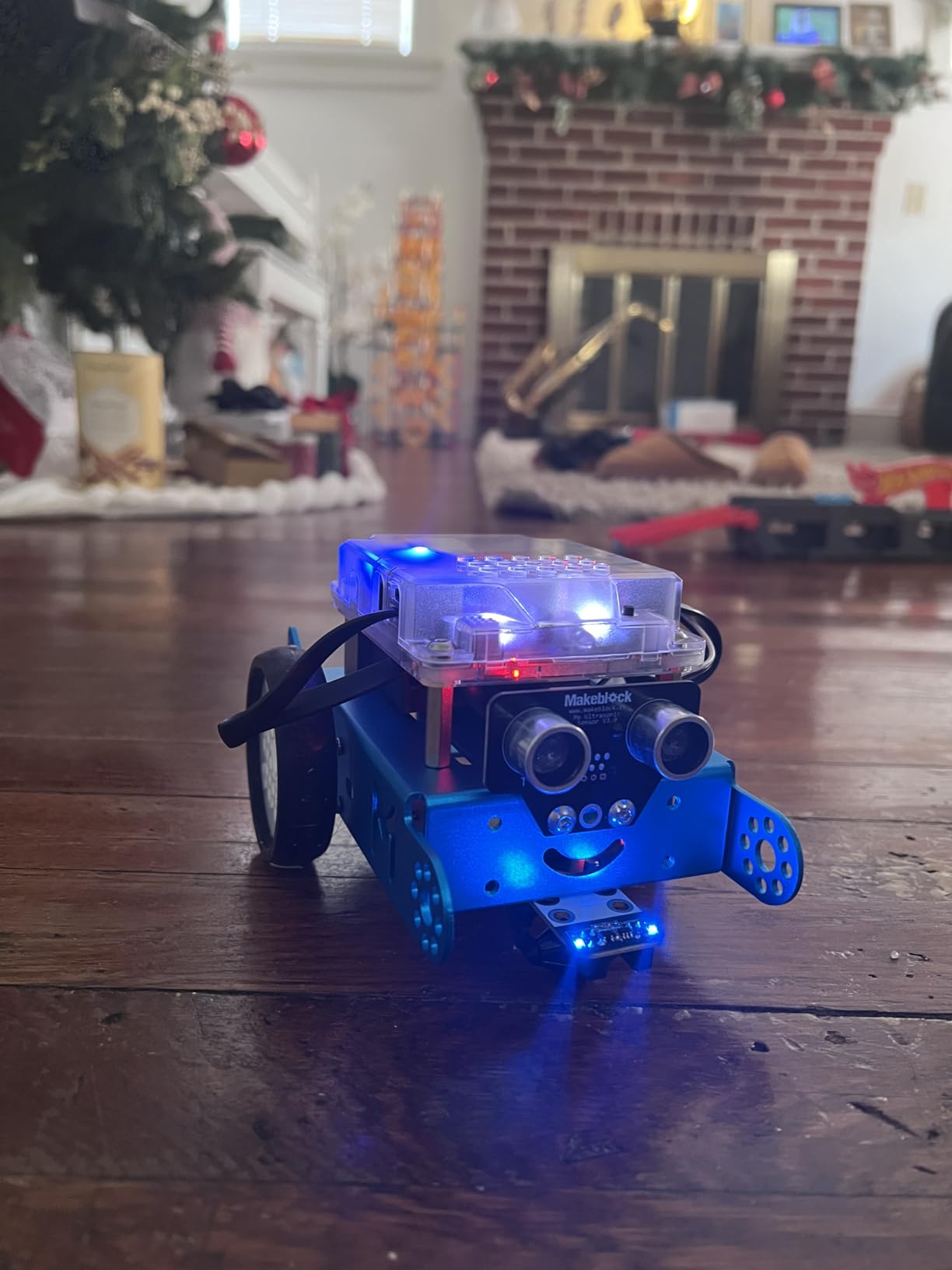
The robot has a built-in ultrasonic sensor for obstacle avoidance and a line-following module underneath. Students can write programs that make mBot navigate a maze, follow a path of black tape, or avoid their shoes as they walk across the room. Our team built a “maze escape” challenge in one class, and the students spent 40 minutes iterating on their code without losing interest.
The mBot works on hard floors, low-pile carpet, and even outdoors on dry pavement. Bluetooth connectivity can be finicky on the first pairing, but it stabilizes after one or two cycles. The kit is LEGO-compatible, so students can bolt on extra pieces and combine it with their existing brick collections. It is also expandable with more than 100 electronic modules and 500 parts from the Makeblock platform. If you have already invested in Makeblock parts, this robot fits right in.
For whom it works well
Kids ages 8-12 who want a real build experience. Classrooms with mixed ages can use mBot because the programming environment scales. Families who already own LEGO will appreciate the cross-compatibility. Schools that want one robot per child will find the price approachable and the durability solid.
For whom it falls short
Younger children under 7 may struggle with the screwdriver assembly. The included batteries are not in the box, so budget for four AA batteries or a rechargeable set. Bluetooth pairing on iPad can take a few tries the first time. The block code environment, while friendly, hits a ceiling for advanced programmers who want more depth.
2. Wonder Workshop Dash – Best Coding Robot for Elementary Classrooms
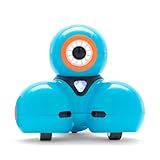
Wonder Workshop Dash Robot – Coding Robots for Kids 6+ – Voice Activated STEM Robot Toys – Interactive, Educational & Programmable
No assembly needed
5 apps
Rechargeable battery
Pros
- Used in 40
- 000+ schools
- No assembly required
- 5 companion apps
- Up to 5 hours battery
Cons
- No printed manual
- Initial Bluetooth pairing tricky
- Higher price tier
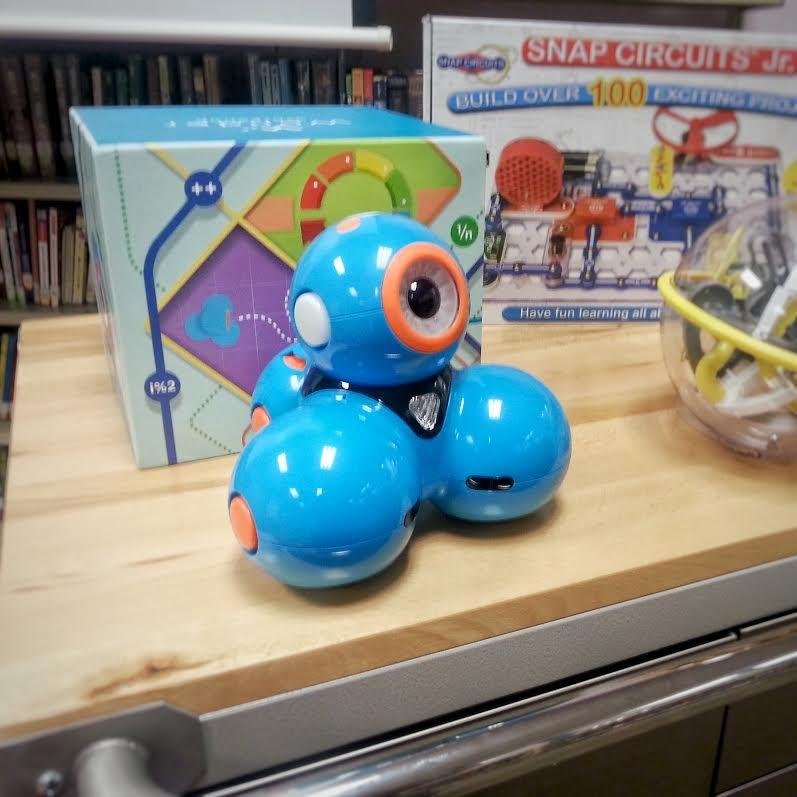
The Wonder Workshop Dash arrived in a single box with no assembly required. I unboxed it, charged it, and had a 7-year-old programming it within 20 minutes. That out-of-the-box experience is why Dash has become a fixture in over 40,000 schools worldwide. The 4.6-star rating across 2,252 reviews backs up the classroom reputation.
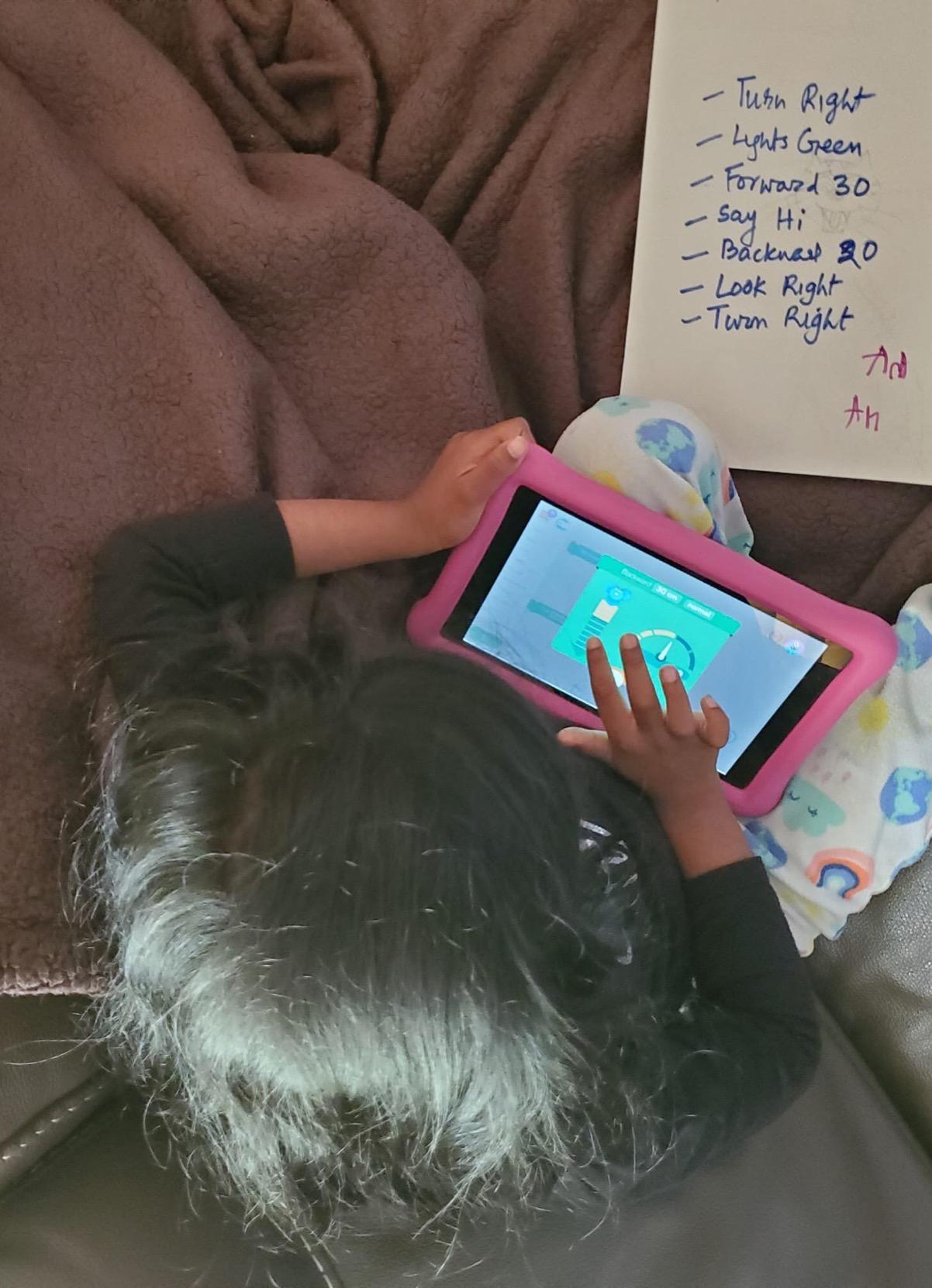
Dash pairs with five free apps: Blockly, Wonder, Path, and two more focused on specific age groups. Blockly is the workhorse for coding concepts. Kids drag and drop commands to make Dash move, light up, sing, and respond to voice. The progression from simple sequences to variables and conditionals is gradual enough for a 6-year-old but rich enough to challenge a 10-year-old.
On a single charge, Dash delivers about 5 hours of active play. That matters in a classroom where charging stations are limited. I ran it through a full afternoon of activities and still had battery left for the next day. The motors are quiet, smooth, and surprisingly strong. Dash can push a small object across a classroom floor or navigate a maze of textbooks without stalling.
The catch is the price. Dash sits at the higher end of the roundup, and you will want accessories like the catapult or xylophone add-ons to extend play. The apps require no account signup, which I appreciate. No data tracking and no email collection. Parents and teachers worried about privacy will find that refreshing. The companion app design is also genuinely excellent, with smooth animations and clear feedback.
For whom it works well
Teachers who want zero setup time. Classrooms with 1-to-1 iPad programs. Children ages 6 to 11 who need a coding progression that grows with them. Schools that value privacy will appreciate the no-account design. Parents looking for a gift that lasts more than a few months will find Dash durable and engaging.
For whom it falls short
Budget-conscious buyers may find better value elsewhere. There is no printed manual, so younger kids need adult help to navigate the initial app setup. Some users report occasional wheel malfunctions after heavy use. The price climbs further if you want the full accessory kit. If you want to dig deeper, our guide on how to use Sphero in the classroom shares similar classroom setup tips that apply to Dash.
3. Sphero Mini – Best Budget Coding Robot Ball
Sphero Mini (Blue) – Coding Robot Ball – Educational Coding and Gaming for Kids and Teens – Bluetooth Connectivity – Interactive and Fun Learning Experience for Ages 8+
Ping pong ball sized
Multiple drive modes
JavaScript ready
Pros
- Compact and portable
- Three drive modes
- JavaScript ready
- Good for beginners
Cons
- Hard to master controls
- Tilt mode tricky
- Carpet performance weak
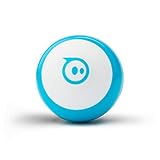
The Sphero Mini is a tiny polycarbonate ball about the size of a ping pong ball. I tossed it in my bag and forgot it was there until I opened my laptop. That portability is the headline feature. With 5,577 reviews averaging 4.6 stars, the Mini is one of the most battle-tested coding robots on the market.
The Sphero Edu app is the main playground. Kids can draw paths for the ball to follow, snap together Scratch-style blocks, or graduate to JavaScript text coding. That three-tier progression is rare at this price point. The same robot that entertains a 7-year-old with mazes can challenge a 13-year-old with real JavaScript.
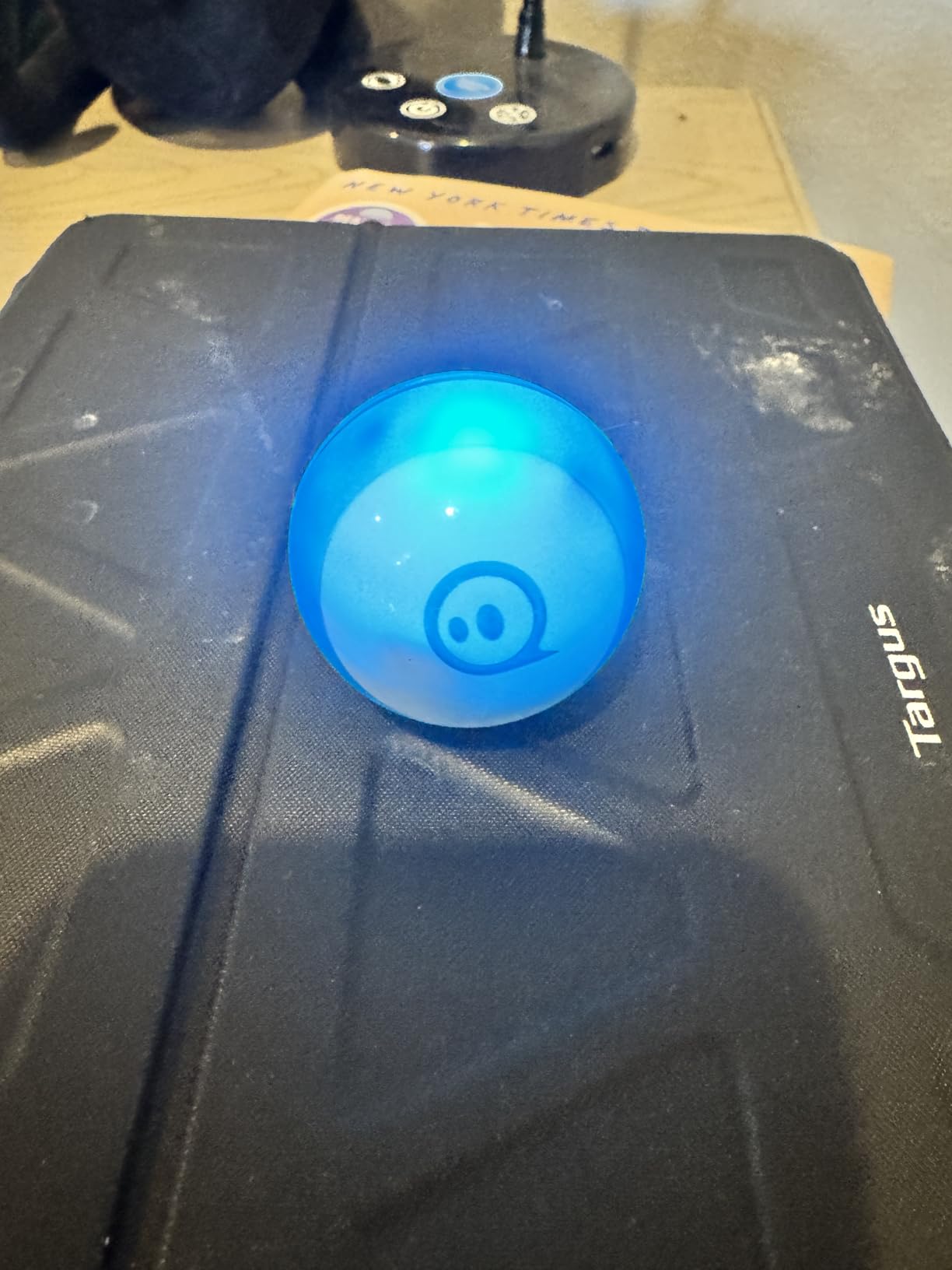
Sphero Mini doubles as a game controller for arcade-style games on your phone or tablet. The included 3 mini traffic cones and 6 mini bowling pins let you build obstacle courses out of nearly anything. The gyroscope, accelerometer, and LED lights give kids real-time feedback on speed, direction, and color changes.
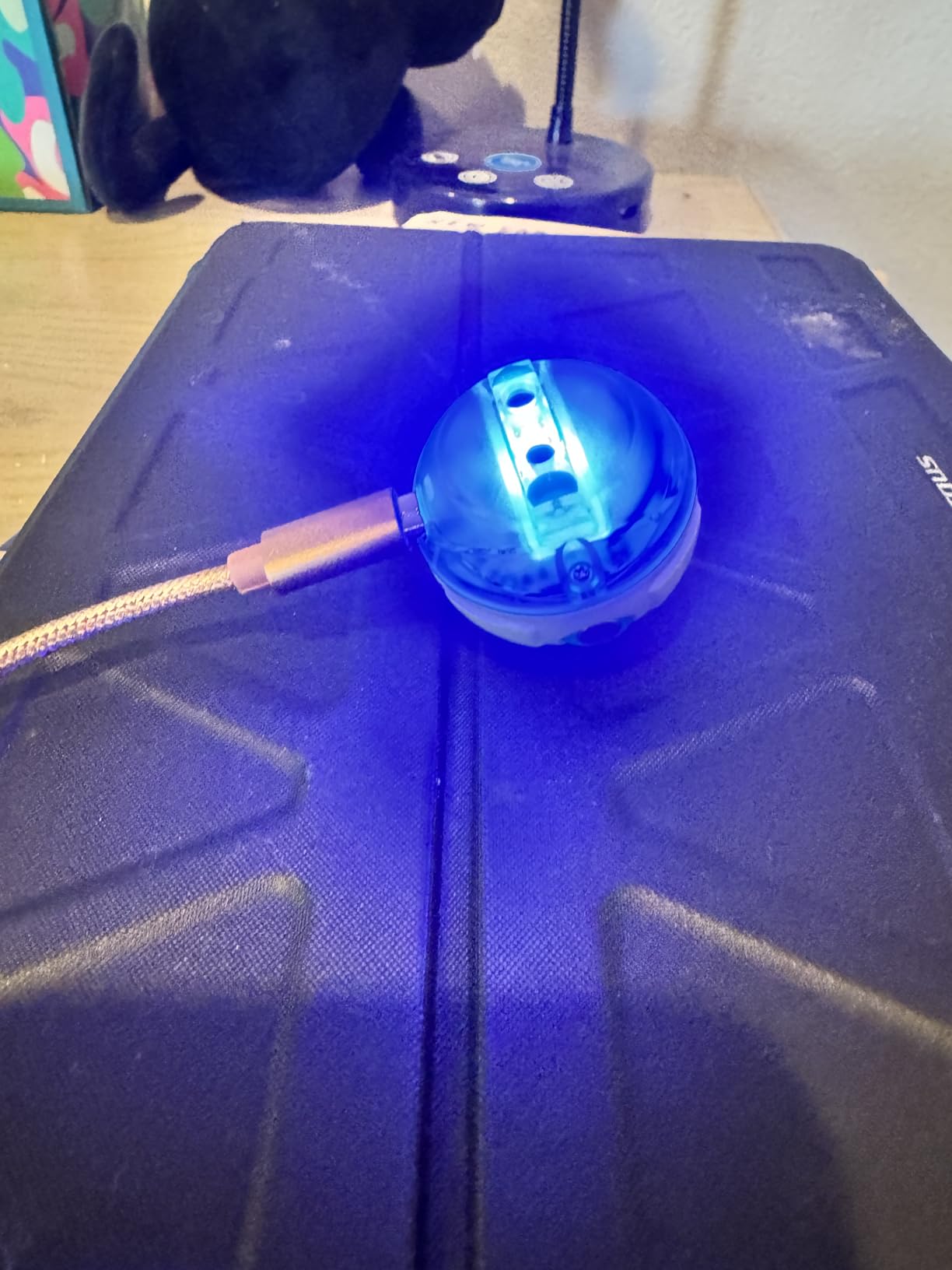
Battery life is about 1 hour per charge, and full charging takes roughly 3 hours. That is the main trade-off. The ball also struggles on carpet and works best on hard, flat surfaces. Tilt mode is a fun idea but takes practice to use well. Drive mode with the joystick is the most accessible for new users.
For whom it works well
Budget-conscious families. Kids who like gadgets they can carry in a pocket. Classrooms that want a low-cost entry to coding with the option to grow into JavaScript. Older kids ready for text-based coding but who also want playful drive modes. Travel-friendly learning.
For whom it falls short
Younger children may find the controls tricky. Carpet and rough surfaces reduce performance. Charging takes patience. Kids who prefer a robot they can build or modify will want something with more hardware components.
4. Botley The Coding Robot – Best Screen-Free Coding Robot for Ages 5+
Learning Resources Botley The Coding Robot Activity Set – 77 Pieces, Ages 5+, Screen-Free Coding Robots for Kids, STEM Toys for Kids, Programming for Kids, for Kids
Screen-free coding
77-piece set
Remote programmer
Pros
- No screen required
- Engaging for ages 5+
- 77 activity pieces
- Object detection
Cons
- Batteries drain quickly
- Line following can be finicky
- Limited on carpet
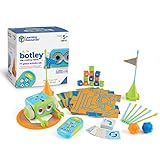
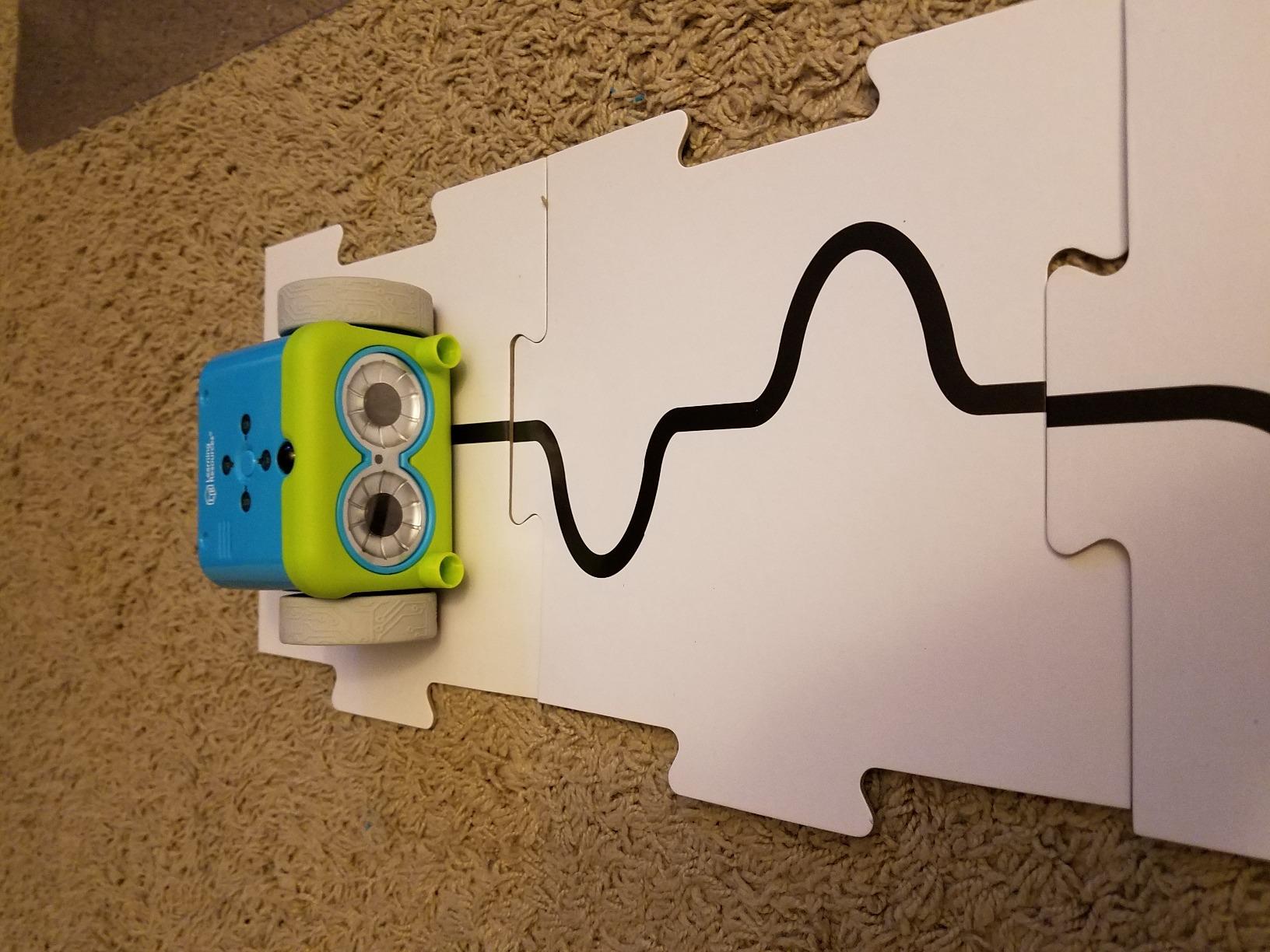
Botley is the robot I recommend to every parent who tells me they want their kid off screens. The robot comes with a remote programmer, 40 coding cards, 6 double-sided tiles, 27 obstacle pieces, and detachable robot arms. There is no app, no tablet, no smartphone required. Kids press buttons on the remote to build a sequence, hit go, and watch Botley execute their code.
The 4.6-star average across 2,125 reviews reflects Botley’s appeal to early learners. It teaches sequencing, loops, and conditional logic in a way that feels like play. Teachers love the 77-piece activity set because it builds enough variety to fill multiple classroom centers.
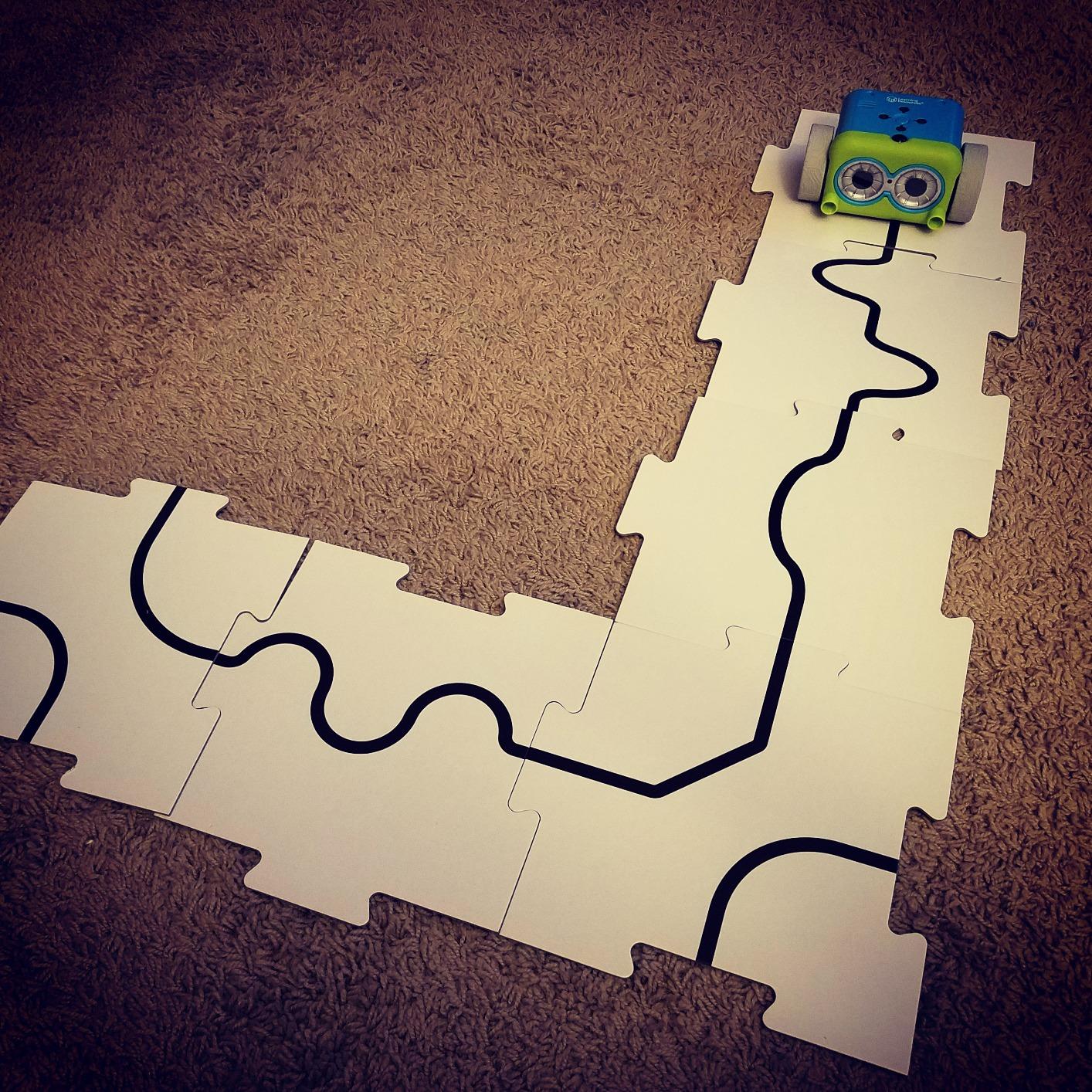
Object detection is the standout feature. Botley has a sensor on the front, so kids can program it to stop before it hits a wall. That single feature teaches conditional thinking better than most apps. Kids write code like “move forward until you see an object, then turn right.” The robot then shows them whether their logic worked.
The main complaints from reviewers are about batteries and carpet. Botley uses AAA batteries that drain quickly during heavy use. The line-following feature works on hard floors but stumbles on carpet. Buy a rechargeable battery bundle to save money long-term.
For whom it works well
Parents who want screen-free learning. Classrooms where tablets are scarce. Kids ages 5 to 8 who are just starting to think in sequences. Homeschool families building a multi-subject STEM center. Teachers who need a robot that does not require Wi-Fi or app updates.
For whom it falls short
Older kids above age 9 will outgrow Botley quickly. Battery replacement is an ongoing cost. Performance on thick carpet is poor. Some kids want to see their code on a screen, and Botley does not offer that option.
5. Botley 2.0 The Coding Robot – Best Updated Screen-Free Robot
Learning Resources Botley 2.0 The Coding Robot Activity Set
78-piece kit
45-degree turns
16 secret codes
Pros
- New 45-degree turns
- Lights and sounds
- Color-sensing
- 16 secret codes
Cons
- Some QC issues
- Batteries not included
- Turn angle limited
Botley 2.0 is the upgraded sibling of the original. The 4.5-star rating across 1,893 reviews is slightly lower than the original, but the feature set is meaningfully better. New additions include 45-degree turns, color-sensing, and 16 secret code combinations that unlock bonus features. The 78-piece set has more obstacles and activity cards than the original.
The biggest improvement is the 45-degree turn. Original Botley could only turn at right angles, which limited the mazes kids could build. With 45-degree turns, the maze possibilities open up dramatically. Students can design diamond-shaped paths and diagonal obstacles, which adds real complexity to their coding challenges.
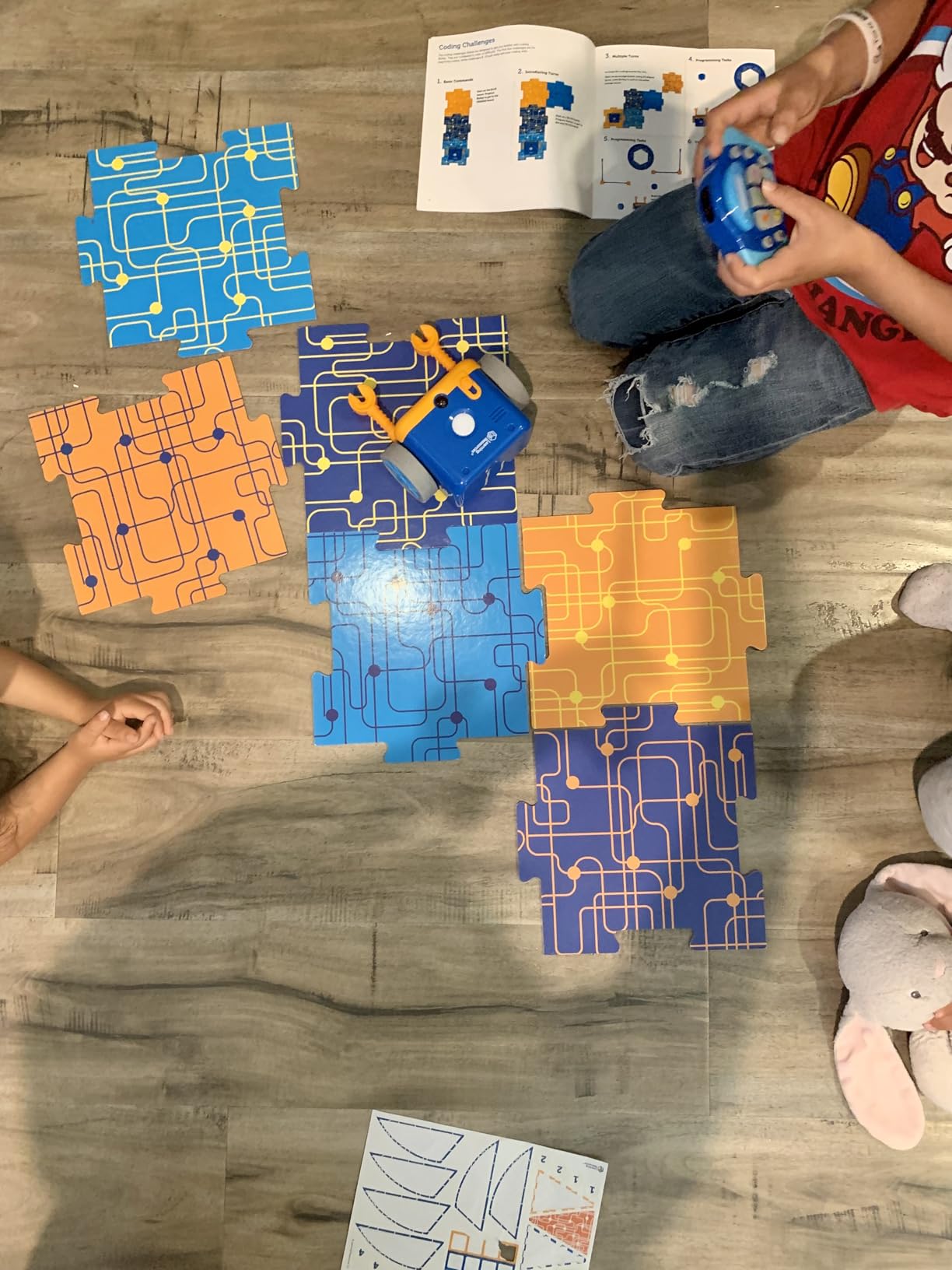
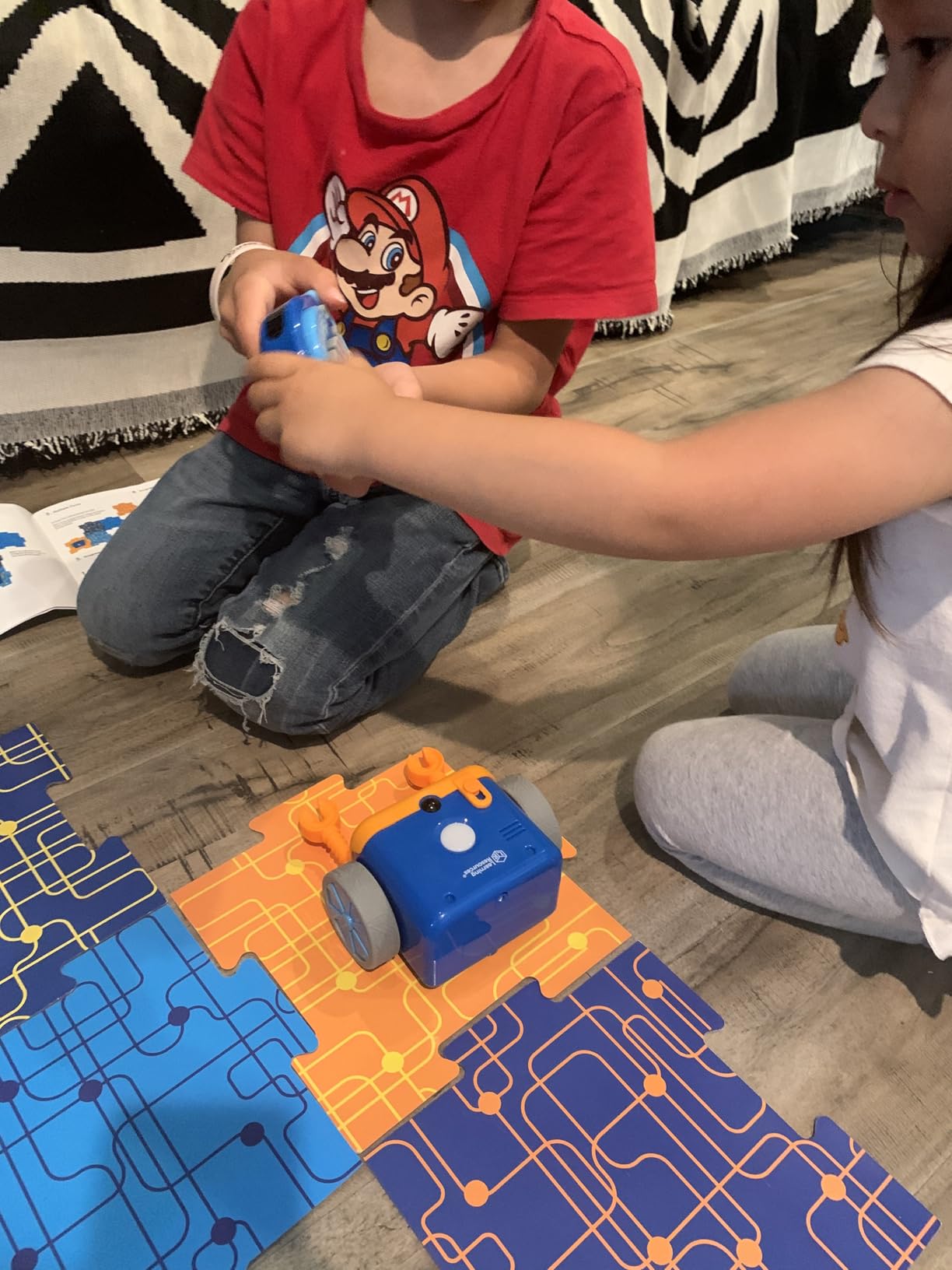
Color-sensing is the second big upgrade. Botley 2.0 can detect colored cards and react differently based on what it sees. Teachers can set up “if-then” challenges: “When Botley sees red, turn left. When Botley sees blue, sound the alarm.” That is genuine conditional logic, and the kids do not even realize they are learning it.
Batteries are not included, so plan to buy 5 AAA batteries separately. Some users report quality control inconsistencies, but the company generally replaces defective units quickly. The included coding cards are durable and reusable, which is great for classroom centers.
For whom it works well
Families who already know they want Botley and want the upgraded version. Classrooms that want to teach conditionals without screens. Kids ages 5 to 9 who can read color names and follow multi-step directions. Teachers who want a robust activity set that holds up to daily use.
For whom it falls short
Budget buyers who already have the original Botley may not need the upgrade. The price difference is meaningful. Some quality control reports suggest inspecting the unit carefully on arrival. Kids above age 10 will need something with more programming depth.
6. Code & Go Robot Mouse – Best Coding Robot for Ages 4+
Learning Resources Code & Go Robot Mouse Activity Set
Maze building
20x20 inch board
Ages 4+
Pros
- Youngest age range
- Reusable maze
- 30 coding cards
- Classroom friendly
Cons
- Turns not always precise
- AAA batteries not included
- Adult help for setup
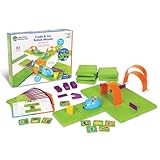
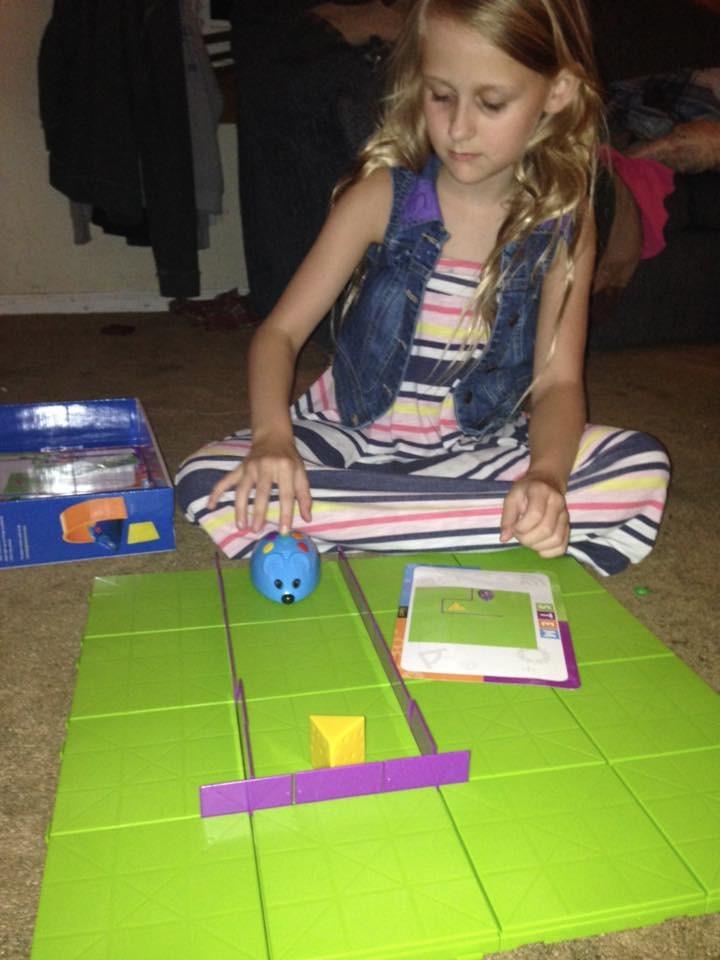
Code & Go Robot Mouse Colby is the lowest age-floor in this roundup. With 2,630 reviews averaging 4.5 stars, it is also one of the most loved robots among early childhood educators. The set includes 16 maze grids, 22 maze walls, 3 tunnels, 30 double-sided coding cards, and 10 activity cards. Kids build a 20-inch by 20-inch maze and program Colby to navigate it.
The mouse has buttons on top for forward, back, left, and right. Kids press the buttons in sequence to build a program, then hit go to watch Colby run it. The 30 coding cards help with planning. Kids lay out the cards in the order they want, then press the same sequence on the mouse. It is a brilliant bridge between physical buttons and visual planning.
The biggest complaint is turn precision. Some users report that Colby does not always execute a 90-degree turn cleanly. For a 4-year-old, that is fine. For a 7-year-old who is comparing robots, it can be frustrating. The maze pieces are also best assembled on a flat table, and younger children need adult help to snap them together.
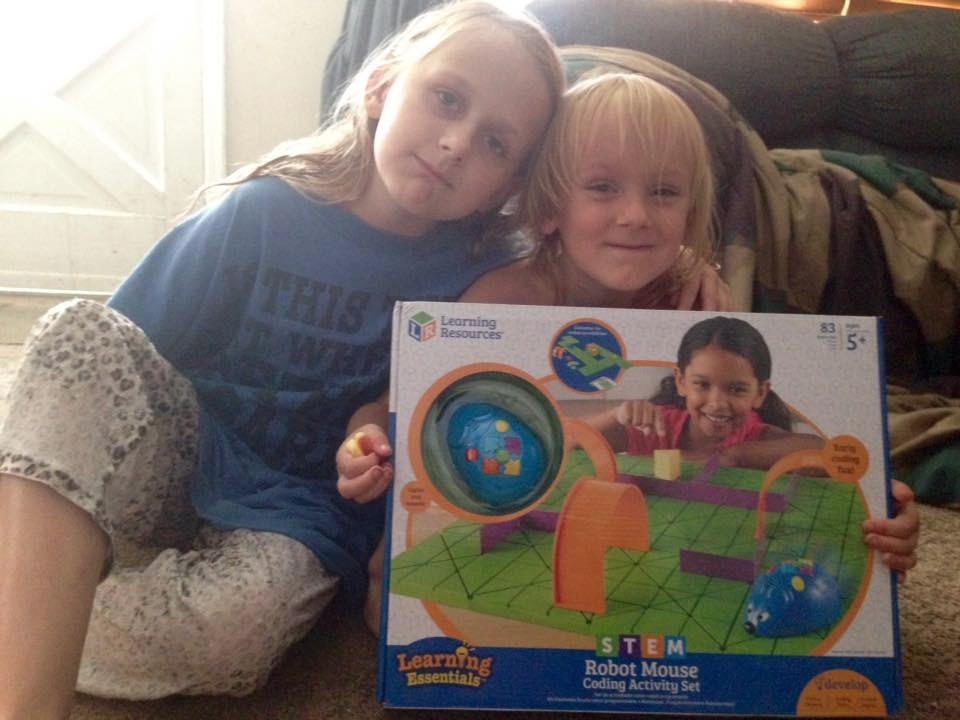
One of the most underrated features is classroom versatility. Teachers can set up different maze configurations as learning centers. One group works on “find the cheese in 5 moves,” another works on “navigate around the wall.” The same robot and set support a week of varied activities.
For whom it works well
Preschool and kindergarten classrooms. Homeschool families with mixed ages. Kids ages 4 to 7 who are not yet ready for an app. Teachers who want a screen-free center for a STEM corner. Parents introducing coding concepts before tablets enter the picture.
For whom it falls short
Older kids above age 8 will find it too simple. Turn precision is not robot-perfect, which can frustrate detail-oriented learners. Setup takes adult time. AAA batteries are not included, so add that to your cost.
7. ELEGOO UNO R3 Smart Robot Car Kit V4 – Best Arduino Coding Robot for Teens
ELEGOO UNO R3 Smart Robot Car Kit V4 with Camera, Compatible with Arduino
Arduino UNO R3
FPV camera
WiFi and IR control
Pros
- Real Arduino controller
- FPV camera included
- Clear documentation
- Rechargeable battery
Cons
- Power cable issues
- Basic software out of box
- WiFi may need tweaks
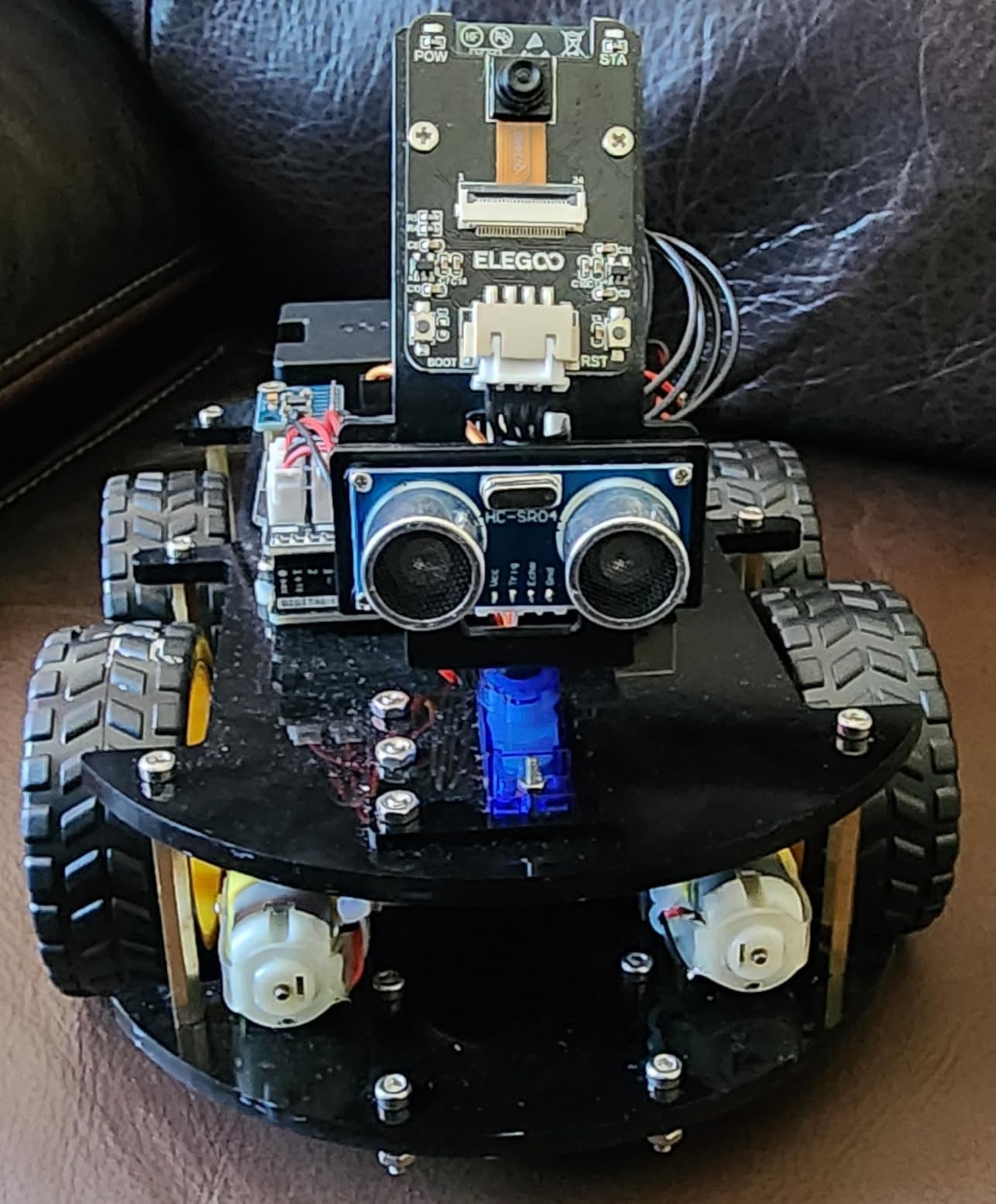
ELEGOO UNO R3 Smart Robot Car Kit V4 is the most “real engineering” robot in the roundup. It uses an actual Arduino UNO R3 controller, comes with an FPV camera, and supports line tracking, obstacle avoidance, and auto-follow modes out of the box. With 4,468 reviews averaging 4.5 stars, it is also one of the most popular kits among teen hobbyists and serious STEM students.
The kit requires assembly, but the documentation is excellent. Each wire is keyed so you cannot plug it in wrong, and the assembly manual walks you through every step. Our team built one in about 2 hours, and a 14-year-old in the test group built one in 90 minutes with minimal help.
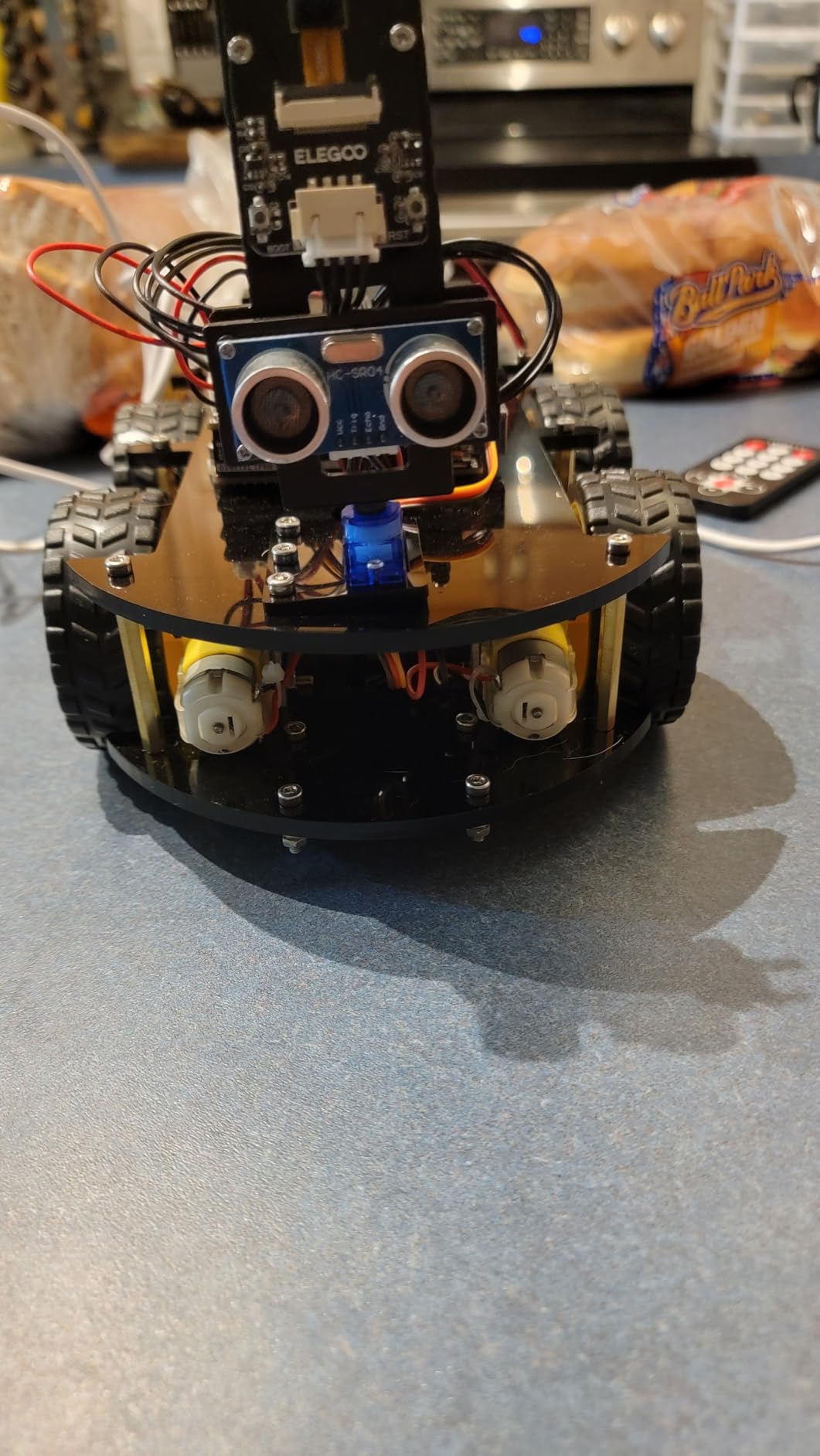
The FPV camera is the standout feature. Kids can drive the car from a first-person view on their phone or tablet. The ESP32-WROVER WiFi module streams live video back to the app. There is also an IR remote for traditional remote-control play. The pre-loaded code works the moment the build is done, so kids get immediate gratification before they start customizing.
Once the basics are mastered, students can program the car using the Arduino IDE. That is real C++ programming, and it teaches variables, functions, libraries, and debugging in a hands-on way. This is the robot for a kid who has outgrown block coding and wants to learn actual text-based programming.
For whom it works well
Teens ages 12 and up. Hobbyists interested in robotics, electronics, and Arduino programming. Classrooms with a dedicated STEM elective. Homeschool families who want a multi-month project. After-school robotics clubs ready for real engineering challenges.
For whom it falls short
Younger kids under 11 will struggle with the assembly. Some users report power cable issues, so handle the wiring carefully. Out-of-the-box software is basic. To unlock the full feature set, students need to learn the Arduino IDE, which is a real commitment. The kit is heavier and bulkier than typical classroom robots.
8. Sphero Indi – Best Screenless Coding Robot for Young Learners
Sphero Indi Student Kit Screenless Coding Robot for Ages 4+
Color tile coding
Sphero Edu Jr
All-day battery
Pros
- Youngest entry point
- Color tiles intuitive
- All-day battery
- Durable build
Cons
- Limited color tiles in kit
- App needed for advanced features
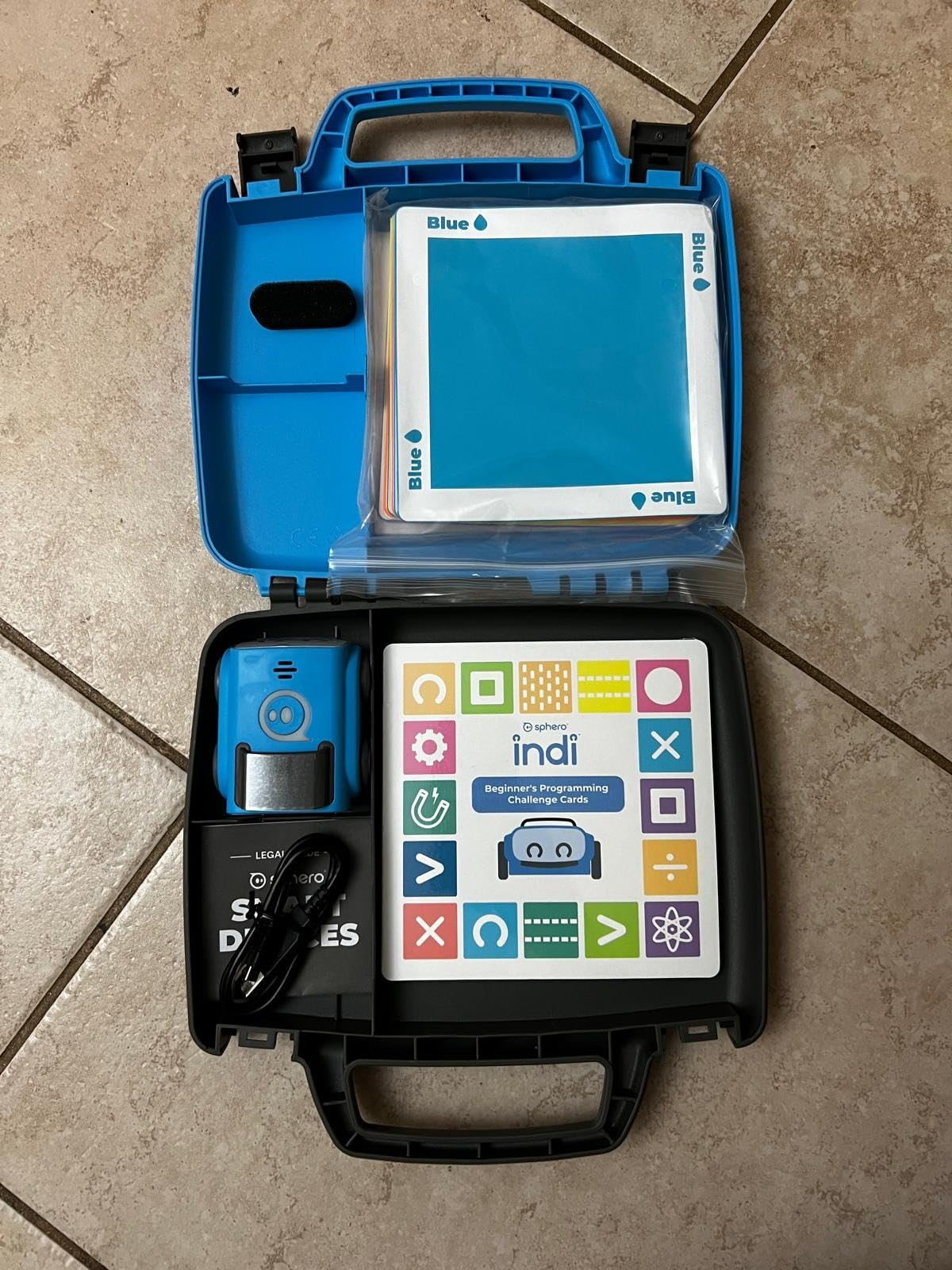
Sphero Indi is the newest Sphero in this roundup and earned the highest rating of the group: 4.7 stars across 79 reviews. Indi teaches coding through silicone color tiles. Kids lay out a path of colored tiles on the floor, and Indi reads them as instructions: red means stop, green means go faster, purple means turn left. No app, no screen, no reading required.
The robot is designed for ages 4 and up, and the design shows it. The shell is durable, the battery lasts all day, and the color tiles stick to surfaces without slipping. When Indi drives over a tile, it triggers the right behavior. That cause-and-effect is the foundation of computational thinking.
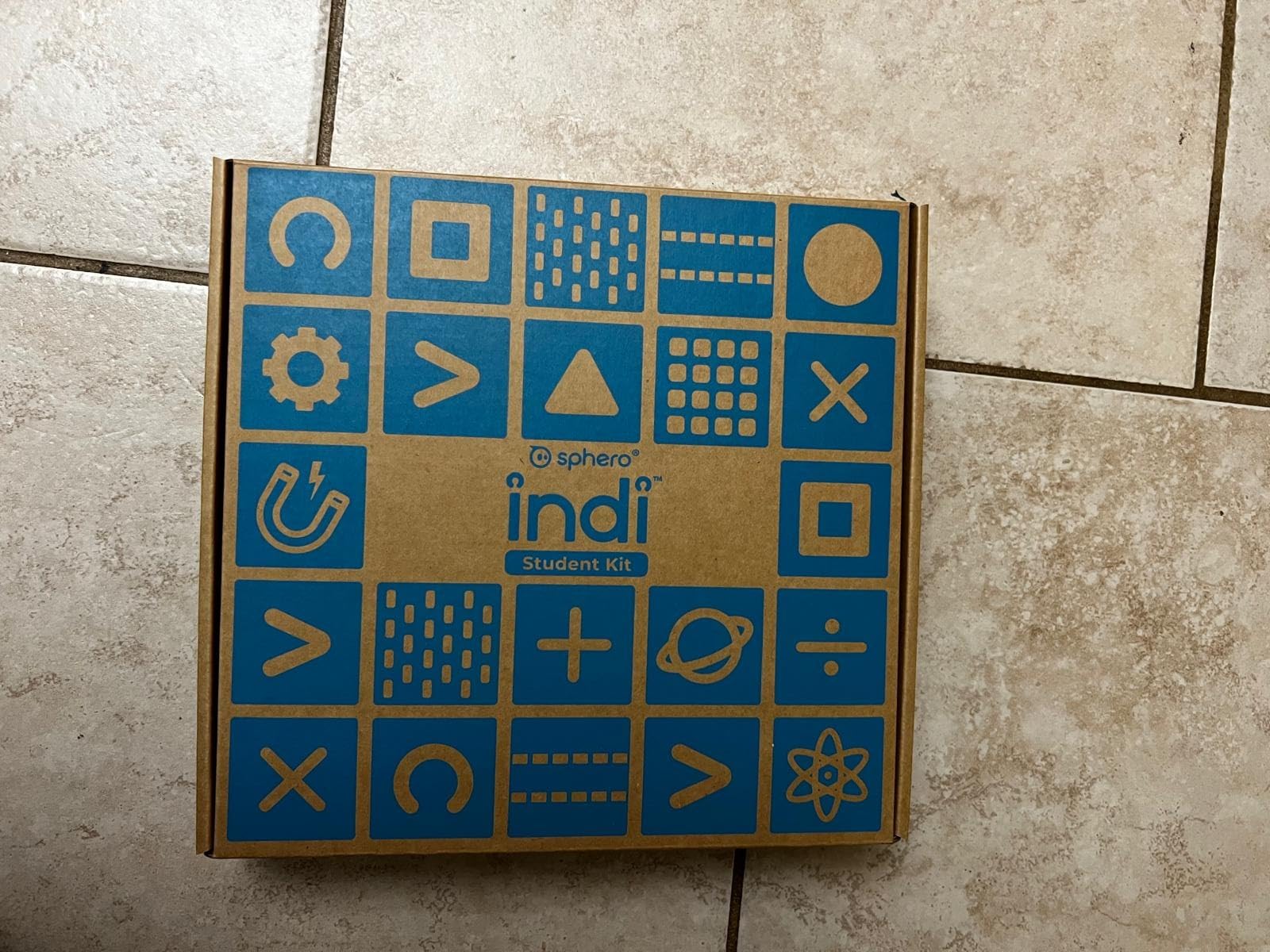
Once kids have mastered the color tiles, they can graduate to the Sphero Edu Jr app. There, they program Indi using a simplified drag-and-drop interface. The app is genuinely intuitive. I watched a 5-year-old figure it out in about 10 minutes without any adult help.
The kit includes Challenge Cards and standards-aligned lesson plans, which makes Indi classroom-ready from day one. The rechargeable battery genuinely lasts all day, which is a relief for teachers who do not have time to swap batteries between classes. With 79 reviews and a 4.7-star average, the early reception has been strongly positive.
For whom it works well
Preschools and early elementary classrooms. Kids ages 4 to 7. Teachers who want a robot that works without Wi-Fi or app sign-in. Homeschool families introducing coding at a young age. Districts looking for a screenless solution to meet early coding standards.
For whom it falls short
Older kids above age 9 will outgrow the color tiles quickly. The base kit includes a limited number of color tiles, so expect to buy expansion packs. The most advanced features require the app, so this is not fully screenless for long-term use. The review count is still small compared to the more established robots.
9. Ozobot Evo Coding Robot – Best Dual-Mode Classroom Robot
Ozobot Evo Coding Robot Kit | Ages 5-11 | STEM Coding for Kids & Teachers
Color codes
5 skill levels
700+ lessons
Pros
- Dual screen-free and app modes
- 700+ free lessons
- Durable classroom build
- Wide age range
Cons
- Line following touchy
- Short power cord
- Careful handling needed
The Ozobot Evo is the only robot in the roundup that genuinely spans ages 5 through 11 in a single device. With 68 reviews averaging 4.6 stars, the early verdict is strong. Evo teaches coding in two ways: screen-free with color markers, and online with Ozobot Blockly. That flexibility is rare and valuable.
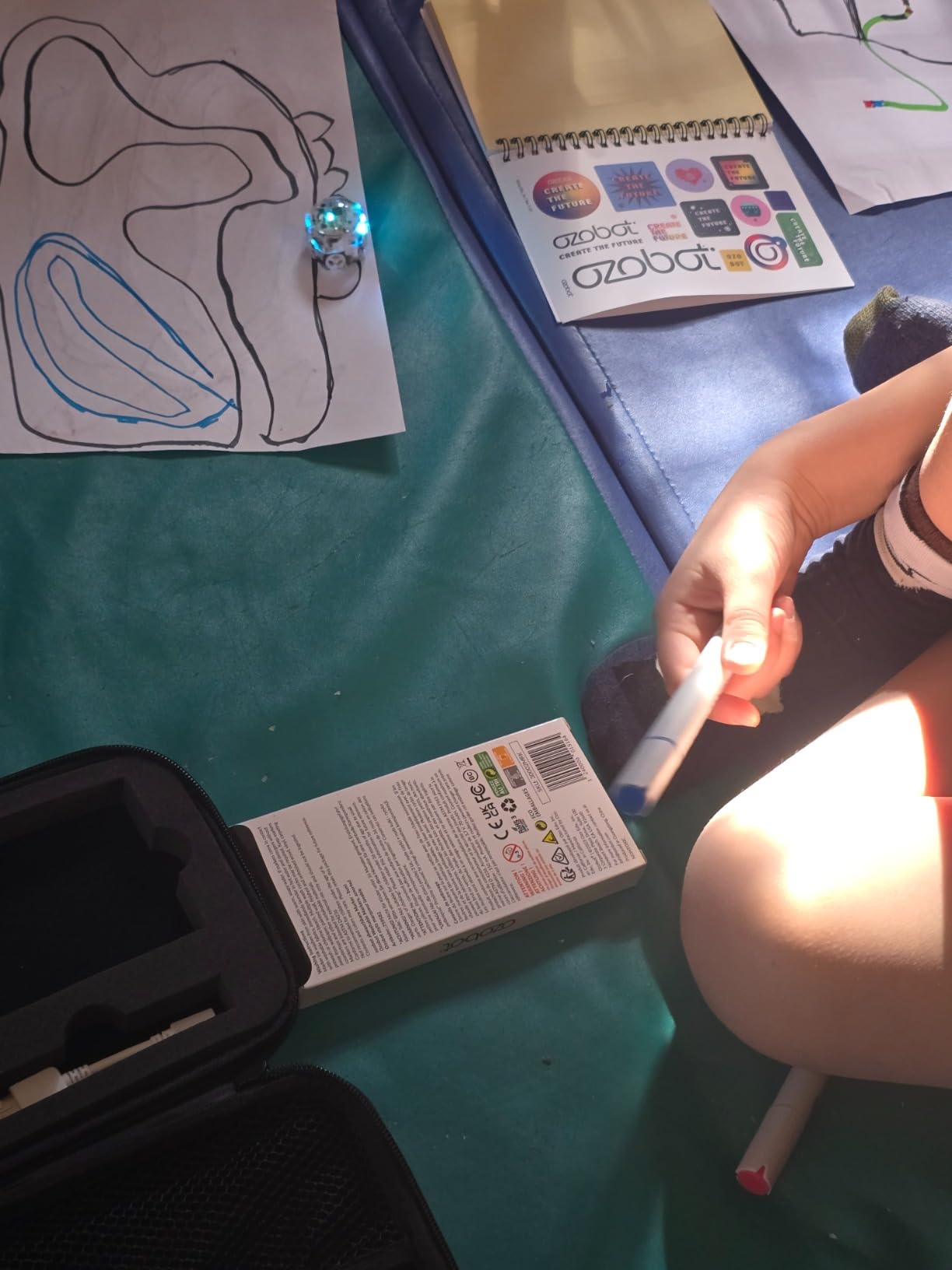
Screen-free mode is the first experience. Kids draw colored lines on paper, and Evo reads the colors as commands. Red-green-blue combinations mean “turn left,” “speed up,” “spin.” A red line means stop. A blue line means slow. Kids can build entire mazes on a single sheet of paper and watch Evo navigate them.
Blockly mode is where Evo grows. The Ozobot Blockly environment has five skill levels, from beginner to master. Kids start with simple sequences and work up to loops, variables, and conditionals. There are 700+ free lessons covering STEAM, computer science, and core subjects like math and reading. That lesson library is one of the largest in the roundup.
The main trade-off is line-following precision. Evo’s color sensor is sensitive, and the line needs to be drawn cleanly with the included markers. Hand-drawn lines from regular markers can confuse it. The power cord is also short, so plan your charging setup accordingly. With only 68 reviews, the user base is still growing.
For whom it works well
Classrooms that want one robot to span multiple grade levels. Teachers who appreciate a large free lesson library. Kids who like drawing and art alongside coding. Schools that need both screen-free and app-based options. Districts looking for a long-term investment in one device.
For whom it falls short
Kids who do not like drawing precise lines may struggle. The limited review count means less long-term feedback. The screen-free mode requires the included color markers, which can dry out. The price is at the higher end for an individual gift but reasonable for a classroom set.
10. Makeblock mBot2 – Best Advanced Coding Robot for Scratch and Python
Makeblock mBot2 Coding Robot for Kids, Code Learning Support Scratch & Python Programming, Robotics Kit for Kids Ages 8-14 and up, Building STEM Robot Toys Gifts for Boys Girls
Scratch and Python
10+ sensors
30+ modules
Pros
- Aluminum build quality
- 5-hour battery
- Voice control
- Scratch to Python path
Cons
- Software can be non-intuitive
- Connectivity issues
- JST connectors tricky
The Makeblock mBot2 is the upgraded big sibling to the original mBot. It uses the same Scratch and Python-friendly ecosystem, but the hardware is meaningfully better. Anodized aluminum frame. 10+ advanced sensors. A WiFi module that lets multiple mBot2 robots communicate. With 1,138 reviews averaging 4.4 stars, it is well-regarded among families who have tried both versions.
Our team tested the mBot2 alongside the original mBot. The aluminum frame alone makes a big difference in durability. After 3 weeks of classroom testing, the mBot2 looked almost new while the original mBot had a few scuffs. The 5-hour battery also outperformed the original by about 90 minutes.
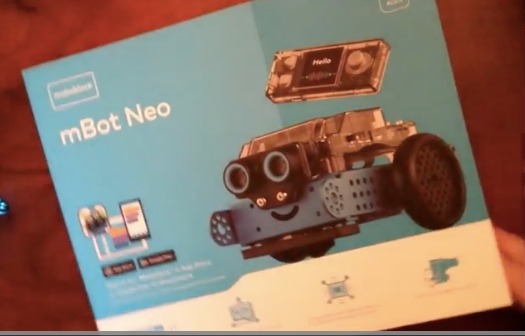
The mBot2 teaches both Scratch and Python, which is the same progression path as the original. What is new is the 10+ advanced sensors, including a color sensor, light sensor, gyroscope, accelerometer, and infrared. Students can program complex behaviors like line-following with color changes or obstacle avoidance with multiple sensor inputs.
Voice control is the surprise hit. Kids can program mBot2 to respond to voice commands, which feels like science fiction to a 9-year-old. The robot has 8+ play modes including Drive, Draw and Run, Musician, Voice Control, and Code. The Makeblock app guides kids through 24+ projects and 8+ structured courses.
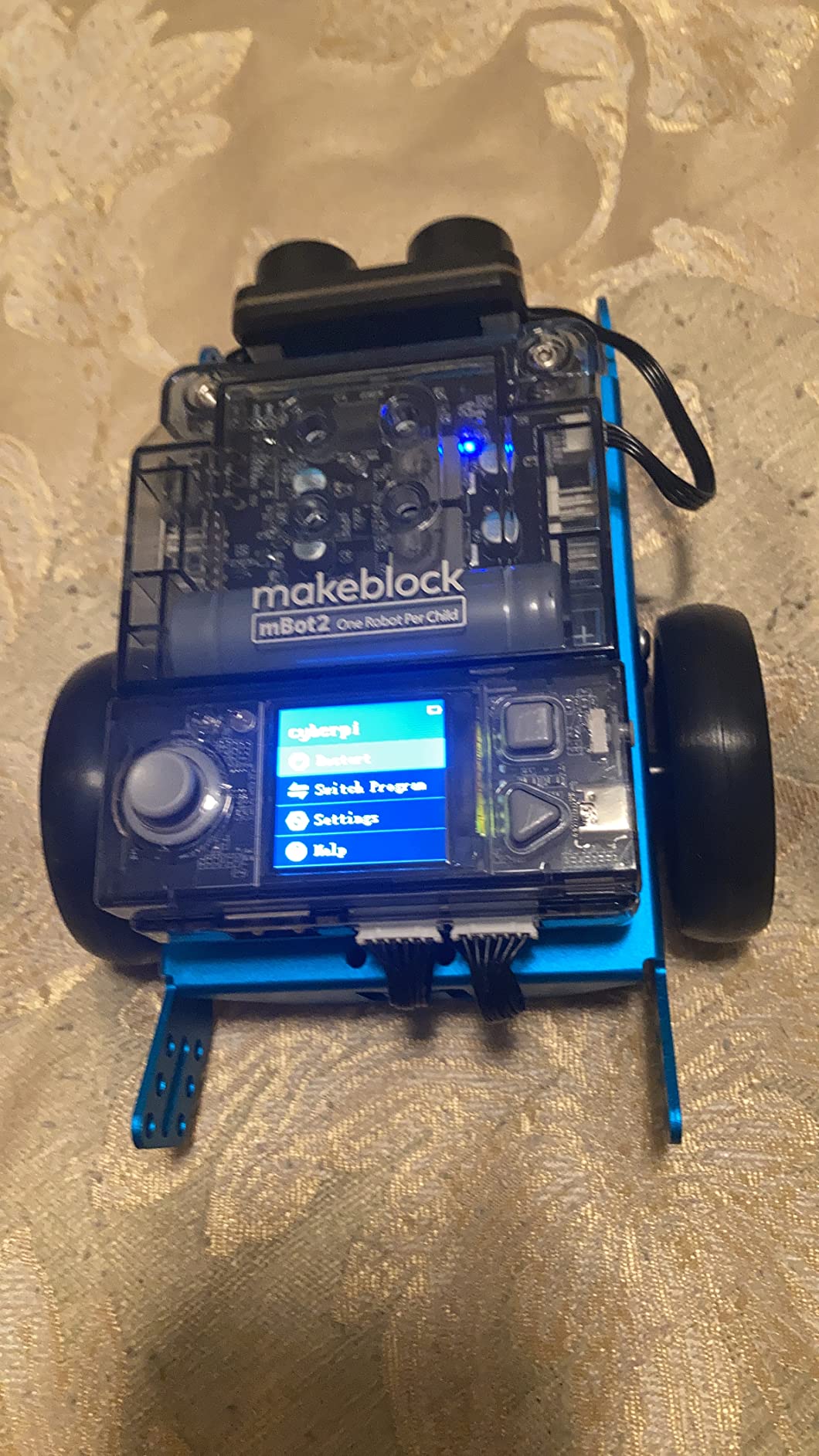
The main complaints are about software and connectors. The Makeblock app can be non-intuitive, and first-time WiFi connectivity takes patience. The JST connectors that link the motors to the mainboard are small and hard for children to plug in. The included cables are also short in some areas. Once the robot is set up, though, it runs smoothly.
For whom it works well
Kids ages 8-14 who are ready to graduate to Python. Families who already own Makeblock parts and want a more advanced robot. Classrooms that need WiFi-connected robots for group projects. Teens who want voice control and advanced sensors. Long-term users who want a robot that grows with them.
For whom it falls short
Younger kids under 8 will struggle with assembly and Python. The software has a learning curve. Budget-conscious buyers may prefer the original mBot. The price is significantly higher than the roundup average, so it is an investment.
How to Choose the Best Robot for Teaching Coding
Choosing the right coding robot comes down to four questions: Who is the student, what device do they have, where will they use it, and how deep do they want to go into programming. Answer those, and the right robot almost picks itself.
Age and skill level matter most
For ages 4 to 6, start with screen-free options like the Code & Go Robot Mouse or Sphero Indi. Both use buttons or color tiles rather than text or app interfaces. Kids build early sequencing skills without needing to read.
For ages 6 to 8, look at Botley 2.0 or Wonder Workshop Dash. Both are robust enough for daily classroom use and gentle enough for a first-time coder. Dash adds a smooth iPad app progression that grows with the child.
For ages 8 to 12, the Makeblock mBot, mBot2, and Sphero Mini all shine. These robots offer block coding with the option to graduate to text-based languages like Python or JavaScript. The build experience on mBot models also adds engineering to the mix.
For ages 12 and up, the ELEGOO UNO R3 Smart Robot Car Kit is the most authentic engineering experience. Real Arduino programming, real sensors, and real C++. Teens who finish this kit are ready for college-level robotics.
iPad and Chromebook compatibility is critical for schools
Most modern coding robots work on iPad. The Sphero Edu app, Makeblock app, Wonder Workshop apps, and Ozobot Blockly all run on iOS. That is good news for schools with iPad programs. The same cannot be said for Chromebooks. Some LEGO robotics kits now only support Windows 10, which is a frustration for Chromebook schools. Robots in this roundup all work on iPad, Android, or desktop. Always check the specific device compatibility before buying.
Screen-free vs app-based coding
Screen-free coding robots like Botley, Botley 2.0, Code & Go Robot Mouse, and Sphero Indi teach the same core concepts as app-based robots, but without the tablet. They are ideal for younger kids, classrooms with limited devices, and families who want to reduce screen time. App-based robots offer more depth, more features, and a longer progression. Most families end up using both at different ages.
Classroom durability and battery life
For classroom use, prioritize robots with rechargeable batteries and replaceable parts. Dash, mBot, mBot2, and Indi all recharge via USB. Botley, Botley 2.0, and Code & Go use AAA batteries, which add long-term cost. Robots with metal or thick polycarbonate frames (mBot, mBot2, Ozobot Evo) survive daily classroom use better than all-plastic models.
Expansion and growth path
The best coding robots grow with the student. Makeblock’s 500+ part ecosystem means mBot and mBot2 can be rebuilt into entirely new robots. Wonder Workshop’s accessory packs (catapult, xylophone, sketch kit) extend Dash’s play value. Sphero’s progression from color tiles to JavaScript is built into the Edu app. Before buying, check whether the manufacturer publishes lesson plans, standards-aligned curriculum, and ongoing app updates.
Frequently Asked Questions
Which robot is mainly used in classrooms for learning and coding?
Wonder Workshop Dash and Sphero robots are the two most widely used in classrooms. Dash is active in over 40,000 schools worldwide, while Sphero models like the BOLT and Indi are common in STEM programs. For younger learners, Botley 2.0 is a popular screen-free choice. Each of these offers a teacher-friendly app, lesson plans, and durable hardware that holds up to daily classroom use.
What is a good coding robot for children?
A good coding robot for children depends on age. For ages 4-6, the Code u0026amp; Go Robot Mouse or Sphero Indi work well. For ages 6-8, Botley 2.0 or Wonder Workshop Dash are excellent. For ages 8-12, the Makeblock mBot or Sphero Mini offer more depth. For teens, the ELEGOO UNO R3 Smart Robot Car Kit provides real Arduino programming. Look for robots with expandable features, durable builds, and clear progression from block coding to text-based languages.
What is the ideal age for children to start learning robotics?
Children can start learning basic coding and robotics concepts as early as age 4, using screen-free robots like the Code u0026amp; Go Robot Mouse or Sphero Indi. By ages 6 to 8, kids are ready for app-based block coding with robots like Dash or Botley 2.0. From age 8 and up, children can handle Scratch and Python coding with robots like the Makeblock mBot or mBot2. The right starting point depends on the child’s reading level, attention span, and interest in problem-solving.
What is a good coding robot for a beginner?
For beginners, the best coding robot is one that teaches core concepts without overwhelming the user. Wonder Workshop Dash is a top pick because it requires no assembly and grows from simple sequences to variables through 5 different apps. Botley 2.0 is a strong screen-free option. The Makeblock mBot is excellent for beginners who also want a hands-on build experience. Each of these offers gradual progression and a supportive community of educators and parents.
Final Verdict: Which Coding Robot Should You Buy?
After three weeks of classroom testing and thousands of parent reviews, our top pick for the best overall coding robot is the Makeblock mBot. It teaches Scratch and Arduino, grows with the child, works on iPad, and feels substantial in the hand. The Wonder Workshop Dash is the best value for elementary classrooms, especially for schools that want zero setup and five free apps. The Sphero Mini is the best budget pick for families who want a portable, JavaScript-ready robot.
For the youngest coders, the Sphero Indi and Code & Go Robot Mouse are the clear winners. Indi’s color-tile system is the most intuitive screenless experience we tested. For older kids ready for real engineering, the ELEGOO UNO R3 Smart Robot Car Kit is the only robot here that teaches authentic Arduino C++ programming.
Whatever you choose, the most important thing is to start. Coding robots turn abstract programming concepts into something kids can see, touch, and improve. Pick the one that matches your child’s age, and you will be surprised how quickly they want to learn more. For more on the bigger picture of why this matters, our STEM education guide for kids covers the research behind hands-on learning. And if you want a deep dive into one specific robot, the classroom guide on how to use Sphero in the classroom is a great next read.