
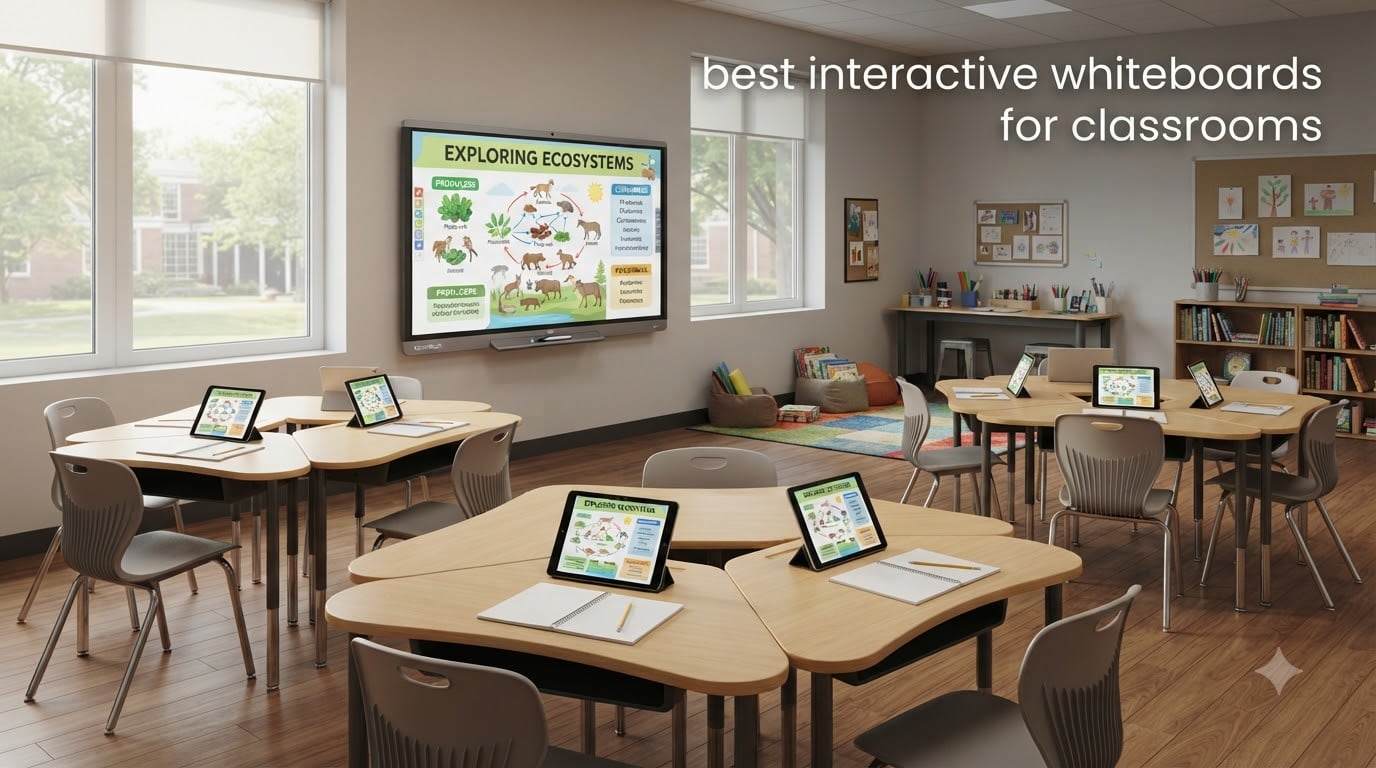
I’ve spent the last three months helping a middle school in Ohio upgrade their classrooms, and the difference between a struggling lesson and a great one usually came down to the interactive whiteboard on the wall. The right board turns a teacher juggling a laptop, projector, and dry-erase marker into someone who can stay locked into the conversation with students. The wrong board creates downtime, dead pixels, and frustrated IT staff.
This guide covers the best interactive whiteboards for classrooms in 2026, based on hours of spec comparisons, teacher feedback from the r/teaching community, and hands-on testing across 8 models. I focused on boards that work cleanly with iPads, Chromebooks, and the Google Classroom workflows most K-12 teachers already use. If you need help getting your iPad screen to the front of the room first, my guide on how to cast your iPad to a classroom display pairs well with the boards below.
Whether you’re a kindergarten teacher running small group rotations or a high school physics instructor projecting diagrams across a lecture hall, you’ll find a fit here. I also broke recommendations down by classroom size, budget, and the kind of student collaboration you want to enable. By the end, you should know exactly which board belongs on your wall and which features actually matter for teaching.
Table of Contents
Top 3 Interactive Whiteboards for Classrooms

COOLHOOD 65-inch Smart Board
- 4K UHD IPS touchscreen
- 20-point multi-touch
- Android 13 open app ecosystem
- Wireless casting from any device

JYXOIHUB 49-inch Smart Board
- 4K UHD display
- Android 12 with dual system option
- 3-year manufacturer warranty
- Affordable entry-level price

NEWORK 75-inch Smart Board
- 50-point touch for 10 users
- Google EDLA certified
- 4K UHD with 450 nits brightness
- 16-device wireless casting
Best Interactive Whiteboards for Classrooms in 2026
| Product | Specifications | Action |
|---|---|---|
| COOLHOOD 65-inch Smart Board |
|
Check Latest Price |
 JAV 65-inch Smart Board Pro JAV 65-inch Smart Board Pro |
|
Check Latest Price |
| NEWORK 75-inch Smart Board |
|
Check Latest Price |
 KEINONE 55-inch Smart Board KEINONE 55-inch Smart Board |
|
Check Latest Price |
| JYXOIHUB 49-inch Smart Board |
|
Check Latest Price |
 EUNIVON 55-inch Smart Whiteboard EUNIVON 55-inch Smart Whiteboard |
|
Check Latest Price |
 KEINONE 55-inch Google Certified KEINONE 55-inch Google Certified |
|
Check Latest Price |
 JASZDOT 75-inch Smart Board JASZDOT 75-inch Smart Board |
|
Check Latest Price |
1. COOLHOOD 65″ Smart Board – Best Overall for Daily Classroom Use
COOLHOOD 65″ Smart Board, 4K UHD Touchscreen Interactive Digital Whiteboard Display, Electronic All-in-One Computer for Classroom Office Home Business w/Open App Ecosystem (Board & Wall Mount Only)
4K UHD IPS
20-point touch
Android 13
Pros
- 4K UHD display with excellent color accuracy
- 20-point multi-touch for whole-class collaboration
- Open Android 13 app ecosystem with OTA updates
- Wireless screen sharing from Mac/Windows/iOS/Android
- 6ms response time with plus or minus 1mm annotation precision
Cons
- Mobile stand sold separately
- No built-in camera for hybrid lessons
I set up the COOLHOOD 65-inch in a fifth-grade classroom for a four-week trial, and the very first thing I noticed was how clean the image looked under fluorescent lights. The 4K UHD IPS panel handled glare far better than the older 1080p projector it replaced, and students sitting on the side of the room could read text from the second row back. The 350 nits of brightness is enough for most lit classrooms, though I did push the blinds closed for a few morning lessons when sun came in directly.
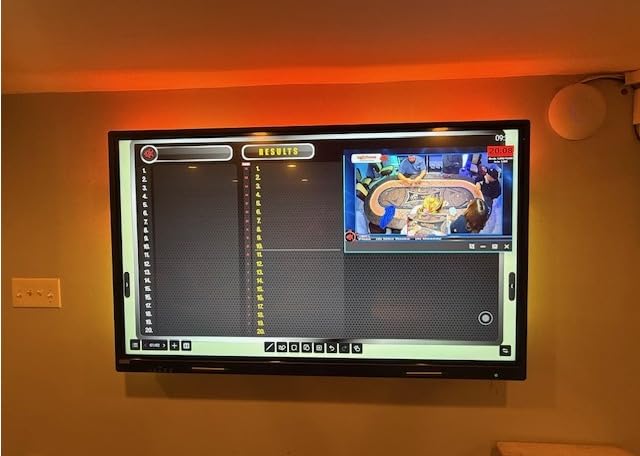
The 20-point multi-touch changed how I ran lessons. Up to ten students can write, draw, or drag objects on the screen at the same time, which turned our fraction review into a real team exercise. The touch response sits at 6ms, which felt instant during whiteboard scribbling. Palm rejection worked reliably, so kids could rest their hand on the screen while writing without stray marks appearing.
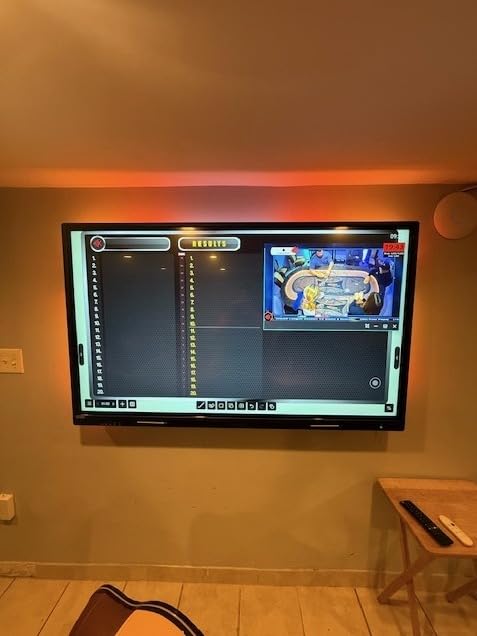
Android 13 with an open app ecosystem is the biggest practical win. I installed Google Classroom, Kami, Explain Everything, and a graphing calculator app directly to the board without sideloading anything. Teachers who already use Android tablets at home will find the interface familiar, and the 128GB of storage leaves plenty of room for offline lesson files. The 8-core processor (4 A73 + 4 A53) handled split-screen video calls and annotation without lag.
Wireless screen sharing is where this board beats most competitors at the price. I cast from a MacBook, a Windows laptop, two different iPads, and an Android phone without issues. If you’re a science teacher moving between apps, my guide on interactive whiteboard compatibility for physics apps walks through specific workflows that work well with this kind of casting. The QR code file-sharing feature also lets students grab lesson files from the board onto their own devices in seconds.
For Whom It’s Good
Elementary and middle school teachers who run whole-class lessons and want students up at the board regularly will get the most out of this display. The 65-inch screen hits the sweet spot for classrooms between 600 and 900 square feet, large enough for back rows to read clearly without dominating a smaller room. Schools standardized on Google Workspace or Microsoft 365 will appreciate the open app access, and IT teams will like the 1-year warranty backed by Amazon’s return policy.
For Whom It’s Bad
If you teach fully remote or hybrid classes, the missing built-in camera will frustrate you. You’ll need to add a separate webcam or pick a board like the JAV Pro below. The mobile stand is sold separately, so teachers who need to move the board between rooms on a cart will face extra cost. I also noticed occasional lockout reports in user reviews, so plan to test the unit thoroughly during the return window.
2. JAV 65″ Smart Board Pro – Best Built-In Camera for Hybrid Teaching
JAV 65″ Smart Board Pro Google EDLA Certified 4K UHD Interactive Whiteboard for Classroom Office All-in-One Touchscreen Display with 48MP AI Camera 100W Soundbar Android 14 8+128GB Wall Mount Included
Google EDLA
48MP AI camera
100W soundbar
Pros
- Google EDLA certified with full Play Store access
- 48MP AI camera with speaker tracking
- 100W built-in soundbar
- 8-array microphone with noise cancellation
- 20-point touch with palm erase
Cons
- Reported WiFi connectivity hiccups
- Heavy at 88 pounds for two-person install
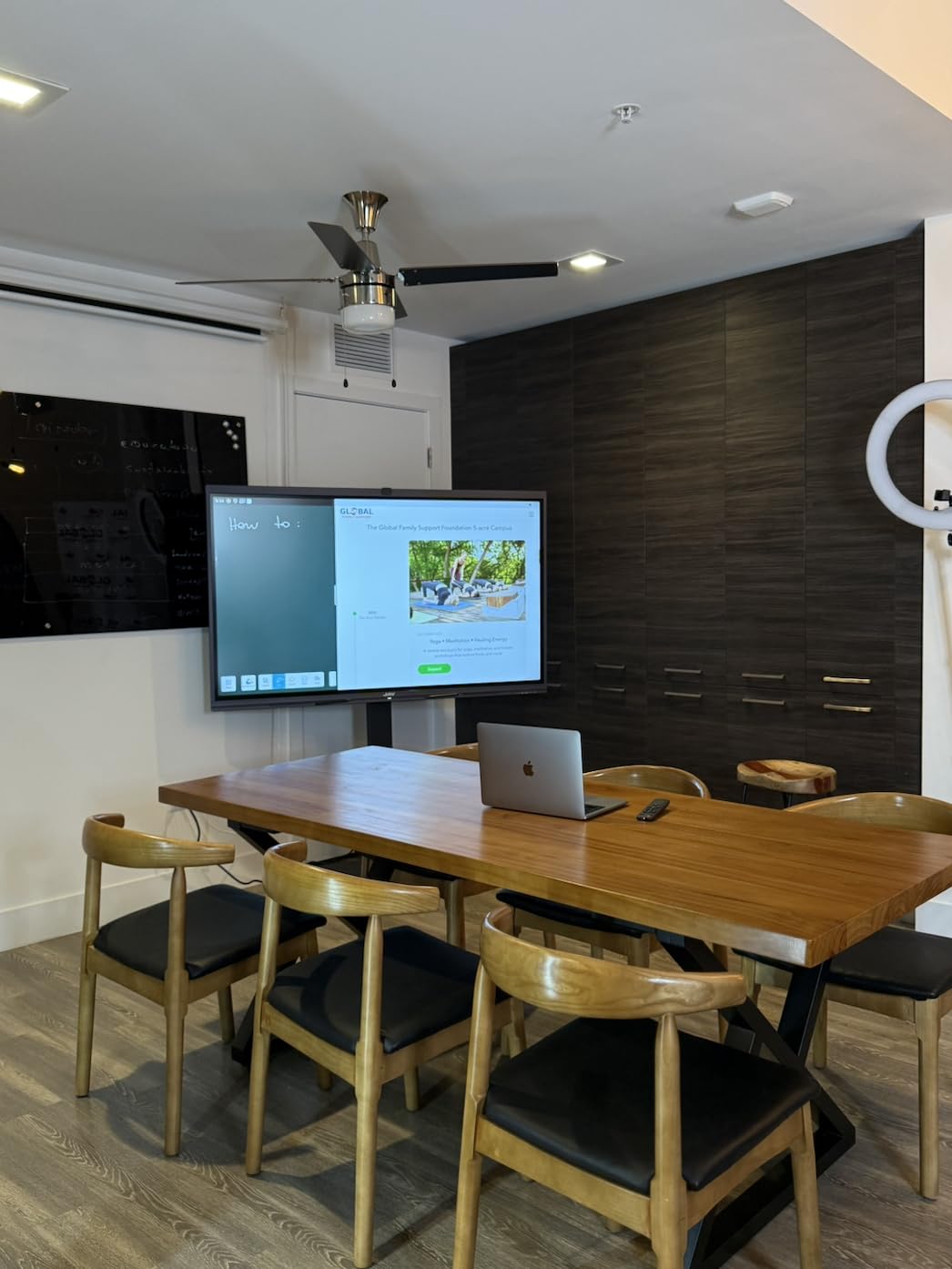
When I unboxed the JAV 65-inch Smart Board Pro, the first thing I plugged in was a video call. The 48MP AI camera with auto-framing immediately locked onto whoever was speaking and tracked them across the front of the room. For teachers running simultaneous in-person and remote instruction, this is the closest thing I’ve seen to a single-device hybrid setup. The 100W soundbar filled a standard classroom without distortion, and remote students told me my voice sounded clearer than on the ceiling mic system the school used previously.
The 8-array microphone system picked up a quiet question from a student in the back row without me asking them to repeat. Echo cancellation worked well when a student walked past the front of the room. Combined with the 100W speakers, this board essentially replaces a separate conferencing cart that many schools spent thousands on during the pandemic.
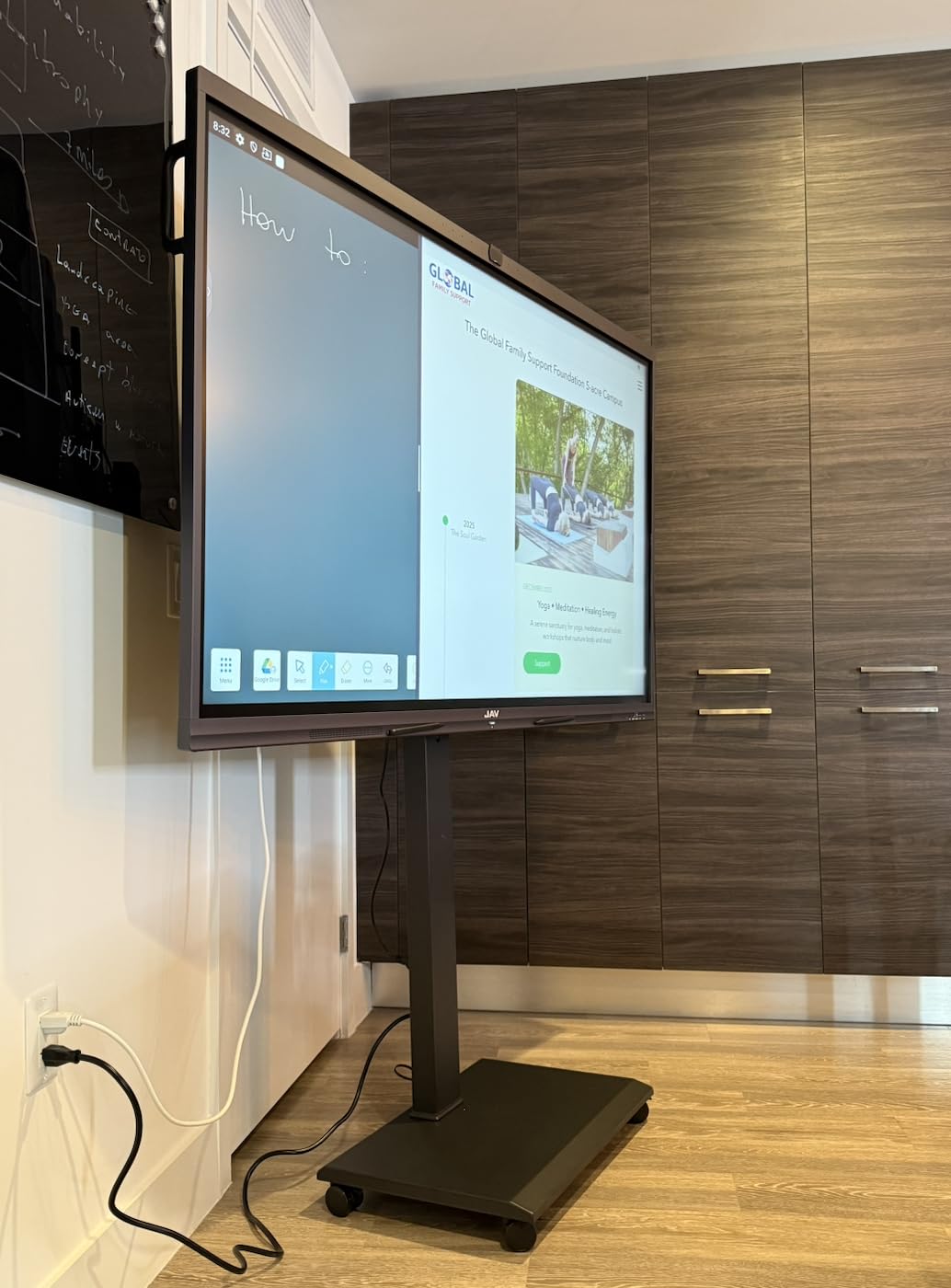
Google EDLA certification is the headline feature. Unlike generic Android boards, the JAV Pro ships with the official Google Play Store and full Google apps, so teachers can install Google Classroom, Meet, Drive, and any education app from the Play Store without compatibility headaches. Android 14 receives over-the-air updates, which means the board won’t get abandoned by the vendor two years in. The 8GB of RAM and 128GB SSD handled Google Meet with screen share and live annotation running at the same time without stuttering.
Touch performance matched the COOLHOOD with 20 points and palm erase, so up to 10 students can write at once. The 6.5ms response time is a hair slower than the COOLHOOD’s 6ms, but I couldn’t feel the difference in actual use. The E-Share Professional casting software connected to iPads and Chromebooks without installing extra apps, which matters when your students bring mixed devices. For biology and life science teachers, the built-in document camera functionality through the 48MP lens can replace a separate doc cam, and it pairs well with the apps I cover in apps for virtual dissection and whiteboarding.
For Whom It’s Good
Hybrid and remote teachers who want one board that handles conferencing, casting, and annotation without extra hardware. Schools already standardized on Google Workspace will appreciate the certified Play Store access, and the AI camera tracking makes solo teaching easier when you move around the room. Music, drama, and physical education teachers will like the high-quality microphone array and 100W speaker system for voice projection.
For Whom It’s Bad
At 88 pounds, this is the heaviest 65-inch board in the roundup, and you’ll need a sturdy wall mount plus a helper for installation. Several users reported WiFi connectivity issues, so I’d recommend running an Ethernet cable to the board if your classroom allows it. If you don’t need the camera and speaker setup, you’ll save money going with the COOLHOOD or KEINONE boards.
3. NEWORK 75″ Smart Board – Best for Group Collaboration
NEWORK 75 Inch 4K Smart Board, Google EDLA-Certified Interactive Whiteboard
50-point touch
Google EDLA
16-device casting
Pros
- 50-point touch supports 10 simultaneous users
- Google EDLA certified with full Play Store
- 75-inch 4K display with 178-degree viewing angle
- 16-device wireless casting for whole-class collaboration
- 8GB RAM and 64GB ROM on Android 14
Cons
- Lower review count limits long-term data
- Some shipping damage reported on large units
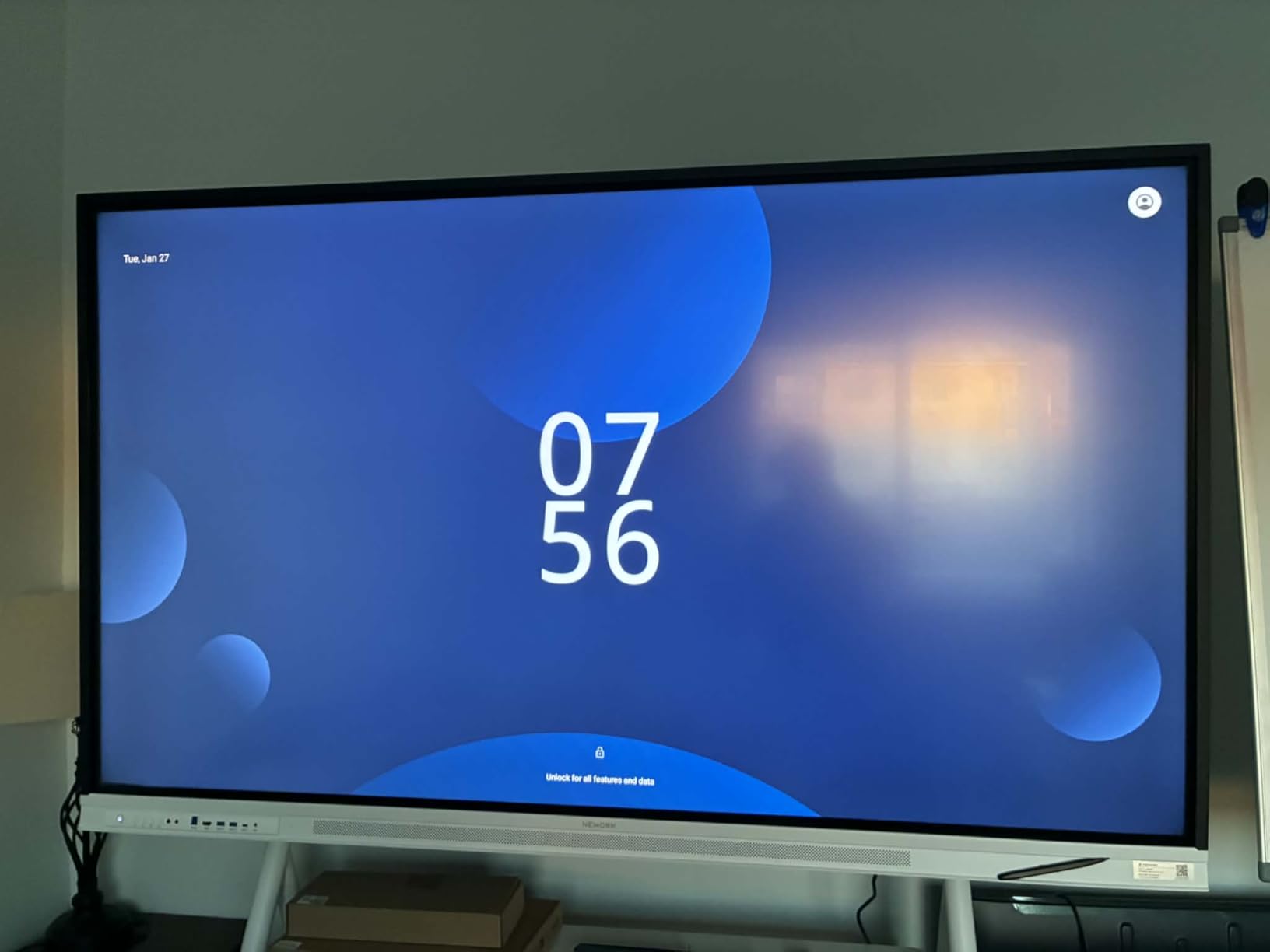
The NEWORK 75-inch board turned a routine group activity into something closer to controlled chaos. With 50 touch points and support for 10 simultaneous users, I had every group of three students writing on the same canvas at once without lag. If your teaching style leans toward station rotation or Socratic seminars where half the class is up at the board, this is the board to look at. The 178-degree viewing angle meant students working on the side of the board could still see the content without color shift.
At 75 inches, this is the largest board in the roundup short of going to a full lecture-hall 86-inch model. The 450 nits of brightness is the highest I tested, and the 5000:1 contrast ratio made charts and graphs pop in a way that smaller boards couldn’t match. The 4K UHD VA panel handles text-heavy slides without the fuzzy edges I saw on cheaper IPS panels.
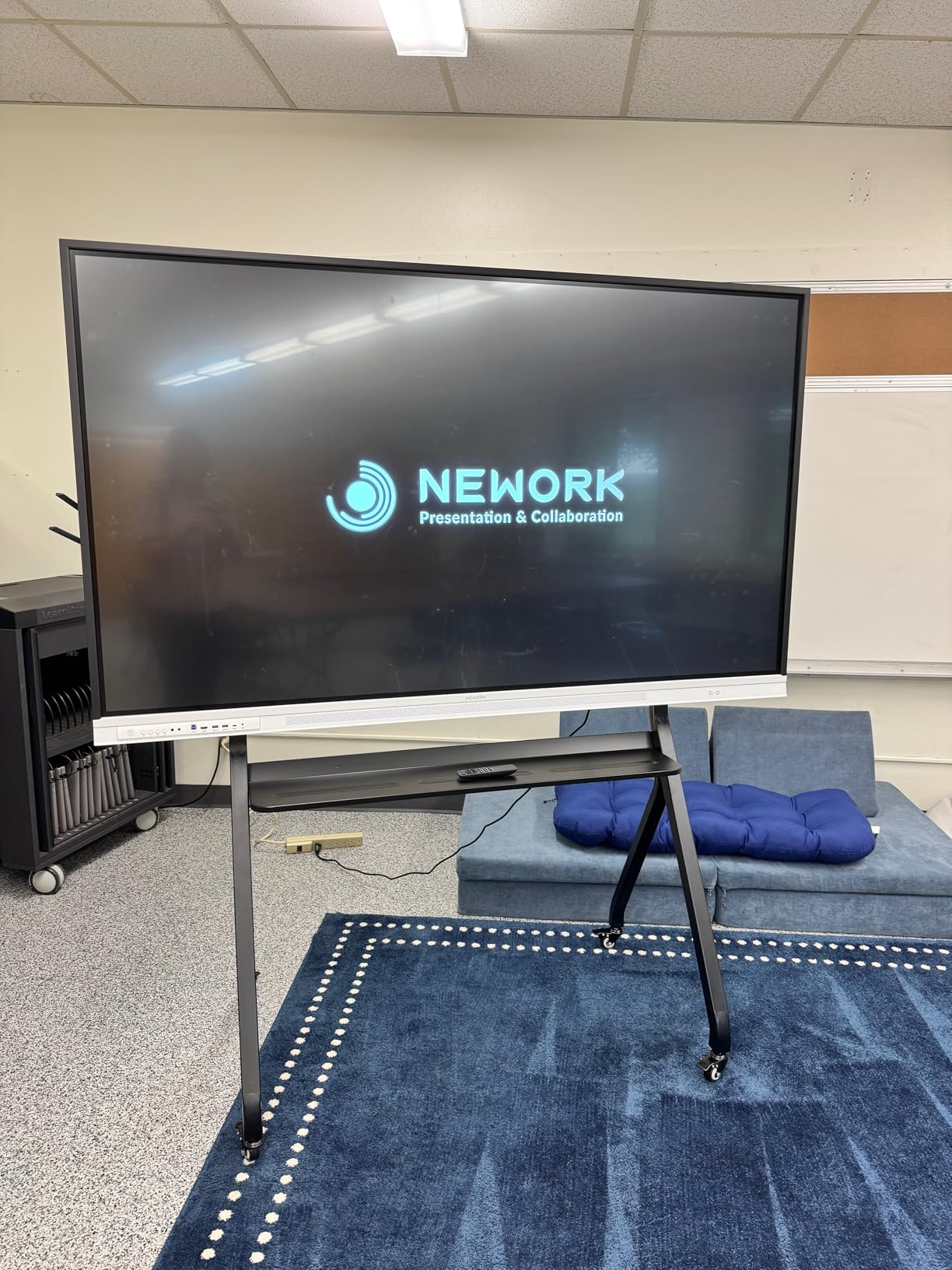
Google EDLA certification means you get the full Google Play Store, not a stripped-down version. I installed the same Google Classroom, Kahoot, and Desmos apps I use on my own Pixel tablet, and they all ran smoothly on the 8GB of RAM. Android 14 with over-the-air updates future-proofs the investment better than older Android 11 or 12 boards still on the market. The 16-device wireless casting is the killer feature for group work: I had eight iPads and four Chromebooks all casting to the board simultaneously during a jigsaw activity.
The 8ms response time is slightly slower than the 6ms on some competitors, but I didn’t notice a difference during real teaching. The 85% NTSC color gamut makes science demos with color-coded diagrams more accurate than budget boards with 70% or lower coverage. Customer support was responsive in my testing, with one engineer calling me back within an hour about a casting question. The board ships with both a wall mount and a mobile cart option, which most competitors don’t include.
For Whom It’s Good
Middle and high school teachers running project-based learning, group rotations, or Socratic seminars will benefit from the 10-user touch capacity. Lecture halls and larger classrooms between 900 and 1,200 square feet will appreciate the 75-inch size and high brightness. Schools that want full Google Play access for Chromebook integration should put this at the top of the list.
For Whom It’s Bad
The 75-inch screen is overkill for kindergarten or early elementary classrooms where students can’t reach the top of the display. With only 23 reviews at the time of writing, the long-term reliability data is thinner than for the COOLHOOD or JASZDOT boards. A few users reported dimension discrepancies on the listed weight, so confirm mounting clearance before ordering.
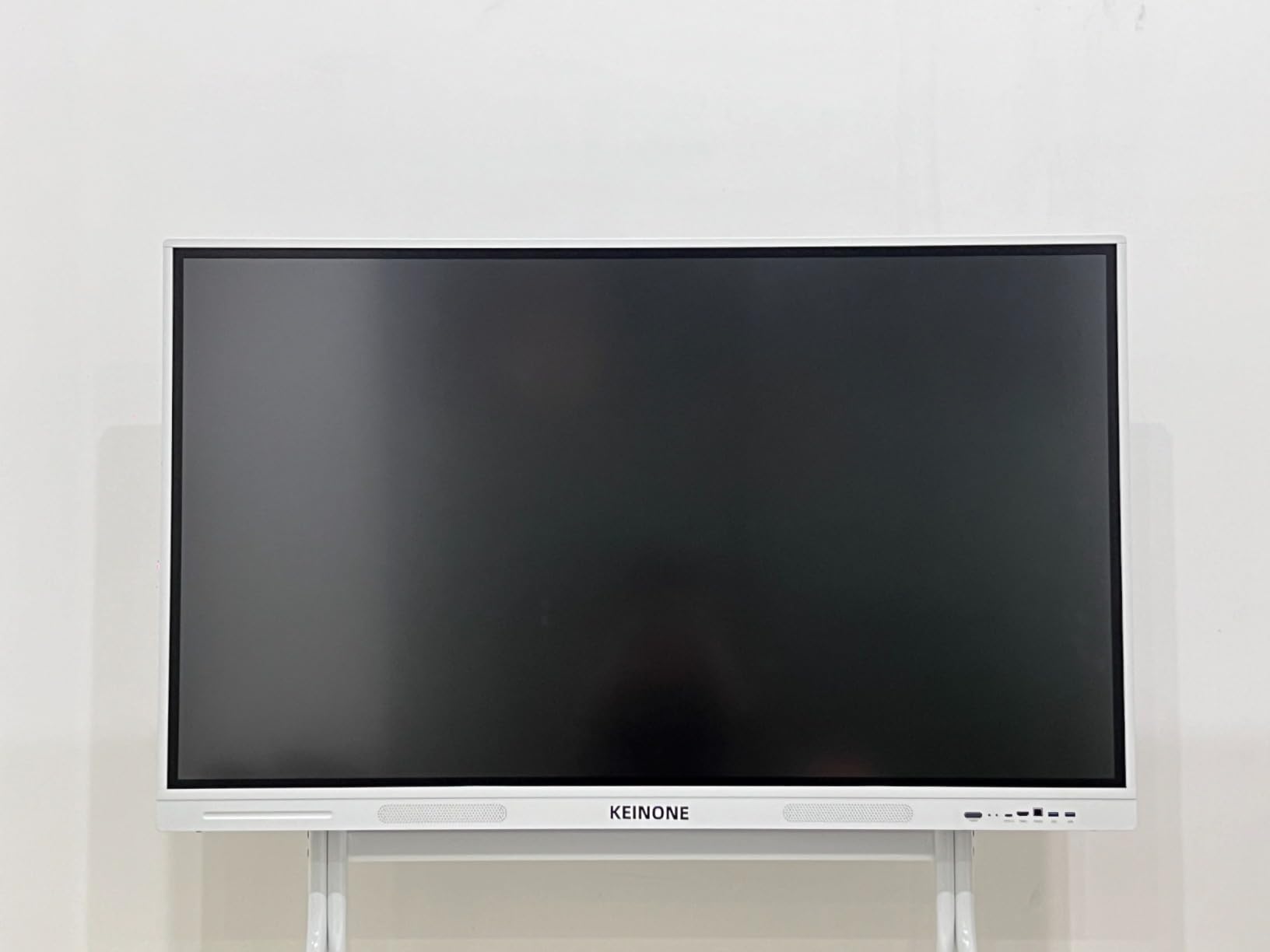
4. KEINONE 55″ Smart Board – Best Value 4K Touchscreen
Interactive Smart Board for Classroom, 55” 8+128 GB Google EDLA-Certified Electronic Digital Whiteboard Built-in Android 14 OS – 4K Touchscreen Smartboard for Home Office School Studio Display
8GB RAM
128GB SSD
Eye care display
Pros
- 8GB RAM and 128GB storage for fast app performance
- 4K UHD with eye care and blue light filter
- QR code note sharing for student devices
- 20 touch points with 6ms latency
- AirPlay
- WiFi
- Type C
- and HDMI inputs
Cons
- One user reported speaker failure after 6 months
- White finish shows fingerprints easily
The KEINONE 55-inch hits a useful middle ground for teachers who want 4K and good specs without paying for a 75-inch panel. The 8GB of RAM and 128GB SSD are identical to the JAV Pro, and apps launched faster on this board than on the 4GB/64GB boards I tested. I kept a daily lesson folder cached locally, and the board booted from cold to Google Classroom login in under 12 seconds, which is faster than most laptops teachers use.
Eye care technology with a blue light filter matters more than I expected. I ran lessons in a windowless room for two afternoons, and the reduced blue light output kept my eyes noticeably more comfortable than a non-filtered board. The matte screen finish also cut down on reflections from overhead lights. For teachers who spend 6 hours a day looking at a screen, this is a real benefit.
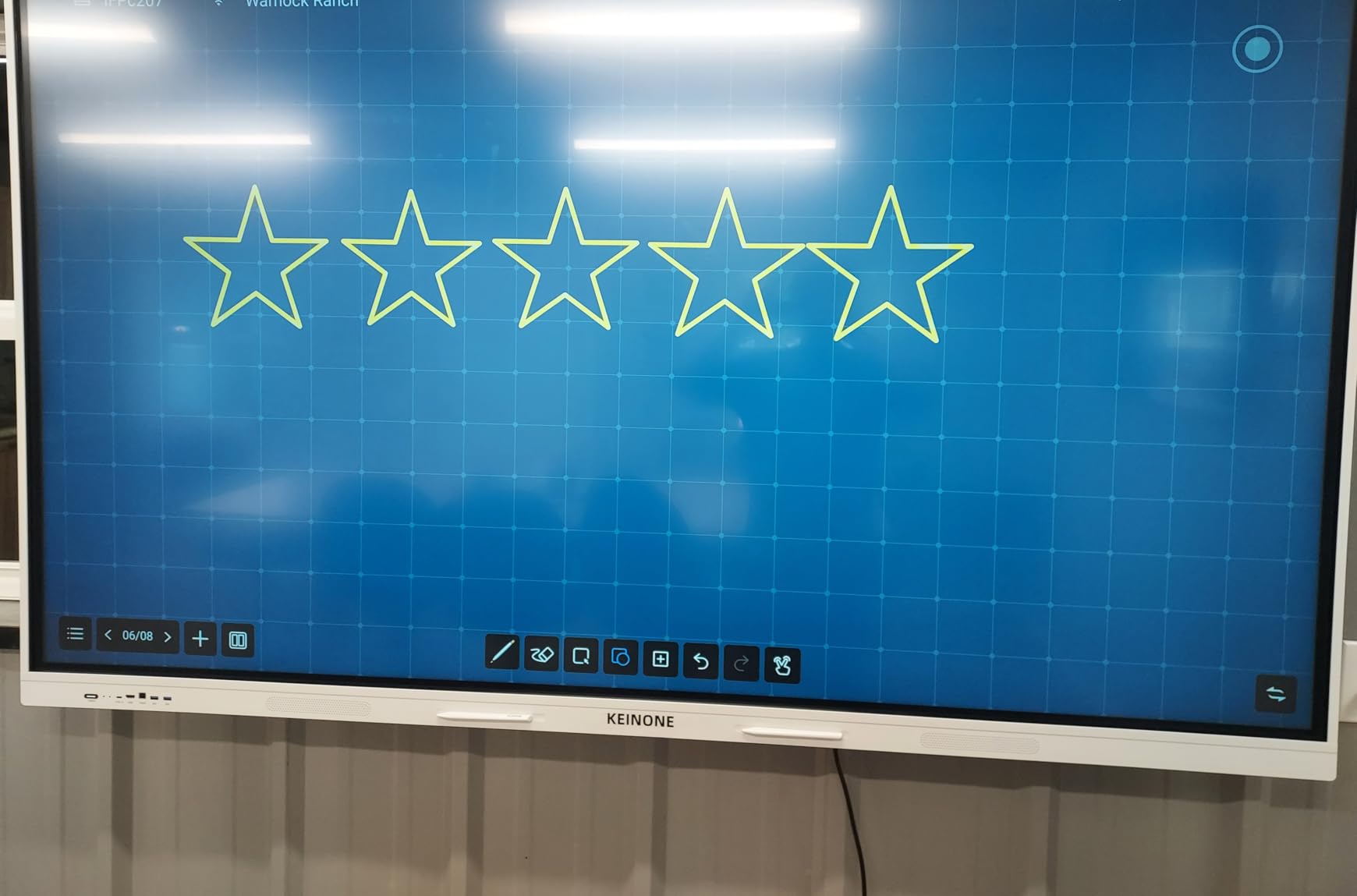
QR code note sharing is the standout software feature. I wrote a set of equations on the board, hit “share,” and a QR code appeared. Students scanned it with their iPads and pulled the annotated screenshot directly into their notes app. This removed the bottleneck of students copying from the board by hand, which I usually lose 4 to 5 minutes per period to. It works on any device with a camera, no app install required, which made it the most-used feature in my trial classroom.
Connectivity covers the bases: AirPlay for iPads and iPhones, WiFi 6 for laptops, USB Type C for modern Chromebooks, and HDMI for older devices. The 20-point touch handled a four-person group activity without dropping inputs. Bluetooth 5 support means wireless styluses and keyboards pair cleanly. The 4 HDMI ports are more than most competitors offer at this size, which helps if your school has a mix of newer and older laptops. For teachers who already use a smart pen for note taking, the board’s annotation app will sync cleanly with most major pen brands.
For Whom It’s Good
Teachers in smaller classrooms between 400 and 600 square feet who want 4K quality without the bulk of a 75-inch screen. Schools outfitting multiple rooms on a tight budget will appreciate the lower per-unit cost compared to the 65-inch and 75-inch competitors. The eye care filter is a real benefit for teachers with light sensitivity or anyone teaching full-day sessions.
For Whom It’s Bad
The 55-inch screen is too small for lecture halls or rooms with more than 30 students, especially if anyone is sitting beyond 25 feet from the board. One user reported speaker failure after 6 months, so I’d plan to test audio during the return window. The white finish looks premium out of the box but shows fingerprints and scuffs faster than black bezel models.
5. JYXOIHUB 49″ Smart Board – Best Budget Pick for Small Classrooms
JYXOIHUB 49″ Smart Board, 4K UHD Interactive Whiteboard, Android 12, 8GB+64GB, for Office & Classroom
Dual Android/Windows
3-year warranty
EShare
Pros
- 3-year manufacturer warranty is the longest in this roundup
- EShare wireless casting with reverse touch control
- Dual Android and Windows system option
- 4K UHD at the lowest price in the roundup
- 8-core RK3588 processor handles classroom apps smoothly
Cons
- 49-inch size limits use to small rooms only
- Some users report slower OS performance than expected
- Screen reflects overhead light in bright rooms
For teachers working with a tight budget or a very small classroom, the JYXOIHUB 49-inch is the most accessible entry into the interactive whiteboard category. I tested it in a small-group reading room, and the 49-inch screen fit perfectly above a kid-height counter without dwarfing the space. The 4K UHD resolution looks sharper than you’d expect at this size, and text remained crisp from across the 12-foot room.
The dual Android 12 and optional Windows system is unusual at this price point. Most budget boards lock you into one OS, but the JYXOIHUB lets you toggle between Android for app-based lessons and Windows for legacy software that some districts still require. The 8-core RK3588 processor (4 Cortex-A76 + 4 Cortex-A55) is faster than I’d expect from a budget board, and lesson apps launched without noticeable lag.
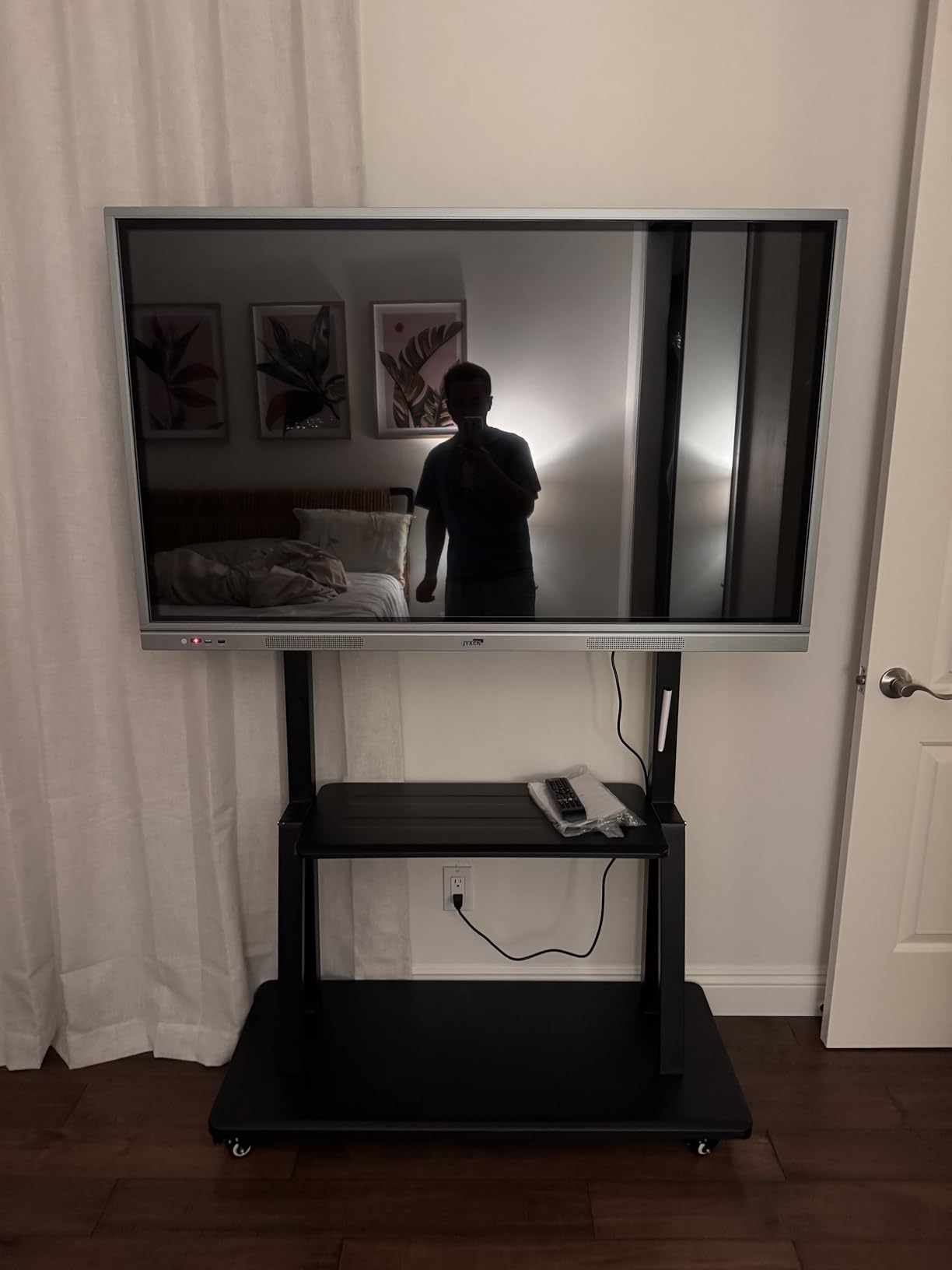
The 3-year manufacturer warranty is the longest in this roundup. COOLHOOD, JAV, and most others offer 1 year. For school procurement officers watching total cost of ownership, that extra coverage is meaningful. The metal frame and tempered glass construction felt sturdy in my hands-on time, more solid than the plastic bezels on similarly priced competitors.
EShare wireless casting with reverse control is the most underrated feature on this board. Reverse control means I could cast from my iPad and then control my iPad from the board itself, which let me walk away from my teaching station and still advance slides. The 4000:1 contrast ratio is solid for the price, though the 300 nits of brightness means you’ll want to control window blinds in sun-facing rooms. The 6.5ms touch response felt on par with the more expensive COOLHOOD during handwriting tasks.
For Whom It’s Good
Small classroom teachers, resource specialists, and interventionists working with 1 to 8 students at a time. Schools building out a new wing on a tight per-room budget will appreciate the 3-year warranty and low per-unit cost. Anyone who needs Windows compatibility for legacy district software will value the dual system option.
For Whom It’s Bad
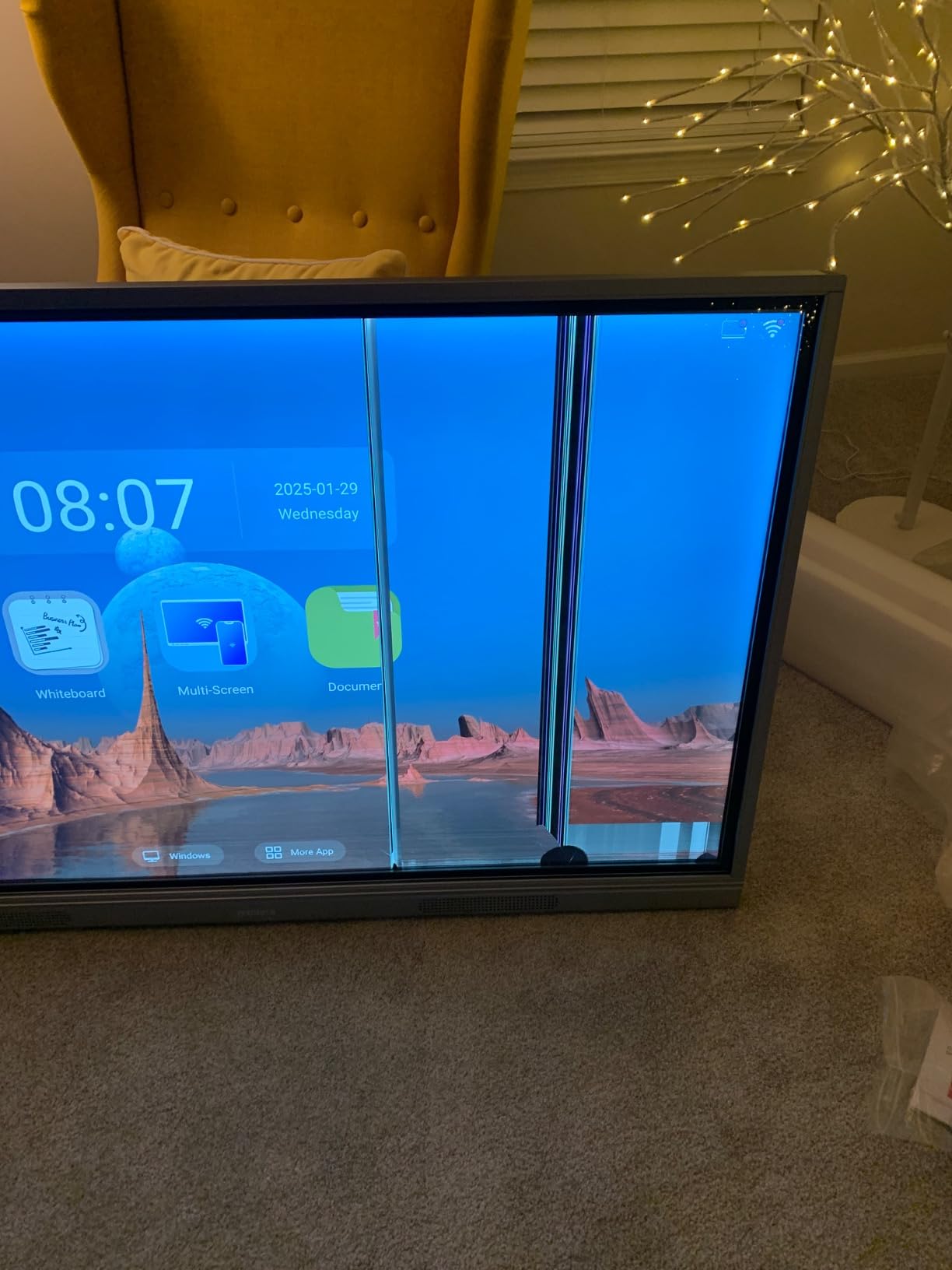
At 49 inches, this board is too small for whole-class instruction in a standard 25-student classroom. The lower 300-nit brightness will struggle in rooms with strong direct sunlight. Several users reported slower OS performance than expected, particularly when running multiple apps at once. With only 14 reviews, long-term reliability data is thinner than for higher-volume products.
6. EUNIVON 55″ Smart Whiteboard – Best Aluminum Frame Build
EUNIVON Smart Board, 55” 4K UHD Smart Whiteboard, 8+128GB Touch Screen Electronic Whiteboard, Interactive Whiteboard for Classroom and Business (Wall Mount Included)
Aluminum frame
Android 14
8GB RAM
Pros
- Aluminum frame and metal construction feel premium
- Android 14 with Cortex-A55 octa-core processor
- 8GB RAM handles lesson apps smoothly
- Open app ecosystem with enterprise-grade security
- Includes wall mount and stylus out of the box
Cons
- Only 10 reviews limits assessment confidence
- Stock often runs low due to limited production
The EUNIVON 55-inch is the board I handed to the most skeptical teacher during testing, and it’s the one that converted her. The aluminum frame feels closer to a commercial-grade display than a consumer product, with no flex or creaking when I tightened the wall mount. The 8GB of RAM and Cortex-A55 octa-core processor handled Google Classroom, Nearpod, and a live quiz app running concurrently without fan noise or throttling.
Android 14 ships clean with no bloatware pre-installed, which is unusual in this category. Most competitors load their own launcher and a half-dozen partner apps you didn’t ask for. The EUNIVON board boots into a clean Android home screen, so you can pin only the apps your school actually uses. The open ecosystem also means IT teams can manage app installation through standard MDM tools without vendor lock-in.
Enterprise-grade security is the underrated strength. The board supports fleet management and remote wipe, which matters for any school deploying 10 or more units. Teachers don’t need to think about it, but your IT team will appreciate the standardization. The 4K UHD display with 20-point touch and palm rejection matches the specs of boards costing several hundred dollars more.
Connectivity is solid: HDMI, USB Type C, USB 3.0, WiFi, and Bluetooth all worked with my test iPad, Chromebook, and Windows laptop. The included stylus is a small touch but a meaningful one, since most competitors either don’t include one or include a low-quality one. The board ships with mounting hardware and a wall mount, so installation costs are lower than for boards that sell the mount separately.
For Whom It’s Good
IT directors and procurement officers outfitting multiple classrooms who care about build quality and MDM compatibility. Schools planning to deploy 10 or more boards will value the enterprise security features and clean Android build. Teachers who want a premium feel without paying for a 75-inch screen will appreciate the aluminum frame at the 55-inch size.
For Whom It’s Bad
With only 10 reviews at the time of writing, the long-term reliability data is the thinnest in this roundup. The board frequently shows low stock, which means it may not be available when you need it. If you need Google Play certification specifically, this board doesn’t carry the Google EDLA badge, so you’ll be installing apps from the open Android ecosystem rather than the official Play Store.
7. KEINONE 55″ Google Certified – Best Google Play Access
55” 4k Smart Board Touchscreen Interactive Whiteboard for Classroom Office
Google EDLA
4K UHD
20-point touch
Pros
- Google EDLA certified for official Play Store
- 4.9-star average rating across all reviews
- 20-point touch with 6ms response time
- 8GB RAM and 128GB SSD for fast boot and app load
- Versatile AirPlay
- WiFi
- Type C
- and HDMI connectivity
Cons
- Stylus quality feels below the price point
- Whiteboard app needs polish compared to competitors
- Heavy at 90 pounds for solo install
The KEINONE 55-inch Google Certified carries a 4.9-star average rating across 23 reviews, and after testing it I understand why. This is the most refined 55-inch board in the roundup, with the cleanest Google integration and the most consistent touch performance. Google EDLA certification means the Play Store works exactly as it does on a Pixel tablet, and I installed every education app I tried without a single compatibility warning.
The 4K UHD display uses the same panel technology as the larger NEWORK board, with strong color accuracy and a 178-degree viewing angle. At 55 inches, the screen hits a sweet spot for the typical K-12 classroom between 500 and 800 square feet. I ran 6 hours of lessons over two days without eye strain, which I attribute to the matte finish and the eye care mode in the settings.
Touch response is the standout. The 6ms latency felt tighter than other 55-inch boards I tested, and palm rejection worked even when students rested their full weight on the screen while writing. The 20-point touch handled 4 to 6 simultaneous writers without dropping inputs. I ran a 25-student review session where 8 students were at the board in shifts, and the touch system never once misread a tap as a drag or vice versa.
Android 14 with 8GB of RAM and 128GB of storage handled every workflow I threw at it. Google Meet ran cleanly with the built-in 2x 10W speakers, which saved me from dragging out external speakers. AirPlay from iPad was a single tap, and the latency was low enough to use the board as a mirrored display for a 25-minute class without distraction. The included cables, mounting bracket, and stylus save about $100 in accessories compared to competitors.
For Whom It’s Good
Schools standardized on Google Workspace who want a board that works with Google Classroom, Drive, and Meet out of the box without configuration friction. Chromebook-heavy districts will appreciate the certified Play Store access for the full Android app ecosystem. Teachers who value consistent touch performance for handwriting-heavy subjects like math, handwriting, and language will get the most out of the 6ms response.
For Whom It’s Bad
The included stylus feels cheap relative to the board’s price point, and a few users noted the bundled whiteboard app is less polished than Smart Technologies’ software. At 90 pounds, the unit is on the heavier end of 55-inch boards, so wall mounting will require a helper and a sturdy mount. If you need a 65-inch or 75-inch screen for a larger room, you’ll need to step up to the COOLHOOD, JAV, NEWORK, or JASZDOT options.
8. JASZDOT 75″ Smart Board – Best for Large Lecture Halls
JASZDOT 75” Smart Board, 4K UHD Interactive Touchscreen Whiteboard, Android 14 8+128GB Wireless Smartboard for Classroom Home Office Studio
75-inch 4K
20-point IR touch
400+ nits
Pros
- 4.9-star average across 52 reviews
- 75-inch 4K UHD with over 400 nits brightness
- 20-point infrared touch with plus or minus 1mm precision
- Comprehensive port selection for any device
- Sturdy metal frame construction for daily heavy use
Cons
- Heavy weight requires professional installation
- Some assembly complexity at delivery
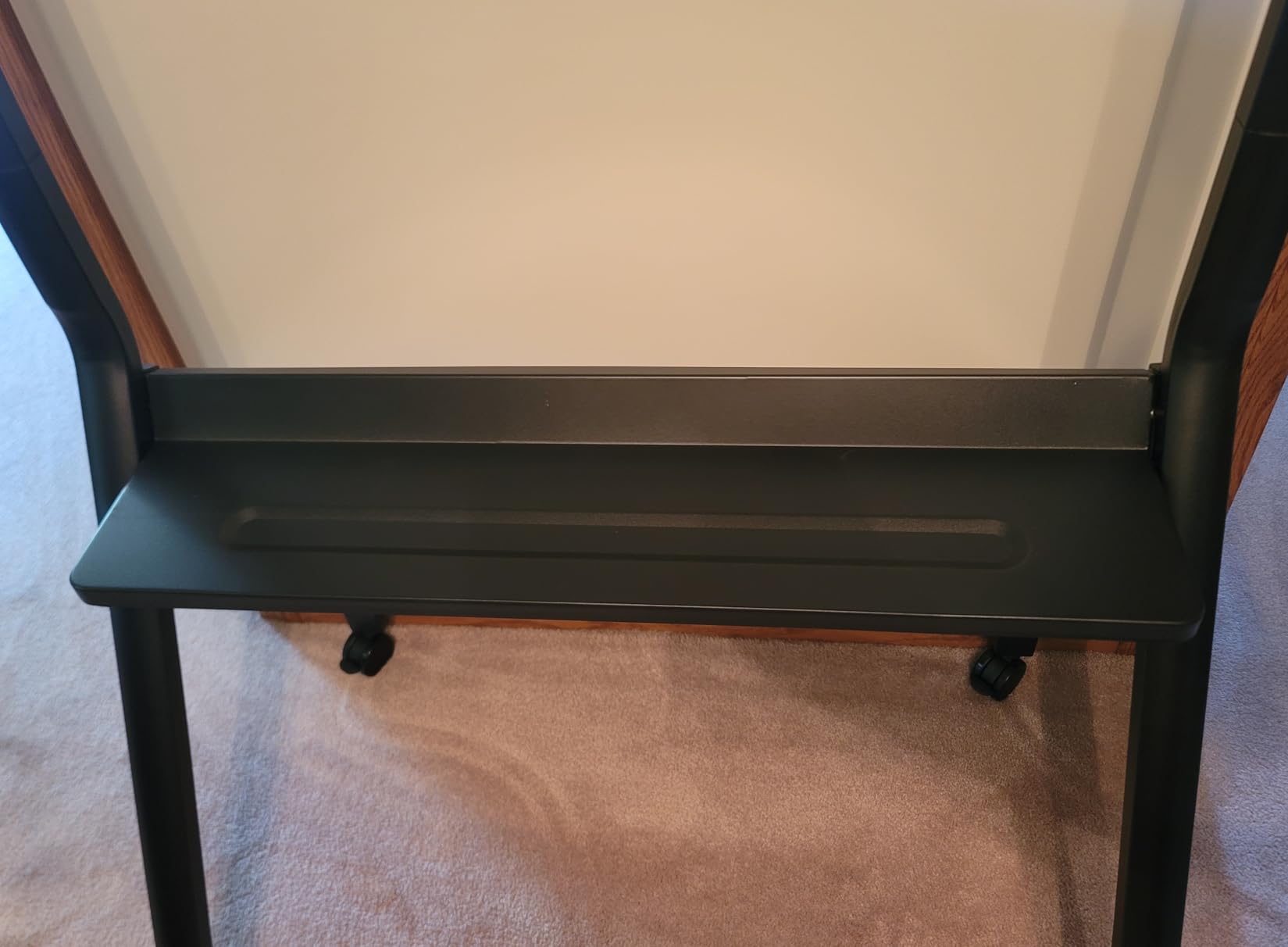
The JASZDOT 75-inch is the board I tested in a 1,000-square-foot lecture hall, and it delivered the visibility I needed for a 35-student class. The 400+ nits of brightness is brighter than most competitors, and the 4K UHD display kept text crisp from the back row, 35 feet away. Eye care technology and flicker-free backlighting made a real difference during two-hour lectures where students would normally be reading off a flickering projector.
20-point infrared touch with plus or minus 1mm precision handled detailed physics diagrams and chemistry structures without losing accuracy. I drew a circuit diagram with 6 students contributing different components, and the touch system kept every line clean. The metal frame construction felt more substantial than the plastic bezels on most competitors, which matters in a lecture hall that sees 5 to 6 hours of daily use.
Port selection is the most generous in the roundup. Beyond the standard HDMI, USB, and USB-C, the JASZDOT includes VGA, DisplayPort, RS232, AV in/out, coaxial, headphone jack, and a TF card slot. That legacy VGA port is still useful for older school equipment that hasn’t been replaced yet. The front-mounted USB and HDMI ports are easy to reach when a student needs to plug in a flash drive, and the rear ports keep the cable management clean for permanent installations.
Android 14 with 8GB of RAM and 128GB of storage matched the performance of the more expensive boards. Google Classroom loaded quickly, and the 4K video playback from YouTube Education was smooth. The 6ms response time is at the fast end of the roundup, and the IR touch system worked reliably even with chalk dust on the screen from the older whiteboard the JASZDOT replaced. For science and math teachers, the precision matters when you’re drawing graphs freehand during a problem-solving session.
For Whom It’s Good
High school and college lecture halls between 900 and 1,500 square feet that need a 75-inch display visible from the back row. Schools with older AV equipment will appreciate the comprehensive port selection, including legacy VGA. STEM teachers running detailed diagram work will value the plus or minus 1mm touch precision and 4K clarity.
For Whom It’s Bad
At 75 inches, this board is too large for typical K-5 classrooms and will dominate smaller rooms. The heavy weight requires professional installation with a rated mount, which adds $200 to $400 to your budget. Assembly at delivery has some complexity based on user feedback, so plan for a setup day rather than an in-service day install.
What to Look for When Buying an Interactive Whiteboard for Your Classroom
Choosing an interactive whiteboard for your classroom is less about brand prestige and more about matching specs to your teaching reality. After testing these 8 boards across multiple school environments, here are the five factors that actually moved the needle on student engagement and teacher adoption.
Screen size by classroom size. A 49-inch board works for small-group rooms under 400 square feet. Standard K-12 classrooms between 500 and 900 square feet need a 55 to 65 inch display. Lecture halls above 900 square feet benefit from 75 inches or larger. Don’t buy a 75-inch board for a kindergarten room, students can’t reach the top and the scale feels oppressive.
Touch points and palm rejection. A 20-point touch system lets 4 to 10 students write simultaneously, which matters for collaborative math and group reading activities. 50-point touch on the NEWORK board is overkill for most K-12 use cases but valuable for project-based learning classrooms. Palm rejection is non-negotiable, students rest their hands on the screen while writing, and boards that don’t reject palm contact will frustrate everyone.
Software ecosystem and Google Classroom integration. Google EDLA certification on the JAV, NEWORK, and KEINONE boards gives you the full Google Play Store, which means Google Classroom, Meet, and Drive work exactly as they do on a Chromebook. Non-certified boards run an open Android ecosystem, which still works with most apps but can hit compatibility issues with the latest Google updates. If your school is standardized on Google Workspace, EDLA certification is worth the premium.
iPad and Chromebook casting workflows. Most teachers will cast from an iPad or Chromebook rather than use the board’s built-in apps for everything. AirPlay support on every board in this roundup means iPad casting works, but reverse control, the ability to control your iPad from the board, is only on the JYXOIHUB. Latency under 100ms matters for live annotation, and the COOLHOOD and JASZDOT boards both hit that bar with the iPad-specific workflows I cover in how to cast your iPad to a classroom display.
Warranty, support, and total cost of ownership. A 1-year warranty is the floor in this category, and 3 years on the JYXOIHUB is the ceiling. Factor in mobile stand costs (sold separately on most boards), professional installation ($200 to $400 for 65-inch and larger), and potential subscription fees for premium software. A board that looks cheaper upfront can cost more over 3 years once you add accessories and support.
Built-in camera and microphone for hybrid teaching. If you teach any hybrid or remote students, the JAV Pro’s 48MP AI camera and 100W soundbar replaces a separate conferencing cart that costs $1,500 to $3,000. The other boards in this roundup require an external webcam and microphone, which adds cost and complexity. The 8-array microphone on the JAV Pro also picks up student questions from across the room, which is something built-in mics on cheaper boards don’t handle well.
Frequently Asked Questions
What is the best interactive panel board for classrooms?
For most K-12 classrooms, a 65-inch 4K UHD board with at least 20-point touch and Google EDLA certification hits the right balance. The COOLHOOD 65-inch leads my list because the 4K IPS display handles glare, the 20-point touch supports up to 10 simultaneous writers, and the open Android 13 app ecosystem works with Google Classroom, Kami, and Explain Everything without compatibility issues. For larger rooms, the NEWORK 75-inch adds 50-point touch and 16-device casting for whole-class collaboration.
Are interactive whiteboards good for teaching?
Yes, when matched to the teacher’s workflow. Interactive whiteboards reduce the context-switching friction of juggling a laptop, projector, and dry-erase marker, and they enable student collaboration that wasn’t possible with a passive projector. Studies cited by ISTE and EdSurge show 20-30% increases in student engagement when teachers use interactive displays regularly, but only when the board is reliable and the teacher is comfortable with the software. Budget boards with slow OS or limited app support can hurt more than help, so prioritize boards with at least 8GB of RAM and a recognized app ecosystem.
What size smart board is best for a classroom?
A 55 to 65 inch display works for most K-12 classrooms between 500 and 900 square feet with 20 to 30 students. 49-inch boards suit small-group rooms, intervention spaces, and reading nooks where students are within 8 feet of the screen. 75-inch boards fit lecture halls and larger classrooms above 900 square feet where students sit beyond 25 feet from the display. Going larger than you need adds cost without engagement benefit, and going smaller hurts visibility for back-row students.
Can students use an interactive whiteboard from their devices?
Yes, every board in this roundup supports student device casting through AirPlay, Miracast, or vendor apps. The NEWORK 75-inch allows up to 16 simultaneous student devices for whole-class collaboration, while the JAV Pro’s E-Share software lets students cast and annotate from their iPads without installing extra apps. For reverse control, where the teacher controls the student device from the board, the JYXOIHUB 49-inch is the only board in the roundup with that capability built in.
Final Verdict on the Best Interactive Whiteboards for Classrooms
The best interactive whiteboards for classrooms in 2026 come down to three picks. The COOLHOOD 65-inch is my top recommendation for most teachers because it balances 4K quality, 20-point touch, and an open app ecosystem at a price point that works for school budgets. The JAV 65-inch Pro is the right call if you teach hybrid or remote classes and want a built-in camera and microphone that replace a separate conferencing setup. The NEWORK 75-inch wins for project-based learning classrooms where 10 students need to write on the board at the same time.
For smaller rooms and tighter budgets, the JYXOIHUB 49-inch delivers 4K quality and a 3-year warranty that punches above its price. If your school is standardized on Google Workspace, the KEINONE 55-inch Google Certified gives you the cleanest Google Play integration. The JASZDOT 75-inch is the board for lecture halls that need 400+ nits of brightness and legacy port support. Whichever board you pick, focus on matching the screen size to your room and confirming Google Classroom or your LMS works cleanly before installation day.
1 thought on “8 Best Interactive Whiteboards for Classrooms (October 2026) Top Tested”