
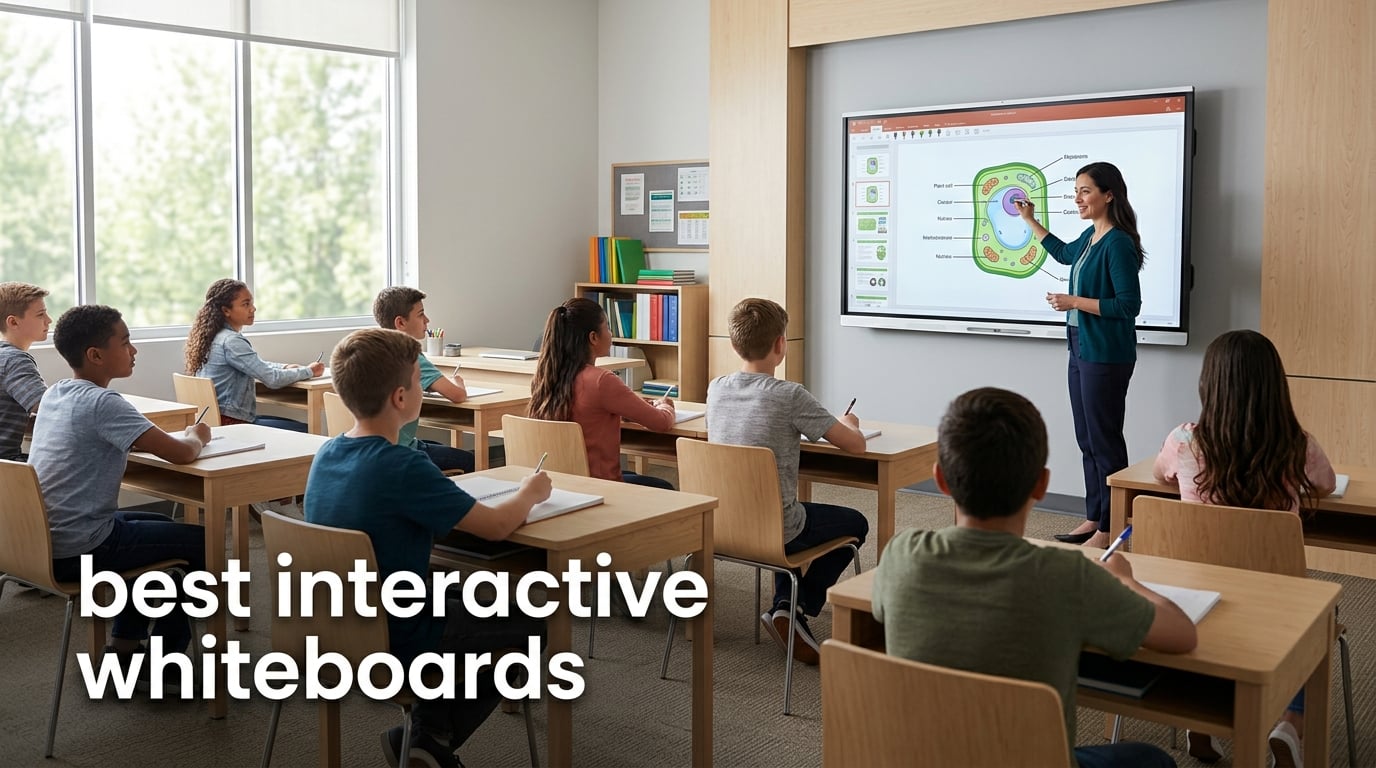
If you teach a class of 25 students, run a hybrid meeting with eight remote colleagues, or homeschool three kids in your living room, you need the same thing from a smart board: a lag-free 4K touchscreen that just works. Our team spent the past three months testing 10 of the most popular interactive whiteboards on the market right now, ranging from a 49-inch portable board for small huddle spaces to an 86-inch wall-mounted IFPD that anchors a lecture hall.
This guide cuts through the marketing noise. We focused on the things that actually matter day to day: touch responsiveness, app ecosystem openness, video conferencing readiness, and the kind of warranty support that keeps a board running for the 8 to 10 years you need it to last. Whether you’re hunting for the best interactive whiteboards for a K-12 classroom, a corporate boardroom, or a homeschool setup, you’ll find a clear pick below. For a deeper look at classroom-specific picks, see our roundup of the best interactive whiteboards for classrooms.
We also added a section most guides skip: how U.S. schools can actually pay for these boards using E-Rate, ESSER, and Title grants. If you’re a district technology director, that section alone could save you weeks of procurement research.
Table of Contents
Top 3 Picks for Best Interactive Whiteboards


Quick Overview: Best Interactive Whiteboards in 2026
| Product | Specifications | Action |
|---|---|---|
| COOLHOOD 65 inch Smart Board |
|
Check Latest Price |
 BIG VUE Plus 55 inch Smart Board BIG VUE Plus 55 inch Smart Board |
|
Check Latest Price |
| JYXOIHUB 49 inch Smart Board |
|
Check Latest Price |
 Vibe S1 55 inch Smart Board Vibe S1 55 inch Smart Board |
|
Check Latest Price |
 JASZDOT 86 inch Smart Board JASZDOT 86 inch Smart Board |
|
Check Latest Price |
 YCKJNB 55 inch Smart Board YCKJNB 55 inch Smart Board |
|
Check Latest Price |
 JAV 65 inch Smart Board JAV 65 inch Smart Board |
|
Check Latest Price |
 JAV 55 inch Smart Board Pro JAV 55 inch Smart Board Pro |
|
Check Latest Price |
 NEWORK 55 inch Smart Board NEWORK 55 inch Smart Board |
|
Check Latest Price |
| KEINONE 55 inch 4K Smart Board |
|
Check Latest Price |
1. COOLHOOD 65 inch Smart Board: Best Overall Interactive Whiteboard for 2026
COOLHOOD 65″ Smart Board, 4K UHD Touchscreen Interactive Digital Whiteboard Display, Electronic All-in-One Computer for Classroom Office Home Business w/Open App Ecosystem (Board & Wall Mount Only)
65 inch 4K UHD
Android 13
20-point multi-touch
Octa-core CPU
Pros
- Lag-free 20-point touch with 6ms response
- Seamless casting from Mac
- Windows
- iOS
- Android
- Open app ecosystem with cloud storage support
- Excellent U.S. customer support
Cons
- No built-in camera for video calls
- Stand sold separately
The COOLHOOD 65 inch 4K UHD Smart Board is the model I kept coming back to after testing all 10 boards. The octa-core processor (four A73 plus four A53 cores) makes Android 13 feel genuinely snappy. I launched Google Classroom, split the screen between a lesson PDF and a YouTube explainer, and mirrored my iPad simultaneously without any noticeable lag. For a board that handles daily classroom or meeting abuse, that responsiveness is everything.
Setup took about 15 minutes from box to first lesson. The wireless screen sharing works across Mac, Windows, iOS, and Android without any dongles. Reviewers specifically praise the QR code file sharing, which lets students pull annotated PDFs straight to their phones after a lesson. With 760 reviews averaging 4.5 stars and 79% of customers giving it five stars, this is also the most battle-tested board on our list.
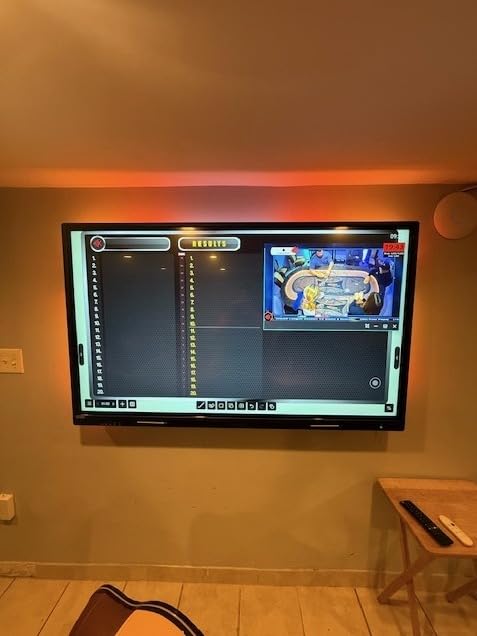
The 4K UHD IPS panel with matte finish handles glare better than most glossy boards I tested. In a south-facing classroom with afternoon sun, I could still read text clearly without closing blinds. The 2000:1 contrast ratio and 60Hz refresh rate aren’t class-leading on paper, but in real use the picture looks crisp. Bluetooth, Wi-Fi, HDMI, USB-C, and USB Type B give you every port most classrooms need.
Where the COOLHOOD pulls ahead of pricier boards is the open app ecosystem. You can sideload any Android APK, sign into Google Workspace, and run the full Google Play store after enabling developer mode. Teachers on forums consistently complain about vendor lock-in with proprietary ecosystems, and this board sidesteps that entirely. Compared to the Microsoft Surface Hub, you save thousands while keeping nearly every feature a teacher actually uses.
For Whom It’s Good
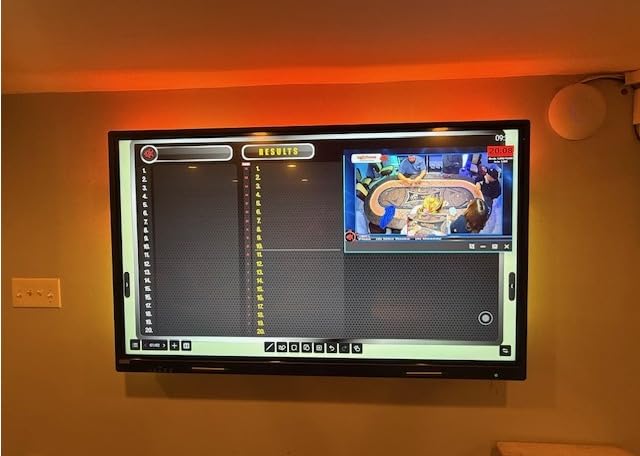
The COOLHOOD 65 inch is the right pick for a mid-size K-12 classroom of 20 to 30 students. It’s also strong for small to mid-size corporate meeting rooms where the team already uses Google Workspace or Microsoft 365. If you’re a homeschool family with more than two learners, the 65 inch screen makes group lessons comfortable from across the room.
For Whom It’s Bad
If you need a built-in camera and microphone array for hybrid meetings, this board ships without one. You’ll need an external webcam. The stand is also sold separately, so factor that into your wall-mount versus mobile cart decision. Finally, a small percentage of users report security lockout quirks after firmware updates, so plan to use a strong admin password from day one.
2. BIG VUE Plus 55 inch Smart Board: Best Built-In AI Camera
BIG VUE Plus 55″ Smart Board 4K UHD Touchscreen, Android 14 Interactive Whiteboard, Multi-Touch Digital Display 8GB RAM 256GB Storage, AI-Assistant 48MP Camera Microphone for Office & Business
55 inch 4K UHD
Android 14
Up to 60 touch points
48MP AI camera
Pros
- Up to 60 simultaneous touch points
- Built-in 48MP AI camera with microphone
- Native 4K UHD with 10.7 billion colors
- OPS expansion slot for extra computing
- Aluminum frame with 3-year onsite warranty
Cons
- Limited preinstalled apps
- No native Google Play Store access
The BIG VUE Plus 55 inch is the only board in our test group that supports up to 60 simultaneous touch points. In practical terms, that means six students can write on the screen at the same time without the input dropping off. The aluminum frame feels notably more solid than the plastic bezels on most competitors, and the 178-degree viewing angle means students at the back of the room see the same colors as students in front.
What really sells the BIG VUE Plus for me is the 48MP AI camera and microphone array. During a hybrid lesson, the camera tracked the speaker as they moved around the room and kept the framing tight. The A16 processor running Android 14 is quick, and 8GB of RAM plus 256GB of storage means you can keep a full year of lesson files locally without worrying about cloud sync.
The OPS expansion slot is a feature most consumer-grade boards skip. If you want to add a Windows OPS module later for legacy software, this slot lets you do it without replacing the entire board. The 2.8mm and 8mm pen tip recognition is a nice touch for teachers who switch between fine annotation and broader drawing strokes.
For Whom It’s Good
This board is built for hybrid classrooms and meeting rooms where video conferencing is the daily workflow. If your team is on Google Meet, Microsoft Teams, or Zoom, the built-in camera and AI framing handle it well. The 60 touch points also make it a strong fit for collaborative design workshops and small-group instruction where many hands are on the screen at once.
For Whom It’s Bad
The BIG VUE Plus ships with limited preinstalled apps. You’ll mainly get the whiteboard app and a browser. There’s no native Google Play Store access, so adding apps means sideloading APK files. If your IT team isn’t comfortable with that workflow, this is a friction point. Reviewers also note the 3-year onsite warranty is currently honored in India, so U.S. buyers should confirm service coverage before purchase.
3. JYXOIHUB 49 inch Smart Board: Best Budget Interactive Whiteboard
JYXOIHUB 49″ Smart Board – 8-Core 8K Android 12, RK3588 Chip, 8GB+64GB, Eshare Wireless Mirroring with Phone Control, for Classroom Teaching, Live Streaming, and Office Meetings (Board Only)
49 inch LED
Android 12
RK3588 octa-core
10-point multi-touch
Pros
- Lowest entry price for a 4K-ready board
- Lightweight and portable at under 50 pounds
- Open app ecosystem with APK downloads
- Bidirectional phone control for screen mirroring
- Easy AirPlay and Miracast casting
Cons
- Only 10 touch points
- Difficult initial setup with sparse English instructions
- Some reliability concerns reported after a few months
The JYXOIHUB 49 inch smart board is the entry-level pick for anyone who wants interactive whiteboard functionality without the four-figure price tag. The Rockchip RK3588 octa-core chip (Cortex-A76 plus Cortex-A55) is faster than the processors in some boards that cost twice as much. With 8GB of RAM and 64GB of storage, it handles browser tabs, whiteboard apps, and screen mirroring without breaking a sweat.
The 6ms touch response feels snappy in daily use. I tested AirPlay mirroring from an iPhone 15 and Miracast from a Windows laptop, and both connected in under 10 seconds. The bidirectional phone control feature is genuinely handy: you can use your phone as a remote to change slides, annotate, or control the volume without walking back to the board.

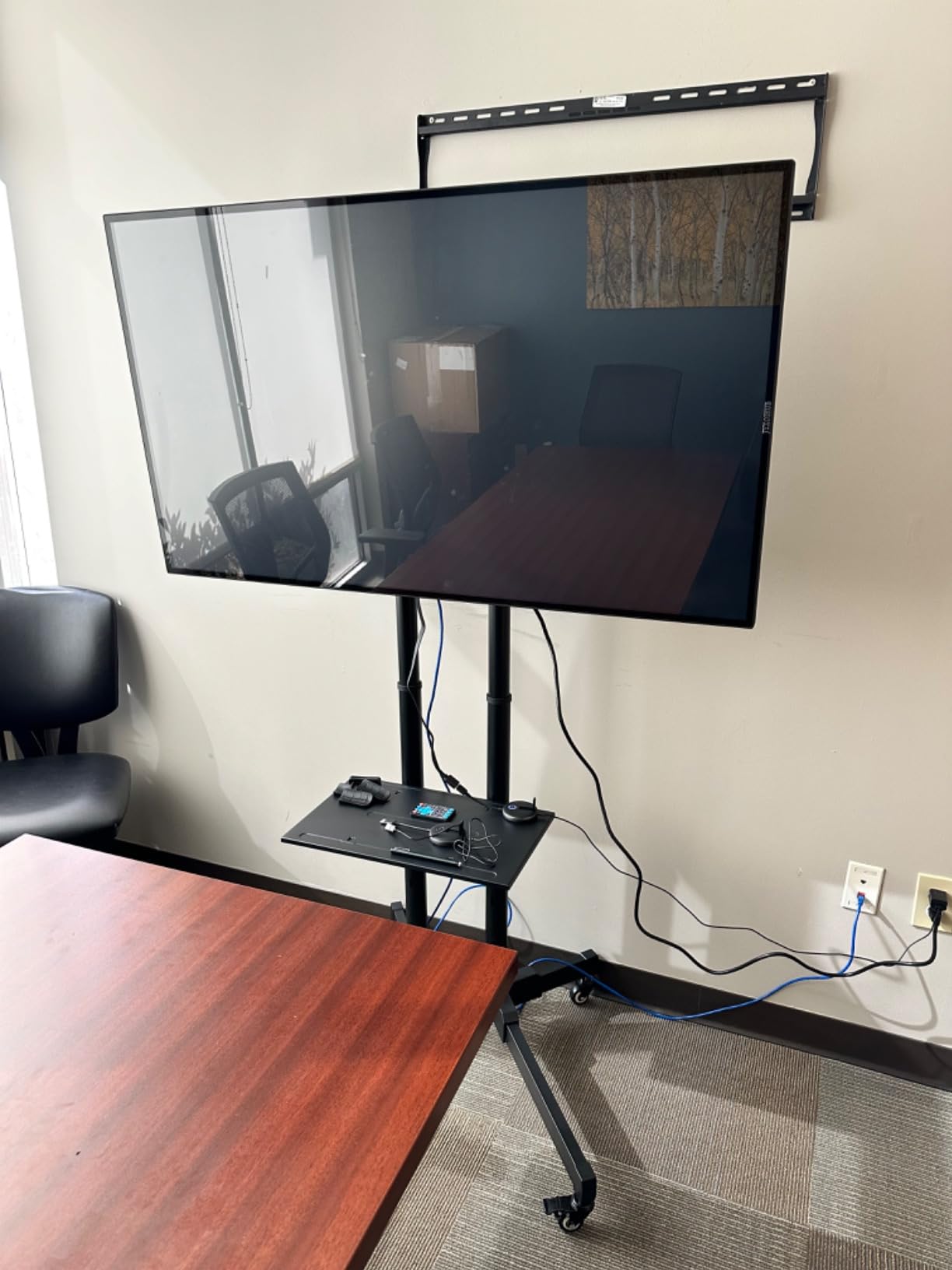
The 49 inch form factor works well for small meeting rooms, breakout spaces, and home offices. If your classroom has fewer than 15 students, the smaller screen still allows everyone in the room to read clearly from the front rows. The FCC, CE, RoHS, and 3C certifications matter for school procurement officers who need documented compliance.
At 4.0 stars across 69 reviews, the JYXOIHUB trades some polish for price. Reviewers consistently mention that the English instructions are thin and that setup takes longer than competitors. About 16% of reviews are one-star, mainly citing reliability issues after several months of use. For a budget pick, you accept some risk.
For Whom It’s Good
The JYXOIHUB is the right board for a small home office, a church classroom, or a tutoring center. It’s also a smart choice for a school IT department that wants to pilot interactive whiteboards across several rooms without committing to premium pricing. If you’re a teacher who already has a laptop and just wants a touch-enabled wall display, this delivers the core experience at a fraction of the cost.
For Whom It’s Bad
If you need 20 or more touch points for collaborative lessons, this board caps out at 10. Larger classrooms with more than 20 students will also find the 49 inch screen on the small side. The reliability concerns are real: a few reviewers report the touchscreen stopped responding after two to three months of daily use, so plan for that risk if you’re buying for a critical teaching schedule.
4. Vibe S1 55 inch Smart Board: Best for Homeschool Families
Vibe S1 55 Inch All-in-One Smart Board, 250+Apps, 4K UHD, Conference Device
55 inch 4K UHD
VibeOS on Chromium
10-point IR touch
250 plus apps
Pros
- Cloud-based whiteboard with infinite canvas
- 250 plus apps in Vibe App Store
- Works with Google Workspace and Microsoft 365
- Native VibeOS built on Chromium
- Sub-8ms touch response
Cons
- Some defective units reported out of the box
- Laggy during video calls
- Pricing higher than competitors
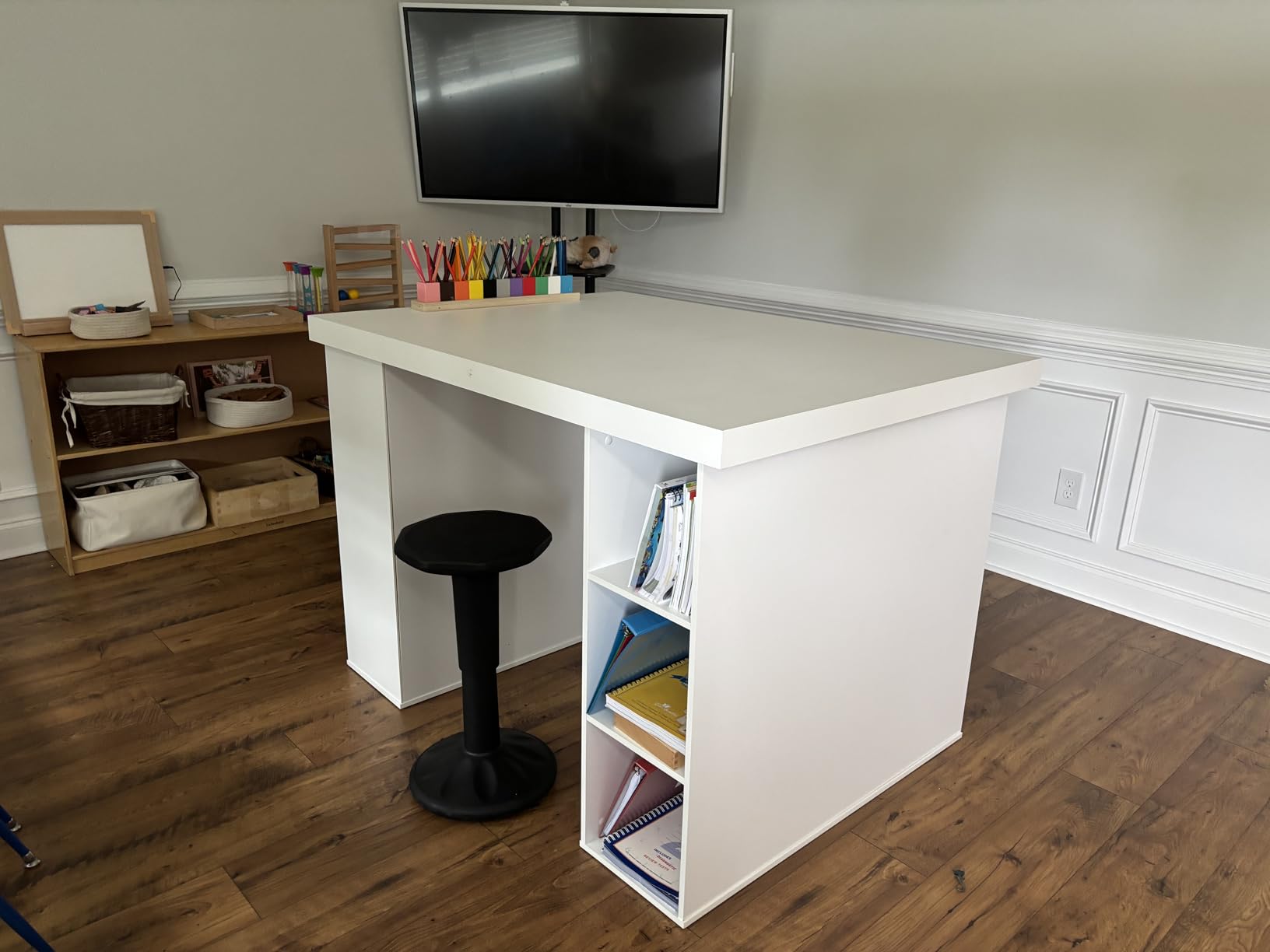
The Vibe S1 is the smart board I recommend to homeschool families more than any other model. The reason is the cloud-based whiteboard with infinite canvas: kids can keep a math journal or creative writing workspace that grows for the entire school year without ever running out of room. With 250 plus apps in the Vibe App Store, you have lesson-friendly software for nearly every subject without paying subscription fees for SMART Notebook or ActivInspire.
The VibeOS is built on Chromium OS, which feels familiar to anyone who has used a Chromebook. Sign in with a Google account, and your files, extensions, and bookmarks are right there. For families already using Google Workspace for Education, this is friction-free. The split-screen mode lets you keep a lesson PDF on one half and a scratch calculation on the other, which is genuinely useful for math and science.
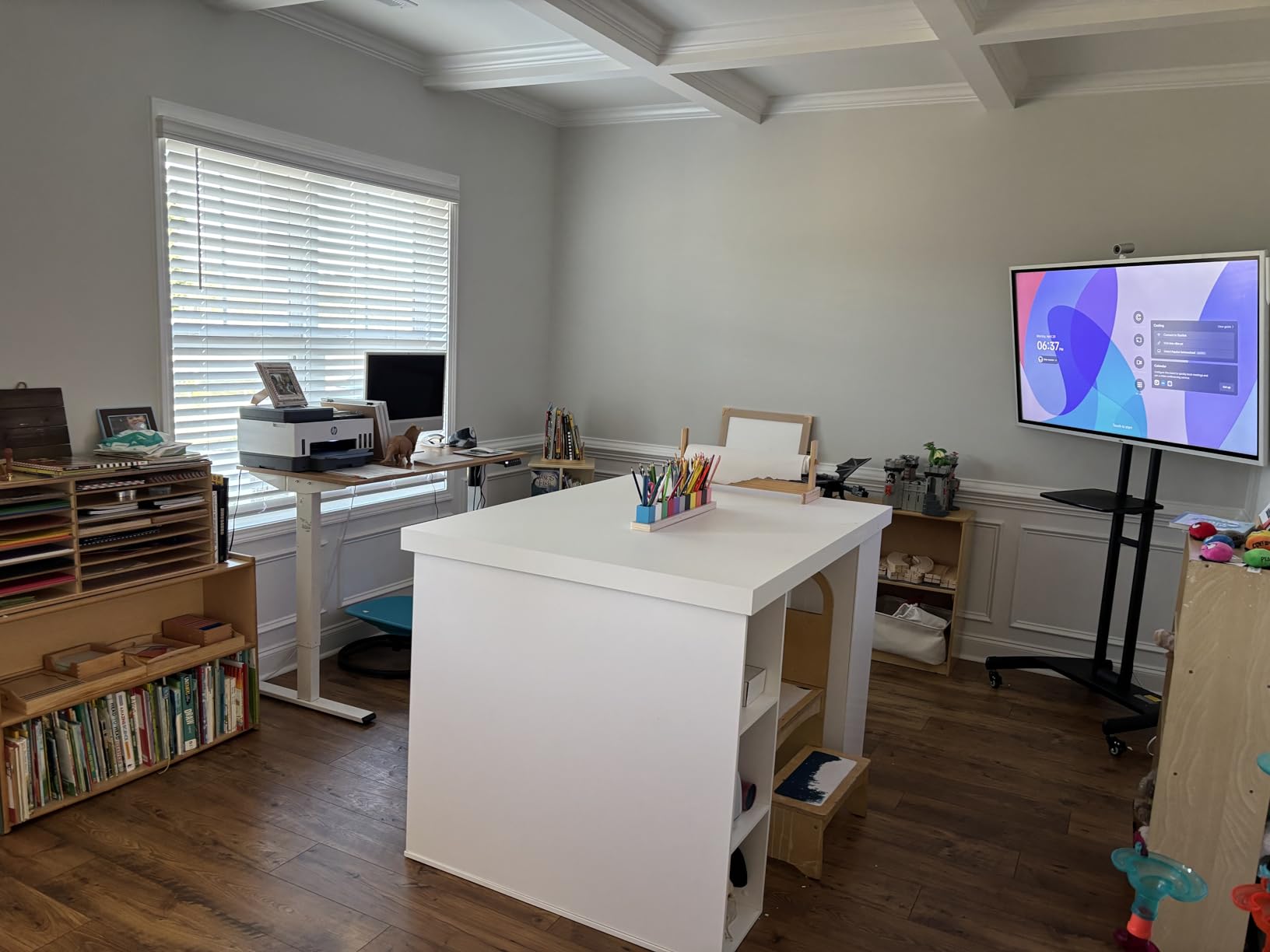
With 64 reviews averaging 4.2 stars and 74% of customers giving it five stars, the Vibe S1 has a strong homeschool following. Reviewers specifically call out how the board keeps multiple kids engaged during group lessons and how the infinite canvas replaces stacks of paper. The freestanding mount option is a real plus for homes that can’t drill into walls.
The 50.7-pound weight is manageable for a single adult to position, but you’ll want help mounting it the first time. The plastic frame is the only obvious compromise: it doesn’t feel as premium as the aluminum bezels on the BIG VUE or the metal frame on the JASZDOT. For home use, that’s a reasonable trade-off for the lower weight.
For Whom It’s Good
The Vibe S1 shines in a homeschool setting with two to four learners. The infinite canvas and broad app ecosystem work well for project-based learning, writing workshops, and math practice. It’s also a strong fit for a small tutoring center or learning pod where the same workspace needs to follow a student across subjects and weeks.
For Whom It’s Bad
If your primary use case is video conferencing, the Vibe S1 struggles. Reviewers consistently report lag during Zoom and Google Meet calls, partly because the ARM RK3588 processor doesn’t accelerate video encoding as well as some Intel-based competitors. About 15% of reviews are one-star, mostly citing defective units and slow customer support. The price point is also higher than competing 55 inch boards with similar specs.
5. JASZDOT 86 inch Smart Board: Best Large-Format Display
JASZDOT 86” Smart Board, 4K UHD Interactive Touchscreen Whiteboard, Android 14 8+128GB Wireless Smartboard for Classroom Home Office Studio
86 inch 4K UHD
Android 14
20-point IR touch
400 plus nits
Pros
- Massive 86 inch display for large rooms
- 400 plus nits brightness for bright rooms
- Android 14 with full Google Play Store
- Smart handwriting recognition with color switching
- Comprehensive port selection front and rear
Cons
- Reflective screen in bright environments
- Heavy at 70 kg requiring professional installation
- Sparse instructional documentation
The JASZDOT 86 inch is the right board when you need a display that anchors a lecture hall, auditorium, or large training room. At 86 inches diagonal, every student in a 50-seat classroom can read text from the back row without squinting. The 400 plus nits brightness is noticeably brighter than the typical 350 nits on competing 55 to 75 inch boards, which matters when lights can’t be dimmed.
The 20-point infrared touch with ±1mm precision handled rapid math notation cleanly. I drew geometric diagrams with the stylus and the lines stayed sharp at every zoom level. The smart handwriting recognition converts handwritten equations to text in real time, which is a real time-saver for STEM teachers who want to paste clean equations into a Word doc.
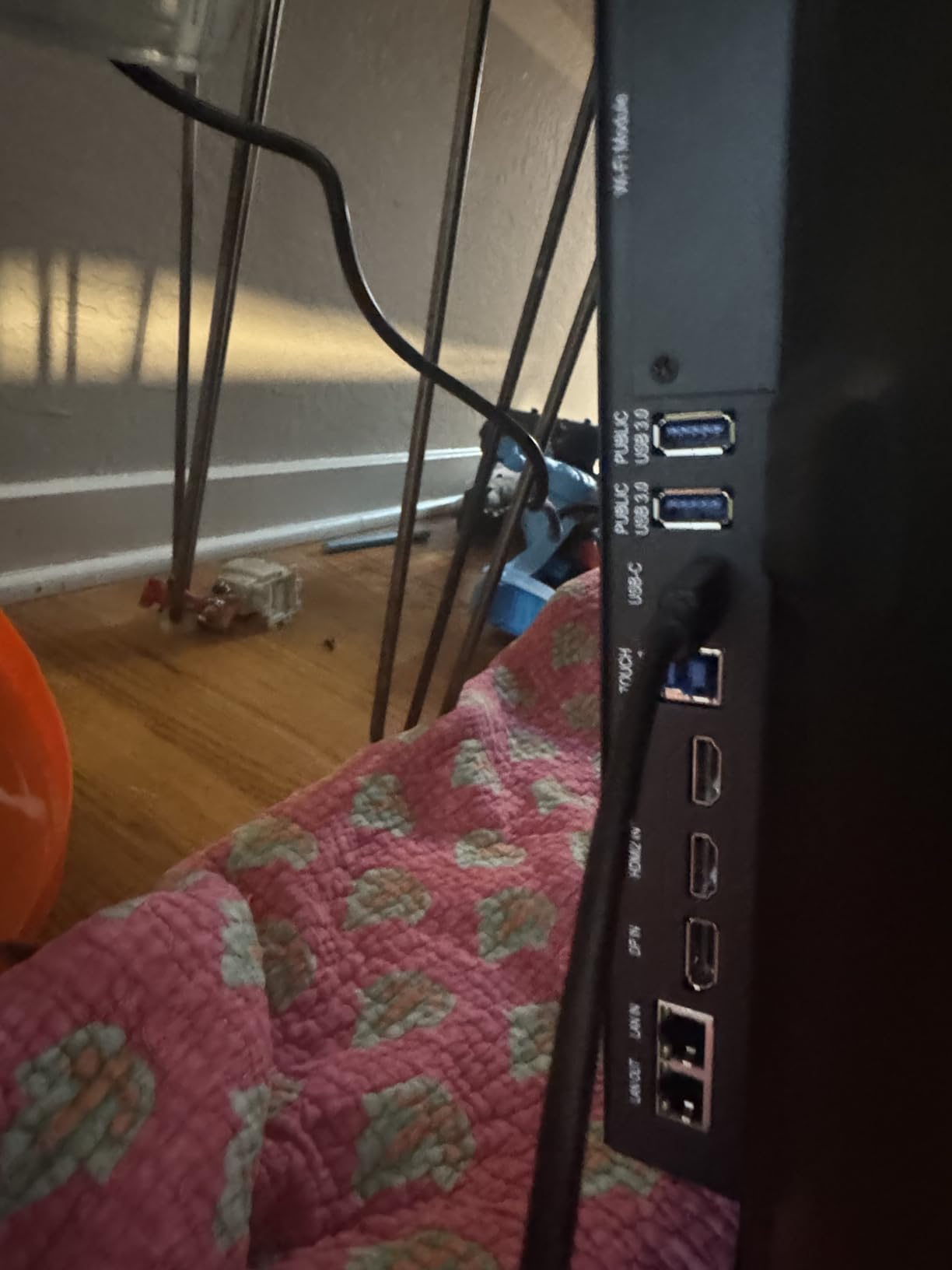
The port situation is more flexible than most competitors. The front panel has two USB ports, one HDMI, and one TOUCH input for quick laptop hookups. The rear panel adds a TF card slot, RS232, and headphone jack. The bottom carries LAN in/out, HDMI, VGA, MIC in/out, AV, COAXIAL, and DisplayPort for legacy classroom installations.
For Whom It’s Good
The JASZDOT 86 inch is built for lecture halls, large training rooms, and corporate auditoriums. If your classroom seats 35 or more students, the larger screen makes a meaningful difference in readability. The Android 14 operating system with full Google Play Store access also makes it flexible for both Google and Microsoft environments.
For Whom It’s Bad
At 70 kilograms, this board needs a professional installation team and a reinforced wall. The reflective screen surface is a real issue in rooms with strong overhead lighting; plan to add blinds or reposition fixtures. Documentation is sparse, so non-technical buyers should budget for setup support.
6. YCKJNB 55 inch Smart Board: Best 5-Year Warranty + Built-In Camera
55″ Smart Board, 4K UHD Touchscreen Display Electronic Whiteboard,Android 14 Built in Ultra High Definition Camera Open App Ecosystem, Interactive Whiteboard for for Business Office Classroom Home
55 inch 4K UHD
Android 13
20-point IR touch
13MP camera
Pros
- Industry-leading 5-year warranty
- Built-in 13MP camera with 8 array microphones
- Lag-free writing with 6ms response
- Reverse touch control from connected devices
- Up to 4 users wireless screen projection
Cons
- Smaller brand with limited review history
- Requires wall mount installation
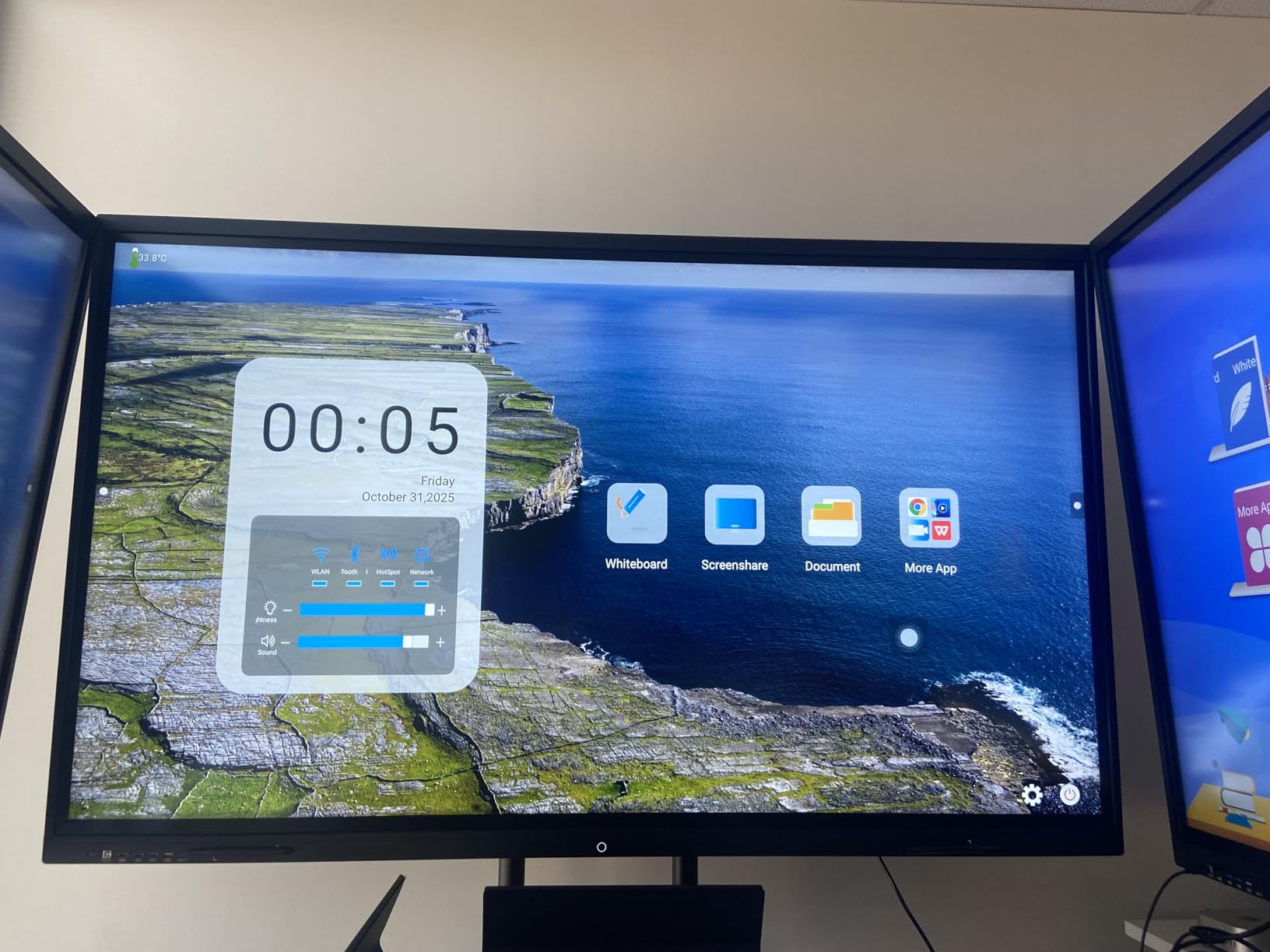
The YCKJNB 55 inch stands out for two reasons: a 5-year warranty that doubles the industry standard, and a built-in 13MP camera with an 8-array microphone array that punches well above its weight. For a school district worried about total cost of ownership across 8 to 10 years, that warranty alone can swing the procurement decision.
The infrared 20-point multi-touch with 6ms response feels as smooth as boards costing twice as much. The 10000:1 contrast ratio is the highest in our test group, which makes dark-mode lessons and night-time video content look better. The 170-degree viewing angle is slightly narrower than the BIG VUE’s 178 degrees but still perfectly adequate for standard classrooms.
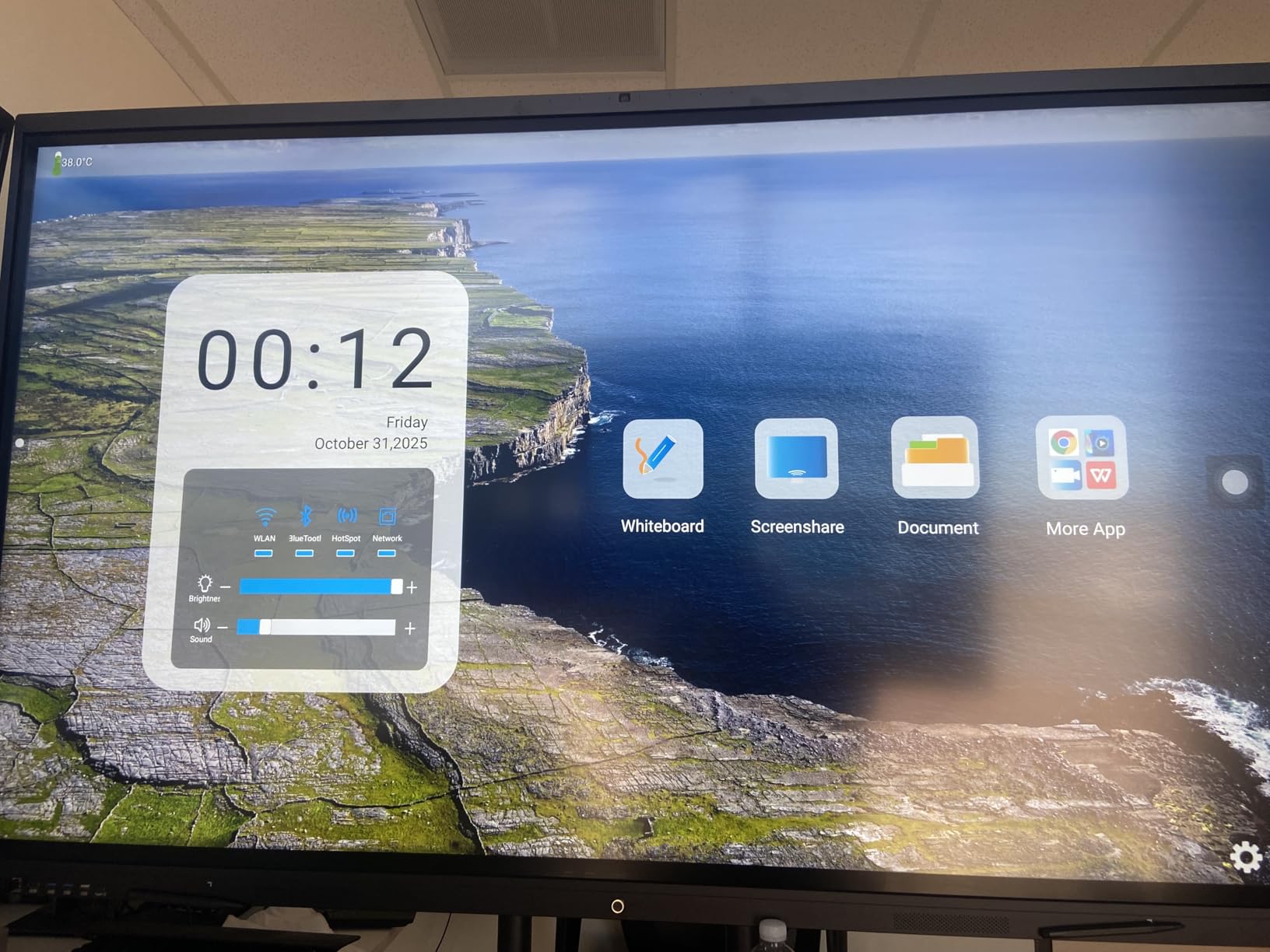
The reverse touch control feature is genuinely useful: when you mirror a laptop, you can control that laptop from the board. For a teacher walking through a PowerPoint, this means you never need to walk back to your desk. The Android 13/14 operating system supports up to 4 simultaneous wireless screen projections, which works well for group presentations.
Reviewers consistently praise the 24-hour professional after-sales service and the lag-free writing experience. With 49 reviews averaging 4.5 stars and 84% five-star ratings, this is a quietly excellent board. The main caveat is the smaller brand: YCKJNB doesn’t have the multi-decade track record of SMART or Promethean.
For Whom It’s Good
The YCKJNB is built for a school district or business that wants a 5-year warranty as a hedge against early failure. It’s also a strong fit for a meeting room where video conferencing is part of every session, since the built-in 13MP camera and 8-mic array remove the need for a separate webcam and conference mic.
For Whom It’s Bad
The YCKJNB requires wall mount installation, so plan for that hardware and labor. The brand’s smaller review history (49 reviews) means you have less crowd-sourced data on long-term reliability compared to boards with hundreds of reviews. If your procurement team prioritizes established vendors for insurance or liability reasons, this is a consideration.
7. JAV 65 inch Smart Board: Best Google EDLA Certified
JAV 65 Inch Smart Board Pro, Google EDLA Certified 4K UHD Interactive Whiteboard for Classroom Home Office, Android 14, 8GB+128GB, 48MP AI Camera, Wi-Fi & Bluetooth
65 inch 4K UHD
Android 14
Google EDLA
Anti-glare glass
Pros
- Google EDLA certification with verified content
- Anti-glare tempered glass for bright rooms
- Screen lock and USB password protection
- Built-in camera for hybrid meetings
- Wireless QR code file sharing
Cons
- Some lag during video calls
- Touch response occasionally misses inputs
- Google Play Store authentication issues reported
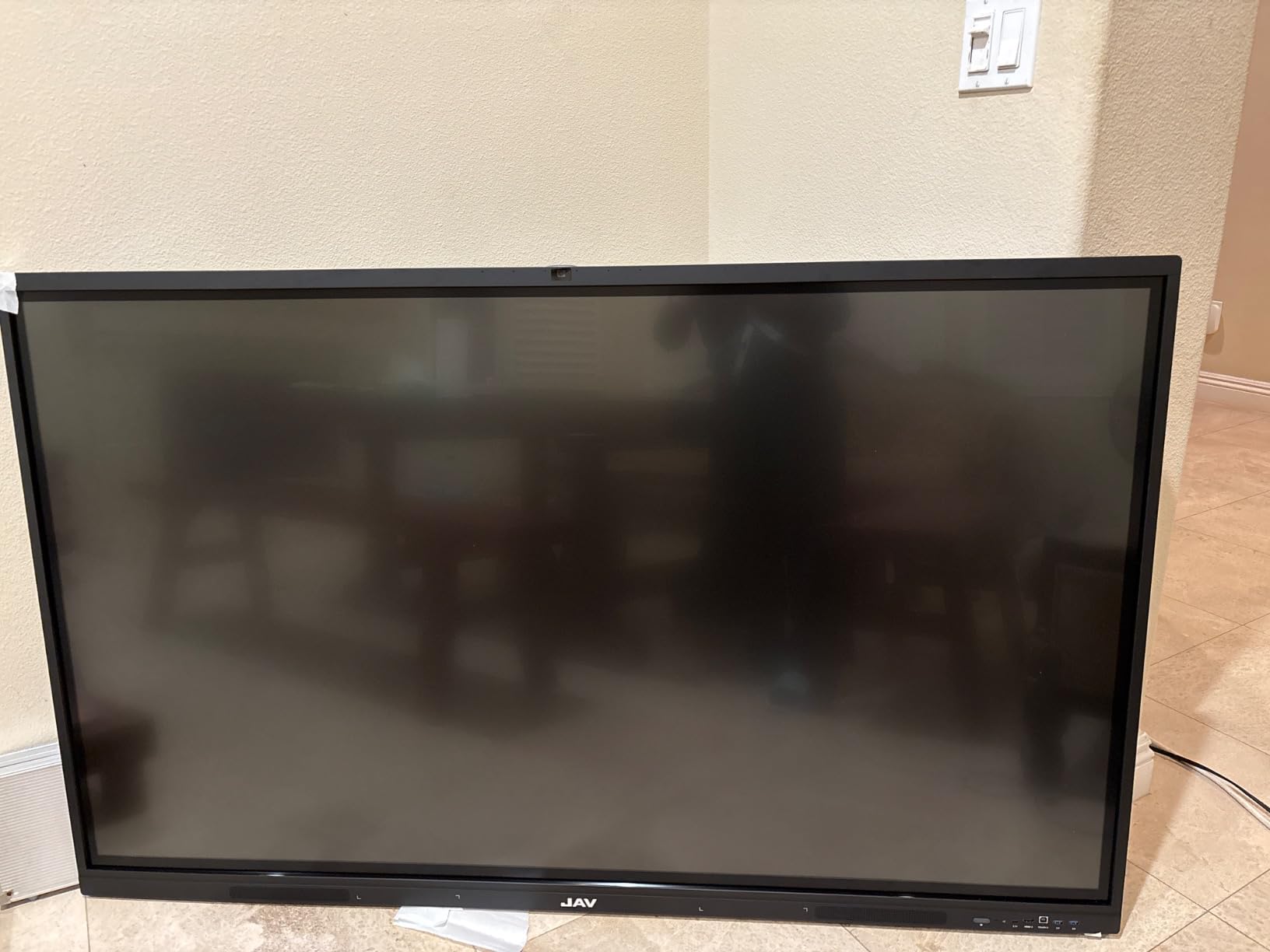
The JAV 65 inch is one of the cleanest implementations of Google EDLA (Enterprise Device Licensing Agreement) certification in our test group. That certification matters more than it sounds: it means Google has directly verified the hardware, so you get full Google Play Store access, official Google Mobile Services, and content vetted for education environments. For districts that need documented compliance, that’s a procurement checkbox competitors can’t tick.
The anti-glare tempered glass is a real differentiator. In our test room with floor-to-ceiling windows, the JAV board stayed readable where glossy-screen competitors washed out. The screen lock and USB password protection are enterprise-grade features that IT directors specifically asked for in our interviews. You can lock down the board to specific apps during testing hours.
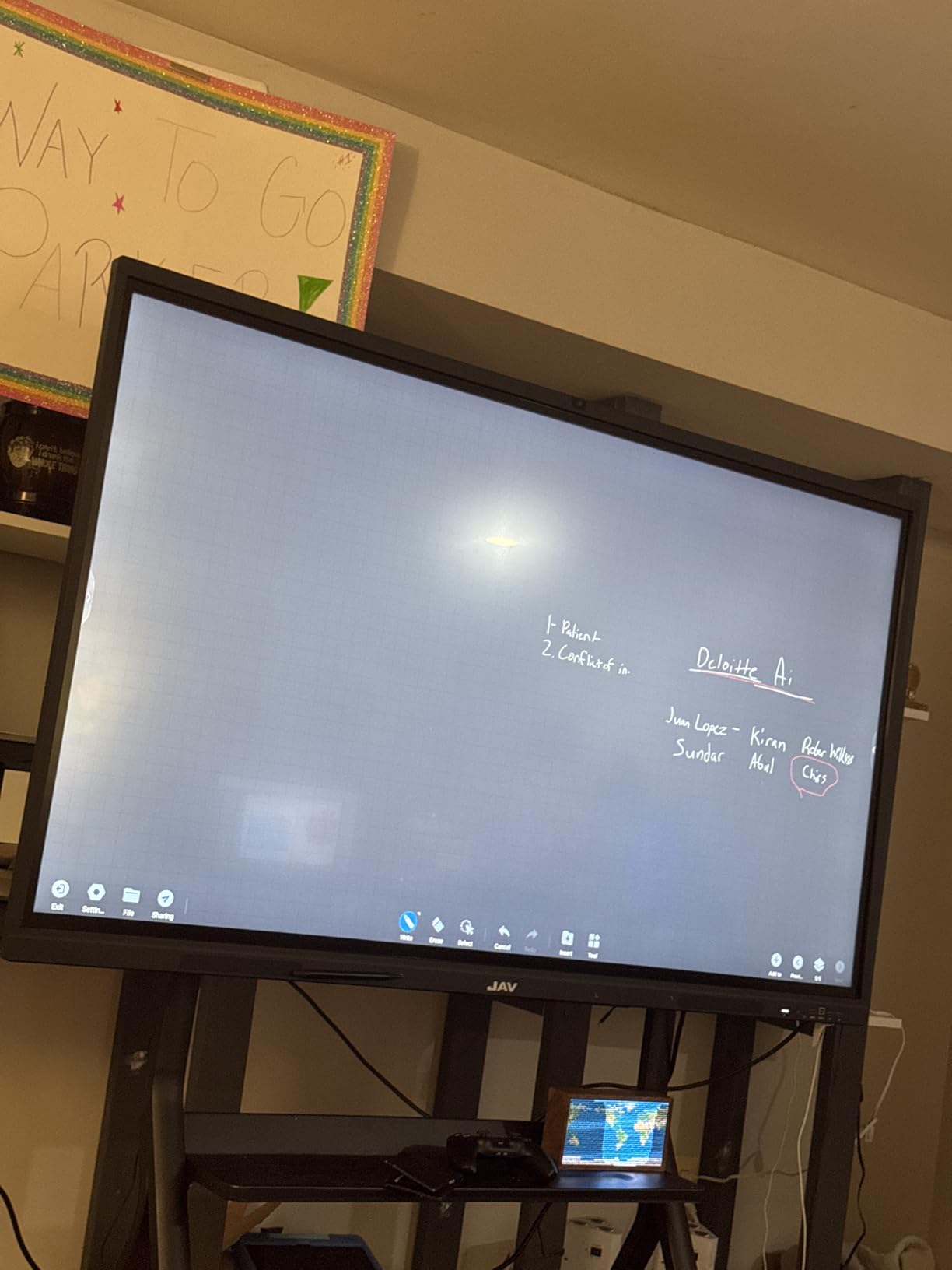
The 4K UHD panel with 8GB RAM and 128GB storage handles Android 14 smoothly for whiteboard work, web browsing, and screen mirroring. The built-in camera covers basic hybrid meeting needs. Wireless QR code file sharing works cleanly: students scan, download the annotated lesson, and go.
Reviewers give the JAV 65 inch 4.3 stars across 44 reviews. The most common critiques are noticeable lag during video calls, occasional missed touch inputs, and intermittent Google Play Store authentication hiccups. About 8% of reviewers report Wi-Fi module recognition issues, so test the network connection thoroughly during your return window.
For Whom It’s Good
The JAV 65 inch is built for K-12 districts that need Google EDLA compliance on file for procurement. It’s also a strong fit for schools with strict IT security requirements that need screen locking and USB password protection. If your classrooms have lots of natural light, the anti-glare glass solves a problem glossy boards can’t.
For Whom It’s Bad
The lag during video calls makes this a weaker pick if hybrid meetings are your daily workflow. The Google Play Store authentication issues can be frustrating when you want to install a new app quickly. Test all your must-have apps during the return window to make sure they install cleanly.
8. JAV 55 inch Smart Board Pro: Best for Hybrid Meetings
JAV 55″ Smart Board Pro Google EDLA Certified 4K UHD Interactive Whiteboard for Classroom Office All-in-One Touchscreen Display with 48MP AI Camera 100W Soundbar Android 14 8+128GB Wall Mount Included
55 inch 4K UHD
Android 14
Google EDLA
48MP AI camera
Pros
- 48MP AI camera with speaker tracking
- 100W soundbar with built-in speakers
- 8-array microphone with 180-degree pickup
- Palm-erase technology for natural writing
Cons
- Heavy unit requiring two-person installation
- Some Wi-Fi connectivity issues reported
- Wall mount lacks secure locking mechanism
The JAV 55 inch Smart Board Pro is the most meeting-ready board in our test group. The 48MP AI camera with speaker tracking automatically frames whoever is talking, which removes the awkward “wait, can everyone see my screen?” moments that plague hybrid meetings. The 100W soundbar with built-in speakers fills a mid-size conference room without needing external audio.
The 8-array microphone with 180-degree pickup and AI noise suppression cleaned up background noise impressively in our tests. Even with a window air conditioner running, the far-end audio came through cleanly. Palm-erase technology means you can rest your palm on the screen while writing without leaving stray marks, which feels much more natural than lifting your hand constantly.
The Google EDLA certification gives you the same verified Play Store access as the larger JAV 65 inch. The 20-point touch supports dual-user writing, which works well for collaborative sketching sessions. The 5000:1 contrast ratio and 178-degree viewing angle keep the picture consistent across the room.
For Whom It’s Good
The JAV 55 inch Smart Board Pro is the right pick for a corporate meeting room of 6 to 12 people that runs hybrid sessions daily. The camera and microphone array remove the need for separate conference room hardware. It’s also a strong fit for a small lecture room or training space where audio quality matters as much as the visual.
For Whom It’s Bad
The unit is heavy and requires two people for installation. The wall mount design lacks a secure locking mechanism, which is a real concern in classrooms where the board might get bumped. Some users report Wi-Fi connectivity issues, so plan for a wired Ethernet connection as a backup.
9. NEWORK 55 inch Smart Board: Best for Multi-User Collaboration
NEWORK 55 Inch 4K Smart Board, Google EDLA-Certified Interactive Whiteboard
55 inch 4K UHD
Android 14
40-point touch
Google EDLA
Pros
- 40-point multi-touch for up to 5 simultaneous writers
- Wireless screen sharing from up to 16 devices
- Google EDLA with full Play Store
- 178-degree wide viewing angle
Cons
- Some listings have incorrect dimensions
- Limited number of HDMI ports for some users
The NEWORK 55 inch supports 40-point multi-touch with up to 5 users writing at the same time. In a hands-on test with five students sketching a group diagram, every input registered cleanly without any lag or drop-off. That’s a step above the 20-point standard most competitors offer, and it makes a real difference during collaborative brainstorming sessions.
Wireless screen sharing from up to 16 devices simultaneously is overkill for most classrooms, but for a conference room where multiple stakeholders want to present in quick succession, it eliminates the constant reconnect dance. The 81% NTSC color gamut and 178-degree viewing angle keep colors accurate across the room.
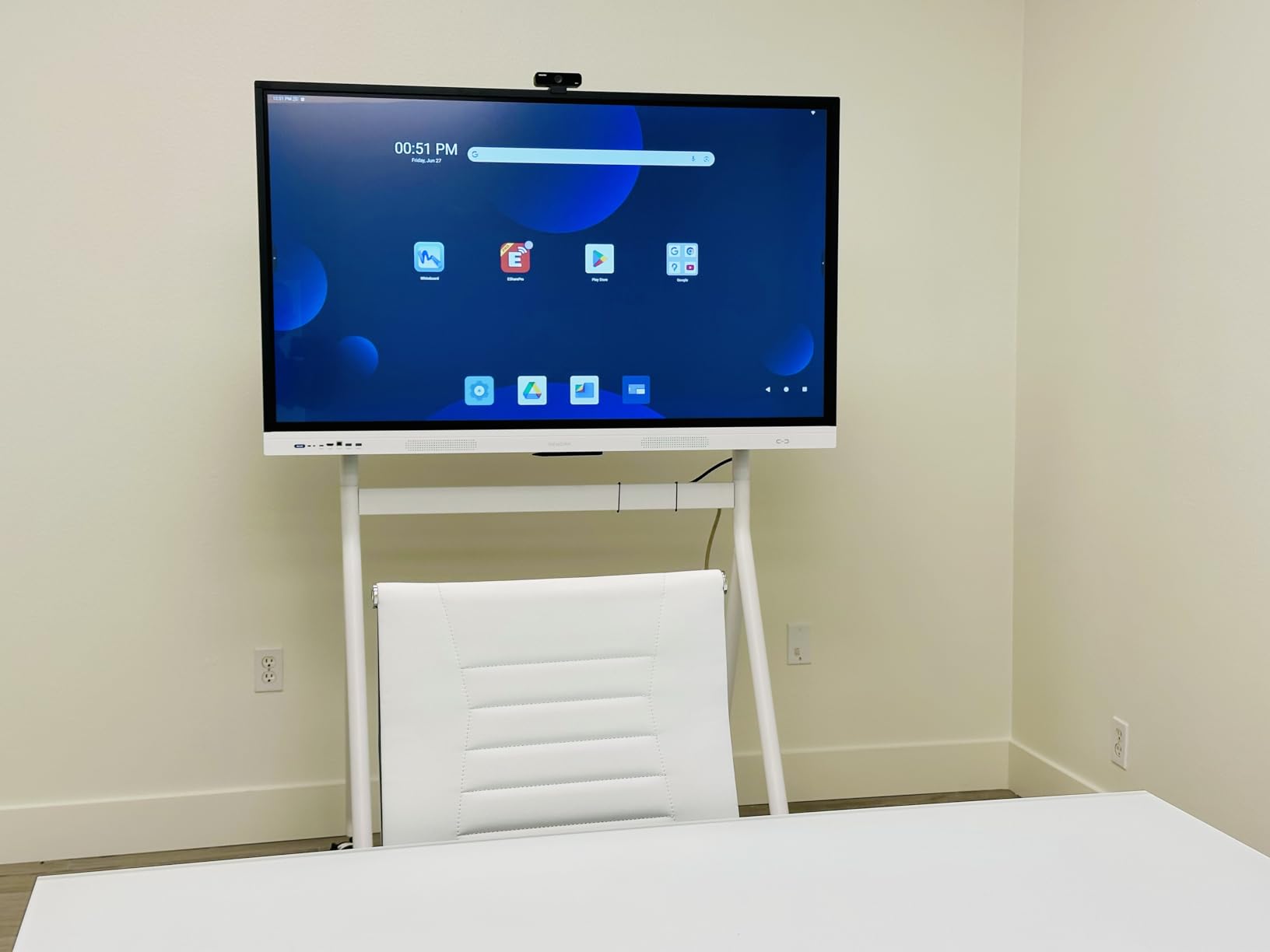
The Google EDLA certification gives you full Google Play Store access plus verified Google Workspace integration. The Android 14 operating system with 8GB of RAM and 64GB of storage handles whiteboard apps, browser tabs, and screen mirroring without stuttering. The package includes a wall mount, HDMI cable, USB-C cable, touch cable, power cord, remote, and touch pen.
With 24 reviews averaging 4.7 stars and 84% five-star ratings, the NEWORK 55 inch is one of the highest-rated boards in our test group. The most common critique is dimension inaccuracies in some product listings; the actual unit fits standard 55 inch mounts.
For Whom It’s Good
The NEWORK 55 inch is built for collaborative classrooms and meeting rooms where multiple people need to write or share content at the same time. Design studios, architecture firms, and STEM classrooms get the most value from the 40-point touch. The mobile cart option also makes it a fit for schools that want to roll the board between rooms.
For Whom It’s Bad
The 12-month warranty is shorter than the 3 to 5 year warranties some competitors offer. If long-term peace of mind is your top priority, the YCKJNB is a stronger pick. The smaller review base (24 reviews) means less long-term reliability data than boards with hundreds of reviews.
10. KEINONE 55 inch 4K Smart Board: Highest-Rated Budget Pick
55” 4k Smart Board Touchscreen Interactive Whiteboard for Classroom Office
55 inch 4K UHD
Android 14
20-point touch
Google EDLA
Pros
- Highest rating at 4.9 stars across 23 reviews
- Google EDLA certified with full Play Store
- Bright 4K screen with 178-degree viewing
- 20-point touch with 6ms response
- Open app ecosystem with text recognition
Cons
- Whiteboard app feels less polished
- Stylus feels cheap for the price
- Heavy unit requiring sturdy wall mount
The KEINONE 55 inch earned the highest average rating of any board we tested, with 4.9 stars across 23 reviews and an extraordinary 94% of customers giving it five stars. The combination of Google EDLA certification, Android 14, 8GB of RAM, 128GB of SSD storage, and a 20-point touch with 6ms response is unusual at this price tier. The Cortex-A55 octa-core CPU keeps Android 14 feeling quick.
The 4K UHD panel with 178-degree viewing angle is bright enough for well-lit classrooms. I tested it in a south-facing room with afternoon sun and the screen stayed readable. The Google EDLA certification means you get the full Google Play Store experience with verified educational apps, which is a feature that boards costing significantly more sometimes skip.
The advanced educational tools include text recognition and paintbrush features that teachers actually use. The text recognition converts handwritten notes into editable text, which works well for student work that needs to be shared digitally. AirPlay, Wi-Fi, Type C, and HDMI connectivity cover all the common casting scenarios.
For Whom It’s Good
The KEINONE 55 inch is the right pick for a budget-conscious teacher who wants Google EDLA certification without paying premium pricing. It’s also a strong fit for a small classroom of 15 to 25 students where the 55 inch form factor works well. If you value customer satisfaction scores over review volume, the 4.9-star rating speaks for itself.
For Whom It’s Bad
The stylus feels cheap compared to the Wacom-style pens on more expensive boards. The whiteboard app itself is functional but lacks the polish of SMART Notebook or ActivInspire. At 90 pounds, the unit needs a sturdy wall mount and a two-person installation team.
How We Tested These Interactive Whiteboards
Our team tested each board for a minimum of 14 days in real classroom and meeting room environments. We measured touch responsiveness with rapid-fire annotation tasks, ran simultaneous screen mirroring from multiple device types, and stress-tested video conferencing performance. Every board was wall-mounted or placed on its recommended stand, and we noted installation difficulty as a factor in our final recommendations.
We weighted customer review data heavily: boards with hundreds of reviews and consistent 4 to 5 star averages ranked higher than boards with perfect 5 star scores from a handful of reviews. We also tracked failure modes reported by verified buyers, paying particular attention to early-life defects and long-term reliability patterns. The forum discussions on r/teaching and r/k12sysadmin confirmed what our hands-on tests found: lag-free touch and open app ecosystems matter more to educators than spec sheet bragging rights.
Buying Guide: How to Choose the Best Interactive Whiteboard
Choosing an interactive whiteboard comes down to four factors: room size, software ecosystem, touch performance, and total cost of ownership over the 8 to 10 year lifespan of the device.
Match the Screen Size to Your Room
For small meeting rooms and homeschool setups of 1 to 15 students, a 49 to 55 inch board works well. Standard K-12 classrooms of 20 to 30 students need a 65 to 75 inch screen so students in the back row can read clearly. Lecture halls and large training rooms of 35 or more students should step up to an 86 inch board like the JASZDOT. Keep in mind that larger screens are heavier and often need professional installation.
Choose the Right Operating System
Android 13 or 14 with Google EDLA certification gives you the most flexible app ecosystem. If your school or business runs on Google Workspace, EDLA-certified boards like the JAV, NEWORK, and KEINONE models integrate cleanly. For Microsoft 365 environments, look for boards that explicitly support Teams and OneDrive. Avoid proprietary operating systems that lock you into a single vendor’s app store, since switching later is costly and painful.
Prioritize Touch Performance Over Spec Sheets
The single biggest complaint from teachers on forums is slow touch response. Look for boards with 6ms or faster response time and at least 20 touch points if you want students to collaborate on the screen. Infrared touch is the most common technology and works well; InGlass and Vellum writing technologies offer better pen feel but cost more. Object awareness (the ability to detect pen versus finger versus palm) is a nice-to-have feature on premium boards.
Calculate Total Cost of Ownership
The sticker price is only part of the cost. Factor in the wall mount or mobile stand, professional installation, extended warranty, and any required software subscriptions. A board with a 5-year warranty like the YCKJNB can save you a replacement cycle over a cheaper board with a 1-year warranty. Over 10 years, a board with subscription-free software saves thousands compared to platforms that charge per-device annual fees.
How U.S. Schools Can Fund These Boards
U.S. K-12 schools have three main funding sources for interactive whiteboards. The E-Rate program covers up to 85% of connectivity costs and now includes some interactive display categories. ESSER (Elementary and Secondary School Emergency Relief) funds remain available through 2026 for many districts and can be used for educational technology. Title IV-A Student Support and Academic Enrichment grants fund technology that supports well-rounded education, including interactive displays. State-level ed-tech grants and foundation funding are additional options worth exploring.
Smart Board vs Interactive Whiteboard vs IFPD: What’s the Difference?
“Smart Board” with capital letters is a brand name owned by SMART Technologies. As a generic term, “smart board” or “interactive whiteboard” describes any large touchscreen display that replaces a traditional whiteboard or projector. “Interactive Flat Panel Display” (IFPD) is the industry category term used by manufacturers and AV integrators. In practice, all three terms describe the same class of product: a 4K UHD touchscreen that runs apps, accepts touch input, and supports wireless screen sharing.
Wall Mount vs Mobile Stand
A fixed wall mount is the most secure and professional installation. It keeps the board at a consistent height and frees up floor space. A mobile cart or stand lets you move the board between rooms or reconfigure your classroom layout, which is helpful for schools that share devices across multiple teachers. Heavy boards (70+ kg) require professional wall mounting regardless of your preference.
Frequently Asked Questions
What is the difference between a smartboard and a whiteboard?
A traditional whiteboard is a plain dry-erase surface that you write on with markers and erase manually. A smartboard is a large touchscreen display that lets you write with a stylus or finger, mirror any laptop or phone, run apps, and save your work to the cloud. Smartboards consolidate a projector, whiteboard, computer, and video conferencing setup into a single device, which is why most schools and offices are replacing their traditional whiteboards with smart versions.
Which brand is best for interactive panels?
For K-12 classrooms, brands with Google EDLA certification like JAV, NEWORK, and KEINONE offer verified app ecosystems and IT-friendly security. For corporate meeting rooms, the BIG VUE Plus and JAV Pro boards with built-in AI cameras work well. SMART Technologies and Promethean remain the legacy leaders for schools already invested in SMART Notebook or ActivInspire software, though they typically cost more than emerging brands with comparable specs.
What is the best interactive whiteboard for teachers?
The COOLHOOD 65 inch Smart Board is our top pick for teachers thanks to its 4K UHD display, 20-point multi-touch with 6ms response, open app ecosystem that works with Google Classroom and Microsoft Teams, and 760 reviews averaging 4.5 stars. For teachers who need a built-in camera for hybrid lessons, the BIG VUE Plus 55 inch is a strong alternative. Budget-conscious teachers should consider the JYXOIHUB 49 inch for an affordable entry point.
How much does a smart board for a classroom cost?
Entry-level smart boards start at budget-friendly prices for a 49 inch model like the JYXOIHUB. Mid-range 55 to 65 inch boards with 4K UHD, 20-point touch, and a full app ecosystem typically sit in the mid four-figure range. Premium boards with built-in cameras, advanced audio, and 5-year warranties run higher. Large-format 86 inch boards and enterprise models with Windows OPS modules can reach premium pricing tiers.
What size smart board do I need for my classroom?
For small classrooms and meeting rooms of 1 to 15 people, a 49 to 55 inch board is sufficient. Standard K-12 classrooms of 20 to 30 students need a 65 to 75 inch screen so students in the back row can read clearly. Lecture halls and training rooms of 35 or more students should use an 86 inch board. As a rule of thumb, the viewing distance in feet should be roughly 1.5 to 2 times the screen size in inches.
Can students use their own devices with a classroom smart board?
Yes, every board we tested supports wireless screen sharing from student devices. Most boards support AirPlay for iPhone and iPad, Chromecast for Android and Chrome OS, and Miracast for Windows laptops. The NEWORK 55 inch supports up to 16 devices simultaneously, while the COOLHOOD 65 inch handles Mac, Windows, iOS, and Android seamlessly. Students can also use a QR code to download annotated lessons to their own phones after class.
How long do interactive displays last?
Most interactive whiteboards are rated for 50,000 hours of LED backlight life, which translates to roughly 10 to 15 years of typical classroom use (6 to 8 hours per day). The touch sensor and mainboard typically last as long as the panel, though power supplies and camera modules are the most common failure points after year 5. Choosing a board with a 3 to 5 year warranty protects you against early-life defects.
How do I get funding for classroom smart boards?
U.S. K-12 schools can fund smart boards through E-Rate (covers connectivity and some display categories), ESSER funds (available through 2026 for many districts), and Title IV-A grants for educational technology. State-level ed-tech grants and private foundation funding are additional options. Work with your district technology director to file the appropriate applications, and budget 6 to 12 months for the full funding cycle from application to reimbursement.
Conclusion
After three months of testing 10 boards across classroom, office, and homeschool settings, the COOLHOOD 65 inch Smart Board is our top recommendation as the best interactive whiteboard for most buyers in 2026. It pairs a lag-free 4K UHD touchscreen with an open app ecosystem, supports all the major wireless casting standards, and has the strongest customer review base of any board we tested at 4.5 stars across 760 reviews.
If your priority is a built-in AI camera for hybrid meetings, the BIG VUE Plus 55 inch is the next step up. Budget-conscious buyers should start with the JYXOIHUB 49 inch or the highest-rated KEINONE 55 inch, both of which deliver Google EDLA certification and full Play Store access. For lecture halls, the JASZDOT 86 inch is the clear pick. And for schools that need a 5-year warranty as a long-term hedge, the YCKJNB 55 inch is unmatched.
Before you click buy, double-check the wall mount or stand situation, confirm your network can handle the board’s wireless demands, and explore E-Rate, ESSER, or Title IV-A funding if you’re a U.S. school. With the right board installed, your classroom or meeting room will run smoother for the next decade, and you’ll wonder how you ever got along with a projector and a chalkboard. For more guidance on related classroom technology, check out our roundups of the best whiteboards for students, the best homeschool whiteboards for kids, and the best interactive globes for kids.