
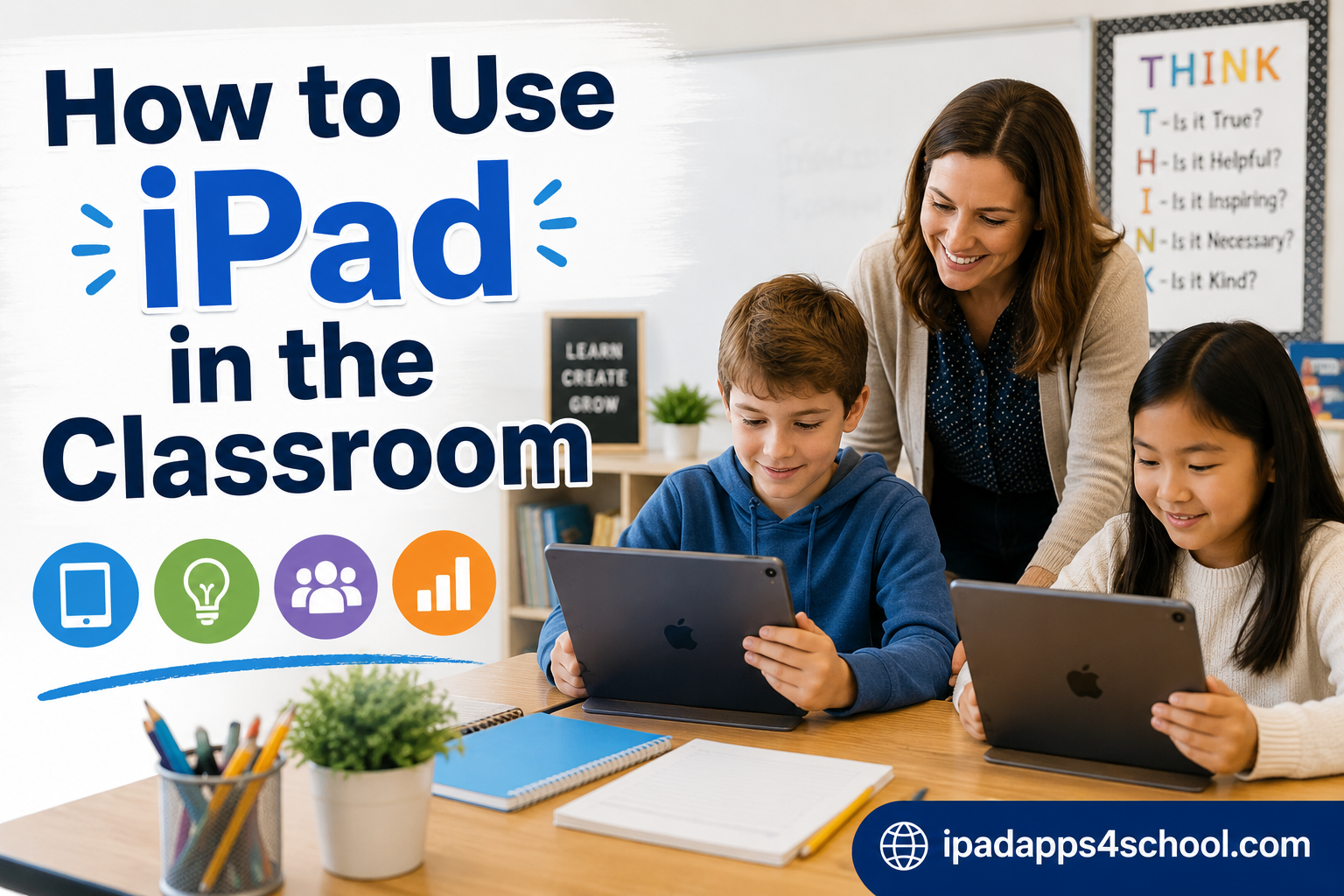
Walking into a classroom full of iPads can feel overwhelming at first. I remember my first day with 25 student iPads staring back at me, wondering where to even begin. After three years of integrating these devices into my daily teaching routine, I have learned that iPads are not just fancy distractions. They are powerful tools that can transform how students learn, research, and create.
Whether you are a new teacher getting your first classroom iPad or a veteran educator looking to maximize your existing devices, this guide will show you exactly how to use iPad in the classroom effectively. We will cover everything from research and note-taking to assessment and classroom management.
Table of Contents
How to Use iPad in the Classroom: 10 Practical Strategies
iPads can transform your classroom when used intentionally. Here are ten practical ways to integrate them into your teaching.
Research and Information Gathering
Students can use Safari to access a world of information right from their desks. Teach them to use tab groups to organize research by topic. This keeps their browser clean when working on multi-part projects.
Split View is a game-changer for research. Students can have a webpage open on one side and a notes app on the other. They copy key information and cite sources without losing their place. I have seen fourth graders master this workflow in just two class periods.
Screen recording lets students create tutorials for their peers. When a student figures out a math concept, they can record their screen while explaining it. These videos become a class library of student-created help resources.
Educational Apps and Learning Tools
The App Store offers thousands of educational apps designed specifically for classroom use. For math, apps like Prodigy and Khan Academy adapt to each student’s level. For language arts, Epic provides access to thousands of age-appropriate books.
STEM learning comes alive with coding apps like Swift Playgrounds. Students learn real programming concepts through puzzles and challenges. Science apps like Elements let students explore the periodic table with 3D models.
For language learning, Duolingo and Babbel integrate speaking practice with vocabulary building. Students can practice pronunciation without fear of judgment from peers. These apps also track progress, giving you data on student engagement.
Note-Taking and Documentation Strategies
Apple Pencil transforms iPad into a digital notebook. Students can write naturally while organizing notes in apps like Notability or GoodNotes. These apps sync across devices, so students never lose their work.
Voice Memos is perfect for quick documentation. Students record observations during science experiments or oral book reports. Teachers can use it to give verbal feedback on assignments, which many students find more personal than written comments.
Digital folders and tags help students organize by subject or project. Unlike paper notebooks, they can search handwritten notes for specific terms. This saves hours of flipping through pages when studying for tests.
Presentations and Student Projects
Keynote rivals PowerPoint with intuitive design tools. Students create presentations with animations, charts, and embedded videos. The collaboration feature lets groups work on the same presentation simultaneously from different iPads.
iMovie turns students into filmmakers. They can edit video projects with transitions, titles, and background music. I have had middle schoolers create documentaries on local history that rival professional productions.
GarageBand opens up music creation and podcasting. Students compose background scores for their videos or record class podcasts. Clips offers a simpler option for quick video projects with built-in stickers and captions.
Classroom Management with Apple Classroom
Apple Classroom is the secret weapon for managing student iPads. This free app lets you see every student screen, open specific apps on all devices, and even lock iPads to keep attention on you.
Setting Up Apple Classroom
Download Apple Classroom from the App Store and sign in with your school Apple ID. Create classes and invite students via Bluetooth or by having them enter a class code. Students need to accept the invitation from their devices.
Organize students into groups for differentiated instruction. You might have one group working on reading comprehension while another tackles math facts. Apple Classroom lets you push different apps to each group with a few taps.
The screen monitoring feature shows thumbnails of every student device. You can spot off-task behavior instantly without walking around the room. This keeps students focused and reduces the need for constant verbal reminders.
Distributing Assignments and Materials
AirDrop eliminates the need for paper handouts. Select your entire class in Apple Classroom and send PDFs, images, or links directly to their devices. Students receive a notification and can open materials immediately.
For larger files or ongoing assignments, use Shared iPad mode if your school has it configured. Students log in with their credentials and access their personal profile with saved work and settings.
Assessment and Testing on iPad
Digital assessment tools streamline the testing process. Apps like Socrative and Kahoot turn quizzes into games that students actually enjoy. You get instant results and can identify knowledge gaps before moving on.
The 3-2-1 Method for Quick Checks
The 3-2-1 method is a simple formative assessment technique. Ask students to write three things they learned, two things they found interesting, and one question they still have. Use a note-taking app or digital whiteboard for quick collection.
This method works for exit tickets at the end of class. Students submit their responses through a shared document or learning management system. You review them overnight and adjust tomorrow’s lesson based on what you learn.
Digital portfolios let students curate their best work throughout the year. They can include photos of hands-on projects, screenshots of digital work, and reflections on their learning. Parents love seeing concrete examples of student growth.
Video, Photography, and AR Experiences
iPad cameras document learning in ways traditional methods cannot. Students photograph science experiments, record oral history interviews, and create stop-motion animations. These visual records become powerful study tools.
Augmented reality apps bring abstract concepts into the classroom. Students can explore 3D models of the solar system, dissect virtual frogs, or walk through ancient Rome. These experiences create memorable learning moments that stick with students.
Virtual field trips expand classroom walls. Apps like Google Earth and Expeditions transport students to historical sites, museums, and natural wonders. When a real field trip is not possible, these digital alternatives keep students engaged.
Teacher Productivity Tips
Customize your home screen with widgets for calendar, reminders, and shortcuts. Set up different Focus modes for teaching, planning, and personal time. This reduces notification overload during instruction.
The Shortcuts app automates repetitive tasks. Create a shortcut that opens your attendance app, sets a timer for the lesson, and dims the lights via smart bulbs. Run it with one tap or a Siri command.
Manage shared devices with clear procedures. Label each iPad with a number and assign students to specific devices. Use a charging cart with numbered slots so students know exactly where to return devices.
Tips for Different Grade Levels
Elementary Students (K-5)
Young learners need structured iPad time with clear boundaries. Use Guided Access to lock them into one app for focused practice. Keep sessions short, around 15-20 minutes, to maintain attention.
Choose apps with visual instructions and minimal text. PBS Kids and Khan Academy Kids work well for this age group. Focus on creativity apps that let them draw, record their voices, and take simple photos.
Middle School Students (6-8)
Middle schoolers are ready for more independence. Teach them to research effectively and evaluate online sources. Introduce collaboration tools where they work together on projects from their individual devices.
This age group benefits from creation apps like iMovie and GarageBand. They can handle multi-step projects that span several class periods. Give them choices in how they demonstrate learning.
High School Students (9-12)
High school students can use iPads as their primary learning device. Teach them advanced features like split-screen multitasking, keyboard shortcuts, and productivity workflows. These skills transfer to college and career settings.
Encourage them to curate digital portfolios for college applications. Use professional-grade apps like Pages for papers, Numbers for data analysis, and Keynote for presentations. These mirror tools they will use in higher education.
FAQ
How can iPads be used in the classroom?
iPads can be used for research with Safari, educational apps for subject-specific learning, note-taking with Apple Pencil, creating presentations with Keynote, video projects with iMovie, assessments with digital tools, augmented reality experiences, and classroom management through the Apple Classroom app. They support both individual learning and collaborative projects.
What is the 3-2-1 method for teachers?
The 3-2-1 method is a formative assessment technique where students record three things they learned, two things they found interesting, and one question they still have. It works well as an exit ticket at the end of lessons and helps teachers gauge understanding quickly.
How do I set up Apple Classroom?
Download the Apple Classroom app and sign in with your school Apple ID. Create classes and invite students via Bluetooth or a class code. Students accept the invitation on their devices. You can then monitor screens, open apps remotely, and distribute materials to the entire class or specific groups.
What are some iPad tricks for teachers?
Use Split View to have two apps open side by side. Set up custom widgets for quick access to calendar and reminders. Create Shortcuts for repetitive tasks like taking attendance. Use Screen Recording to create tutorials for students. Enable Guided Access to lock students into one app during focused work time.
How do you manage distractions with classroom iPads?
Use Apple Classroom to monitor screens and lock devices when giving instructions. Set clear expectations before distributing iPads. Use Guided Access for younger students to keep them in one app. Establish a device collection routine that students follow consistently.
Conclusion
Learning how to use iPad in the classroom takes time, but the payoff is worth the effort. Start with one or two strategies from this guide and build your confidence gradually. You do not need to master every feature immediately.
Remember that iPads are tools to support learning, not replace good teaching. The technology works best when paired with clear learning objectives and thoughtful lesson design. Your students will benefit from the interactive experiences, personalized learning, and digital literacy skills these devices provide.
Begin your iPad integration journey today by setting up Apple Classroom or trying one new app with your students. Small steps lead to big transformations in how you teach and how your students learn.