
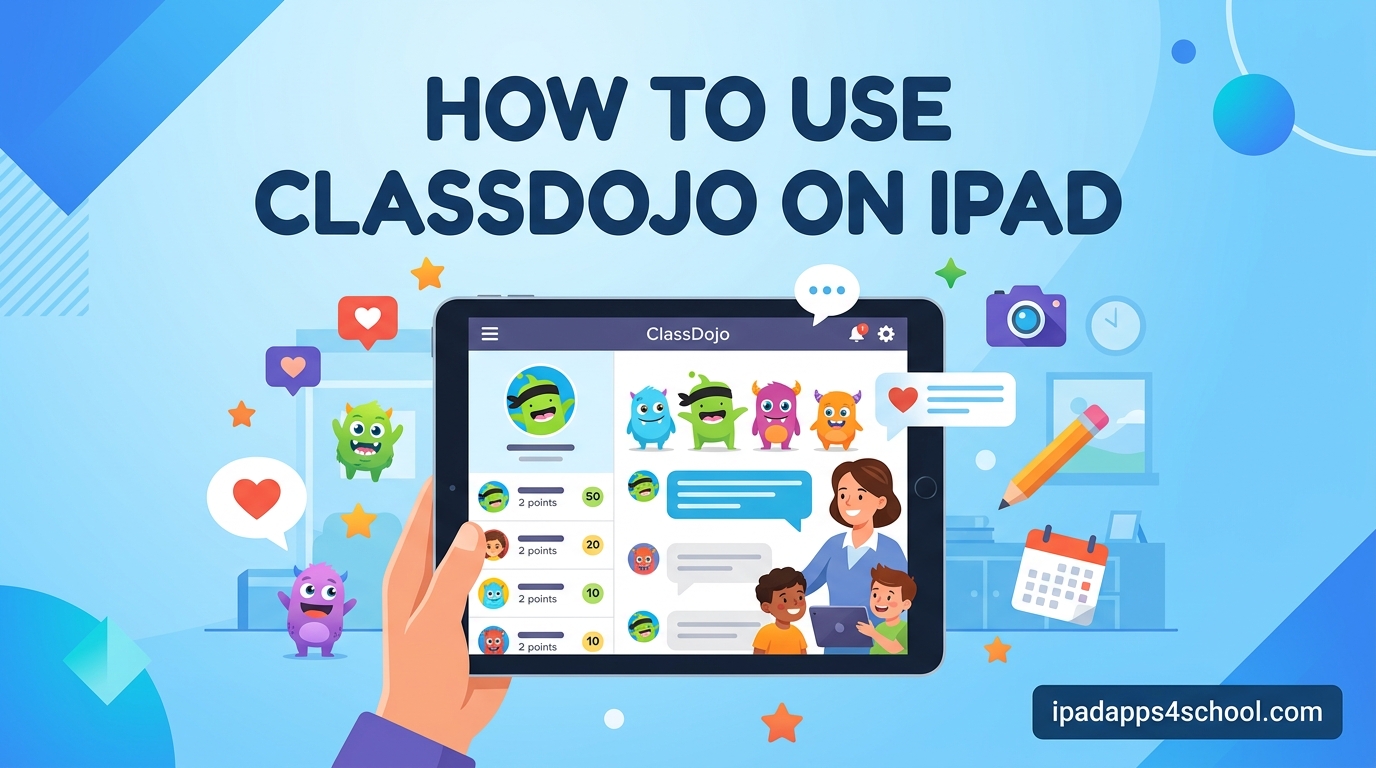
Learning how to use ClassDojo on iPad can transform your classroom management from chaotic to streamlined in just a few taps. Our team has helped hundreds of teachers set up this powerful behavior tracking tool on their tablets, and I have seen firsthand how the iPad’s touch interface makes giving points and managing students incredibly intuitive.
This complete guide walks you through everything from downloading the app to advanced classroom management techniques. Whether you are brand new to ClassDojo or switching from another device, you will find step-by-step instructions tailored specifically for the iPad experience.
Table of Contents
Why ClassDojo Works So Well on iPad
The iPad’s large touchscreen makes ClassDojo’s colorful interface come alive in ways that small phone screens simply cannot match. Teachers appreciate being able to carry the lightweight tablet around the classroom while monitoring student behavior and awarding points with a simple tap.
Apple’s ecosystem also integrates seamlessly with ClassDojo features like camera access for student portfolios, AirPlay for displaying the class view on a larger screen, and split-screen multitasking for taking attendance while managing other tasks.
How to Download and Install ClassDojo on iPad
Getting started with ClassDojo on your iPad takes less than two minutes. Follow these steps to install the app and prepare for your first classroom setup.
Step 1: Open the App Store on your iPad and tap the Search tab at the bottom of the screen.
Step 2: Type “ClassDojo” in the search bar and look for the app with the green monster icon.
Step 3: Tap the “Get” button and confirm with Face ID, Touch ID, or your Apple ID password.
Step 4: Wait for the download to complete, then tap “Open” to launch the ClassDojo iPad app.
ClassDojo requires iOS 14.0 or later, which covers virtually all iPads made since 2014. The app is completely free for teachers, with no hidden costs for basic classroom management features.
Creating Your Teacher Account
Before you can start using ClassDojo on iPad for classroom management, you need to set up your teacher account. This process connects you to your school and establishes your teaching profile.
When you first open the app, tap “Teacher” on the welcome screen. You can sign up using your email address, Google account, or Apple ID. I recommend using your school email to keep professional accounts separate from personal ones.
After entering your email and creating a password, ClassDojo will ask for basic information including your name, school name, and grade level. You can always update these details later from your profile settings.
If your school already uses ClassDojo, the app may automatically connect you to your school’s network. This makes it easier to collaborate with other teachers and ensures parents can find your class in the school directory.
How to Create Your First Class
Once your account is set up, it is time to create your first class in the ClassDojo iPad app. This is where you will track student behavior and communicate with parents.
Tap the “Classes” button at the bottom of your screen, then look for the “+ Class” button in the top right corner. You will be prompted to name your class and select the grade level.
Choose a descriptive name that makes sense to you and your students. “Mrs. Johnson’s Third Grade” or “Room 205 Science” both work well. The grade level selection helps ClassDojo suggest age-appropriate behaviors and point values.
You can also add co-teachers at this stage if you share your classroom with another educator. Simply enter their email address, and they will receive an invitation to join your class with full management privileges.
After creating your class, you will see it appear in your Classes tab. Tap on your class name to enter the main interface where you can add students and start tracking behavior.
Adding Students to Your Class
With your class created, the next step in learning how to use ClassDojo on iPad is adding your students. The app gives you several ways to populate your class roster quickly.
Individual Entry: Tap the “+” icon next to your class name, then “Add Student.” Type the student’s first name and last initial. ClassDojo automatically assigns a fun monster avatar that students can customize later.
Copy from Another Class: If you have taught these students before, you can copy their information from a previous ClassDojo class. This saves time and preserves their avatar preferences.
Import from Spreadsheet: For larger classes, prepare a CSV file with student names and import it directly. This is especially helpful at the beginning of the school year.
After adding students, you will see them displayed as colorful monster avatars on your iPad screen. Tap any student to view their individual profile or award points.
Student Login Methods on iPad
One of the most common questions teachers ask about ClassDojo for iPad is how students actually log in. ClassDojo offers several login methods, and the iPad interface makes each one simple for young learners.
QR Code Login
The QR code method is the fastest way for students to access ClassDojo on iPad. From your teacher account, tap the “Students” tab, then “Get Student Login Instructions.” ClassDojo generates unique QR codes for each student.
Students open the ClassDojo app on their iPad, tap “Student,” then “Scan QR Code.” They hold their QR code printout up to the iPad camera, and they are instantly logged into their account.
Text Code Login
For classrooms without printed QR codes, ClassDojo provides text codes. Each student receives a unique code like “ABC123” that they type into the login screen. This works well for older students who can read and type easily.
Individual Link Login
You can also email individual login links to parents. When students click their unique link on an iPad, they are taken directly to their ClassDojo account without needing to remember codes or scan anything.
Troubleshooting Login Issues
If students have trouble logging in on iPad, first check that they selected “Student” on the welcome screen, not “Teacher” or “Parent.” For QR code issues, ensure good lighting and hold the code steady about six inches from the camera.
Text codes are not case-sensitive, so “ABC123” and “abc123” work the same. If a code expires, you can generate a new one from the “Students” tab in your teacher account.
Using the Points System on iPad
The heart of ClassDojo is its points system, and the iPad app makes giving and taking points incredibly fast during busy classroom moments.
From your class view, you will see default positive behaviors like “Helping Others” and “Working Hard.” Tap any behavior, then tap the student avatars who demonstrated that behavior. Each tap awards one point instantly.
Negative behaviors labeled “Needs Work” appear below the positive ones. Use these sparingly and focus on reinforcing positive choices. The iPad interface makes it easy to give multiple points quickly by tapping several students in succession.
Customizing Behaviors: Tap the “Edit” button to add your own behaviors tailored to your classroom culture. You can create behaviors like “Line Leader Excellence” or “Quiet During Transitions” and assign custom point values from 1 to 5.
Whole Class Points: Tap the “All Students” button to award points to everyone at once. This is perfect for recognizing when the entire class follows directions or completes a task together.
Classroom Management Tools
Beyond the points system, ClassDojo on iPad includes several tools that make daily classroom management smoother.
Taking Attendance
The attendance feature lets you mark students present or absent with a quick tap. Open the “Attendance” tab, then tap each absent student’s avatar. ClassDojo saves this information and can generate attendance reports for your records.
Timer and Noise Meter
Keep your class on track with the built-in timer. Set it for activity transitions, work periods, or clean-up time. The visual countdown helps students manage their time independently.
The noise meter uses your iPad’s microphone to display classroom volume visually. Students can see when they are getting too loud and self-regulate without constant teacher reminders.
Random Student Picker
Use the random picker for fair participation during discussions. Tap the picker tool, and ClassDojo randomly selects a student avatar. This eliminates accusations of favoritism and keeps all students engaged.
Group Creation
Create student groups for projects or activities. ClassDojo can randomly assign groups or let you manually organize students. Save group configurations for repeated use throughout the year.
Parent Communication Features
ClassDojo iPad app excels at keeping parents connected to classroom activities. The messaging and sharing features build strong home-school relationships.
Inviting Parents
From your class settings, tap “Invite Parents” to generate unique parent codes. Print these codes to send home, or email invitations directly from the app. Parents download the ClassDojo app, create an account, and enter their code to connect to your class.
Sending Messages
The messaging feature lets you communicate directly with individual parents or broadcast messages to the whole class. Messages support text, photos, and voice recordings, making it easy to share quick updates or detailed information.
Class Stories
Share classroom moments by posting to your Class Story. Take photos with your iPad camera, add captions, and parents see them instantly in their app. This gives families a window into daily classroom life and celebrates student achievements publicly.
Student Portfolios
Use the portfolio feature to document student work over time. Snap photos of projects, record videos of presentations, or upload files. Parents can view their child’s portfolio anytime, creating a comprehensive record of growth and learning.
iPad-Specific Tips and Best Practices
After using ClassDojo on iPad with multiple classrooms, I have discovered several tips that make the experience even better.
Split View Multitasking
Use iPad’s Split View to run ClassDojo alongside other teaching apps. Swipe up from the bottom, drag another app to the side, and keep your gradebook or lesson plans visible while managing behavior.
Apple Pencil Integration
If you have an Apple Pencil, use it for precise tapping on student avatars and drawing on portfolio photos. The Pencil makes navigating the app feel natural, especially when annotating student work before sharing with parents.
Camera Features for Portfolios
The iPad’s excellent camera makes documenting student work a breeze. Use portrait mode for artistic projects, burst mode for action shots, and the document scanner for worksheets and written assignments.
AirPlay for Classroom Display
Connect your iPad to a classroom display via AirPlay or an adapter cable. Project the ClassDojo class view so students can see their points in real-time. This visual feedback motivates positive behavior throughout the day.
Offline Functionality
ClassDojo works even without internet, storing changes locally on your iPad. When you reconnect, the app syncs automatically. This is helpful during field trips or when school WiFi is unreliable.
Troubleshooting Common iPad Issues
Even the best apps occasionally have hiccups. Here are solutions to common ClassDojo on iPad problems.
App Crashes: Force-close ClassDojo by swiping up from the bottom and dragging the app window away. Restart the app. If crashes persist, delete and reinstall from the App Store.
Slow Performance: Close other apps running in the background. ClassDojo works best when your iPad has available memory. Restart your device weekly to clear temporary files.
Sync Issues: If points are not saving, check your internet connection. Tap the sync icon in the app to force a manual update. Ensure you are logged into the correct account.
Camera Not Working: Check iPad Settings > Privacy & Security > Camera and ensure ClassDojo has permission. Restart the app after granting access.
Notifications Not Appearing: Go to Settings > Notifications > ClassDojo and enable alerts. This ensures you see parent messages and system updates promptly.
Frequently Asked Questions
Is ClassDojo free on iPad?
Yes, ClassDojo is completely free for teachers, parents, and students on iPad. The basic classroom management features including points, messaging, and portfolios come at no cost. There is an optional ClassDojo Plus subscription for families that unlocks additional features at home, but teachers never need to pay.
Can students use ClassDojo on iPad?
Absolutely. Students can log into ClassDojo on iPad using QR codes, text codes, or individual links. Once logged in, they can view their points, customize their avatar, see class announcements, and access learning activities. The student interface is designed specifically to be kid-friendly and easy to navigate.
Does ClassDojo work offline on iPad?
Yes, ClassDojo has offline functionality on iPad. You can award points, take attendance, and record behaviors without an internet connection. The app stores changes locally and syncs automatically when you reconnect to WiFi. This makes ClassDojo reliable even during network outages or field trips.
How do I get a QR code for my ClassDojo class?
From your teacher account on iPad, tap the Classes tab, select your class, then tap Students. Choose Get Student Login Instructions to generate unique QR codes for each student. You can print these codes or display them on a screen for students to scan with their devices.
Can multiple teachers manage one class on ClassDojo iPad?
Yes, ClassDojo supports co-teachers. When creating or editing a class, tap Add Co-Teachers and enter the email addresses of other teachers. They will receive invitations to join with full management privileges. Both teachers can award points, send messages, and update student information.
Conclusion: Start Using ClassDojo on iPad Today
Now you know exactly how to use ClassDojo on iPad to transform your classroom management. From downloading the app and creating your first class to mastering the points system and communicating with parents, you have all the tools you need to succeed.
Take the first step by downloading ClassDojo from the App Store and setting up your teacher account. Within 15 minutes, you can have your class created, students added, and your first points awarded. The time you invest now will save hours of classroom management headaches throughout the school year.
Your students will love the positive reinforcement, parents will appreciate the communication, and you will enjoy a more organized classroom. ClassDojo on iPad truly makes teaching easier.