
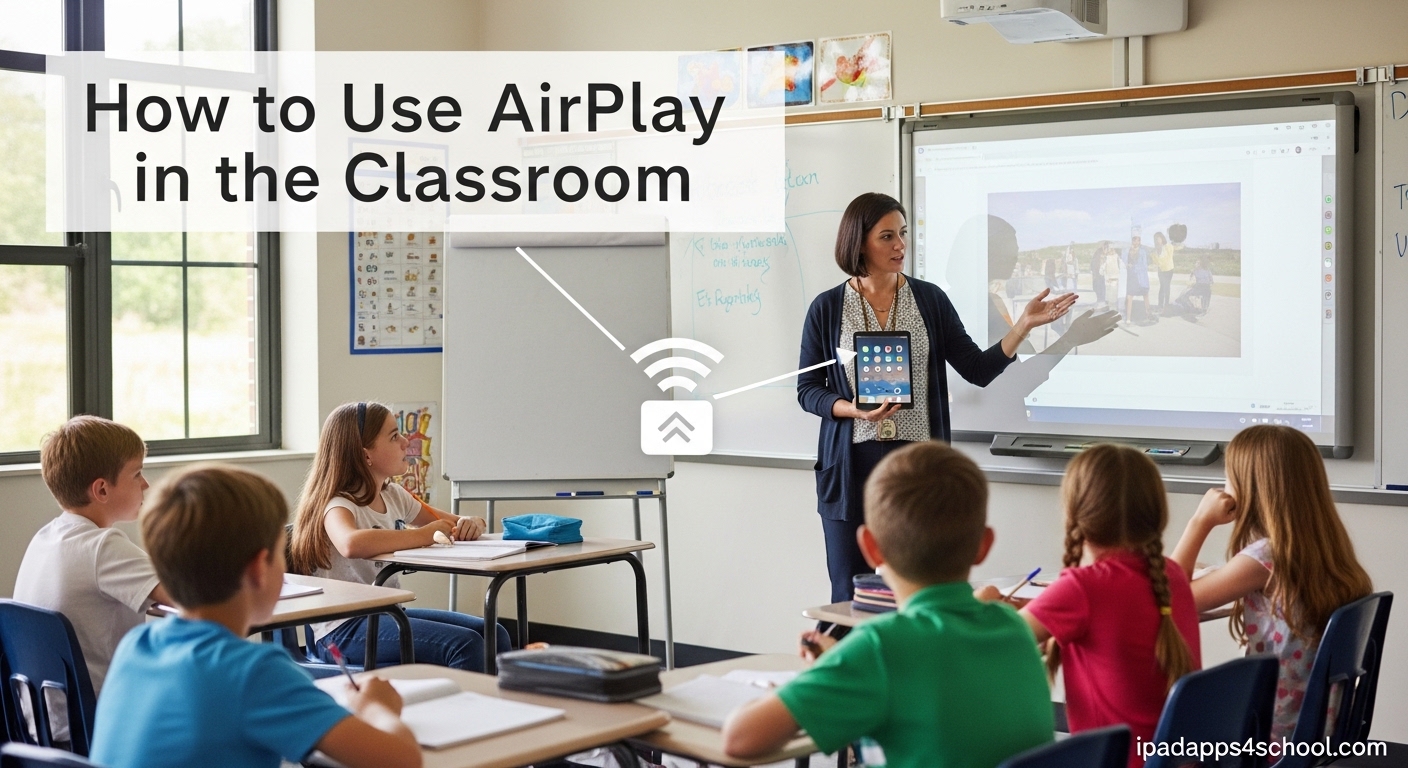
AirPlay has become one of the most valuable tools in my teaching toolkit over the past few years. Being able to wirelessly share my iPad screen with the entire class has transformed how I present lessons, demonstrate apps, and showcase student work.
In this guide, I will walk you through everything you need to know about how to use AirPlay in the classroom. You will learn how to set up your devices, connect seamlessly to Apple TV, and discover practical teaching strategies that make the most of wireless screen mirroring.
Table of Contents
How to Use AirPlay in the Classroom: Complete Guide
AirPlay is Apple’s wireless streaming technology that lets you mirror your device screen to an Apple TV or compatible display. For teachers, this means you can walk around the classroom with your iPad while your screen appears on the big display at the front of the room.
No more being tethered to your desk or fumbling with HDMI cables. With AirPlay, you can demonstrate apps, share student work, play educational videos, and even use your device as a portable document camera.
What Is AirPlay and How Does It Work in Classrooms?
AirPlay uses your school’s WiFi network to create a wireless connection between your Apple device and an Apple TV. When you enable screen mirroring, everything on your iPad, iPhone, or Mac screen appears instantly on the classroom display.
The technology works through a combination of WiFi and Bluetooth protocols. Your device discovers the Apple TV on the same network, establishes a secure connection, and then streams both video and audio in real-time. Most modern Apple devices support AirPlay 2, which offers improved performance and stability over older versions.
For educators, the key benefit is freedom of movement. You can stand anywhere in the room, pass your iPad to students for demonstrations, or sit with a small group while still controlling what appears on the main screen. This flexibility makes lessons more dynamic and engaging.
What You Need to Get Started
Before you start using AirPlay in your classroom, you will need a few pieces of equipment. The good news is that most schools already have the basics in place.
- Apple TV (4th generation or later) – This connects to your classroom display via HDMI and receives the AirPlay signal.
- Compatible Apple device – iPad (2nd generation or later), iPhone (4S or later), or Mac (2011 or later).
- School WiFi network – Both your device and the Apple TV must connect to the same network.
- Classroom display – A projector, TV, or interactive whiteboard with HDMI input.
Your IT department may need to configure the Apple TV for the school’s network. This often involves registering the device on the network and potentially setting up security restrictions. I recommend checking with your tech coordinator before your first use.
How to Connect Your iPad to Apple TV via AirPlay
Connecting your iPad to the classroom Apple TV takes just a few seconds once you know the steps. Here is the exact process I use every day.
Step 1: Access Control Center
Swipe down from the top-right corner of your iPad screen to open Control Center. On older iPads with a home button, swipe up from the bottom of the screen instead.
Step 2: Tap Screen Mirroring
Look for the Screen Mirroring button, which looks like two overlapping rectangles. Tap it to see a list of available AirPlay devices on your network.
Step 3: Select Your Classroom Apple TV
Tap the name of your classroom’s Apple TV from the list. If your school has multiple Apple TVs, the name might include your room number (like “Room 205 Apple TV”).
Step 4: Enter the AirPlay Password (If Required)
Many schools require a password to prevent unauthorized connections. The password appears on the screen connected to the Apple TV. Enter this code on your iPad when prompted.
Step 5: Start Teaching
Your iPad screen now appears on the classroom display. Everything you do, your students can see. Open apps, draw on whiteboards, play videos, or showcase student work.
To stop mirroring, return to Control Center, tap Screen Mirroring, then tap Stop Mirroring.
How to Use AirPlay from iPhone in the Classroom
iPhone works almost identically to iPad for AirPlay connections. The process is the same, though the smaller screen size makes iPhones better suited for quick demonstrations rather than extended lessons.
I often use my iPhone for spontaneous moments when I want to show something quickly without walking back to my desk. The steps mirror exactly what you do on iPad.
- Swipe down from the top-right corner to open Control Center.
- Tap Screen Mirroring (the overlapping rectangles icon).
- Select your classroom Apple TV from the available devices.
- Enter the password if your school requires one.
The iPhone works particularly well for showing photos, quick app demonstrations, or when you want to walk around the room while still projecting to the class. Some teachers also use iPhone AirPlay for student presentations when a student wants to share something from their personal device.
AirPlay from MacBook: Teacher’s Guide
MacBook offers the most robust AirPlay experience for teachers who prefer laptop-based instruction. The larger screen real estate and keyboard shortcuts make it ideal for presentations, document editing, and web browsing.
Method 1: Menu Bar AirPlay Icon
Look for the AirPlay icon in your Mac’s menu bar at the top of the screen. It looks like a rectangle with a triangle at the bottom. Click it, select your classroom Apple TV, and your Mac screen appears on the display.
Method 2: System Preferences
Click the Apple menu, then System Preferences (or System Settings on macOS Ventura and later). Select Displays, then look for the AirPlay Display menu. Choose your classroom Apple TV from the dropdown.
Method 3: Mirror vs. Extended Display
Mac offers two modes: Mirror Display (shows exactly what is on your Mac) and Extended Desktop (uses the Apple TV as a second screen). For teaching, Mirror Display works best so students see what you see.
To switch modes, open System Preferences > Displays and look for the “Mirror Displays” checkbox. Check it to mirror, uncheck it to extend.
Creative Ways to Use AirPlay for Teaching
Once you master the technical setup, the real magic happens in how you use AirPlay to enhance instruction. Here are the most effective teaching strategies I have discovered.
Portable Whiteboard
Apps like Explain Everything or native Markup tools turn your iPad into a wireless whiteboard. Walk around the room while writing, solving math problems, or annotating documents. Students see everything on the main display while you interact with them directly.
Mobile Document Camera
Point your iPad camera at a book, worksheet, or student project. The image appears instantly on the classroom screen. This works for showing science experiments up close, displaying physical artwork, or examining text together as a class. I use this daily during reading instruction.
Student Work Showcase
When a student creates something exceptional, have them AirPlay from their own device to share with the class. This builds confidence and provides authentic peer learning opportunities. Students love seeing their work on the big screen.
Group Presentations
Small groups can prepare presentations on iPads and then AirPlay to present to the class. This eliminates the need for students to email files or transfer work to a central computer. Each group simply connects when it is their turn.
Interactive App Demonstrations
When introducing a new app to students, AirPlay lets you demonstrate features while maintaining eye contact with your class. You can hand the iPad to a student volunteer to try features while the class watches the main screen.
Video and Media Streaming
Play educational videos, show YouTube clips, or stream content from any app. The audio plays through the Apple TV or connected speakers, creating a theater-like experience for video-based lessons.
Managing AirPlay Security in Shared Classrooms
One concern many teachers raise involves students attempting to connect to the classroom Apple TV. Nothing disrupts a lesson quite like a student taking over the screen unexpectedly.
Password Protection
The simplest protection is requiring a password for AirPlay connections. This password appears on the screen when someone attempts to connect. Without seeing the classroom display, students cannot know the current password.
To set this up, go to Apple TV Settings > AirPlay and HomeKit > Allow Access. Choose “Anyone” with the “Password” option enabled. Your IT department may need to configure this for school-managed devices.
Apple Classroom Integration
Apple Classroom is a separate app that works alongside AirPlay. It allows teachers to manage student devices, view screens remotely, and control which apps students can use. While not directly related to AirPlay, it provides classroom management tools that complement wireless projection.
With Apple Classroom, you can lock students into specific apps during tests or monitor their screens during independent work. This reduces the temptation to misuse AirPlay during instruction.
Network Segmentation
Many school IT departments create separate WiFi networks for teachers and students. By keeping classroom Apple TVs on the teacher network, students cannot even see the devices as available AirPlay targets. This is the most secure approach for large deployments.
Troubleshooting Common AirPlay Issues
Even the best technology sometimes needs troubleshooting. Here are the problems I encounter most frequently and the solutions that work.
AirPlay Not Showing Up in Control Center
If you do not see the Screen Mirroring button, first check that WiFi is enabled. Swipe into Control Center and verify the WiFi icon is blue and connected.
Next, confirm your device and Apple TV share the same WiFi network. Some schools have multiple networks (teacher, student, guest). If they are on different networks, AirPlay will not work.
Try toggling WiFi off and back on. This refreshes the network connection and often resolves discovery issues.
Connection Drops Frequently
Intermittent connections usually indicate network congestion or weak WiFi signal. Check if other teachers are experiencing similar issues. If so, your IT department may need to optimize the WiFi in your area.
Moving closer to the WiFi access point can help. Also, ensure the Apple TV has a strong network connection by checking Settings > Network on the device itself.
Apple TV Not Appearing on School WiFi
If the Apple TV does not appear as an option, verify it is powered on and connected to the correct WiFi network. Check the Apple TV Settings > Network menu to confirm the connection.
Some schools require MAC address registration for new devices. Your IT department may need to register the Apple TV on the network before it can communicate with teacher devices.
Audio Not Working with Screen Mirroring
When video plays on screen but sound comes from your device instead of classroom speakers, check the audio output settings. On iPad, tap the AirPlay icon in the app you are using and ensure the Apple TV is selected for audio.
On Mac, click the volume icon in the menu bar and select the Apple TV as the output device.
Lag or Delay Between Device and Screen
Some delay is normal with wireless projection, but excessive lag indicates network issues. Close unnecessary apps on your device to free up processing power. Restart both your device and the Apple TV if lag persists.
For the best performance, keep your device within reasonable range of the WiFi access point and avoid having multiple video streams running simultaneously.
Windows Devices and AirPlay
AirPlay is an Apple technology, but Windows users are not left out. Third-party software like AirParrot allows Windows laptops to connect to Apple TV. Your IT department can install this software on school Windows devices.
AirServer is another alternative that runs on a computer connected to your classroom display, turning that computer into an AirPlay receiver. This eliminates the need for Apple TV entirely, though it requires a software license.
FAQ
Can you AirPlay the class?
Yes, teachers can use AirPlay to share content with the entire class by connecting their iPad, iPhone, or Mac to a classroom Apple TV. This allows the whole class to see the teacher’s screen on the main display, making it ideal for lessons, demonstrations, and presentations.
How to use an Apple TV in the classroom?
Connect the Apple TV to your classroom display via HDMI and to your school’s WiFi network. Teachers and students can then use AirPlay to wirelessly mirror their device screens to the Apple TV. The Apple TV should be configured with password protection to prevent unauthorized access during class.
How to share screen on classroom?
To share your screen in the classroom, open Control Center on your iPad or iPhone, tap Screen Mirroring, and select the classroom Apple TV. On Mac, click the AirPlay icon in the menu bar and choose the Apple TV. Enter the password if required, and your screen will appear on the classroom display.
How to AirPlay on school WiFi?
Ensure both your device and the Apple TV connect to the same school WiFi network. Open Control Center, tap Screen Mirroring, and select the Apple TV. If your school uses network segmentation, you may need to connect to the teacher-specific network. Contact your IT department if the Apple TV does not appear as an option.
How do I stop students from taking over AirPlay?
Enable password protection on the Apple TV through Settings > AirPlay and HomeKit > Allow Access. This requires users to enter a code displayed on the screen before connecting. For additional security, ask your IT department to place Apple TVs on a separate teacher-only network that students cannot access.
Can Windows devices use AirPlay?
Windows devices do not natively support AirPlay, but third-party software like AirParrot enables Windows laptops to connect to Apple TV. Alternatively, AirServer software can run on a classroom computer to receive AirPlay connections without needing an Apple TV device.
Conclusion
AirPlay transforms classroom technology from a static tool into a dynamic teaching assistant. By wirelessly connecting your iPad, iPhone, or Mac to your classroom display, you gain the freedom to move, interact with students, and present content in engaging ways.
Start with the basics: connect to your classroom Apple TV, practice the steps until they become automatic, then experiment with the teaching strategies outlined in this guide. Your first few attempts might feel awkward, but within a week, wireless projection will feel as natural as using a whiteboard.
How to use AirPlay in the classroom comes down to three things: the right equipment, a solid WiFi connection, and willingness to step away from the front of the room. Master these elements, and you will discover new ways to engage your students every day.