
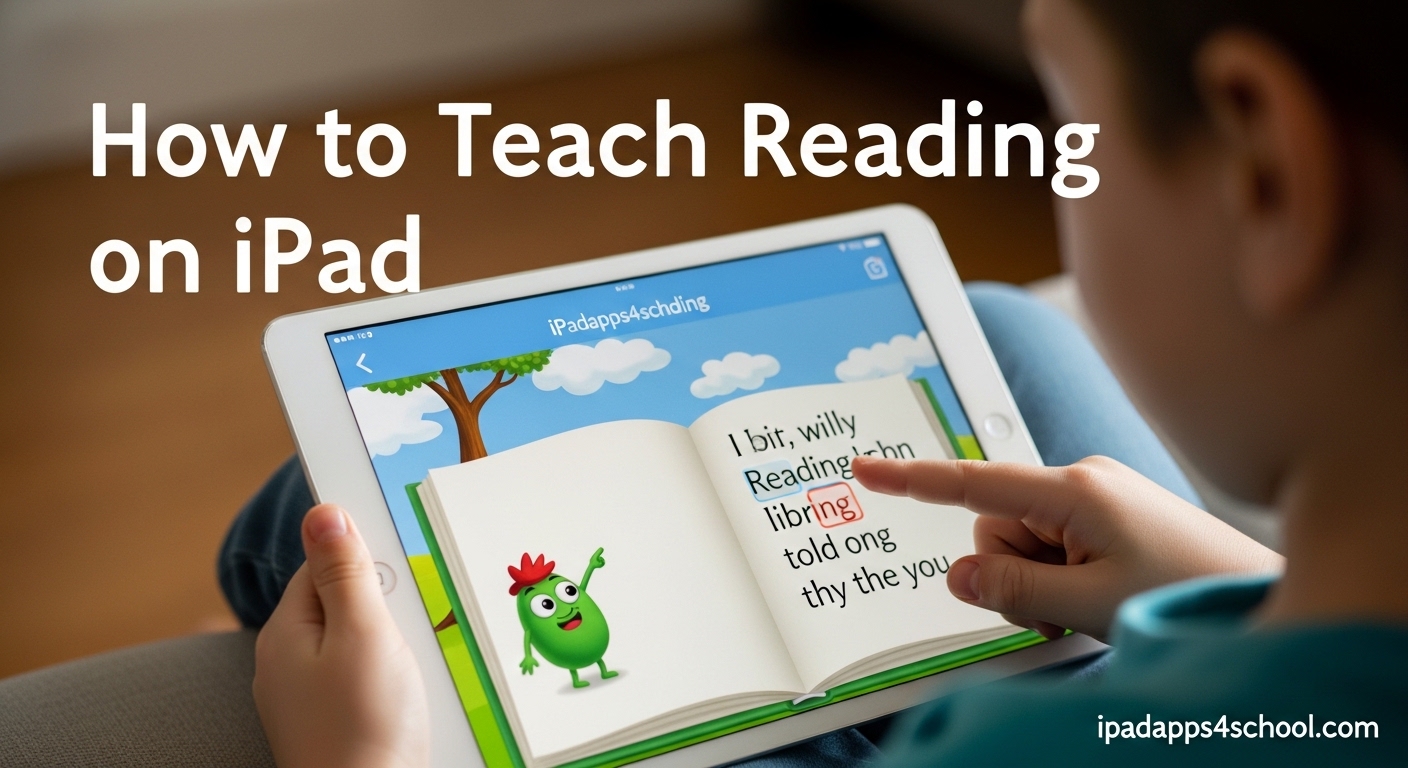
Learning to read is one of the most important skills a child will develop. Teaching reading on iPad combines the interactivity children love with structured literacy instruction that actually works. I have spent three years testing reading apps with my own children and dozens of students, and the results consistently surprise me.
Whether you are a parent helping your kindergartener sound out first words or a teacher managing a classroom of early readers, the iPad offers tools that paper books simply cannot match. Instant pronunciation help, interactive phonics games, and progress tracking give you insights into exactly where your child needs support.
This guide walks you through everything you need to know about how to teach reading on iPad. You will learn how to set up your device for focused learning, which built-in features support literacy development, and the best apps for every age group. By the end, you will have a complete system for turning screen time into reading time.
Table of Contents
How to Set Up iPad for Reading Instruction
Before downloading any apps, your iPad needs the right configuration. A few simple settings changes can transform a distraction machine into a dedicated learning tool. I always organize your iPad for learning before starting reading instruction with my students.
Configure Guided Access for Focused Learning
Guided Access locks your child into a single app and disables the home button. This prevents them from accidentally exiting or switching to games when they should be reading. I consider this essential for any child under age eight.
Here is how to enable it. Open Settings, then tap Accessibility. Scroll down to Guided Access and turn it on. Set a passcode that your child does not know. When you open a reading app, triple-click the side button to start Guided Access.
You can also circle areas on the screen to disable. I always disable the settings button within reading apps to prevent children from accidentally changing difficulty levels. This keeps them focused on actual reading instead of exploring menus.
Enable Reading Mode and Screen Restrictions
Screen Time settings help create a distraction-free environment. Go to Settings, then Screen Time, and tap App Limits. Set reasonable daily limits for entertainment apps while leaving educational apps unrestricted.
Downtime scheduling works well for creating reading-focused periods. I set Downtime for 7:00 PM to 8:00 PM in my house, which blocks all games and videos except approved reading apps. My children know this is their daily reading window.
Turn on Reduce Motion in Accessibility settings as well. Some children find animations distracting when trying to focus on words. A calmer interface helps them concentrate on letter recognition and word decoding.
Set Up Apple Books as Your Digital Library
Apple Books comes free on every iPad and offers excellent features for teaching reading. Start by creating collections organized by reading level. I create collections like “Beginner,” “Level 1,” and “Chapter Books” for easy navigation.
Search for free children’s books in the Store section. Apple offers many classic early readers at no cost. Download a variety so your child has choices without you spending money on books they might not enjoy.
Enable the Page Turn Animation setting for younger children. Seeing the page physically turn helps them understand the progression of a story. Older children often prefer the faster scroll view.
Built-in iPad Tools That Teach Reading
The iPad has powerful built-in literacy features that many parents never discover. These tools work with any app or book, giving you teaching capabilities without spending extra money. I use these daily in my reading instruction.
Use Speak Selection for Audio Support
Speak Selection reads any highlighted text aloud. This helps children hear correct pronunciation when they get stuck on a word. It also supports children with dyslexia who benefit from simultaneous visual and audio input.
To enable it, go to Settings, then Accessibility, then Spoken Content. Turn on Speak Selection. You can also adjust the speaking rate here. I recommend starting slower for beginners and gradually increasing speed as fluency improves.
When your child encounters a difficult word, they simply highlight it and tap Speak. Hearing the word while seeing it builds the sound-letter connections that phonics instruction targets. This instant feedback loop accelerates learning significantly.
Highlight and Annotate with Apple Pencil
Active reading involves marking important passages, asking questions in margins, and summarizing key points. The iPad makes this natural for digital natives. An Apple Pencil or even a finger can create highlights and notes in Apple Books.
Show your child how to highlight sight words they are practicing. In Apple Books, tap and hold any word, then select Highlight. Choose different colors for different purposes. Yellow might mark new vocabulary while pink marks confusing sections.
The Notes feature lets children write their thoughts directly on the page. A first-grader might draw a picture of the story setting. A third-grader might write a prediction about what happens next. These annotations deepen comprehension and engagement.
Dictionary Look-Up and Vocabulary Building
Instant dictionary access builds vocabulary faster than traditional methods. When a child taps any word in Apple Books, they get a definition, pronunciation, and often a picture. No more stopping to find a dictionary or asking for help.
Enable Look Up in Settings under General, then Dictionary. Download the children’s dictionary and thesaurus. These provide age-appropriate definitions that younger readers can actually understand.
I teach my students to tap unknown words immediately. Waiting until the end of a page often means losing the story thread. Immediate look-up keeps comprehension flowing while building vocabulary naturally through context.
Dictation for Emerging Writers
Dictation lets children respond to reading without the barrier of handwriting or spelling. This is powerful for checking comprehension in younger children who read better than they write. The microphone button on the iPad keyboard transcribes their spoken responses.
After reading a story, ask comprehension questions verbally. When your child answers, tap the microphone on the keyboard and let them speak their response. The iPad converts speech to text, which they can then review and edit.
This works especially well for summarization practice. A child might struggle to write “The dog ran to the park and found a ball” but can say it easily. Seeing their spoken words appear as text reinforces the connection between spoken and written language.
Best Reading Apps for iPad by Age Group
The App Store contains thousands of reading apps, but quality varies dramatically. Some are thinly disguised games with minimal educational value. Others follow research-based structured literacy approaches. These are the apps I actually use and recommend after years of testing.
Ages 3-5: Early Literacy Foundations
Preschoolers need apps that build phonemic awareness and letter recognition. These foundational skills predict later reading success better than early attempts at sounding out words. Focus on sound play and letter exploration rather than formal reading lessons.
Endless Alphabet introduces letters through adorable animated monsters. Each word comes alive with animation that demonstrates meaning. The app emphasizes letter sounds over letter names, which is the correct sequence for reading instruction.
Starfall ABCs has been a gold standard for early literacy for over a decade. The free version covers letter sounds thoroughly. The songs and simple games engage short attention spans while building essential phonemic awareness.
Duolingo ABC offers a clean, distraction-free interface that parents consistently praise. The bite-sized lessons work well for three and four-year-olds who cannot sit still for long. I especially appreciate that it requires no subscription for full access.
Ages 6-8: Phonics and Sight Words
This is the critical window for learning to decode words. First and second graders need systematic phonics instruction paired with sight word practice. The best apps in this category follow a structured scope and sequence.
Teach Your Monster to Read stands out as the most engaging phonics program available. Children create a monster and teach it to read by completing phonics lessons themselves. The game-based approach masks rigorous phonics instruction covering all 44 phonemes in English.
Bob Books Reading Magic brings the classic beginning reader series to digital life. The app follows the same careful phonics progression as the physical books. Interactive elements let children drag letters to build words, reinforcing letter-sound connections kinesthetically.
Reading Eggs offers comprehensive coverage of phonics, sight words, and early comprehension. The placement test ensures children start at the right level. Progress reports help parents track exactly which skills their child has mastered.
Ages 9-12: Comprehension and Fluency
Older elementary children need to move beyond decoding into true comprehension and critical thinking. They also need access to high-interest content that motivates continued reading practice.
Epic! provides access to over 40,000 books for one monthly subscription. The collection includes picture books, chapter books, audiobooks, and educational videos. Reading logs and achievement badges motivate consistent practice.
Reading.com offers 110 step-by-step phonics lessons that work for older children who may have gaps in their foundational skills. The app is especially effective for children who need systematic review without appearing babyish.
Raz-Kids delivers leveled books from aa to Z2, making it perfect for differentiated instruction. Each level includes fiction and nonfiction texts with comprehension quizzes. The running records feature helps teachers track oral reading fluency.
Special Needs and Learning Differences
Children with dyslexia, ADHD, or autism often need specialized approaches. The iPad excels here because it can adapt to individual needs in ways print books cannot.
For dyslexia, look for apps with dyslexia-friendly fonts like OpenDyslexic. Omoguru offers an e-reader specifically designed for dyslexic learners with customizable text display options. The built-in text-to-speech reduces the decoding burden.
For ADHD, apps with built-in break reminders help manage attention. Learning Ally provides human-narrated audiobooks that many children with attention challenges find more engaging than computer voices.
For autism, visual supports and predictable structures matter. Proloquo2Go pairs with reading instruction for children who are non-speaking or minimally verbal. Choiceworks helps create visual schedules for reading routines.
Reading Strategies and Teaching Methods
Apps and tools only work with effective teaching strategies. The iPad supports proven reading instruction methods when used intentionally. Here are the approaches I use daily with my students.
Phonics vs Sight Words: Finding the Balance
Effective reading instruction combines both phonics and sight word approaches. Phonics teaches children to sound out words using letter-sound relationships. Sight words teaches recognition of high-frequency words that break phonics rules or appear constantly.
The iPad supports both approaches simultaneously. Use phonics apps like Teach Your Monster to Read for systematic decoding practice. Use flashcard apps like Sight Words by Photo Touch for high-frequency word drilling.
I recommend a 70/30 split in early grades, favoring phonics. As children master basic phonics patterns, shift toward more sight word practice and comprehension work. The iPad makes adjusting this balance easy by switching between apps.
The 5 Finger Rule for Book Selection
Choosing books at the right difficulty level is crucial. Too easy causes boredom. Too hard causes frustration. The 5 Finger Rule gives children a simple way to check if a book matches their level.
Have your child read one page of a book. For every word they do not know, they raise one finger. Zero or one finger means the book is too easy. Two or three fingers means it is just right. Four or five fingers means it is too hard.
On iPad, children can check difficulty before downloading by previewing pages in Apple Books or Epic. This prevents the frustration of starting a book that is too advanced. I teach all my students to use this rule independently.
20-Minute Daily Reading Routine
Consistency beats intensity for reading development. Twenty minutes of daily practice produces better results than two hours once a week. The iPad makes daily practice convenient and engaging.
Here is a routine that works well. Start with five minutes of phonics practice in a dedicated app. Follow with ten minutes of independent reading in Apple Books or Epic. Finish with five minutes of comprehension response using dictation or drawing.
Set a recurring Screen Time reminder for your reading window. I recommend right after school or before bedtime. The predictable routine helps children settle into reading mode quickly without arguments.
Interactive Activities That Build Skills
Passive screen time does not teach reading. Active engagement does. The best iPad reading activities require children to respond, create, or problem-solve rather than just watch.
Word building games like Word Wizard let children experiment with letter combinations. They drag letters together and hear the resulting sounds. This exploration builds phonemic awareness through play.
Comprehension activities in Reading Comprehension Prep ask children to answer questions about short passages. The immediate feedback helps them understand what good comprehension looks like.
Creation apps like Book Creator let children write their own books. Nothing reinforces reading skills like being an author. Children naturally apply phonics and sight word knowledge when writing for an audience.
How Parents and Teachers Can Support iPad Reading
Adult involvement remains essential even with the best apps. The iPad amplifies good teaching but cannot replace it. Here is how to stay involved without hovering.
Track Progress Without Hovering
Most quality reading apps include parent dashboards. These show exactly which skills your child has mastered and where they struggle. Review these weekly rather than watching over their shoulder during every session.
Screen Time reports also reveal reading patterns. Check how much time your child actually spends in reading apps versus other activities. I review this every Sunday to ensure reading remains a priority.
Set specific goals with your child based on the data. “You mastered all the short vowel sounds this week. Next week we tackle blends.” Concrete progress motivates children better than vague praise.
Free vs Paid Apps: What is Worth Your Money
The App Store offers reading apps at every price point. Free apps can provide excellent instruction. Subscription apps often offer more comprehensive curricula. Here is how to decide what to pay for.
Start with free versions and trials. Most premium apps offer limited free content. Use this to assess whether your child engages with the interface and teaching style before committing to a subscription.
Consider subscriptions for comprehensive programs like Reading Eggs or Epic. These cost $5-10 monthly but replace expensive workbooks and decodable book sets. For families with multiple children, the per-child cost drops significantly.
One-time purchases make sense for specialized apps. If your child has dyslexia, a dedicated dyslexia app is worth the upfront cost. If they love a particular character, a branded reading app might motivate practice.
Co-Reading Strategies for Better Retention
Reading together on iPad creates different dynamics than reading a paper book. The screen can feel isolating. Intentional co-reading strategies maintain connection and boost learning.
Take turns reading aloud. Many apps highlight words as they are read. This supports echo reading, where you read a sentence and your child repeats it. The visual tracking helps them follow along.
Pause for predictions and connections. Ask “What do you think happens next?” or “Has this ever happened to you?” These comprehension checks ensure your child is understanding, not just decoding.
Use the annotation features together. When you spot an interesting vocabulary word, highlight it together. When a character makes a choice, add a note about whether it was wise. These shared marks create a reading dialogue.
Balancing Screen Time and Reading Success
Parents consistently express concern about screen time. How do we use iPad for reading without creating unhealthy technology habits? These strategies help maintain balance.
Setting Healthy Boundaries
The American Academy of Pediatrics recommends limiting recreational screen time while making exceptions for educational use. Reading apps qualify as educational, but boundaries still matter.
Set a clear time limit for reading app use. I recommend thirty to forty-five minutes daily for early readers. Use a visual timer so children know when reading time ends. This prevents the meltdowns that come from abrupt transitions.
Require breaks during longer sessions. Every fifteen minutes, have your child look away from the screen, stretch, and maybe grab a drink. This reduces eye strain and keeps attention fresh.
Transitioning from Digital to Physical Books
Children must eventually read physical books fluently. Standardized tests, textbooks, and most classroom materials remain paper-based. The goal is using iPad reading to build skills that transfer.
Choose apps that mimic physical books when possible. Epic offers a traditional page layout option. Apple Books looks like a real book. These help children understand that reading is reading, regardless of medium.
Alternate between digital and physical reading sessions. If your child reads on iPad for twenty minutes, follow with a physical book for the next session. This builds comfort with both formats.
Practice reading physical versions of favorite digital books. If your child loves a story on Epic, get the paper version from the library. The familiar content makes the transition to print easier.
FAQ
What is the 5 finger rule for books?
The 5 finger rule helps children choose books at the right reading level. Open a book to any page and read. Raise one finger for every unknown word. Zero or one finger means the book is too easy. Two or three fingers means it is just right. Four or five fingers means the book is too difficult.
What is the best app to teach your child how to read?
Teach Your Monster to Read consistently ranks as the best app for teaching reading. It covers all phonics phases through engaging games. For structured lessons, Reading.com offers comprehensive step-by-step instruction. Duolingo ABC is the best free option with a clean, distraction-free design.
How to turn iPad into reading mode?
Enable Guided Access to lock your child into a reading app. Go to Settings, Accessibility, then Guided Access. Turn it on and set a passcode. Open your reading app, then triple-click the side button to start Guided Access. This prevents exiting to games or other apps. Combine with Screen Time restrictions for complete focus.
How can iPads be used in literacy instruction?
iPads support literacy instruction through interactive phonics apps, built-in text-to-speech for struggling readers, annotation tools for active reading, and extensive digital libraries. They enable personalized pacing, instant feedback, and engaging multimedia content that motivates reluctant readers. Teachers use them for small group instruction, independent practice, and progress monitoring.
What age should children start using reading apps?
Most children can begin using early literacy apps around age three. Focus on letter recognition and phonemic awareness rather than formal reading. Systematic phonics instruction typically begins around age five or six when children show readiness. Follow your child is lead rather than pushing early reading before they are developmentally ready.
How do I know if a reading app is actually educational?
Look for apps that follow structured literacy principles with systematic phonics instruction. Check if the app was developed with input from reading researchers or educators. Quality apps offer progress tracking showing specific skills mastered. Be wary of apps that are mostly games with occasional word recognition. The best apps focus on explicit skill building rather than entertainment disguised as education.
Teaching reading on iPad offers opportunities that previous generations of parents and educators could only imagine. The combination of systematic phonics apps, built-in accessibility tools, and vast digital libraries creates an environment where every child can find their path to literacy.
Success requires more than just downloading apps. You need to configure the device for focused learning, choose age-appropriate tools, apply proven teaching strategies, and maintain involvement in your child is progress. The iPad amplifies good instruction but does not replace it.
Start today by setting up Guided Access and downloading one highly-rated reading app appropriate for your child is level. Establish a twenty-minute daily routine. Watch their confidence grow as they master phonics patterns and discover the joy of independent reading. The investment you make now in teaching reading on iPad will pay dividends throughout their academic life and beyond.