
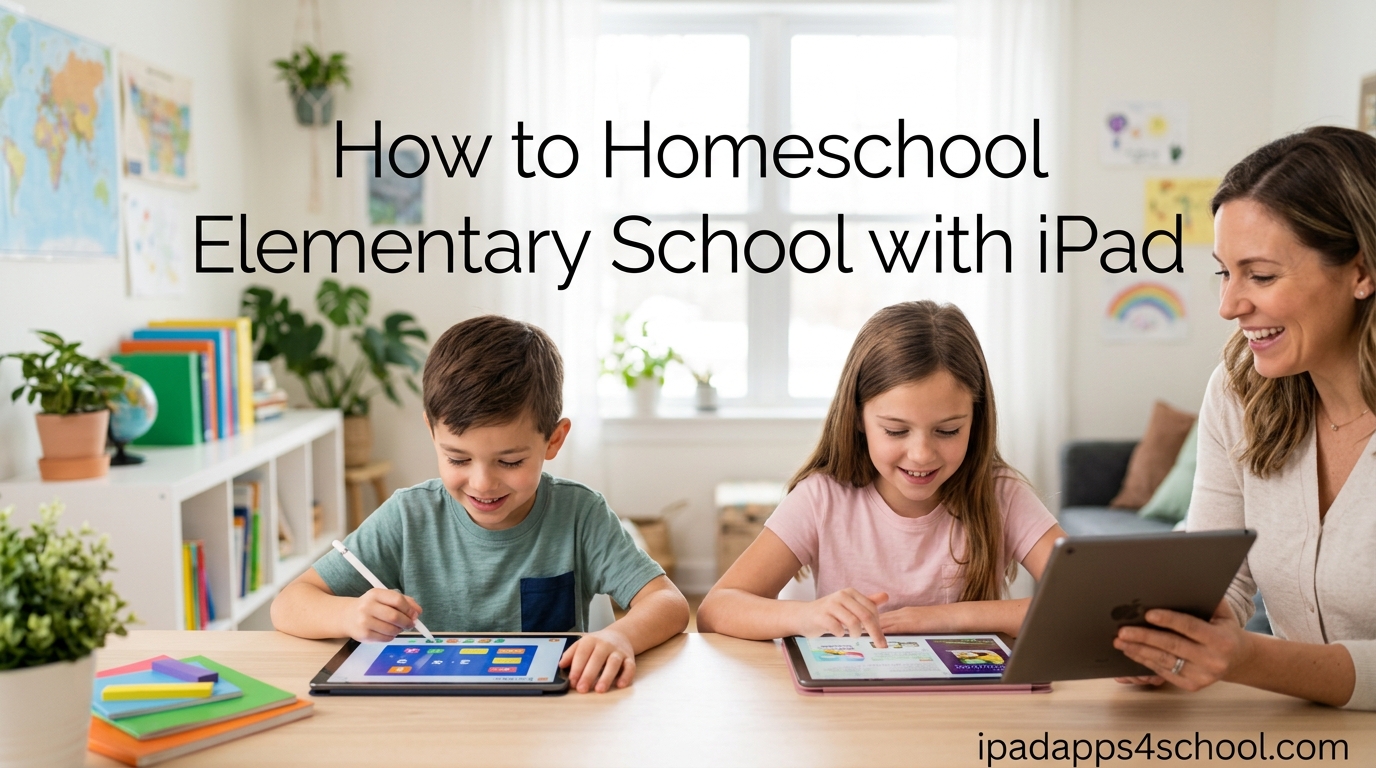
Homeschooling your elementary-aged child with an iPad isn’t just possible—it’s becoming one of the most efficient ways to educate at home. After researching hundreds of homeschool setups and talking with dozens of families who’ve made the switch, I’ve found that the iPad can replace stacks of textbooks, endless worksheets, and bulky manipulatives while keeping kids engaged and learning effectively.
When I first considered tablet-based learning, I shared the same concerns many parents have. Is this too much screen time? Will my child actually learn? Can an iPad really replace traditional curriculum? What I’ve discovered is that the iPad isn’t replacing learning—it’s transforming how learning happens. The key is understanding how to set it up properly, choosing the right apps, and establishing healthy boundaries from day one.
This guide will walk you through everything you need to know about how to homeschool elementary school with iPad, from initial setup through daily implementation, with specific recommendations for grades K-5.
Table of Contents
Why Use an iPad for Elementary Homeschool?
The iPad offers distinct advantages that make it particularly well-suited for elementary homeschool. First, the space-saving benefit alone makes it worth considering. A single tablet can hold thousands of books, worksheets, videos, and interactive lessons—no more bookshelves overflowing with curriculum or boxes of manipulatives taking over your dining room.
Beyond space, the interactive nature of iPad learning engages young learners in ways traditional materials can’t. Multi-sensory apps combine visual, auditory, and kinesthetic learning, which is especially effective for elementary-aged children who are developing foundational skills across multiple subjects. When a child can touch, drag, and interact with math problems or letters, the concepts stick better than passive reading or worksheets alone.
Cost-effectiveness is another major factor. While the initial iPad investment isn’t small, the ongoing savings add up quickly. Many high-quality educational apps are free or cost less than a single workbook. PDF versions of curriculum cost significantly less than physical copies, and free resources like Khan Academy provide complete courses at no cost. For families on a tight budget, iPad homeschooling can actually save money compared to traditional methods.
Perhaps most importantly, using an iPad prepares children for the digital world they’ll inherit. Digital literacy is no longer optional—it’s a fundamental skill. Learning to navigate educational apps, research online, and create digital content gives elementary students a head start on skills they’ll use throughout their education and careers.
How to Set Up Your iPad for Homeschool Success
Setting up your iPad properly from the beginning prevents frustration and ensures smooth learning days. Follow these steps in order, and you’ll have a dedicated learning device ready for effective homeschooling.
Step 1: Create a Dedicated Apple ID for Your Child
Don’t use your personal Apple ID for your child’s homeschool iPad. Instead, create a separate Apple ID specifically for them through Family Sharing. This gives you control over downloads and purchases while allowing your child to have their own app library and progress tracking. Go to Settings > Your Name > Family Sharing and follow the prompts to add a child account.
Step 2: Enable Family Sharing
Family Sharing lets you share app purchases, books, and other content across up to six family members. This is crucial for homeschool families—you buy an educational app once, and all your children can use it. Enable this in Settings > Your Name > Family Sharing, then invite family members. Any apps you purchase will be available to all children in your Family Sharing group.
Step 3: Configure Screen Time and Content Restrictions
Before downloading any apps, set up Screen Time limits and content restrictions. Go to Settings > Screen Time and turn it on. Set up Downtime hours when educational apps won’t work (if desired), App Limits for different categories, and Content & Privacy Restrictions to prevent access to inappropriate content. For elementary students, I recommend setting content restrictions to allow only apps rated 12+ and under, and blocking explicit language and adult websites.
Step 4: Set Up Guided Access
Guided Access is the homeschool parent’s best friend. This feature locks the iPad to a single app and prevents children from exiting during lessons. Enable it in Settings > Accessibility > Guided Access. When your child starts a lesson, triple-click the side button to lock them into that app. They literally cannot leave until you enter your passcode. This eliminates “I accidentally closed the math app” during independent work time.
Step 5: Organize Apps Into Subject Folders
Create folders on the home screen for each subject: Math, Reading, Science, Social Studies, Writing, and Creative Arts. This organization helps children navigate independently and reinforces subject-based thinking. Put frequently-used apps on the first home screen, and organize each subject folder with the most-used apps at the top.
Step 6: Download Essential Educational Apps
Start with free apps to test what works for your child’s learning style. Focus on core subjects first (math and reading), then add supplementary subjects. Download apps that allow offline use whenever possible, so learning doesn’t stop when WiFi goes down. Many apps allow you to download content for offline use—do this proactively before you need it.
Step 7: Set Up Automatic Updates
Go to Settings > App Store and turn on automatic updates for apps. Educational apps frequently add features, fix bugs, and improve content. Keeping apps updated ensures you have the latest features and security patches without manual intervention.
Essential Apps for Elementary Homeschool by Subject
Choosing the right apps makes or breaks your iPad homeschool experience. After testing dozens of apps with real elementary students, here are the standouts by subject and grade level.
Math Apps
For grades K-2, Khan Academy Kids is unbeatable and completely free. It covers early math concepts through engaging activities and adapts to your child’s level. Monster Math turns arithmetic practice into an adventure game, while Quick Math Jr. builds foundational number sense through interactive games.
For grades 3-5, Prodigy Math gamifies math practice with a fantasy adventure that kids actually want to play. Khan Academy (the main app) provides complete video lessons and practice for all elementary math topics. DragonBox Algebra introduces algebraic thinking through puzzles, and MathBoard offers traditional practice with customizable problem sets.
Reading and Phonics Apps
Early readers (K-2) thrive with Starfall, which teaches phonics through interactive activities. Reading Eggs (subscription-based but highly effective) provides a complete reading curriculum with progress tracking. Teach Your Monster to Read is a free phonics game that feels like play while teaching serious reading skills.
For grades 3-5, Epic! offers unlimited access to thousands of children’s books (subscription required). Newsela provides news articles at different reading levels, perfect for comprehension practice. Grammaropolis teaches parts of speech through animated characters and songs.
Science and Exploration Apps
NASA (free) brings space exploration to life with videos, images, and mission updates. Toca Lab lets children experiment with the periodic table in a safe, virtual lab. BrainPOP and BrainPOP Jr. offer animated science videos and quizzes across all science topics.
iNaturalist encourages outdoor exploration by helping identify plants and animals. The Elements creates an interactive periodic table that brings chemistry to life. SkyView identifies stars and constellations when you point the iPad at the sky.
Social Studies and Geography
GeoExpert teaches world geography through interactive maps. Stack the States makes U.S. geography fun through games. News-O-Matic provides daily news articles written for elementary students, covering current events in an age-appropriate way.
Google Earth offers virtual field trips anywhere on Earth. Timeline Eons displays historical events visually, helping children understand chronology. Maps Me provides offline maps for geography lessons without internet.
Writing and Spelling
Spelling City lets you create custom spelling lists and turns practice into games. Writing Wizard teaches letter formation through tracing, perfect for K-2 handwriting practice. Book Creator allows children to write and illustrate their own books, building composition skills creatively.
For older elementary students, Pages (Apple’s word processor) teaches real document creation. Popplet creates mind maps for organizing writing ideas. Grammarly Keyboard provides real-time writing feedback.
Coding and Logic
Scratch Jr. teaches programming basics to K-2 students through visual coding blocks. Lightbot introduces programming logic through puzzles that work for all elementary ages. Swift Playgrounds (free from Apple) teaches real coding concepts through interactive challenges.
Tynker offers a complete coding curriculum with game-based lessons. Cargo-Bot teaches programming through puzzle games. Code.org provides free coding courses for all ages through their website, which works perfectly on iPad.
Free vs Paid Apps Comparison
While paid apps often offer more features, many free apps provide excellent educational value. Here’s what to consider:
- Best Free Apps: Khan Academy, Khan Academy Kids, Starfall, NASA, Google Earth, Scratch Jr., Swift Playgrounds, Duolingo, News-O-Matic (limited free articles)
- Worth Paying For: Reading Eggs, Prodigy Math, Epic!, DragonBox series, Grammaropolis
- Freemium Options: Most apps offer free versions with limited content—try these before subscribing to see if they work for your child
How to Integrate iPad into Your Daily Homeschool Schedule
The key to successful iPad homeschooling is integration, not replacement. The iPad should enhance your curriculum, not become the entire curriculum. Here’s how to balance digital and traditional learning throughout your day.
Sample Daily Schedule with iPad Integration:
8:30-9:00 AM: Morning routine and calendar time—use iPad for weather apps and calendar tracking
9:00-9:45 AM: Math lesson—teach concepts traditionally, then use iPad apps for practice and reinforcement
9:45-10:15 AM: Independent math practice—iPad with Guided Access enabled on math app
10:15-10:30 AM: Break—no screens, physical activity
10:30-11:15 AM: Reading lesson—traditional instruction, then iPad reading apps for practice
11:15 AM-12:00 PM: Writing/handwriting—traditional paper and pencil for writing practice
12:00-1:00 PM: Lunch and free time—no screens
1:00-1:45 PM: Science or Social Studies—mix of iPad videos, interactive apps, and hands-on activities
1:45-2:15 PM: Creative time—art apps, coding, or educational games on iPad
2:15-3:00 PM: Physical activity and free play—no screens
This schedule balances screen time with traditional learning and physical activity. Notice that iPad use happens in focused chunks rather than continuously, and breaks always involve screen-free activities. The iPad supplements core instruction rather than replacing it entirely.
For independent work time, Guided Access keeps children focused on the assigned app. During parent-led instruction, the iPad serves as a teaching tool—showing videos, demonstrating concepts, or providing interactive examples. For creative time, the iPad becomes a tool for creation rather than consumption.
Managing Screen Time and Keeping Kids Focused
Screen time concerns are valid, but context matters more than minutes. Two hours creating art, coding, or solving math problems is fundamentally different from two hours of passive video watching. The American Academy of Pediatrics now focuses on the quality of screen time rather than strict time limits, emphasizing educational content and co-viewing with parents.
For elementary homeschool, aim for a balance where educational iPad use occupies 30-50% of learning time, with the remaining time dedicated to hands-on activities, physical play, reading physical books, and face-to-face instruction. This varies by age—younger children (K-2) should have less screen time than older students (3-5).
Use Guided Access during structured learning time to prevent app-switching and distraction. During creative or free-choice time, allow more freedom but keep the iPad in a common area where you can monitor use. Set clear expectations: iPad is a learning tool, not a toy, and it’s used during designated learning times only.
Build in regular breaks every 20-30 minutes of iPad use. The 20-20-20 rule from optometry applies: every 20 minutes, look at something 20 feet away for 20 seconds. This reduces eye strain and reinforces focus. Physical activity breaks—jumping jacks, dancing, stretching—reset attention and energy for the next learning session.
Prevent distraction by organizing the iPad home screen so only educational apps are visible. Move games and entertainment apps to a separate folder or remove them entirely from the homeschool iPad. If your child needs motivation, use apps that reward completed work with brief game time rather than allowing unlimited access.
Budget-Friendly iPad Homeschooling
You don’t need to spend hundreds on apps to homeschool effectively with iPad. Start with free apps—Khan Academy, Khan Academy Kids, NASA, Google Earth, and Starfall provide robust educational content at no cost. Many paid apps offer free versions with limited content, perfect for testing before committing.
When considering paid apps, look for one-time purchases rather than subscriptions when possible. Apps like DragonBox, Grammaropolis, and Writing Wizard require a single payment and then work indefinitely. Subscriptions like Reading Eggs and Epic! offer comprehensive content but add to monthly costs—evaluate whether the free alternatives meet your needs first.
Apple does not offer a specific homeschool discount, but they do provide educational pricing for teachers and students through their Apple Education store. While this typically applies to schools rather than individual homeschool families, it’s worth checking during back-to-school seasons when educational discounts sometimes expand to individual purchasers.
Consider sharing apps through Family Sharing. One purchase can serve multiple children, and apps downloaded on one device are available on all family devices. For PDF curriculum, look for bundles or sales—many publishers offer substantial discounts during homeschool conference seasons.
Remember that the iPad itself is an investment that replaces many other educational materials. Factor in the cost of workbooks, textbooks, manipulatives, and supplementary materials you won’t need to purchase when calculating your total homeschool budget. For many families, the iPad pays for itself within the first year of use.
Frequently Asked Questions About iPad Homeschooling
Can you homeschool with just an iPad?
Yes, you can homeschool with just an iPad, though it works best when combined with some traditional materials. The iPad can provide complete curriculum through apps like Khan Academy, access to thousands of books through reading apps, and tools for writing, creating, and demonstrating learning. However, most successful homeschool families use the iPad as part of a balanced approach that includes physical books, handwriting practice, and hands-on activities. The iPad excels at delivering interactive lessons, providing immediate feedback, and offering multimedia content that enhances learning across all subjects.
What subjects work best on iPad?
Math and reading are the strongest subjects for iPad learning due to the abundance of high-quality, interactive apps that provide immediate feedback. Science works exceptionally well through videos, interactive simulations, and virtual labs. Coding and logic education are naturally suited to tablets. Social studies benefits from interactive maps, virtual field trips, and current events apps. Writing can be effective on iPad, especially with keyboard attachments, but most parents still prefer some traditional handwriting practice. Art and music education have excellent creative apps, though many families supplement with physical art supplies and real instruments.
How much screen time is appropriate for elementary homeschool?
For elementary students in a homeschool setting, 1-2 hours of focused educational iPad use per day is reasonable, spread across multiple subjects. The key is distinguishing between educational screen time and entertainment screen time. The American Academy of Pediatrics no longer recommends strict time limits for educational content but emphasizes balance and parent involvement. In practice, this might mean 30-45 minutes of math apps, 30 minutes of reading apps, 30 minutes of science or social studies content, and 30 minutes of creative time like coding or art apps—totaling around 2 hours but balanced with physical activity, hands-on learning, and face-to-face instruction throughout the day.
Are there quality free homeschool apps for iPad?
Absolutely. Some of the best educational apps are completely free. Khan Academy and Khan Academy Kids provide complete math and reading curriculum at no cost. Starfall offers excellent early reading and phonics instruction for free. NASA’s app provides extensive science content. Google Earth enables virtual geography exploration. Scratch Jr. teaches coding fundamentals without payment. Duolingo offers foreign language instruction free. While some apps require subscriptions for full features, many free versions offer substantial content that’s sufficient for core learning. Start with free apps and add paid options only if you identify specific gaps or needs that free apps don’t address.
How do I prevent distraction during school time?
Guided Access is the most effective tool for preventing distraction. This feature locks the iPad to a single app and requires your passcode to exit. Enable Guided Access in Settings > Accessibility, then triple-click the side button when your child starts a lesson to lock them in. Beyond technical solutions, organize your iPad home screen so only educational apps are visible—move or delete games and entertainment apps. Set clear expectations that the iPad is a learning tool during school hours. Use timers for iPad sessions so children know exactly how long they’ll be working. Provide alternative activities during breaks so the iPad isn’t the default option when they finish work early.
Can multiple children share one iPad for homeschool?
Yes, multiple children can share one iPad successfully with some organization. Create separate user profiles within apps when available—many educational apps track progress individually for multiple users. Use a single homeschool iPad with Family Sharing so all children can access purchased apps. Create subject-specific folders on the home screen that all children use, then have individual folders for each child’s personal learning apps. Schedule iPad time so children aren’t competing for device access during peak learning hours. Consider dedicating the iPad to independent work time while you provide one-on-one instruction to siblings. For families with multiple students, start with one iPad and add a second only if scheduling becomes difficult.
What about handwriting practice with iPad?
Handwriting is still important, and most homeschool families combine iPad learning with traditional handwriting practice. For early writers (K-2), use apps like Writing Wizard that teach proper letter formation through tracing—these build fine motor skills that transfer to paper writing. For older students, consider a keyboard attachment or Apple Pencil if your iPad model supports it. The Apple Pencil works with apps like GoodNotes and Notability for handwriting practice, and many children actually prefer writing on the tablet. However, most experts recommend maintaining some paper-and-pencil handwriting practice alongside digital tools. A balanced approach might include handwriting apps for practice and traditional worksheets for assessment, ensuring children develop both digital and traditional writing skills.
Do I need internet for iPad homeschooling?
You don’t need constant internet access for iPad homeschooling, though it helps. Many educational apps allow you to download content for offline use—Khan Academy, Khan Academy Kids, and various reading apps all offer offline modes once content is downloaded. Plan ahead by downloading lessons, videos, and books while connected to WiFi, then your child can access them offline. However, some apps require internet for full functionality, and you’ll need WiFi initially to download apps and content. For families with limited internet access, focus on apps with robust offline capabilities, download content during available connectivity, and consider supplementing with traditional materials. Some rural homeschool families use mobile hotspots for periodic downloads, then work primarily offline between connection sessions.
Getting Started with Your iPad Homeschool Journey
Learning how to homeschool elementary school with iPad transforms your educational approach, but it doesn’t have to happen overnight. Start with the setup steps outlined above, focusing on creating a safe, focused learning environment before diving into curriculum. Download a few free apps in each core subject and experiment with what works for your child’s learning style.
Remember that the iPad is a tool, not the teacher. Your involvement, guidance, and interaction remain the most important elements of your child’s education. The iPad enhances what you provide—it delivers interactive lessons, tracks progress, and provides multimedia content that would be impossible with traditional materials alone. But it works best when integrated thoughtfully into your homeschool routine rather than replacing it entirely.
Start small, assess what’s working, and adjust as needed. Every family’s iPad homeschool approach looks different, and that’s the beauty of homeschooling—you can customize the technology to fit your educational philosophy, your child’s needs, and your family’s lifestyle. With proper setup, the right apps, and balanced implementation, the iPad becomes an invaluable partner in your elementary homeschool journey.