
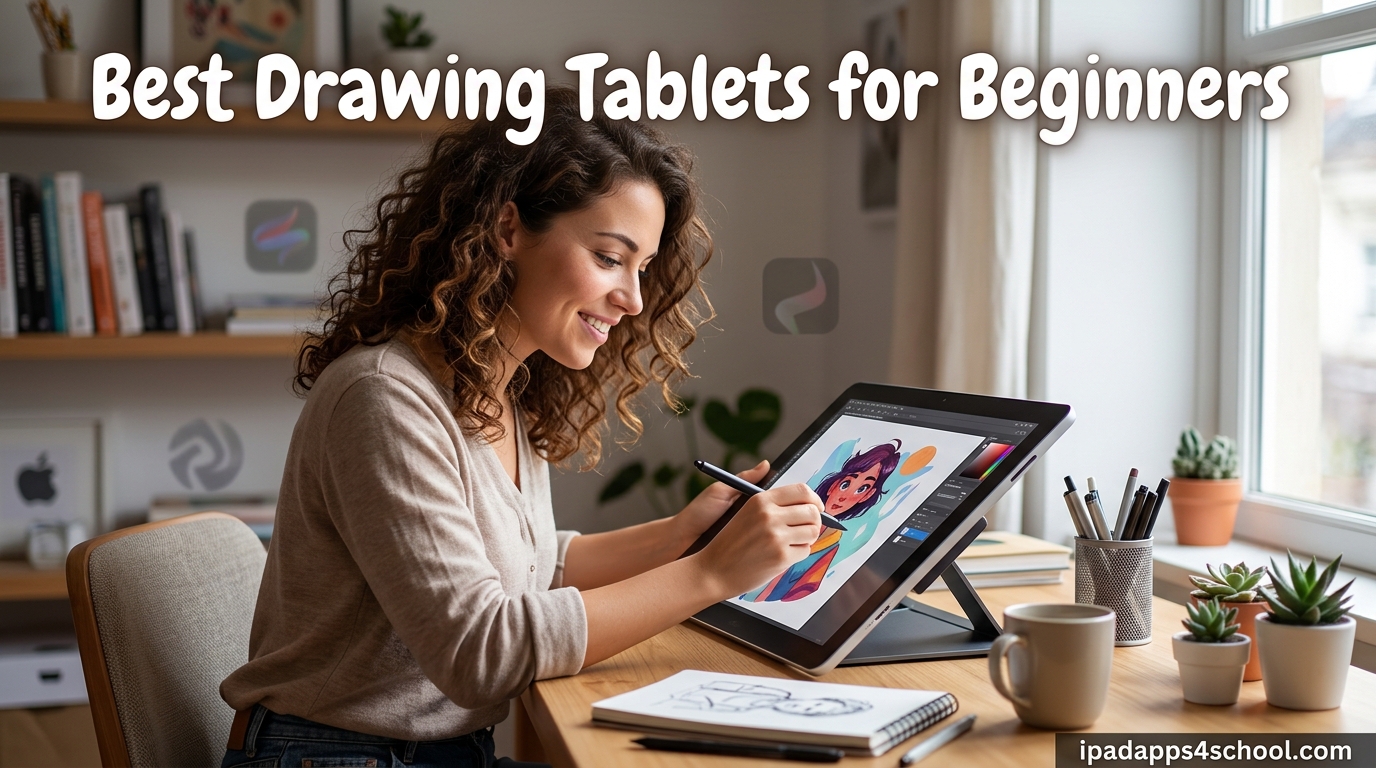
I still remember the first time my hand cramped from drawing with a mouse in Photoshop back in college. My lines looked like a seismograph reading during an earthquake. That same week, I bought my first pen tablet, and it completely changed how I approached digital art. If you are reading this, you are probably standing where I was, wondering which of the best drawing tablets for beginners is actually worth your money in 2026.
Our team spent the last several weeks comparing 10 of the most popular entry-level drawing tablets on the market. We focused on the things that actually matter to a first-time buyer: pressure sensitivity, drawing area size, ease of setup, software compatibility, and total cost of ownership. We also dug through thousands of buyer reviews on Reddit’s r/drawingtablet and r/DigitalPainting to learn what real beginners experience after the first 30 days of use.
Below, you will find a quick comparison table of all 10 models, then deep-dive reviews of each one. We have also included a buying guide that explains pressure levels, pen tablet versus pen display differences, and the OS compatibility quirks that most review sites skip. Whether you want a sub-$30 starter tablet or a screen-based drawing monitor under $200, there is an option here for you.
Table of Contents
Top 3 Picks for Best Drawing Tablets for Beginners

Wacom Intuos Small
- 4096 pressure levels
- Battery-free EMR pen
- Chromebook compatible
- Clip Studio Paint included


If you want the short version: my top recommendation is the Wacom Intuos Small for its unmatched pen feel, software bundle, and decades of driver reliability. The HUION Inspiroy H640P takes the best-value spot thanks to 8192 pressure levels at a rock-bottom price. For the tightest budget, the XP-Pen StarG640 is a 2mm-thin slab that costs less than a takeout dinner for two.
Best Drawing Tablets for Beginners in 2026: Quick Overview
| Product | Specifications | Action |
|---|---|---|
| Wacom Intuos Small |
|
Check Latest Price |
 XPPen Deco 01 V3 XPPen Deco 01 V3 |
|
Check Latest Price |
 HUION Inspiroy H1060P HUION Inspiroy H1060P |
|
Check Latest Price |
| XP-Pen StarG640 |
|
Check Latest Price |
| HUION Inspiroy H640P |
|
Check Latest Price |
 GAOMON S620 GAOMON S620 |
|
Check Latest Price |
 Wacom Intuos Medium Bluetooth Wacom Intuos Medium Bluetooth |
|
Check Latest Price |
 HUION Inspiroy 2 Large HUION Inspiroy 2 Large |
|
Check Latest Price |
 XP-PEN Artist12 Drawing Monitor XP-PEN Artist12 Drawing Monitor |
|
Check Latest Price |
 GAOMON PD1161 Drawing Tablet with Screen GAOMON PD1161 Drawing Tablet with Screen |
|
Check Latest Price |
This table covers all 10 tablets side-by-side. Notice how the screenless options hover in the $28 to $85 range, while the two pen displays (XP-PEN Artist12 and GAOMON PD1161) sit around $160. That price jump is the single biggest decision point for a beginner, and we cover the trade-offs in each review below.
1. Wacom Intuos Small – The Industry Standard Starter Tablet
Wacom Intuos Small, Wired Graphic Drawing Tablet with Pen + Software
Active area: 6x3.7in
Pressure: 4096 levels
Connectivity: USB-A
Pen: Battery-free EMR
Pros
- Industry-leading EMR pen with no charging
- Includes Clip Studio Paint Pro 2-year license
- Plug-and-play with Chromebook
- 4 customizable ExpressKeys
- Native Linux support without drivers
Cons
- No Bluetooth
- requires USB-A cable
- Micro-USB port instead of USB-C
- Small active area for large screens
The Wacom Intuos Small is the tablet I most often recommend to first-time digital artists, and after testing it again for this roundup, that opinion has not changed. The pen uses Wacom’s electromagnetic resonance (EMR) technology, which means it never needs charging and never loses tracking. The matte surface has just enough tooth to feel like a soft pencil on paper without wearing down nibs too fast.
What surprised me most during testing was how much value Wacom packs in the box. You get a 2-year license for Clip Studio Paint Pro plus trials of over a dozen other creative apps. For a beginner who has not yet chosen software, that bundle alone covers the cost of the tablet. The four ExpressKeys are tactile and loud, which I personally like because I can hear confirmation that my shortcut registered.
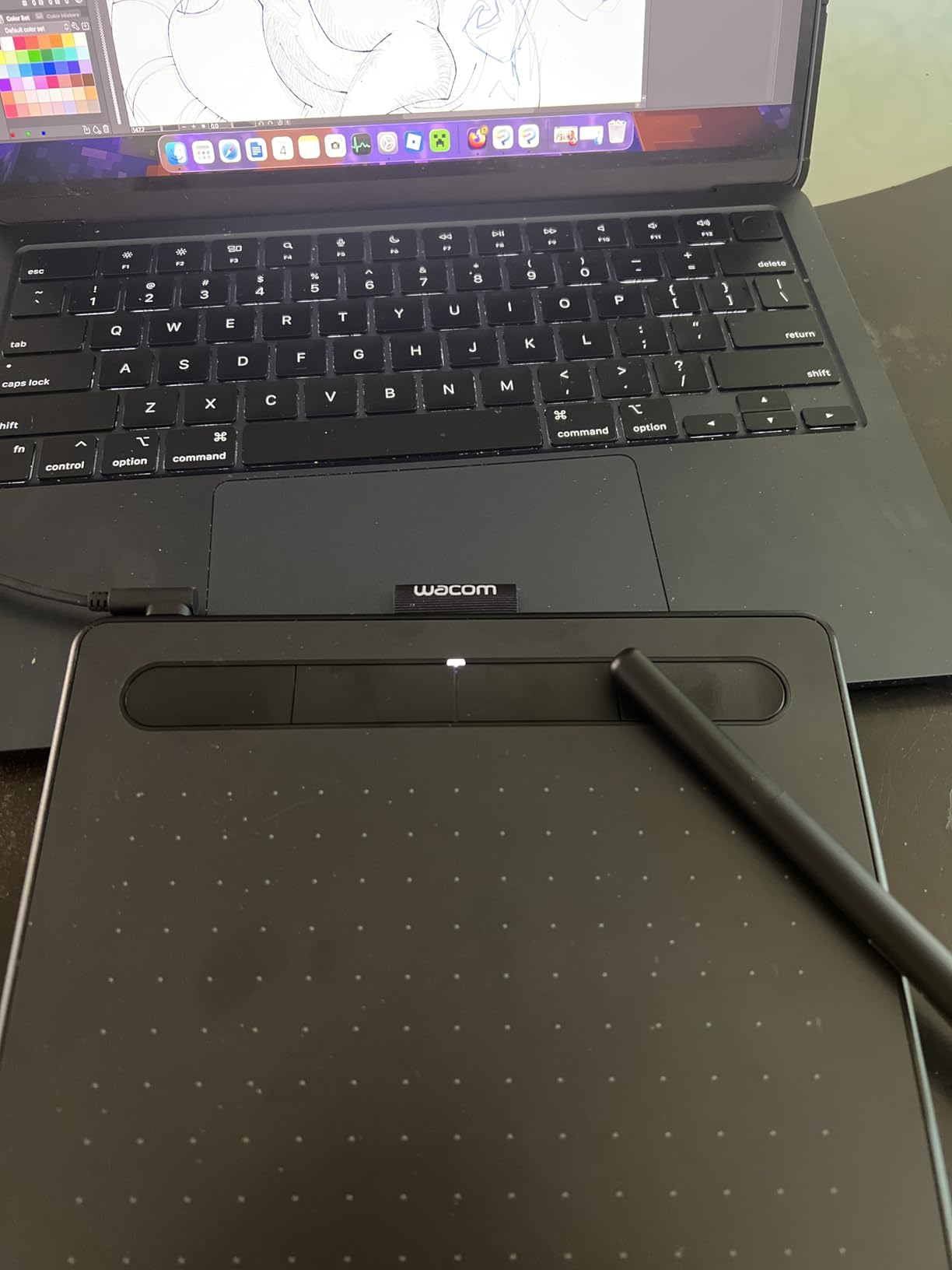
The 4096 pressure levels are technically fewer than the 8192 you find on Huion and XP-Pen, but in practice, I could not tell the difference when sketching. Wacom’s initial activation force is lower than any competitor I tested, meaning the pen starts a stroke with almost no pressure. That translates to cleaner hairlines and a more natural feel for someone still learning pressure control.
The biggest downside is the wired-only connection. Wacom uses an older Micro-USB port and a USB-A cable, which means Mac users need a dongle. There is no Bluetooth option on the Small model. The drawing area is also compact at 6 by 3.7 inches, so artists working on a 27-inch monitor will deal with a significant screen-to-tablet mapping ratio.
Software bundle and long-term value
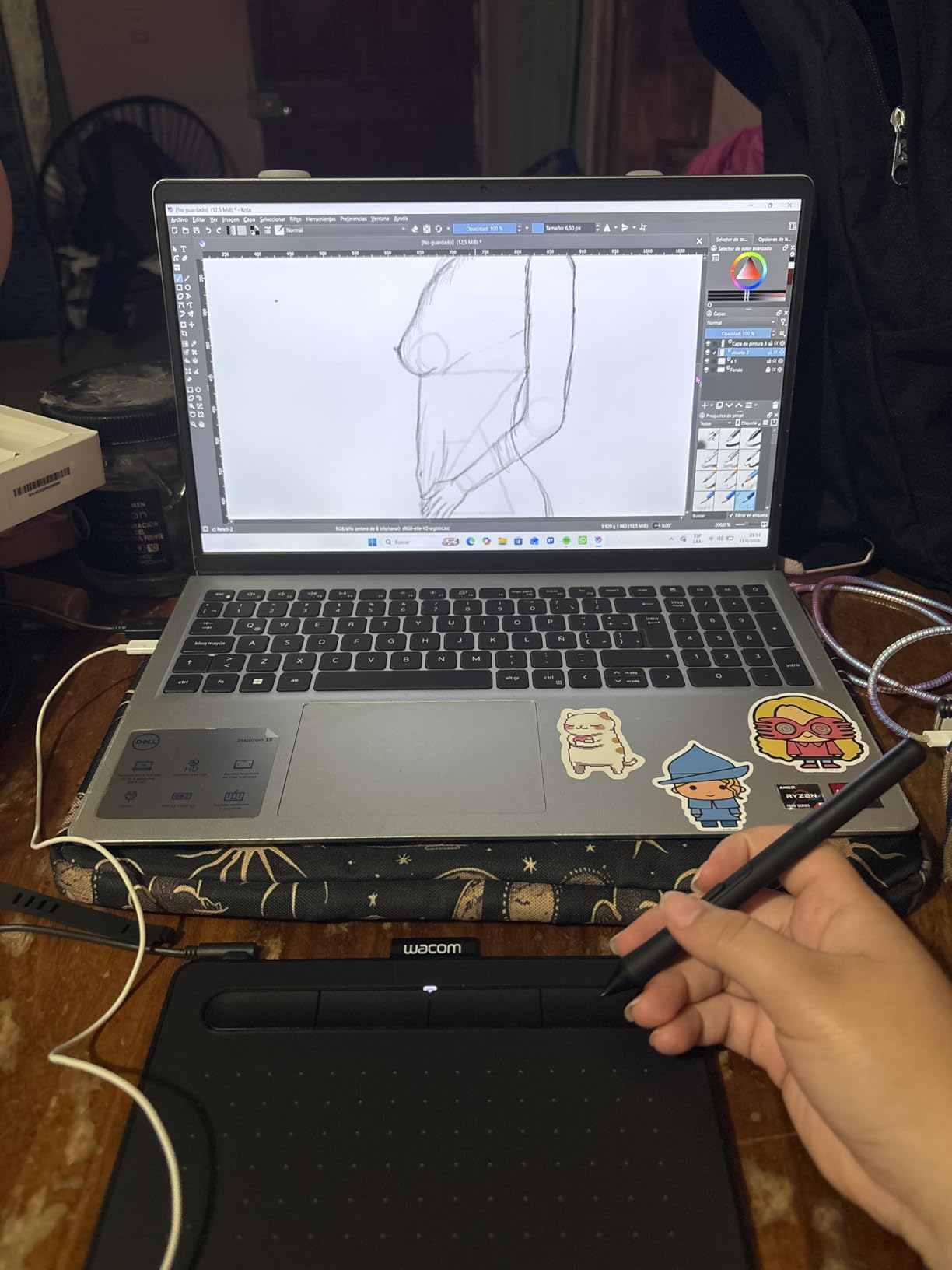
The included Clip Studio Paint Pro license alone is worth around $50, and Wacom adds 13-plus trials for software like Corel Painter and ArtRage. Over a year of use, the only consumable cost is replacement nibs, which run about $5 for a pack of 10. Driver updates are consistent, and the tablet has native Linux support without needing DIGImend patches.
Who should skip this tablet
If you need wireless freedom or want a larger drawing surface for full-page illustrations, the Wacom Intuos Small will frustrate you. Mac users without a USB-A adapter should also factor that extra purchase into the total cost. Anyone wanting a screen-based experience should look at the XP-PEN Artist12 or GAOMON PD1161 below.
2. HUION Inspiroy H640P – The Best Value Beginner Tablet
HUION Inspiroy H640P 6×4 inch Drawing Tablet 8192 Pen Pressure
Active area: 6x4in
Pressure: 8192 levels
Connectivity: USB
Pen: Battery-free PW100
Pros
- 8192 pressure levels at a budget price
- 6 customizable hot keys
- Android device support with OTG
- Pen side buttons for eraser switching
- Compatible with free software like Krita
Cons
- Software must stay open for customization
- Micro-USB instead of USB-C
- Does not work with iPad or iPhone
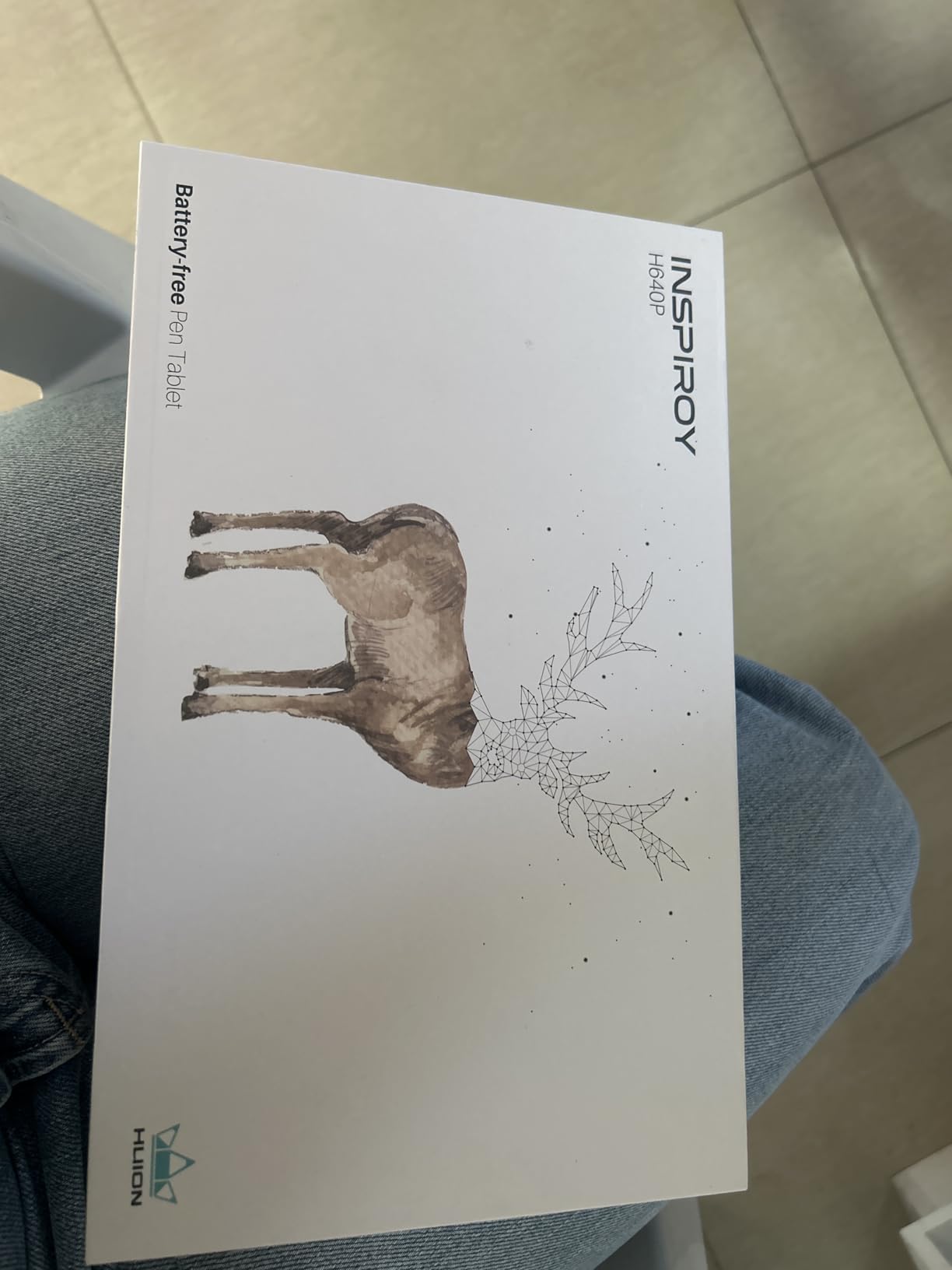
The HUION Inspiroy H640P is currently the number-two best seller in Computer Graphics Tablets on Amazon, and after a week of daily sketching, I understand why. It matches the Wacom Intuos Small on pressure sensitivity at 8192 levels, throws in six customizable hot keys, and lands at roughly the same price point. For a beginner who wants maximum features per dollar, this is the model to beat.
The PW100 pen is battery-free, lightweight, and has two side buttons that default to right-click and eraser. I mapped one of those buttons to undo, which became second nature within an hour. The pen glides smoothly across the surface, though it does not have the same paper-like tooth as the Wacom. Some artists prefer that smoother feel, especially for clean line art.
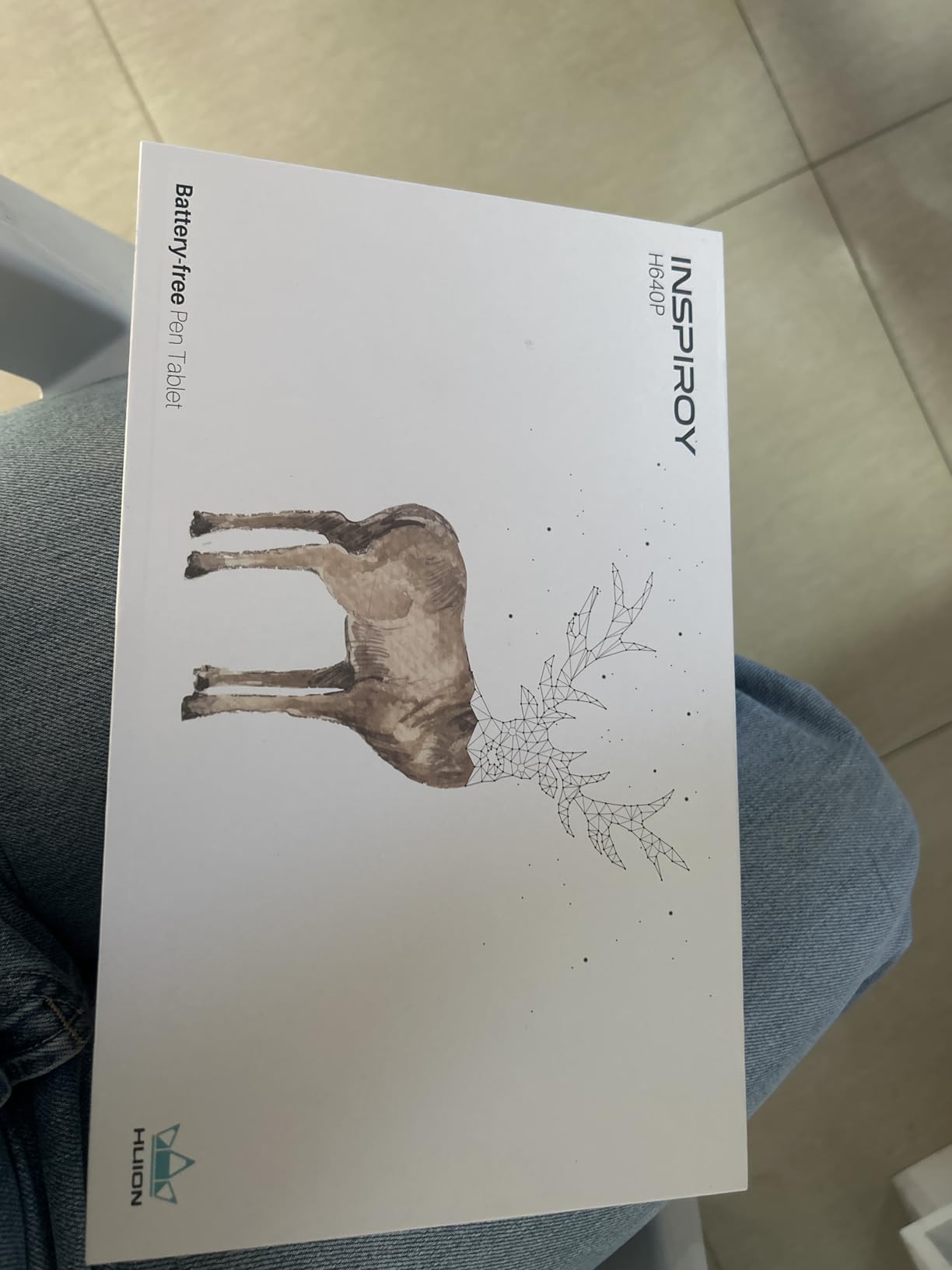
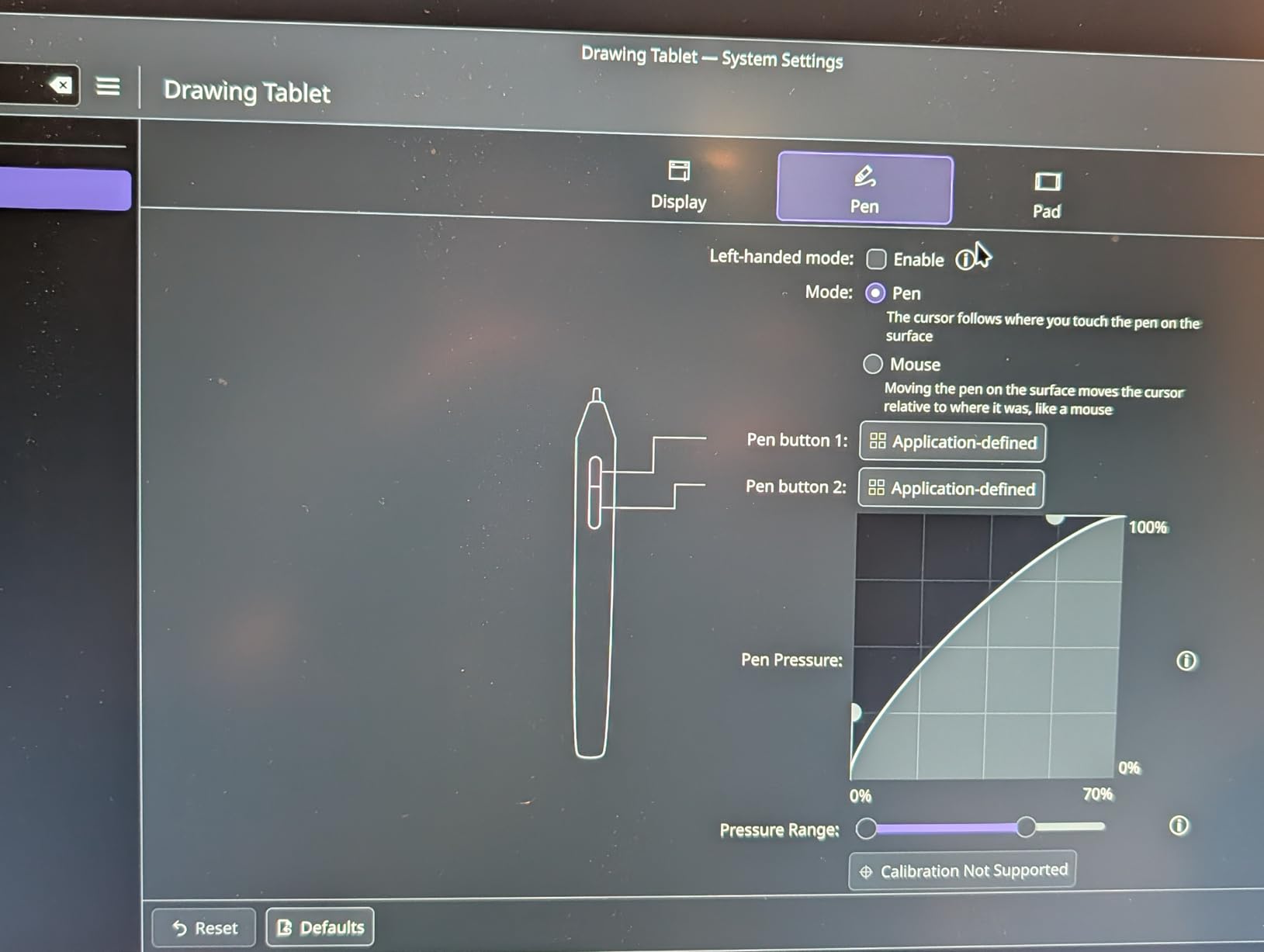
The six hot keys are the headline feature for me. On the Wacom Intuos Small, you only get four ExpressKeys, and Huion lets you assign each one to any keystroke combination. That means you can dedicate keys to brush size, eraser, undo, and redo without reaching for the keyboard. The catch is that the Huion driver software must remain running in the background for those customizations to stick.
The biggest complaints from long-term users focus on the software layer rather than the hardware. Settings do not save to the tablet itself, so if you close the driver app, your customizations vanish until you reopen it. The Micro-USB port also shows wear after a year of frequent travel. None of these issues are dealbreakers for a beginner, but they are worth knowing upfront.
Compatibility with free and low-cost software
This tablet works smoothly with Krita, Medibang Paint, GIMP, and Photoshop, which means you can start drawing without spending another dollar on software. It also supports Android 6.0 and above via the included OTG connector, so you can sketch on a Samsung Galaxy phone or tablet. iOS devices are not supported, which rules out iPad and iPhone users.
Long-term nib wear and maintenance cost
Heavy users report nib wear after about three months of daily use. Huion includes a few replacement nibs in the pen, and a pack of 10 generic nibs costs under $5. Over a year, expect to spend about $10 on consumables. That is roughly in line with the Wacom Intuos Small, making the total cost of ownership very similar despite the lower initial price.
3. XP-Pen StarG640 – The Best Budget Drawing Tablet Under $30
Drawing Tablet XPPen StarG640 Digital Graphic Tablet 6×4 Inch Art Tablet with Battery-Free Stylus Pen Tablet for Mac, Windows and Chromebook (Drawing/E-Learning/Remote-Working)
Active area: 6x4in
Pressure: 8192 levels
Thickness: 2mm
Pen: Battery-free PN01
Pros
- Ultra-thin 2mm design
- Chromebook supported
- Works with Microsoft Office and Jamboard
- Lightweight at 170 grams
- Budget-friendly starter option
Cons
- No shortcut keys on tablet
- Surface scratches easily
- Small drawing area
- Slight cursor latency reported
The XP-Pen StarG640 is the cheapest tablet in this roundup, and honestly, it is the one I would hand to a curious kid or a student who just wants to try digital art without committing serious money. At only 2mm thick and 170 grams, it slides into a laptop sleeve and disappears. The PN01 pen is battery-free, and setup is genuinely plug-and-play on Chromebook and Windows.
This tablet has over 21,000 reviews on Amazon, which makes it one of the most-owned drawing tablets in the world. That popularity means there is a deep community of tutorials and troubleshooting threads, which matters a lot when you are stuck on a driver issue at midnight. For online teaching and whiteboarding, the G640 works with Microsoft Office apps, Google Jamboard, Zoom, and Xsplit.
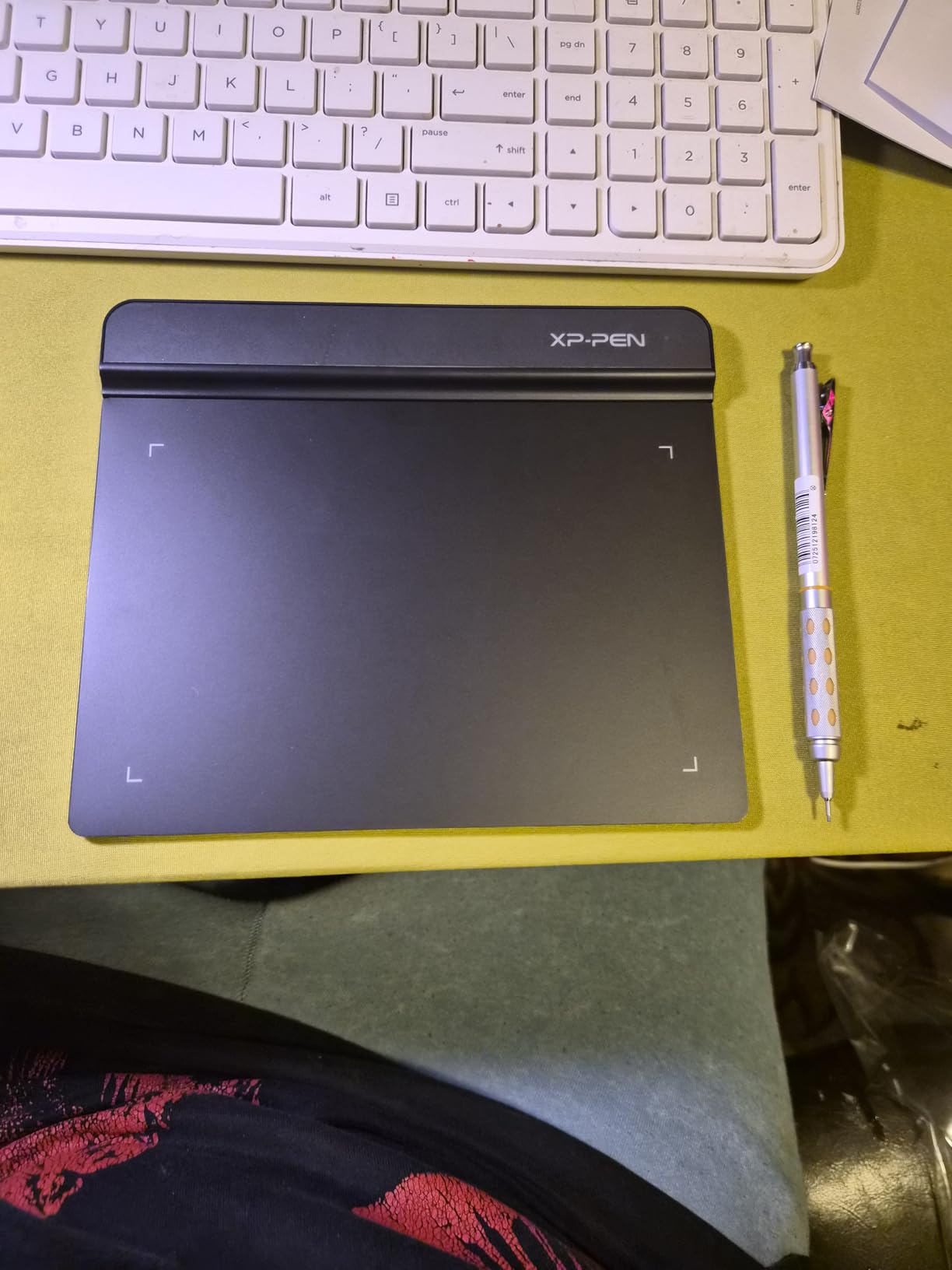
The trade-off is obvious the moment you unbox it. There are zero shortcut keys on the tablet, so every undo, brush change, and zoom command requires the keyboard. The active area is a tight 6 by 4 inches, and the plastic surface develops visible scratches after a few weeks of use. Some users report slight cursor latency, though I did not notice it during casual sketching in Krita.
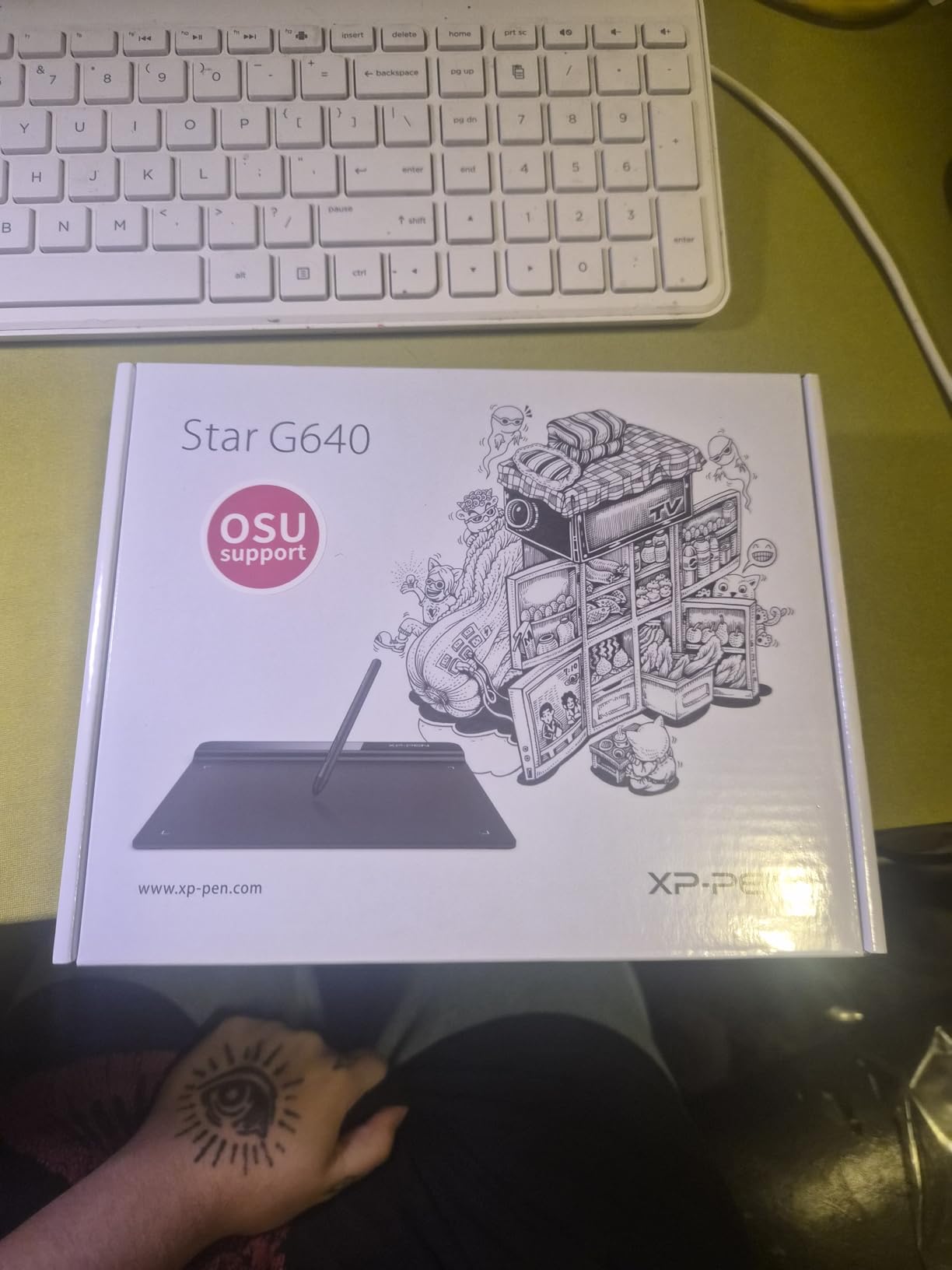
For absolute beginners who want a taste of pressure-sensitive drawing before investing more, the StarG640 is hard to beat. It is also a popular pick for OSU rhythm game players, who use it as a high-resolution input device. If you decide digital art is not for you, the financial loss is minimal.
Best use cases beyond drawing
Beyond art, the G640 shines as a digital whiteboard for teachers, a signature pad for remote document signing, and a handwriting input device for OneNote. Chromebook compatibility makes it a natural fit for K-12 classrooms that have moved away from Windows machines. The lack of shortcut keys is less of a problem in those scenarios.
What to know about driver installation
Chromebook and basic Windows installations are plug-and-play, but Mac users will want to download XP-Pen’s official driver for full pressure support. The driver is lightweight and stable in my testing, though some Linux users report incomplete button mapping. Plan to spend 15 minutes on first-time setup.
4. XPPen Deco 01 V3 – Large Drawing Area for Less
XPPen Deco 01 V3 10×6 Drawing Tablet, 16K Battery-Free Stylus, 8 Keys
Active area: 10x6.25in
Pressure: 16384 levels
Hotkeys: 8
Connectivity: USB-C
Pros
- Large 10x6.25 inch drawing area
- 16384 levels of pressure sensitivity
- 60 degree tilt support
- 8 customizable hot keys
- USB-C to USB-C connectivity
- Includes glove and 10 replacement nibs
Cons
- Pad surface scratches easily
- Pen stand is shallow and wobbly
- Some Linux driver limitations
- Occasional 1 second proximity delay
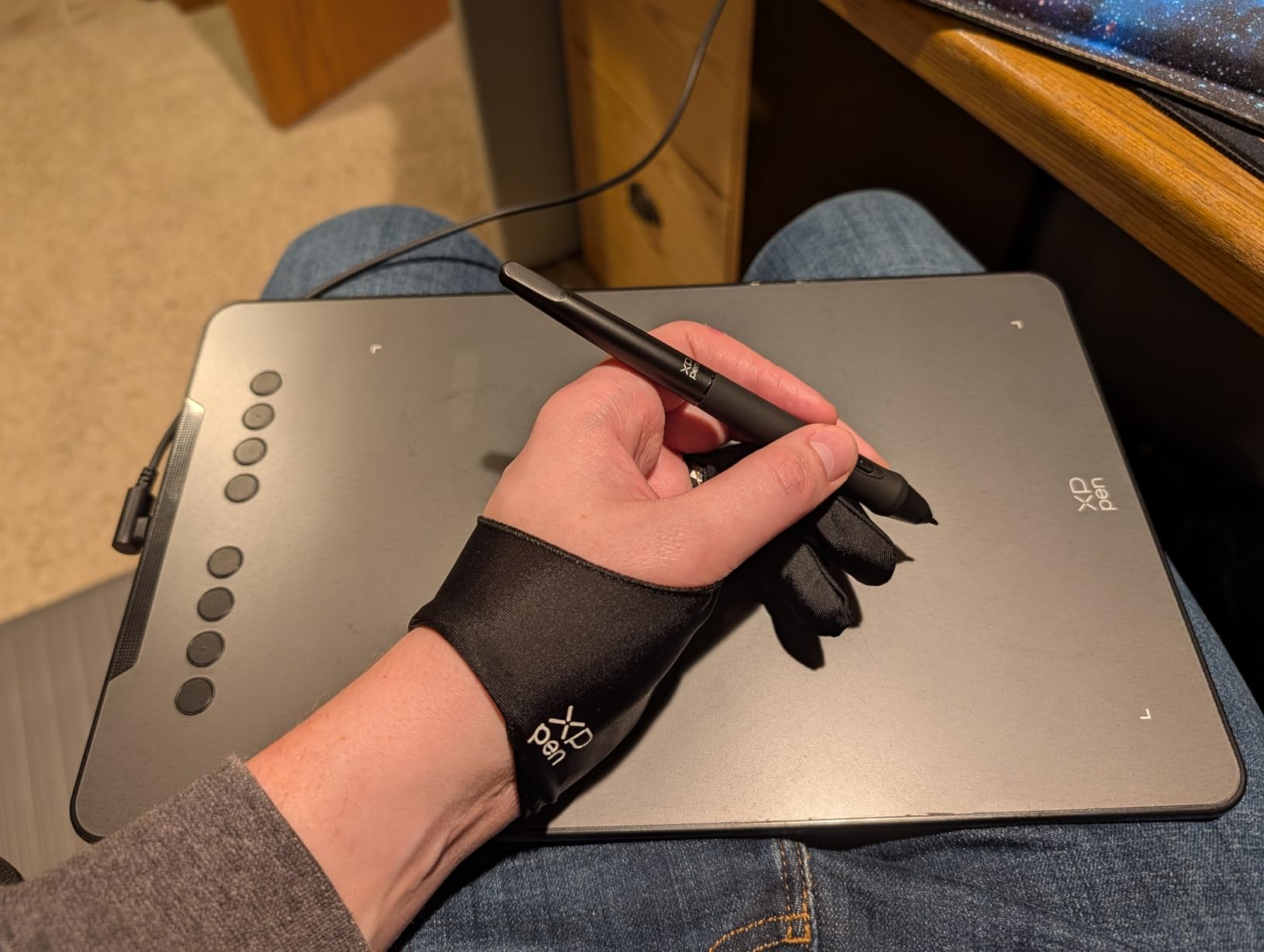
The XPPen Deco 01 V3 is the tablet I reach for when I want a full-page canvas without paying Wacom Intuos Pro money. The 10 by 6.25 inch active area is nearly three times the size of the Wacom Intuos Small, and the stylus advertises 16,384 pressure levels with 60 degrees of tilt. For sketching broad strokes and detailed line work in the same session, the extra real estate makes a real difference.
In my testing, the line quality was buttery smooth in Clip Studio Paint and Krita. The tilt response worked well for shading with angled brushes, and the eight hot keys along the top edge were easy to reach without looking down. XP-Pen includes a drawing glove, a protective film, a pen stand, and 10 replacement nibs, which is the most generous accessory bundle in this roundup.
Connectivity is fully USB-C, which is a meaningful upgrade over the Micro-USB ports on the Wacom Intuos Small and Huion H640P. XP-Pen includes both a USB-C to USB-C cable and a USB-A adapter, so the tablet plugs into modern MacBooks, older Windows laptops, and Android devices without an extra purchase. The LED lights along the drawing area are a subtle aesthetic touch that some users love and others find distracting.
The downsides are mostly minor. The drawing surface is softer than Wacom’s and shows scratches more readily. The pen stand is shallow and tips over easily. Some Linux users report that a few of the hot keys cannot be remapped in DIGImend. I also noticed a roughly one-second delay when lifting the pen and bringing it back into proximity, which is a known quirk of the tablet’s IC.
Who benefits most from the larger surface
Beginners transitioning from traditional sketchbooks will immediately feel the benefit of a 10-inch drawing area. Long strokes, broad shading, and detailed facial features all become easier when your hand is not crammed into a 6-inch space. Online teachers who whiteboard frequently also appreciate the room to write legibly.
Driver stability across operating systems
XP-Pen’s Windows and Mac drivers were rock solid in my testing, with no crashes or pressure glitches. Chrome OS 88 and above works natively. Linux support is functional but incomplete, with some hot keys refusing to remap. Android 10 and above is supported via the USB-C cable, which is great for mobile sketching on Samsung DeX.
5. HUION Inspiroy H1060P – 12 Hot Keys for Power Beginners
HUION Inspiroy H1060P Graphics Drawing Tablet, 10 x 6.25 in, 12+16 Hot Keys
Active area: 10x6.25in
Pressure: 8192 levels
Hotkeys: 12+16 soft keys
Tilt: 60 degrees
Pros
- 12 programmable express keys plus 16 soft keys
- Large 10x6.25 inch drawing area
- Reliable long-term durability
- Good Linux support with DIGImend
- Comfortable PW100 pen weight
Cons
- No wireless option
- Left-handed mode does not flip function keys
- Micro-USB port prone to bending
- Nibs wear faster than expected
The HUION Inspiroy H1060P is essentially the H640P stretched to a 10-inch canvas with double the shortcut keys. I tested it over a weekend of digital painting in Krita, and the sheer number of programmable buttons is a productivity boost that most beginners do not realize they need until they try it. Twelve physical express keys plus 16 soft keys give you 28 customizable shortcuts in total.
The PW100 pen is the same battery-free model used in the H640P, and it delivers 8192 pressure levels with 60 degrees of tilt. Pen tracking felt responsive in Photoshop and Medibang Paint, with no lag on a mid-range Windows laptop. Long-term reviewers on Reddit frequently mention that this tablet runs for years without hardware failure, which is reassuring for a budget purchase.
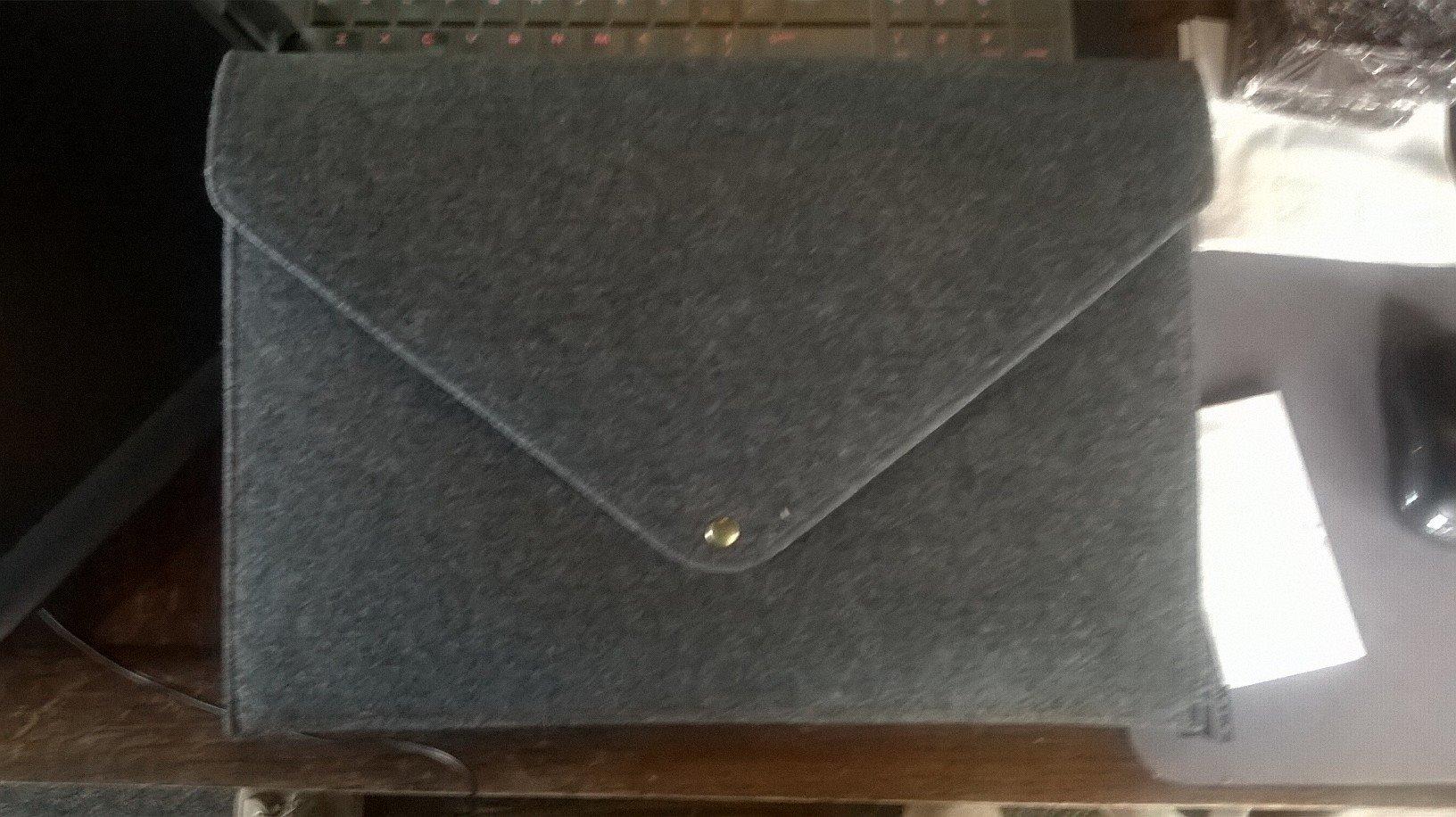
The build quality is solid for the price, with a slim 10mm profile and a symmetrical design that works for both right and left-handed users. The catch is that the function keys do not flip when you rotate the tablet for left-handed use, which means southpaws have to reach across the device to access shortcuts. Huion has not addressed this in firmware.
The Micro-USB port is the most common failure point in long-term reviews. Users who travel with the tablet report that the port loosens or bends after a year of plugging and unplugging. Nibs also wear faster than on Wacom’s surface, so plan to spend $5 to $10 per year on replacements if you draw daily.
Linux compatibility and open-source workflow
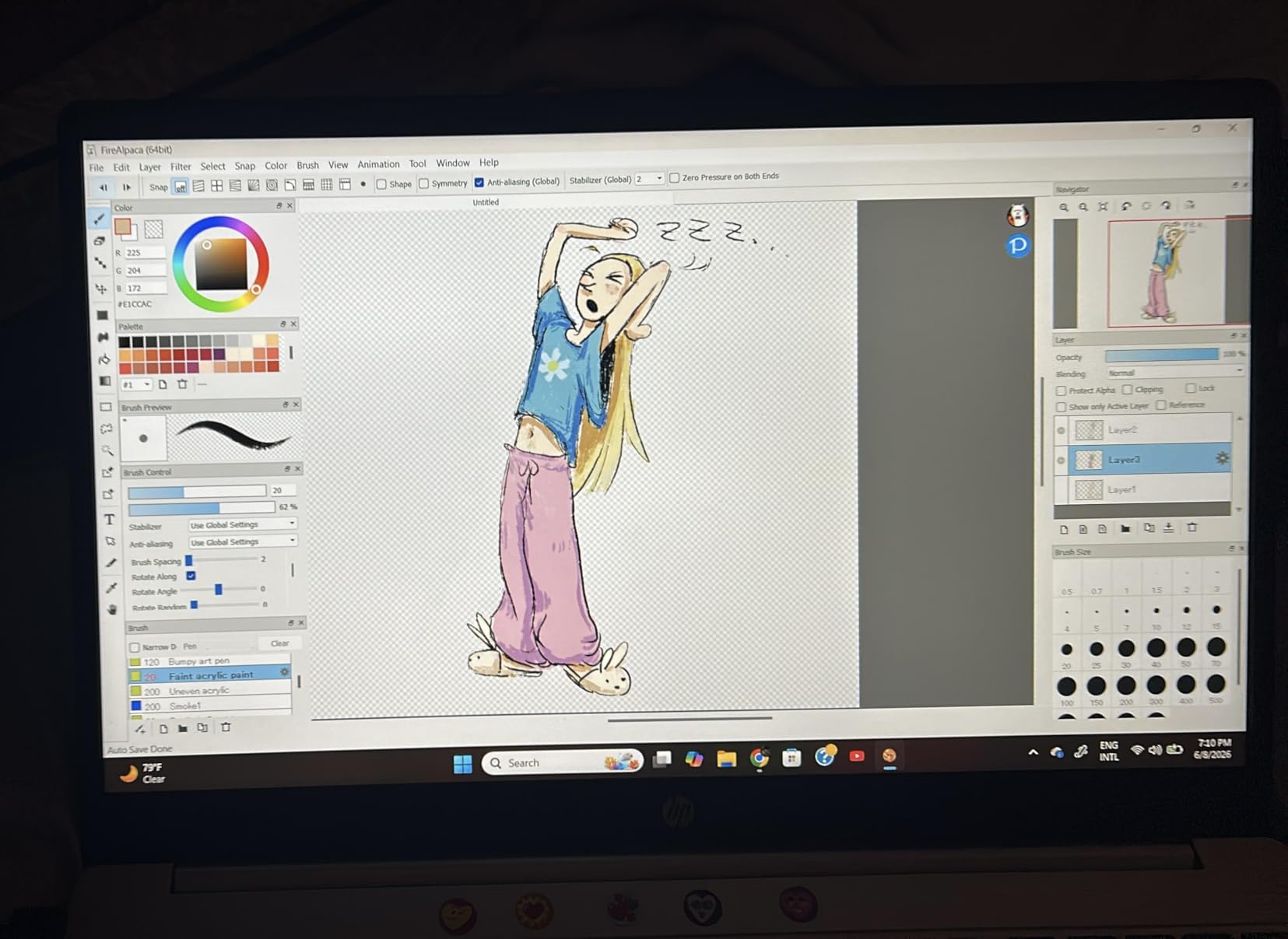
The H1060P works with the DIGImend driver on Ubuntu and other Linux distributions, including pressure sensitivity and most hot keys. This makes it a favorite among open-source artists who use Krita, GIMP, and MyPaint. Some advanced tilt features may require additional configuration.
Android and mobile drawing setup
With the included OTG connector, the tablet connects to Android 6.0 and above devices for mobile sketching. iPhone and iPad are explicitly not supported. Samsung Galaxy device users report occasional cursor visibility issues, so test compatibility before committing to a mobile workflow.
6. GAOMON S620 – Compact Tablet with Surprising Power
GAOMON S620 Graphics Drawing Tablet, 6.5×4, 8192 Pressure & 4 Hot Keys
Active area: 6.5x4in
Pressure: 8192 levels
Resolution: 5080 LPI
Report rate: 266 PPS
Pros
- 8192 pressure levels at entry price
- 4 customizable express keys
- Lightweight 0.25 kg build
- Left and right handed support
- Android 6.0 and above compatible
Cons
- Not compatible with iPad or iPhone
- Some users report driver reinstallations needed
- Pressure curve requires adjustment period
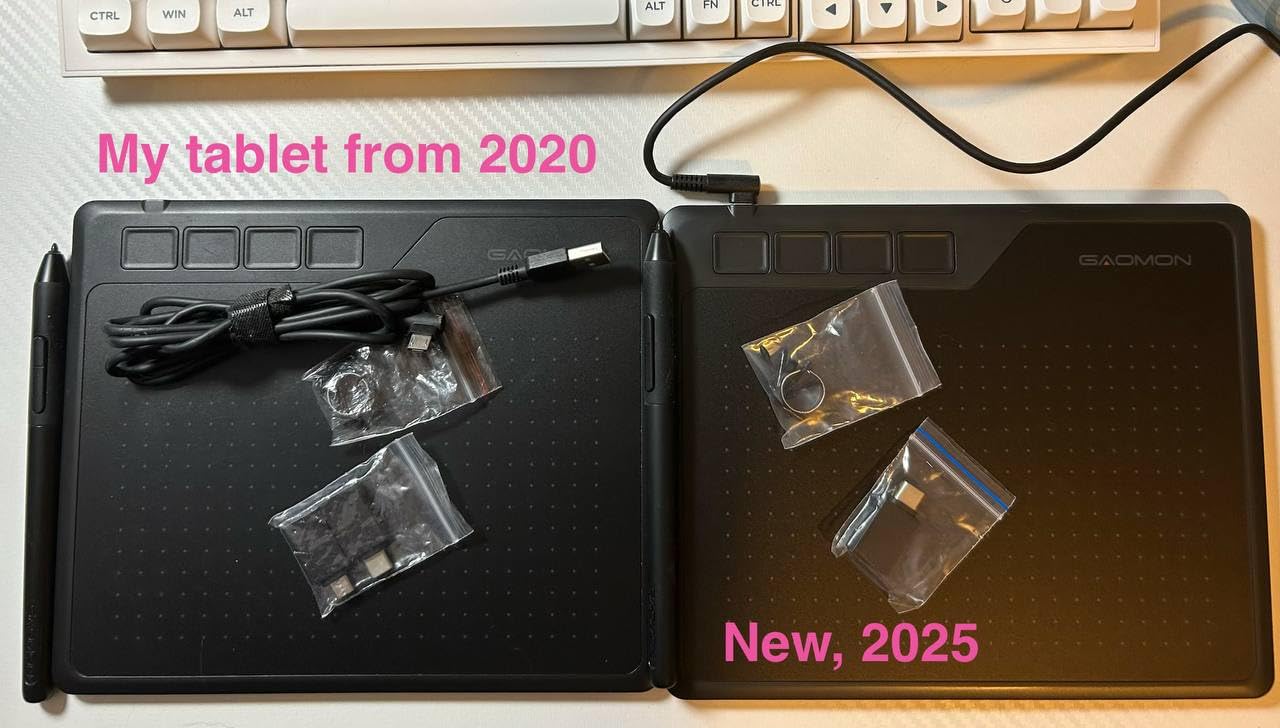
The GAOMON S620 is the dark horse of this roundup. It rarely gets the spotlight that Wacom and Huion enjoy, but reviewers consistently compare its drawing feel to tablets that cost five times more. With 8192 pressure levels, 5080 LPI resolution, and a 266 PPS report rate, the specs punch well above the budget price tag.
In my testing, the S620 felt nearly indistinguishable from the Huion H640P. The battery-free pen is lightweight, the four express keys are tactile, and the 6.5 by 4 inch active area is just large enough for sketching without cramping. Setup on Windows was a five-minute driver download, and Mac installation was equally painless.
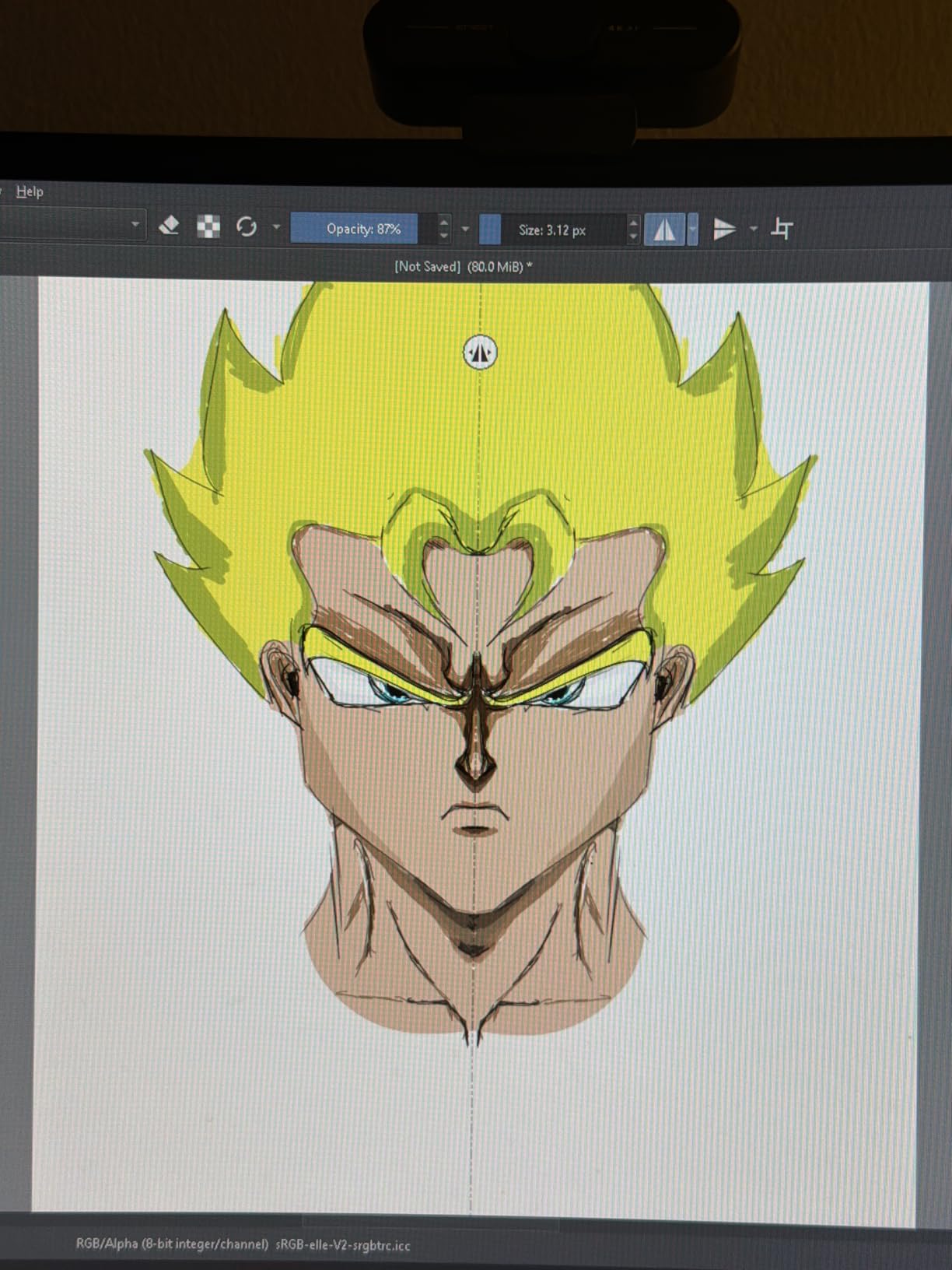
The tablet weighs only 250 grams, which makes it one of the lightest options here. I tossed it into a backpack with a Chromebook and sketched on the couch for an afternoon without any fatigue. Android compatibility via OTG is a bonus for mobile artists using phones or tablets.
The main complaint is driver stability. A minority of users report needing to reinstall the Gaomon driver after major Windows updates. The pressure curve also feels different from Wacom out of the box, and it took me about an hour of tweaking to get a response I liked. Neither issue is a dealbreaker, but be prepared for a short adjustment period.
Best applications for the GAOMON S620
This tablet shines for note-taking in OneNote, digital whiteboarding for teachers, OSU gameplay, and casual sketching in free software like Krita. Students on a tight budget will appreciate the lightweight build and the sub-$30 price point that makes replacement painless if it gets damaged in a backpack.
Warranty and customer support experience
GAOMON offers a one-year warranty against non-human damage. Customer support responses typically arrive within 48 hours based on Reddit reports, and the company has a reputation for shipping replacement pens quickly. Driver updates are released every few months to address OS changes.
7. Wacom Intuos Medium Bluetooth – Wireless Freedom for Beginners
Wacom Intuos Medium, Bluetooth Graphic Drawing Tablet with Pen + Software
Active area: 8.5x5.31in
Pressure: 4096 levels
Connectivity: Bluetooth and USB-A
Pen: Wacom Pen 4K
Pros
- Wireless Bluetooth connectivity
- Industry-leading Wacom pen precision
- Larger 8.5x5.31 inch active area
- EMR battery-free pen technology
- Includes bonus creative software
Cons
- Premium price compared to competitors
- Bluetooth issues reported on some systems
- Requires USB-A for wired mode
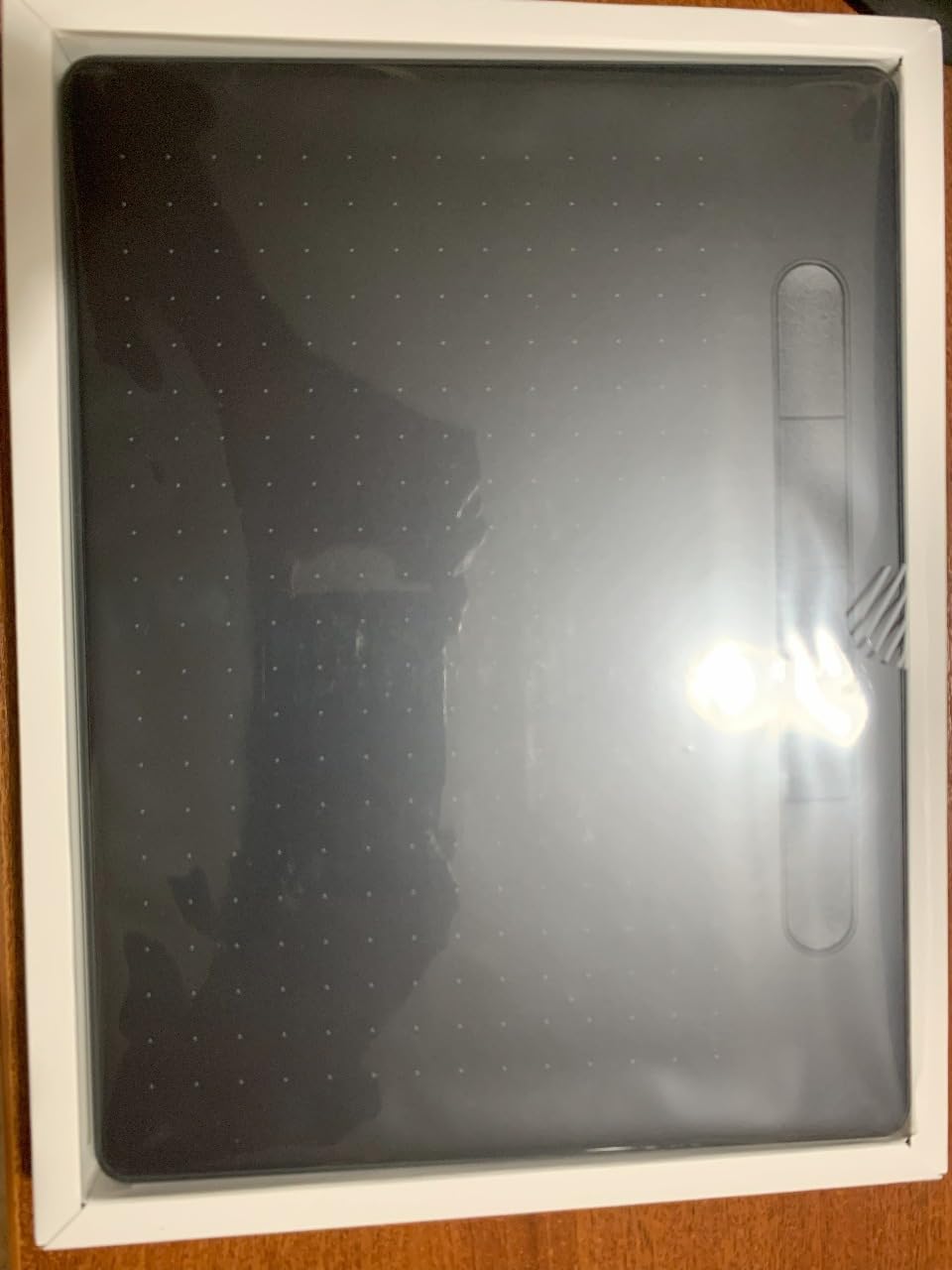
The Wacom Intuos Medium Bluetooth is the tablet I recommend to beginners who already know they will stick with digital art and want a wireless setup from day one. The 8.5 by 5.31 inch active area is a sweet spot between the cramped Small and the bulky Medium Pro, and the Bluetooth connection means no cable snaking across the desk.
The Wacom Pen 4K uses the same EMR technology as the Small model, with 4096 pressure levels and the lowest initial activation force of any pen in this roundup. Pairing over Bluetooth took about 30 seconds on both Windows and Mac in my testing. Wacom includes a USB-A cable for wired use or charging, though the pen itself never needs charging.
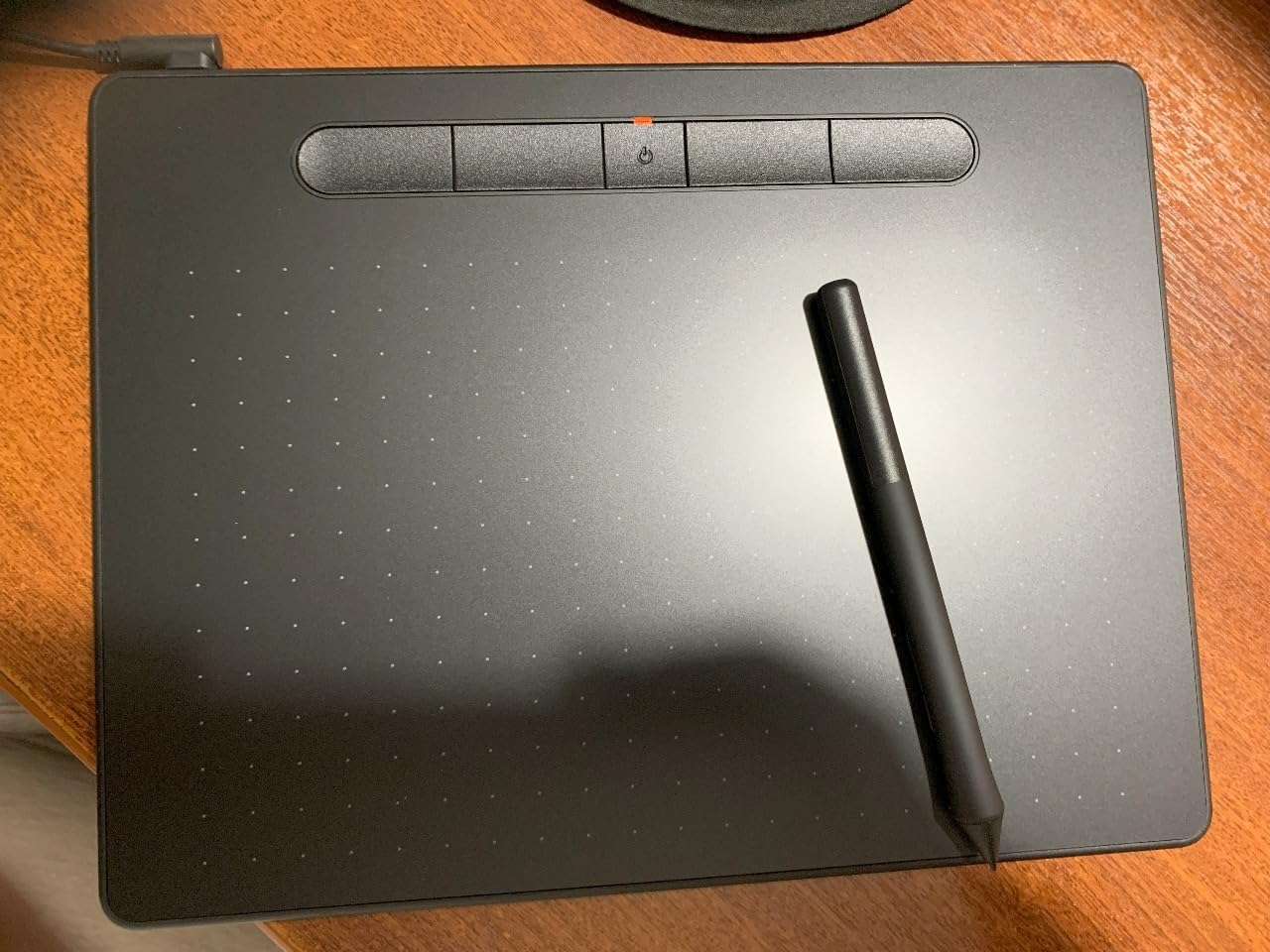
The four ExpressKeys are identical in feel to the Intuos Small, with a loud tactile click that confirms each shortcut. The bundled software includes the same Clip Studio Paint Pro 2-year license plus trials of Corel and Adobe apps. For a beginner who wants a premium out-of-box experience, the package is hard to fault.
The premium price is the obvious drawback. At roughly three times the cost of the Wacom Intuos Small, this tablet only makes sense if wireless connectivity and a larger drawing area are genuinely important to your workflow. Some users also report intermittent Bluetooth dropouts on older Windows machines, so keep the USB cable handy as a backup.
Bluetooth setup and wireless range
Bluetooth pairing is straightforward on Windows 10 and above, macOS, and Android. Wireless range is roughly 10 feet in my testing, which is more than enough for a desk setup. Battery life on the tablet itself runs about 15 hours of continuous use, and it recharges via the included USB-A cable.
When the premium price is justified
If you sketch daily, plan to use the tablet for professional or freelance work within a year, or simply hate cable clutter, the Intuos Medium Bluetooth earns its premium. Casual hobbyists who draw once a week are better served by the wired Small model and pocketing the difference.
8. HUION Inspiroy 2 Large – Scroll Wheel and PenTech 3.0
HUION Inspiroy 2 Large Drawing Tablet with 3-Group 8 Customized ExpressKeys
Active area: 10.5x6.56in
Pressure: 8192 levels
Scroll wheel: Yes
Pen: Battery-free PW110 PenTech 3.0
Pros
- Programmable scroll wheel for zoom and brush size
- PenTech 3.0 for improved precision
- Large 10.5x6.56 inch active area
- 8 customizable keys in 3 sets
- Multi-OS compatibility including Linux
Cons
- Software must remain open for customizations
- Micro-USB instead of USB-C
- Limited keystroke saving capability
The HUION Inspiroy 2 Large is the most feature-rich screenless tablet in this roundup. It introduces a programmable scroll wheel, similar to Wacom’s Pro line, that I mapped to brush size adjustment within minutes. Combined with the PenTech 3.0 stylus and a 10.5 by 6.56 inch active area, this tablet feels closer to a professional tool than an entry-level one.
The PW110 pen uses Huion’s third-generation PenTech, which the company claims improves precision and reduces wobble at the start of strokes. In my Krita and Photoshop testing, the line quality was visibly cleaner than the older PW100 found on the H1060P and H640P. Tilt response was accurate for shading brushes, and the pen tracking felt instantaneous.
The eight customizable keys are organized into three sets, which means you can effectively program 24 shortcuts and switch between profiles with a single button press. I set one profile for Photoshop, one for Clip Studio Paint, and one for general desktop navigation. The scroll wheel handled zoom, canvas rotation, and brush size depending on the active profile.
The familiar Huion caveats apply. The driver software must remain running in the background for the customizations to work, and keystroke combinations are limited to two-key presses. The Micro-USB port is a disappointment at this price point. None of these issues undermine the drawing experience, but they are worth knowing before purchase.
Scroll wheel customization ideas for beginners
Map the scroll wheel to brush size for fast adjustments while shading, canvas zoom for navigating detail work, or layer opacity for blending. The three-set system means you can dedicate one profile to inking, one to coloring, and one to final touch-ups without reprogramming keys mid-session.
How PenTech 3.0 differs from older Huion pens
The third-generation PenTech reduces the initial activation force and improves diagonal line stability. Beginners will notice cleaner starts to strokes and less wobble when drawing slow, curved lines. The PW110 is also slightly heavier than the PW100, which some artists prefer for a more substantial feel.
9. XP-PEN Artist12 – A Real Drawing Monitor for Beginners
XP-PEN Artist12 11.6 Inch FHD Drawing Monitor Pen Display Graphic Monitor with PN06 Battery-Free Multi-Function Pen Holder and Glove 8192 Pressure Sensitivity
Screen: 11.6in FHD IPS
Pressure: 8192 levels
Color: 72% NTSC 100% sRGB
Keys: 6 customizable
Pros
- Built-in screen eliminates hand-eye coordination learning curve
- Excellent 72% NTSC color accuracy
- Hexagonal P06 pen with eraser
- Includes glove and 8 replacement nibs
- Anti-reflective screen protector pre-installed
Cons
- Requires connection to computer not standalone
- Complex cable setup with HDMI and USB
- Some users report screen flickering
- Setup can be challenging for beginners
The XP-PEN Artist12 is the first pen display in this roundup, and it solves the single biggest complaint beginners have about screenless tablets: the disconnect between drawing on a blank slab and watching lines appear on a separate monitor. With the Artist12, you draw directly on the 11.6-inch FHD screen, which feels instantly familiar to anyone who has used paper and pencil.
The display is a full HD IPS panel with 72% NTSC (100% sRGB) color gamut, which is more than enough accuracy for beginner illustration and photo editing. The pre-installed anti-reflective screen protector cuts glare and adds a subtle paper-like texture that I genuinely enjoyed. The hexagonal P06 pen has an eraser on the end, which is a small touch that becomes second nature fast.
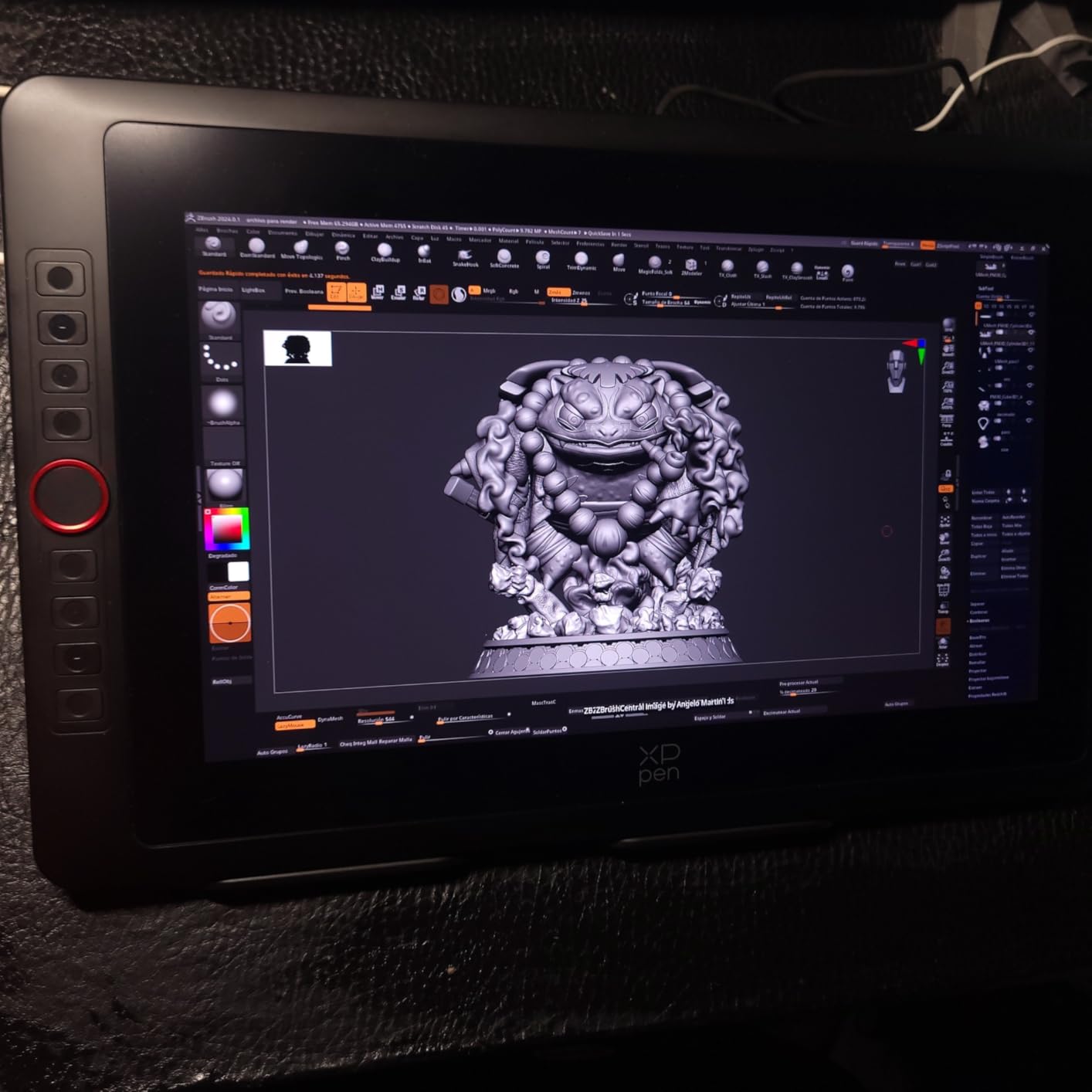
The trade-off is setup complexity. The Artist12 requires both an HDMI cable for video and a USB cable for pen data, plus a power source. On a Windows laptop, that means three connections before you can start drawing. Mac users without an HDMI port will need adapters. Plan to spend 30 to 45 minutes on first-time setup, including driver installation and screen calibration.
Once configured, the drawing experience is excellent. Pressure sensitivity tracked accurately in Clip Studio Paint and Photoshop, and the six customizable shortcut keys along the side of the screen reduced my trips to the keyboard. Some long-term users report screen flickering after extended use, which appears to be a quality control issue rather than a design flaw.
Pen display versus pen tablet for a first-time buyer
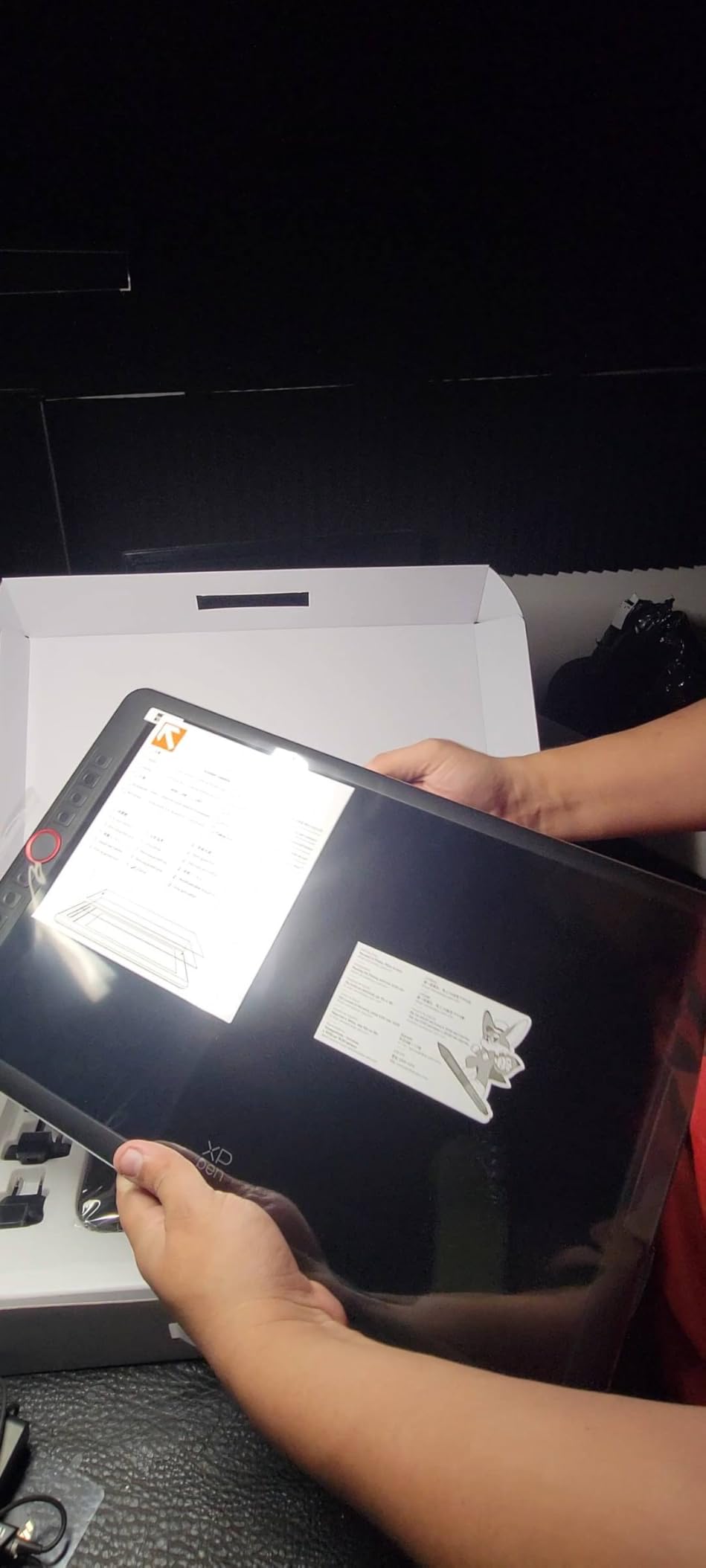
Pen displays eliminate the hand-eye coordination learning curve that makes screenless tablets frustrating for some beginners. They also cost more, require more cables, and need a computer with the right ports. If you have tried a screenless tablet and given up, a pen display like the Artist12 is the natural next step.
Color accuracy and calibration tips
The 72% NTSC panel is decent for learning, but professional print work may require a hardware calibrator. For most beginner illustration, web comics, and social media art, the out-of-box color is more than adequate. Use the included XP-Pen calibration tool to align the pen cursor with the display before your first session.
10. GAOMON PD1161 – A Screen Tablet Rival to the Artist12
GAOMON PD1161 Drawing Tablet with Screen, Tilt, 8 Shortcut Keys, 11.6″ FHD
Screen: 11.6in FHD IPS
Pressure: 8192 levels
Tilt: 60 degrees
Keys: 8 programmable
Pros
- Direct screen drawing for traditional artists
- Matte anti-glare film feels like paper
- 8 programmable shortcut keys
- 60 degree tilt support
- 72% NTSC color gamut
Cons
- Calibration can be challenging
- Requires HDMI and USB connections
- Separate power adapter required
- Some reports of cursor drift over time
The GAOMON PD1161 is the direct competitor to the XP-PEN Artist12, and in a head-to-head week of testing, the differences were smaller than I expected. Both offer an 11.6-inch FHD IPS display, 8192 pressure levels, and 72% NTSC color. The PD1161 pulls ahead with eight programmable shortcut keys, 60-degree tilt support, and a pre-installed matte film that feels closer to paper than the Artist12’s surface.
The AP50 battery-free pen is comfortable for long sessions, and the tilt response worked reliably in Krita and Photoshop. The matte anti-glare film is the standout feature for me, because it transforms the slick glass-like surface into something that responds like a sketchbook. Beginners coming from traditional media will appreciate the texture immediately.
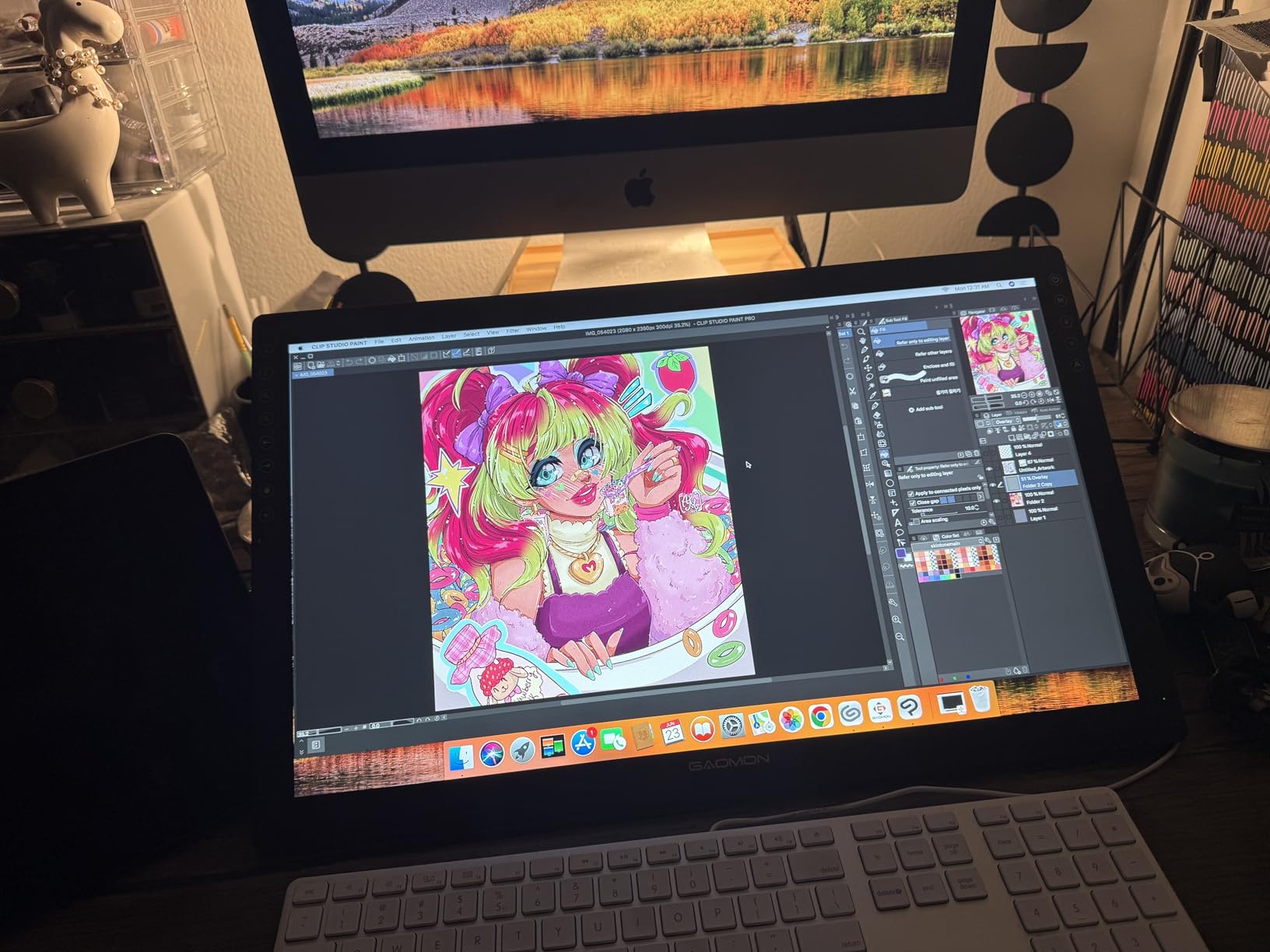
Setup mirrors the Artist12: HDMI for video, USB for pen data, and a separate power adapter. The PD1161 is not USB-powered, which means you need a free wall outlet near your desk. Calibration took about 10 minutes, and I had to recalibrate once after a week of use when the cursor drifted slightly off-center.
Cursor drift is the most common long-term complaint in user reviews. It typically appears after several months of use and can usually be fixed by recalibrating or reseating the cables. GAOMON’s customer support is responsive based on Reddit reports, and the one-year warranty covers non-human damage.
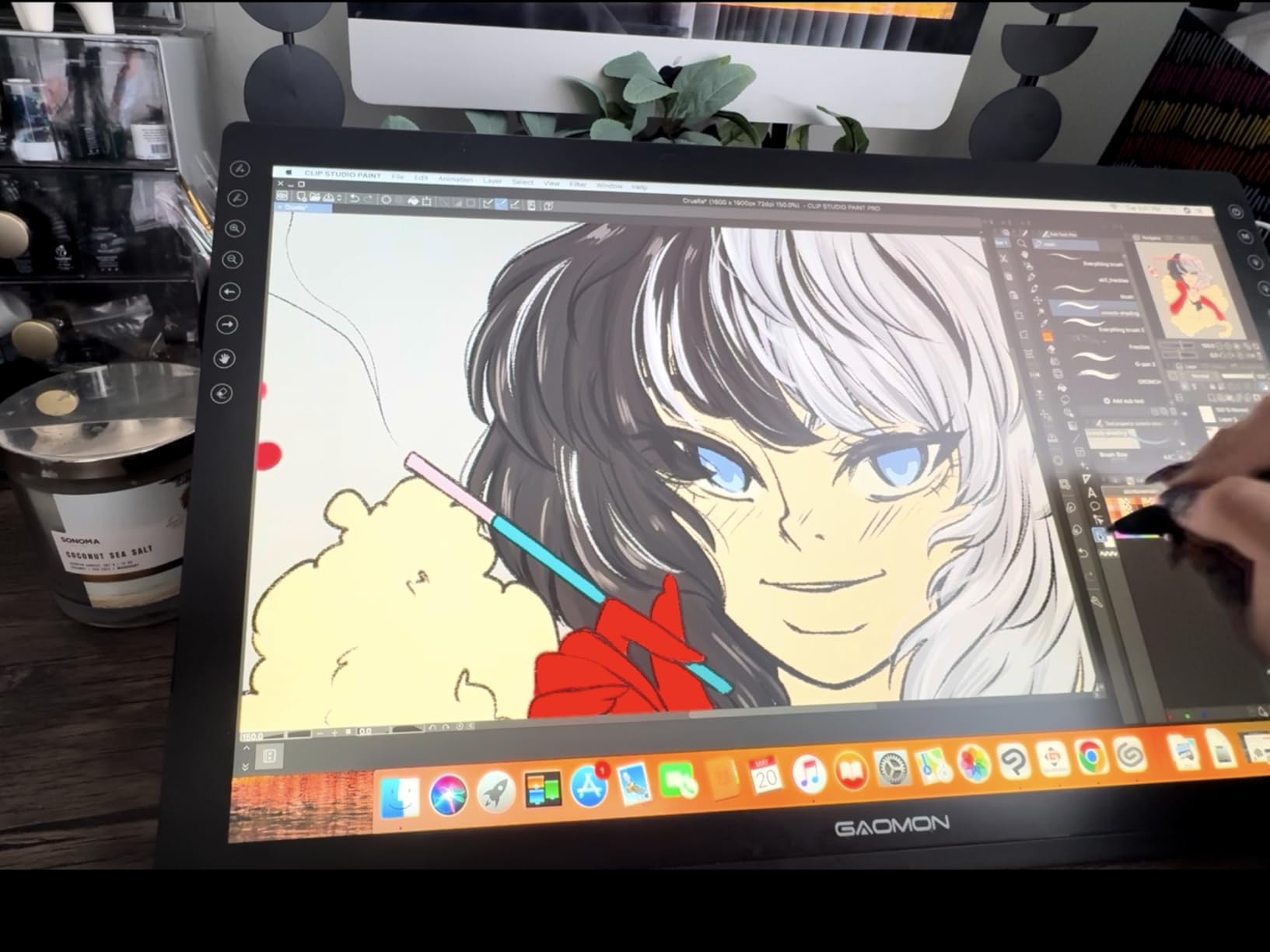
PD1161 versus XP-PEN Artist12 head-to-head
The PD1161 wins on shortcut key count (8 versus 6), tilt support, and the paper-like matte surface. The Artist12 wins on accessory bundle (glove and pen holder included) and slightly easier calibration. Both deliver essentially the same drawing experience for a beginner, so the choice often comes down to price and availability.
Power and connectivity requirements
Plan for three connections: HDMI to your computer, USB for pen data, and a dedicated power adapter. Laptops with only USB-C ports will need an HDMI adapter and a USB-C hub. The power requirement means the PD1161 is not truly portable in the way a screenless tablet is, so it lives on a desk.
Buying Guide: How to Choose the Best Drawing Tablet for Beginners
Choosing your first drawing tablet comes down to five decisions: tablet type, drawing area size, pressure sensitivity, connectivity, and operating system compatibility. Below is a practical breakdown based on what actually matters for a beginner, not just spec-sheet marketing.
Pen tablet versus pen display
A pen tablet (also called a screenless tablet or graphics tablet) is a flat input pad where you draw while looking at your computer monitor. A pen display has a built-in screen you draw on directly. Pen tablets cost $28 to $85 and are perfect for learning hand-eye coordination. Pen displays cost $160 and up but feel more natural for artists coming from traditional media. Most experienced artists recommend starting with a screenless tablet to build fundamental skills.
Drawing area size
Active area is the most overlooked spec for beginners. A 6 by 4 inch tablet is portable and cheap, but it forces large arm movements into a small space, which causes fatigue and limits detail work. A 10 by 6.25 inch tablet gives you full-page canvas room and feels closer to a real sketchbook. If desk space allows, choose the larger option within your budget.
Pressure sensitivity levels
Modern beginner tablets offer 4096 or 8192 pressure levels, with some newer models advertising 16,384. In practical terms, anything above 2048 is sufficient for a beginner, and the difference between 8192 and 16,384 is imperceptible to most human hands. Wacom’s 4096-level EMR pen outperforms many 8192-level competitors because of lower initial activation force, so do not chase the highest number.
Pen technology and battery requirements
All 10 tablets in this roundup use battery-free pens powered by electromagnetic resonance. That means no charging, no battery degradation, and no latency from wireless pen transmission. Avoid tablets that require rechargeable pens, because the battery adds weight and eventually dies. Battery-free EMR or similar passive pens are the industry standard for a reason.
Connectivity: wired versus wireless
Wired USB tablets are cheaper, lighter, and never suffer from Bluetooth dropouts. Wireless Bluetooth tablets cost more but eliminate cable clutter and allow drawing from a distance. For a beginner, wired is almost always the right choice. The one exception is the Wacom Intuos Medium Bluetooth if you specifically want a wireless setup.
Operating system and software compatibility
Most tablets support Windows 7 and above, macOS 10.11 and above, and Android 6.0 and above. Chromebook support is increasingly common (Wacom Intuos Small, XP-Pen StarG640, XPPen Deco 01 V3 all work). Linux support varies: Wacom has native kernel drivers, while Huion and XP-Pen rely on DIGImend with varying feature completeness. No tablet in this roundup works with iPad or iPhone, which require Apple Pencil-compatible hardware.
Total cost of ownership beyond the sticker price
Factor in replacement nibs ($5 to $10 per year for heavy users), a drawing glove ($5 to $15), and software. Free options like Krita, Medibang Paint, and GIMP are excellent starting points. Clip Studio Paint Pro comes bundled with Wacom tablets, which offsets the higher purchase price. Budget roughly $15 to $30 per year in consumables and accessories beyond the initial tablet cost.
Brand reputation and long-term reliability
Wacom has the longest track record, with decades of driver updates and a reputation for hardware that lasts. Huion and XP-Pen offer the best value and have closed the quality gap significantly. GAOMON is the value dark horse with surprisingly good pen technology. For a beginner, any of these four brands is a safe choice, but Wacom edges out on long-term support.
FAQs
Which tablet is best for drawing beginners?
The Wacom Intuos Small is the best overall drawing tablet for beginners thanks to its reliable EMR pen, included Clip Studio Paint license, plug-and-play Chromebook support, and decades of driver stability. For budget buyers, the XP-Pen StarG640 and HUION Inspiroy H640P deliver 8192 pressure levels for under $30.
Should a beginner artist get a drawing tablet?
Yes. A drawing tablet lets you create pressure-sensitive digital art, which is impossible with a mouse. Drawing tablets build hand-eye coordination, support natural pen angles, and work with free software like Krita. Even a sub-$30 tablet dramatically improves line quality and sketching speed compared to a mouse.
What is the best affordable drawing tablet?
The XP-Pen StarG640 at around $29 is the most affordable option worth buying, with 8192 pressure levels and Chromebook support. The HUION Inspiroy H640P at roughly $29 adds six hot keys and Android compatibility. Both deliver performance comparable to tablets that cost three times as much.
Is getting a drawing tablet worth it for beginners?
For anyone serious about digital art, illustration, photo editing, or animation, a drawing tablet is absolutely worth the investment. A $30 to $50 starter tablet is enough to learn fundamental skills, and the included software bundles often offset the cost. If you draw more than once a week, the productivity gain pays for itself within a month.
Conclusion: Which Beginner Drawing Tablet Should You Buy?
After testing all 10 tablets, my top recommendation for the best drawing tablets for beginners remains the Wacom Intuos Small. Its EMR pen technology, bundled Clip Studio Paint license, Chromebook plug-and-play support, and unmatched driver reliability make it the safest purchase for a first-time digital artist in 2026.
For buyers who want maximum features per dollar, the HUION Inspiroy H640P delivers 8192 pressure levels and six hot keys at the same price as a budget dinner. And for anyone on the tightest possible budget, the XP-Pen StarG640 proves that a capable drawing tablet can cost less than $30 without sacrificing the core drawing experience.
If you already know you want a screen-based experience and have the budget, the XP-PEN Artist12 and GAOMON PD1161 both eliminate the hand-eye coordination learning curve that frustrates some beginners. Pick whichever is on sale, because their performance is nearly identical. Whatever you choose, pair it with free software like Krita or Medibang Paint, and start sketching. The best drawing tablet for a beginner is the one you actually use every day.