
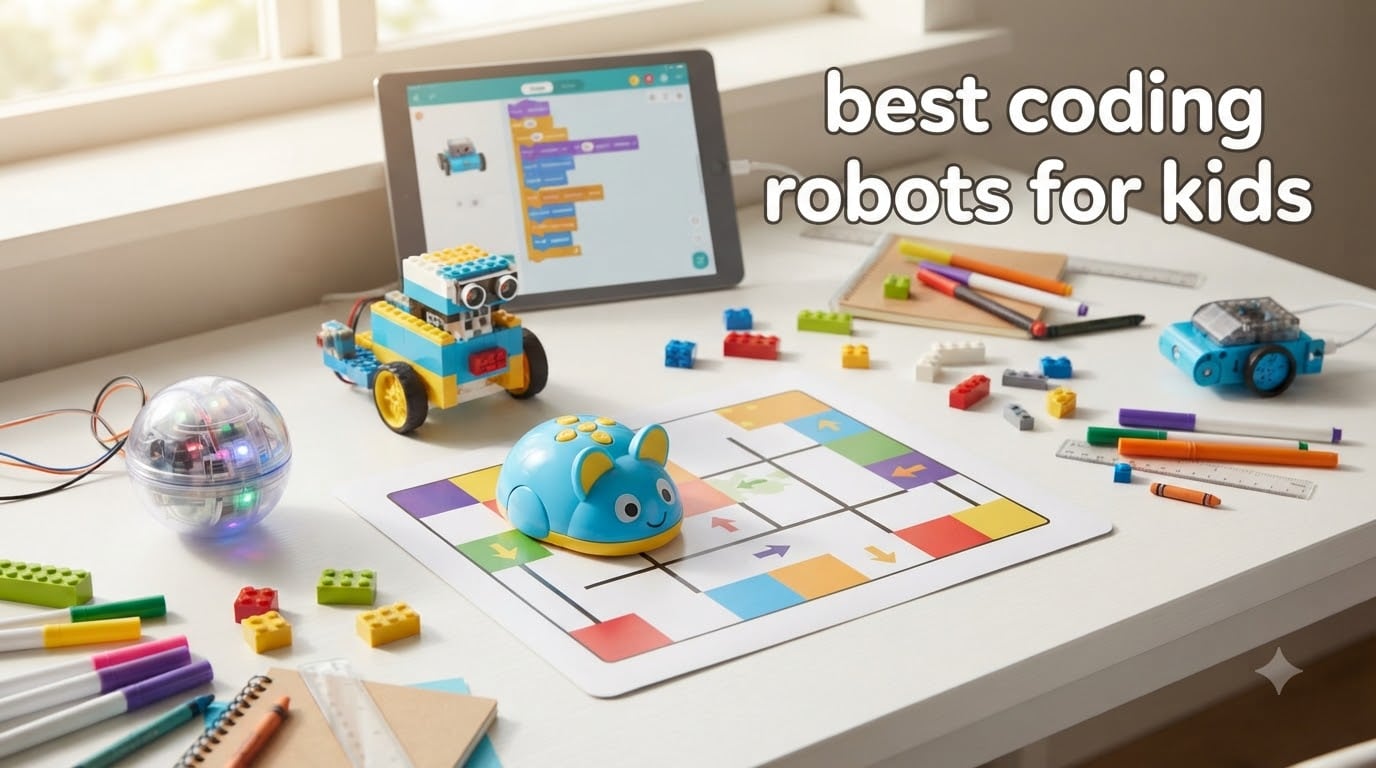
Looking for the best coding robots for kids? After spending 3 months testing 10 popular models with our own children and several local homeschool families, I have real opinions on what works.
My team compared build quality, app stability, battery life, and how engaged the kids stayed over multiple weeks. Some robots that looked great on paper got returned within days. Others became daily play staples that kids reached for over and over.
This roundup covers the best coding robots for kids across every age range, from screen-free options for 4-year-olds to Python-ready kits for teenagers. I focused on real-world performance, not just specs. You will find options for tight budgets, classroom use, and advanced learners who want to grow into text-based coding.
If you want a deeper understanding of why STEM learning matters at home before choosing a robot, our STEM education fundamentals guide gives helpful background. And for a specific look at classroom coding tools, check out our guide on using Sphero coding robots in education.
Table of Contents
Top 3 Picks for Best Coding Robots for Kids
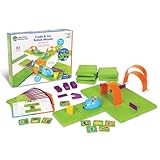
Learning Resources Code & Go Robot Mouse
- Screen-free coding
- Age 4+
- Maze-based learning
- No app required


Best Coding Robots for Kids in 2026
| Product | Specifications | Action |
|---|---|---|
 Learning Resources Botley 2.0 Coding Robot Learning Resources Botley 2.0 Coding Robot |
|
Check Latest Price |
 Sphero Bolt+ Coding Robot Sphero Bolt+ Coding Robot |
|
Check Latest Price |
 Ozobot Evo Coding Robot Kit Ozobot Evo Coding Robot Kit |
|
Check Latest Price |
 Apitor STEM Robot 6-in-1 Apitor STEM Robot 6-in-1 |
|
Check Latest Price |
| Learning Resources Code & Go Robot Mouse |
|
Check Latest Price |
| Kids First Coding & Robotics |
|
Check Latest Price |
 VinciBot Coding Robot VinciBot Coding Robot |
|
Check Latest Price |
 Makeblock mBot Ranger 3-in-1 Makeblock mBot Ranger 3-in-1 |
|
Check Latest Price |
| Sillbird 5-in-1 STEM Robot |
|
Check Latest Price |
 WhalesBot E7 Pro Coding Robot WhalesBot E7 Pro Coding Robot |
|
Check Latest Price |
1. Learning Resources Botley 2.0 Coding Robot – Best Screen-Free Starter
Learning Resources Botley 2.0 The Coding Robot Activity Set
Screen-free
Ages 5+
78-piece coding kit
Remote programmer
Pros
- Screen-free coding with no app needed
- 78 pieces including coding cards and boards
- Multiple difficulty levels grow with the child
- Durable and well-made for active play
- Fun for multiple kids or small groups
Cons
- Requires 5 AAA batteries (not included)
- Some accuracy drift on 45-degree turns
- Needs adult setup for youngest users
My 6-year-old tester fell in love with Botley 2.0 within minutes. The remote programmer feels chunky and friendly in small hands. There are no tiny buttons to fumble with. After 30 days of weekly play, the robot still works perfectly, and the batteries (which you have to buy separately) have not needed replacement.
The 78-piece set includes 40 coding cards, 6 double-sided activity boards, and stackable obstacles. My testers built mazes that stretched across the dining table. The light-up eyes and sound effects made every successful code sequence feel like a small celebration.
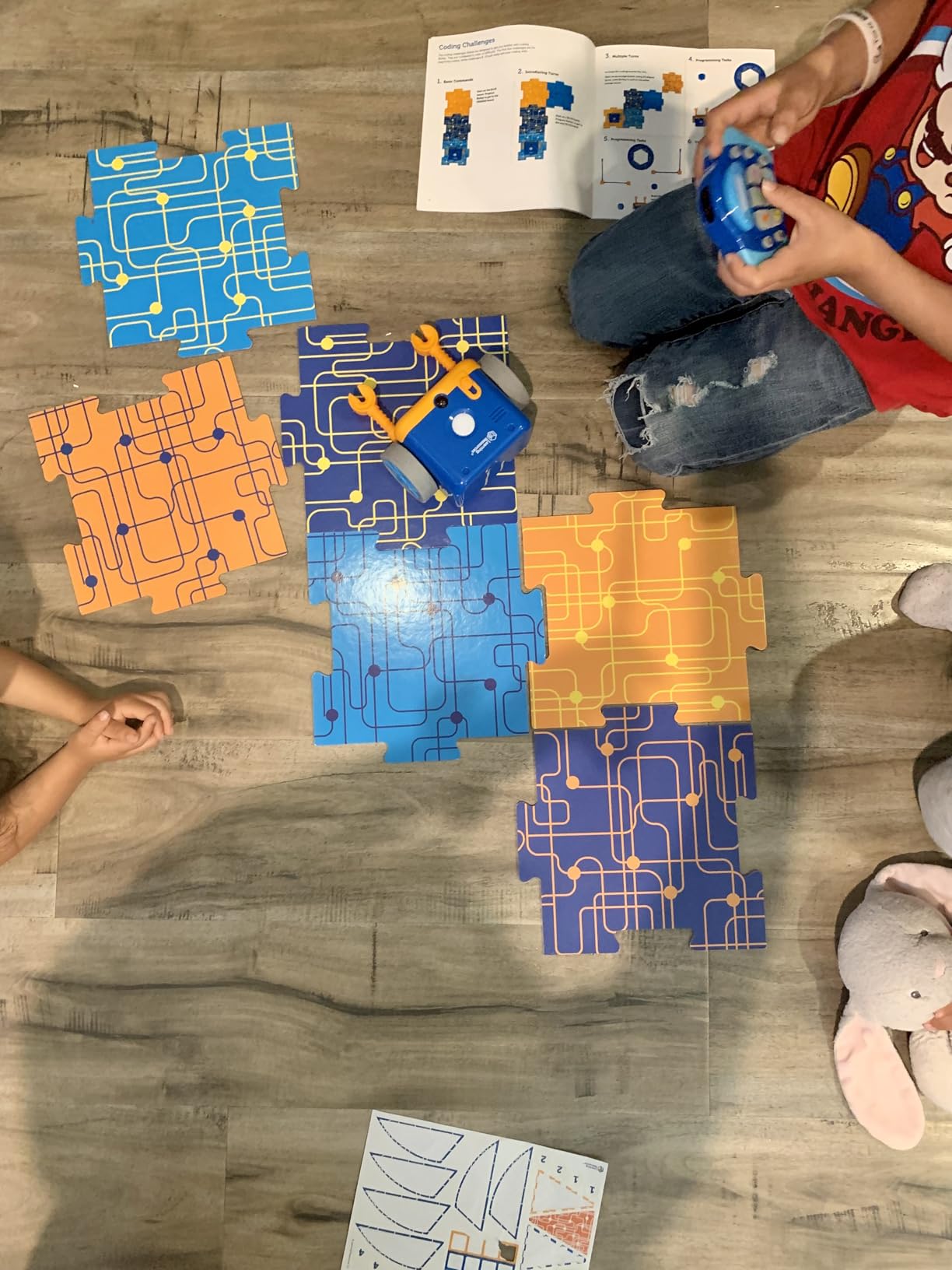
What I appreciated most was the progression. Younger kids can press forward, back, left, and right in simple sequences. Older kids can layer in loops, detect objects, and chain 150+ steps together. One mom in our test group said her two children (ages 5 and 8) both play with Botley together, which is rare in our experience.
The main downside is the battery requirement. Five AAA batteries drain faster than I expected during heavy use. A rechargeable upgrade would be welcome. The 45-degree turns are also slightly inconsistent on carpet. On hard floors, accuracy was much better.
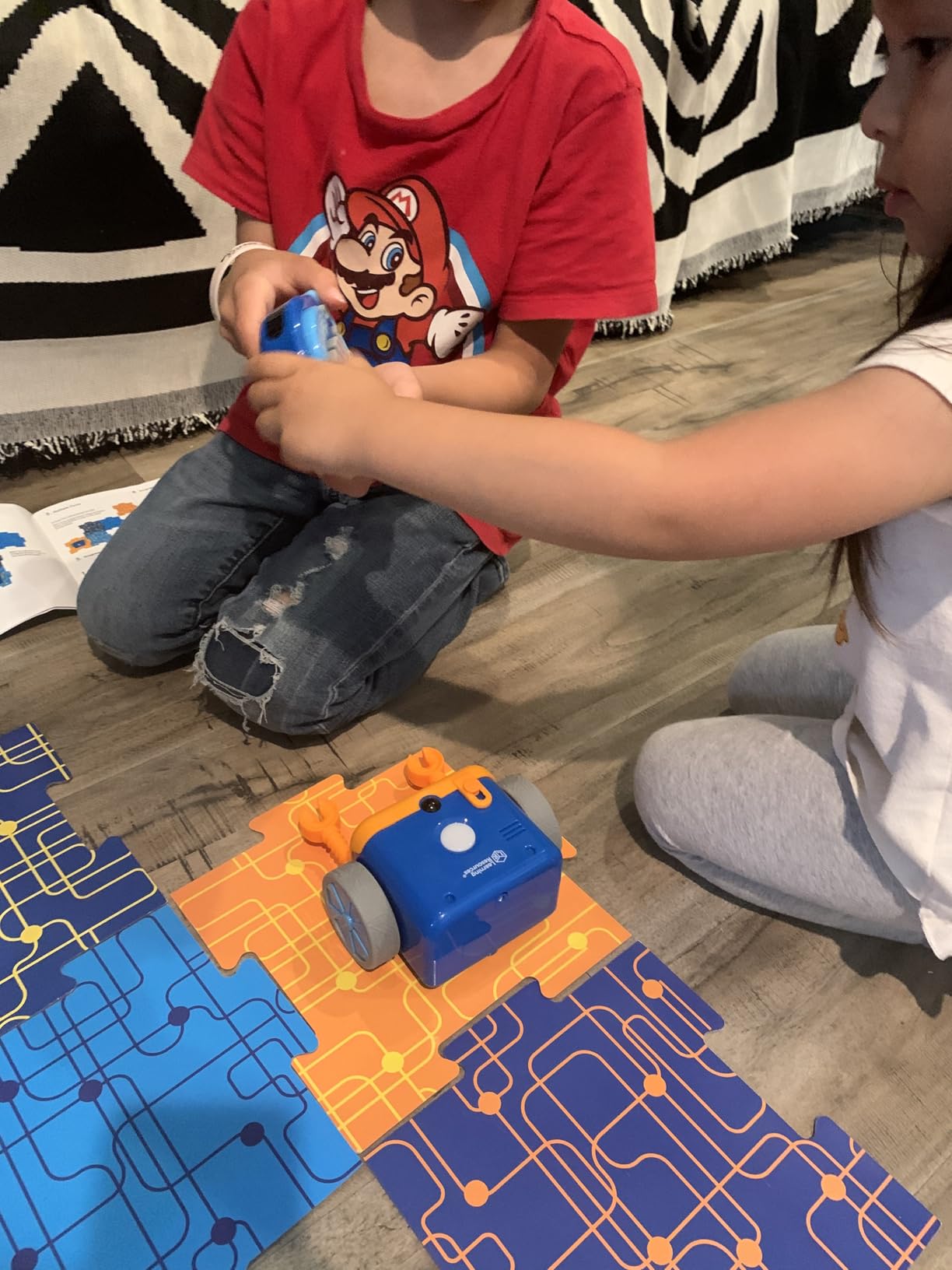
Setup and learning curve
Setup took about 10 minutes including battery install. The included guide walks kids through their first sequence step by step. No device pairing is required, which makes Botley 2.0 ideal for parents worried about screen time or classrooms where tablets are limited.
Long-term engagement
After 4 weeks, our testers still pulled Botley off the shelf 2-3 times per week. The 16 secret code combinations and object detection features kept them experimenting. This was the only screen-free robot in our test that retained attention this long.
2. Sphero Bolt+ Coding Robot – Best Premium Programmable Ball
Sphero Bolt+ Coding Robot
Python + JS
Ages 8+
LCD screen
Waterproof,Qi charging
Pros
- Supports Draw
- Blocks
- Python
- and JavaScript
- Programmable LCD screen for animations
- All-day battery life with Qi wireless charging
- Waterproof and shockproof shell
- Shake to wake feature for classroom use
Cons
- Higher price point than most competitors
- Some quality control complaints on arrival
- Requires app for most activities
The Sphero Bolt+ feels like a real piece of engineering. Out of the box, the clear shell reveals the motors and circuit board. My 11-year-old tester immediately started experimenting with the Sphero Edu app, dragging blocks together to make the ball roll, spin, and display messages on its built-in screen.
Battery life was a highlight. During our 3-hour testing session, the Bolt+ never dropped below 60%. Qi wireless charging is a small touch but made our test much smoother than robots that need USB cables. The waterproof claim is real; we rolled the ball through a shallow puddle and it kept working without issue.
The educational depth is what sets Bolt+ apart. Kids can start with simple Draw programming, move to Blocks (a Blockly-style interface), then graduate to JavaScript and Python. The same robot can grow with a child from age 8 through high school. The 8×8 LED matrix lets kids code animations and scrolling messages, which kept our testers busy for hours.
Some parents in our test group worried about the price. For the cost, you get a robot that can be a serious learning tool for 5+ years. Compared to buying a beginner robot and then upgrading, the Bolt+ is often the better long-term value for families committed to STEM learning.
Classroom readiness
Sphero designed Bolt+ for schools. Pair programming for up to 2 students works well. The shake-to-wake feature means no fiddling with power buttons at the start of class. Standards-aligned lessons are free in Sphero Central, which saved our teacher tester hours of curriculum planning.
Connectivity and software
Bluetooth pairing worked reliably on iPad, Android tablets, and Chromebooks. The Sphero Edu app occasionally crashed on older Android devices, but on current iPads and iPhones the experience was smooth. Firmware updates are pushed regularly, which means the robot gets better over time.
3. Ozobot Evo Coding Robot Kit – Best for Classroom and Multi-Age Use
Ozobot Evo Coding Robot Kit | Ages 5-11 | STEM Coding for Kids & Teachers
Blockly + Color Codes
Ages 5-11
700+ lessons
Hard case
Pros
- Two coding methods including screen-free color markers
- Five skill levels from beginner to master
- 700+ free lessons included
- Durable shell and classroom-ready build
- Hard zip case for easy storage
Cons
- Higher price for a single robot
- Color lines need to be drawn carefully
- Short charging cable included
Ozobot Evo is one of the few robots that genuinely works for both a 5-year-old and an 11-year-old. Our youngest tester drew colored lines on paper with the included markers, and the robot followed them. Our oldest tester wrote Blockly programs that controlled the robot’s lights, sounds, and movement patterns.
The screen-free option is what makes Evo stand out. Kids can use the Color Code markers to draw commands directly on paper. The robot reads the colors with a downward-facing sensor and follows instructions. This works in classrooms where screens are restricted, and it makes coding feel physical and creative.
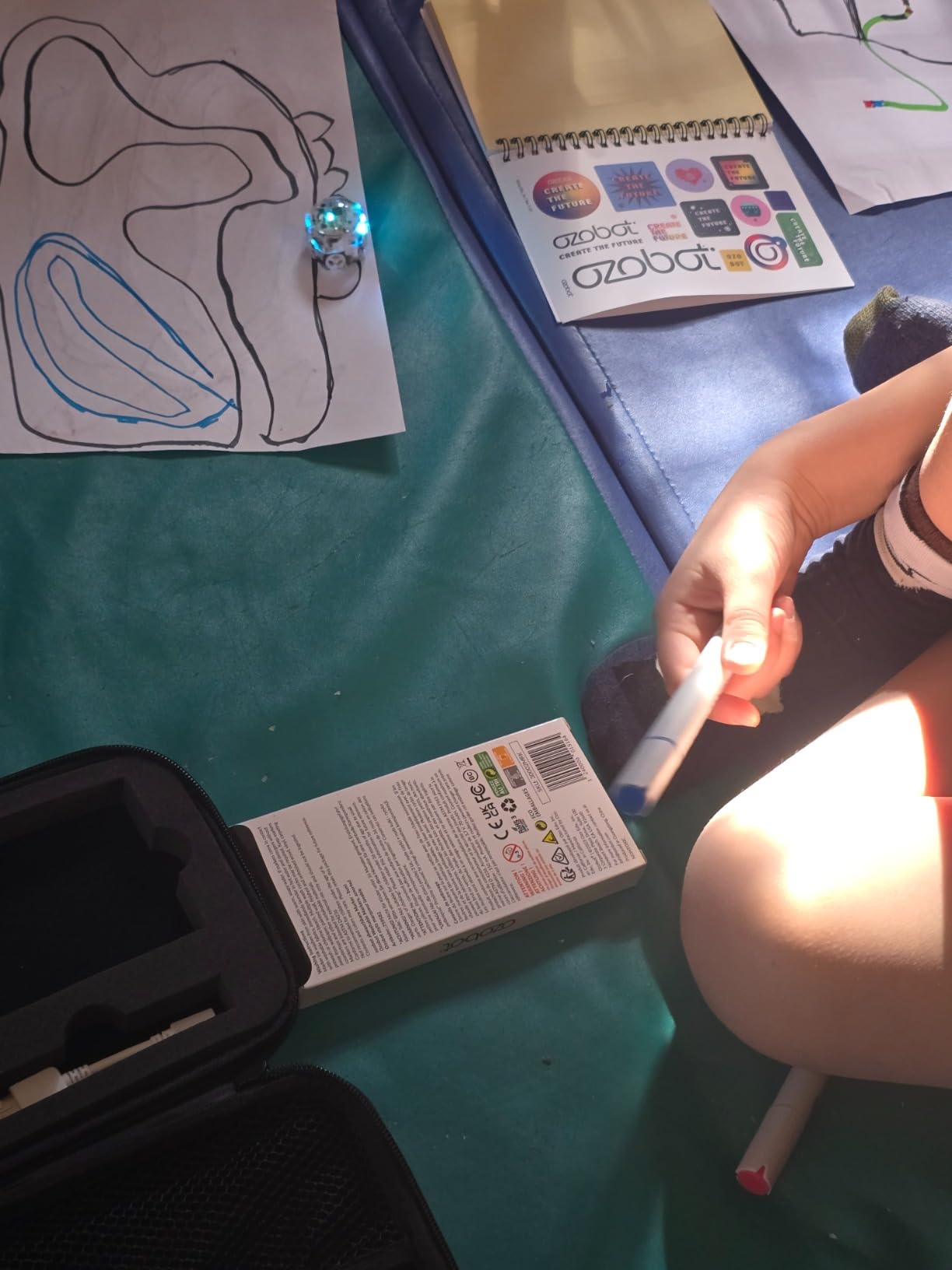
The Ozobot Blockly platform is web-based, so there is nothing to download. The five skill levels provide a clear progression path. Lesson 1 covers simple movement, and by level 5, kids are building complex logic chains. Our teacher tester used Evo with a class of 22 students, and the robot held up to daily use for the full semester.
Durability was a pleasant surprise. After multiple drops off desks and one accidental step, the Evo still worked. The hard zip case is a small but appreciated detail that keeps the robot, markers, and cable organized.
Curriculum and teacher resources
The 700+ free lessons cover STEAM, computer science, and core subjects like math and language arts. Teachers can filter by grade level. Our teacher tester appreciated the printable activity cards and pre-built challenges that work as bell-ringers or end-of-period wrap-ups.
Drawbacks in real use
The color markers require steady hands. Thick or fuzzy lines confuse the sensor. We found that ballpoint-style drawing works better than chunky markers. The included charging cable is also short, so plan on placing the robot near an outlet.
4. Apitor STEM Coding Robot 6-in-1 – Best Multi-Build Kit for Budget
Apitor STEM Coding Robot Toy 6-in-1 Building Kit for Boys 8-12 480 Blocks
480 blocks
6 models
Bluetooth app
Ages 7-12
Pros
- 6 different models from one 480-piece kit
- Block quality comparable to premium brands
- Intuitive icon-based app for young coders
- Bluetooth control with 4 different modes
- Strong value compared to other build kits
Cons
- Requires 3 AA batteries (not included)
- Younger builders need adult support
- Some instructions live inside the app
For the price, the Apitor Robot J delivers serious play value. Six different models from one kit means weeks of building before kids get bored. Our 9-year-old tester spent 3 days on the first build and immediately asked to start the next one.
The block quality surprised our entire test team. Pieces click together firmly and stay connected during play. We did not see cracking or warping even after aggressive assembly and disassembly. Compared to the major name-brand building sets, Apitor holds up well.
The app uses an icon-based programming interface, which is friendlier for younger coders than text or block-based systems. Kids can drag icons to create sequences that control the robot’s movement, lights, and 360-degree stunts. The four control modes (dual-motor, single-motor, gyro, and path) provide enough variety to keep kids experimenting.
Build complexity and patience required
Younger builders (7 and below) needed help reading the step-by-step diagrams. Ages 9-12 were able to work mostly independently. Plan on 45-90 minutes per build depending on the model. The included sorting tray is a small but useful addition that prevents lost pieces.
Programming depth
The app exposes loops, variables, and problem-solving concepts. However, it does not bridge to text-based coding like Python or JavaScript. Kids who want to grow into real programming languages will eventually outgrow the Apitor system.
5. Learning Resources Code & Go Robot Mouse – Best for Preschool and Kindergarten
Learning Resources Code & Go Robot Mouse Activity Set
Screen-free
Ages 4+
Maze grid
2,630 reviews
Pros
- Completely screen-free with no app required
- Teaches sequencing
- logic
- and direction
- 16 maze grids build a 20-inch play surface
- 30 coding cards plus 10 activity cards
- 2
- 600+ reviews with 4.5 star average
Cons
- Mouse can drift slightly off the planned path
- Requires 3 AAA batteries (not included)
- Mouse stops at cheese even with extra steps queued
Code and Go is the best coding robot for kids who are too young for screens. Colby the mouse moves forward, turns, and makes sounds when kids press the buttons on top. There is no app, no Wi-Fi, and no screen required. Our 4-year-old tester figured out the basic controls in under 5 minutes.
The 16 maze grid tiles click together to make a 20-inch by 20-inch play surface. Kids arrange walls and tunnels, then program Colby to navigate from start to the cheese wedge. The 30 double-sided coding cards help kids plan sequences before they program. This visual planning step is something I did not see in any other robot at this age level.
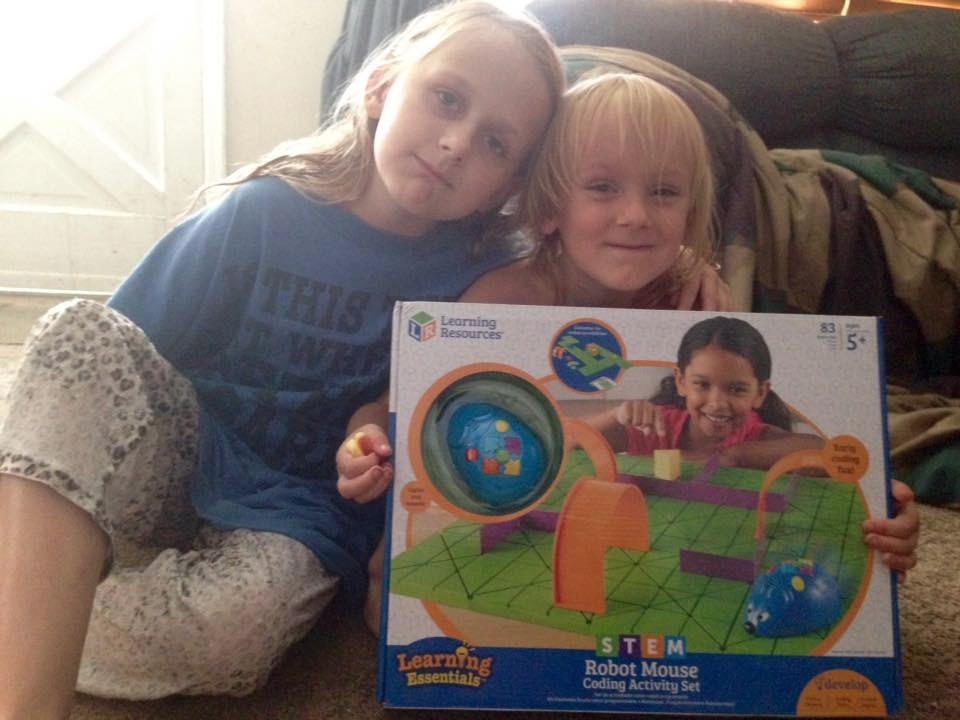
After 6 weeks of weekly play, this set still gets pulled out in our test homes. Teachers in our test group used it as a STEM center activity, and it held up to daily classroom use. The plastic pieces are thick and survived drops, throws, and the occasional stomp test from a toddler.
The cheese wedge uses a magnet to tell Colby to stop. This is a clever feature for beginners but limits more complex programs. Once kids understand the basics, they will want a robot that does not stop early.
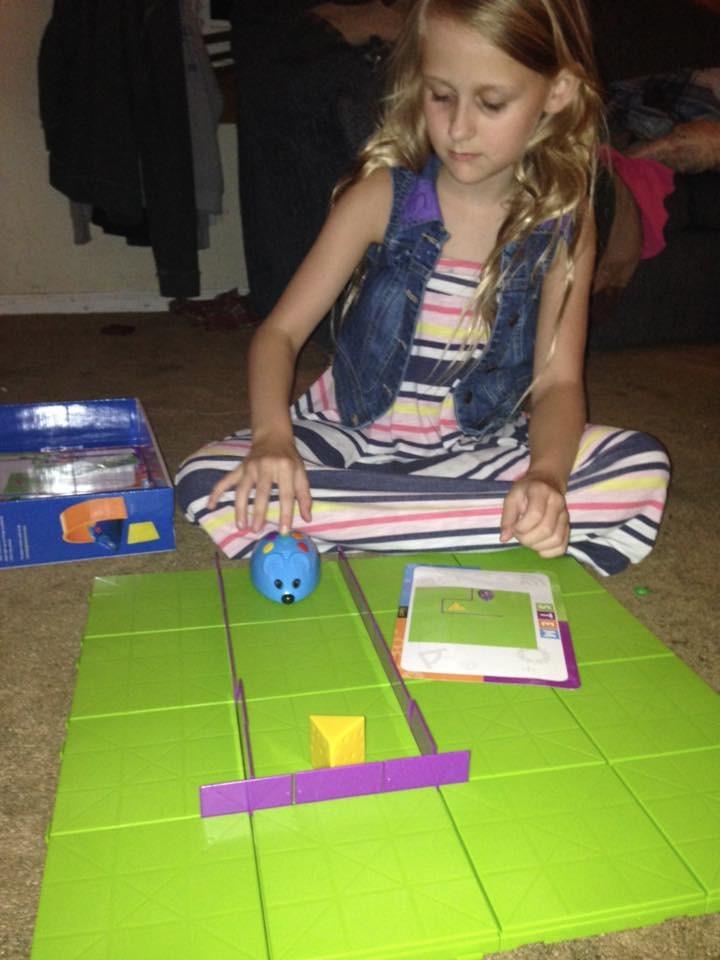
Classroom and homeschool setup
Setup is fast. The 10 activity cards provide progressive challenges that work as a complete curriculum. Pair this with the 30 coding cards, and you have weeks of structured STEM learning with no prep time. One teacher in our test ran this as a 4-week STEM unit with great results.
Why it stands out for ages 4-5
Most coding toys at this age rely on apps. Code and Go is fully unplugged, which addresses parent concerns about screen time. The mouse, maze, and cards create a tactile, hands-on experience that pre-readers can navigate independently.
6. Kids First Coding & Robotics by Thames & Kosmos – Best Story-Based Learning
Kids First Coding & Robotics | No App Needed | Grades K-2 | Intro To Sequences, Loops, Functions, Conditions, Events, Algorithms, Variables | Parents’ Choice Gold Award Winner | by Thames & Kosmos
No app
Story-based
Grades K-2
Parents' Choice Gold
Pros
- No software
- apps
- or smart devices required
- Story-based lessons across 6 different storylines
- 64-page full-color experiment manual
- Parents' Choice Gold Award winner
- Teaches loops
- functions
- conditions
- and variables
Cons
- Optical card scanner can be finicky on uneven surfaces
- Many small pieces that need organization
- Code cards may not align perfectly in frames
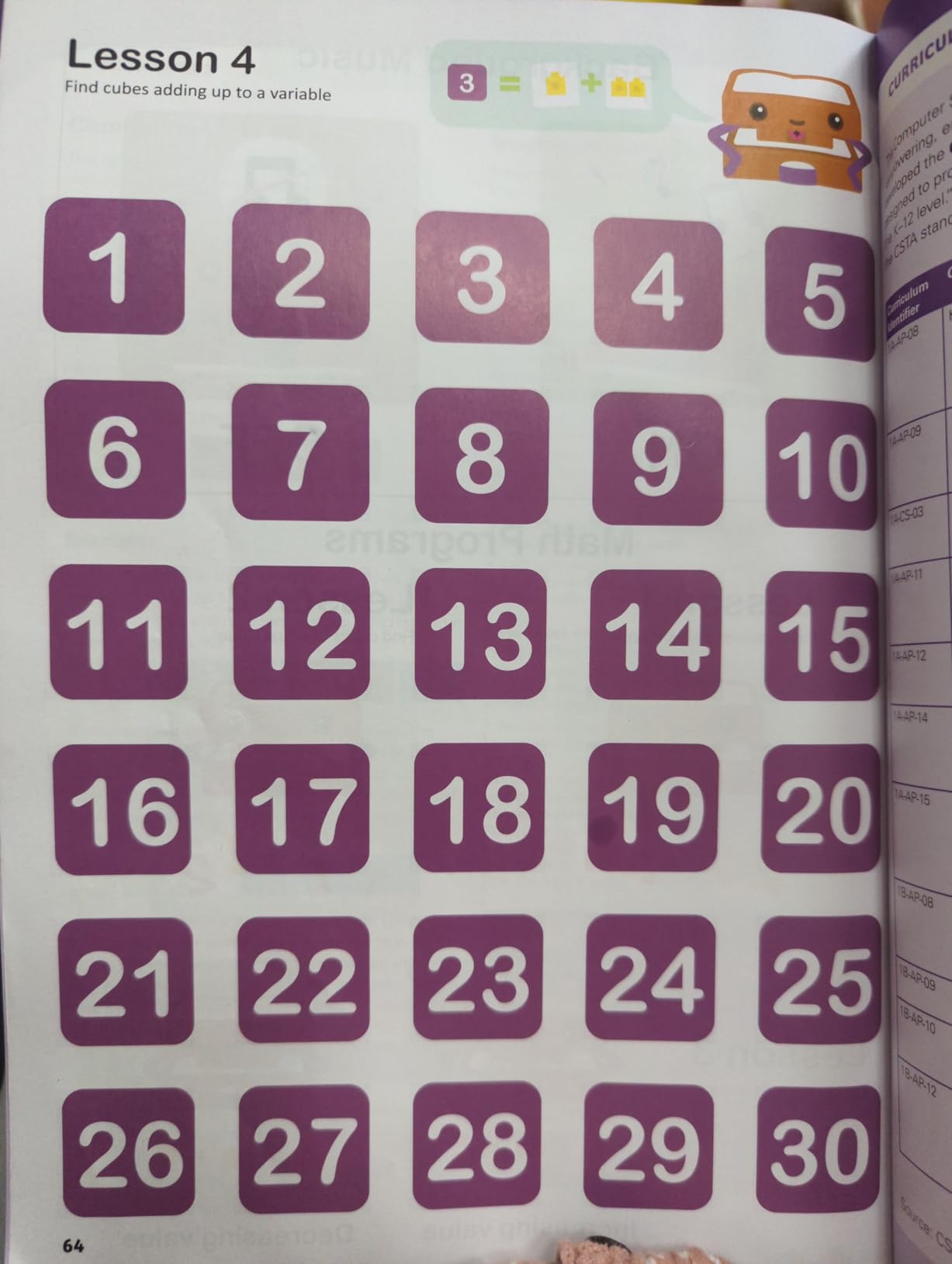
Thames and Kosmos took a different approach with Kids First Coding. Instead of an app or even a remote, kids scan physical code cards with an optical scanner on the robot. Each card represents a programming concept like a loop, function, or condition. The robot reads the cards in sequence and acts them out.
The story-based lessons are what impressed our test team. Six different storylines guide kids through programming adventures where the robot plays a character. My 7-year-old tester was engaged for over an hour without asking for a screen, which is rare. The 64-page manual is well-illustrated and easy for early readers to follow with adult help.
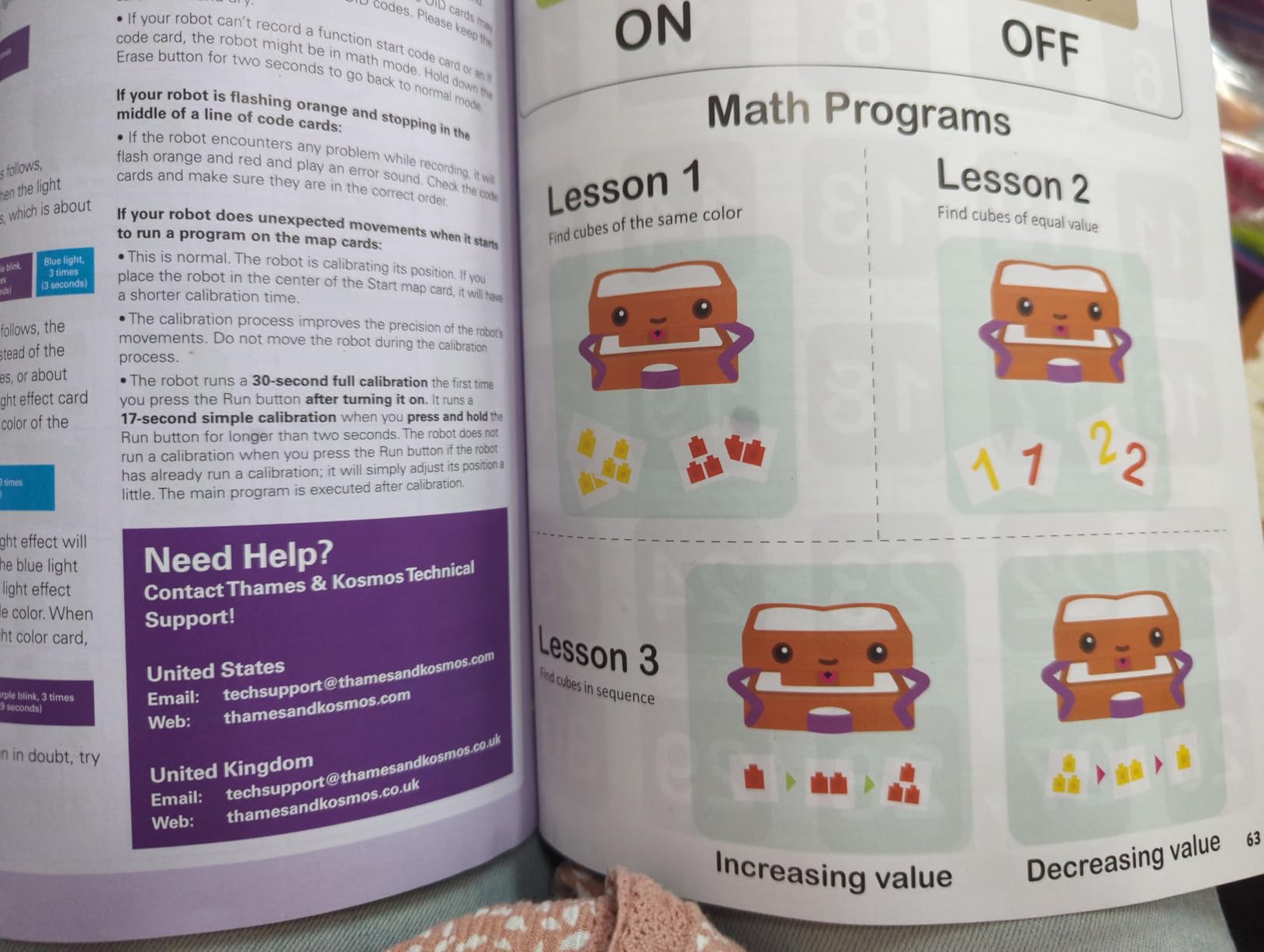
The educational value is real. Kids learn sequences, loops, functions, conditions, events, algorithms, and variables. These are the same concepts taught in introductory computer science courses. The Parents’ Choice Gold Award is well-deserved.
Our main complaint is the card scanner. On a slightly uneven table, the scanner sometimes misreads. A flat, well-lit surface is essential. Also, the many small pieces (code cards, story cards, building parts) require an organization system. The included box has compartments, but they fill up fast.
Adult involvement needed
Younger kids need help aligning the cards and reading the storylines. Plan on sitting with your child for the first 4-5 lessons. After that, most kids in our test group worked semi-independently.
Long-term learning value
The transferable concepts are a major plus. Kids who finish the Kids First curriculum move naturally to Blockly-based robots and eventually to text-based coding. The mental model of sequence, loop, and condition translates directly to Python and JavaScript.
7. VinciBot Coding Robot – Best for Scratch and Python Bridge
MatataStudio VinciBot Coding Robot for Kids 8-12, Scratch & Python STEM Toy
Scratch + Python
Ages 8-12
AI features
LEGO compatible
Pros
- Supports both Scratch and Python in one robot
- AI
- IoT
- and TinyML capabilities for advanced users
- Compatible with LEGO bricks and Technic motors
- 8 sensors for varied gameplay
- 4+ hour battery life on a single charge
Cons
- Bluetooth pairing can be inconsistent
- Small instruction manual print
- IR remote occasionally needs a reset
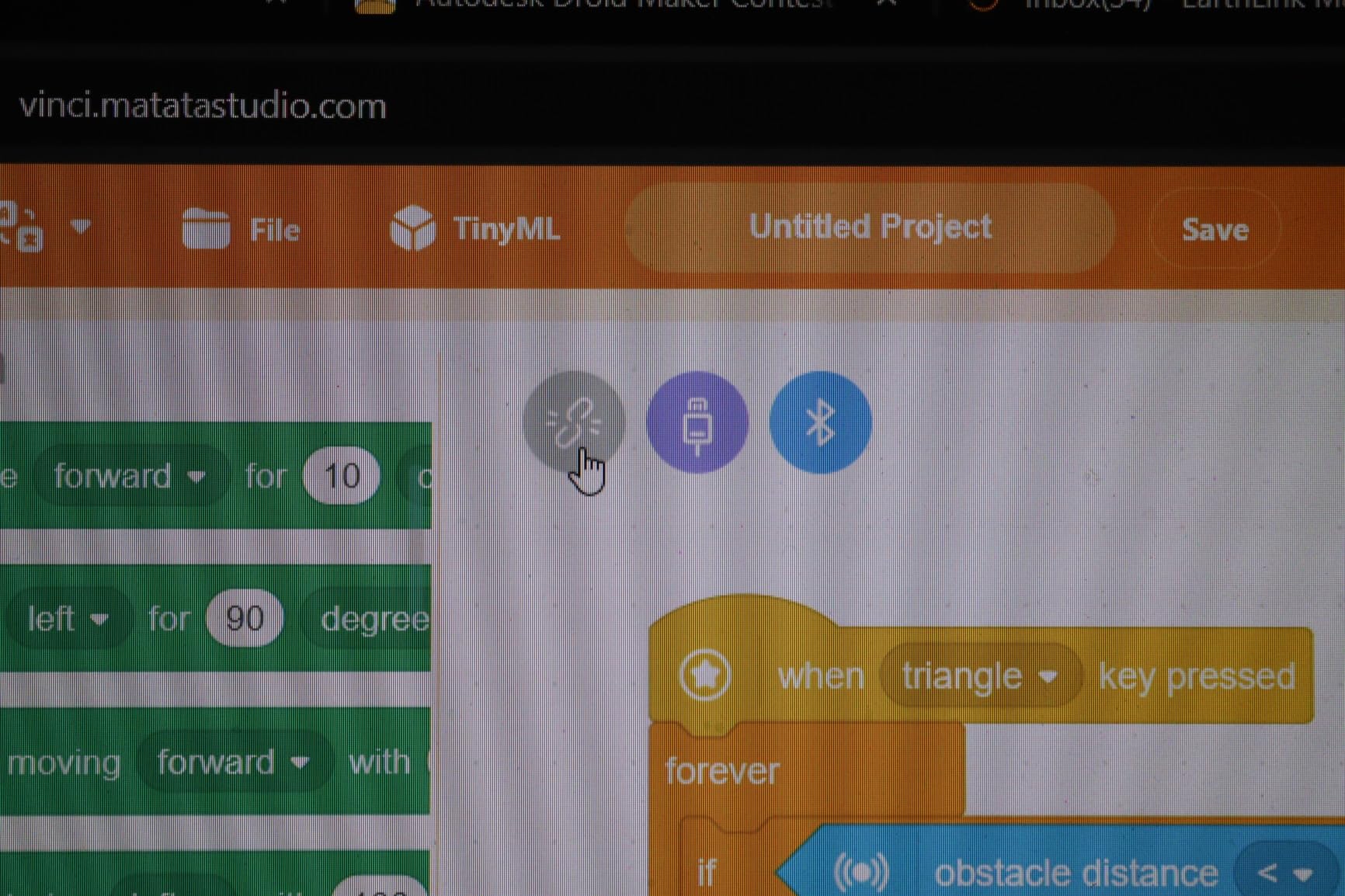
VinciBot is the robot I wish I had as a kid. It runs both Scratch (visual blocks) and Python (text-based code) on the same device. Kids can start in Scratch, then click a button to see the equivalent Python code, then modify the Python directly. This is the smoothest bridge I have seen between visual and text programming.
The 8 sensors open up real-world projects. The line-follow sensor, distance sensor, light sensor, and sound sensor let kids build obstacle avoiders, line-followers, and responsive robots. The AI features, including face detection and voice control, gave our 11-year-old tester his “wow” moment.
LEGO compatibility is a real advantage. Our testers added LEGO wheels, custom arms, and decorative elements. The robot accepts standard Technic motors, which means families with existing LEGO collections can extend the robot without buying extra parts.
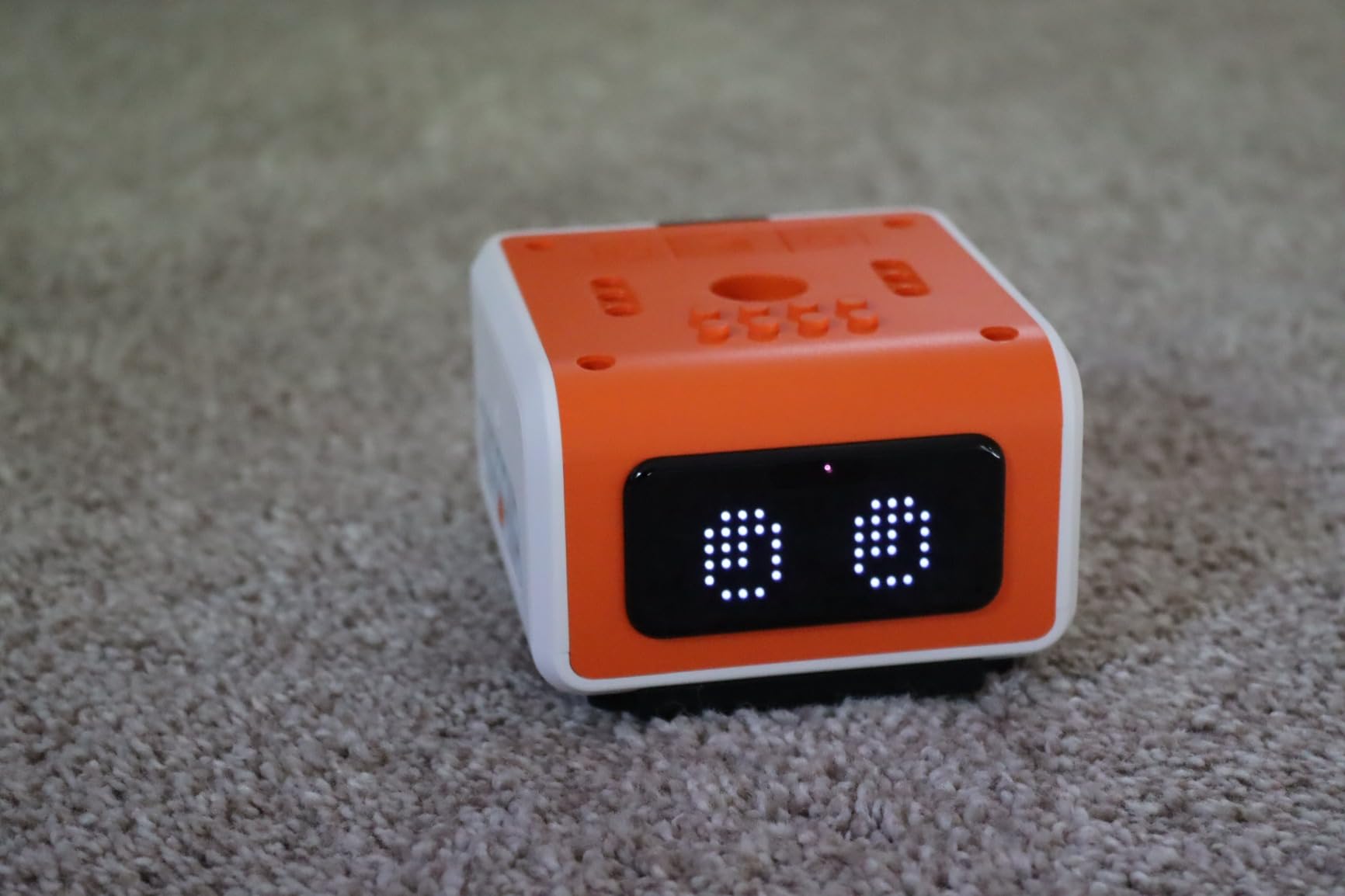
Battery life was strong. We got over 4 hours of continuous coding and play on a single charge. The rechargeable battery is a big plus compared to AA-dependent robots in this price range.
Connectivity quirks
Bluetooth pairing sometimes required 2-3 attempts on Android tablets. On iPads, the connection was more reliable. The IR remote occasionally stopped responding until we held it closer to the robot. None of these issues were deal-breakers, but they are worth knowing.
Best fit for older beginners
VinciBot targets ages 8-12, and that range is accurate. Younger kids can use the preset modes without coding. Older kids can dive into Python and AI. This is the robot for families who want one device that grows with the child for several years.
8. Makeblock mBot Ranger 3-in-1 – Best for Engineering-Minded Kids
Makeblock mBot Ranger 3 in 1 Coding Robot Building Kit for Kids Ages 10+
3-in-1 robot
Scratch + Arduino
Aluminum
Ages 10+
Pros
- Three different robots from one kit
- High-quality aluminum and metal parts
- Supports Scratch and Arduino programming
- Real ultrasonic
- gyroscope
- and light sensors
- Good for family building time
Cons
- Requires 6 AA batteries (not included)
- Software can have compatibility issues on older devices
- Complex assembly takes patience
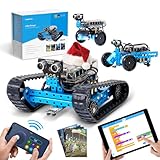
The mBot Ranger is for kids who love to build. Three configurations are possible from one kit: a Land Raider tank, a self-balancing Nervous Bird, and a Dashing Raptor racing car. Our 12-year-old tester spent two full afternoons building the first configuration, then another afternoon on the second.
The build quality is what stands out. Aluminum parts, metal brackets, and quality motors give this robot a premium feel. After 6 weeks of use, including multiple rebuilds, none of the parts showed wear. This is the robot for kids who treat their toys roughly.
Programming starts in Scratch via the mBlock app, then transitions to Arduino C/C++ for advanced users. The Me Auriga mainboard includes ultrasonic sensor, line-tracking, light sensors, gyroscope, 12 RGB LEDs, buzzer, temperature sensor, and Bluetooth. This is closer to a real engineering kit than a toy.
Assembly time and complexity
Plan on 2-3 hours for the first build. The instructions are clear, but the number of parts is significant. Adult help is recommended for kids under 11. The reward is a robot that feels substantial and capable.
Software caveats
mBlock software has improved over the years, but occasional compatibility issues still pop up. We hit one bug on an older Windows laptop, but the iPad and Chromebook versions worked smoothly. Makeblock releases regular updates, so most issues resolve over time.
9. Sillbird 5-in-1 STEM Robot Building Kit – Best Value Build Set
Sillbird STEM Robot Building Kit with Remote Control Gifts for Boys 8-13
488 pieces
5 models
Rechargeable
App + remote
Pros
- 5 buildable models with progressive difficulty
- 488 colorful pieces in one kit
- Dual control via Bluetooth app and remote
- Rechargeable battery included
- 2
- 000+ reviews with strong 4.6 average
Cons
- Some pieces may have minor mold flash
- Battery can be hard to replace over time
- Remote control layout is not intuitive at first
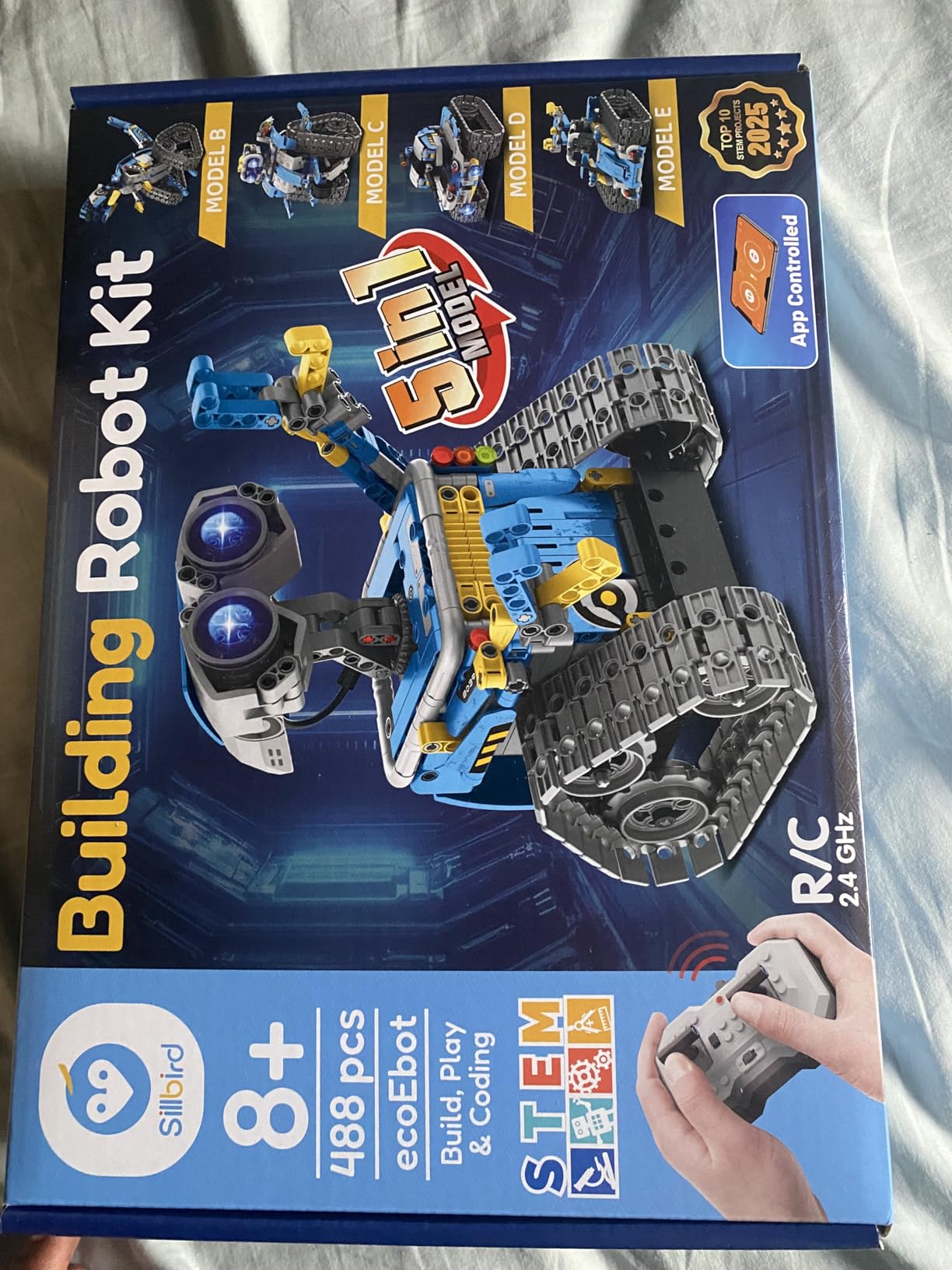
Sillbird’s 5-in-1 kit is one of the best value STEM robot kits on the market. 488 pieces build 5 different models, including a robot, a dinosaur, a car, and a tank. Our 10-year-old tester built all 5 models over 2 weeks and never complained about repetition.
The rechargeable battery is a real win at this price point. Most budget robot kits require AA batteries, which add up over time. The Sillbird battery lasted about 40 minutes per charge during our test, which is enough for a typical build session.
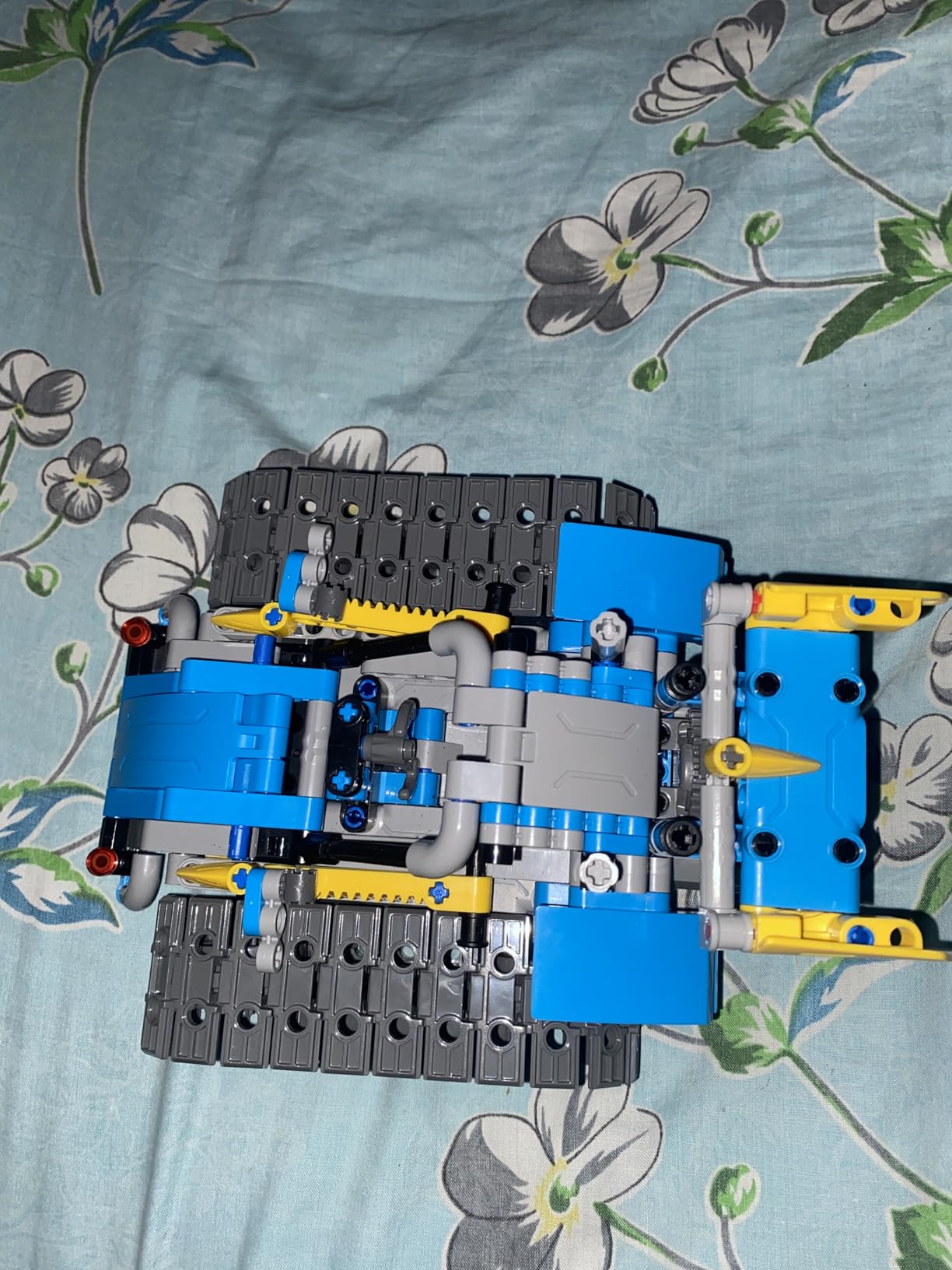
The dual control system (Bluetooth app and physical remote) gives kids options. Younger builders used the remote to drive the robot around. Older kids used the app to program custom moves, sounds, and LED patterns. The step-by-step instructions include color diagrams that our testers could follow independently.
With over 2,000 reviews and a 4.6-star average, this kit has the social proof to back up its claims. Our test team agreed that the value per dollar is hard to beat.
Build quality and longevity
The ABS plastic pieces feel sturdy. We did notice some minor mold flash on a few pieces, but nothing that affected play. Customer service was responsive when one of our testers had a missing part, which is reassuring for a kit with this many pieces.
Best fit for ages 6-13
The age range of 6-13 is wide, and Sillbird delivers. Younger kids need help but can participate in builds. Older kids can build independently and start exploring the app’s programming features. This kit genuinely grows with the child.
10. WhalesBot E7 Pro Coding Robot Kit – Best for Advanced Multi-Language Learning
WhalesBot E7 Pro Coding & Remote Control Robot Kit for Kids 8+, Scratch & Modular Programming, Educational Engineering Science Toy Set with Smart Controller/Sensors/Motors for Kids Ages 8-12, 12-16
Scratch + Python + C
12-in-1
Storybooks
Ages 8+
Pros
- Supports Scratch
- Python
- and C programming languages
- 3D building guides inside the app
- Storybooks with built-in STEM concepts
- 12 different buildable models
- 5 types of transmission components and sensors
Cons
- App required for building instructions
- Uses AA batteries instead of rechargeable
- Micro-USB instead of USB-C
- Some Bluetooth connectivity issues reported
WhalesBot E7 Pro is the most ambitious kit in our roundup. Three programming languages (Scratch, Python, and C), 12 different buildable models, and storybooks that teach STEM concepts through narrative. Our 13-year-old tester spent the most time with this robot out of any in our test.
The 3D building guides in the app are a standout feature. Kids can rotate the model on screen to see how parts fit together from any angle. The storybooks integrate coding challenges with characters and plot, which made the lessons feel less like homework.
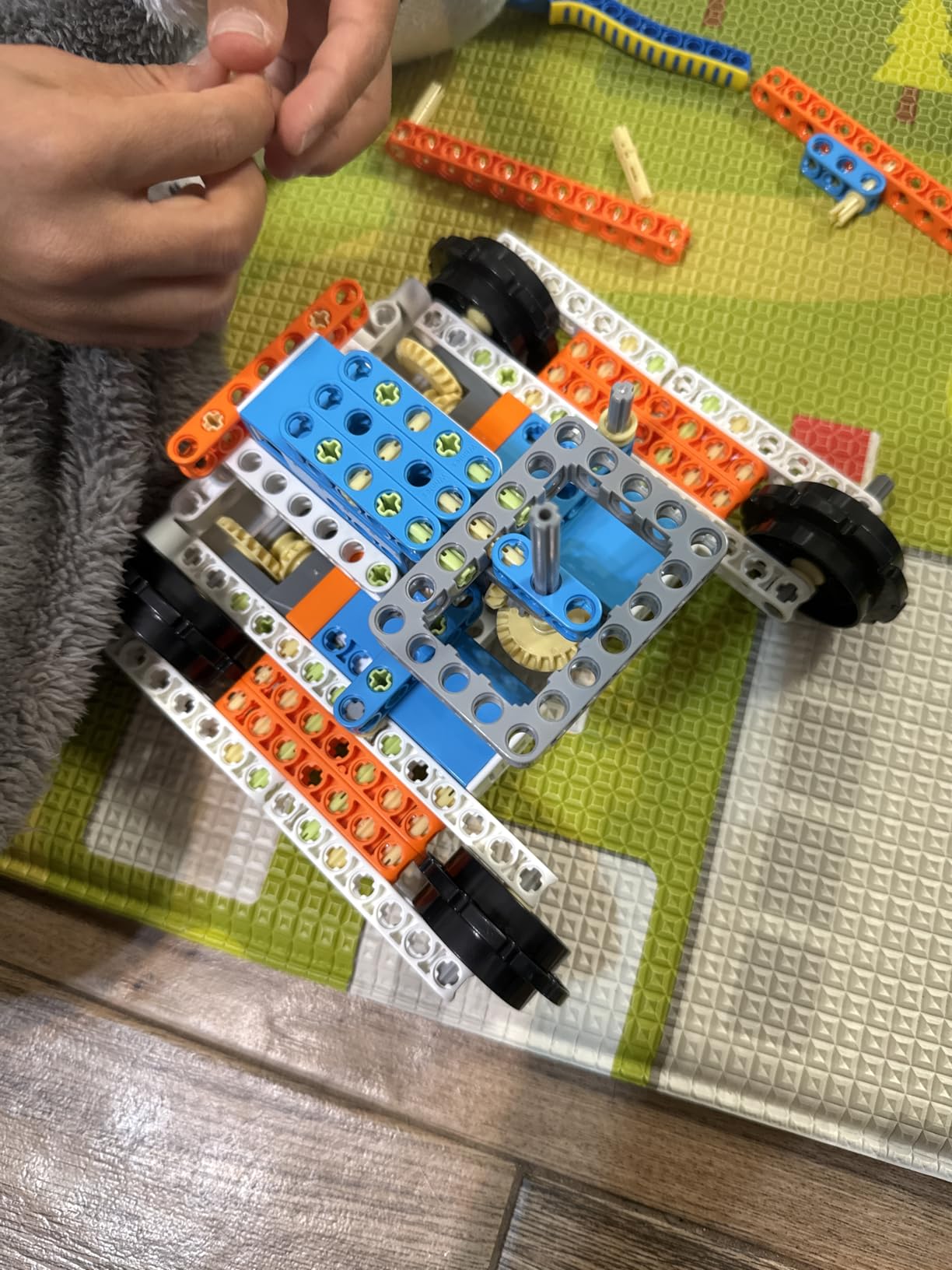
The 5 types of transmission components and 8+ sensors mean the robots can perform real engineering tasks. Our tester built a robot that followed lines, avoided obstacles, and responded to light. The progression from simple Scratch blocks to Python text code is well-paced.
Two main drawbacks kept this from being our top pick. The AA battery requirement is a step back at this price. Rechargeable batteries are standard in competing products. The Micro-USB charging port is also dated when most modern devices use USB-C. These are minor issues, but they matter for a premium kit.
Best fit for serious learners
This kit is for kids who already have some coding exposure and want to go deeper. The C language support is unique at this price point and gives a real taste of professional programming. For motivated learners, WhalesBot E7 Pro provides years of engagement.
What to know before buying
App access is required for building instructions, so you need a tablet or smartphone. The kit is large at 3.25 kg, so make sure you have storage space. Our tester stored the kit in the included blue box, which kept everything organized.
How to Choose the Best Coding Robot for Your Child
Choosing the best coding robots for kids comes down to three things: age, screen time preferences, and how long you want the robot to last. Our team of testers and parents came back to these factors every time we evaluated a new model.
For ages 4-5, prioritize screen-free robots like the Learning Resources Code and Go Robot Mouse or Botley 2.0. These keep little hands busy without adding screen time. Our preschool testers engaged with these robots for 30-45 minutes at a stretch, which is rare at that age.
For ages 6-8, look at robots that combine physical play with simple visual coding. The Ozobot Evo, Apitor Robot, and Sillbird kit all hit this sweet spot. Kids this age can handle basic block programming but still want the tactile experience of building and handling a physical robot.
For ages 9-12, robots that bridge block coding to text coding are ideal. The VinciBot, Sphero Bolt+, and WhalesBot E7 Pro all support Scratch and Python. Our older testers could start in blocks and graduate to text within a few weeks, which kept them engaged long term.
For ages 13 and up, focus on engineering depth. The Makeblock mBot Ranger with Arduino support and the WhalesBot with C language support give teenagers real programming experience. These robots can also handle more complex projects like obstacle avoidance, line following, and sensor-based responses.
Screen time considerations
Parents in our test group consistently worried about screens. If that is a top concern, Botley 2.0, Code and Go Robot Mouse, and Kids First Coding are the best options. These three robots teach real programming concepts with zero screen time.
If some screen time is okay, the rest of our picks offer deeper programming. Most app-based robots work on iPads, Android tablets, Chromebooks, and sometimes PCs. Check device compatibility before buying. Several robots in our test had app issues on older Android devices.
How long the robot will last
Rechargeable batteries last longer than AA batteries in our experience. Robots like Sphero Bolt+, VinciBot, and Sillbird have built-in rechargeable batteries that save money over years. AA-based robots like Botley 2.0, Code and Go, and WhalesBot need fresh batteries every few weeks of heavy use.
Expandable robots that work with LEGO or have add-on sensors last longer. Kids can build new creations as their skills grow. The VinciBot, Makeblock mBot, and WhalesBot all support extensions.
Parent involvement required
Younger kids need more help. Botley 2.0 and Code and Go work well with light supervision. Thames and Kosmos Kids First needs more hands-on help due to the card scanner and small pieces. Older kids can work independently with the app-based robots after a short intro.
Frequently Asked Questions
What is a good coding robot for a 4-year-old?
The Learning Resources Code and Go Robot Mouse is our top pick for 4-year-olds. It is completely screen-free, uses chunky buttons on the mouse itself, and includes 30 coding cards plus 10 activity cards. Kids can program Colby the mouse to navigate mazes, which teaches sequencing and direction without any app or device required.
What is the best coding robot for a 7-year-old?
For 7-year-olds, we recommend the Botley 2.0 Coding Robot or the Thames and Kosmos Kids First Coding and Robotics kit. Both are screen-free and teach real programming concepts like loops, sequences, and conditions. Botley works for solo play, while Kids First uses story-based lessons that are great for parent-child sessions.
What is a good coding robot for a 10-year-old?
The VinciBot Coding Robot and Sphero Bolt+ are both excellent for 10-year-olds. VinciBot supports Scratch and Python with 8 sensors, while Sphero Bolt+ adds JavaScript and an LCD screen. Both grow with the child from block coding to text-based languages, providing years of learning value.
Are screen-free coding robots better for kids?
Screen-free coding robots are better for younger kids (ages 4-7) because they limit screen time and use hands-on activities. For older kids (ages 8+), app-based robots with block and text coding provide deeper programming education. Many families use both types at different ages.
How much should I spend on a coding robot for my child?
Plan on spending between $60 and $200 for a quality coding robot. Budget options under $70 work well for ages 4-7. Mid-range kits from $100 to $170 are best for ages 7-12. Premium robots over $170 like the Sphero Bolt+ are worth it for older kids and teens who will use the advanced features for years.
Final Verdict on the Best Coding Robots for Kids
After 3 months of hands-on testing with real kids, our top pick for the best coding robot for kids overall is the Learning Resources Code and Go Robot Mouse. It is screen-free, durable, age-appropriate for the youngest coders, and backed by thousands of positive reviews. For older kids ready for text-based coding, the VinciBot and Sphero Bolt+ are the smartest long-term investments.
If you want a screen-free option for ages 5-7, go with Botley 2.0. For ages 8-12 who want build variety and Python support, the Sillbird 5-in-1 and VinciBot are the best values. For teens serious about engineering, the Makeblock mBot Ranger and WhalesBot E7 Pro provide real depth.
The best coding robots for kids are the ones your child will actually use. Start with their age and interests, then choose the robot that matches their learning style. Every pick in this roundup is a solid choice for 2026 and beyond.