
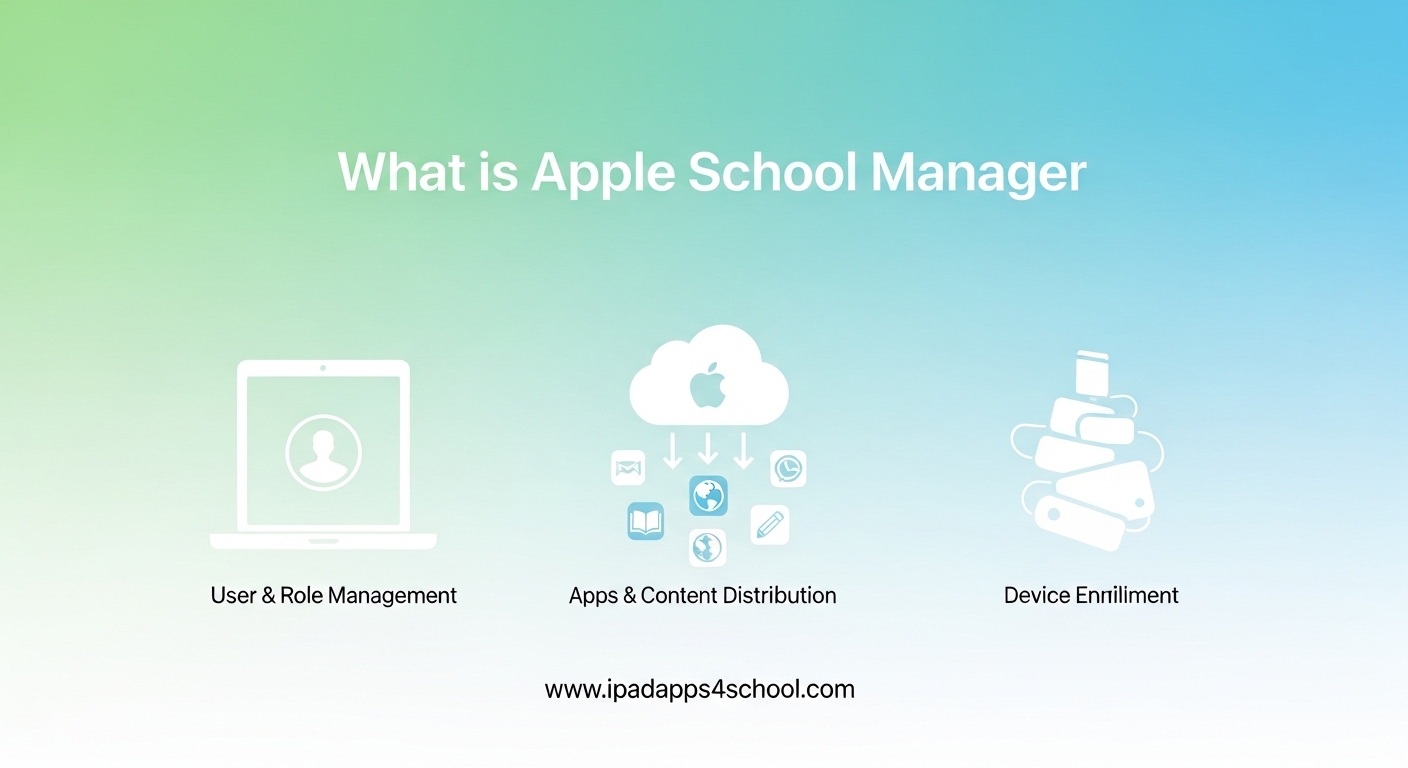
Apple School Manager is a free web-based portal designed specifically for educational institutions to deploy Apple devices, manage user accounts, and purchase apps and books in volume. If you are an IT administrator or educator in a K-12 setting, understanding this tool can save you countless hours of manual device configuration. In this guide, I will walk you through everything you need to know about Apple School Manager in 2026.
Our team has worked with multiple school districts implementing Apple device programs. We have seen firsthand how this platform transforms the way schools manage technology. Whether you are setting up one-to-one iPad programs or shared device carts, this guide will help you understand what Apple School Manager can do for your institution.
Table of Contents
What is Apple School Manager
Apple School Manager is a simple, web-based portal that lets IT administrators deploy Apple devices from one central location. Think of it as your command center for managing iPads, iPhones, Mac computers, and Apple TVs across your entire school or district. The platform brings together several essential functions that were previously scattered across multiple Apple services.
Here are the core capabilities of Apple School Manager:
– Automated Device Enrollment: Configure devices to automatically enroll in your mobile device management (MDM) solution right out of the box
– Managed Apple IDs: Create and manage Apple IDs specifically for students and staff with education-focused features
– Volume Purchase Program (VPP): Buy apps and books in bulk and distribute them seamlessly to devices
– Shared iPad: Enable multiple students to use a single iPad with personalized experiences
– Integration with Student Information Systems: Sync student data automatically via SFTP or SCIM protocols
How Apple School Manager Works?
Apple School Manager operates as a cloud-based service that connects your educational institution with Apple’s deployment infrastructure. When you purchase Apple devices through authorized channels, they can be linked directly to your Apple School Manager account before they even arrive at your school. This creates a zero-touch deployment experience where devices are ready for students the moment they are unboxed.
The workflow follows a logical progression from device procurement to classroom use. First, you configure your account settings and connect your MDM solution. Then you purchase devices through an authorized Apple reseller who assigns them to your organization. Finally, when students or teachers power on the devices, they automatically configure themselves with your specified settings and restrictions.
For IT administrators, this means no more manual device setup. For teachers, it means devices that are ready to use immediately. For students, it means a consistent, secure learning environment from day one.
Step-by-Step Setup Process
If you are new to Apple School Manager, here is how to get started:
Step 1: Enroll Your Institution
Visit school.apple.com and submit an enrollment request. You will need to provide documentation proving your educational status, such as accreditation certificates or tax-exempt status. The approval process typically takes 1-3 business days for established schools.
Step 2: Configure Your MDM Server
Connect Apple School Manager to your chosen MDM solution by uploading your MDM server token. Popular options include Jamf School, Mosyle, Hexnode, and Cisco Meraki. This step is essential because Apple School Manager does not manage devices directly, it works alongside your MDM.
Step 3: Set Up User Accounts
Create locations that represent your schools or departments. Then configure how you want to create Managed Apple IDs, either manually, through SFTP uploads from your student information system, or via SCIM integration with services like Azure Active Directory.
Step 4: Configure Device Settings
Set up device enrollment profiles that specify what happens when devices are activated. You can choose supervised mode for full control or standard enrollment for lighter management. Define which Wi-Fi networks, restrictions, and apps should be pre-configured.
Step 5: Purchase and Assign Devices
Order devices through Apple or an authorized reseller. Make sure they are purchased under your institution’s name so they automatically appear in Apple School Manager. You can then assign them to specific locations or device carts.
Managed Apple IDs: What You Need to Know?
Managed Apple IDs are special accounts created specifically for educational use through Apple School Manager. Unlike personal Apple IDs, these accounts are owned and controlled by the school district rather than the individual student or teacher. This distinction matters because it gives administrators the ability to reset passwords, access data when necessary, and manage account features.
When you create a Managed Apple ID, you have control over which services users can access. By default, Managed Apple IDs cannot make purchases in the App Store or iTunes Store. Instead, all content comes through the Volume Purchase Program managed by the institution. This prevents unexpected charges and ensures students only have access to approved educational materials.
Students and staff can use their Managed Apple IDs to access iCloud storage, collaborate on documents, use the Classroom app, and complete assignments in Schoolwork. For shared iPad deployments, Managed Apple IDs enable the personalized experience where each student sees their own home screen, documents, and app data when they sign in.
Device Enrollment and Deployment
The Device Enrollment Program (DEP) is one of the most powerful features integrated into Apple School Manager. DEP enables what Apple calls zero-touch deployment, meaning devices enroll in your management system automatically without any IT staff physically touching them. When a student turns on a new iPad for the first time, it recognizes it belongs to your organization and begins the enrollment process.
Supervised mode is a key concept for school deployments. When you enroll devices through Apple School Manager, you can place them in supervised mode which unlocks additional management capabilities. This includes the ability to silently install apps, restrict access to specific websites, prevent erasing devices, and configure advanced settings that are not available for personally-owned devices.
Shared iPad is another deployment option that works especially well for younger students or situations where devices stay in the classroom rather than going home. With Shared iPad configured through Apple School Manager, multiple students can use the same device throughout the day. Each student simply taps their photo or enters their Managed Apple ID to access their personalized environment. The system keeps each student’s data separate and secure while maximizing device utilization.
Volume Purchase Program (VPP) Integration
The Volume Purchase Program allows educational institutions to buy apps and books in bulk at educational pricing. Through Apple School Manager, you can purchase licenses for apps once and distribute them to hundreds or thousands of devices without additional cost. When an app update becomes available, your MDM can push it to all managed devices automatically.
VPP works on a license-based system. When you buy 500 licenses for an educational app, you can assign those licenses to specific devices or specific users. If a student graduates or leaves the district, you can reclaim that license and assign it to a new student. This reclaimable license model helps schools maximize their software budgets.
Content purchased through VPP appears in your Apple School Manager dashboard. From there, you sync the content to your MDM solution, which handles the actual distribution to devices. The Classroom app and Schoolwork app work seamlessly with VPP content, allowing teachers to assign specific apps to specific students or classes.
Integration with MDM Solutions
One of the most common points of confusion is whether Apple School Manager itself is an MDM. It is not. Apple School Manager is an enrollment and content management portal. To actually manage devices, configure settings, and deploy apps, you need a separate MDM solution. Think of Apple School Manager as the front door that gets devices into your system, while the MDM is the control room where you manage them day-to-day.
Popular MDM solutions that integrate with Apple School Manager include Jamf School, Jamf Pro, Mosyle, Hexnode, Kandji, and Cisco Meraki. These solutions connect to Apple School Manager through server tokens that establish a secure communication channel. Once connected, your MDM can pull device information, push configuration profiles, install apps, and enforce policies.
The integration works bidirectionally. Apple School Manager tells your MDM when new devices are assigned to your organization. Your MDM tells Apple School Manager which devices have been enrolled and managed. This coordination ensures you always have an accurate inventory of your Apple devices and their management status.
SIS and Data Integration Options
Manually creating thousands of student accounts is not practical for most school districts. Apple School Manager offers multiple ways to integrate with your existing Student Information System (SIS). The platform supports SFTP uploads, SCIM integration, and federated authentication with major identity providers.
SFTP integration is the traditional method where you export student and staff data from your SIS in a specific CSV format and upload it to Apple School Manager. The system automatically creates Managed Apple IDs based on the information provided. You can schedule these uploads to happen nightly or weekly to keep accounts synchronized with enrollment changes.
SCIM (System for Cross-domain Identity Management) is a more modern approach that works with systems like Azure Active Directory and Google Workspace. With SCIM enabled, user accounts are created and updated in real-time. When a new student enrolls in your SIS, their Managed Apple ID appears in Apple School Manager within minutes.
Federated authentication takes this a step further by allowing users to sign in with their existing school credentials. Instead of creating a separate password for their Managed Apple ID, students and staff can use the same username and password they use for other school systems. This reduces password fatigue for users and simplifies account management for IT staff.
Apple School Manager vs Apple Business Manager
Many IT administrators wonder about the differences between Apple School Manager and Apple Business Manager. While both platforms share the same underlying technology, they are designed for different audiences and have some key distinctions.
Target Audience:
Apple School Manager is designed exclusively for K-12 educational institutions, colleges, and universities. Apple Business Manager serves businesses, government agencies, and non-profit organizations. The enrollment process reflects this difference, with Apple School Manager requiring educational verification.
Managed Apple IDs:
Only Apple School Manager offers Managed Apple IDs with education-specific features. These accounts are optimized for students and teachers with restrictions appropriate for educational environments. Apple Business Manager focuses on managing corporate-owned devices rather than creating managed user accounts.
Educational Apps:
Apple School Manager provides access to educational apps and content that may not be available through the standard business channels. Integration with Classroom and Schoolwork apps is exclusive to the education platform.
Shared iPad:
The Shared iPad feature for multiple users on a single device is only available through Apple School Manager. This feature is not offered in the business version because it is specifically designed for classroom environments where devices are shared among students.
Similarities:
Both platforms offer automated device enrollment, volume purchasing capabilities, and MDM integration. The device management capabilities are essentially identical, and many organizations that span both education and business contexts use both platforms separately.
Who Can Use Apple School Manager?
Apple School Manager is available to accredited educational institutions including public school districts, private schools, charter schools, and colleges. The platform is completely free to use. There are no licensing fees, subscription costs, or per-device charges for using Apple School Manager itself.
Home schools face more restrictions. While some home school families have successfully enrolled, Apple generally requires accreditation or state recognition as a legitimate educational institution. If you are a home school educator, you will need to provide documentation showing your program meets your state’s educational requirements. The approval process for home schools is more selective than for traditional institutions.
Any staff member at an enrolled institution can be assigned a role in Apple School Manager. The platform uses role-based access control, so you can give teachers limited access to see their classes while giving IT administrators full control over device management. This tiered permission system helps maintain security while allowing necessary access for different job functions.
Frequently Asked Questions
Is Apple School Manager free?
Yes, Apple School Manager is completely free for educational institutions. There are no licensing fees, subscription costs, or per-device charges to use the platform. You only pay for the Apple devices and apps you purchase.
What is an Apple School Manager?
Apple School Manager is a web-based portal for educational institutions that simplifies the deployment and management of Apple devices. It provides tools for automated device enrollment, Managed Apple ID creation, volume app purchasing, and integration with student information systems.
What is the difference between Apple Business Manager and Apple School Manager?
Apple School Manager is designed for K-12 and higher education with features like Managed Apple IDs for students, Shared iPad support, and Classroom app integration. Apple Business Manager serves enterprises and government organizations. Both offer device enrollment and volume purchasing, but only the education version supports student account management.
Is Apple School Manager an MDM?
No, Apple School Manager is not an MDM. It is an enrollment and content management portal that works alongside MDM solutions. You need both Apple School Manager to enroll devices and a separate MDM like Jamf, Mosyle, or Hexnode to actually manage device settings and apps.
Can home schools use Apple School Manager?
Home schools may be eligible if they are officially accredited or recognized by their state as legitimate educational institutions. Documentation proving educational status is required during enrollment, and approval is not guaranteed for all home school situations.
Conclusion
Apple School Manager is an essential tool for any educational institution deploying Apple devices at scale. The platform transforms device management from a manual, time-consuming process into an automated workflow that saves IT staff hundreds of hours. With features like zero-touch enrollment, Managed Apple IDs, and seamless MDM integration, schools can focus on teaching rather than technology troubleshooting.
If you are planning a one-to-one iPad initiative or refreshing your classroom technology, start by enrolling in Apple School Manager at school.apple.com. The enrollment process is straightforward, and once approved, you can begin configuring your device deployment strategy. Whether you manage 50 devices or 50,000, Apple School Manager provides the foundation for a successful educational technology program in 2026.
Remember that Apple School Manager works best when paired with a quality MDM solution. Take time to evaluate MDM options that fit your district’s size, budget, and technical requirements. With the right combination of tools, you will create a learning environment where technology enhances education rather than complicating it.