
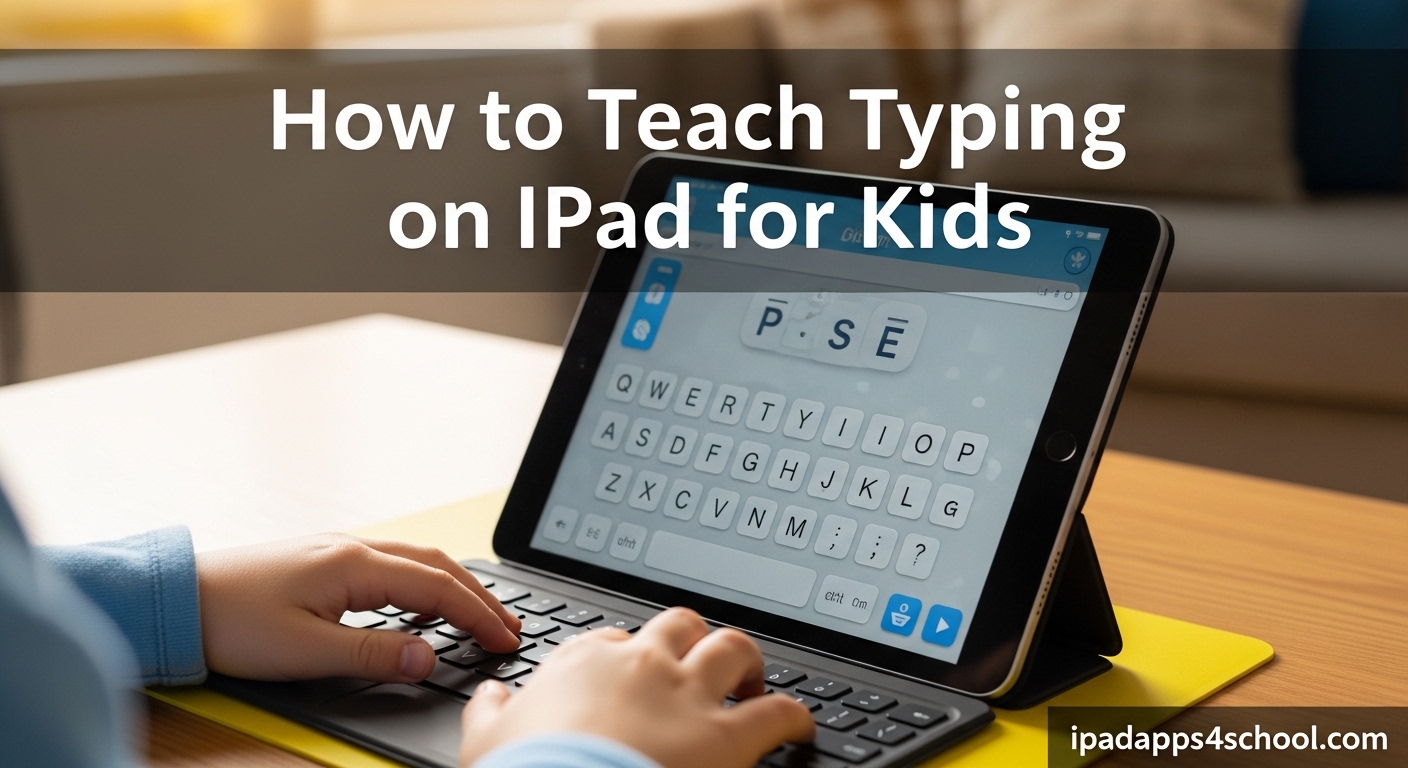
My daughter was eight when I realized she was hunting and pecking on the family iPad. Every school assignment, every chat with grandparents, every online game involved her jabbing at keys with one finger. I knew I needed to teach her proper typing, but I wanted to use the device she already loved.
Teaching typing on iPad for kids is not just convenient, it is smart. The tablet your child already uses for learning can become their typing tutor. In this guide, I will share everything I learned from three months of daily practice sessions, including the apps that actually work, the routines that stick, and the mistakes to avoid.
Whether you are a homeschool parent, a teacher with classroom iPads, or just a parent wanting to give your child a head start, this guide will walk you through the complete process.
Table of Contents
Why Teach Typing on iPad?
Typing has become a fundamental life skill. By the time children reach middle school, they are expected to type essays, take notes, and complete digital assignments. Starting early builds muscle memory when young minds are most receptive to learning motor skills.
The iPad offers unique advantages for teaching typing. Children already feel comfortable with the device, reducing the intimidation factor that comes with sitting at an unfamiliar computer. The portability means practice can happen anywhere, whether in the car, at grandma’s house, or during travel. Touchscreen familiarity also creates a natural bridge to understanding how keyboards work.
Starting on iPad does not limit your child. The finger placement, rhythm, and accuracy skills transfer directly to any keyboard they will use in the future. In fact, many children who learn on iPad adapt faster to full-size keyboards because they have already internalized the finger patterns.
When to Start Teaching Typing on iPad
Most children are ready to begin between ages six and eight. At six, many kids have the hand size and finger independence needed for proper home row positioning. By eight, their cognitive development allows them to understand the concept of touch typing without looking at keys.
Look for these readiness signs before you begin. Your child should know the alphabet and recognize letters instantly. They need patience for activities lasting ten to fifteen minutes. Their hands should be large enough to rest on a keyboard without stretching. Most importantly, they should show interest in typing or frustration with their current hunt-and-peck method.
Age is not the only factor. Some five-year-olds with strong fine motor skills do well with short sessions. Some nine-year-olds need more time to develop finger independence. The key is matching your approach to your child’s developmental stage, not their birth year.
If your child has ADHD, dyslexia, or motor skill challenges, consider starting slightly later or choosing apps specifically designed for special needs. The iPad platform offers accessibility features that can make typing instruction more successful for these learners.
How to Teach Typing on iPad for Kids: Getting Started
The first step is setting up your iPad for typing success. Begin by adjusting the on-screen keyboard settings. Go to Settings, then General, then Keyboard. Enable “Show Lowercase Keys” so children see letters as they actually appear when typing. Turn off “Auto-Correction” and “Check Spelling” initially, these features can confuse children who are still learning where keys are located.
Proper posture matters even on a tablet. Have your child sit at a table with the iPad propped at a slight angle. Their back should be straight, feet flat on the floor. The iPad should sit at elbow height, not in their lap. If using an external keyboard, position it so their wrists remain straight while typing.
Introduce the home row keys first. On an iPad keyboard, this means A, S, D, F for the left hand and J, K, L, semicolon for the right. Teach your child to find the small bumps on the F and J keys, these help fingers find their place without looking. Place left index finger on F, right index finger on J, and let the other fingers rest on their home keys.
Practice finger placement without typing at first. Have your child tap each home row key with the correct finger, saying the letter name aloud. Left pinky taps A, left ring finger taps S, left middle finger taps D, left index taps F. Right index taps J, right middle taps K, right ring taps L, right pinky taps semicolon. Repeat this pattern until it feels automatic.
Only after home row feels comfortable should you introduce other keys. Follow a logical progression: first the keys directly above home row, then those below, finally reaching keys. This builds confidence gradually rather than overwhelming your child with the entire keyboard at once.
Best iPad Typing Apps for Kids
The right app makes all the difference in keeping children engaged while building real skills. After testing fifteen different apps with my daughter, here are the ones that actually teach typing rather than just entertaining.
TypingClub
TypingClub offers the most comprehensive free typing curriculum available. The iPad app includes over 600 lessons that progress logically from home row mastery through advanced punctuation. Color-coded guides show which finger presses each key, and the interface is clean enough to avoid overwhelming young learners.
The free version includes everything needed to learn typing. Premium adds games and additional practice modes, but the core lessons are completely free. This app works best for children seven and up who can follow structured lessons. Younger children may find the format too school-like.
Animal Typing
Animal Typing uses a clever animal speed metaphor to teach proper technique. Your child starts as a slow turtle and progresses through faster animals as their speed improves. The app emphasizes accuracy over speed, which is crucial for preventing bad habits.
The colorful interface appeals to children ages five to ten. The app costs around five dollars but contains no ads or in-app purchases. Parents appreciate the simple progress tracking that shows words per minute and accuracy percentage over time.
TapTyping
TapTyping focuses specifically on iPad typing with lessons designed for touchscreen keyboards. The app includes speed tests and lessons ranging from beginner to advanced. While less gamified than other options, it excels at building real-world typing skills on tablet devices.
The free version offers enough content to assess whether your child engages with the format. Full unlock costs around four dollars. This app suits older children who want to improve their on-screen keyboard speed without cartoon distractions.
Master of Typing for Kids
This app provides a structured course specifically designed for children ages six and up. Lessons introduce keys in small groups, allowing mastery before moving forward. The colorful keyboard display and hand guides make finger placement clear.
The full version requires a purchase, but the investment is reasonable for a comprehensive curriculum. Parents report that children enjoy the achievement system of unlocking new levels and characters as they progress.
Dance Mat Typing
BBC’s Dance Mat Typing remains a favorite among homeschool families. This free web-based program works perfectly in Safari on iPad. The animated goat guides children through four levels of typing instruction with catchy songs and humorous animations.
Because it runs in a browser, Dance Mat Typing works with external Bluetooth keyboards connected to iPad. The program requires no account creation and stores no data, making it privacy-friendly. The only downside is needing internet access, so it is not ideal for car trips or offline practice.
Creating Effective Practice Routines
Consistency matters more than duration when teaching typing. Short daily sessions build muscle memory faster than occasional long practices. The key is making typing a habit, not a chore.
For children ages six to seven, limit sessions to ten minutes. Their attention spans and finger stamina are still developing. Ages eight to ten can handle fifteen minutes comfortably. Older children can practice twenty minutes, but quality decreases after that point.
Establish a specific time for typing practice. Right after breakfast works well for morning people. After school but before free play suits many families. The important part is linking typing to an existing routine so it becomes automatic.
Track progress weekly, not daily. Daily fluctuations in speed and accuracy are normal and can discourage children if monitored too closely. Instead, compare this week’s average to last week’s. Celebrate improvement in accuracy before speed. A child typing twenty words per minute with ninety percent accuracy is learning correctly. A child typing forty words per minute with sixty percent accuracy has formed bad habits.
Sample weekly schedule for beginners: Monday introduces two new keys, Tuesday practices those keys in words, Wednesday reviews and adds one more key, Thursday practices all learned keys, Friday is a fun typing game day. Weekend rest allows muscle memory to consolidate.
Overcoming Common iPad Typing Challenges
The transition from touchscreen tapping to keyboard typing confuses many children. They want to look at their fingers, jab keys instead of pressing them, or use the wrong fingers entirely. These challenges are normal and fixable with patience.
If your child keeps looking at their hands, cover them with a thin cloth or paper. Some parents use keyboard covers or stickers that hide letter labels. The goal is forcing fingers to rely on the F and J bumps rather than visual confirmation. Start with covered hands only during easy practice, gradually increasing covered time as confidence builds.
Children with ADHD often struggle with typing apps that include timers or countdowns. The pressure triggers anxiety and reduces learning. Look for apps with untimed modes or disable timing features. Focus on accuracy goals rather than speed goals. Break practice into even shorter segments, five minutes on, five minutes active break.
Dyslexic learners may benefit from apps with larger text, high contrast modes, or voice feedback that reads letters aloud. Some children type better when they hear the letter name spoken each time they press a key. This multisensory approach reinforces learning through multiple channels.
The hunt-and-peck habit is hardest to break. If your child already types with two fingers, expect a temporary slowdown when learning proper technique. Their speed will drop initially as they learn new finger patterns. This frustrates children who were proud of their previous speed. Explain that short-term slowdown leads to long-term speed improvement. Most children see their speed return to previous levels within two weeks of consistent practice, then exceed it.
Tips for Teaching Typing on iPad Successfully
Keep practice fun by mixing serious lessons with typing games. After each formal lesson, allow five minutes of free typing. Children can type about their day, write a story, or send messages to family members. Real-world application motivates better than drills alone.
Consider adding a Bluetooth keyboard for serious practice. While iPad’s on-screen keyboard works for learning, physical keys provide better tactile feedback that reinforces proper technique. Kid-sized Bluetooth keyboards are available from various manufacturers and pair easily with iPad. The Logitech Keys-To-Go and Apple Magic Keyboard are popular options that work well for smaller hands.
Balance screen time by treating typing practice as educational screen time, separate from entertainment screen time. Most pediatric guidelines allow more flexibility for educational activities. Still, follow the twenty-twenty-twenty rule: every twenty minutes, look at something twenty feet away for twenty seconds. This prevents eye strain during practice.
Make typing social when possible. Siblings can race in typing games, taking turns while the other watches. Family typing time where everyone practices together normalizes the activity. Some parents learn alongside their children, modeling that typing skills matter at any age.
FAQ
What is the best typing program for kids on iPad?
TypingClub is widely considered the best free typing program for kids on iPad, offering over 600 structured lessons with color-coded finger guides. For paid options, Animal Typing and Master of Typing for Kids provide excellent curriculums specifically designed for children ages 6 and up.
What is the free app to teach kids typing?
TypingClub offers a completely free version with full access to their typing curriculum. BBC’s Dance Mat Typing is another excellent free option that works in Safari on iPad. Both provide comprehensive lessons without requiring payment or subscription.
What is the best way to teach kids to type?
The best way to teach kids to type is starting with home row finger placement, using short daily practice sessions of 10-15 minutes, focusing on accuracy before speed, and utilizing engaging apps that provide proper finger guidance. Consistency matters more than duration.
At what age should kids learn typing?
Most children are ready to learn typing between ages 6 and 8. Look for signs of readiness including knowledge of the alphabet, ability to focus for 10-15 minutes, and hand size large enough for comfortable keyboard positioning. Some children may be ready earlier or later depending on individual development.
Do you need a Bluetooth keyboard for iPad typing practice?
A Bluetooth keyboard is not required but highly recommended. While children can learn basic finger placement on the on-screen keyboard, physical keys provide better tactile feedback that reinforces proper technique and builds muscle memory more effectively.
How long should kids practice typing each day?
Children ages 6-7 should practice 10 minutes daily. Ages 8-10 can handle 15 minutes. Older children can practice up to 20 minutes. Quality and consistency matter more than duration. Short, focused daily sessions build muscle memory faster than occasional long practices.
How do you keep kids motivated to practice typing?
Keep typing practice fun by mixing lessons with games, tracking weekly progress instead of daily, allowing free typing time after structured lessons, and celebrating accuracy improvements before speed gains. Making typing social through family practice or sibling races also increases motivation.
Conclusion
Teaching typing on iPad for kids combines the convenience of a device they already know with the foundation of a skill they will use forever. Start with the right age, around six to eight years old. Choose an app that matches your child’s personality, structured for some, game-based for others. Keep practice short, consistent, and focused on accuracy before speed.
Remember that every child learns at their own pace. My daughter took six weeks to feel comfortable with home row, then suddenly progressed through the entire keyboard in two weeks. The foundation you build now serves them through school, college, and career. Pick an app from our recommendations, set up a ten-minute daily routine, and start building those typing skills today.