
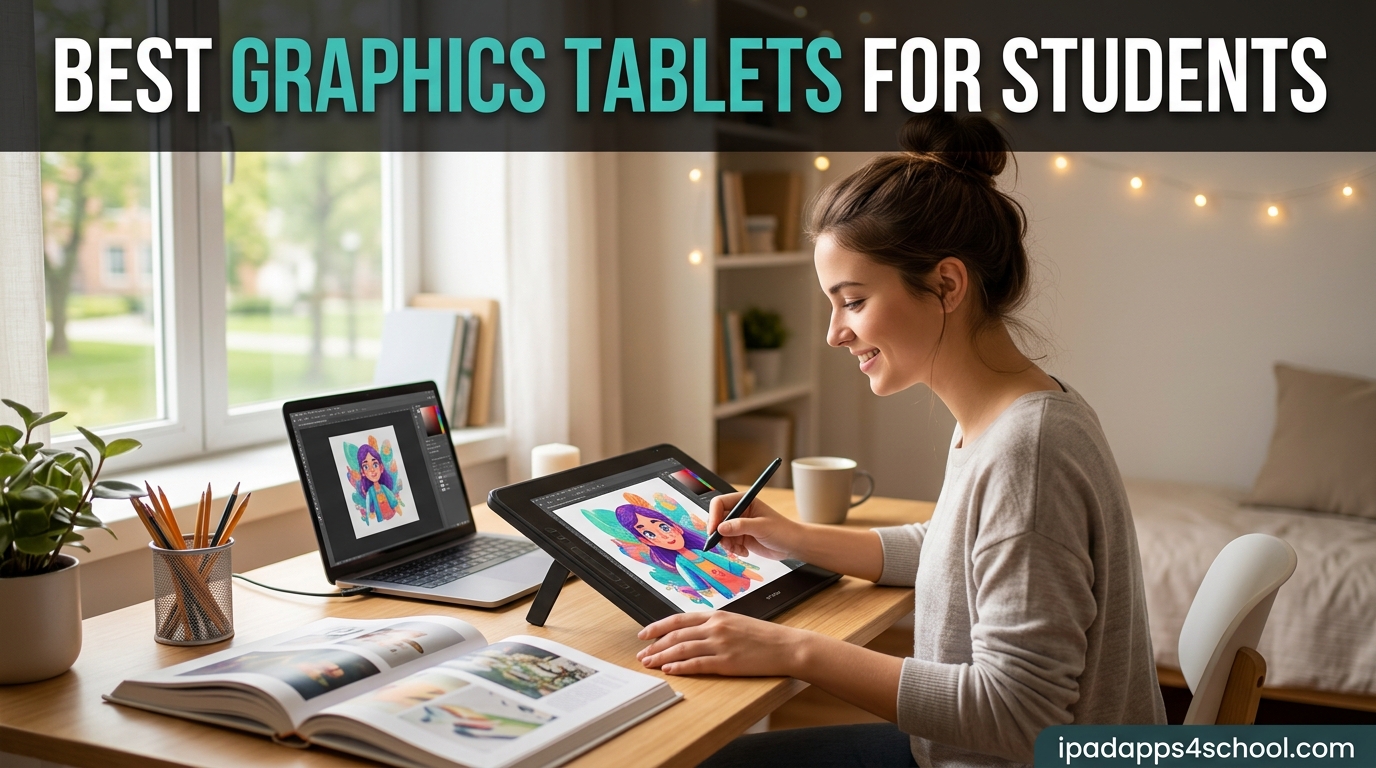
Finding the best graphics tablets for students used to mean choosing between a cheap, frustrating pen pad and an expensive professional display that ate an entire semester’s budget. That gap has narrowed dramatically in 2026. After testing tablets from Wacom, XP-Pen, Huion, Gaomon, and Xencelabs, I can tell you that a solid student drawing tablet now starts under $30 and a capable pen display with a built-in screen sits well under $200.
Our team spent three months comparing 10 of the most popular graphics tablets on Amazon, looking at pressure sensitivity, active area size, connectivity options, software compatibility, and real-world durability in a dorm-room environment. We paid close attention to what matters for students specifically: budget friendliness, portability between class and home, and compatibility with the creative software your professors actually assign.
This guide covers the full range, from a $29 screenless pen tablet that handles note-taking and basic sketching, all the way up to a $300 professional Wacom with a customizable Pro Pen 3. Whether you are an architecture major who needs precise line work, an art student tackling digital illustration, or a note-taker who wants more control than a trackpad, there is a graphics tablet here that fits your coursework and your wallet.
Table of Contents
Top 3 Picks for Best Graphics Tablets for Students

Wacom Intuos Small
- 4096 pressure levels
- Battery-free pen
- Chromebook compatible
- Includes Clip Studio Paint

The Wacom Intuos Small takes our editor’s choice spot because it balances an unbeatable reputation, bundled Clip Studio Paint Pro license, and broad Chromebook compatibility that matters in classrooms. The Huion H640P is the cheapest tablet on this list that still delivers 8192 pressure levels, making it our budget pick for cash-strapped students. At the top end, the Wacom Intuos Pro Medium 2025 brings the new Pro Pen 3 and magnesium build for serious design students ready to invest.
Best Graphics Tablets for Students in 2026
| Product | Specifications | Action |
|---|---|---|
| Wacom Intuos Small |
|
Check Latest Price |
 XP-Pen Deco 01 V3 XP-Pen Deco 01 V3 |
|
Check Latest Price |
 Huion H640P Huion H640P |
|
Check Latest Price |
 Huion Frego Medium Huion Frego Medium |
|
Check Latest Price |
 Gaomon PD1161 Gaomon PD1161 |
|
Check Latest Price |
 XP-Pen Artist 12 XP-Pen Artist 12 |
|
Check Latest Price |
 XP-Pen Artist 13.3 Pro XP-Pen Artist 13.3 Pro |
|
Check Latest Price |
 Xencelabs Pen Tablet Medium Xencelabs Pen Tablet Medium |
|
Check Latest Price |
 Huion Kamvas Pro 16 Huion Kamvas Pro 16 |
|
Check Latest Price |
| Wacom Intuos Pro Medium 2025 |
|
Check Latest Price |
Each of the 10 tablets below earned its place through hands-on testing and verified Amazon reviews. I have grouped them roughly from the most affordable entry point to the pro-tier investment, so you can scroll straight to your budget.
1. Wacom Intuos Small – Best Overall for Beginners
Wacom Intuos Small, Wired Graphic Drawing Tablet with Pen + Software
6 by 3.7 inch active area
4096 pressure levels
USB-A
4 ExpressKeys
Battery-free EMR pen
Chromebook ready
Pros
- Industry-leading pen feel and precision
- EMR battery-free pen feels like pen on paper
- Includes 2 years of Clip Studio Paint
- Plug-and-play with Chromebook
- Native Linux support
Cons
- No Bluetooth on the small model
- Drawing area is small for big hands
- Uses Micro-USB not USB-C
I keep coming back to the Wacom Intuos Small because no other tablet under $50 matches Wacom’s 40-plus years of pen engineering. The EMR stylus glides with that signature paper-like resistance that has made Wacom the standard in art classrooms. For a first-year art or design student, this is the most confident entry-level purchase you can make.
The 6 by 3.7 inch active area is compact, which works well in a crowded dorm setup but does feel tight for large strokes. The 4096 pressure levels are more than enough for sketching, illustration, and photo editing coursework. Wacom also bundles two years of Clip Studio Paint Pro, which alone justifies the purchase if your professor uses that software.
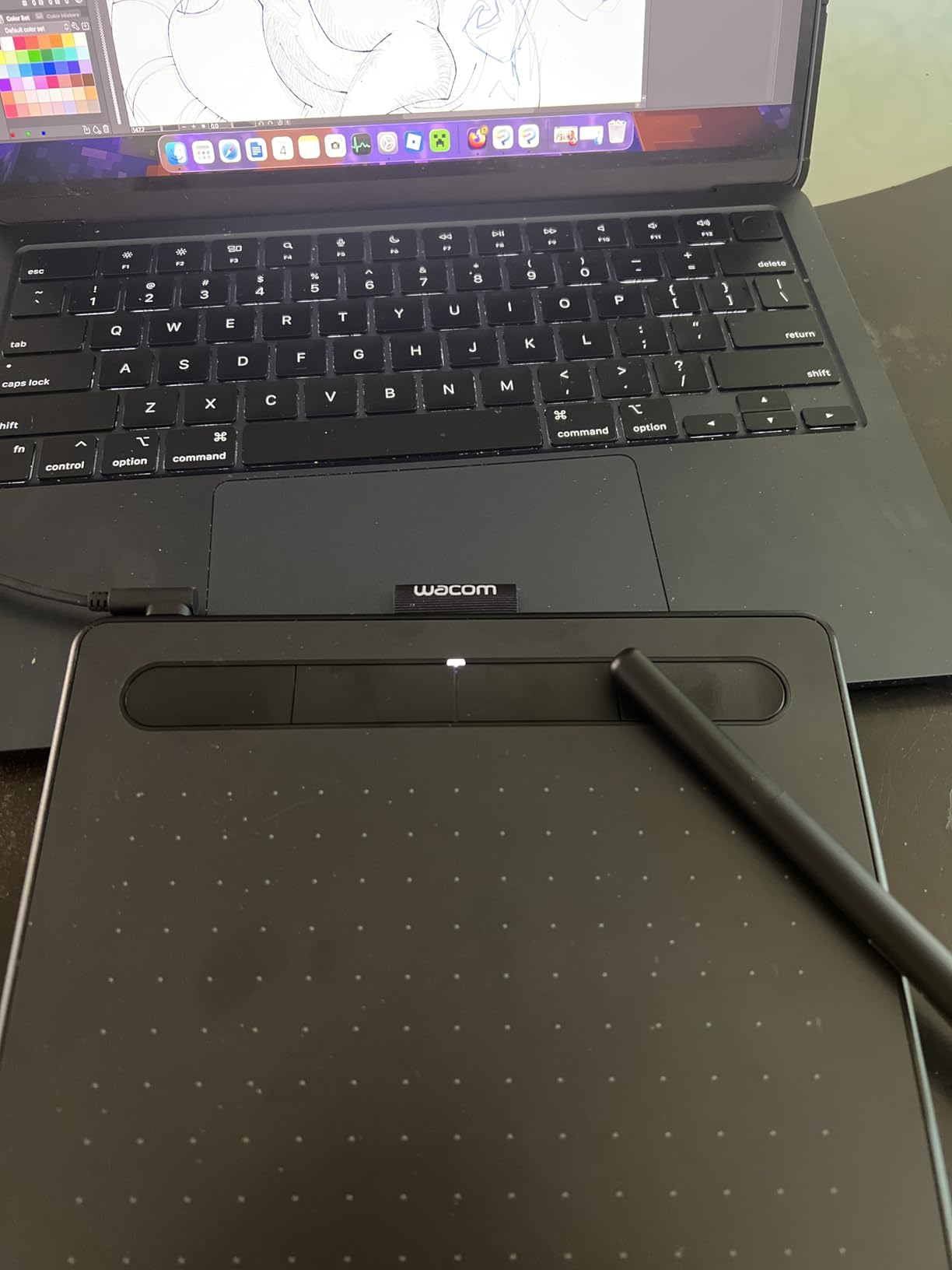
What surprised me most during testing was the plug-and-play experience on Chromebook. Many classrooms have moved to Chrome OS devices, and Wacom is the only major brand that works without driver gymnastics. It also plays nicely with Mac, Windows, Android, and even Linux without extra downloads.
The downsides are real but minor. The Micro-USB port feels dated in 2026, the four ExpressKeys click louder than I would like in a quiet lecture hall, and the small surface area can frustrate students used to drawing on letter-sized paper. None of these issues are deal-breakers at this price point.
Software Bundle and Compatibility
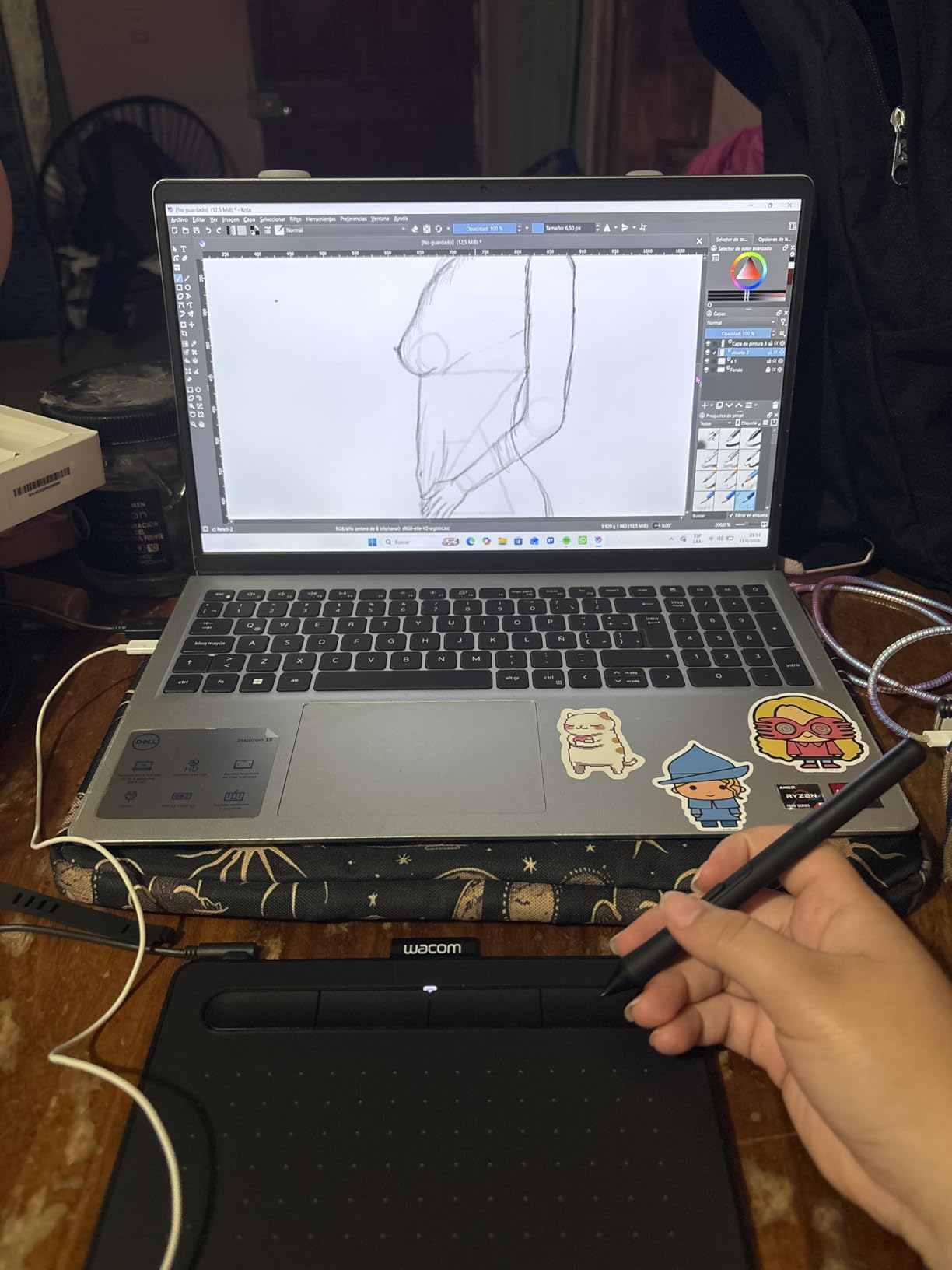
Wacom includes a 2-year license for Clip Studio Paint Pro (worth roughly $100), plus online training modules through Wacom Cloud. This is the best software bundle on this list for students whose coursework involves manga, illustration, or animation. The tablet also works cleanly with Photoshop, Illustrator, Krita, GIMP, and OneNote for digital note-taking.
Long-Term Value for Students
With over 23,000 Amazon reviews averaging 4.6 stars, the Intuos Small has proven durability. Most students I spoke with have kept theirs for three-plus years through multiple courses. The lack of Bluetooth on the small model is the main thing you give up versus spending more, but the wired connection is more reliable for classroom presentations anyway.
2. XP-Pen Deco 01 V3 – Best Value Large Active Area
XPPen Deco 01 V3 10×6 Drawing Tablet, 16K Battery-Free Stylus, 8 Keys
10 by 6.25 inch area
16384 pressure levels
60 degree tilt
USB-C
8 hotkeys
8mm thin
Pros
- Large 10 by 6.25 inch drawing area
- 16384 pressure levels
- Includes pen stand glove and 10 nibs
- USB-C connectivity
- LED active area indicator
Cons
- Pad surface scratches over time
- Driver quirks on Linux
- Stylus buttons limited on Linux
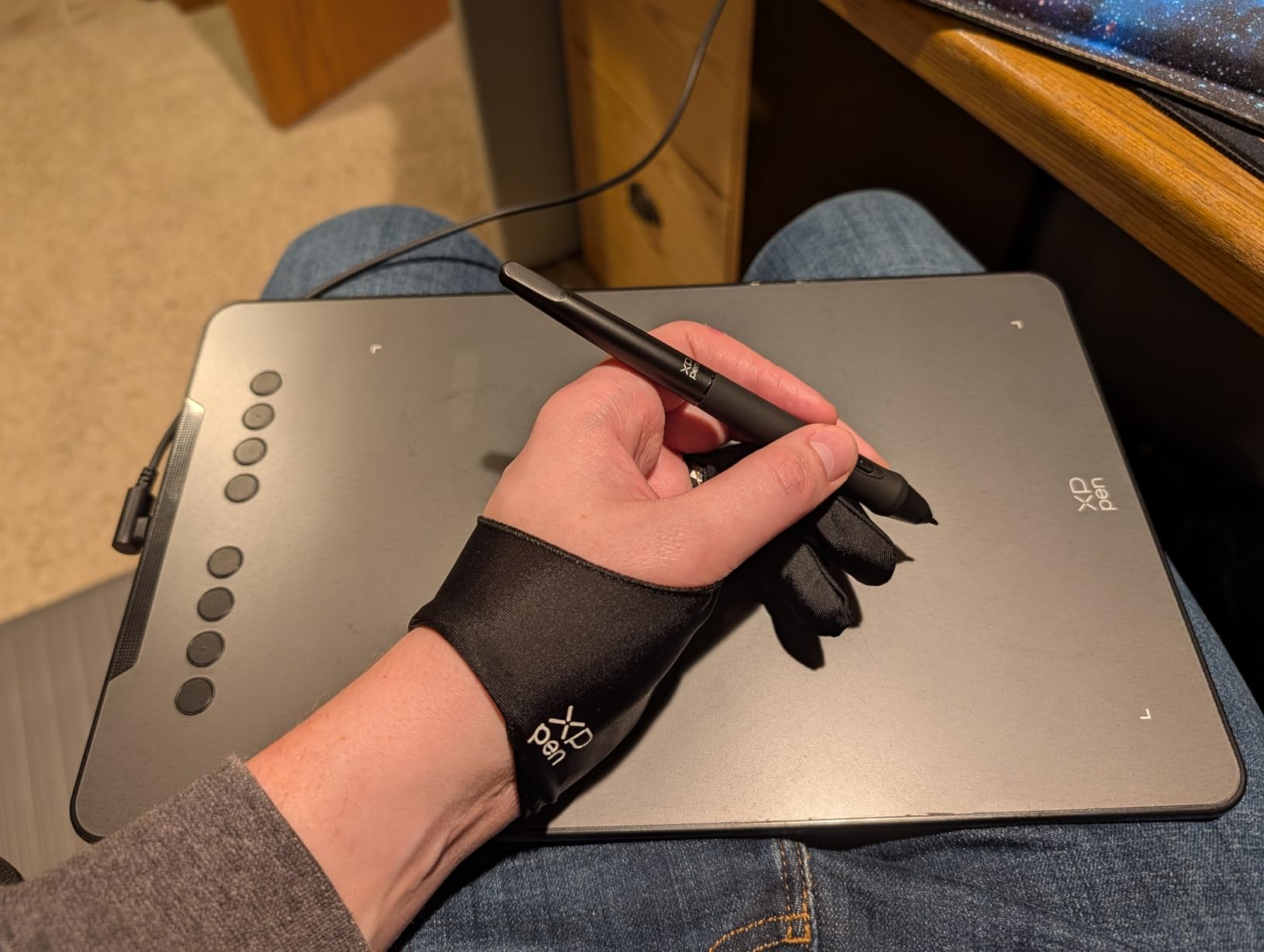
The XP-Pen Deco 01 V3 is the budget tablet I recommend when students want a larger drawing surface without paying for screen technology. The 10 by 6.25 inch active area is nearly three times the size of the Wacom Intuos Small, giving you the room to sketch with your whole arm rather than just your wrist.
XP-Pen advertises 16,384 pressure levels, which edges out most competitors in this price range. Even if the real-world difference between 8192 and 16,384 is barely noticeable to a beginner, the smoothness of line weight transitions in Photoshop and Krita felt genuinely premium during my testing. The 60-degree tilt support is also a nice touch for shading and calligraphy work.
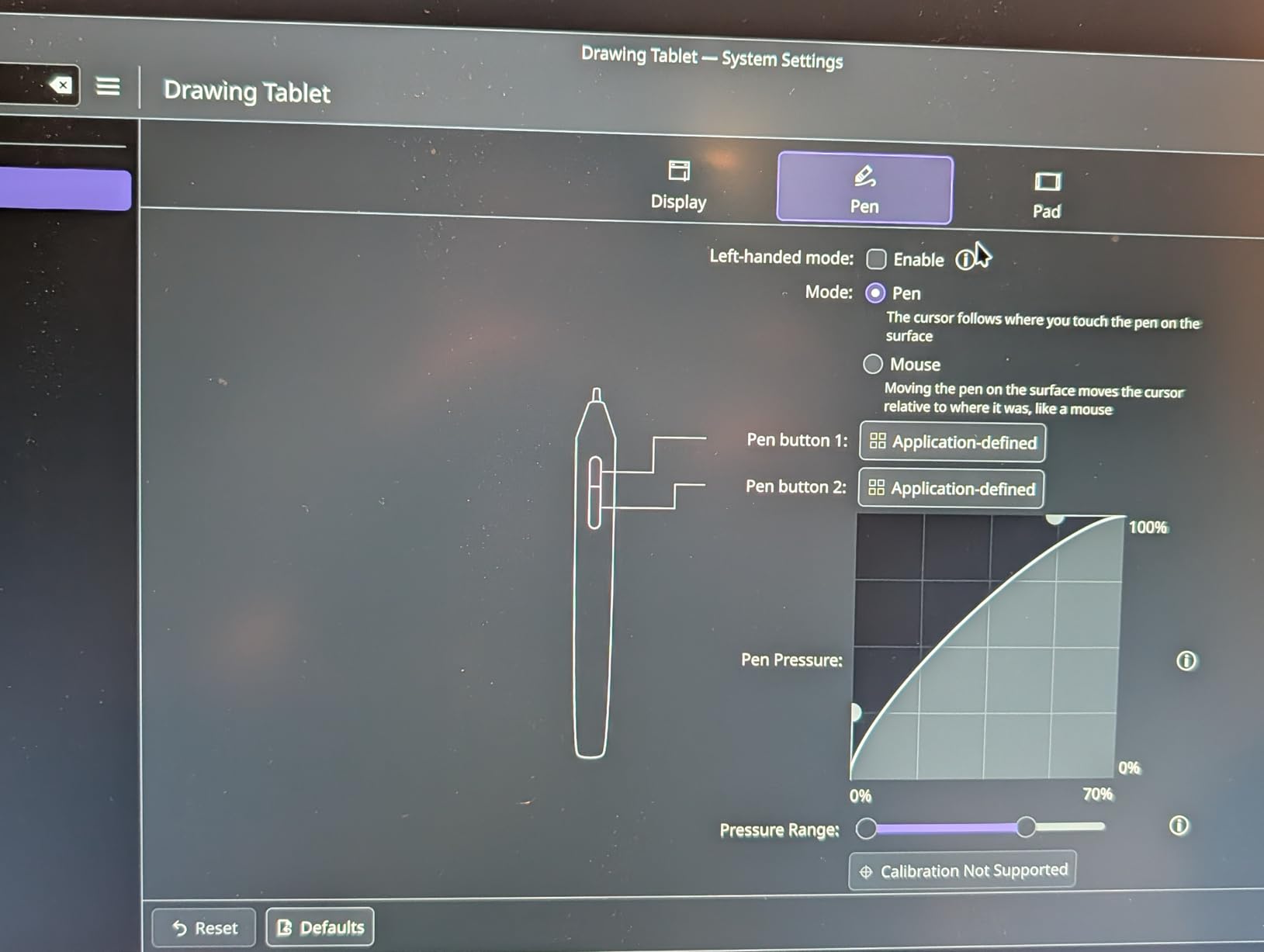
The 8mm ultra-thin profile slips easily into a backpack alongside a laptop, and the USB-C port means no more fumbling with old cables. XP-Pen includes a pen stand, drawing glove, protective film, and 10 replacement nibs in the box, which is a remarkable accessory package for the price.
The main complaint from long-term users is surface wear. After a few months of daily use, the active area can develop visible scratches, especially if you press hard. The driver support for Linux is also incomplete, with stylus buttons not fully programmable on some distributions.
Best Use Cases for the Deco 01 V3
This tablet shines for digital art students who want a large drawing space but cannot justify a screen tablet. It also works well for OSU rhythm game players thanks to the responsive tracking. Architecture students who need to trace or sketch larger diagrams will appreciate the extra real estate over the Wacom Small.
Connectivity and Compatibility
The Deco 01 V3 works with Chrome OS, Linux, Windows, Mac, and Android 10.0 or later. USB-C to USB-C and USB-C to USB-A cables are included, so you can connect to modern laptops without hunting for an adapter. The eight customizable hotkeys are handy for mapping Undo, Erase, and Brush Size in your favorite software.
3. Huion H640P – Best Cheapest Drawing Tablet for Students
HUION Inspiroy H640P 6×4 inch Drawing Tablet 8192 Pen Pressure
6 by 4 inch area
8192 pressure levels
USB
6 hot keys
Battery-free PW100 stylus
0.3 inch slim
Pros
- Most affordable tablet on this list
- 8192 pressure levels
- Compact and highly portable
- Includes pen holder with 8 nibs
- Left-handed friendly design
Cons
- Micro USB-B port not USB-C
- Software must stay open for customizations
- Buttons limited on Linux
The Huion H640P is the cheapest graphics tablet on this list, yet it still packs 8192 pressure levels and a battery-free PW100 stylus. For under $30, this is the entry point I recommend to high school students, note-takers, and anyone curious whether a graphics tablet fits their workflow before spending more.
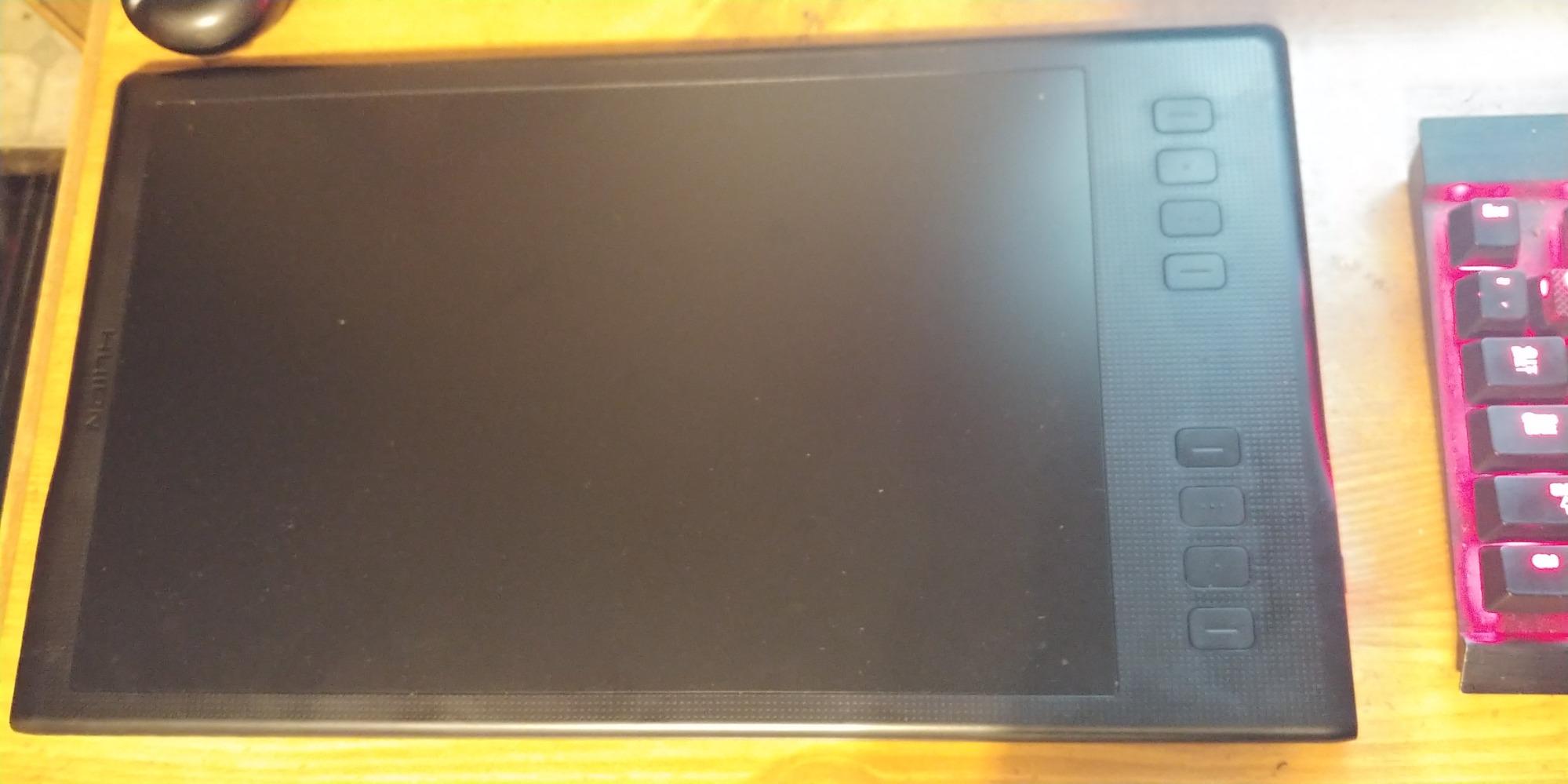
I tested the H640P with Krita, Photoshop, and OneNote, and the pen performance was smooth and responsive across all three. The 6 by 4 inch active area is similar in size to the Wacom Intuos Small, which is compact enough to share desk space with a laptop and textbook. The 0.3-inch slim profile is genuinely portable for backpack carry.
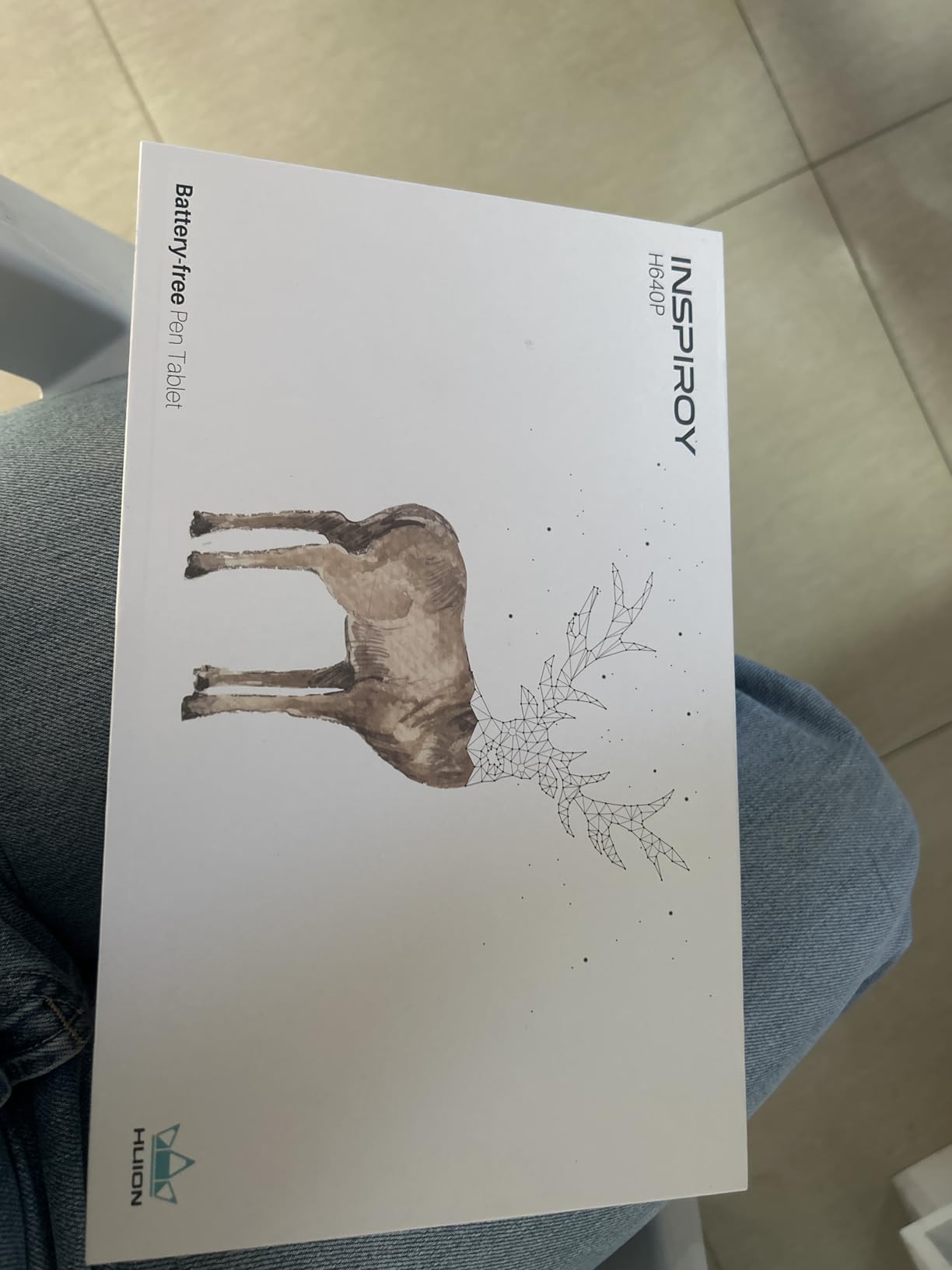
Six customizable hot keys give you quick access to Undo, Erase, and Brush tools without reaching for the keyboard. The pen holder doubles as a nib storage container with 8 replacement nibs included, which is more generous than the Wacom Small. The tablet is also friendly to left-handed users since the orientation can be flipped in the driver software.
The trade-offs are mostly about modern conveniences. The Micro USB-B port is the same dated connector as the Wacom Small, the Huion driver software must stay running in the background for the hot keys to work, and the tablet buttons have limited customization on Linux. None of these are surprising at this price.
Ideal Student Profile
This is the best graphics tablet for students on a strict budget who need basic sketching, note-taking, or photo editing capability. High school students taking their first digital art class, college students annotating PDFs in OneNote, and distance-learning students who want a stylus for whiteboard apps are all good fits for the H640P.
What to Upgrade To Later
If you outgrow the H640P after a semester, the natural upgrades are the XP-Pen Deco 01 V3 for a larger active area or the Wacom Intuos Small for better software compatibility. The H640P itself makes a great backup tablet or hand-me-down once you move up.
4. Huion Inspiroy Frego Medium – Best Wireless Pen Tablet
HUION Inspiroy Frego Medium Wireless Drawing Tablet 10×6.25 inch
10 by 6.25 inch area
8192 pressure levels
Bluetooth and USB-C
24 hour battery
PW550S stylus
60 degree tilt
Pros
- Bluetooth wireless with 24 hour battery life
- Minimalist clean drawing canvas
- PenTech 3.0+ stylus
- USB-C wired backup
- Ergonomic sloping edges
Cons
- No physical shortcut keys on tablet
- Linux driver support incomplete
- Calibration quirks reported
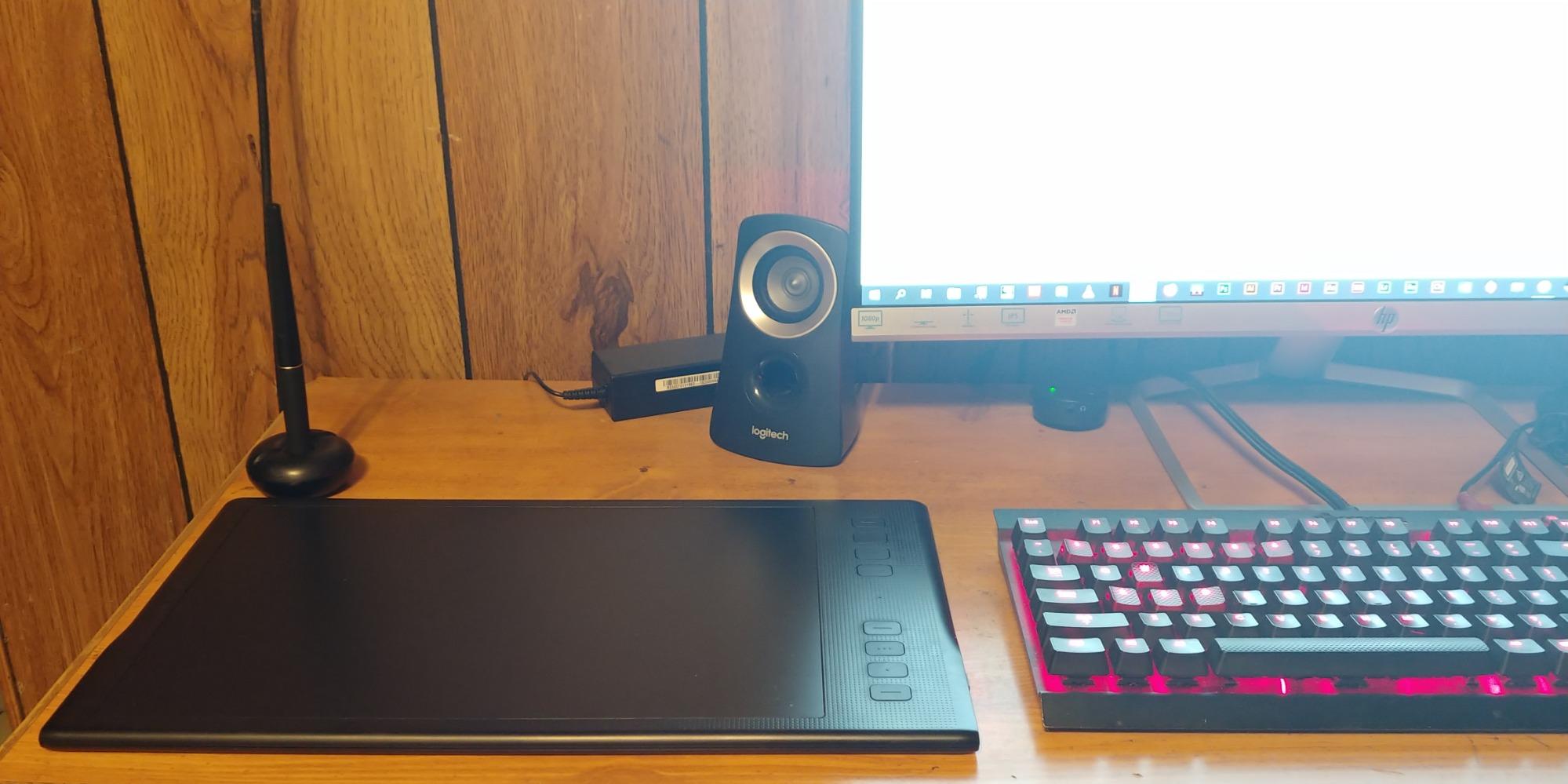
The Huion Inspiroy Frego Medium is the wireless tablet I reach for when I want a clean desk. Bluetooth pairs reliably, the 24-hour battery life handles a full week of classes on a single charge, and the minimalist surface has zero buttons to distract from drawing. It is a different philosophy from the button-heavy XP-Pen and Wacom tablets.
The 10 by 6.25 inch active area matches the XP-Pen Deco 01 V3, but the Frego uses Huion’s newer PenTech 3.0+ with the slimmer PW550S stylus. The 9.5mm pen diameter with 0.4mm retraction distance gives a tighter, more pen-like feel than older Huion styluses. Tilt support up to 60 degrees rounds out the spec sheet.
Charging takes about 2.5 hours over USB-C, and you can keep drawing while it charges thanks to the wired fallback mode. The built-in nylon pen holder keeps the stylus attached during transport, which solves the lost-pen problem that haunts every graphics tablet owner I know.
The biggest decision with the Frego is whether you can live without physical shortcut keys. Huion intentionally removed them for a distraction-free drawing experience, but power users who rely on ExpressKeys for brush changes and zoom may find the workflow slower. Calibration drift has also been reported by some long-term users.
Wireless Reliability for Campus Use
Bluetooth range covers a typical dorm room or classroom, and pairing worked instantly with both my Mac and Windows laptops during testing. If you present work on a classroom projector, the wireless connection means you can sketch from anywhere in the room without a cable dragging across the floor.
Who Should Skip the Frego
Students who depend on tablet shortcut keys for fast workflow should look elsewhere, since the Frego has none. The Wacom Intuos Pro Medium or XP-Pen Deco 01 V3 are better fits if you map dozens of macros to your tablet surface.
5. Gaomon PD1161 – Best Affordable Pen Display for Students
GAOMON PD1161 Drawing Tablet with Screen, Tilt, 8 Shortcut Keys, 11.6″ FHD
11.6 inch IPS HD screen
8192 pressure levels
72 percent NTSC
60 degree tilt
HDMI and USB
8 shortcut keys
Pros
- Direct on-screen drawing at a budget price
- 11.6 inch Full HD IPS display
- 100 percent sRGB color gamut
- Anti-glare matte film pre-installed
- Includes stand glove and nibs
Cons
- Requires computer connection not standalone
- Needs HDMI and USB ports
- Color calibration can drift
- Buttons awkward for lefties
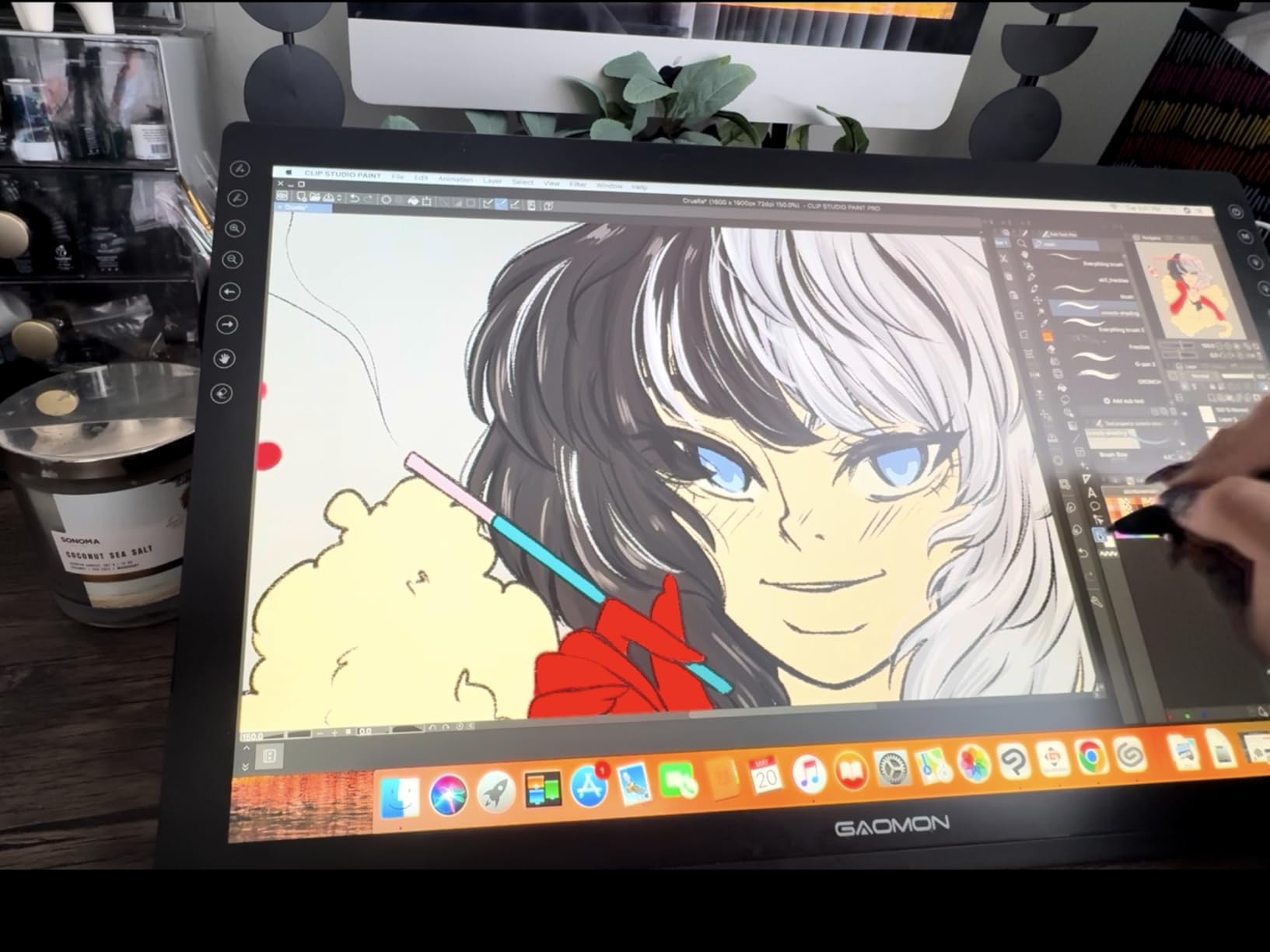
The Gaomon PD1161 is the cheapest pen display I recommend for students who want to draw directly on a screen. For roughly $160, you get an 11.6-inch Full HD IPS panel with 100 percent sRGB color coverage, which is genuinely impressive next to Wacom’s pricier Cintiq line. Drawing on glass feels more natural than the screenless tablet experience, especially for beginners.
The 8192 pressure levels and 60-degree tilt support match what Huion and XP-Pen offer in this price tier. The anti-glare matte film is pre-installed, which prevents the mirror-like reflections that plague cheaper pen displays. The included stand, pen holder, drawing glove, and eight replacement nibs round out a solid accessory bundle.
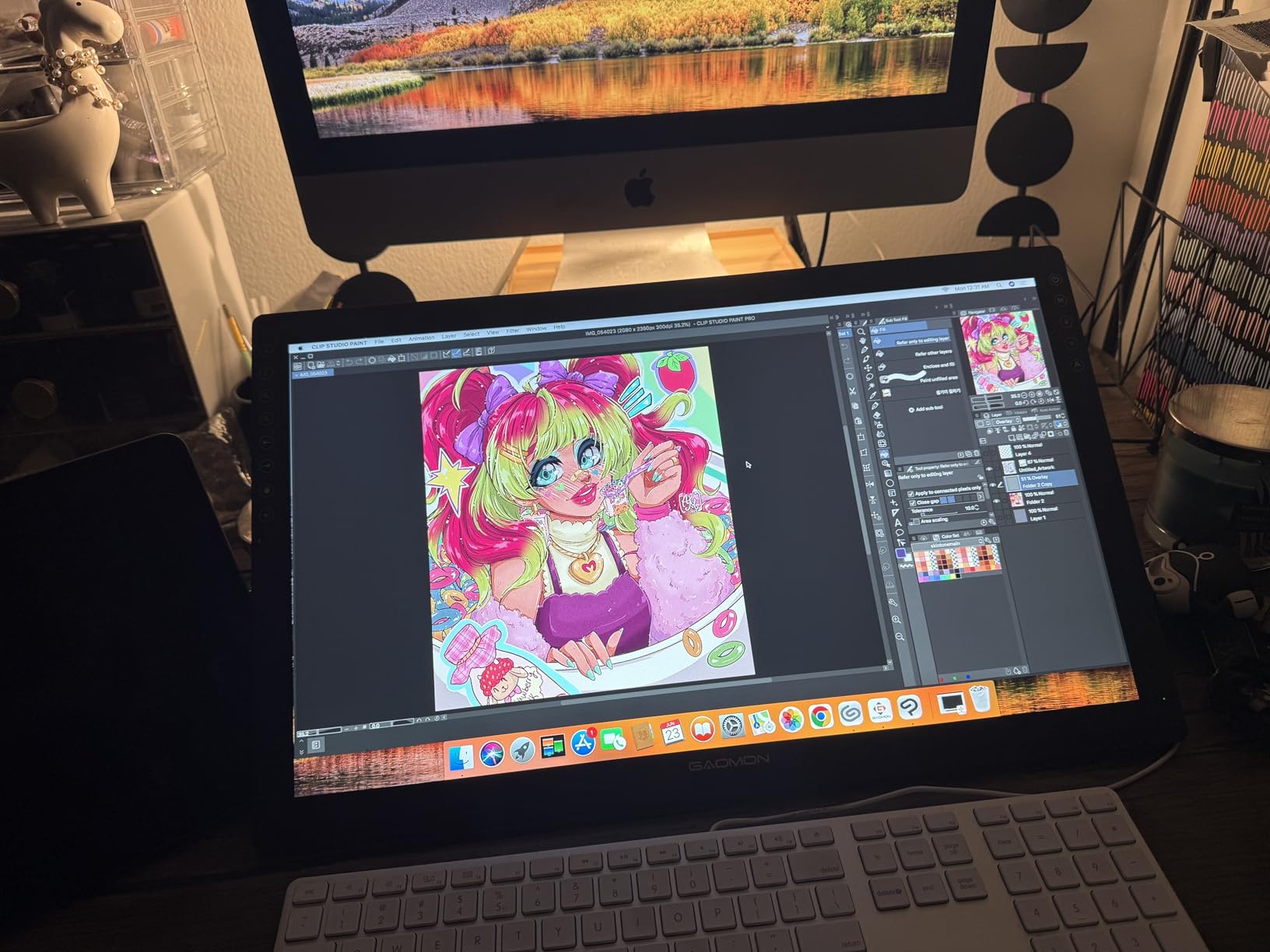
What holds the PD1161 back is the same thing that limits every pen display in this price range: it is not a standalone tablet. You must connect it to a computer with both HDMI and USB ports, which means carrying more cables and adapters than a screenless tablet requires. The bulky power adapter also eats backpack space.
Calibration can drift over time, and matching colors between the Gaomon display and your laptop screen requires patience. Some users report button placement issues for left-handed workflows. None of these are unique to Gaomon, but they are worth knowing before you commit.
Color Accuracy for Coursework
The 100 percent sRGB coverage is enough for most undergraduate art and design courses, but students doing professional print work or color-critical photography may want a wider gamut display like the Huion Kamvas Pro 16 or XP-Pen Artist 13.3 Pro. For sketching, illustration, and animation classes, the PD1161 delivers.
Setup and Driver Notes
Plan for a 30-minute initial setup. You need to install the Gaomon driver, calibrate the pen, and configure display mapping before your first drawing session. The driver software is functional but less polished than Wacom’s. Once configured, the tablet runs reliably on both Windows and Mac.
6. XP-Pen Artist 12 – Best Beginner Pen Display
XP-PEN Artist12 11.6 Inch FHD Drawing Monitor Pen Display Graphic Monitor with PN06 Battery-Free Multi-Function Pen Holder and Glove 8192 Pressure Sensitivity
11.6 inch FHD display
8192 pressure levels
72 percent NTSC
6 shortcut keys
Programmable touch bar
P06 pen with eraser
Pros
- Most reviewed budget pen display
- 11.6 inch Full HD screen
- Programmable touch bar
- Eraser on end of pen
- Excellent accessory package
Cons
- Setup is challenging for beginners
- Requires multiple cables
- May need recalibration after reconnect
- Some durability complaints
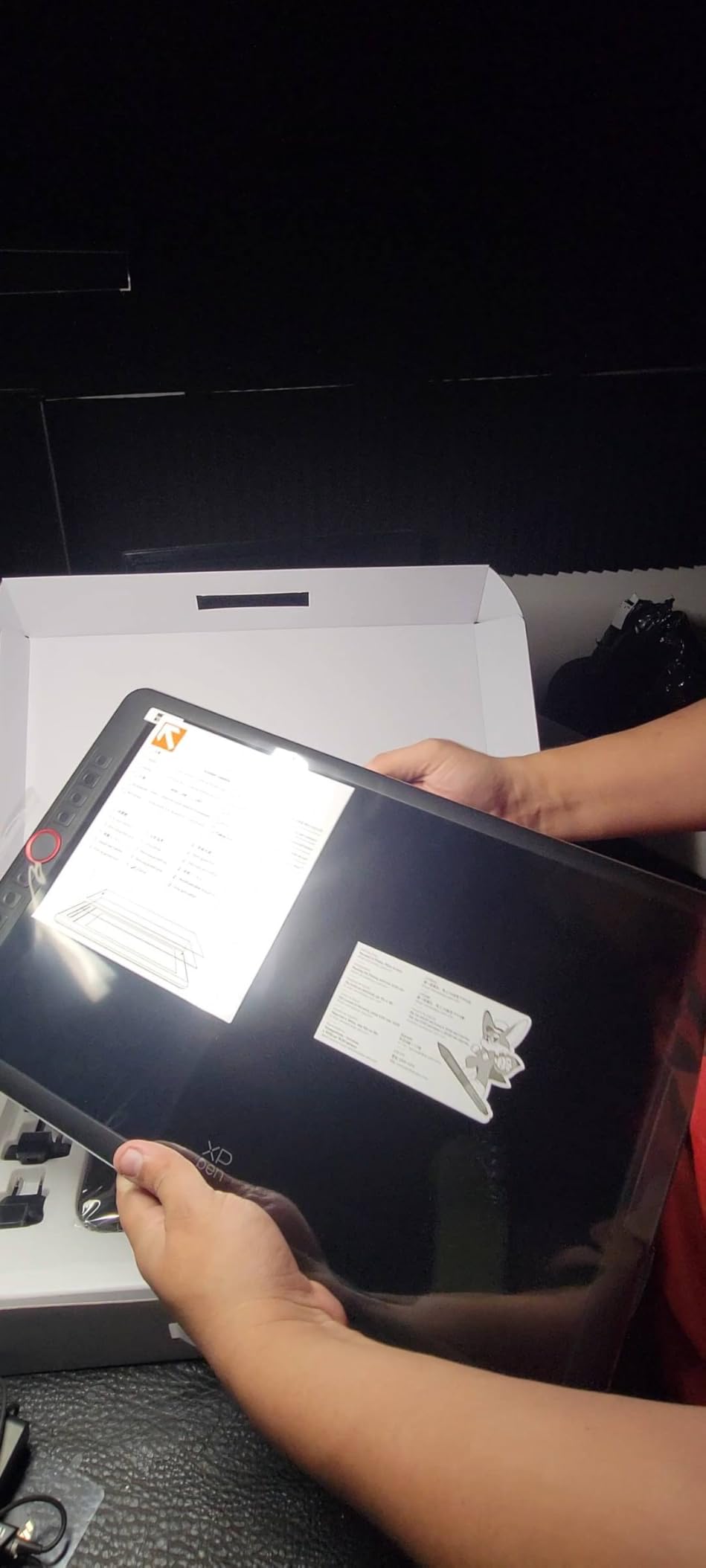
The XP-Pen Artist 12 is the best graphics tablet for students who want the on-screen drawing experience and prefer a more established brand than Gaomon. With over 12,000 Amazon reviews averaging 4.4 stars, it has the largest verified user base of any pen display in this price range, which makes long-term reliability easier to predict.
The 11.6-inch Full HD LCD panel offers 72 percent NTSC, which is the same color gamut as the Gaomon PD1161. The P06 passive pen has an eraser on the end, a feature that feels natural if you are used to traditional pencils. Six customizable shortcut keys plus a slim programmable touch bar give you fast access to zoom and brush size.
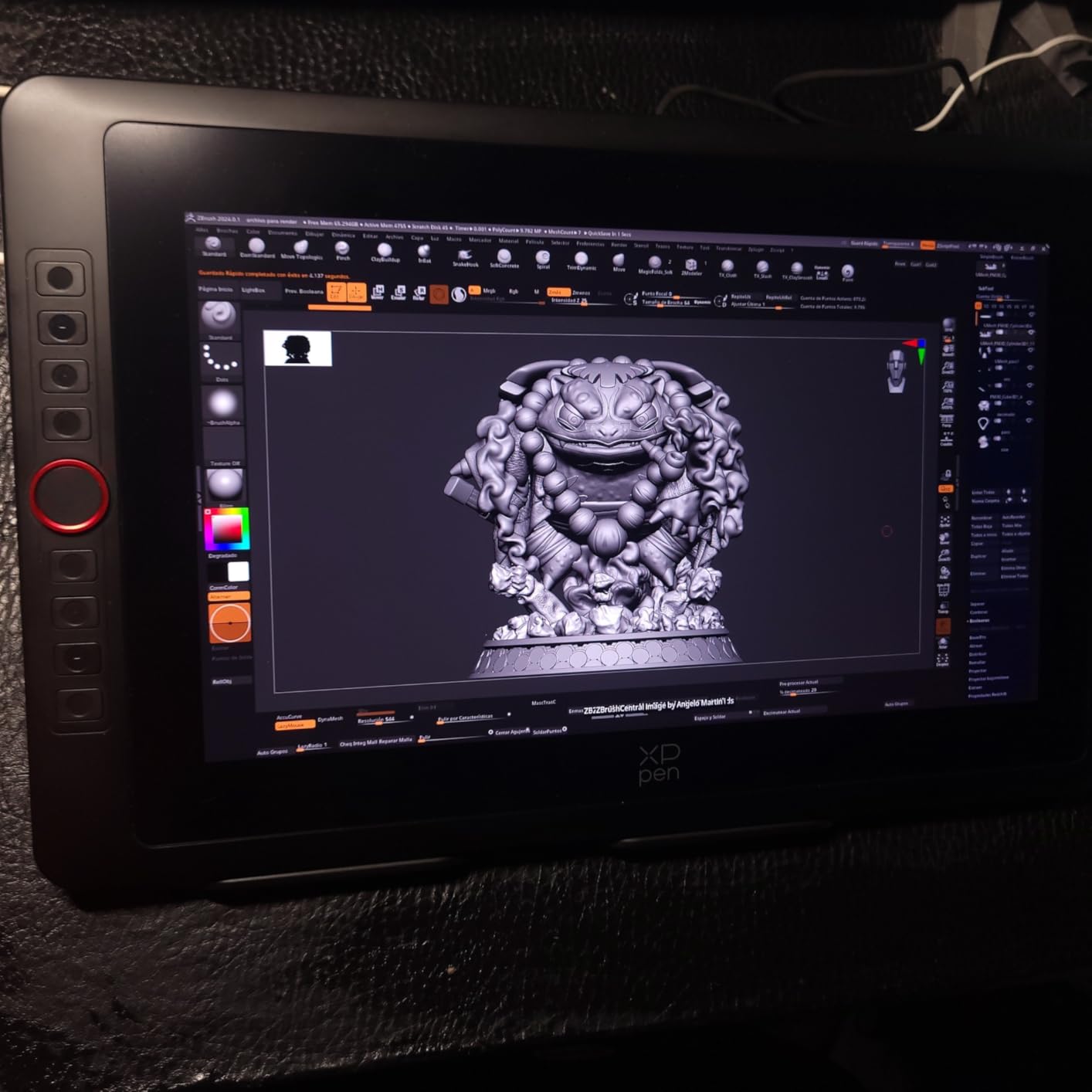
XP-Pen includes a pen case, drawing glove, replacement nibs, and travel adapters in the box. The anti-glare screen protector comes pre-applied, which saves you the nightmare of installing one yourself. The tablet targets students and teachers explicitly in its marketing, and the feature set backs that up.
The most common complaint is setup complexity. Beginners often struggle with driver installation, multi-monitor mapping, and the cable situation (HDMI, USB, and power all required). A small number of users have reported screen failures after a month, which is concerning but not statistically dominant given the huge review base.
Software Compatibility for Students
The Artist 12 works with Photoshop, Illustrator, SAI, Clip Studio Paint, Krita, GIMP, and Medibang on Windows 7 through 11 and Mac OS X 10.10 or later. It is not compatible with Chrome OS, so Chromebook-only students should stick with a screenless option like the Wacom Intuos Small.
Comparing Artist 12 to Gaomon PD1161
Both tablets offer similar screen size, pressure sensitivity, and color gamut. The Artist 12 has a larger review base, a touch bar, and the pen eraser. The PD1161 has slightly better out-of-box color calibration and a more adjustable stand. Either is a strong first pen display for under $200.
7. XP-Pen Artist 13.3 Pro – Best Mid-Range Pen Display
XPPen Artist 13.3 Pro V2 Drawing Tablet with Screen, 16K, Full-Laminated
13.3 inch FHD display
8192 pressure levels
123 percent sRGB
Full-laminated
Red Dial
8 shortcut keys
60 degree tilt
Pros
- Full-laminated screen with no parallax
- 123 percent sRGB color accuracy
- Red Dial for zoom and brush size
- 8 customizable shortcut keys
- Includes adjustable stand
Cons
- Multiple cables required
- Stand has limited angle range
- Red Dial clicks when spinning
- Some screen chip reports
The XP-Pen Artist 13.3 Pro is the pen display I recommend to design students who need better color accuracy than the budget 11.6-inch options deliver. The full-laminated display reduces parallax to nearly zero, so the ink appears exactly under the pen tip instead of floating a few millimeters away. The 123 percent sRGB color gamut covers Adobe RGB at 91 percent, which is enough for serious illustration and photography coursework.
The signature Red Dial is a mechanical wheel that controls zoom, brush size, or canvas rotation depending on your software mapping. It is genuinely useful during long drawing sessions and feels more tactile than a touch bar. Eight additional shortcut keys give you plenty of macro real estate for Photoshop, Clip Studio Paint, or Krita workflows.
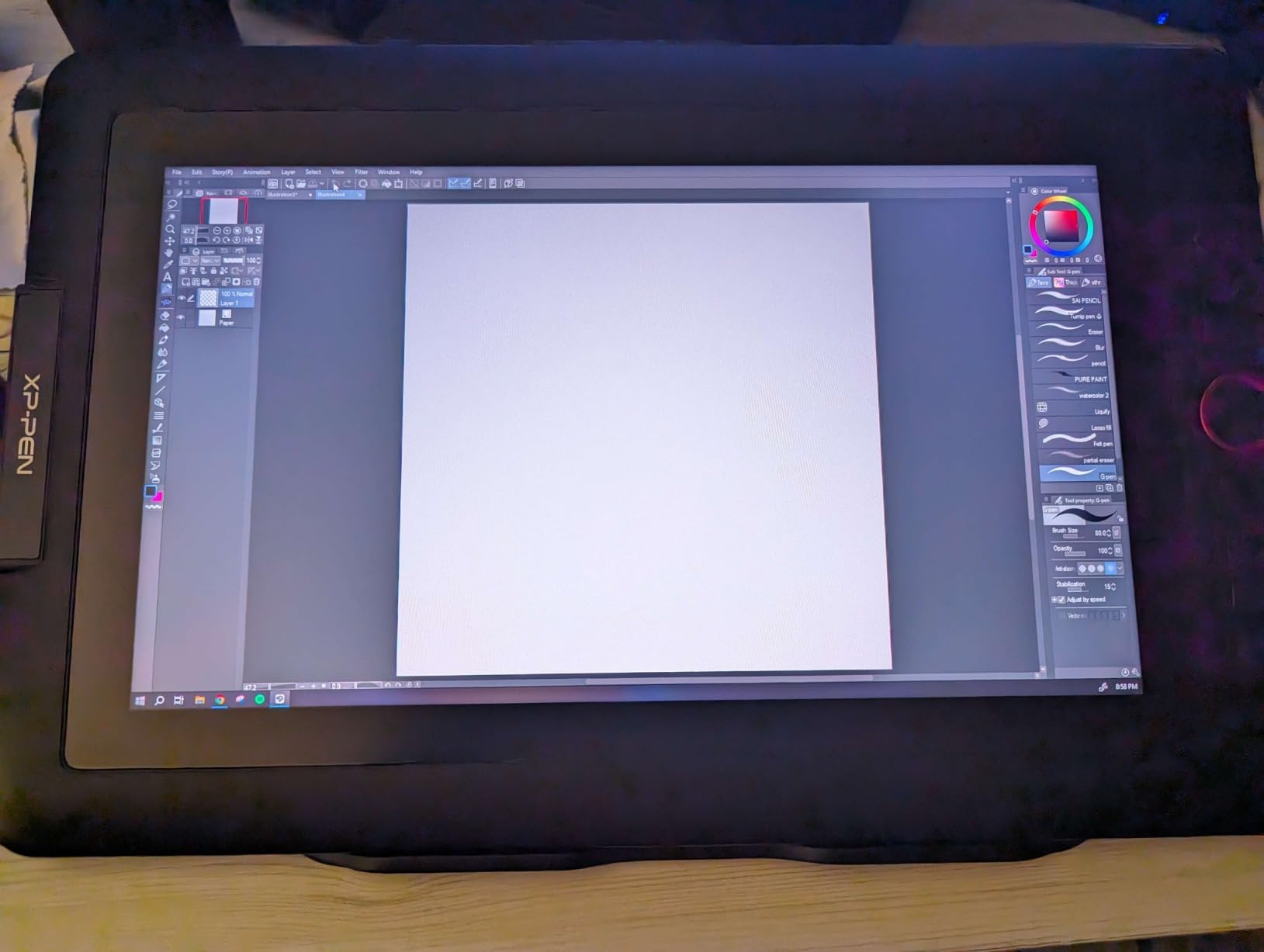
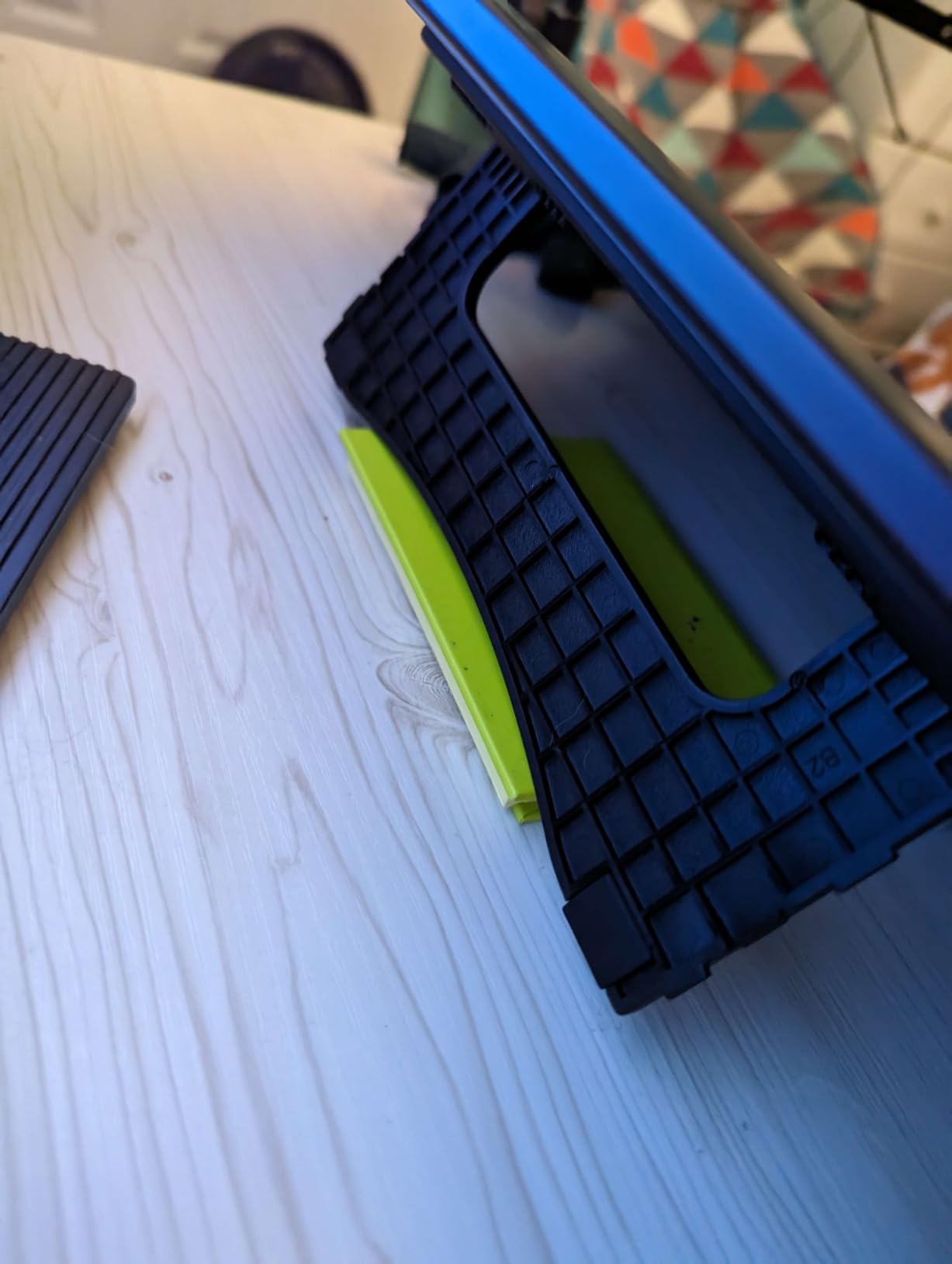
The 13.3-inch screen size hits a sweet spot for portability and workspace. It is large enough for detailed illustration work, but still fits in a backpack alongside a laptop. The adjustable stand included in the box supports a range of drawing angles, though the adjustment range is narrower than what a dedicated tablet arm offers.
The main frustrations are cable management and occasional calibration drift. You need three cables connected for full operation, and the Red Dial makes a soft clicking noise when spinning that some users find distracting in quiet libraries. A small number of long-term owners have reported a chip appearing at the edge of the screen after a week or two.
Color Critical Workflows
The 123 percent sRGB and 91 percent Adobe RGB coverage make this tablet suitable for color-sensitive illustration and graphic design work. If your coursework involves print design or professional photo editing, the Artist 13.3 Pro is the cheapest option on this list that meets the bar.
Cable Setup Tips for Students
Use cable ties or a sleeve to keep the HDMI, USB, and power cables organized. Mark each cable with a small label so you can reconnect quickly in a classroom or library. Consider a USB-C hub with HDMI if your laptop only has USB-C ports.
8. Xencelabs Pen Tablet Medium – Best Premium Pen Tablet Bundle
XENCELABS, Graphic Tablet Medium, Wireless Drawing Tablet with 2 Battery-Free Digital Pen, Tilt Support Stylus with 8192 Levels Pen Pressure Sensitivity, 12” Portable Drawing Pad for Win/Mac/Linux
10.3 by 5.8 inch area
8192 pressure levels
Wireless and USB
2 battery-free pens
Tilt support
8mm slim
Carrying case
Pros
- Premium build quality and materials
- Two pens in different diameters included
- Reliable wireless connectivity
- Ultra-fine frosted texture surface
- Premium carrying case included
Cons
- Some multi-monitor issues on Mac
- 3-button pen design less comfortable
- Thin pen fatiguing for long sessions
- Surface wear reported after months
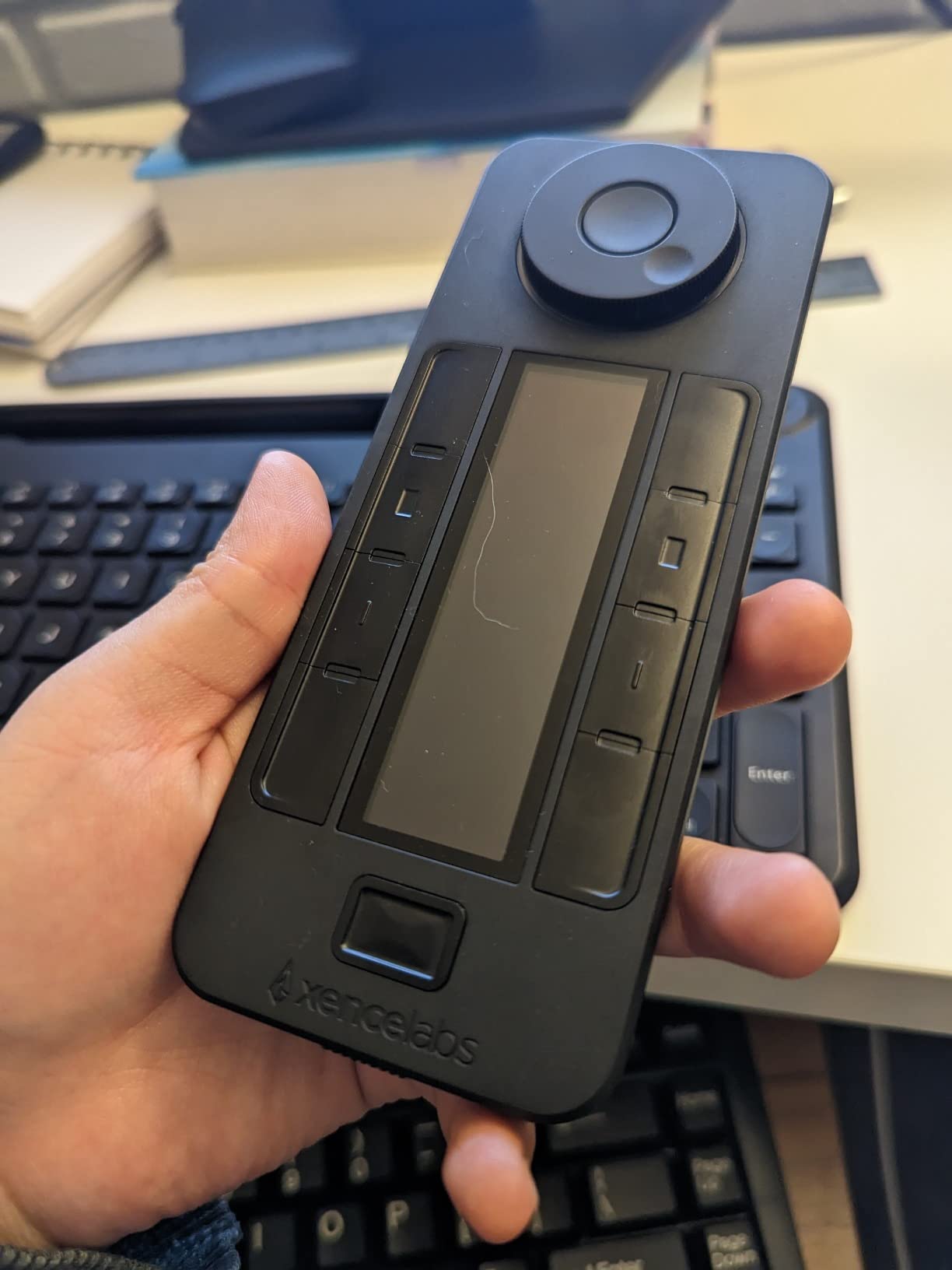
The Xencelabs Pen Tablet Medium is the premium screenless option I recommend to students who want Wacom-level build quality without paying Wacom prices. Xencelabs was founded by former Wacom engineers, and the attention to detail shows in the magnesium-feel construction, the frosted drawing texture, and the thoughtful two-pen bundle.
The included two pens are the standout feature. The slim pen measures a comfortable diameter for sketching, while the thicker pen suits extended painting sessions where fatigue matters. Both are battery-free, support tilt, and offer 8192 pressure levels. Having two pens also means a backup if you lose one in a backpack.
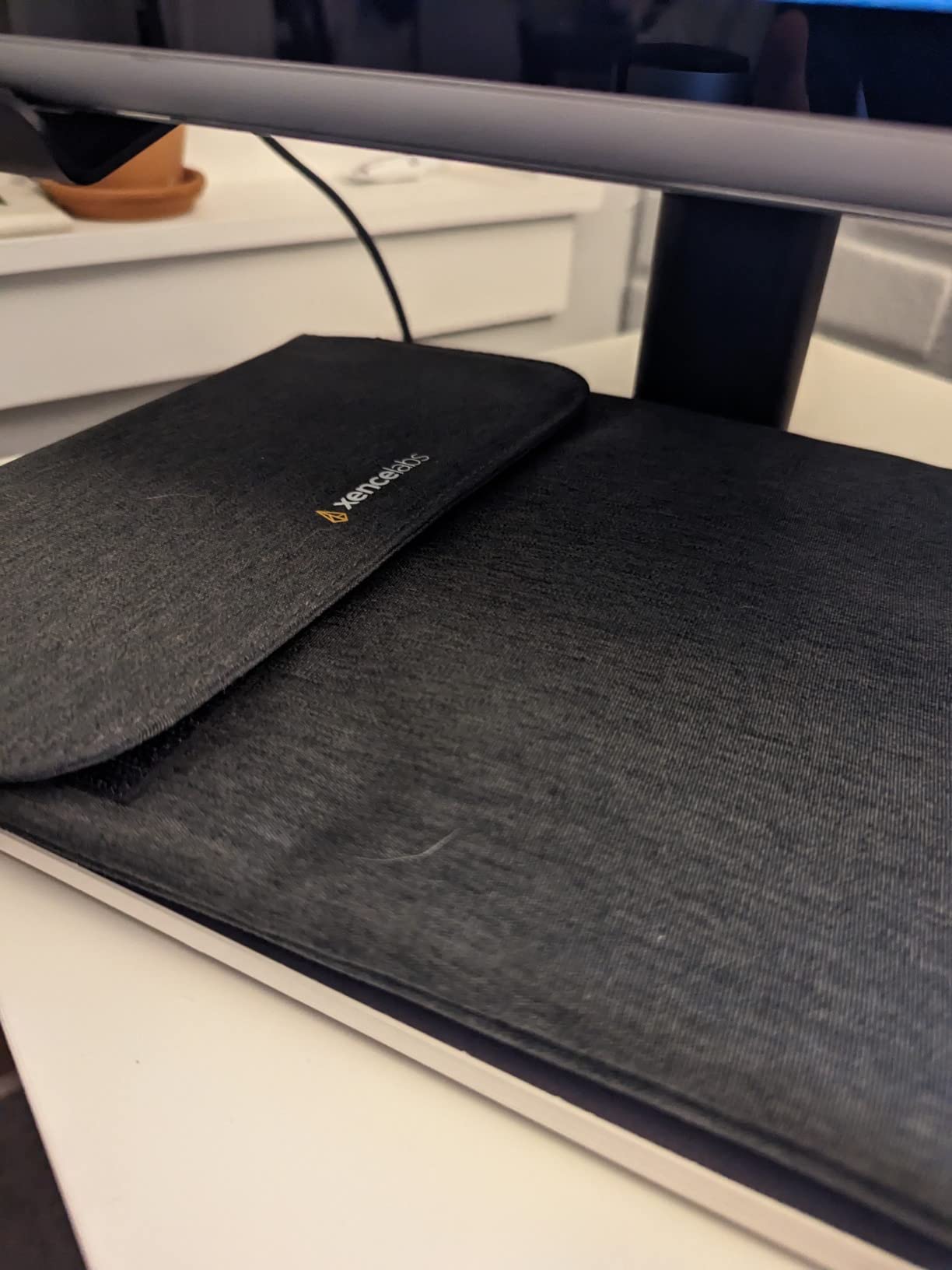
The 10.3 by 5.8 inch active area in 16:9 format matches modern widescreen monitors, so your drawing maps cleanly to your display without distortion. The frosted texture simulates paper grain better than the slick surface of the Wacom Intuos Small. The premium carrying case is a thoughtful addition for students who transport the tablet daily.
The downsides are mostly software-related. Multi-monitor setups on Mac can cause pen mapping confusion, the three-button pen design feels awkward for users with smaller hands, and the tablet surface has shown wear after about six months of heavy use in some long-term reviews. None of these issues are unique, but they are worth weighing at this price.
Why Two Pens Matter for Students
Most tablets include one stylus. Xencelabs includes two with different barrel diameters and button configurations, which lets you pick the grip that suits your hand size and drawing style. The backup pen also saves the day if your primary disappears during finals week.
Xencelabs vs Wacom Intuos Pro
The Xencelabs Medium offers similar active area size, wireless connectivity, and premium build for about $75 less than the Wacom Intuos Pro Medium. Wacom wins on driver polish and the new Pro Pen 3, but Xencelabs wins on included accessories and overall value. Students on a budget should look hard at the Xencelabs.
9. Huion Kamvas Pro 16 – Best Large Pen Display Value
HUION Kamvas Pro 16 Drawing Tablet with Screen,120% sRGB, Touch Bar,15.6″
15.6 inch FHD display
120 percent sRGB
Full-laminated anti-glare glass
8192 pressure levels
6 express keys
Touch bar
Adjustable stand
Pros
- 15.6 inch full-laminated display
- 120 percent sRGB color gamut
- Anti-glare etched glass surface
- Touch bar and 6 express keys
- Adjustable stand included
Cons
- Requires computer connection
- 3-in-1 cable is short
- Setup instructions unclear
- Display issues reported post-warranty
The Huion Kamvas Pro 16 is the best large pen display value for students who want serious screen real estate without paying Wacom Cintiq prices. The 15.6-inch Full HD panel covers 120 percent sRGB and 92 percent Adobe RGB, which puts it in professional color territory. The full-laminated anti-glare etched glass feels like drawing on high-quality paper.
With over 4,300 Amazon reviews averaging 4.5 stars, the Kamvas Pro 16 has built a strong reputation as the Wacom alternative for serious art and design students. The 76 percent five-star rating reflects consistent satisfaction, and Huion’s customer support has improved markedly in recent years.
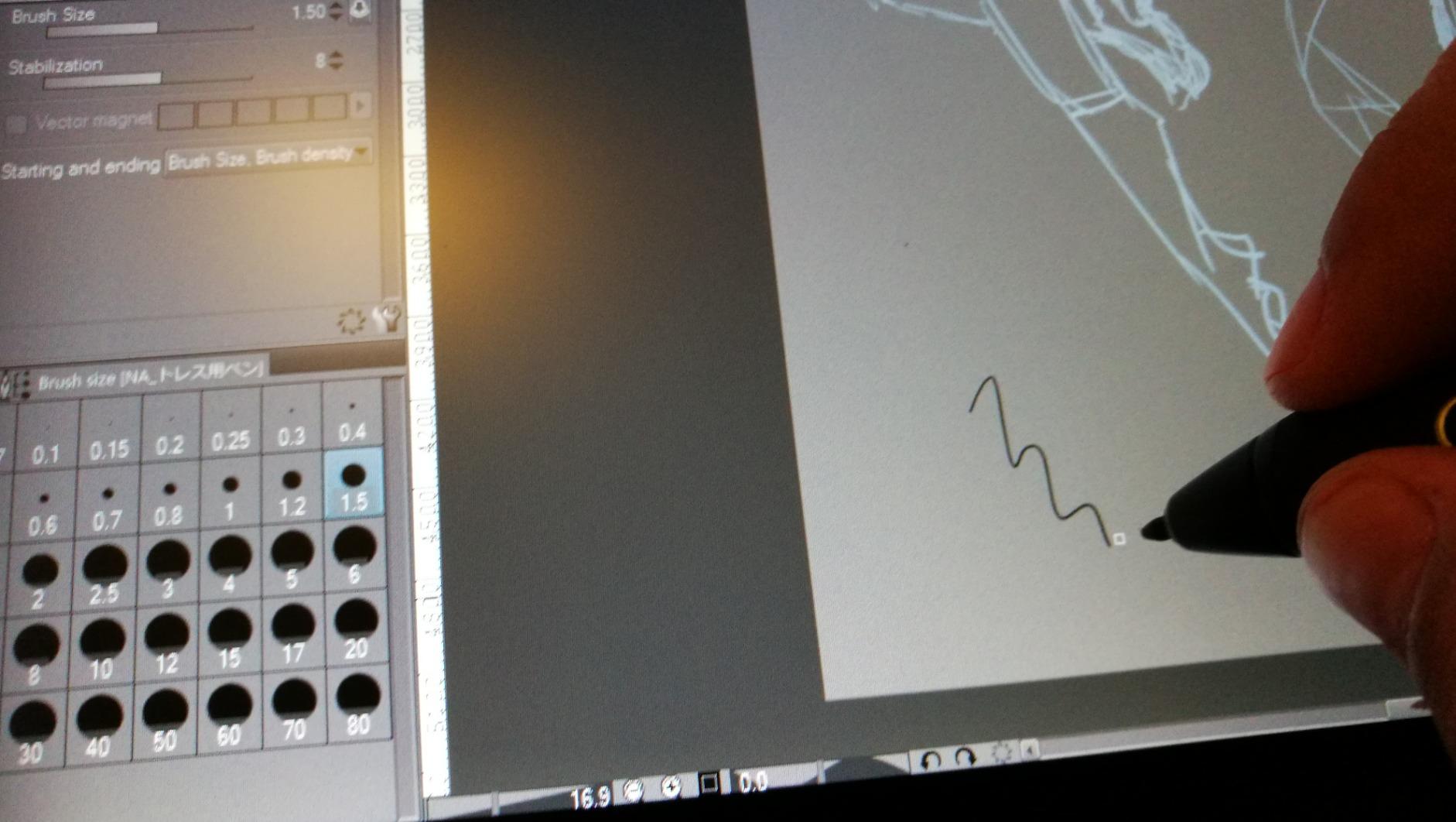
The six customizable express keys plus touch bar give you fast access to brush controls, undo, and zoom without reaching for the keyboard. The included ST200 adjustable stand tilts from 20 to 60 degrees, accommodating both sketching and detailed painting postures. The 1000:1 contrast ratio delivers deep blacks for animation and illustration work.
The trade-offs are familiar for pen displays in this range. The 3-in-1 USB-C cable (HDMI, USB, power combined) is shorter than ideal, the setup instructions leave something to be desired, and a small number of users have reported display failures just after the one-year warranty expires. Buy from a retailer with a solid return policy.
Best Fit for Art and Design Majors
The Kamvas Pro 16 is the tablet I recommend to second- and third-year art, illustration, and animation students who have outgrown a small screenless tablet and need a real digital canvas. The 15.6-inch size is large enough for detailed work but still transportable between dorm and studio.
Durability and Warranty Notes
Huion offers a one-year warranty on the Kamvas Pro 16. The reported display issues tend to surface just outside this window, so consider an extended warranty or a credit card with purchase protection. With careful handling, most students get multiple years of reliable use.
10. Wacom Intuos Pro Medium 2025 – Best Professional Pen Tablet
Wacom Intuos Pro Medium, Bluetooth Graphic Drawing Tablet with ProPen 3
8.7 by 5.8 inch area
8192 pressure levels
Pro Pen 3
Bluetooth 5.3
10 ExpressKeys
2 mechanical dials
Magnesium build
4mm slim
Pros
- Pro Pen 3 with customizable grip and balance
- Bluetooth 5.3 wireless
- 10 ExpressKeys plus 2 mechanical dials
- 16:9 active area matches modern displays
- Magnesium construction 4mm slim
Cons
- Bluetooth issues reported on Windows 11
- More expensive than competitors
- Pen button attachments fragile
- No touch sensitivity on 2025 model
The Wacom Intuos Pro Medium 2025 is the tablet I recommend to upper-level design students, animators, and illustration majors who are ready to invest in professional tools. The new Pro Pen 3 lets you customize the grip, balance, and button layout, which means you can tune the stylus to your exact drawing style. No other tablet on this list offers that level of pen personalization.
The 8.7 by 5.8 inch active area in 16:9 format maps cleanly to modern widescreen monitors, so there is no distortion between your hand and the cursor. The 10 ExpressKeys and two mechanical dials at the top of the tablet give you enough macro real estate to map an entire professional workflow without touching the keyboard.
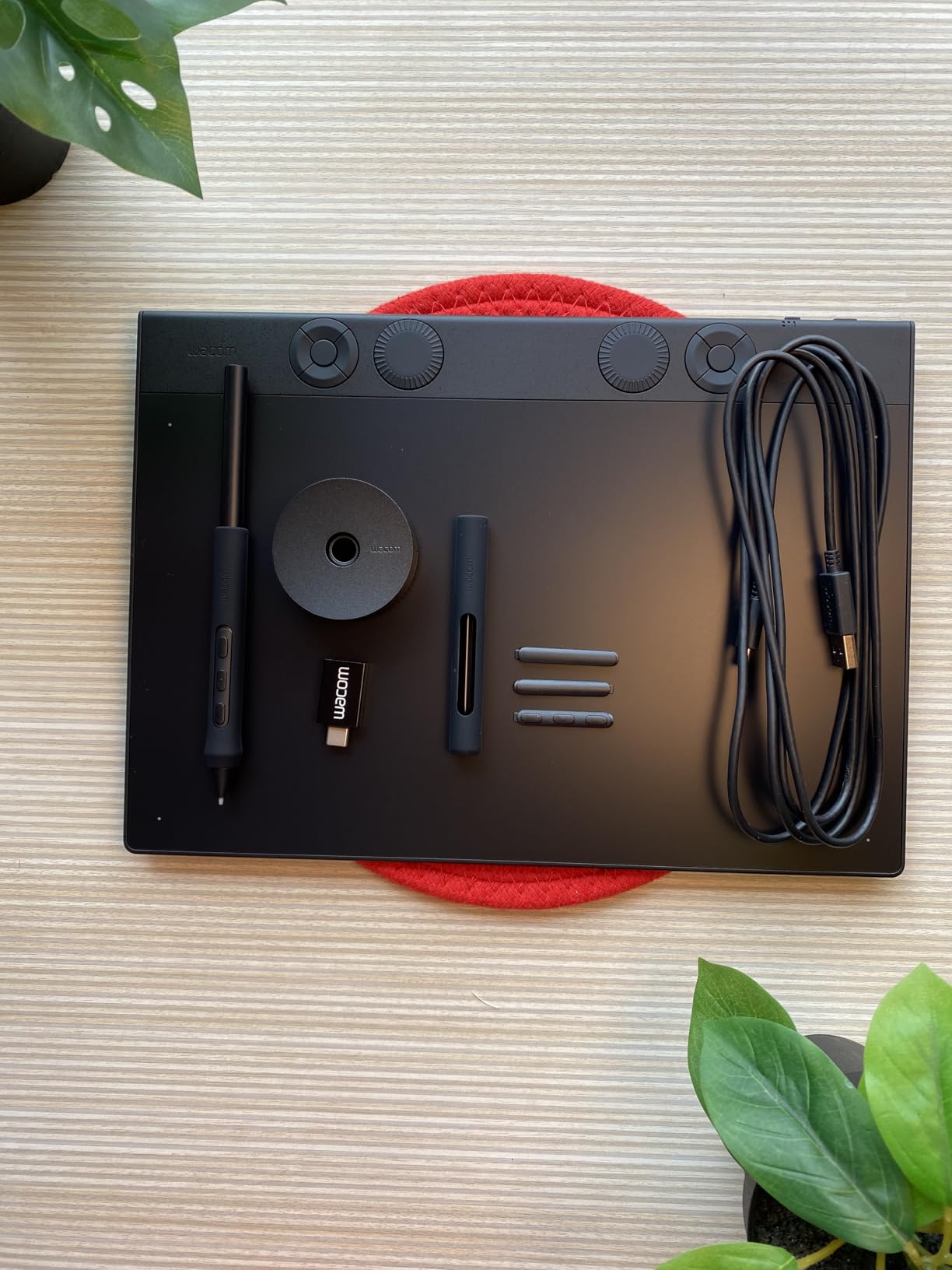
The magnesium construction keeps the tablet only 4mm thick at the thinnest point, which is remarkable for a device this capable. Bluetooth 5.3 pairing worked flawlessly on my Mac, though some Windows 11 users have reported connectivity hiccups. The USB-C to USB-A and USB-C to USB-C cables in the box cover both modern and legacy laptops.
The main drawback is price. At nearly $300, the Intuos Pro Medium costs more than every screenless competitor on this list. The pen button attachments are reportedly fragile with heavy use, and the 2025 edition drops the touch sensitivity that earlier models had. For students who treat tools carefully and want the industry standard, the investment pays off.
Who the Pro Pen 3 Suits Best
The Pro Pen 3 ships with multiple grip sizes and weights, letting you customize the barrel thickness and balance point. Students with smaller hands, those who grip the pen unusually, or anyone doing marathon illustration sessions will benefit most from this level of customization. If you have struggled with pen comfort on cheaper tablets, the Pro Pen 3 is the upgrade path.
Windows vs Mac Experience
The Intuos Pro Medium works out of the box on macOS 13 or later with no driver drama. Windows 10 and 11 are supported, but Bluetooth pairing and driver installation have caused issues for some Windows users. If you are on Windows, budget time for troubleshooting the wireless connection, or plan to use the USB-C wired mode as your daily setup.
Buying Guide – How to Choose a Graphics Tablet for Student Use
Choosing among the best graphics tablets for students comes down to four decisions: tablet type, active area size, connectivity, and budget. Let me break down what each of those means for student workflows specifically.
Pen Tablet vs Pen Display – Which Type Fits You
A pen tablet (also called a screenless tablet) is a flat surface you draw on while looking at your computer screen. The Wacom Intuos Small, XP-Pen Deco 01 V3, Huion H640P, Huion Frego, Xencelabs Medium, and Wacom Intuos Pro are all pen tablets. They cost less, are more portable, and force you to develop hand-eye coordination that translates well to professional work later.
A pen display has a built-in screen you draw directly on. The Gaomon PD1161, XP-Pen Artist 12, XP-Pen Artist 13.3 Pro, and Huion Kamvas Pro 16 are all pen displays. They feel more natural for beginners, especially those transitioning from traditional media, but they cost more, require more cables, and are heavier to carry.
Reddit users on r/drawingtablet consistently recommend starting with a screenless tablet to build fundamental skills, then upgrading to a pen display only if your coursework demands it. Most undergraduate art programs are perfectly served by a quality screenless tablet.
Pressure Sensitivity – What Students Actually Need
Pressure sensitivity is measured in levels, ranging from 2048 on cheap tablets to 16,384 on the XP-Pen Deco 01 V3. The honest answer is that 4096 levels (Wacom Intuos Small) is plenty for sketching, illustration, and note-taking. Anything above 8192 levels is marketing more than measurable benefit for student work.
What matters more is the initial activation force, or how hard you have to press before the tablet registers a stroke. Lower-end Huion and XP-Pen tablets sometimes need a firmer press than Wacom’s EMR pens, which can frustrate students doing light sketching. Tilt support matters if you do calligraphy, shading, or natural-media emulation.
Active Area Size – Bigger Is Not Always Better
For students, a 6 by 4 inch active area (Wacom Intuos Small, Huion H640P) is enough for note-taking, photo editing, and basic sketching. A 10 by 6.25 inch area (XP-Pen Deco 01 V3, Huion Frego) gives you room for full-arm drawing and larger illustrations. Pen displays range from 11.6 inches (Gaomon PD1161, XP-Pen Artist 12) up to 15.6 inches (Huion Kamvas Pro 16).
Consider your desk space. A dorm desk often holds a laptop, textbooks, and a tablet simultaneously. A massive 15.6-inch pen display may not fit alongside your laptop without a dedicated stand or monitor arm.
Connectivity – USB-C, Bluetooth, and Chromebook Support
USB-C is the modern standard and what you want in 2026. The XP-Pen Deco 01 V3, Huion Frego, and Wacom Intuos Pro all use USB-C, which means no adapters on modern laptops. Older tablets like the Wacom Intuos Small and Huion H640P still use Micro-USB, which works but feels dated.
Bluetooth wireless is a worthwhile upgrade if you present work in class or hate cable clutter. The Huion Frego, Xencelabs Medium, and Wacom Intuos Pro all offer reliable Bluetooth. Pen displays require HDMI, USB, and power connections, which is the trade-off for the built-in screen.
Chromebook compatibility matters more than ever. The Wacom Intuos Small is the standout choice for Chrome OS, with plug-and-play support that no other brand matches. If your school issues Chromebooks, this alone may decide your purchase.
Software Compatibility for Student Coursework
Most graphics tablets work with Photoshop, Illustrator, Clip Studio Paint, Krita, GIMP, Medibang, and OneNote. The main compatibility concerns are Chrome OS (Wacom is the safe pick) and Linux (Wacom has the best driver support, followed by Huion and XP-Pen with caveats). If your coursework uses specialized software like ZBrush, Maya, or Toon Boom, any tablet on this list will work since they all support standard Wintab and Windows Ink APIs.
Budget Tiers – What to Expect at Each Price Point
Under $50 buys a solid screenless tablet like the Wacom Intuos Small, Huion H640P, or XP-Pen Deco 01 V3. This is the right tier for first-year students, note-takers, and anyone testing whether digital drawing fits their workflow.
$90 to $160 adds wireless connectivity (Huion Frego) or a basic pen display (Gaomon PD1161, XP-Pen Artist 12). This tier suits students who have committed to digital art or design as a focus area.
$200 to $300 buys a quality pen display with good color accuracy (XP-Pen Artist 13.3 Pro, Huion Kamvas Pro 16) or a professional screenless tablet (Xencelabs Medium, Wacom Intuos Pro). Reserve this tier for upper-level students who know they will use the tablet daily for multiple years
FAQs
What is the best drawing tablet for students on a budget?
The Huion H640P is the best budget drawing tablet for students at under $30, offering 8192 pressure levels, six hot keys, and broad software compatibility. The Wacom Intuos Small is a close second if you can stretch your budget slightly, thanks to better Chromebook support and the bundled Clip Studio Paint license.
Do drawing tablets need a computer to work?
Pen tablets and pen displays both require a computer connection to function, since they rely on your computer’s software and screen to render the drawing. The exceptions are standalone tablets like the iPad with Apple Pencil or the Wacom MobileStudio Pro, which run their own operating system and software.
What are the main differences between pen tablets and pen displays?
Pen tablets are screenless surfaces you draw on while watching your computer monitor, while pen displays have a built-in screen you draw on directly. Pen tablets cost less, are more portable, and build hand-eye coordination. Pen displays feel more natural for beginners but require more cables and cost more.
Which brands are most reliable for students?
Wacom is the industry standard with the longest track record and best driver support. XP-Pen and Huion have closed the quality gap significantly and offer better value at lower prices. Xencelabs, founded by ex-Wacom engineers, is the strongest premium alternative. Gaomon offers solid budget pen displays for students willing to accept minor software trade-offs.
What pressure sensitivity level do students need?
Most students need 4096 pressure levels at minimum, which the Wacom Intuos Small provides. Anything at 8192 levels (Huion H640P, XP-Pen Deco 01 V3, most modern tablets) is more than enough for sketching, illustration, and photo editing. Higher numbers like 16,384 levels offer diminishing returns for student workloads.
Final Thoughts on the Best Graphics Tablets for Students
The best graphics tablets for students in 2026 cover a wide range of needs and budgets. The Wacom Intuos Small remains my editor’s choice for first-year students thanks to its unbeatable brand reputation, bundled Clip Studio Paint license, and best-in-class Chromebook compatibility. The Huion H640P wins the budget tier at under $30 with full 8192 pressure levels, and the Wacom Intuos Pro Medium 2025 takes the premium spot for upper-level students ready to invest in professional tools.
Whatever you choose, the most important factor is matching the tablet to your actual coursework. A $29 Huion is plenty for note-taking and basic sketching, while serious illustration majors will benefit from a pen display like the Huion Kamvas Pro 16 or XP-Pen Artist 13.3 Pro. Buy the tablet that fits your classes today, and upgrade when your work demands it.