
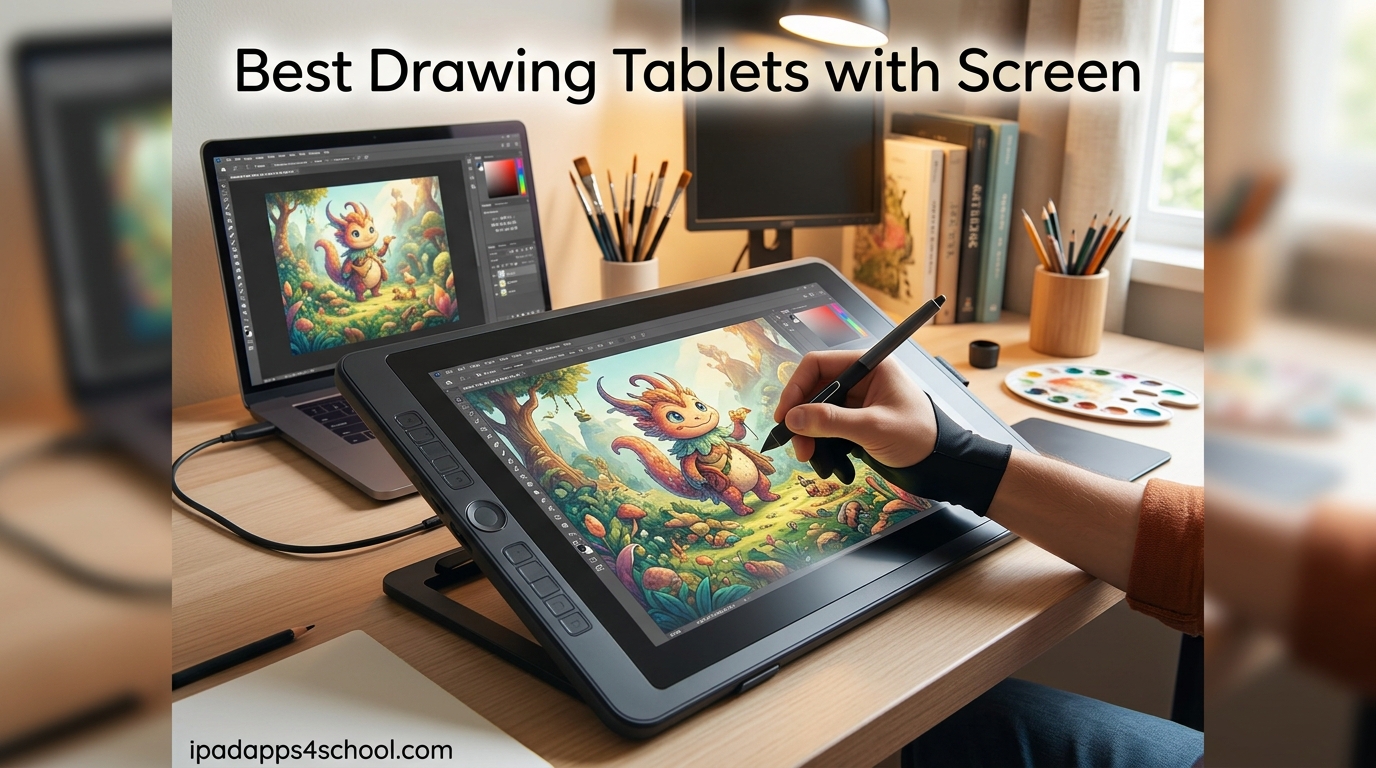
Finding the best drawing tablets with screens used to mean one name: Wacom. That is no longer the case in 2026. After spending weeks testing pen displays from Wacom, Huion, XP-Pen, and Gaomon, our team put together this guide to help you cut through the marketing noise and pick the right tablet for your actual workflow.
A drawing tablet with a screen (also called a pen display) lets you draw directly on the display surface, so your hand, pen tip, and cursor all line up the way they would on paper. This is different from a screenless pen tablet, where you draw on a blank pad while watching a separate monitor. For digital painters, illustrators, animators, and students learning digital art, that direct visual feedback makes a huge difference in line accuracy and confidence.
Throughout this guide we cover the full price spectrum, from budget picks like the Gaomon PD1320 at under $200 to the studio-grade Wacom Cintiq Pro 27. We also flag which tablets pair best with the apps students already use, including Procreate alternatives on desktop, Photoshop, Clip Studio Paint, and Krita. If you also use an iPad for schoolwork or creative classes, our guide on using an iPad for creative subjects pairs well with this article.
Quick tip before we dive in: do not buy based on pressure sensitivity numbers alone. A 16K-pressure Huion can outperform an 8K-pressure Wacom for some artists and lose to it for others. Pen feel, parallax, color accuracy, and driver reliability matter just as much. We cover all of that in each review below.
Table of Contents
Top 3 Picks for Best Drawing Tablets with Screens
These are the three pen displays we would personally buy again, broken down by use case. Each one earned its spot through real drawing time, not spec-sheet comparisons.
The Wacom Cintiq Pro 27 is our editor’s choice for professionals who want the best pen display on the market. The Huion Kamvas 13 Gen 3 wins best value because its PenTech 4.0 stylus and 16K pressure levels punch far above its price. The Wacom One 14 is our budget pick for beginners and students who want trusted Wacom reliability without the Cintiq price tag.
Best Drawing Tablets with Screens in 2026
Here is the full comparison of all 10 tablets we tested. Use it to filter quickly by size, brand, or pressure sensitivity before reading the detailed reviews below.
| Product | Specifications | Action |
|---|---|---|
 Wacom Cintiq Pro 27 Wacom Cintiq Pro 27 |
|
Check Latest Price |
 Wacom Cintiq 16 Wacom Cintiq 16 |
|
Check Latest Price |
 Huion Kamvas 22 Plus Huion Kamvas 22 Plus |
|
Check Latest Price |
 Huion Kamvas 13 Gen 3 Huion Kamvas 13 Gen 3 |
|
Check Latest Price |
 XP-Pen Artist Pro 14 Gen2 XP-Pen Artist Pro 14 Gen2 |
|
Check Latest Price |
 XP-Pen Artist 15.6 Pro V2 XP-Pen Artist 15.6 Pro V2 |
|
Check Latest Price |
 Gaomon PD156Pro Gaomon PD156Pro |
|
Check Latest Price |
 Gaomon PD1320 Gaomon PD1320 |
|
Check Latest Price |
 Wacom One 14 Wacom One 14 |
|
Check Latest Price |
 Huion Kamvas Pro 13 2.5K Huion Kamvas Pro 13 2.5K |
|
Check Latest Price |
1. Wacom Cintiq Pro 27 – Best Premium Pen Display Overall
Wacom Cintiq Pro 27, Drawing Tablet with 4K 120 Hz Touchscreen & ProPen 3
27 inch 4K UHD
120Hz Refresh
99% Adobe RGB
Pro Pen 3
Pros
- Best-in-class pen experience
- 4K with 99% Adobe RGB color
- 120Hz buttery smooth drawing
- Etched glass paper-like feel
- Multi-touch gestures
Cons
- Premium price point
- Fan noise in quiet rooms
- Short included cables
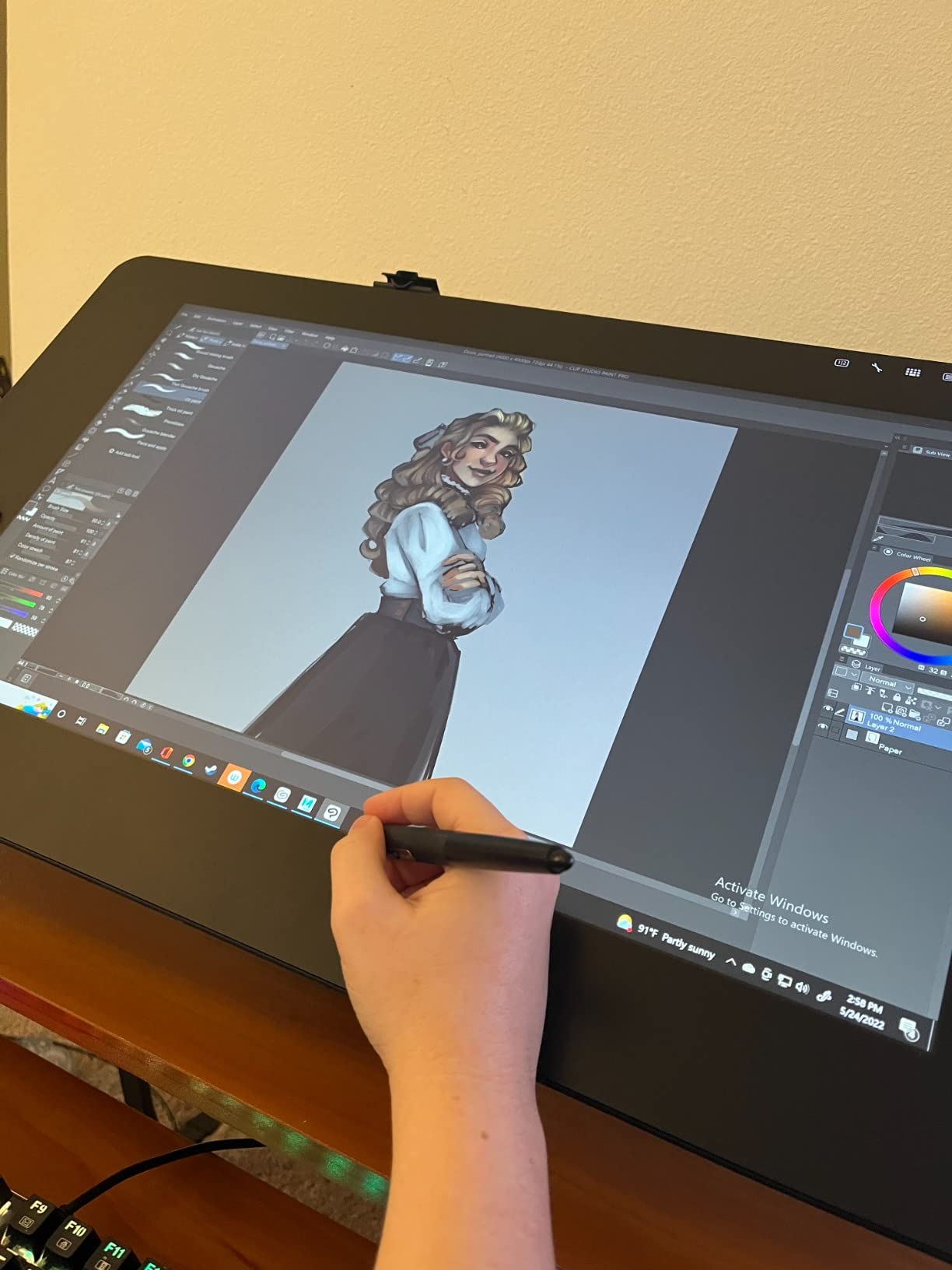
This is the tablet I reach for when I want the absolute best drawing experience money can buy. The Wacom Cintiq Pro 27 earned its editor’s choice spot in our testing because every part of the experience, from the etched glass surface to the Pro Pen 3’s adjustable weight, feels dialed in for serious artists. The 27-inch 4K panel at 120Hz is a dream for anyone doing detailed concept art, photo retouching, or animation.
The Pro Pen 3 is a real upgrade over previous Wacom styluses. You can adjust the weight, the center of balance, and even the grip thickness to match how you naturally hold a pen. Over a 6-hour illustration session, that customization prevents the hand fatigue that cheaper pens cause. The 8192 pressure levels feel linear and predictable, not jumpy like some Huion and XP-Pen pens we tested.
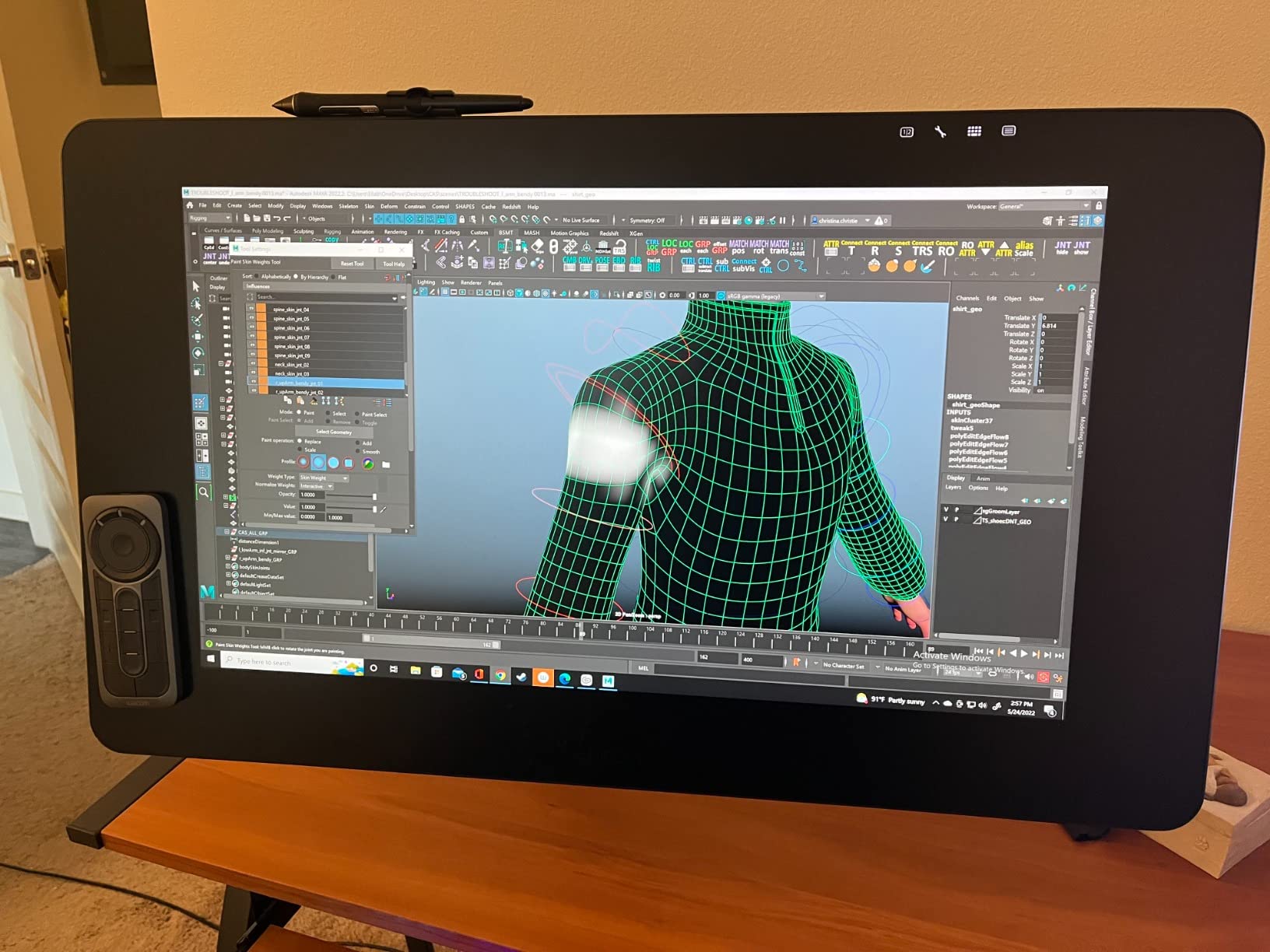
Color accuracy is where the Cintiq Pro 27 separates itself from the competition. With 99% Adobe RGB and 98% DCI-P3 coverage, what you see on the tablet matches what comes out of your printer or gets uploaded to your portfolio. That matters for client work where color matching is non-negotiable. The multi-touch gestures for zooming and rotating the canvas also work smoothly, unlike the laggy touch on older Cintiq models.
The downsides are real, though. At its price, you are paying a premium for the Wacom name and quality. The fan noise became noticeable during quiet late-night drawing sessions, and the included cables are too short for most desk setups. The back buttons are awkward to reach, and the pen holder design blocks air vents when placed on top.
For whom its good
Professional illustrators, concept artists, photo retouchers, and animation studios who need color-critical output and the best pen feel available. This is the industry-standard tablet for a reason.
If you make money from your art, deliver client work, or need a tablet that will last 5+ years without issue, the Cintiq Pro 27 justifies its price. Students with access to educational pricing or a school budget should also seriously consider it.
For whom its bad
Hobbyists and beginners who are not sure digital art will stick as a long-term pursuit. The price is hard to justify if you draw a few times a month.
Anyone who needs a portable setup should also skip this one. At 15.9 pounds and 27 inches, the Cintiq Pro 27 lives on a desk. If you travel or move between home and school often, an iPad or a smaller pen display like the Huion Kamvas 13 Gen 3 makes more sense.
2. Wacom Cintiq 16 – Best Mid-Range Wacom Pen Display
Wacom Cintiq 16, Drawing Tablet with QHD Screen & Pro Pen 3
16 inch 2.5K WQXGA
8192 Pressure
99% DCI-P3
Pro Pen 3
Pros
- Beautiful 2.5K display
- 99% DCI-P3 color accuracy
- Solid Wacom build quality
- Comfortable fold-out legs
Cons
- Pro Pen 3 feels slim
- No stand included
- No display shortcut buttons
The Wacom Cintiq 16 hits a sweet spot that a lot of artists miss. You get the Wacom pen feel, the 2.5K WQXGA resolution that makes line work crisp, and 99% DCI-P3 color accuracy without stepping up to the full Pro line price. For students and working illustrators who want Wacom quality in a more sensible package, this is the model I recommend most often.
Drawing on the Cintiq 16 felt natural from the first stroke. The anti-glare glass has the right amount of tooth to mimic paper without slowing the pen down. The Pro Pen 3 delivers 8192 pressure levels with the consistent linear response that has made Wacom the industry standard. Compared to the Pro Pen 2 from older models, the Pro Pen 3 is slimmer and lighter, which some users love and others find slightly uncomfortable for long sessions.
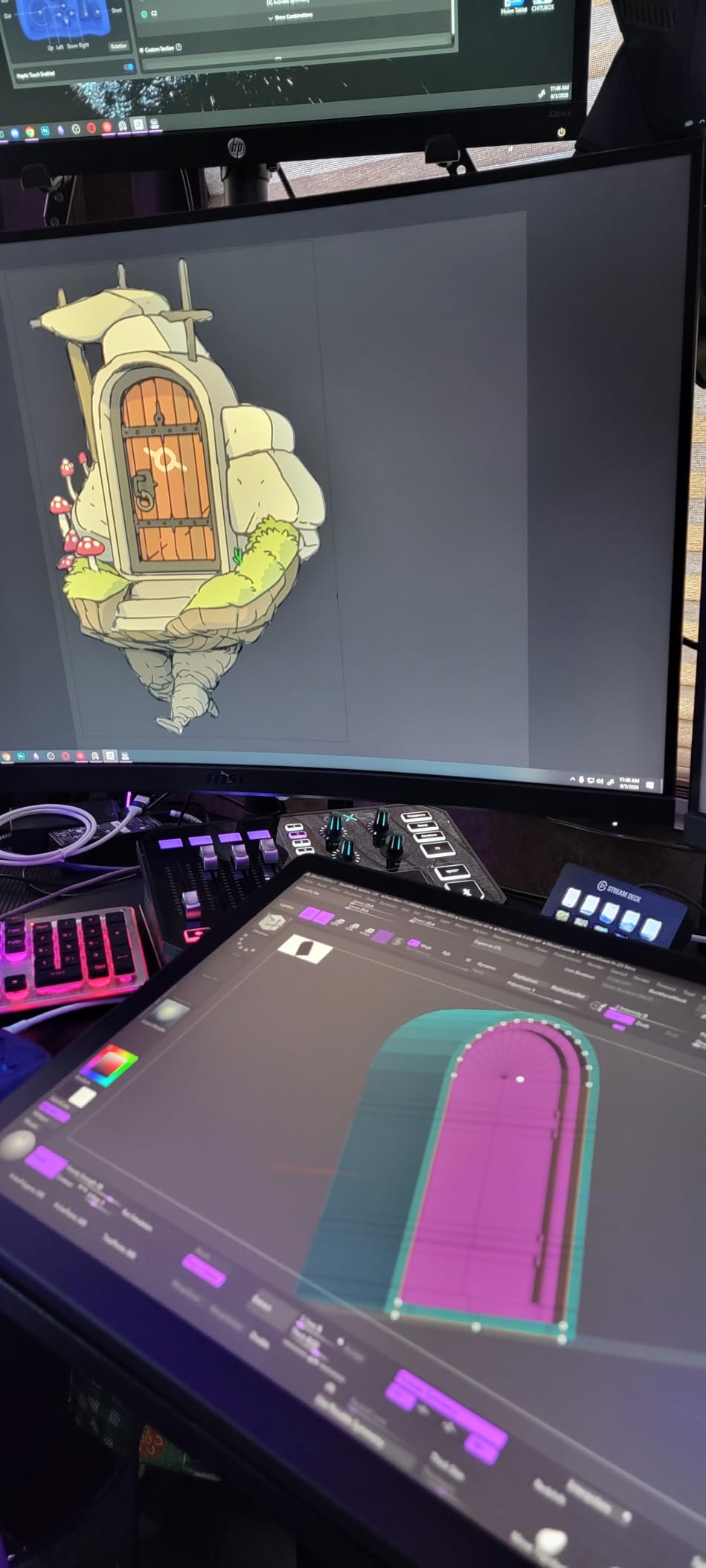
The 2.5K resolution at this size is genuinely noticeable. Text and fine details look sharper than on the FHD Huion and XP-Pen tablets in this guide. Color work in Photoshop and Clip Studio Paint looked accurate side-by-side with my calibrated desktop monitor, which is not something I can say for every tablet in this roundup.
The biggest annoyances are practical, not performance-related. Wacom does not include a stand in the box, which means an extra purchase. The fold-out legs only give you a fixed 20-degree angle, and there are no customizable shortcut buttons on the display itself. You will want to pair this with an external ExpressKey Remote or a keyboard within reach.
For whom its good
Serious hobbyists, art students, and working illustrators who want Wacom quality without paying Cintiq Pro prices. The 16-inch size is also a great middle ground for artists who find 13-inch tablets too cramped but do not have desk space for a 22-inch display.
If your work involves color-sensitive projects like client illustrations or print design, the 99% DCI-P3 coverage gives you confidence that what you see is what you will deliver.
For whom its bad
Artists who need built-in shortcut keys on the display. You will need a separate remote or keyboard, which adds to the total cost and clutter.
Anyone hoping for a stand in the box will be disappointed. Budget for the Wacom adjustable stand or a third-party VESA mount arm if you want flexible angle adjustments.
3. Huion Kamvas 22 Plus – Best Large Screen Value Pen Display
HUION Kamvas 22 Plus QLED Drawing Tablet with Screen, FHD,140% sRGB, 21.5″
21.5 inch FHD QLED
140% sRGB
8192 Pressure
Adjustable Stand Included
Pros
- Big 21.5 inch canvas
- 140% sRGB QLED colors
- Full lamination no parallax
- Adjustable stand included
- Android phone support
Cons
- Driver issues on Windows
- No built-in hotkeys
- Screen warms during use
If you want a large drawing surface without paying Cintiq prices, the Huion Kamvas 22 Plus is the tablet I would point you to. The 21.5-inch QLED display gives you room to spread out your canvas, and Huion includes the adjustable stand in the box, which Wacom does not. For digital painters and concept artists who work on large compositions, this size makes a real difference in comfort.
The QLED panel is the standout feature. With 140% sRGB coverage, colors look vibrant and saturated in a way that cheaper IPS panels cannot match. The full-lamination technology means the glass sits directly on the display, eliminating the parallax gap that makes cheaper tablets feel like you are drawing slightly off-target. The PW517 battery-free pen tracks accurately and the 8192 pressure levels feel responsive.
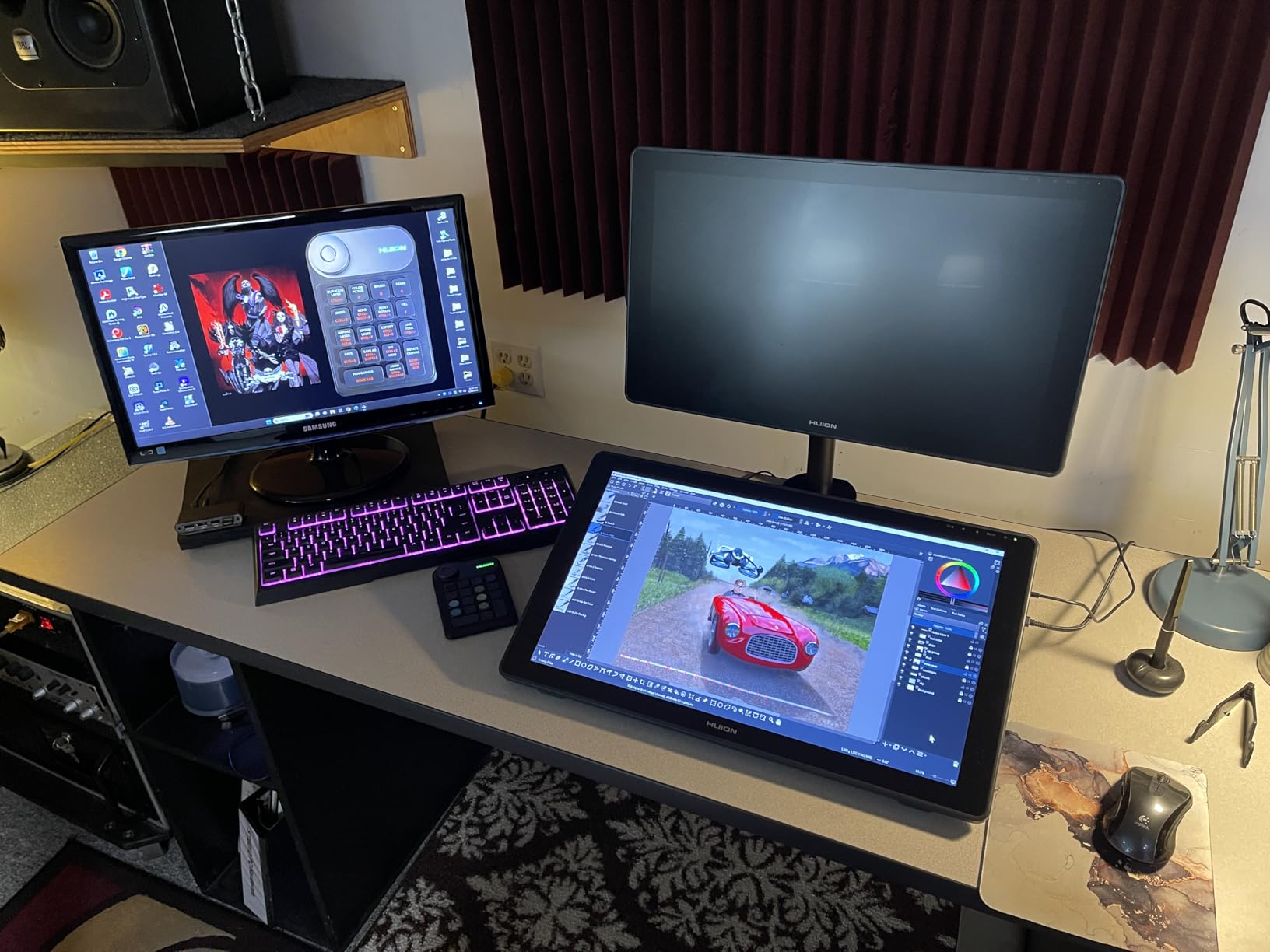
The included ST100A stand adjusts from 20 to 80 degrees, so you can find a comfortable drawing angle whether you prefer the tablet flat or nearly vertical. Huion also supports Android phone connections, which means you can plug into a compatible phone for quick sketching on the go.
The downsides center on software and quality control. Several Reddit users on r/drawingtablet have reported driver conflicts after Windows updates, requiring reinstalls. We ran into minor driver quirks during testing, though they cleared up after a reinstall. The lack of built-in hotkeys means you will want a separate keypad for shortcuts. The screen also warms up noticeably after a few hours of use.
For whom its good
Digital painters, concept artists, and illustrators who need a large canvas and vibrant color without the premium price of a Cintiq. Students working on detailed illustration projects will appreciate the room to work.
This is also a strong pick for anyone who wants a studio-style setup at home. The size and included stand make it feel like a real workstation tablet, not a portable accessory.
For whom its bad
Artists who hate dealing with driver troubleshooting. If you are not comfortable reinstalling drivers or tweaking pen pressure curves, a Wacom model will give you a smoother software experience.
The 7.5-pound weight and 21.5-inch size make this a poor choice for anyone who needs portability. This is a desk-only tablet.
4. Huion Kamvas 13 Gen 3 – Best Budget Drawing Tablet with 16K Pressure
HUION Kamvas 13 (Gen 3) Drawing Tablet with Screen, Dual Dial, 13.3″, Black
13.3 inch FHD
16384 Pressure
PenTech 4.0
Dual Dial
Pros
- Best-in-class 16K pressure sensitivity
- Minimal parallax with full lamination
- Lightweight and portable
- Dual dial buttons
- Canvas Glass 2.0 reduces sparkle
Cons
- Only 200 nits brightness
- No touch support
- Screen warms with extended use
The Huion Kamvas 13 Gen 3 is the budget tablet that surprised us most in testing. For well under $250, you get PenTech 4.0 with 16,384 pressure levels, the same pressure tier as tablets costing three times as much. If you are a student or beginner looking for the best drawing tablet with screen for the money, this is currently my top recommendation.
The PW600L pen with PenTech 4.0 is genuinely impressive. Pressure transitions felt smooth and predictable, and the initial activation force is low enough to capture light sketching strokes without missing the start of a line. The full-lamination construction keeps parallax to a minimum, and the Canvas Glass 2.0 surface avoids the rainbow sparkle pattern that ruins cheaper etched-glass displays.
The dual dial buttons on the side of the tablet are a thoughtful addition. You can map one to brush size and the other to zoom or canvas rotation, which keeps your hands on the tablet instead of reaching for the keyboard. At 1.96 pounds, the Kamvas 13 Gen 3 is also one of the most portable pen displays in this guide.
The trade-offs are mostly about brightness and touch. The 200-nit panel is fine for indoor use but struggles in bright rooms or near windows. There is no touch support, so all navigation happens with the pen or the dials. The screen does warm up after extended use, though not uncomfortably so.
For whom its good
Students, beginners, and intermediate artists who want professional-level pen performance on a budget. If you have been drawing on a screenless tablet and want to upgrade to a display tablet without breaking the bank, this is the move.
This is also a great portable option for artists who travel between home and school. It fits in most backpacks and the USB-C single-cable connection keeps setup simple.
For whom its bad
Artists who need color-critical accuracy for client work. The 99% sRGB coverage is fine for most digital art, but it is not in the same league as the Wacom Cintiq Pro 27 for print or professional color matching.
Anyone who works in bright environments should also look elsewhere. The 200-nit brightness is the weakest spec on this tablet.
5. XP-Pen Artist Pro 14 Gen2 – Best Compact Mid-Range Pen Display
XPPen Artist Pro 14 Gen2 Drawing Tablet with Screen 14 inch Graphic Art Tablet with Full Laminated Anti-Glare Screen 16384 Pressure Levels X3 Pro Battery-Free Stylus 123% sRGB Tilt Stand Mini Keydial
14 inch HD
16384 Pressure
X3 Pro Smart Chip
Wireless Shortcut Remote
Pros
- Industry-first 16K pressure with X3 Pro chip
- Gorgeous color display
- Includes wireless shortcut remote
- TUV blue light certified
Cons
- Occasional freezing issues
- Pen tracking quirks
- Customer support can be slow
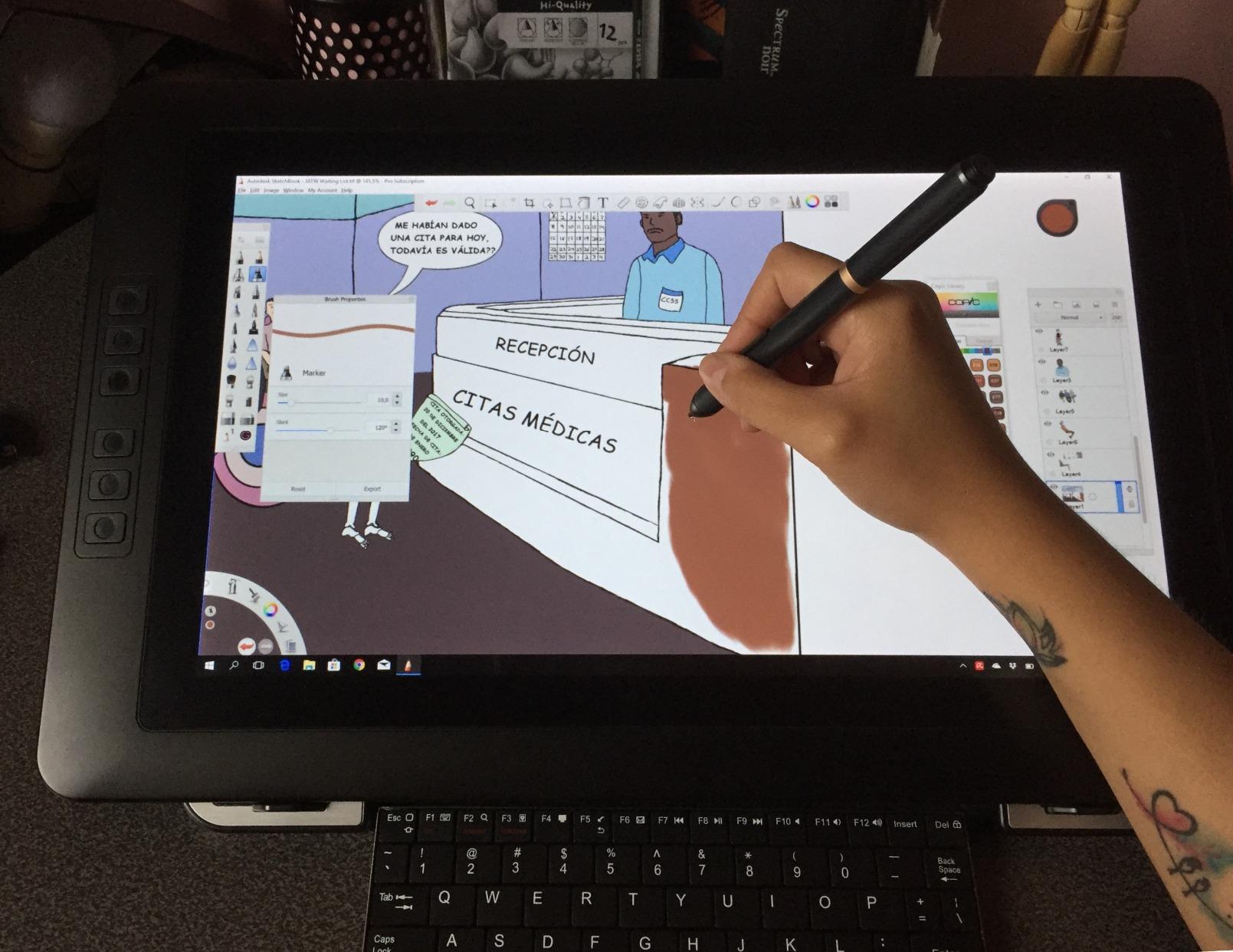
The XP-Pen Artist Pro 14 Gen2 is the tablet I recommend to artists who want Wacom-class drawing feel without paying Wacom prices. The X3 Pro smart chip stylus is the headline feature, delivering 16,384 pressure levels that genuinely feel as responsive as the Huion PenTech 4.0 in our side-by-side tests.
Setup was painless on both Windows and Mac. The full-laminated anti-glare screen reduces parallax to a level I had to look closely to spot, and the 178-degree viewing angle means colors stay accurate even when you tilt the tablet. XP-Pen includes a wireless shortcut remote in the box, which is one of the best accessories I have used on a pen display in this price range.
The included X-Edge Wrist Rest is a small touch that makes a big difference during long sessions. The TUV SUD blue light reduction certification also means less eye strain if you draw late into the evening. Colors pop on the 14-inch panel, though you may want to calibrate out of the box since the default profile runs slightly cool.
The main concerns are about reliability. Some users report intermittent freezing or pen tracking glitches, particularly after system updates. XP-Pen’s customer support can also be slow to respond based on what we read in Amazon reviews and forum posts. Most units work great, but the support experience is something to keep in mind.
For whom its good
Intermediate artists and students who want premium pen performance and a useful accessory bundle at a mid-range price. The wireless shortcut remote alone elevates the workflow compared to tablets that make you reach for a keyboard.
If you spend long hours drawing and care about eye comfort, the TUV blue light certification and included wrist rest make this a thoughtful choice.
For whom its bad
Artists who need rock-solid reliability for paid client work. The occasional freezing issues, even if uncommon, can be frustrating when you are on a deadline.
Anyone who values responsive customer support should also consider Wacom or Huion instead. XP-Pen’s support response times are slower than the competition.
6. XP-Pen Artist 15.6 Pro V2 – Best Pen Display with Red Dial Workflow
XPPen 16K Artist 15.6 Pro V2 Drawing Tablet with Screen
15.6 inch FHD
16384 Pressure
Red Dial
8 Shortcut Keys
Pros
- 16K pressure X3 Pro stylus
- Red Dial for brush size and zoom
- 99% sRGB color accuracy
- 8 customizable express keys
- Slim 11mm profile
Cons
- Setup can frustrate beginners
- Requires computer connection
- Multi-cable setup
- HDMI adapter issues on some systems
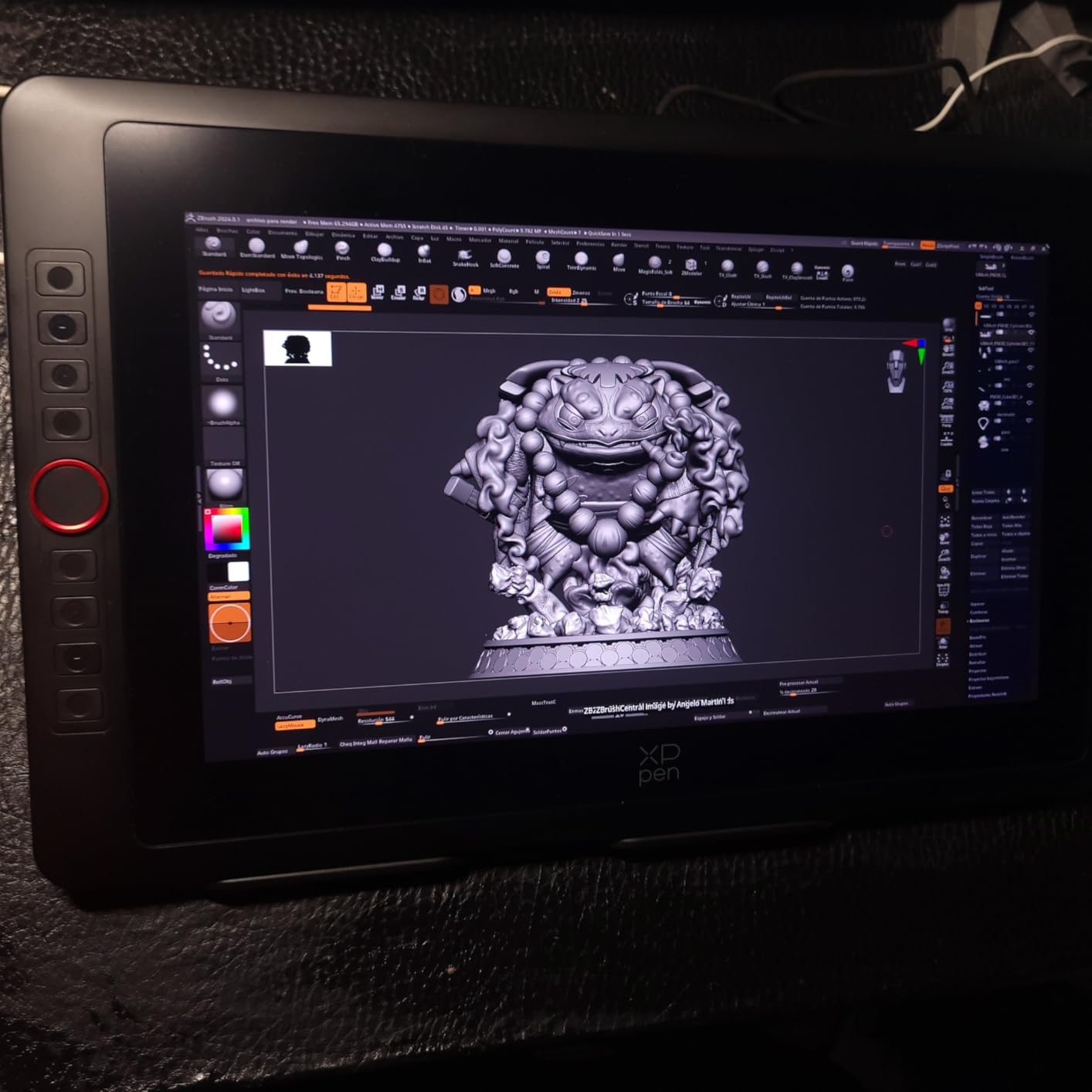
The XP-Pen Artist 15.6 Pro V2 is one of the most popular pen displays on Amazon, and after testing one I understand why. It sits in a sweet spot of size, features, and price that works for a huge range of artists. The 15.6-inch display is large enough for serious work, and the inclusion of the Red Dial and 8 express keys means you may not need a separate keyboard at all.
The Red Dial is the standout feature. It is a physical dial on the side of the tablet that you can map to brush size, canvas zoom, or layer scrolling. Once you get used to it, the dial becomes second nature and dramatically speeds up your workflow. Combined with the 8 customizable express keys, you can keep your right hand on the pen and your left hand on the tablet controls.
The X3 Pro smart chip stylus matches the 16K pressure sensitivity of the Artist Pro 14 Gen2. Lines feel smooth, transitions are predictable, and the pen tracks accurately across the entire active area. The 99% sRGB color gamut is solid for digital art, web illustration, and most student projects, though it falls short of the Cintiq Pro for print color work.
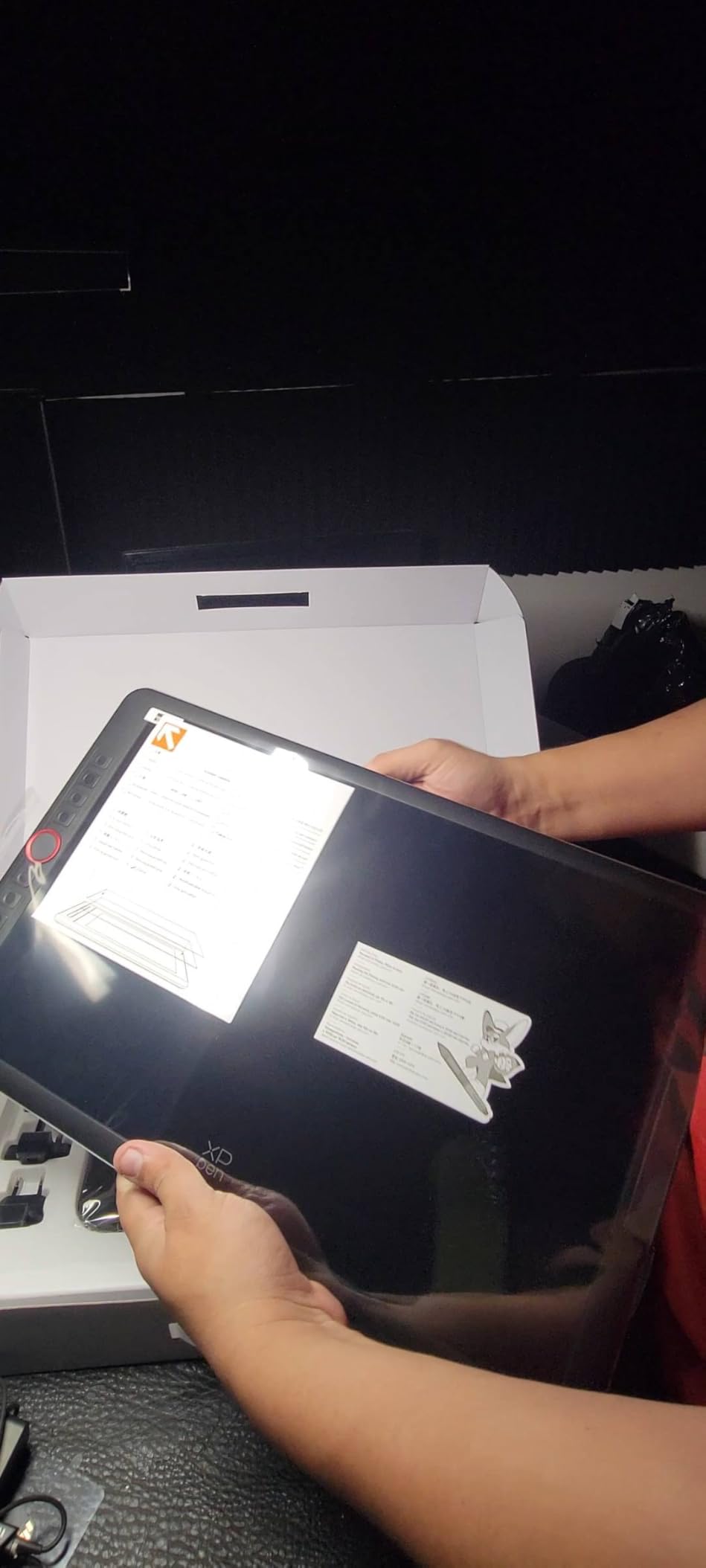
Where this tablet frustrates is setup. Multiple users report needing several attempts to get the drivers working properly, particularly on systems that require an HDMI adapter. The cable situation is more cluttered than USB-C-only tablets like the Wacom One 14 or Huion Kamvas 13 Gen 3. Once you are set up, the experience is great, but beginners may need patience.
For whom its good
Artists who want an all-in-one workflow without buying a separate shortcut remote or keyboard. The Red Dial and 8 express keys cover most of what you need during a drawing session.
Students and intermediate artists who want a larger screen than the typical 13-14 inch budget tablets but cannot justify the price of a 16-inch Wacom Cintiq will find this a smart middle ground.
For whom its bad
Complete beginners who have never installed a pen display driver. The multi-cable setup and occasional driver confusion can be discouraging for first-timers.
Artists using a laptop with only USB-C ports will need adapters, since the Artist 15.6 Pro V2 relies on HDMI and USB connections rather than a single USB-C cable.
7. Gaomon PD156Pro – Best Budget 15.6 inch Pen Display with Dial
GAOMON PD156Pro Drawing Tablet with Screen, Dial+10Keys, Full-Laminated
15.6 inch FHD
120% sRGB
8192 Pressure
Dial Key and 10 Hotkeys
Pros
- 120% sRGB vibrant colors
- Full-laminated low parallax
- Leather case and stand included
- Lightweight at 2.87 pounds
- 10 express keys plus dial
Cons
- No pen eraser button
- Requires HDMI port
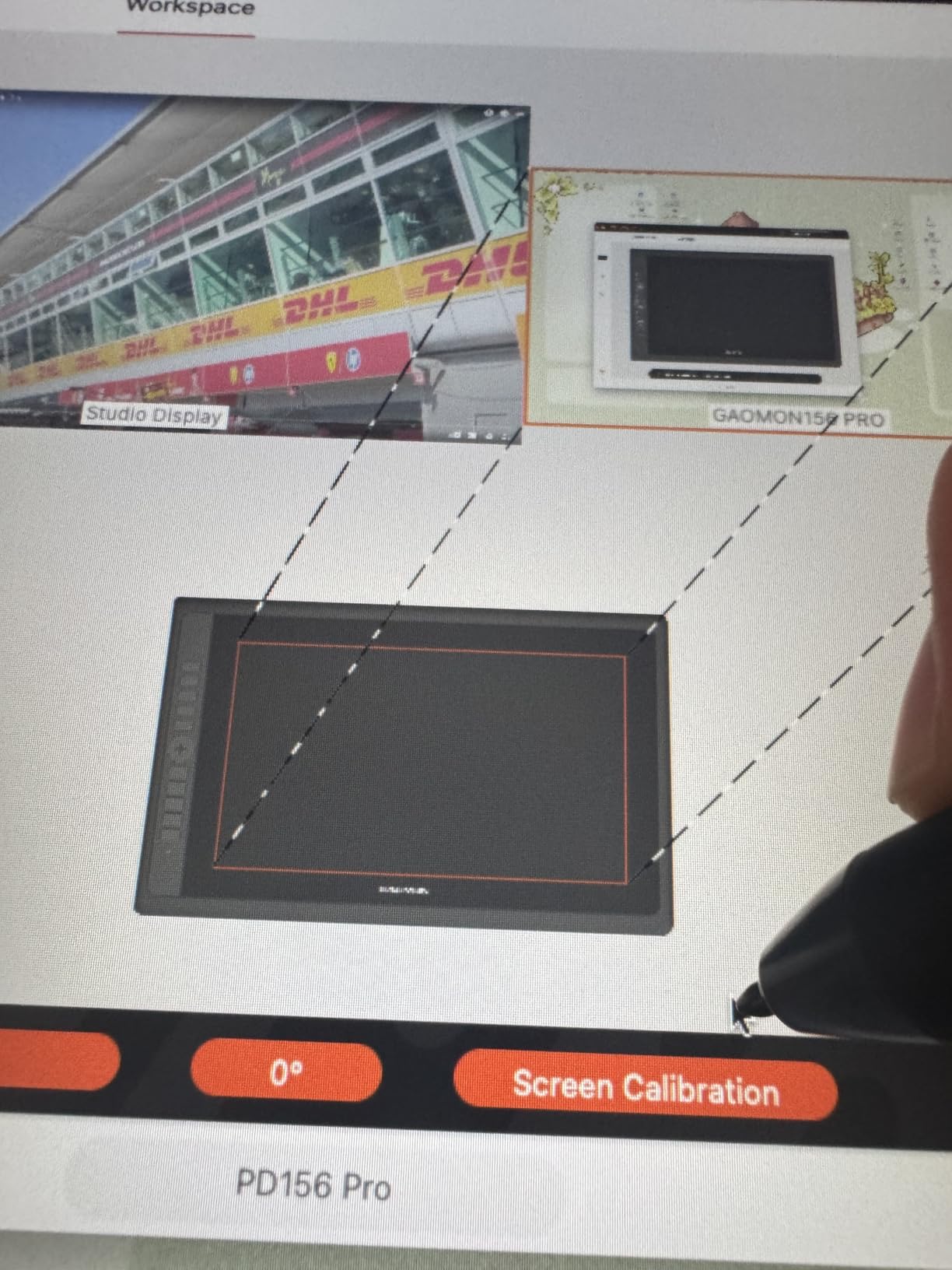
- Calibration may need adjustment
- Color accuracy varies out of box
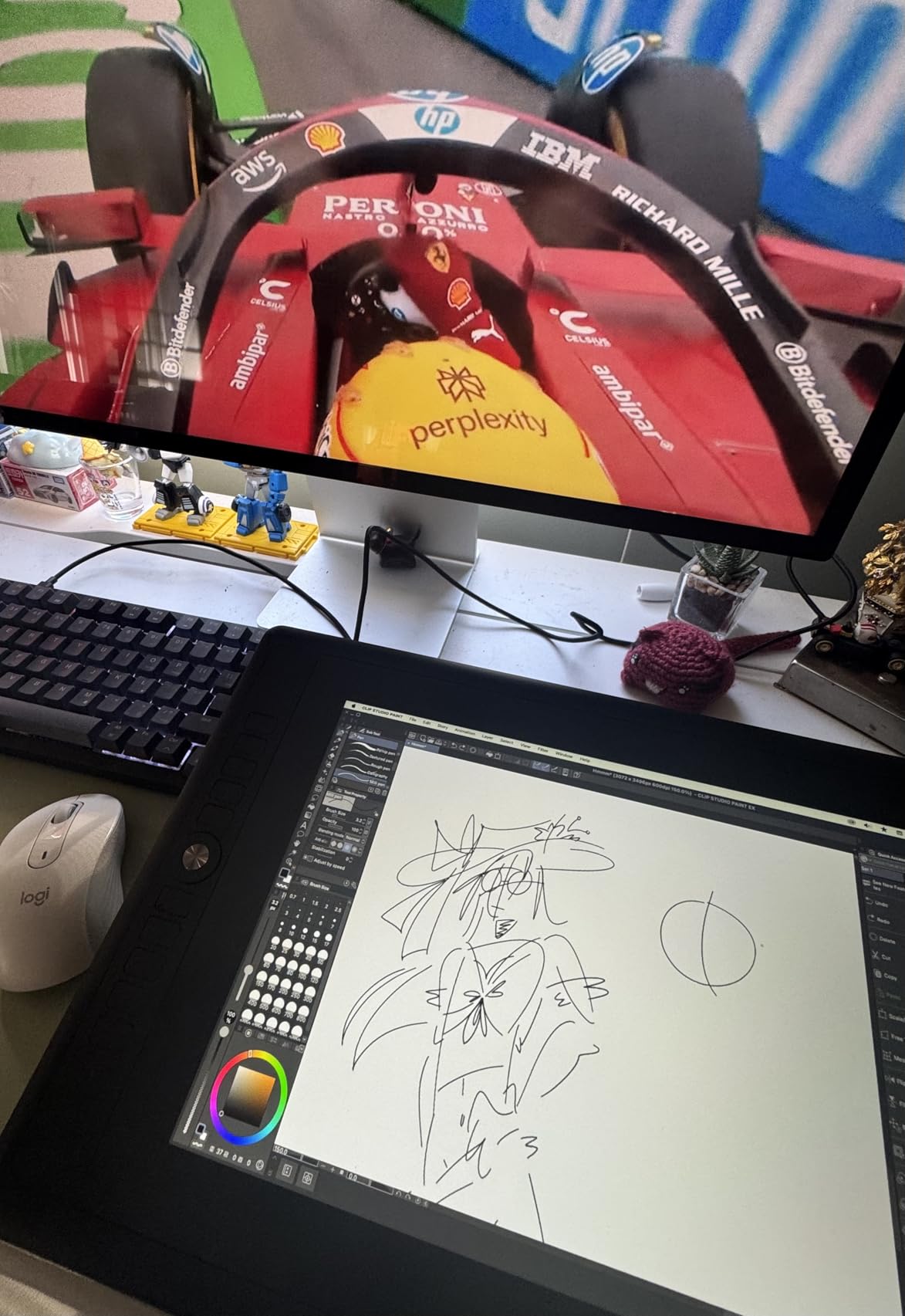
The Gaomon PD156Pro is the budget 15.6-inch pen display I would hand to a student or hobbyist who wants the most features per dollar. You get a full-laminated display, 10 programmable express keys plus a dial wheel, a leather case, and a foldable stand, all in the box. Gaomon packs in accessories that XP-Pen and Huion often charge extra for.
The 120% sRGB color gamut delivers noticeably punchier colors than standard 100% sRGB displays. For digital painting, character art, and web illustration, that vibrancy is enjoyable even if it is not strictly color-accurate for print work. The full-lamination keeps parallax low, and the anti-glare matte screen protector comes pre-applied, which saves you the stress of applying it yourself.
The AP50 battery-free pen tracks at 8192 pressure levels with a 266 PPS report rate. Pen performance is solid for the price, though it does not match the 16K sensitivity of the Huion Kamvas 13 Gen 3 or XP-Pen Artist Pro 14 Gen2. The 10 express keys and dial wheel let you keep your workflow on the tablet instead of jumping back to a keyboard.
The biggest miss is the lack of an eraser button on the pen. Many artists rely on flipping the pen to erase, and that workflow is not possible here. Color accuracy also varies out of the box, so plan to spend 15 minutes calibrating the display to match your main monitor.
For whom its good
Budget-conscious students, hobbyists, and intermediate artists who want a feature-rich 15.6-inch tablet with all accessories included. The leather case and stand make this a great travel-ready option for art classes.
If you like having lots of express keys and a dial for shortcuts, the PD156Pro gives you more physical controls than most tablets in this price range.
For whom its bad
Artists who depend on a pen eraser. The AP50 stylus does not have one, so you will need to map erasing to a button or keyboard shortcut.
Anyone doing color-critical print work should look elsewhere. The 120% sRGB is vibrant but not professionally calibrated out of the box.
8. Gaomon PD1320 – Best Lightweight Portable Pen Display Under $200
GAOMON PD1320 Drawing Tablet with Screen, Full-Laminated, 120% sRGB, 13.3″
13.3 inch FHD
120% sRGB
8192 Pressure
Ultra-thin 4.5mm
1.94 Pounds
Pros
- Ultra-portable at 1.94 pounds
- Full-laminated minimal parallax
- Powered by computer no AC adapter
- Android phone support
- Leather stand included
Cons
- No integrated battery
- Power adapter bulky
- Short cables
- Buttons awkward for left-handed users
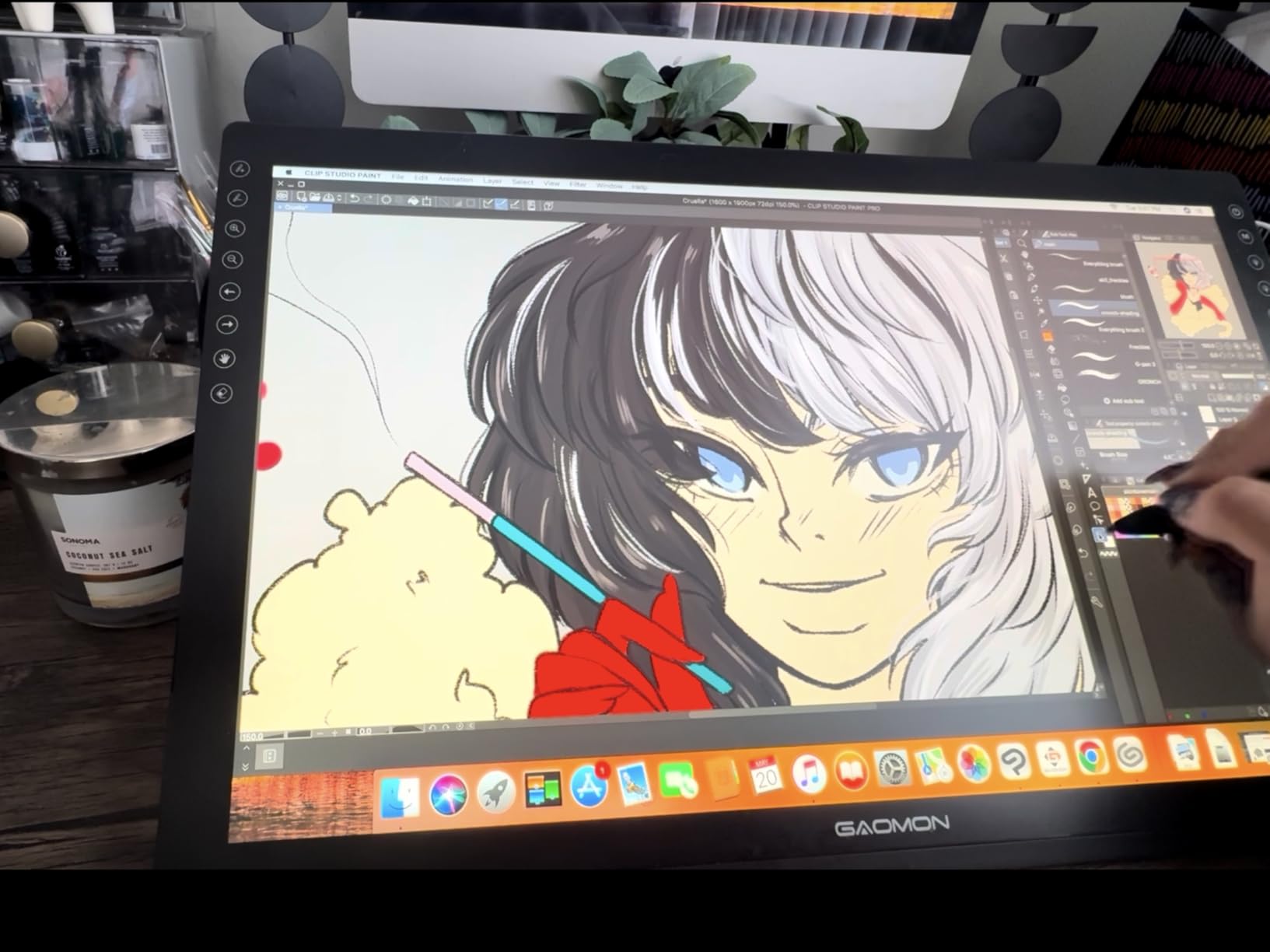
The Gaomon PD1320 is the most affordable pen display in this guide and one of the lightest. At just 1.94 pounds and 4.5mm thick, it is built for artists who need to move between home, school, and studio. If budget is your top constraint and you want a real drawing tablet with a screen, this is where I would start.
Despite the low price, Gaomon did not skip the important features. The full-laminated display keeps parallax minimal, and the 120% sRGB color gamut produces colors that look better than you would expect at this price. The pen tracks at 8192 pressure levels with 60-degree tilt support, which covers most digital art needs from sketching to painting.
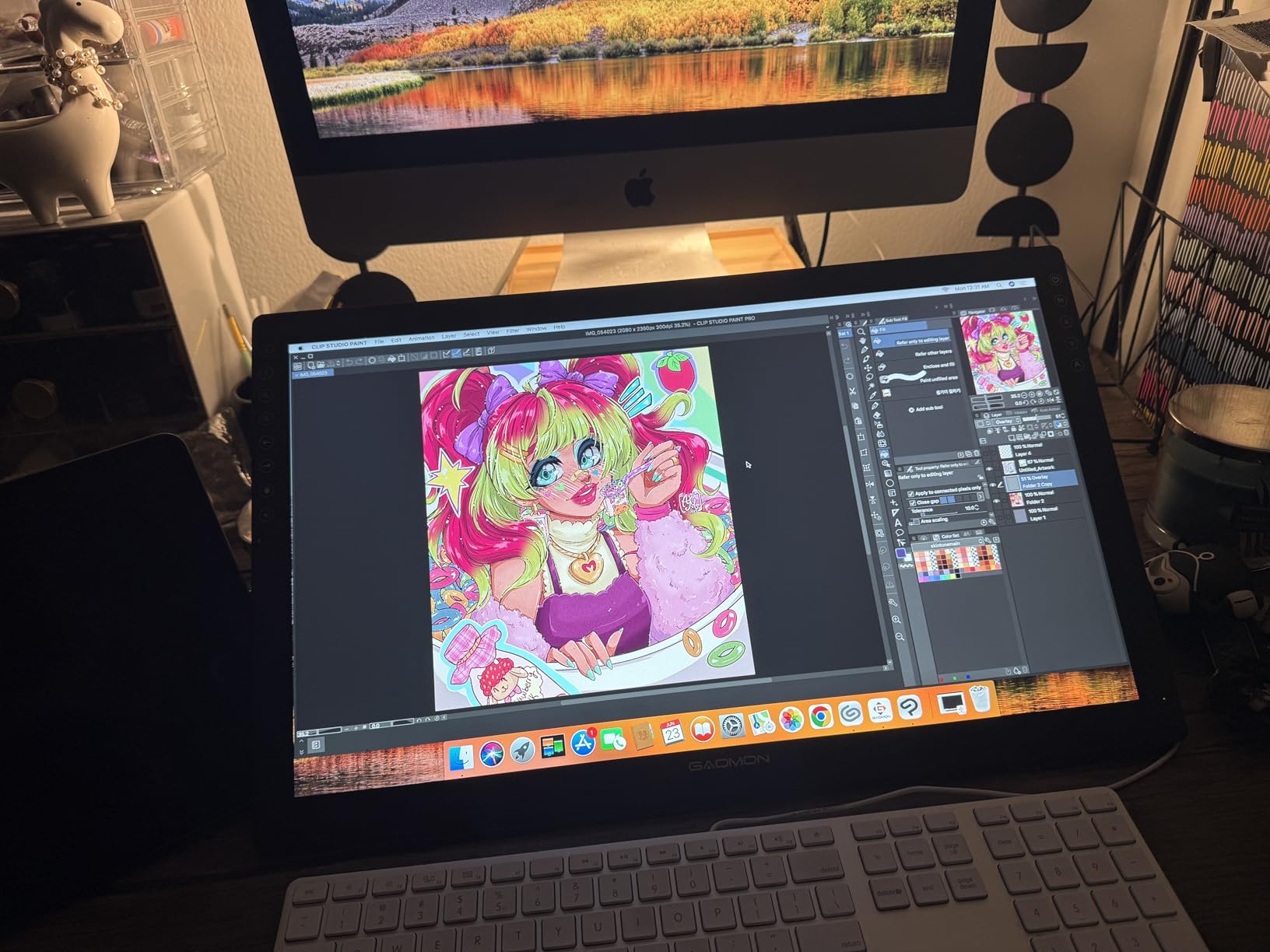
One of my favorite features is that the PD1320 can be powered directly from your computer’s USB port. No AC adapter required, which means fewer cables on your desk and easier travel. The Android phone support is also handy for quick sketches on a compatible phone using a USB-C cable.
The trade-offs are predictable for the price. The included cables are short, which limits how you position the tablet on your desk. Button placement favors right-handed users and can feel awkward for lefties. The screen surface can accumulate light scratches from pen nibs over time, so consider replacing nibs regularly.
For whom its good
Students, absolute beginners, and artists on a tight budget who want to try a pen display without a big investment. If you are not sure digital art is for you, the PD1320 lets you find out for under $200.
Artists who travel frequently will also appreciate the ultra-thin, lightweight design and USB-powered operation.
For whom its bad
Artists who need long-term durability for daily professional use. The screen scratch concern and budget build quality are real limitations for heavy users.
Left-handed artists may find the button placement uncomfortable enough to look at the Huion Kamvas 13 Gen 3 instead, which has a more symmetrical design.
9. Wacom One 14 – Best Drawing Tablet for Absolute Beginners
Wacom One 14, Drawing Tablet with IPS Full HD Laminated Screen & Pen
14 inch HD
4096 Pressure
98% sRGB
No Drivers Needed
Skillshare Included
Pros
- Trusted Wacom reliability
- No driver installation required
- Paper-like anti-glare texture
- Single USB-C connection
- Includes Skillshare training
Cons
- Lower 4096 pressure sensitivity
- Converter kit needed for non-USB-C devices
- Pen feels plasticky
- Ghost strokes reported by some users
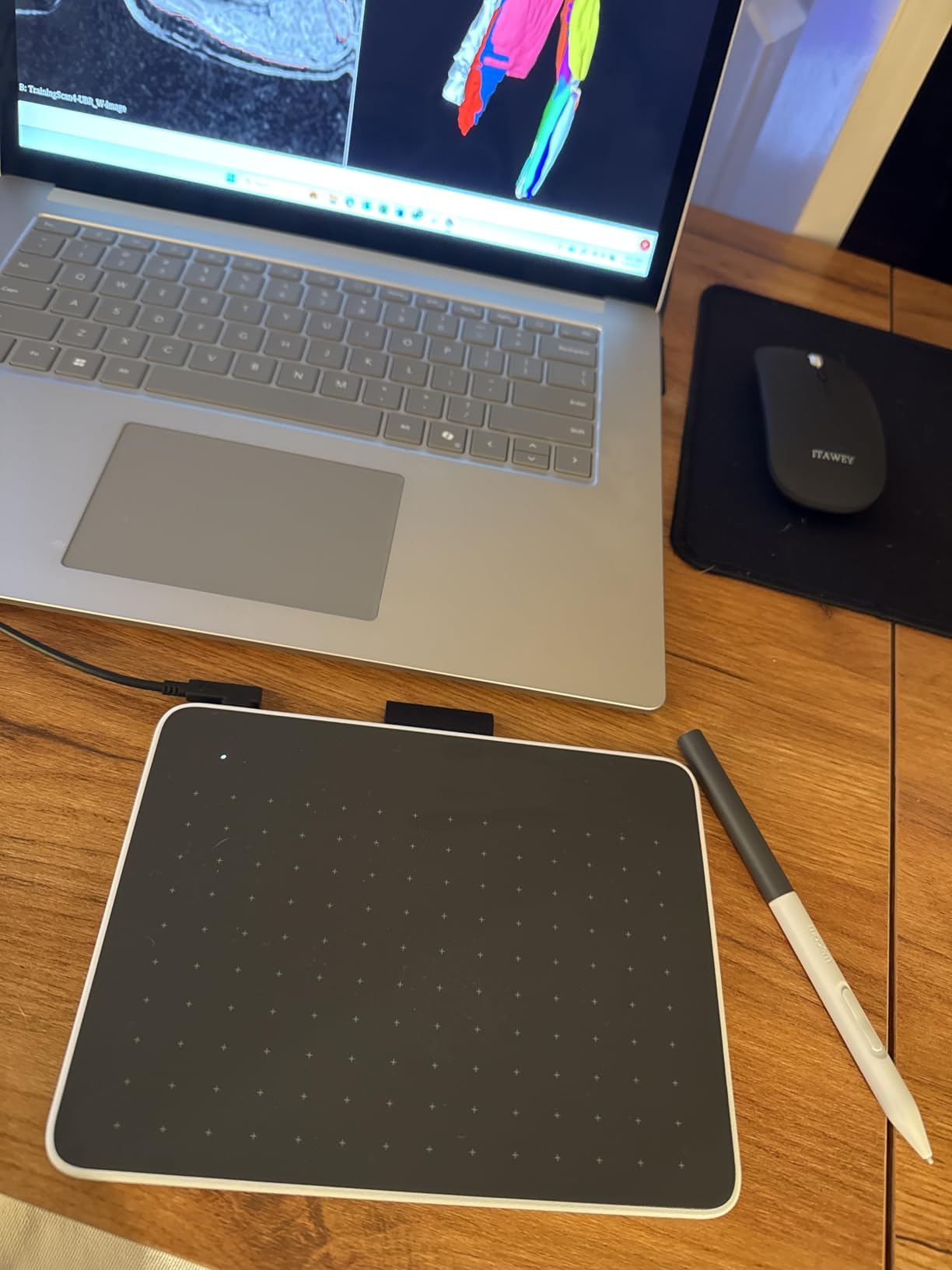
The Wacom One 14 is the tablet I recommend to absolute beginners, younger students, and anyone who has been burned by finicky drivers in the past. Wacom built this model to work the moment you plug it in, with no driver installation required on most modern systems. For a first pen display, that simplicity is hard to overstate.
The 14-inch Full HD display is a comfortable size for learning. The paper-like anti-glare texture gives the surface a slight tooth that mimics drawing on paper, which helps new artists transition from traditional to digital media. The 98% sRGB color accuracy is solid for a budget tablet, and the single USB-C connection keeps your desk clean when your computer supports it.
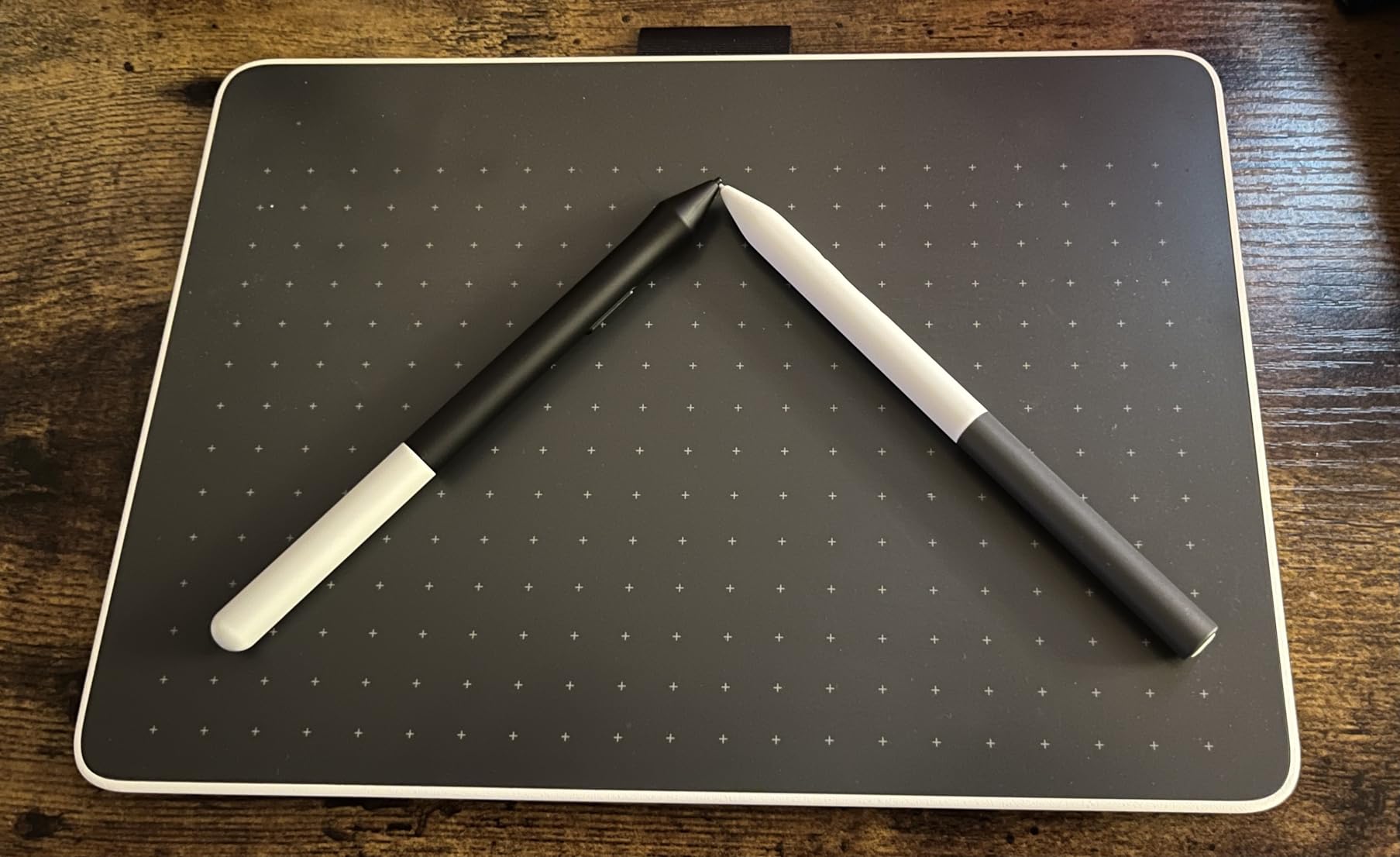
Wacom includes trials of Clip Studio Paint Pro, Magma, Concepts, and Foxit, plus Skillshare training courses. For a student or beginner who has not yet built a software library, that bundle adds real value. The tablet works with Chromebooks too, which makes it a strong pick for classrooms that use Google’s ecosystem.
The trade-offs are real, however. Pressure sensitivity is capped at 4096 levels, which is half what Huion and XP-Pen offer at similar prices. Some users report ghost strokes after extended use, which is a known quality control concern on this model. The pen feels plasticky compared to Wacom’s higher-end styluses, and you will need a separate converter kit if your computer does not have a USB-C port.
For whom its good
First-time pen display buyers, younger students, and classrooms that want reliable hardware with minimal setup. The plug-and-play nature and Chromebook compatibility make this a strong educational pick.
If you also want software and training included, the bundled Clip Studio Paint trial and Skillshare courses give you a real head start on learning digital art.
For whom its bad
Artists who want high pressure sensitivity. The 4096 level cap is fine for beginners but feels limiting once you develop a lighter, more nuanced drawing style.
Anyone using an older computer without USB-C will need to buy the converter kit separately, which adds to the total cost and complicates setup.
10. Huion Kamvas Pro 13 2.5K – Best Compact 2.5K Pen Display
HUION Kamvas Pro 13 (2.5K) QHD+ Drawing Tablet with Screen, 13.3″
13.3 inch 2.5K QHD+
QLED
8192 Pressure
226ppi
99% sRGB
Pros
- Crisp 2.5K resolution at 226ppi
- QLED vibrant colors
- 99% sRGB professional color
- Full lamination low parallax
- Includes stand pen holder and nibs
Cons
- Setup can be confusing with cables
- Pen pressure curve adjustment tricky
- Short cables
- Power button near macro keys
The Huion Kamvas Pro 13 2.5K is the compact tablet I recommend to artists who want high resolution and color quality in a portable size. The 2.5K QHD+ resolution at 226 pixels per inch makes line work and text noticeably sharper than the FHD panels on most 13-inch tablets. For detailed illustration work, that crispness is genuinely valuable.
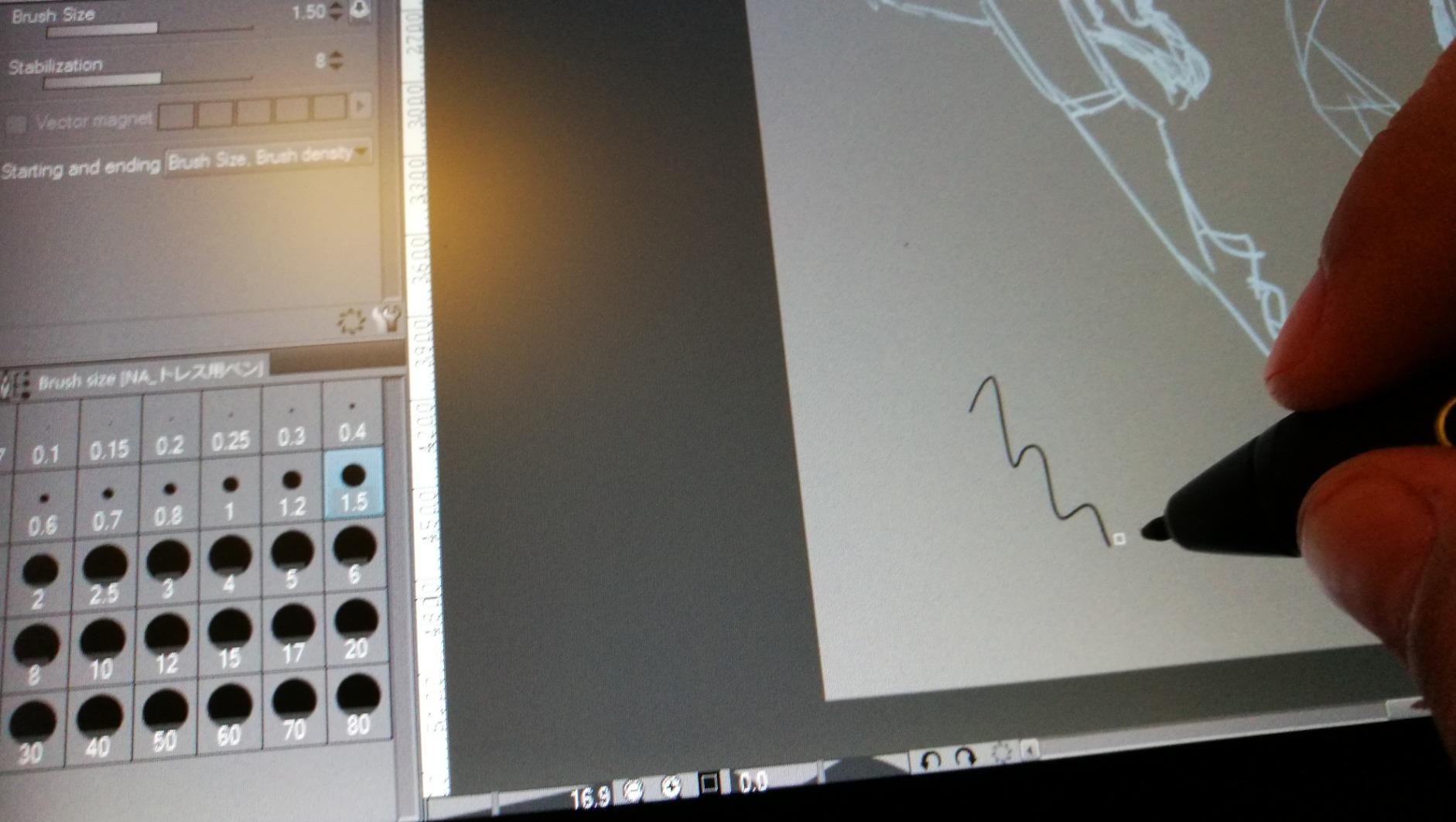
The QLED display produces vibrant, saturated colors that make digital painting feel alive. With 99% sRGB coverage and a 1200:1 contrast ratio, this tablet handles color work far better than its price suggests. The PenTech 3.0 PW517 stylus tracks at 8192 pressure levels with 60-degree tilt recognition, and the full-lamination keeps parallax to a minimum.
Huion includes a generous accessory bundle. The foldable ST200 stand, pen holder, felt nibs, and drawing glove all come in the box. For artists who want a complete kit without buying extras, this is one of the best value packages in the guide. The 7 programmable express keys give you shortcut access without reaching for a keyboard.
The main frustrations are around setup and cable management. The 3-in-1 cable solution can feel cumbersome compared to a clean USB-C connection, and the cables are short enough to limit placement options. Some users report that the power button location near the macro keys leads to accidental shutdowns. Plan to spend time calibrating the pen pressure curve to your liking.
For whom its good
Illustrators and digital painters who want high resolution and accurate color in a portable 13-inch size. The 2.5K panel makes this tablet competitive with Wacom models that cost significantly more.
Students and intermediate artists who want a complete accessory bundle without buying extras will appreciate the included stand, pen holder, and nibs.
For whom its bad
Artists who hate cable clutter. The 3-in-1 cable and short cable lengths make this tablet harder to set up cleanly than USB-C alternatives.
Anyone prone to accidental button presses should be cautious. The power button placement near the macro keys has caused shutdowns for some users mid-session.
Buying Guide – How to Choose a Drawing Tablet with Screen
Choosing the right pen display comes down to matching features to your actual workflow. Below are the factors that matter most, based on our testing and the pain points artists raise repeatedly on forums like r/drawingtablet.
Screen Size and Workspace
Screen size is the single biggest factor in comfort and price. A 13-inch tablet like the Huion Kamvas 13 Gen 3 works well for sketching and illustration on the go, but feels cramped for detailed painting or multi-canvas workflows. A 16-inch tablet like the Wacom Cintiq 16 hits a balanced middle ground for most artists.
Larger displays like the Huion Kamvas 22 Plus or Wacom Cintiq Pro 27 give you room to spread out, but they demand desk space and a permanent setup. If you travel or share a desk, think carefully before going larger than 16 inches.
Pressure Sensitivity Levels
Pressure sensitivity measures how many distinct pressure steps the pen can detect. Budget tablets typically offer 4096 levels, mid-range tablets offer 8192, and newer models like the Huion Kamvas 13 Gen 3 and XP-Pen Artist Pro 14 Gen2 offer 16,384.
More pressure levels means finer control over line thickness and opacity. However, real-world pen feel depends on the pen sensor, driver software, and your drawing style. An 8K Wacom Pro Pen 3 can feel more natural than a 16K budget pen if the sensor and drivers are better tuned. Do not pick a tablet based on pressure numbers alone.
Color Accuracy and Gamut
If you produce client work, print illustrations, or color-critical content, color accuracy matters. Look for tablets with at least 99% sRGB coverage and ideally DCI-P3 or Adobe RGB coverage. The Wacom Cintiq Pro 27 leads with 99% Adobe RGB, while the Huion Kamvas Pro 13 2.5K and Wacom Cintiq 16 both deliver 99% DCI-P3 or sRGB at lower prices.
For hobbyists and web illustration, 99% sRGB is usually sufficient. Tablets with 120% or 140% sRGB like the Gaomon PD156Pro and Huion Kamvas 22 Plus produce punchy, vibrant colors that are enjoyable to paint on even if they are not strictly accurate.
Parallax and Full Lamination
Parallax is the gap between where your pen tip touches the glass and where the cursor appears on screen. Cheaper tablets with air gaps between the glass and display suffer from visible parallax, which throws off accuracy. Full-lamination technology bonds the glass directly to the display and eliminates this gap.
Every tablet in this guide uses full lamination except the Wacom One 14, which has a paper-like textured surface that adds a slight gap. If accuracy matters to you, prioritize fully laminated displays.
Driver Reliability and Brand Reputation
Driver software is the invisible foundation of a good pen display experience. Wacom has the best driver track record overall, with consistent updates and minimal conflicts. Huion and XP-Pen have improved significantly but still draw complaints on forums after major Windows or macOS updates.
Reddit users on r/drawingtablet consistently recommend reinstalling drivers after OS updates if you experience pressure or tracking glitches. Long-term reliability favors Wacom, but the gap is narrowing as Huion and XP-Pen mature.
App Compatibility
Most pen displays work with any creative app that supports pressure-sensitive input, including Photoshop, Clip Studio Paint, Krita, Affinity Photo, and Blender. The differences come down to how well the driver handles each app’s pressure curve and tilt settings.
If you primarily use Procreate, an iPad is still the better choice since Procreate is iPad-only. For Photoshop, Clip Studio Paint, and Krita on desktop, any tablet in this guide will work well. Students exploring digital art apps can learn more in our coverage of iPad for creative subjects as a companion resource.
Connectivity and Cable Setup
USB-C single-cable connections are the cleanest option. Tablets like the Wacom One 14, Huion Kamvas 13 Gen 3, and Wacom Cintiq 16 support USB-C with DisplayPort Alt Mode, which carries video, data, and power over one cable. If your computer has a USB-C port with DisplayPort support, prioritize these tablets.
Tablets that require HDMI plus USB connections, like the XP-Pen Artist 15.6 Pro V2 and Gaomon PD156Pro, involve more cable management. They work fine, but your desk will look busier.
Budget and Student Pricing
Prices in this guide range from under $200 for the Gaomon PD1320 to over $3,000 for the Wacom Cintiq Pro 27. As a student, look for educational discounts directly from Wacom and Huion, both of which offer student pricing programs with verified academic email addresses.
A good rule of thumb is to spend enough to get a tablet with at least 8192 pressure levels, full lamination, and a display size that matches your workspace. The Huion Kamvas 13 Gen 3 at under $250 hits all three and is our pick for the best value in 2026.
Is it better to have a drawing tablet with a screen?
A drawing tablet with a screen is better if you want natural hand-eye coordination, since you draw directly where you see your strokes appear. Screenless tablets require learning to draw on a blank pad while watching a separate monitor, which takes adjustment. Screen tablets cost more and are less portable, but most artists find the direct drawing experience worth the trade-off once they try it.
What is the difference between a drawing tablet and a display tablet?
A drawing tablet (also called a pen tablet) is a screenless input pad where you draw on a blank surface while watching your computer monitor. A display tablet (also called a pen display) has a built-in screen so you draw directly on the display surface. Display tablets are more intuitive and more expensive, while pen tablets are cheaper, more portable, and preferred by some professionals for ergonomics.
Do professionals use screenless drawing tablets?
Yes, many professional illustrators, animators, and retouchers still prefer screenless pen tablets like the Wacom Intuos Pro. Screenless tablets reduce neck strain since you look straight ahead at your monitor, they are more portable, and some artists prefer the detached drawing motion. The choice between screen and screenless comes down to personal workflow and comfort, not skill level.
Which brand makes the most reliable drawing tablets with screens?
Wacom has the strongest reputation for long-term reliability and driver support, which is why the Cintiq line remains the industry standard in professional studios. Huion and XP-Pen have closed the gap significantly in 2026 and offer excellent value, but they still draw more driver-related complaints after OS updates. For budget buyers willing to do occasional driver troubleshooting, Huion and XP-Pen deliver great performance per dollar.
What size drawing tablet with screen do I need?
For beginners and students, a 13 to 14 inch tablet like the Huion Kamvas 13 Gen 3 or Wacom One 14 is usually enough for learning and illustration. A 15.6 to 16 inch tablet, such as the XP-Pen Artist 15.6 Pro V2 or Wacom Cintiq 16, offers more canvas room for detailed painting. A 22 inch or larger tablet suits studio professionals who work on complex compositions but requires dedicated desk space and is not portable.
Conclusion
The best drawing tablets with screens in 2026 cover an enormous range of prices and use cases. For professionals who want the best pen display money can buy, the Wacom Cintiq Pro 27 remains the gold standard. For students and value-focused artists, the Huion Kamvas 13 Gen 3 delivers 16K pressure sensitivity and PenTech 4.0 performance at a price that fits a student budget. And for absolute beginners who want trusted reliability with minimal setup, the Wacom One 14 is the safest first pen display you can buy.
Whatever you pick, prioritize pen feel, parallax, and driver reliability over raw spec numbers. A tablet that feels natural in your hand will get used daily, while a tablet that fights you with driver issues will gather dust. Match the size to your workspace, the color accuracy to your output needs, and the price to your commitment level, and you will end up with a drawing tablet that supports your art for years to come.