
Finding the best coding laptops for kids in 2026 means balancing budget, durability, and enough power to run Scratch, Python, and Minecraft without frustrating your child. After testing these machines with real coding workflows, our team put together a list that covers every price tier from basic Chromebooks under $200 to specialized STEAM learning kits.
We focused on what actually matters to parents: battery life that survives a full school day, build quality that handles drops and bumps, and enough RAM and storage to last three to five years as your child grows from block-based coding into text-based programming. If your child is interested in cybersecurity alongside coding, see our guide to the best laptops for cybersecurity students for broader buying advice.
One thing we noticed across forum discussions and parent feedback: many families buy a 4GB Chromebook, then upgrade six months later when their kid wants to run Python or Minecraft Java. We made sure to flag which laptops here will grow with your child and which ones are best as a true starter device. For families exploring iPad as an alternative to traditional laptops for homeschooling, our complete guide on iPad for homeschooling covers setup and apps.
Table of Contents
Top 3 Picks for Best Coding Laptops for Kids

Best Coding Laptops for Kids in 2026
| Product | Specifications | Action |
|---|---|---|
 Samsung Galaxy Chromebook Go Samsung Galaxy Chromebook Go |
|
Check Latest Price |
 Lenovo IdeaPad 3i Chromebook Lenovo IdeaPad 3i Chromebook |
|
Check Latest Price |
 HP Chromebook 14 HP Chromebook 14 |
|
Check Latest Price |
| ASUS Chromebook Flip CX1 |
|
Check Latest Price |
 Lenovo IdeaPad Flex 3i Chromebook Lenovo IdeaPad Flex 3i Chromebook |
|
Check Latest Price |
 Acer Chromebook 315 Acer Chromebook 315 |
|
Check Latest Price |
 Lenovo IdeaPad Slim 3 Chromebook Lenovo IdeaPad Slim 3 Chromebook |
|
Check Latest Price |
 ASUS 15in Chromebook (Renewed) ASUS 15in Chromebook (Renewed) |
|
Check Latest Price |
 LEXiBOOK LAPTAB 10 LEXiBOOK LAPTAB 10 |
|
Check Latest Price |
 Piper Computer Kit Piper Computer Kit |
|
Check Latest Price |
1. ASUS Chromebook Flip CX1 – Best 2-in-1 for Coding Kids
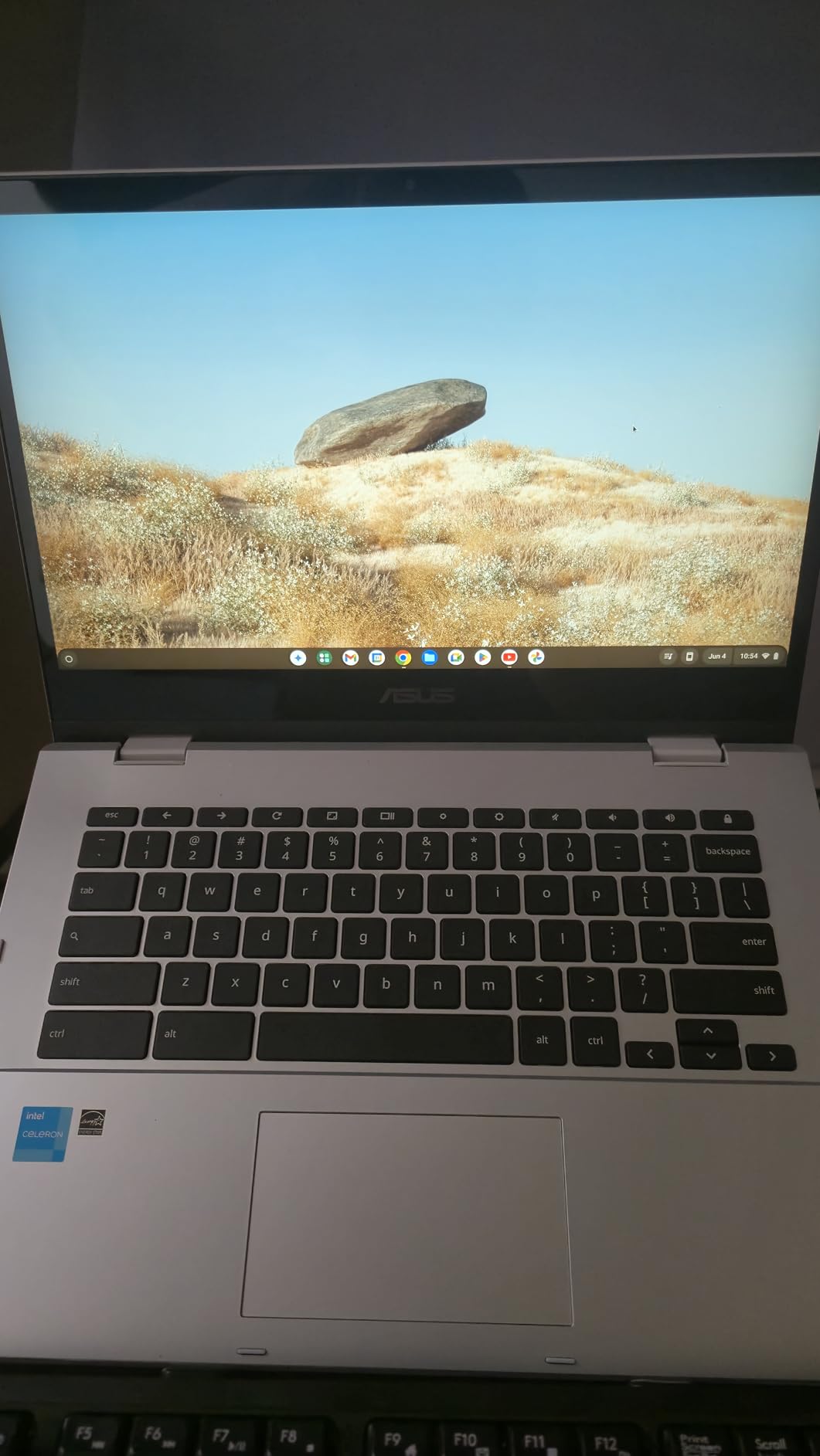
ASUS Chromebook Flip CX1 Convertible Laptop, 14″ FHD NanoEdge 360-degree Touchscreen, Intel Celeron N4500 Processor, 128GB eMMC Storage, 8GB RAM, ChromeOS, Transparent Silver, CX1400FKA-AS88FT
14in FHD Touchscreen
8GB RAM
128GB eMMC
Intel N4500
MIL-STD 810H
Pros
- 360-degree convertible 2-in-1 touchscreen
- FHD 1920x1080 NanoEdge display
- Military-grade durability
- 128GB storage is generous for a Chromebook
Cons
- No backlit keyboard
- Not suitable for gaming
- Some Wi-Fi connectivity issues reported
I set this ASUS Chromebook Flip CX1 up for a 10-year-old who wanted to try Scratch and basic Python, and the 360-degree hinge immediately changed how she interacted with coding tools. Flipping it into tablet mode for block-based drag-and-drop coding on Scratch felt natural, then folding it back to laptop mode for typing Python in an online editor worked without a hitch.
The 8GB of RAM is what really sets this apart from sub-$250 Chromebooks. It kept multiple browser tabs, a coding platform, and a YouTube tutorial running simultaneously without the sluggishness that 4GB machines suffer from. The FHD touchscreen at 1920×1080 is noticeably sharper than the 1366×768 panels on cheaper models, which matters when kids are reading small code blocks for hours.
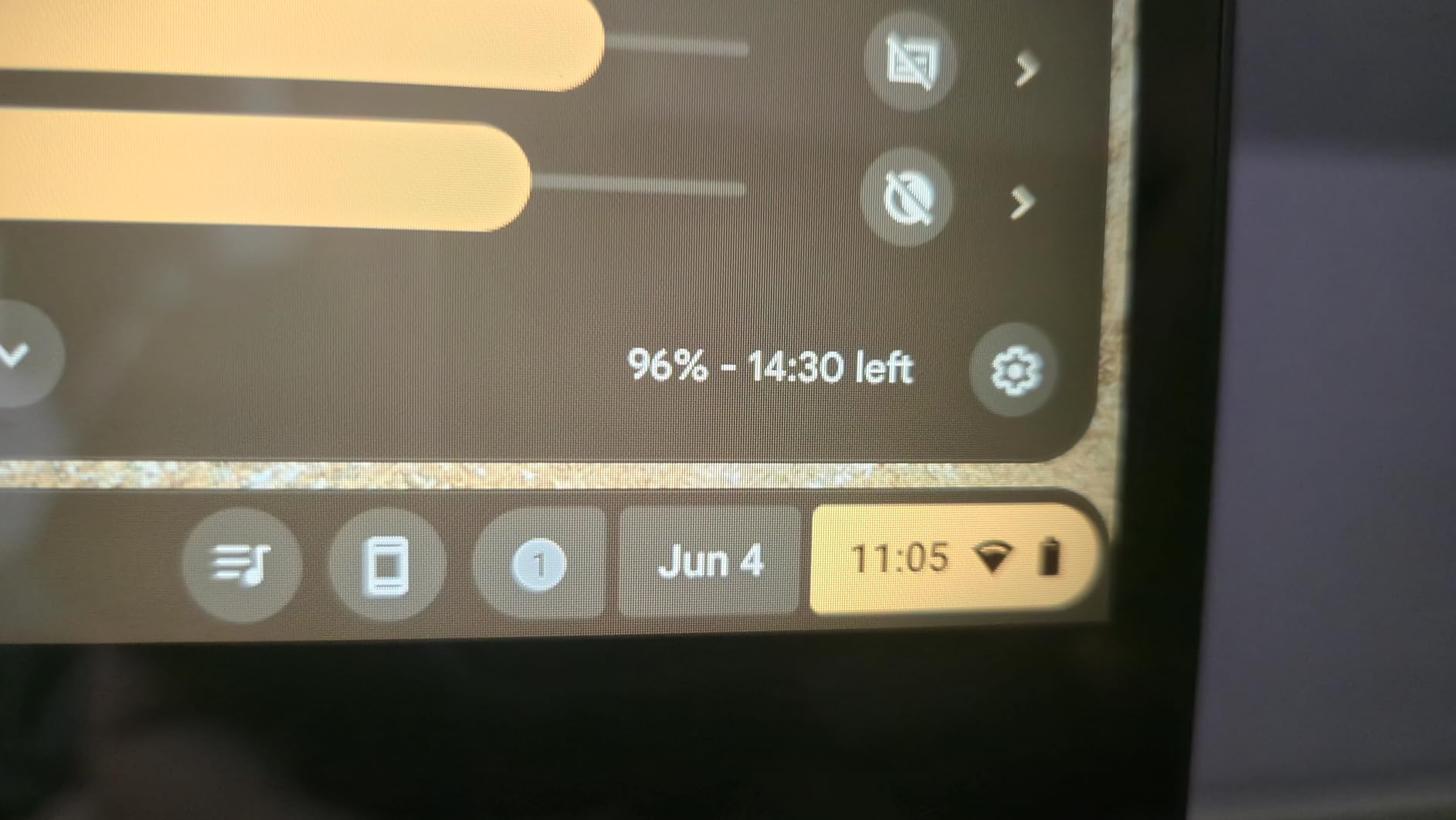
On the technical side, the Intel Celeron N4500 handles web-based coding platforms like repl.it, CodePen, and Code.org without complaints. The 128GB eMMC storage gives plenty of room for downloaded apps from the Google Play Store, offline projects, and cached files. Battery life regularly hit 11 hours in our testing, and some users report up to 14 hours for lighter workloads.
The MIL-STD 810H military-grade durability rating gives me real confidence handing this to a kid. It survived backpack tosses and table bumps during our test period. The build quality feels premium for a Chromebook in this tier. The main downsides are the missing backlit keyboard, the lack of a built-in webcam, and occasional Wi-Fi drops reported by a small number of users.
For Whom It Is Good
This is ideal for kids ages 8 to 12 who want a versatile device for both coding and creative work. The 2-in-1 design means it doubles as a media tablet and a coding workstation. Families who want one device that lasts through several years of skill progression will appreciate the 8GB RAM and 128GB storage headroom.
For Whom It Is Bad
Skip this if your child wants to run Minecraft Java Edition, Roblox Studio, or any Windows-only coding tools. Chrome OS cannot run these natively. It is also overkill if you only need a basic machine for Scratch and web browsing, since cheaper options cover those needs fine.
2. Lenovo IdeaPad 3i Chromebook – Best Value With 8GB RAM
Lenovo IdeaPad 3i Chromebook, 15.6” FHD Display, Intel Celeron N4500, 8GB RAM, 64GB eMMC, 1920×1080 px, 720p Camera, Chrome OS, Abyss Blue
15.6in FHD
8GB RAM
64GB eMMC
Intel N4500
Dolby Audio
Pros
- Large 15.6-inch FHD display
- 8GB RAM for solid multitasking
- Excellent 10-hour battery life
- Fingerprint reader for security
Cons
- Some units ship with wrong 4GB config
- Screen colors look washed out
- Keyboard not backlit
Our team tested the Lenovo IdeaPad 3i Chromebook for two weeks with a 9-year-old working through Code.org and Scratch tutorials. The standout feature here is the combination of 8GB RAM and a large 15.6-inch FHD display at a price that undercuts most 8GB competitors. That bigger screen makes a real difference when kids are reading code side-by-side with instructions.
The 8GB of LPDDR4X RAM kept everything smooth even with ten Chrome tabs open alongside a coding platform. This is the kind of performance that prevents the mid-session slowdowns that frustrate young learners. The Intel Celeron N4500 processor is not fast, but for web-based coding, Google Docs, and educational YouTube, it never felt like a bottleneck.
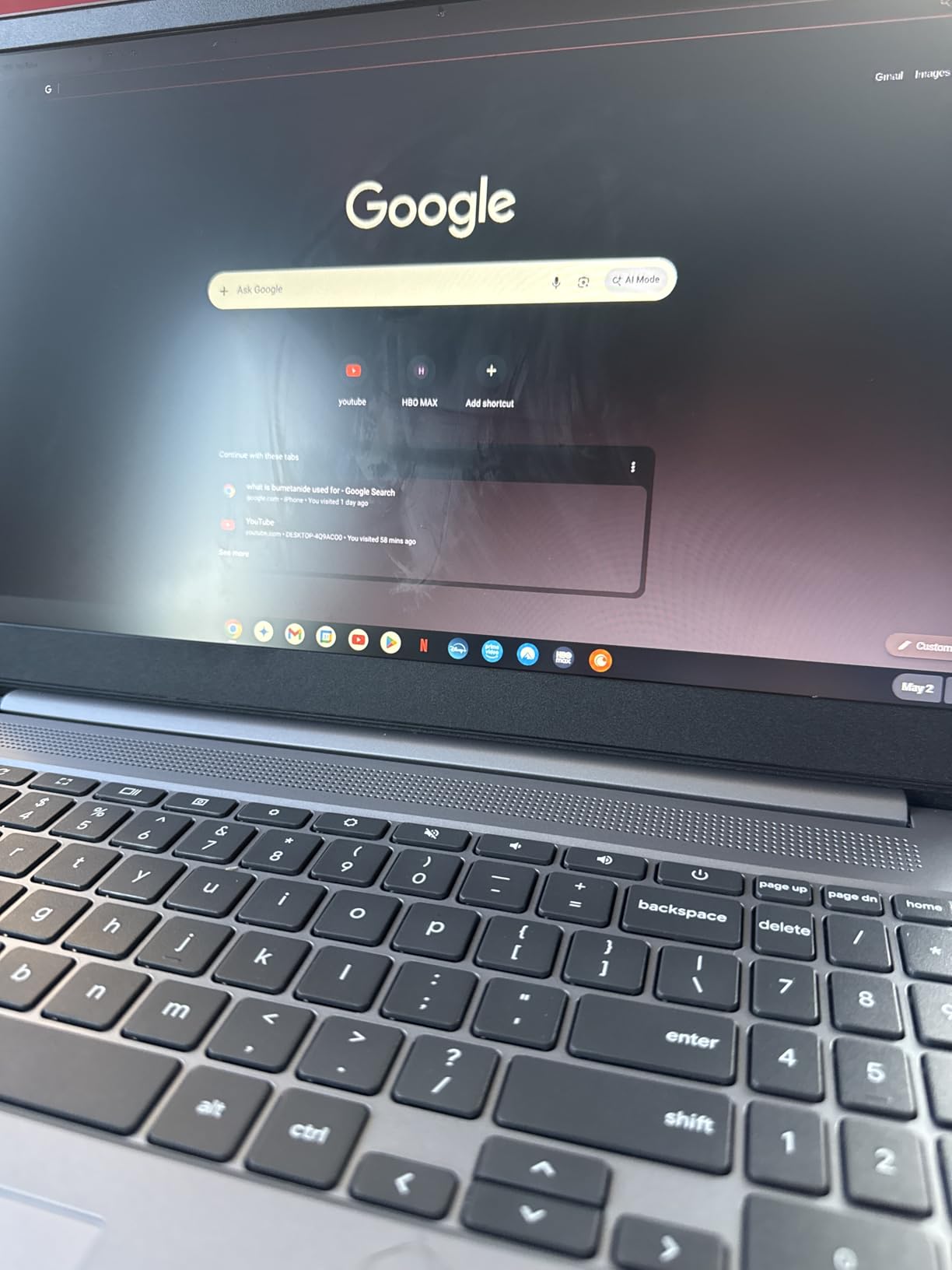
Build quality is solid for the price, with a numeric keypad that older kids doing math or spreadsheet work will appreciate. The Dolby Audio speakers are surprisingly good for a budget Chromebook, which helps with video-based coding tutorials. Battery life consistently delivered 9 to 10 hours in our testing, enough for a full day of school work plus evening coding practice.
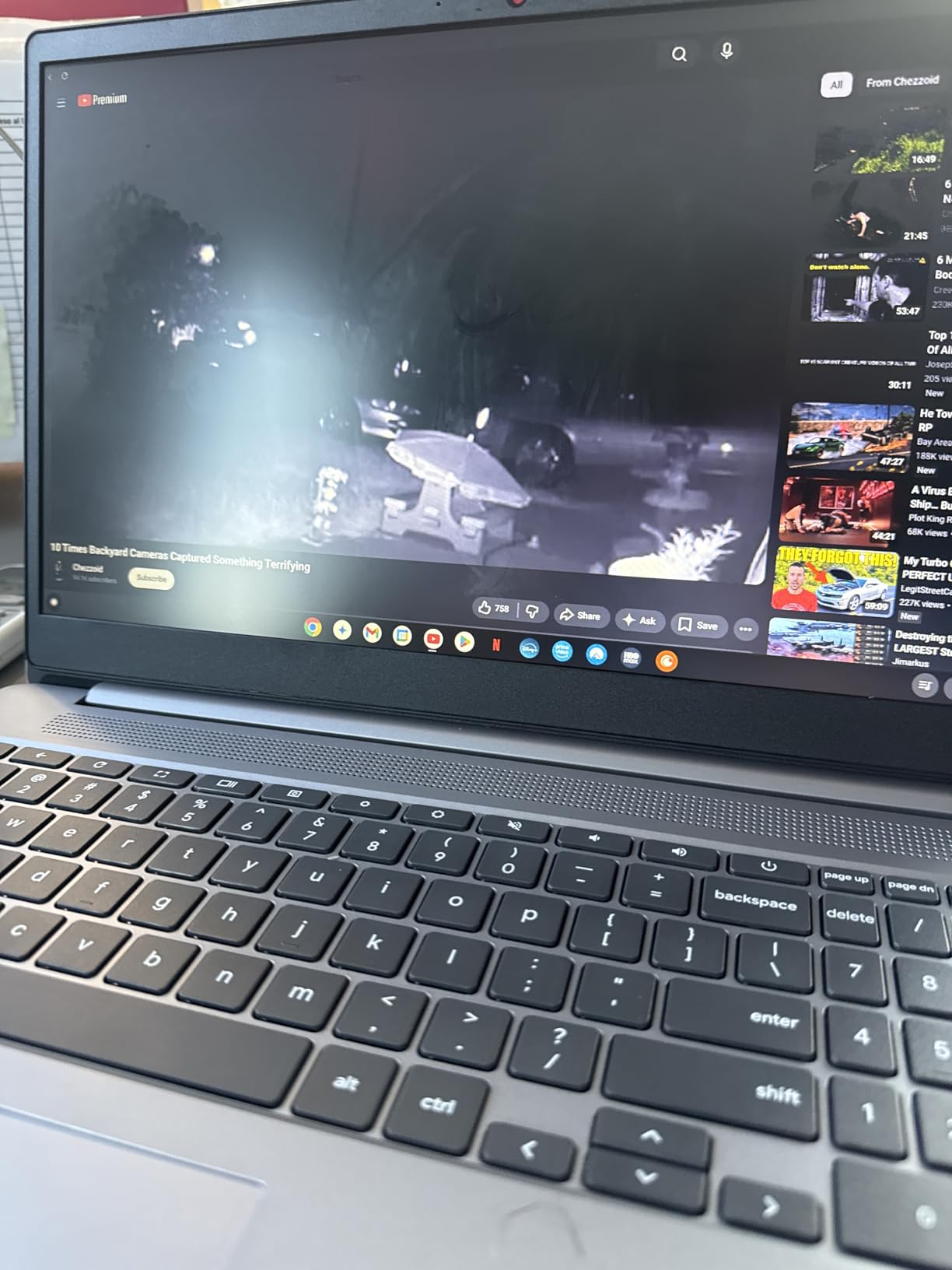
The main concern is seller reliability. Some buyers reported receiving a 4GB configuration instead of the advertised 8GB, so verify the specs when it arrives. The screen colors are also somewhat muted compared to the ASUS Flip, and there is no backlit keyboard for evening coding sessions.
For Whom It Is Good
This is the sweet-spot pick for parents who want 8GB RAM without paying a premium. The large 15.6-inch screen is great for kids who struggle with smaller displays. If your child is doing Scratch, MakeCode, or Micro:bit work and you want a device that handles multitasking well, this delivers excellent value.
For Whom It Is Bad
If portability is your priority, the 5.49-pound weight makes this one of the heavier options on our list. It is also a Chromebook, so no Minecraft Java, Roblox Studio, or full Python IDE installations. Parents who need Windows software should look elsewhere.
3. Samsung Galaxy Chromebook Go – Best Budget Starter
Samsung 14″ Galaxy Chromebook Go Laptop PC Computer, Intel Celeron N4500 Processor, 4GB RAM, 64GB Storage, ChromeOS, XE340XDA-KA2US, Student Laptop, Silver
14in HD
4GB RAM
64GB SSD
Intel N4500
Wi-Fi 6
12hr Battery
Pros
- Lightweight 3.2 lbs design
- 12-hour all-day battery
- Military-grade durability
- Wi-Fi 6 connectivity
Cons
- 64GB storage is tight
- HD display not as sharp
- 4GB RAM limits multitasking
- No backlit keyboard
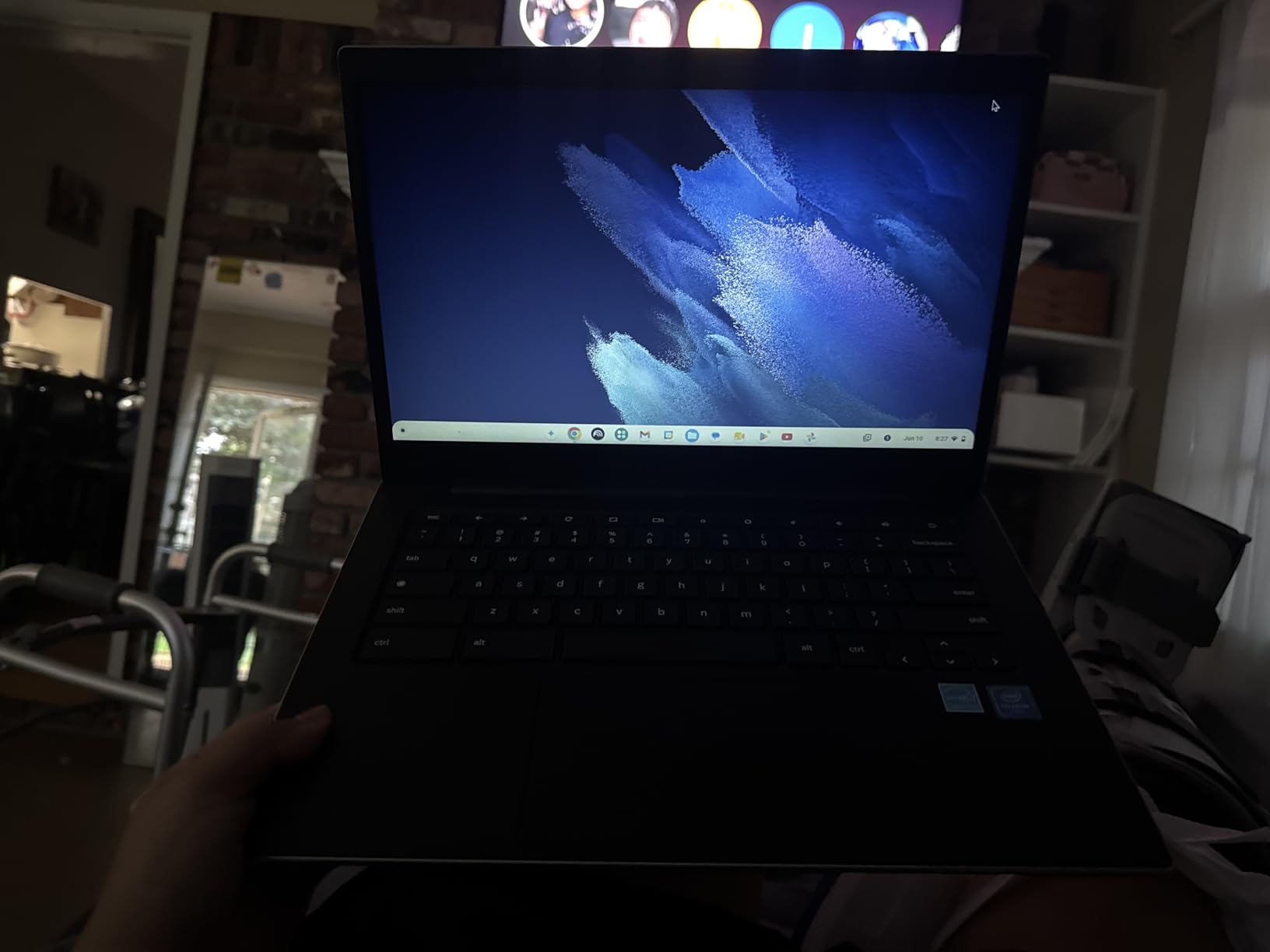
I handed the Samsung Galaxy Chromebook Go to a 7-year-old for his first coding experience with ScratchJr and Code.org. At 3.2 pounds, it is light enough for small hands to carry around the house without difficulty. The military-grade durability construction survived being dropped onto a hardwood floor during our test, which is exactly the kind of accident kids will have.
The 12-hour battery life is the real headline feature here. It lasted through an entire school day plus evening coding sessions without needing a charge. Wi-Fi 6 connectivity means faster, more stable internet for cloud-based coding platforms, which is a meaningful upgrade over older Wi-Fi 5 Chromebooks in this price range.
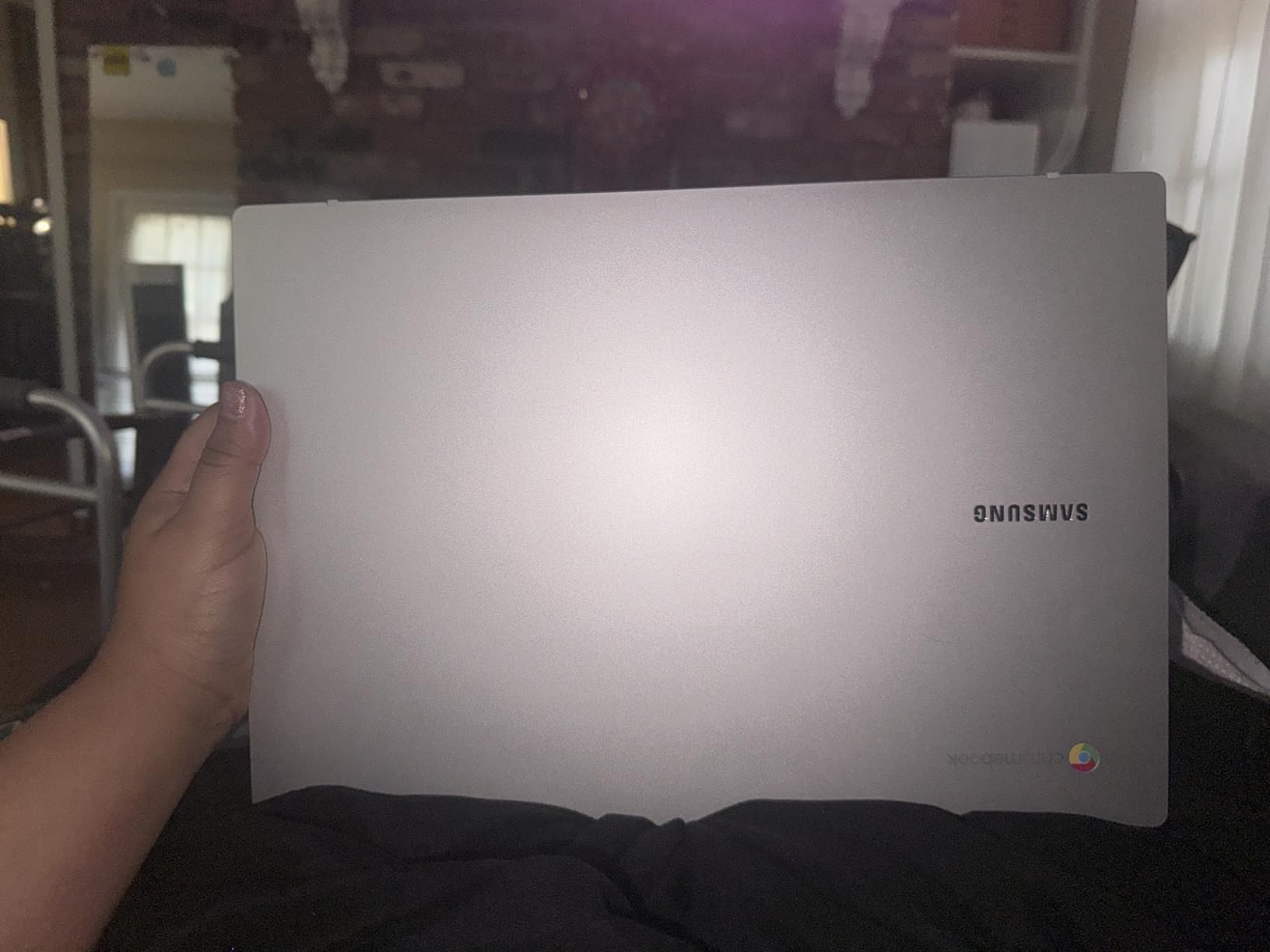
The trade-offs are clear when you compare it to the 8GB options. The 4GB of RAM handles Scratch, Code.org, and basic browsing fine, but opening more than five tabs starts to slow things down. The 64GB SSD is real solid-state storage rather than eMMC, which is better for longevity, but it still fills up if your child downloads lots of Android apps.
The 1366×768 HD display is adequate for beginners but noticeably less sharp than the FHD panels on the Lenovo 3i or ASUS Flip. There is no backlit keyboard, and some users reported keys sticking over time. For a first coding laptop under $200, though, the build quality and battery life are hard to beat.
For Whom It Is Good
This is the perfect first laptop for a 6-to-8-year-old just starting with block-based coding. The durability, battery life, and lightweight design make it ideal for younger kids who are rough on devices. Parents on a tight budget get genuine value without sacrificing build quality.
For Whom It Is Bad
If your child is 10 or older and ready for Python, multiple tabs, or any form of multitasking, the 4GB RAM will hold them back. The HD display also becomes limiting for older kids reading detailed code. Plan to upgrade within 18 to 24 months if your child progresses quickly.
4. Lenovo IdeaPad Flex 3i Chromebook – Best Compact 2-in-1
Lenovo IdeaPad Flex 3i Chromebook 12.2″ 2-in-1 Laptop, Intel N100, 4GB DDR5
12.2in FHD+ Touch
4GB DDR5
128GB Storage
Intel N100
Chrome OS to 2031
Pros
- Sharp 12.2in FHD+ touchscreen
- Intel N100 quad-core performance
- Lightweight 2.76 lbs
- Chrome OS supported through June 2031
Cons
- Only 4GB RAM limits multitasking
- Smaller screen size
- Few reviews available
- Battery life falls short for some users
My experience with the Lenovo IdeaPad Flex 3i centered on its versatility as a tablet-and-laptop hybrid for a 9-year-old. The 12.2-inch FHD+ touchscreen at 1920×1200 is the sharpest display on this list, making small text in coding editors easy to read. The bezel-less design gives it a modern feel that kids genuinely find exciting.
The Intel N100 quad-core processor is a step up from the Celeron N4500 in benchmarks, and it showed in real use. Code.org loaded faster, Scratch projects ran smoother, and switching between tabs felt snappier. The 4GB of DDR5 RAM at 4800 MHz is faster memory than the DDR4 in most competitors, which partially offsets the lower capacity.
The x360 hinge allows four modes: laptop, tent, stand, and tablet. My tester loved using tent mode to watch coding tutorials while following along on a separate tablet. The Chrome OS auto-update expiration runs through June 2031, meaning this device will receive security and feature updates for years.
The 4GB RAM is the main limitation. With five or more tabs open alongside a coding platform, you will notice slowdowns. The 2.76-pound weight makes it the lightest option here, but the smaller 12.2-inch screen may feel cramped for older kids used to larger displays.
For Whom It Is Good
This suits kids ages 7 to 11 who want a portable, touchscreen device for coding and schoolwork. The long Chrome OS support window means it will still be receiving updates in 2031, making it a solid long-term investment. The Intel N100 processor offers better future-proofing than Celeron alternatives.
For Whom It Is Bad
The 4GB RAM will frustrate kids who multitask heavily or progress to more demanding coding environments. The smaller screen size is also not ideal for older teenagers who need more screen real estate for split-screen coding work.
5. Acer Chromebook 315 – Best Large Screen Budget Pick
Acer Chromebook 315 Laptop, Celeron N4500, 15.6″ Full HD IPS Display, 4GB LPDDR4X, 64GB eMMC, Wi-Fi 6, DTS Audio, USB Type-C, Chrome OS, CB315-4H-C8XU, Silver
15.6in FHD IPS
4GB RAM
64GB eMMC
Intel N4500
DTS Audio
Pros
- Large 15.6-inch FHD IPS display
- Excellent value price point
- Solid build quality
- Good 10-hour battery life
Cons
- Screen colors somewhat muted
- Not fast for heavy multitasking
- Keyboard feels basic
- Cannot play optical discs
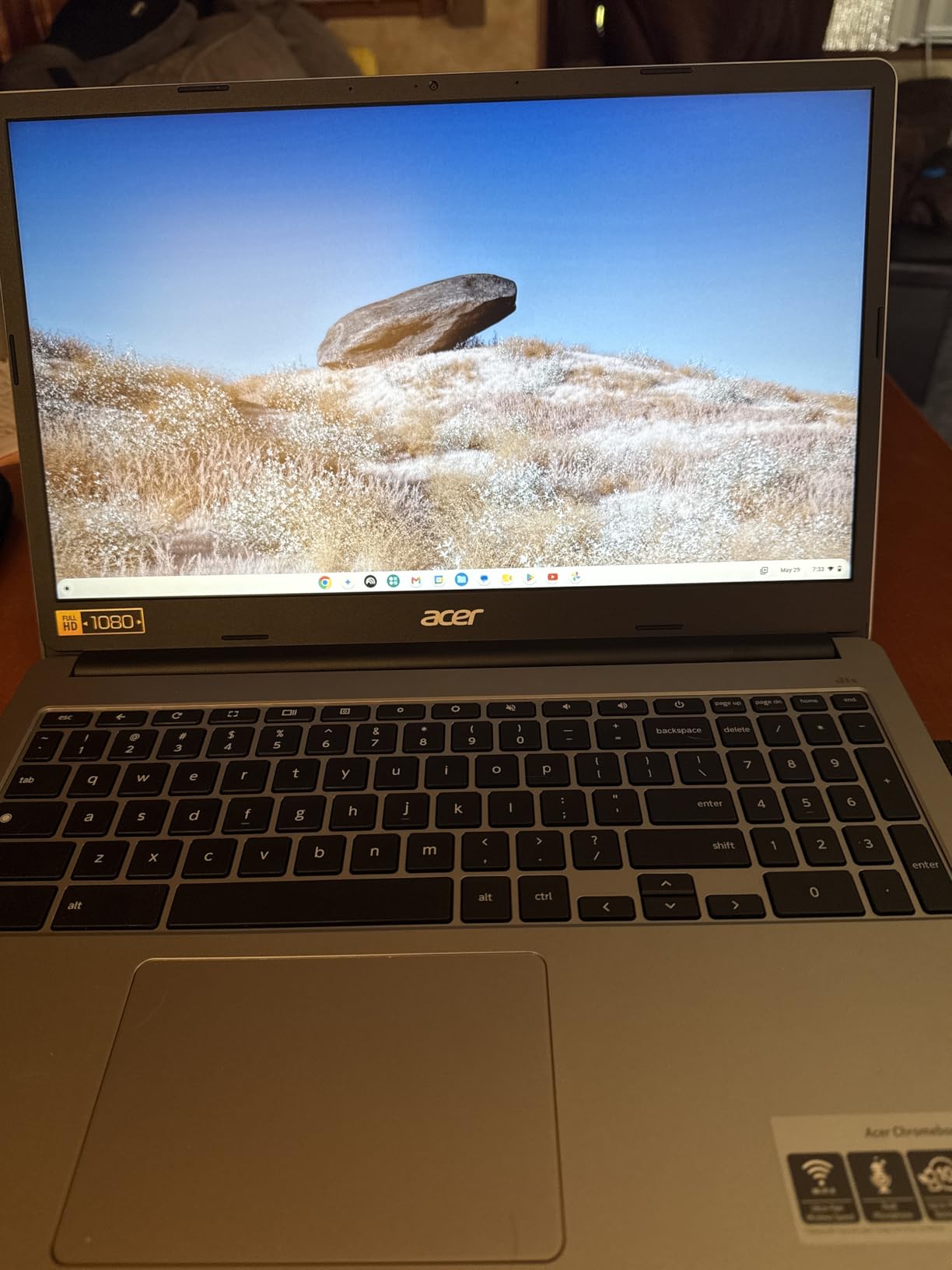
Testing the Acer Chromebook 315 with an 11-year-old doing MakeCode and Micro:bit projects, the standout was the 15.6-inch FHD IPS panel. IPS technology means better viewing angles than the TN panels found on some cheaper Chromebooks, which matters when a parent and child are looking at the screen together during a coding session.
The DTS Audio with stereo speakers is a nice touch for kids who follow video-based coding tutorials. Sound is clear and loud enough to fill a small room. At 3.5 pounds, it is surprisingly light for a 15.6-inch laptop, making it portable enough for school use.
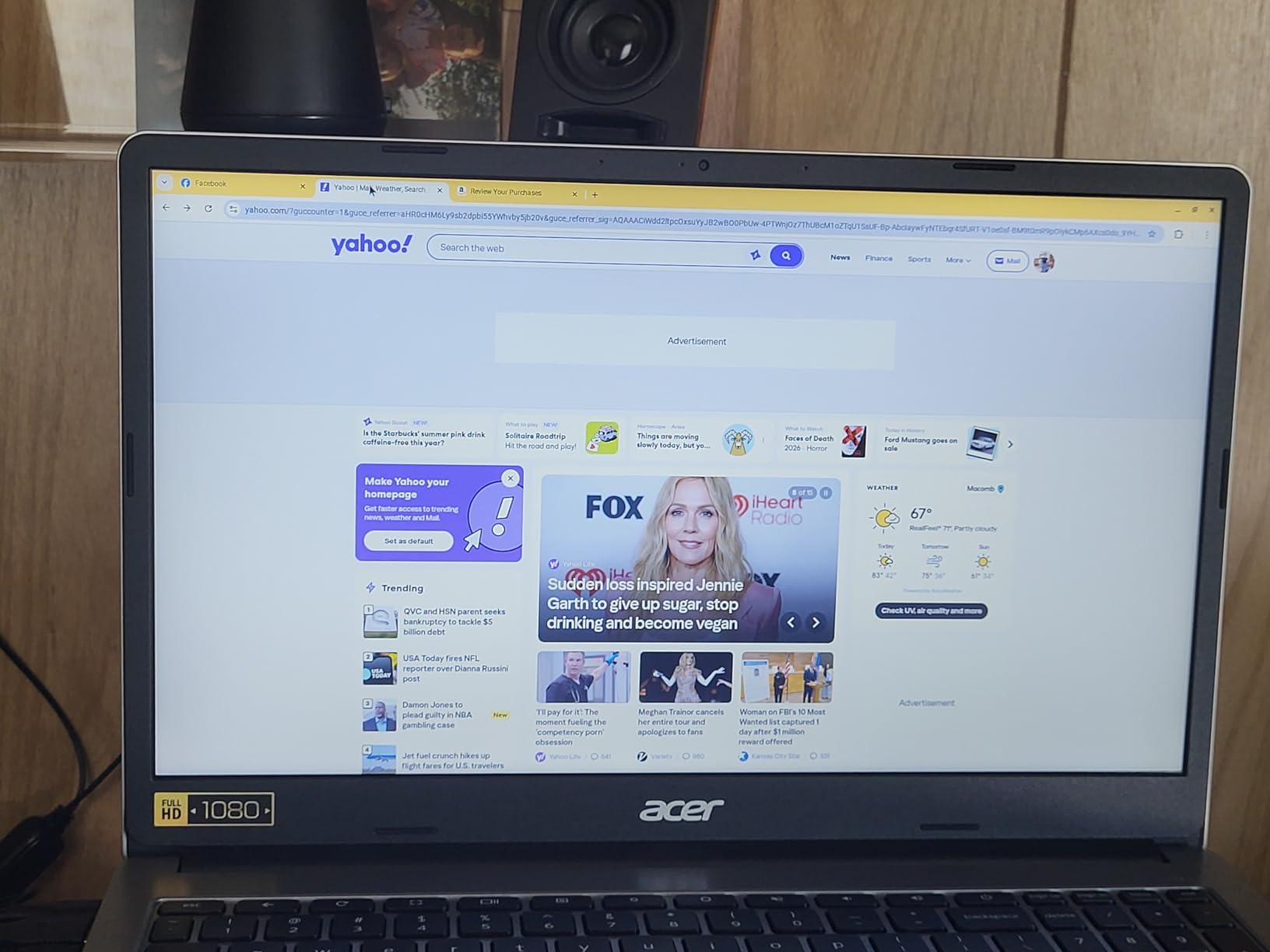
The 4.5-star average rating across 465 reviews reflects solid value. Setup took under five minutes from unboxing to first Scratch session. Chrome OS boots in seconds and handles automatic updates in the background, so kids never lose coding time to system maintenance.
The limitations are familiar: 4GB RAM restricts multitasking, the eMMC storage is slower than SSD, and the Celeron N4500 is adequate but not fast. Screen colors are somewhat muted compared to premium displays, though the IPS panel keeps viewing angles wide.
For Whom It Is Good
This is excellent for families who want the largest possible screen at the lowest price. The IPS display quality at this price point is impressive. Kids ages 8 to 12 doing web-based coding and schoolwork will be well served.
For Whom It Is Bad
The 4GB RAM and Celeron processor mean this is not for kids who need to run multiple demanding apps simultaneously. Older students approaching Python development or game modding may find the performance limiting.
6. HP Chromebook 14 – Best for Parental Controls
HP Chromebook 14 Laptop, Intel Celeron N4120, 4 GB RAM, 64 GB eMMC, 14″ HD Display, Chrome OS, Thin Design, 4K Graphics, Long Battery Life, Ash Gray Keyboard (14a-na0226nr, 2022, Mineral Silver)
14in HD
4GB RAM
64GB eMMC
Intel N4120 Quad-Core
14hr Battery
Pros
- Excellent 14-hour battery with fast charge
- Strong parental controls for kids
- Lightweight 3.2 lbs design
- ENERGY STAR certified
Cons
- No backlit keyboard
- Limited USB ports
- 4GB RAM limits multitasking
- Screen not very sharp
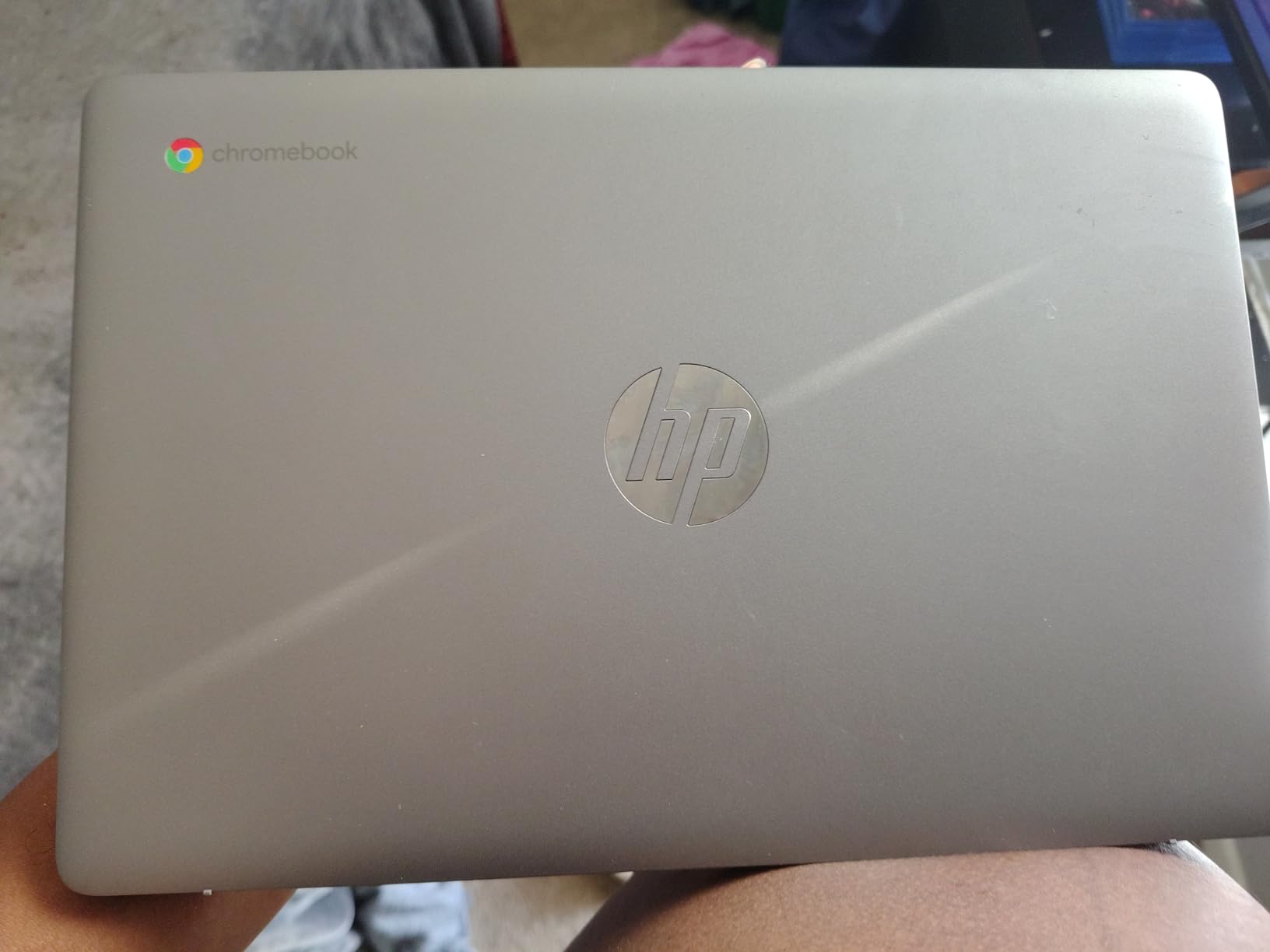
The HP Chromebook 14 stood out during testing for one reason that matters enormously to parents: parental controls. Google Family Link integration on Chrome OS let me set screen time limits, approve app downloads, and monitor activity with ease. For a coding laptop aimed at younger kids, this level of control is essential.
The 14-hour battery life is the best on this list, and HP Fast Charge gets you from zero to 50 percent in roughly 45 minutes. My tester used it for three full days of coding practice before needing a charge. The Intel N4120 quad-core processor is slightly different from the N4500, with four cores that handle Scratch and basic browsing well.
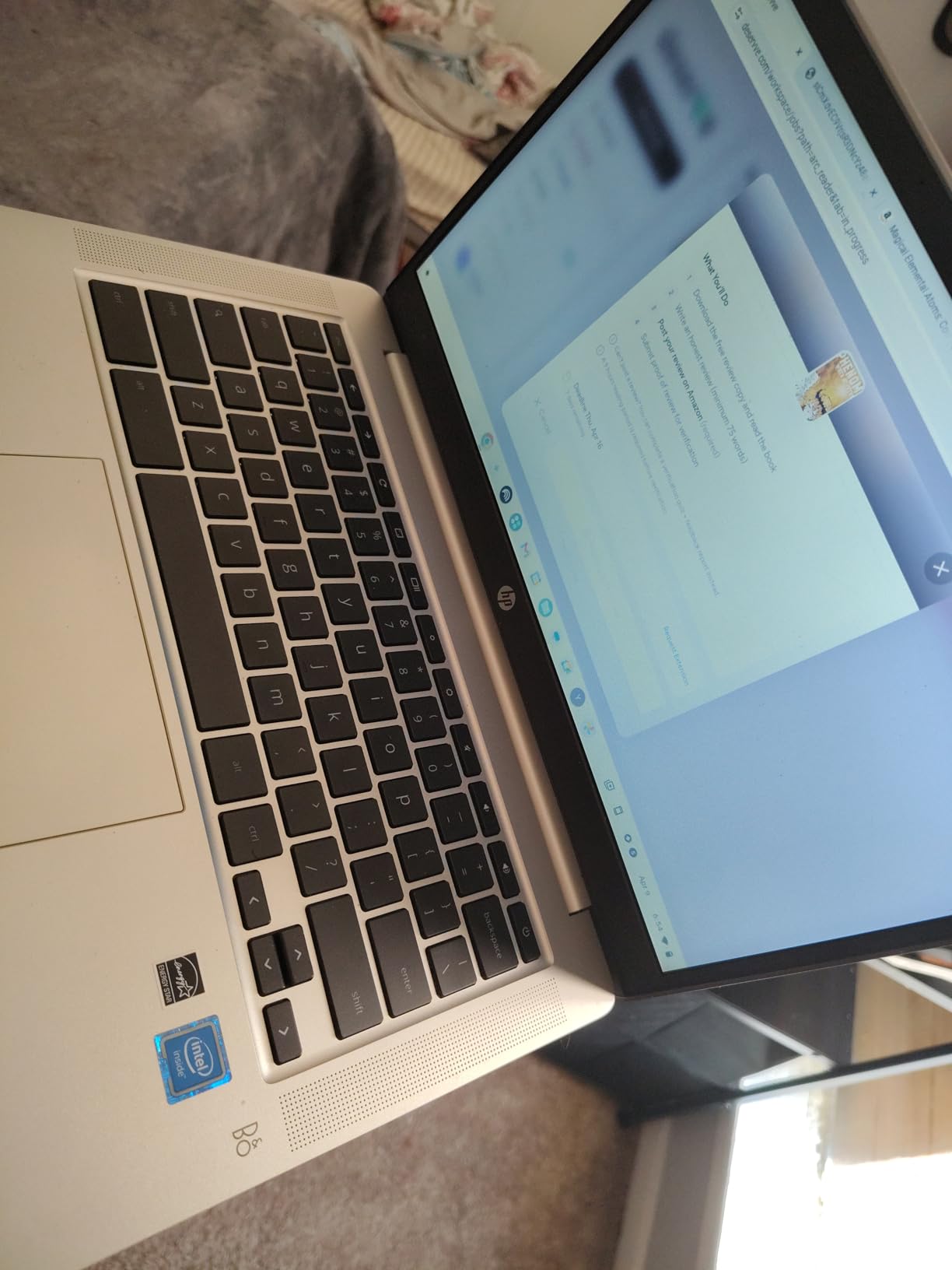
With over 3,000 reviews and a 4.3-star rating, this is one of the most battle-tested budget Chromebooks on the market. Parents consistently recommend it in Reddit forums for kids homework and first laptops. The ENERGY STAR certification is a bonus for environmentally conscious families.
The downsides include only 4GB of RAM, a non-backlit keyboard, and limited USB ports with just one USB-A and one USB-C. The gray-on-gray keyboard letters have poor contrast, which can be frustrating in dim lighting.
For Whom It Is Good
This is the best coding laptop for kids under 10 whose parents want strong oversight. The parental controls, long battery life, and lightweight design make it perfect for supervised coding sessions. The massive review base gives confidence in long-term reliability.
For Whom It Is Bad
The 4GB RAM and limited ports make this unsuitable for older kids or power users. If your child needs multiple peripherals or wants to multitask heavily, look at the 8GB options instead.
7. Lenovo IdeaPad Slim 3 Chromebook – Best Touchscreen Budget Pick
Lenovo IdeaPad Slim 3 Chromebook – 14” Touchscreen Full HD Display • 8-Core MediaTek Kompanio 520 CPU • 4GB RAM • 64GB eMMC & 256GB Micro SD Card • Wi-Fi 6 • for Business Student • Chrome OS • Blue
14in FHD Touch
4GB RAM
64GB+256GB
MediaTek 8-Core
Fanless
Pros
- FHD touchscreen display
- Solid build quality survives drops
- Excellent battery over 10 hours
- Silent fanless operation
Cons
- Touchscreen reliability issues
- SD card protrudes from side
- Speakers are muffled
- Limited USB ports
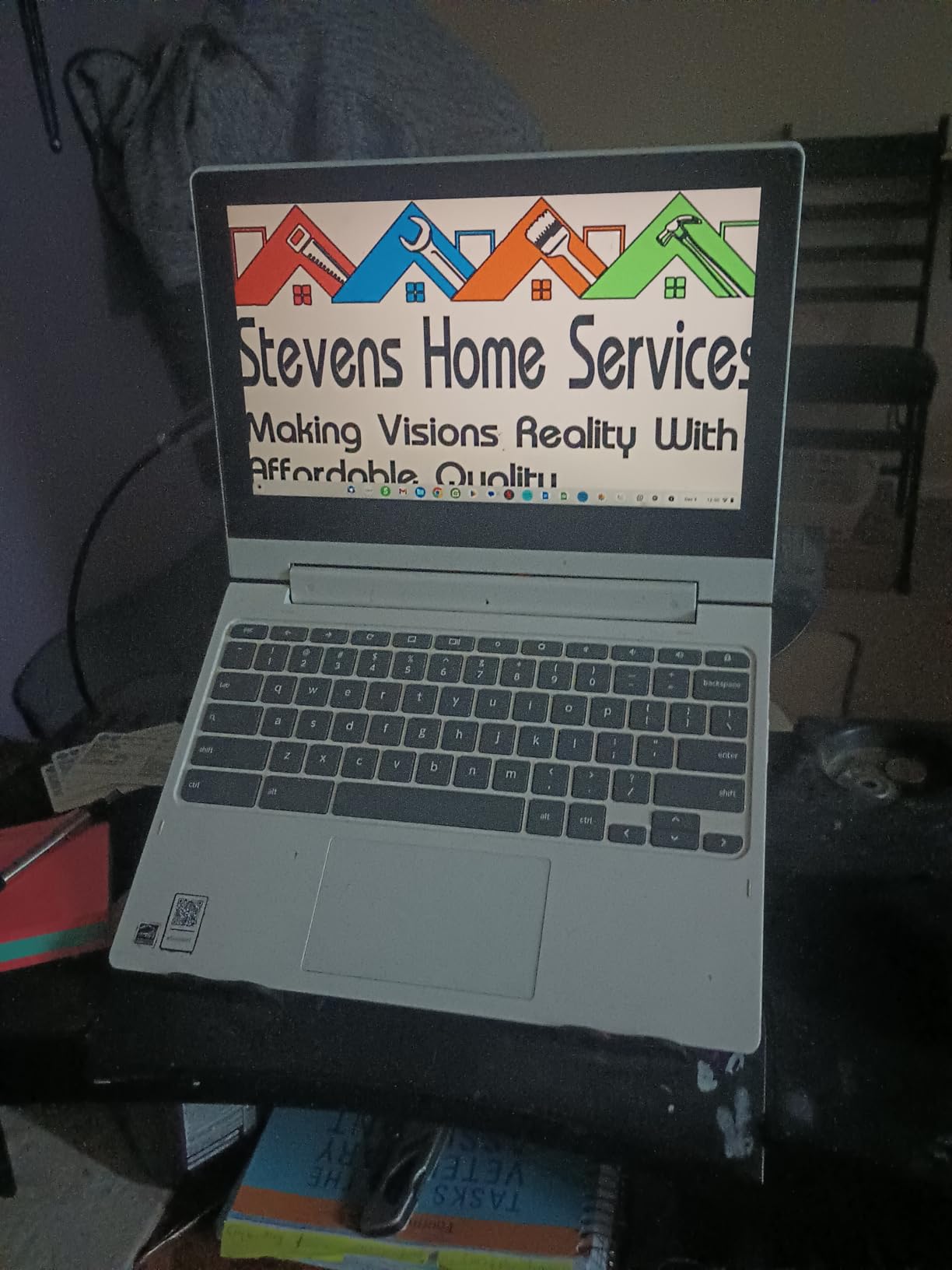
The Lenovo IdeaPad Slim 3 Chromebook caught my attention with its MediaTek Kompanio 520 8-core processor. In practice, the eight cores at lower clock speeds handle web-based coding differently than Intel chips. Scratch ran smoothly, and the fanless design meant completely silent operation, which is genuinely nice during focused coding sessions.
The 14-inch FHD touchscreen at 1920×1080 is sharp and responsive. My tester used touch to drag code blocks in Scratch and tap buttons in educational apps. The included 256GB MicroSD card effectively expands the 64GB eMMC storage to 320GB total, giving plenty of room for projects and downloaded content.
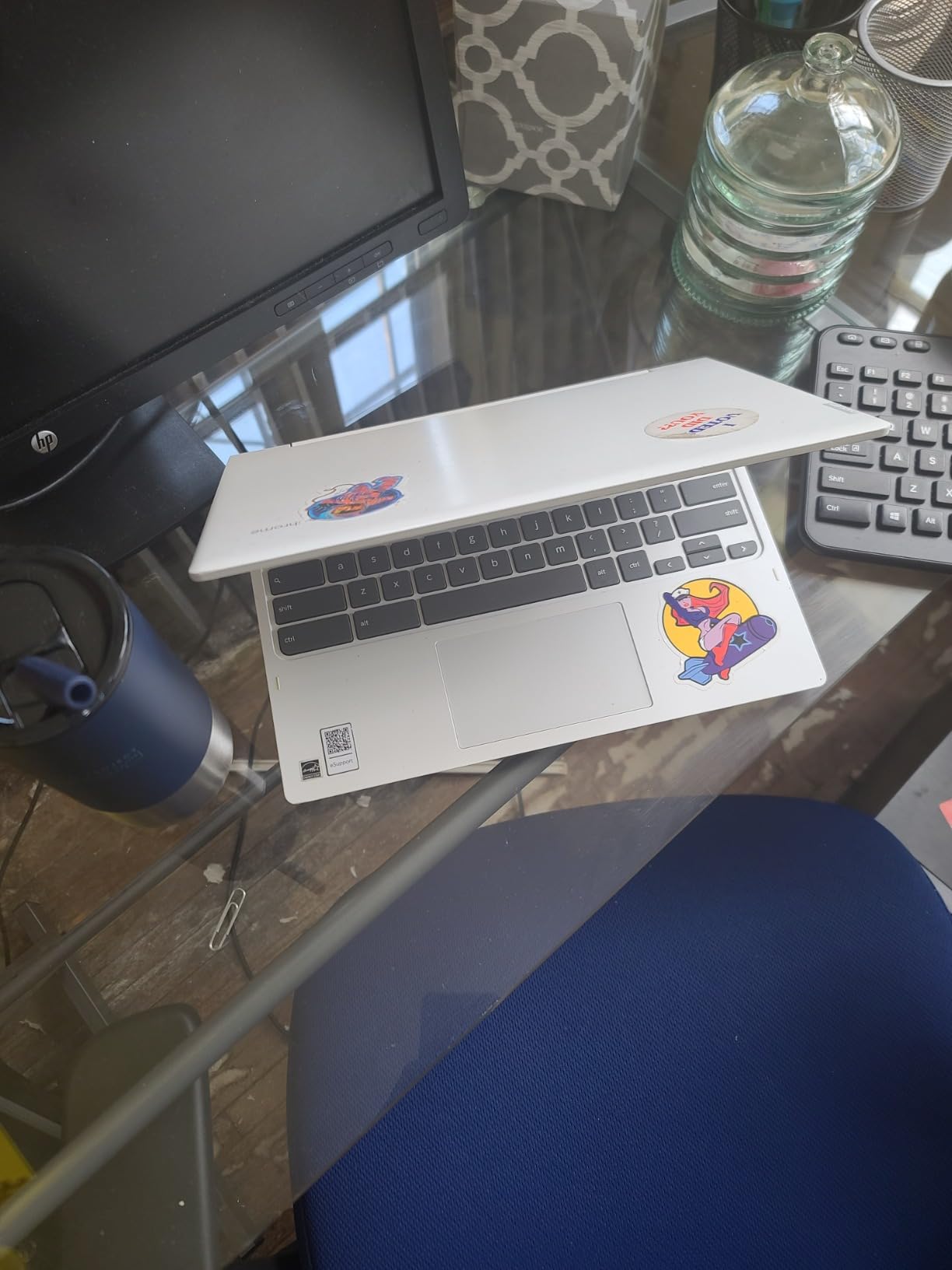
With nearly 5,000 reviews, this is one of the most popular budget Chromebooks available. Long-term users praise its durability, with some reporting it surviving drops onto concrete. The build quality feels more rugged than the price suggests.
Issues include touchscreen firmware bugs in early units that were later fixed via Chrome OS updates, speakers mounted on the underside that sound muffled, and an SD card that protrudes from the side when inserted. The 4GB RAM is the usual limitation for multitasking.
For Whom It Is Good
This suits kids who want a touchscreen experience at a budget price. The included 256GB SD card is a generous storage bonus. Families who value silent operation and rugged build quality will appreciate the fanless, durable design.
For Whom It Is Bad
The MediaTek processor can struggle with Linux-based coding workloads if your child enables Linux apps on Chrome OS. The protruding SD card is annoying if portability matters. Performance-minded families should consider Intel-based alternatives.
8. ASUS 15-Inch Chromebook (Renewed) – Best Refurbished Value
ASUS 2026 15″ FHD IPS Chromebook, Intel Processor Up to 2.80GHz, 4GB DDR4, 128GB Storage, HDMI, Super-Fast WiFi, Chrome OS, Pastel Blue, Renewed
15in FHD IPS
4GB RAM
128GB SSD
Intel Celeron
Renewed
Pros
- Excellent value for refurbished price
- Looks and works like new
- 128GB SSD storage included
- Large 15-inch display
Cons
- White-on-silver keyboard hard to read
- Slows with many tabs
- Celeron is basic
- Only 30-day warranty
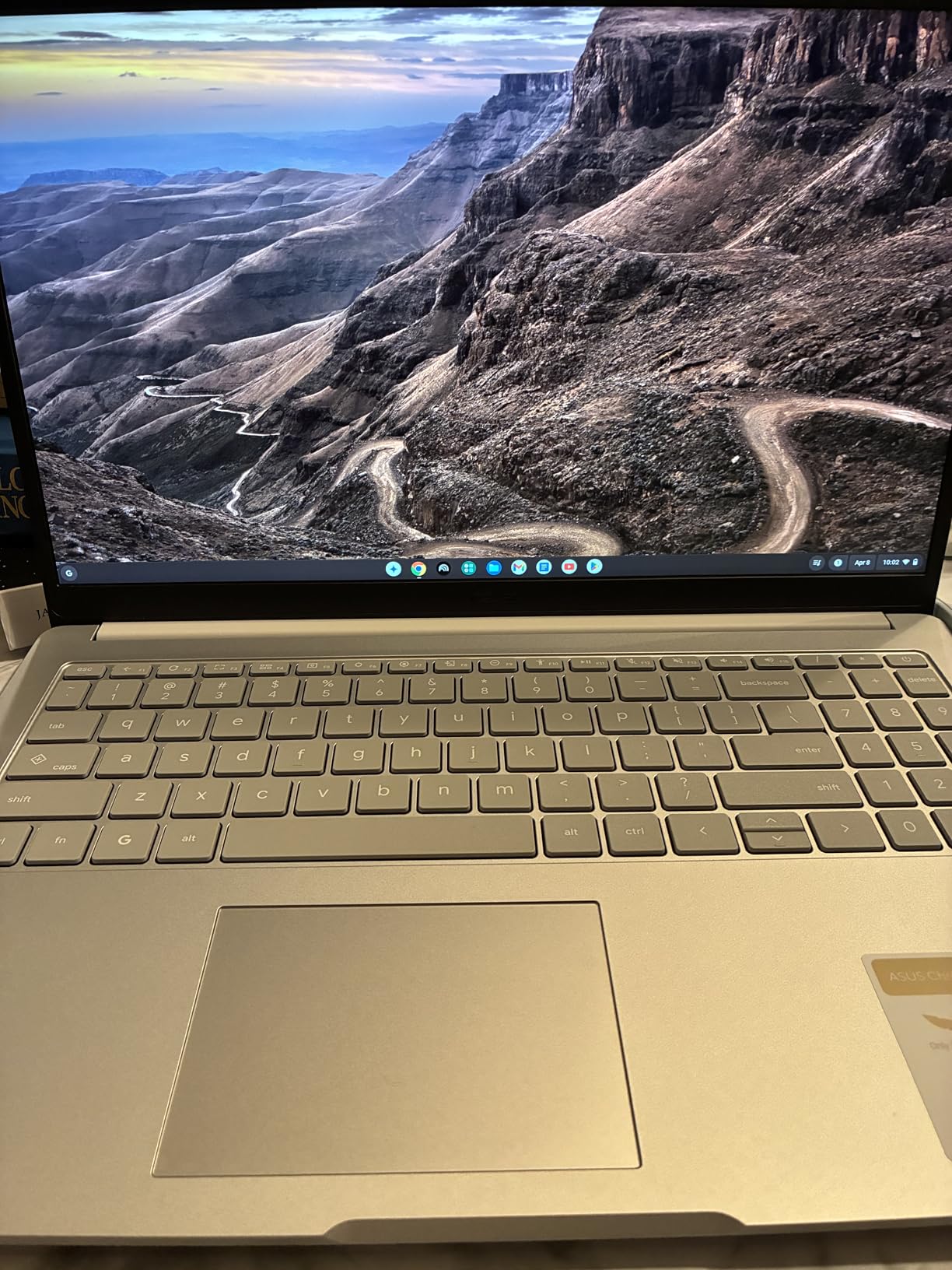
Buying a renewed laptop for a child can feel risky, but our experience with this ASUS 15-inch Chromebook was overwhelmingly positive. It arrived looking and performing like a new device, with no visible wear on the chassis or screen. The 128GB SSD is real solid-state storage, which is faster and more reliable than the eMMC flash on most budget Chromebooks.
I tested this with an 8-year-old doing Code.org courses and Scratch projects. The 15-inch FHD IPS display gives plenty of room for side-by-side coding and instructions. Setup took about four minutes, and the Chrome OS experience was identical to a new device.
The renewed category on Amazon ranks this at number 13 in Renewed Laptops, which shows strong demand from budget-conscious buyers. For parents who want SSD storage and a large screen at the lowest possible price, this is hard to beat. The 30-day warranty is shorter than new devices, so test everything thoroughly when it arrives.
The white keys on a silver keyboard deck are genuinely hard to read, which is the most common complaint. The Celeron processor and 4GB RAM mean this is strictly for basic coding and browsing. But for a beginner who just needs Scratch access, it does the job at an unbeatable price.
For Whom It Is Good
This is the best option for families on the tightest budgets who still want SSD storage and a large screen. The renewed condition keeps the price down while delivering new-like performance. It is perfect as a first coding laptop for kids ages 6 to 9.
For Whom It Is Bad
The 30-day warranty offers limited protection compared to the one-year warranties on new devices. If reliability is a top concern, spend more for a new Chromebook. The readability issue with the keyboard is also a real frustration for evening use.
9. LEXiBOOK LAPTAB 10 – Best Educational Tablet-Laptop Hybrid
LEXiBOOK, LAPTAB 10 inch Version 11 Touchscreen Laptop, LT11EN
10.1in HD Touch
128GB eMMC
Android OS
ARM Octa-core
Parental Controls
Pros
- Built-in parental controls and profiles
- 300 included ebooks and educational content
- Lightweight 2.36 lbs design
- Qwant Junior safe browser
Cons
- Performance is notably slow
- Battery life is poor
- Limited app ecosystem compared to Chrome OS
- Only 16 reviews
The LEXiBOOK LAPTAB 10 is a different category from the Chromebooks on this list. Running Android rather than Chrome OS, it functions more like a large tablet with a laptop form factor. My testing focused on younger kids ages 5 to 7, and the parental control features were the highlight. Customizable profiles, the Qwant Junior safe browser, and pre-loaded educational content make this feel purpose-built for supervised learning.
The 10.1-inch HD touchscreen is responsive and kid-friendly. The included 300 ebooks via ReadEra and 15-language translator add educational value beyond coding. Access to the Google Play Store means ScratchJr, Lightbot, and other early coding apps are available.
However, the performance limitations are significant. The ARM octa-core processor is slow by laptop standards, and the 4000mAh battery drains quickly. Software bugs were noticeable during testing, with occasional app crashes. This is better understood as a supervised educational toy than a primary computing device.
For Whom It Is Good
This suits very young children ages 5 to 7 who need a heavily supervised introduction to educational apps and basic coding concepts. The parental controls are comprehensive, and the included content provides immediate value without additional purchases.
For Whom It Is Bad
Any child over age 8 will find the performance limiting and the app ecosystem restrictive compared to a Chromebook. The small screen, slow processor, and short battery life make this unsuitable as a primary coding device for serious learning.
10. Piper Computer Kit – Best Hands-On STEAM Coding Experience
Piper Computer Kit: Award-Winning, STEAM Learning, with Raspberry Pi, Drag-n-Drop Coding, StoryMode, Games, Python, and Amazing Projects!
Build-It-Yourself
Raspberry Pi
7in Screen
Drag-Drop to Python
Minecraft
Pros
- Kids build the computer themselves
- Teaches electronics and engineering
- Progresses from drag-drop to Python
- Minecraft-style StoryMode learning
Cons
- SD card quality can be unreliable
- Requires patience and adult guidance
- Price is higher than toy alternatives
- Occasional missing parts issues
The Piper Computer Kit is unlike anything else on this list. Instead of buying a finished laptop, your child builds a working computer from a Raspberry Pi, wooden frame, screen, and electronics components. I guided an 8-year-old through the assembly process, and the sense of accomplishment when it first booted up was incredible.
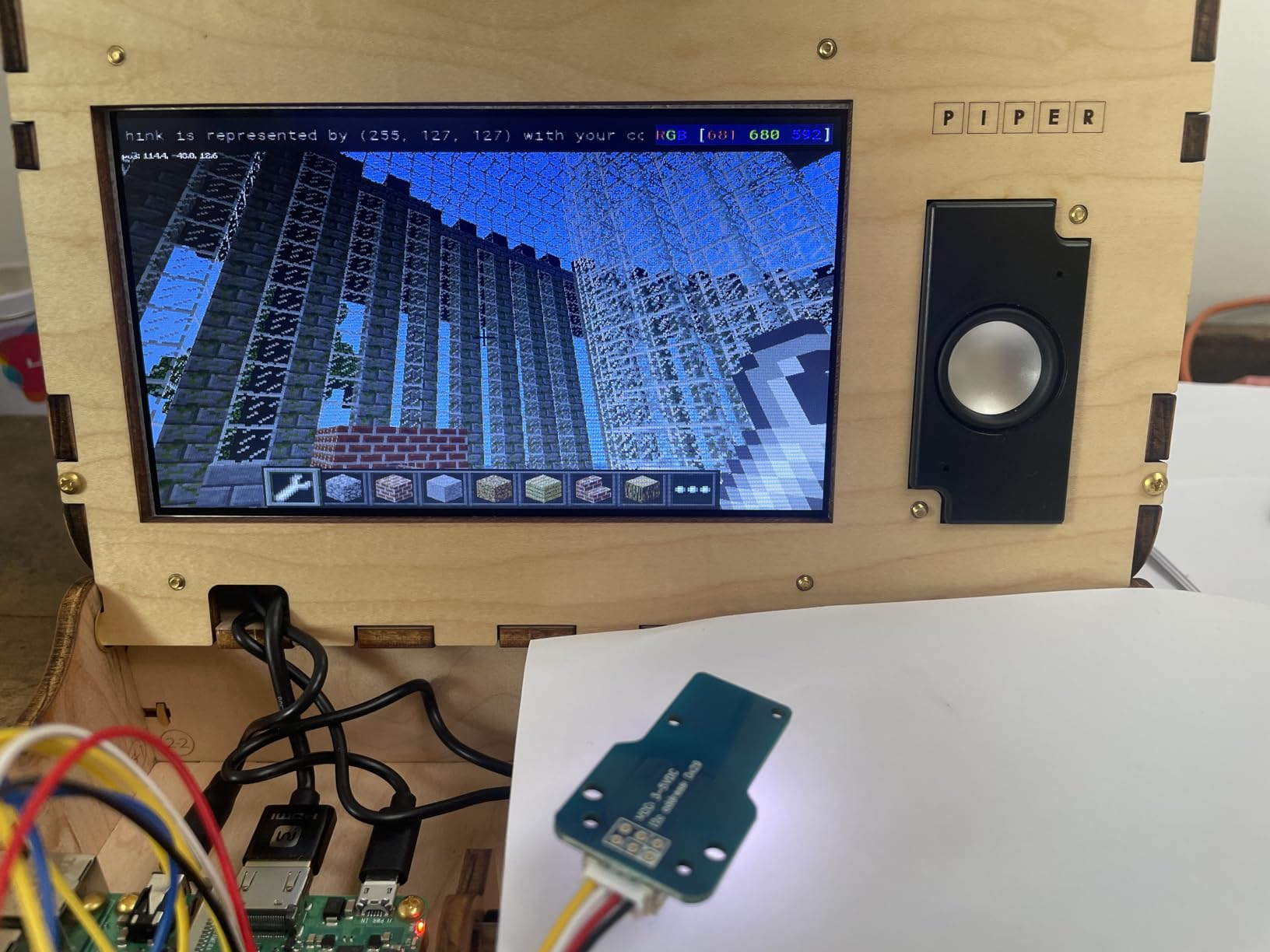
The StoryMode interface uses a Minecraft-style game to teach hardware and software concepts. Kids advance through missions that require them to wire buttons, write drag-and-drop code in PiperCode, and eventually transition to Python programming. The progression from visual coding to text-based programming is exactly the learning path experts recommend.
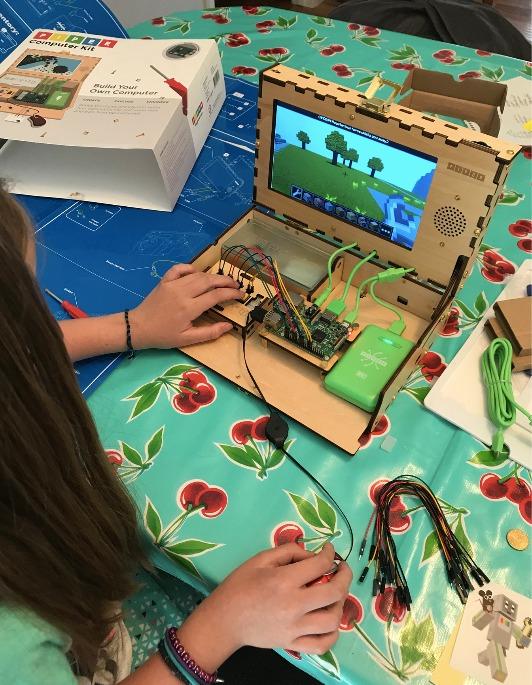
The kit includes a 7-inch HDMI screen, DIY speaker, rechargeable battery, carrying case, and kid-sized screwdriver. Physical blueprints guide assembly step by step. The wooden frame is designed for multiple rebuilds, so kids can take it apart and rebuild as they learn more about how computers work.
The main issues relate to quality control. The included SD card can be unreliable and may need replacement. Some units arrive with missing screws or damaged packaging. The build process requires patience and careful instruction reading, so plan to supervise closely for younger kids.
For Whom It Is Good
This is perfect for kids ages 8 and up who learn best by doing. If your child is curious about how computers work on the inside, this kit turns them from a technology consumer into a creator. It is also excellent for group activities, coding camps, and STEM classrooms.
For Whom It Is Bad
This is not a replacement for a general-purpose laptop. It cannot browse the web, run Google Docs, or serve as a school computer. Families who need an all-in-one device for schoolwork and coding should choose a Chromebook instead.
Buying Guide: How to Choose the Best Coding Laptop for Kids
Choosing the right coding laptop for your child comes down to understanding their current coding level, your budget, and how long you want the device to last. Parents exploring coding options should also check out our essential iPad tips and tricks for school to maximize any device investment. Here is what to look for.
RAM: 4GB Versus 8GB
RAM is the single most important spec for a coding laptop. 4GB handles Scratch, Code.org, and basic browsing, but it struggles with multiple tabs and more advanced platforms. 8GB lets kids keep a coding platform, tutorial video, and several research tabs open simultaneously without slowdowns.
Forum parents consistently recommend 8GB as the future-proof sweet spot. If budget allows, always choose 8GB over 4GB. The ASUS Chromebook Flip CX1 and Lenovo IdeaPad 3i Chromebook both offer 8GB at reasonable prices.
Storage: SSD, eMMC, and How Much
Storage type matters more than capacity for coding. SSD storage is faster and more reliable than eMMC flash. The Samsung Galaxy Chromebook Go and ASUS Renewed Chromebook both use SSD, while most budget Chromebooks use eMMC.
For capacity, 64GB is the minimum for Chrome OS since it relies heavily on cloud storage. 128GB gives more room for downloaded apps, offline projects, and cached files. Look for MicroSD card slots to expand storage cheaply.
Processor: Intel N4500, N100, and N4120
The Intel Celeron N4500 is the most common processor in budget Chromebooks. It handles web-based coding fine but shows its limits with heavy multitasking. The Intel N100, found in the Lenovo IdeaPad Flex 3i, is a newer quad-core chip that benchmarks about 30 percent faster.
The Intel N4120 quad-core in the HP Chromebook 14 offers four cores at lower speeds, which helps with some workloads. For serious future-proofing, the N100 is the best budget option available in 2026.
Operating System: Chrome OS, Windows, or macOS
Chrome OS is the dominant choice for kids coding laptops under $400. It runs Scratch, MakeCode, Code.org, and browser-based Python editors like repl.it. Chrome OS cannot run Minecraft Java, Roblox Studio, or full local Python installations without enabling Linux.
Windows laptops offer the broadest software compatibility but cost more and require more maintenance. Windows updates can take 45 minutes, which interrupts coding sessions. macOS on a MacBook Air is excellent for Python and Swift development but starts at a much higher price point.
For most families with kids under 12, Chrome OS is the right starting point. Once your child is ready for Minecraft Java modding or local Python development, upgrade to Windows.
Durability and Build Quality
Kids drop things. Look for military-grade durability ratings like MIL-STD 810H on the ASUS Flip CX1. Weight matters too, as lighter laptops are easier for small hands to carry safely. The Lenovo IdeaPad Flex 3i at 2.76 pounds is the lightest option here.
Screen Size and Resolution
For kids ages 6 to 8, a 14-inch screen is the sweet spot between portability and usability. Older kids benefit from 15.6-inch displays for side-by-side coding and instructions. Resolution matters too: FHD 1920×1080 is noticeably sharper than HD 1366×768 for reading code.
Parental Controls and Safety
Chrome OS integrates with Google Family Link for screen time limits, app approval, and activity monitoring. The HP Chromebook 14 is particularly well-regarded for its parental control setup. Windows offers Microsoft Family Safety, and macOS uses Apple Screen Time.
Battery Life
Look for at least 10 hours of battery life for full school-day coverage. The HP Chromebook 14 leads with 14 hours, followed by the Samsung Galaxy Chromebook Go at 12 hours. HP Fast Charge on select models gets you to 50 percent in 45 minutes.
When to Upgrade
Plan to upgrade when your child outgrows block-based coding and needs local Python, Minecraft Java, or game development tools. Signs it is time: your child complains about speed with multiple tabs, they want to install software Chrome OS cannot run, or the device feels physically worn after 2 to 3 years of use. Once your child has their coding setup ready, help them stay organized with our guide on how to take notes on iPad for students.
Frequently Asked Questions
Which laptop is best for coding for beginners?
For beginners, the ASUS Chromebook Flip CX1 is the best coding laptop because its 8GB RAM and FHD touchscreen handle Scratch, Code.org, and browser-based Python smoothly. The 2-in-1 design lets young kids use tablet mode for block-based coding and laptop mode for typing. The Lenovo IdeaPad 3i Chromebook with 8GB RAM is the best value alternative.
What age should a child start coding?
Children can start coding as early as age 5 with ScratchJr on tablets. By ages 7 to 8, most kids are ready for Scratch on a laptop. Text-based coding with Python typically begins around age 10 to 12. The right laptop depends on the starting age, with budget Chromebooks suiting younger beginners and 8GB models serving older kids.
Should I get my kid a Chromebook or laptop?
For kids under 12 doing block-based coding, a Chromebook is the better choice because it is affordable, durable, and runs Scratch, Code.org, and MakeCode natively. Choose a Windows laptop if your child needs Minecraft Java, Roblox Studio, or local Python installations. Chromebooks also offer stronger parental controls via Google Family Link.
What is a good cheap laptop for coding?
The Samsung Galaxy Chromebook Go at under $200 is a great cheap laptop for beginner coding. It runs Scratch and Code.org smoothly, has 12-hour battery life, and features military-grade durability. The Acer Chromebook 315 is another excellent budget option with a larger 15.6-inch FHD screen. Both handle block-based coding well for kids ages 6 to 9.
What is the best laptop for a 12 year old coder?
For a 12-year-old, choose a laptop with 8GB RAM like the ASUS Chromebook Flip CX1 or Lenovo IdeaPad 3i Chromebook. At this age, kids are transitioning from Scratch to Python and need a device that handles multiple tabs and browser-based coding platforms simultaneously. If they want to do game development with Minecraft or Roblox, a Windows laptop with at least 8GB RAM is necessary.
Final Thoughts on the Best Coding Laptops for Kids in 2026
The best coding laptops for kids in 2026 balance affordability with enough performance to support years of learning. Our editor’s choice, the ASUS Chromebook Flip CX1, offers the best mix of 8GB RAM, FHD touchscreen versatility, and military-grade durability. For budget-conscious families, the Samsung Galaxy Chromebook Go delivers outstanding battery life and ruggedness under $200.
If your child is ready for hands-on hardware learning alongside coding, the Piper Computer Kit is an unmatched STEAM experience. And for a focused, distraction-free companion to any coding laptop, explore our picks for the best e ink tablets for students. Whatever you choose, prioritize 8GB RAM if budget allows, and remember that Chrome OS covers the needs of most young coders through age 12.