
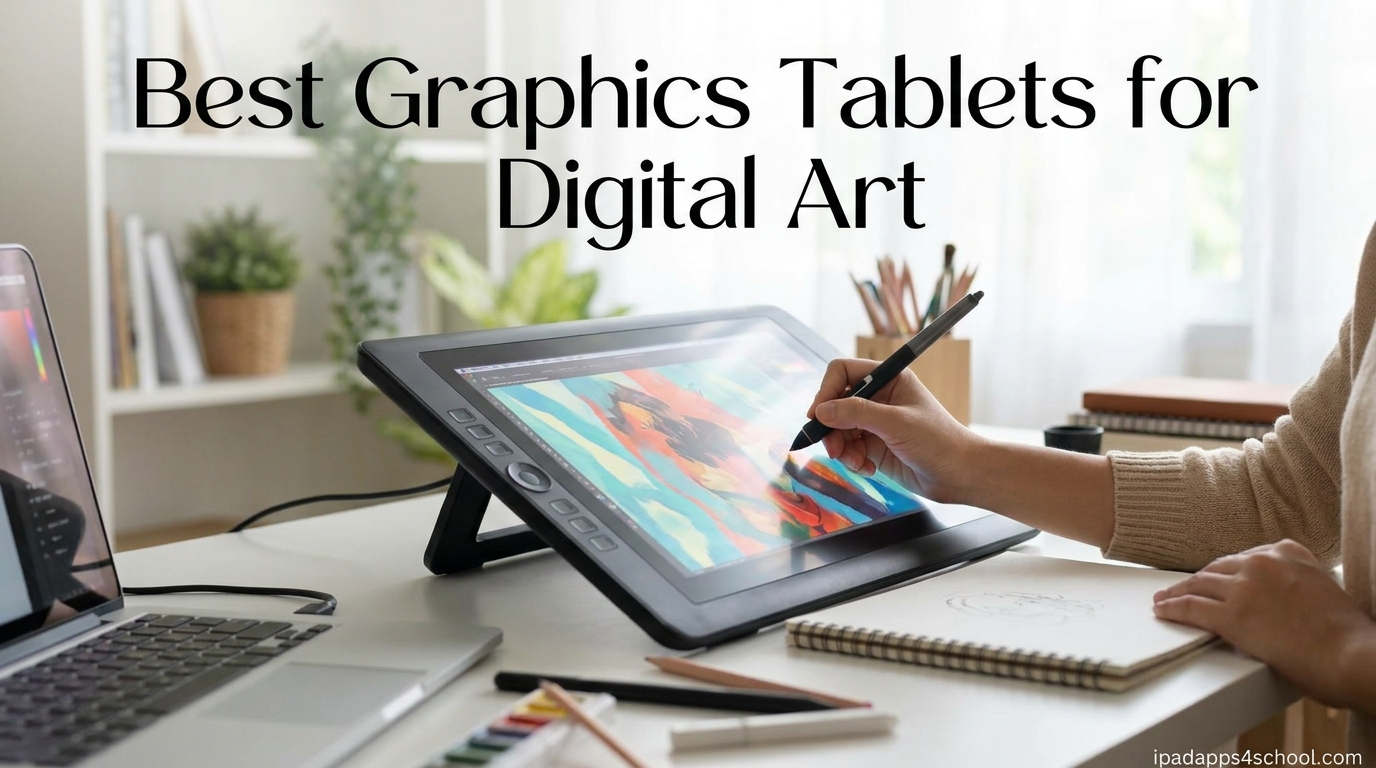
Digital art has quietly become one of the most in-demand skills for art students, illustrators, and creative professionals heading into 2026. Whether you are sketching character concepts for a portfolio, painting backgrounds for an animation class, or touching up photos for a graphic design assignment, the right hardware completely changes how it feels to work. A mouse and trackpad simply cannot reproduce the pressure, tilt, and flow of a real pen, and that gap becomes obvious the first time you try to shade a portrait digitally.
If you are an art student, you also have to think about things most reviews skip. Dorm desks are small, backpacks get heavy, software licenses come bundled with some tablets, and a single broken USB port can derail a final project. That is exactly why our team put together this guide to the best graphics tablets for digital art with a clear focus on student budgets, classroom portability, and software you will actually use in art school.
For students considering an iPad-first workflow alongside a dedicated drawing tablet, our guide on how to use iPad in middle school covers creative setup tips that pair well with any of the picks below. Across the 10 tablets we tested, prices range from under $30 to around $450, so there is genuinely something here whether you are buying your first stylus or upgrading before your senior show.
Table of Contents
Top 3 Picks for Best Graphics Tablets for Digital Art
Out of all 10 tablets we reviewed, three stand out for different types of students. These are the picks we would hand a freshman walking into their first digital painting class, a budget-conscious sophomore, and a serious illustration major ready to invest in color-accurate work.


Best Graphics Tablets for Digital Art in 2026
Here is a quick overview of all 10 tablets we cover in this guide. We ranked them by student value, balancing price, drawing area, and pen quality. Use the comparison below to find your shortlist, then jump to the full review for hands-on impressions.
| Product | Specifications | Action |
|---|---|---|
| Wacom Intuos Small |
|
Check Latest Price |
 HUION Inspiroy H640P HUION Inspiroy H640P |
|
Check Latest Price |
 XP-Pen Deco 01 V3 XP-Pen Deco 01 V3 |
|
Check Latest Price |
 HUION Inspiroy H1060P HUION Inspiroy H1060P |
|
Check Latest Price |
 UGEE M708 UGEE M708 |
|
Check Latest Price |
 GAOMON PD1161 GAOMON PD1161 |
|
Check Latest Price |
 XP-PEN Artist12 XP-PEN Artist12 |
|
Check Latest Price |
| XPPen Artist 13.3 Pro |
|
Check Latest Price |
 HUION Kamvas 13 Gen 3 HUION Kamvas 13 Gen 3 |
|
Check Latest Price |
 Wacom One HD Wacom One HD |
|
Check Latest Price |
1. Wacom Intuos Small – Best Overall for Beginners
Wacom Intuos Small, Wired Graphic Drawing Tablet with Pen + Software
Active Area: 6x3.7 inch
Pressure: 4096 levels
Connectivity: USB-A
OS: Windows, Mac, Chromebook, Android
Pros
- Industry leading EMR battery-free pen
- Plug-and-play with Chromebook
- Includes Clip Studio Paint 2 years
- 4 customizable ExpressKeys
- Preferred by professional artists
Cons
- No wireless Bluetooth option
- Small active drawing area
- Requires USB-A to USB-C adapter on newer Macs
I tested the Wacom Intuos Small over a full semester of digital painting projects, and the EMR pen is the closest thing to real ink I have used in this price range. The 4096 pressure levels pick up the lightest hairline strokes and transition smoothly into heavier shading without jagged jumps. For an entry-level student tablet, that responsiveness is rare.
The included software bundle is what pushes this tablet ahead of cheaper rivals. You get Clip Studio Paint Pro for two full years, plus trials of 13 other creative apps. If your art school assigns Photoshop or Clip Studio, that bundle alone offsets most of the purchase cost.
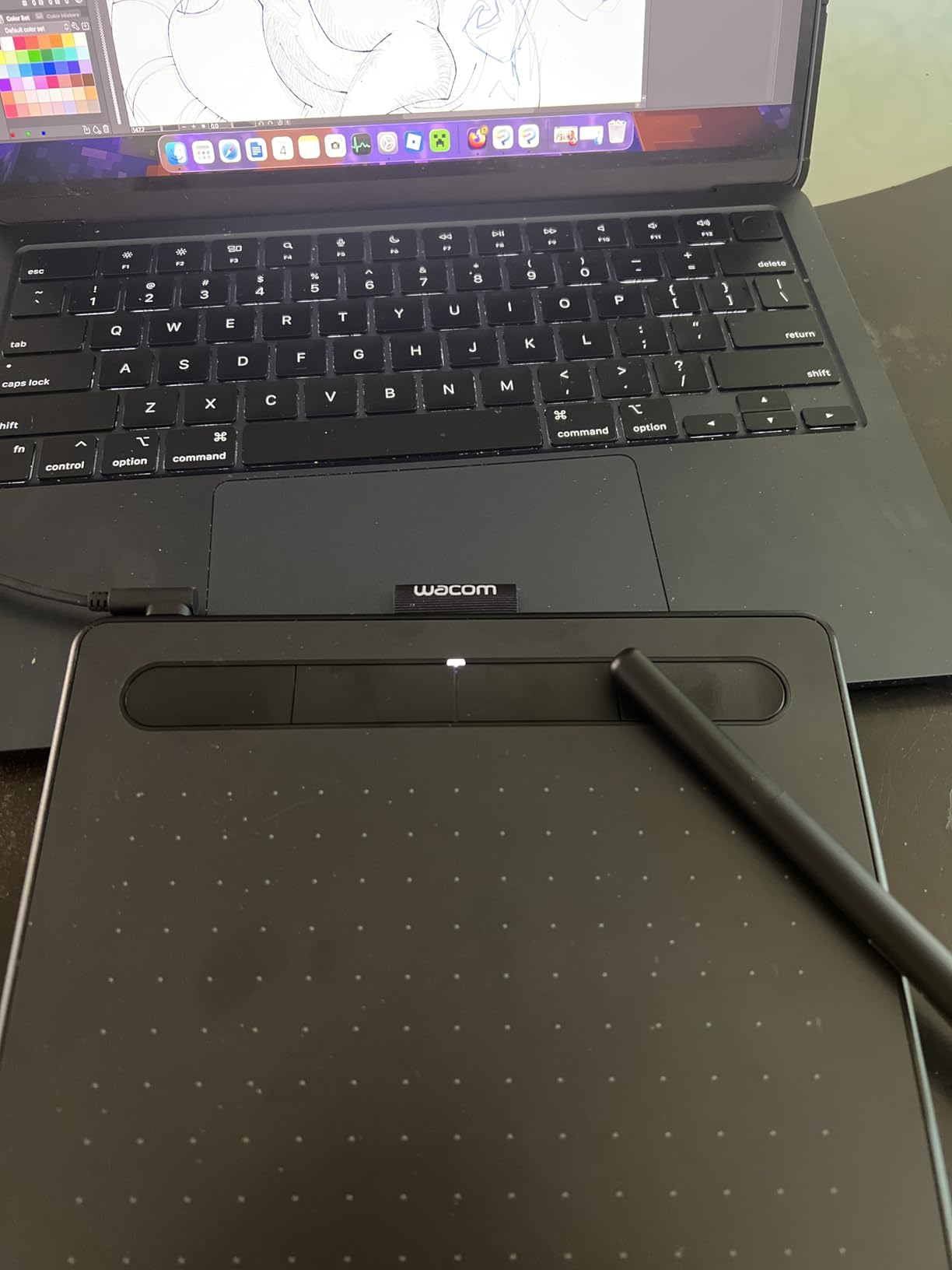
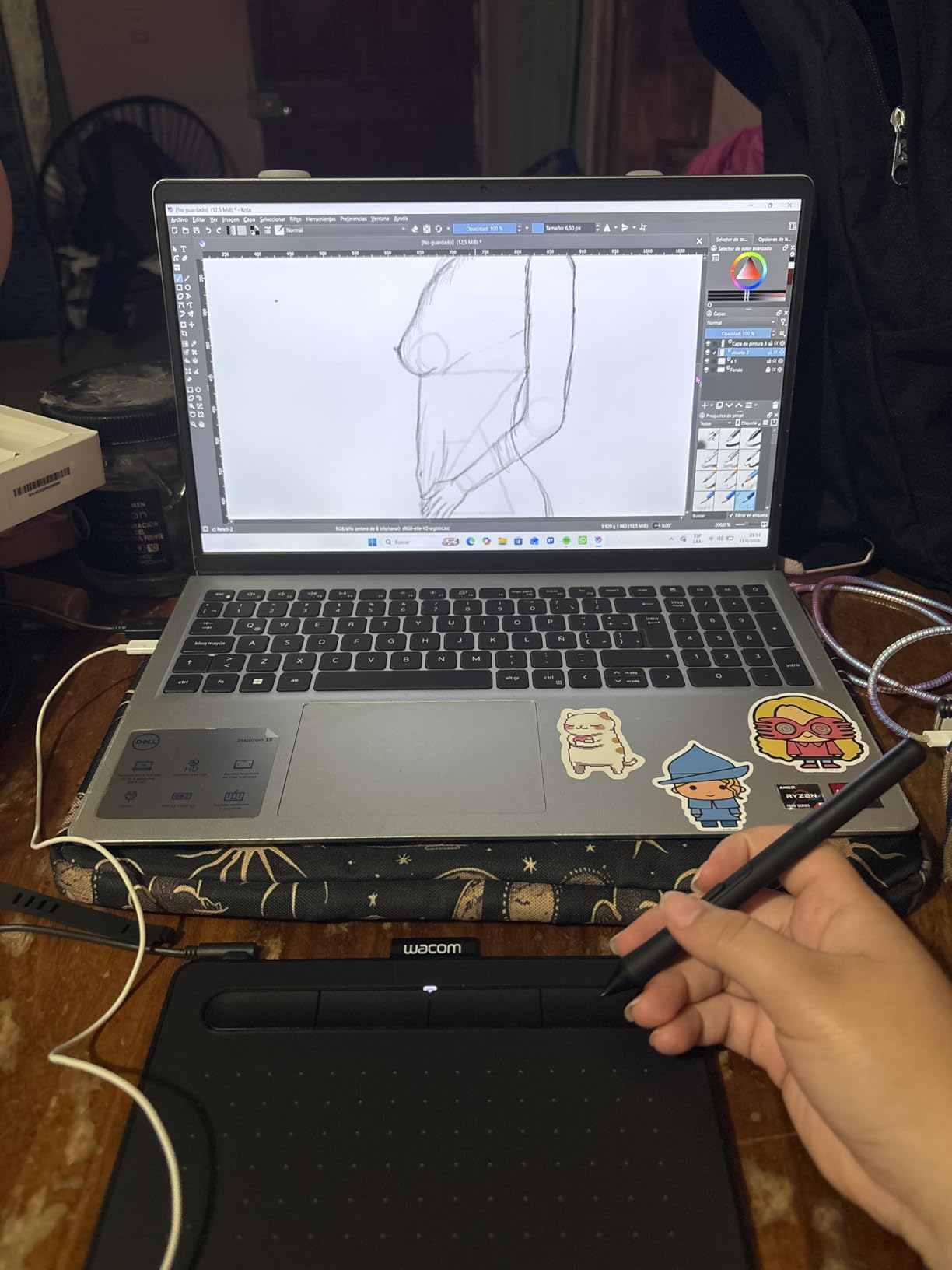
The 6 by 3.7 inch active area is small, no way around it. For note-taking, photo editing, and sketching tight character portraits, it works. For sweeping landscapes or large-scale illustration work, you will wish for more room. Plan on zooming and panning your canvas more than you would on a larger tablet.
The four ExpressKeys are positioned for right-handed users but can be flipped for lefties in the driver. I mapped mine to undo, brush resize, eraser, and hand tool, which covered roughly 90 percent of my shortcuts. The L-shaped USB-A connector stays put, but Mac users with only USB-C ports will need an adapter.
Who Should Buy the Wacom Intuos Small
Freshmen and first-year art students who want the most trusted brand without spending over $50 will love this tablet. The pen feel, software bundle, and plug-and-play Chromebook support make it the safest pick for someone who has never owned a drawing tablet before.
It is also a smart backup tablet for advanced students who already own a screen tablet but want a lightweight non-screen option for class notes, travel, or lab computers.
Who Should Skip It
Students focused on large-format illustration, concept art, or matte painting should look at the larger XP-Pen Deco 01 V3 or HUION H1060P instead. The small active area will frustrate anyone used to wide arm movements.
Anyone who hates cables should also pass, since there is no Bluetooth version at this price and the USB wire is mandatory.
2. HUION Inspiroy H640P – Best Budget Value
HUION Inspiroy H640P 6×4 inch Drawing Tablet 8192 Pen Pressure
Active Area: 6x4 inch
Pressure: 8192 levels
Connectivity: USB
OS: Windows, Mac, Android, Linux
Pros
- 8192 pressure levels at budget price
- Battery-free PW100 stylus
- 6 customizable press keys
- Multi-OS support including Android
- Includes pen holder and 8 replacement nibs
Cons
- Software must stay open to keep customizations
- Micro USB port limits cord direction
- Pen buttons can rotate during use
The HUION Inspiroy H640P is the tablet I recommend when an art student tells me they have a strict under-$30 budget. For that price you still get 8192 pressure levels, a battery-free stylus, and six programmable hot keys. That is twice the pressure sensitivity of the Wacom Intuos Small for less money, even if the pen feel is slightly less refined.
In my testing, the PW100 stylus glided smoothly across the surface with minimal lag in Photoshop, Krita, and Clip Studio Paint. The pen is lightweight, and the side buttons double as pen and eraser toggle. The 6 by 4 inch drawing area is just slightly larger than the Wacom Intuos, which makes a real difference for sketching.
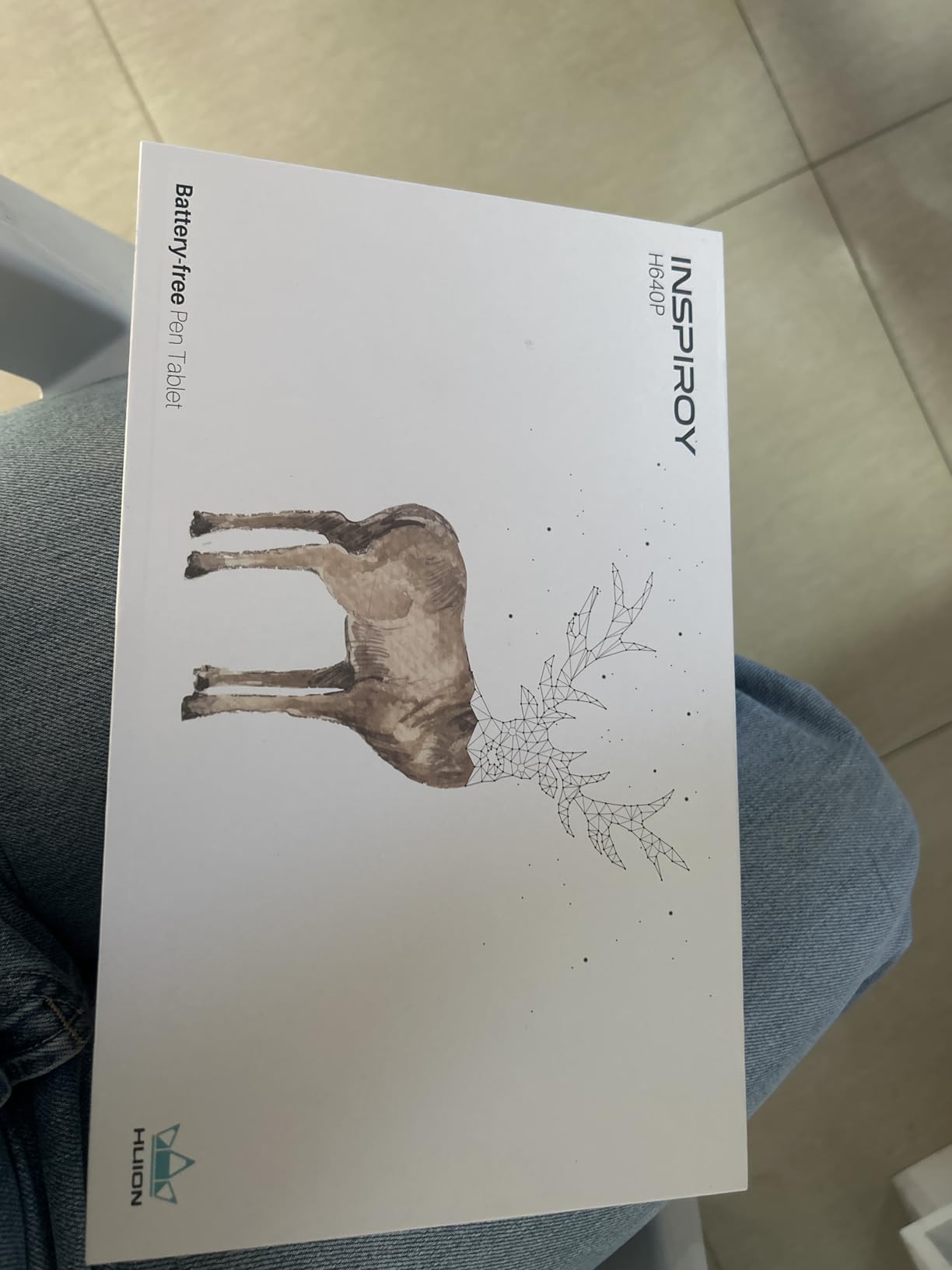
The included accessories punch above this price tier. You get a pen holder, eight replacement nibs, a cleaning cloth, and a USB cable. For students who lose nibs constantly, that supply alone is a year of drawing without extra purchases.
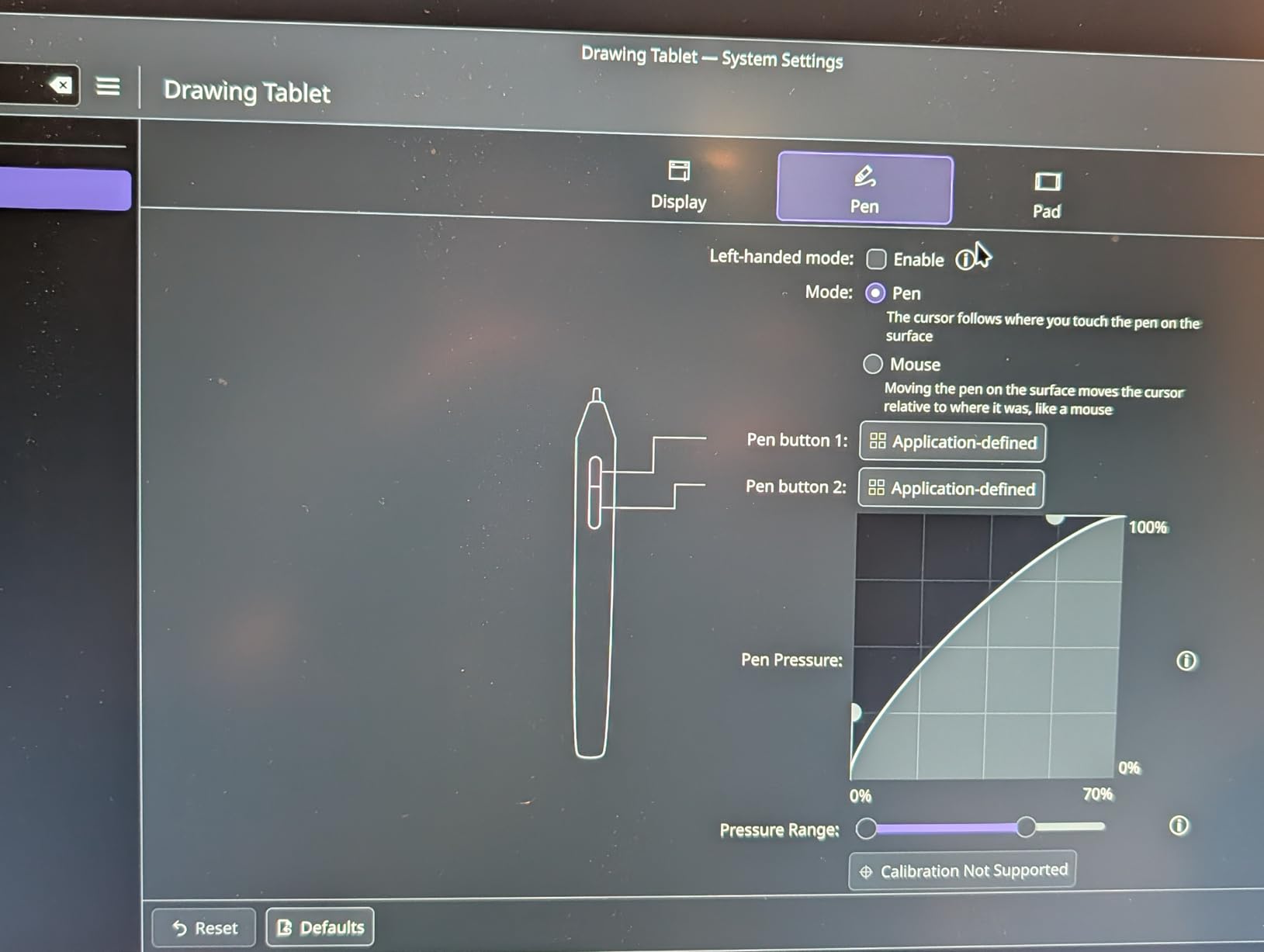
The big drawback is the driver software. Customizations only stick while the HUION app stays running in the background, and the Micro USB port on the tablet means the cable only routes one direction. None of this breaks the deal, but it explains the price.
Who Should Buy the HUION H640P
Any student who wants a serious drawing tablet without breaking their textbook budget should start here. The pressure sensitivity matches tablets twice the price, and the multi-OS support means it works on Linux lab machines too.
It is also a great pick for online teaching, e-signatures, and remote work, in case you freelance between classes.
Who Should Skip It
If you hate fiddling with driver software or need Bluetooth, spend a little more on the Wacom Intuos Small or a wireless alternative. The H640P rewards users willing to tweak settings, not plug-and-forget buyers.
Heavy illustrators who need tilt support should also look elsewhere, since this model does not detect pen angle.
3. XP-Pen Deco 01 V3 – Best Large Drawing Area on a Budget
XPPen Deco 01 V3 10×6 Drawing Tablet, 16K Battery-Free Stylus, 8 Keys
Active Area: 10x6.25 inch
Pressure: 16384 levels
Tilt: 60 degrees
Connectivity: USB-C
OS: Windows, Mac, Android, Chrome OS, Linux
Pros
- 16K pressure levels with 60 degree tilt
- Large 10x6.25 inch drawing area
- 8 customizable shortcut keys
- LED indicators for dark rooms
- Includes glove film and 10 nibs
Cons
- Surface scratches relatively easily
- Random connection issues reported
- Nibs wear down with heavy use
- Pen stand is shallow and wobbly
The XP-Pen Deco 01 V3 gives you a 10 by 6.25 inch active area for under $50, which is the sweet spot for students who want full-arm drawing without paying screen-tablet prices. The 16384 pressure levels and 60 degree tilt support match specs from tablets costing three times as much.
Drawing on this tablet felt closer to a Wacom Intuos Pro than I expected at this price. The tilt response in particular made a noticeable difference for brush shading in Clip Studio Paint. The eight shortcut keys are evenly split so left-handed users get fair access without reconfiguring everything.
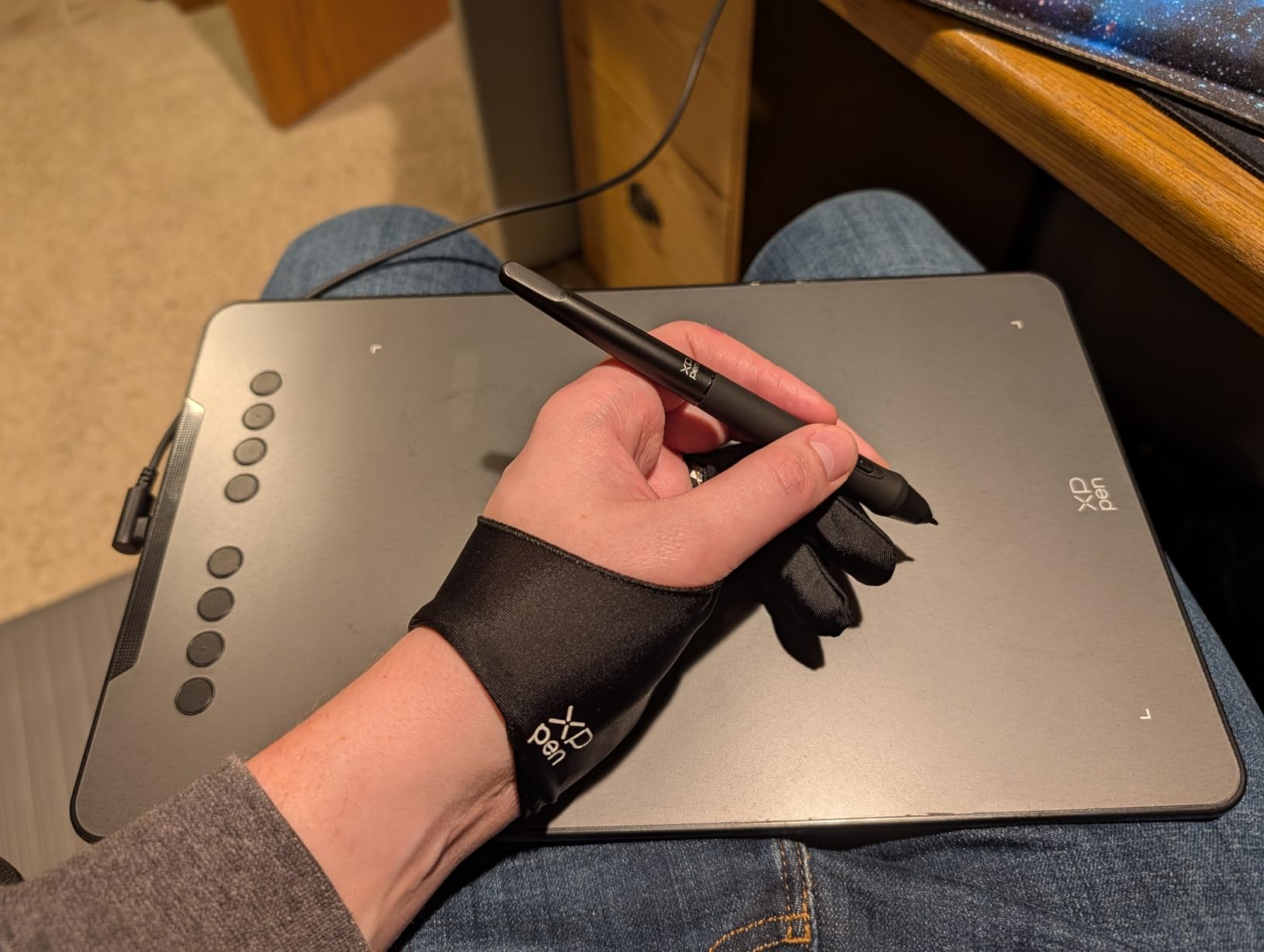
XP-Pen includes a surprising amount of accessories: a protective film, drawing glove, pen stand, and ten replacement nibs. For students buying their first tablet, that kit saves you from a separate shopping trip.
The weak points are durability and connection stability. The surface scratches more easily than Wacom’s, and a small percentage of users report random disconnects that require unplugging and replugging. Keep your receipt and register the warranty.
Who Should Buy the XP-Pen Deco 01 V3
Intermediate students who have outgrown a small tablet and want full-arm motion should jump here. The combination of large area, tilt, and 16K pressure levels is hard to beat for under $50.
Linux users will also appreciate that this tablet works out of the box on most distributions without extra driver wrestling.
Who Should Skip It
If you need a tablet that survives being thrown into a backpack daily with no case, the Wacom Intuos Small has tougher build quality. The Deco 01 V3 is best treated with care.
Students who want a screen for direct drawing should look at the GAOMON PD1161 below instead.
4. HUION Inspiroy H1060P – Best for Hotkey Customization
HUION Inspiroy H1060P Graphics Drawing Tablet, 10 x 6.25 in, 12+16 Hot Keys
Active Area: 10x6.25 inch
Pressure: 8192 levels
Tilt: 60 degrees
Hot Keys: 12 press keys plus 16 soft keys
OS: Windows, Mac, Android, Linux
Pros
- Large 10x6.25 inch working area
- 12 programmable press keys plus 16 soft keys
- Symmetrical design for left and right hand
- 60 degree tilt support
- Strong software compatibility
Cons
- No wireless option
- Linux requires Xorg not Wayland
- USB can develop issues over time
- Left-handed mode does not flip keys
The HUION Inspiroy H1060P is the tablet I reach for when I need a lot of shortcuts mapped within thumb reach. With 12 physical press keys and 16 programmable soft keys, you can map every brush, layer command, and zoom level without touching your keyboard. For animation students especially, that workflow matters.
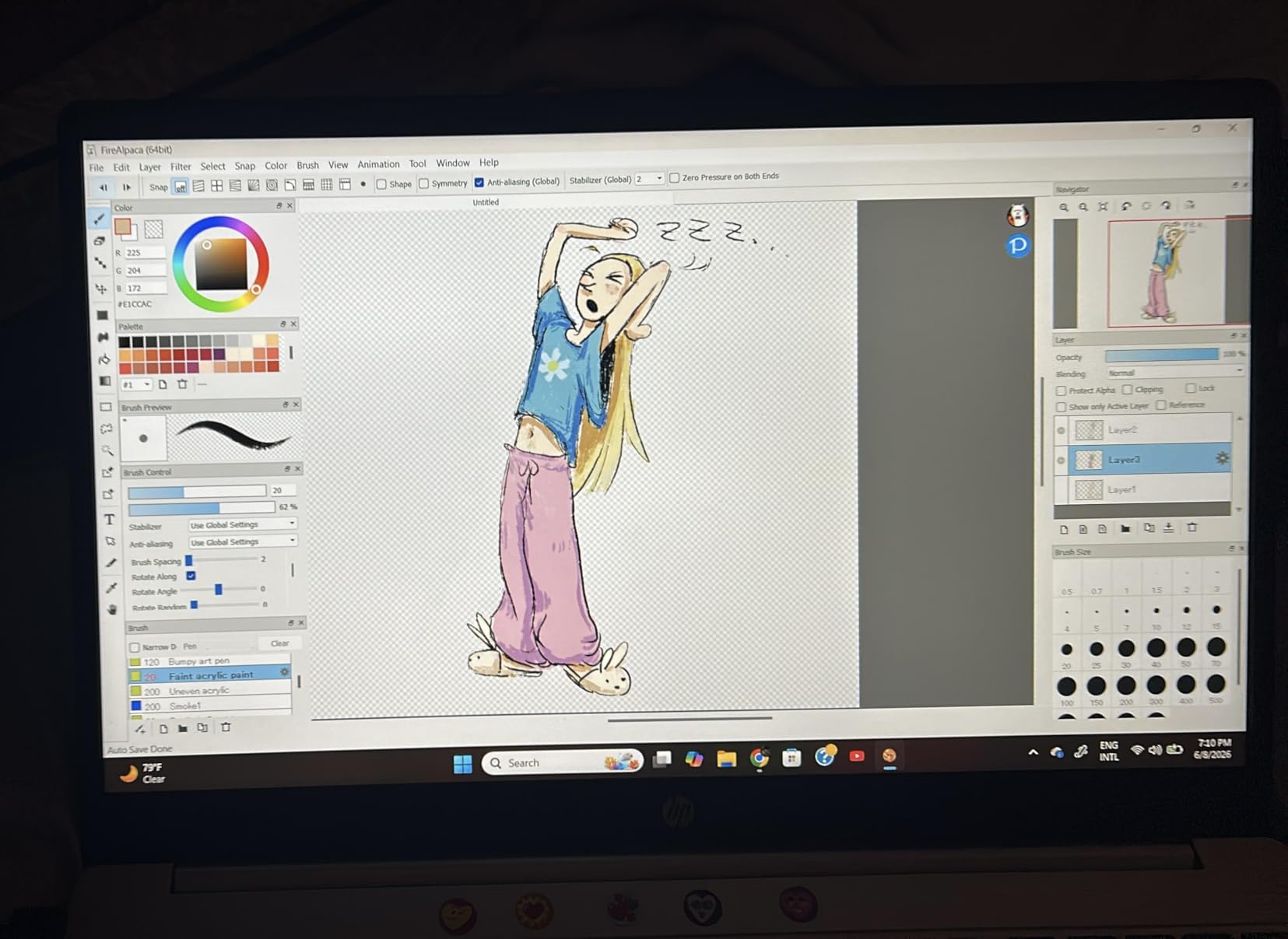
The 10 by 6.25 inch drawing area is identical in size to the XP-Pen Deco 01 V3, but the pen here is the proven PW100 with 8192 pressure levels and 60 degree tilt. The symmetrical tablet body works for both lefties and righties, although the keys do not physically flip orientation in left-handed mode.
This tablet is built like a tank. Multiple long-term reviewers reported four-plus years of daily use without failures, which is rare for budget hardware. For a student buying once and hoping to graduate without replacing their tablet, that durability matters.
The weak points are predictable. There is no wireless option, Linux users are limited to Xorg sessions, and some users report the USB port loosening after years of plugging and unplugging. None of these are deal-breakers, but set expectations.
Who Should Buy the HUION H1060P
Animation students, illustrators who hate keyboard shortcuts, and anyone who wants maximum customizable buttons without paying for a screen should pick this tablet. The hotkey count alone makes it a workflow upgrade over the smaller H640P.
Long-term value seekers will also appreciate its reputation for surviving years of heavy use.
Who Should Skip It
If you live in a mostly wireless setup and hate cables, look at a Bluetooth-enabled Wacom instead. The H1060P is wired-only.
Students who need 16K pressure levels should also consider the XP-Pen Deco 01 V3, which offers higher pressure resolution for similar money.
5. UGEE M708 – Best Papery Texture Surface
UGEE M708 Drawing Tablet, 10×6 inch Large Space for Digital Drawing
Active Area: 10x6 inch
Pressure: 16384 levels
Tilt: 60 degrees
Hot Keys: 8
OS: Windows, Mac, Android, Chrome OS, Linux
Pros
- Papery texture surface feels like real paper
- 16K pressure sensitivity
- 60 degree tilt support
- Includes glove and pen holder
- 12 month hassle-free warranty
Cons
- Occasional recognition issues
- Hot keys can reset between sessions
- Short USB cable
- Bulky pen holder storage
The UGEE M708 stands out for one specific reason: its drawing surface has a papery texture that traditional artists love. If you are crossing over from pencil and paper into digital art for the first time, that subtle friction makes the transition feel less like sliding on glass.
Spec-wise, this tablet lands squarely in the budget-large category. You get a 10 by 6 inch active area, 16384 pressure levels, 60 degree tilt, eight hot keys, and broad OS support including Chrome OS and Linux. For Chromebook-only students, that compatibility is a real plus.
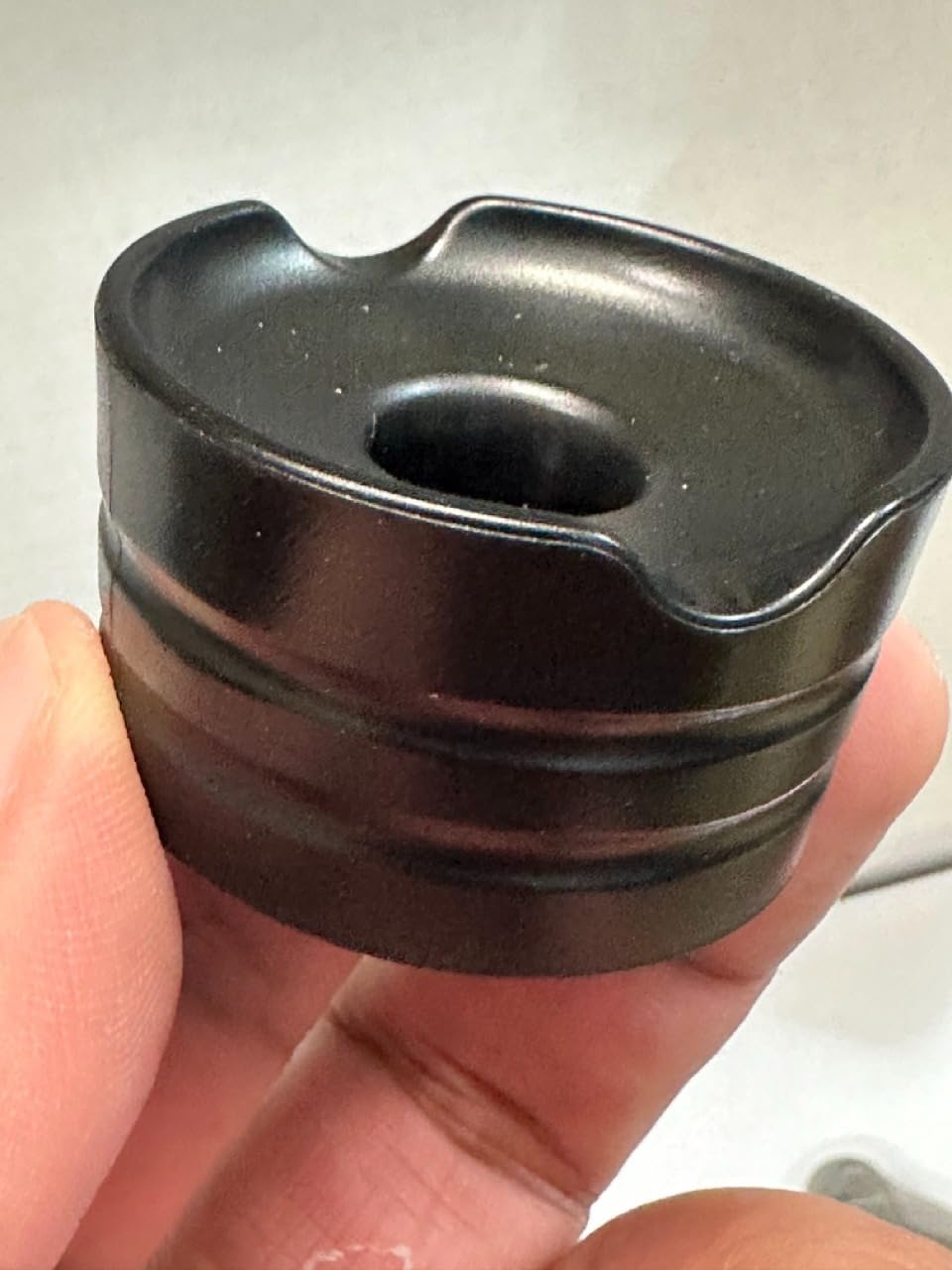
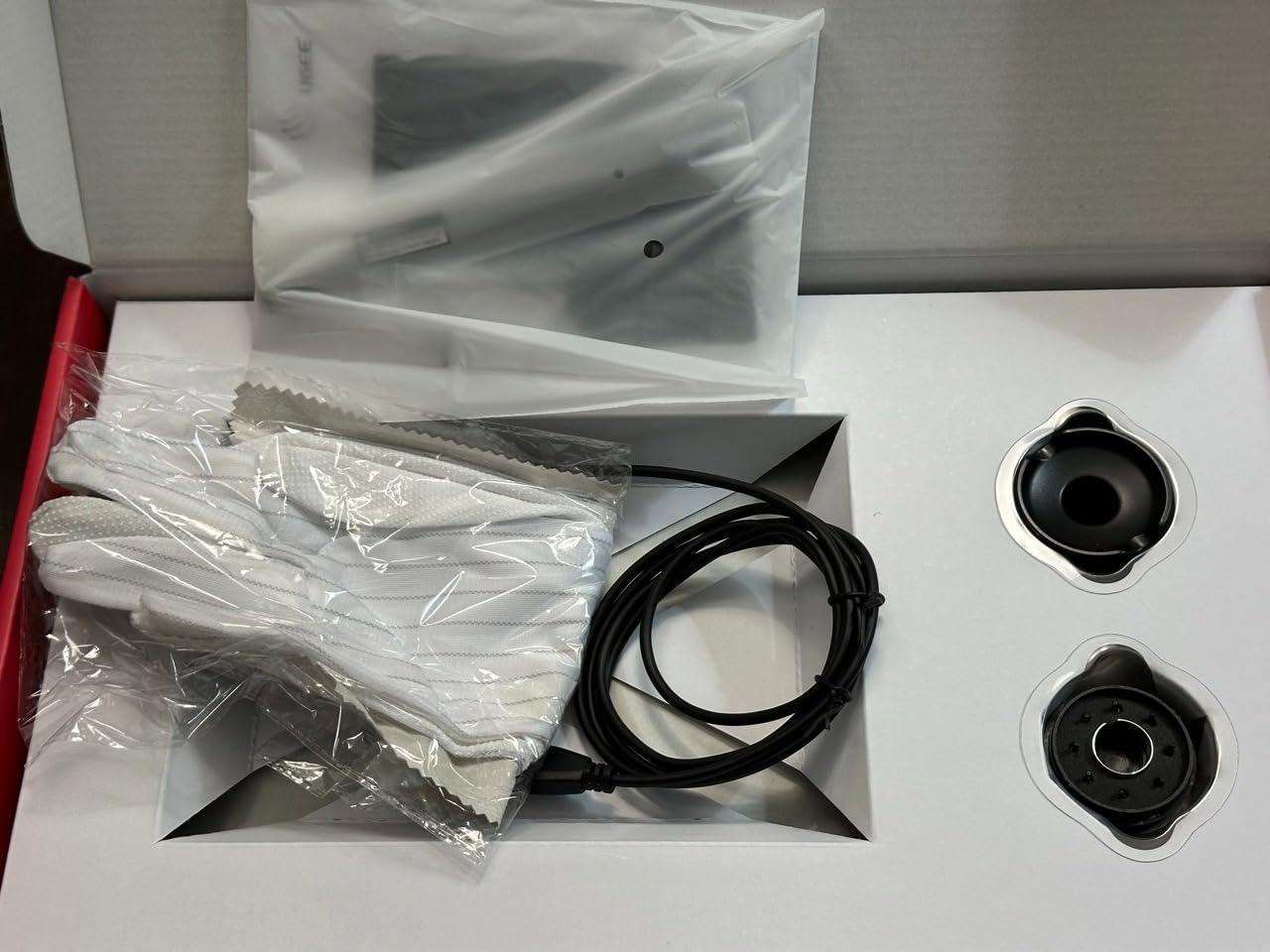
The included accessory kit covers the basics: a drawing glove, pen holder, USB cable, and replacement nibs. Setup was genuinely plug-and-play on Windows, with the driver auto-installing without a separate download.
The downsides are mostly quality-control related. Some users report the tablet occasionally failing to wake from sleep, requiring an unplug-and-replug cycle. The hot keys sometimes reset to factory defaults between sessions, so keep your preferred layout noted.
Who Should Buy the UGEE M708
Traditional artists transitioning to digital, especially sketch artists and ink illustrators, will appreciate the papery surface. The large area and high pressure sensitivity make it a serious tool despite the low price.
Chromebook students get full compatibility here, which is rare in this price tier.
Who Should Skip It
If you want rock-solid driver stability and zero fuss, the Wacom Intuos Small or HUION H1060P are more reliable picks. The M708 rewards users willing to troubleshoot occasionally.
Students with very limited desk space should also look at a smaller tablet, since the 14-plus inch footprint eats real estate.
6. GAOMON PD1161 – Best Entry-Level Screen Tablet
GAOMON PD1161 Drawing Tablet with Screen, Tilt, 8 Shortcut Keys, 11.6″ FHD
Screen: 11.6 inch Full HD IPS
Pressure: 8192 levels
Tilt: 60 degrees
Color: 100 percent sRGB
OS: Windows, Mac
Pros
- Large 11.6 inch screen at entry-level price
- Battery-free stylus AP50
- 100 percent sRGB color gamut
- Anti-glare film pre-installed
- 8 programmable shortcut keys
Cons
- Requires computer connection
- Buttons awkward for left-handed users
- Display color matching needs adjustment
- Bulky power adapter
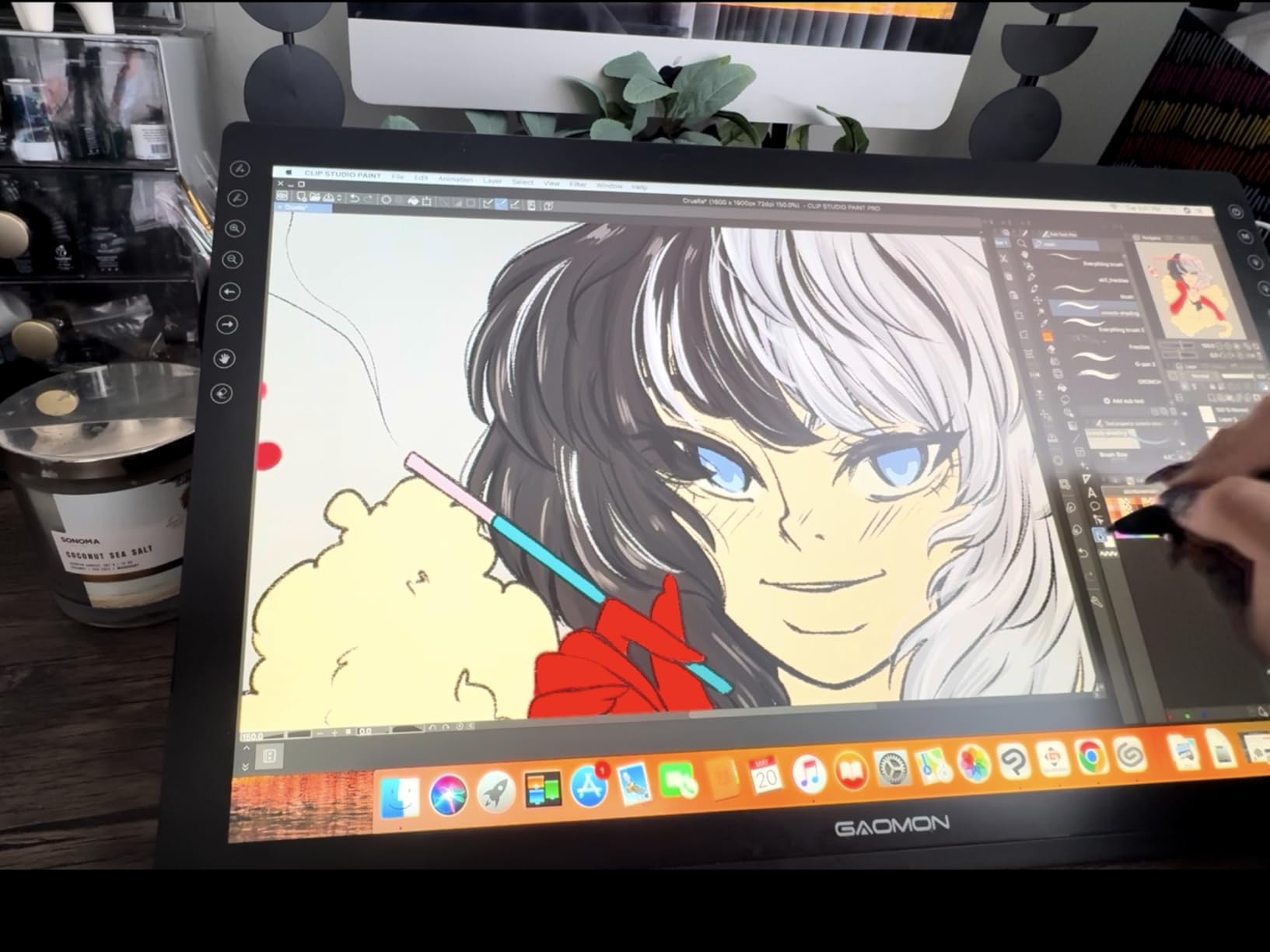
The GAOMON PD1161 is the cheapest screen tablet I would actually recommend to a student. For around $160, you get an 11.6 inch Full HD IPS display, 8192 pressure levels, 60 degree tilt, and a battery-free stylus. That is the entry point into drawing directly on what you see, instead of the disconnected pen-tablet experience.
Drawing on-screen felt natural immediately. The anti-glare protective film comes pre-installed, the 100 percent sRGB color gamut is good enough for classwork, and the pen tracks smoothly with no perceptible lag in Photoshop and Krita. For students who have struggled with hand-eye coordination on a non-screen tablet, this is the upgrade that fixes it.
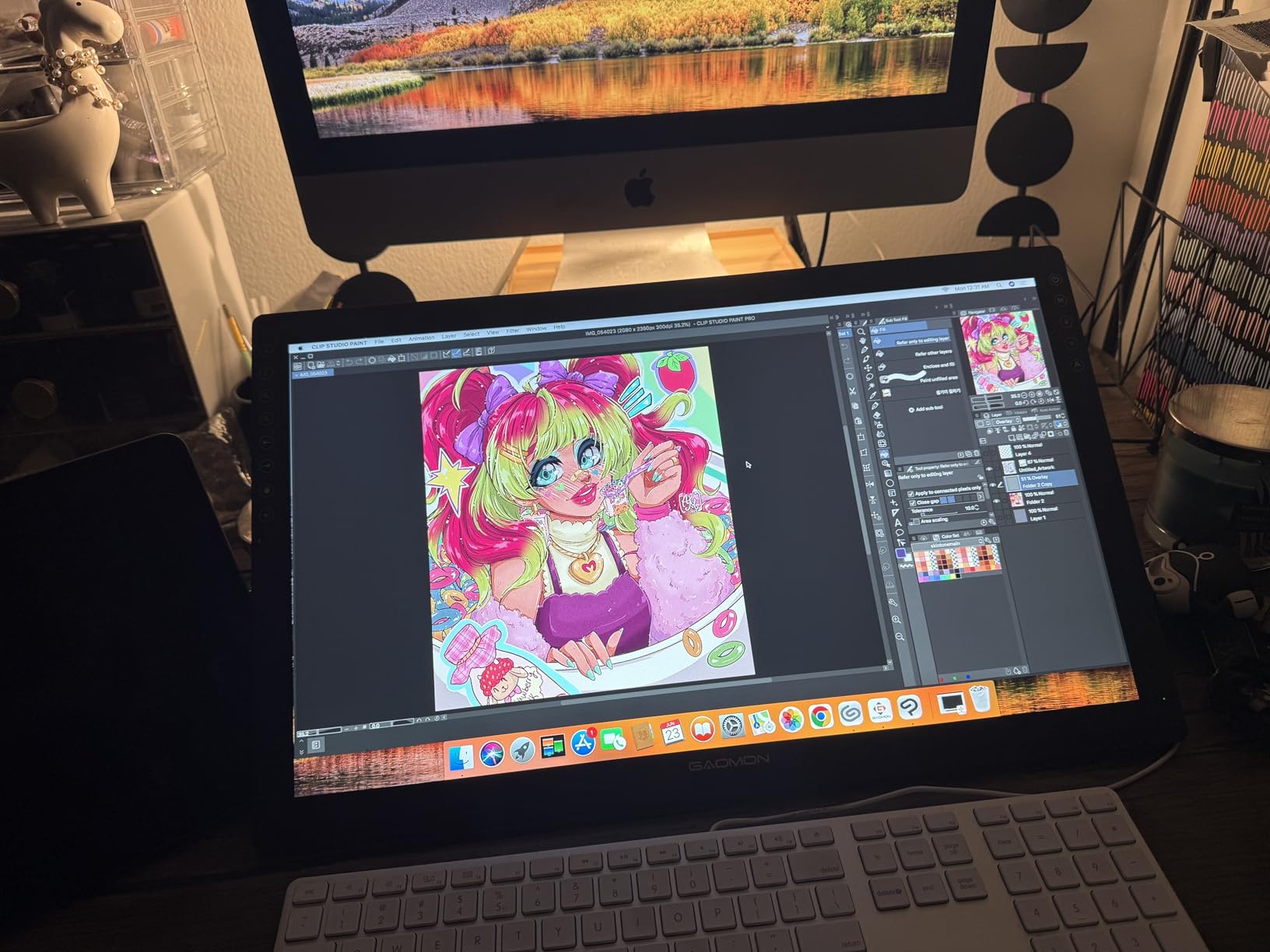
The PD1161 connects via HDMI plus USB, so it works with most Windows laptops and Macs without adapters. The eight shortcut keys sit on one side, which frustrates left-handed users since there is no symmetrical alternative.
Color matching takes some patience. Out of the box, the screen tends to look slightly warmer than your laptop display, so plan to spend 15 minutes calibrating before color-critical work. The power adapter is also larger than I would like for a portable setup.
Who Should Buy the GAOMON PD1161
Students who have struggled with the disconnect of pen tablets and want to draw directly on screen without spending $300 plus will love this tablet. It is the most affordable legitimate screen tablet on the market.
Art students focused on color work like illustration and digital painting will also benefit from the 100 percent sRGB coverage at this price.
Who Should Skip It
If you need portability for moving between classes, the bulky power adapter and HDMI-plus-USB cable setup make this less travel-friendly than a non-screen tablet.
Left-handed users should test the button layout first or look at the symmetrical XPPen Artist 13.3 Pro below.
7. XP-PEN Artist12 – Best Screen Tablet with Touch Bar
XP-PEN Artist12 11.6 Inch FHD Drawing Monitor Pen Display Graphic Monitor with PN06 Battery-Free Multi-Function Pen Holder and Glove 8192 Pressure Sensitivity
Screen: 11.6 inch Full HD IPS
Pressure: 8192 levels
Color: 100 percent sRGB
Hot Keys: 6 plus slim touch bar
OS: Windows, Mac
Pros
- Slim touch bar for zoom and scroll
- Battery-free P06 pen with eraser
- 6 customizable shortcut keys
- Anti-reflective screen protector pre-applied
- Includes glove and pen holder
Cons
- Setup can be challenging for beginners
- Multiple cables required
- Some long-term screen issues reported
- Screen slightly glossy despite anti-reflective claim
The XP-PEN Artist12 shares the same 11.6 inch Full HD screen size as the GAOMON PD1161, but adds one feature students love: a slim touch bar for zoom and scroll. Sliding a thumb to zoom in and out of a detail without reaching for the keyboard genuinely speeds up workflow, especially for detailed illustration and photo retouching.
The P06 pen is battery-free and includes a built-in eraser on the top, which is rare at this price. Flip the pen, erase. No mode switching required. The six customizable shortcut keys are plenty for most art school assignments.
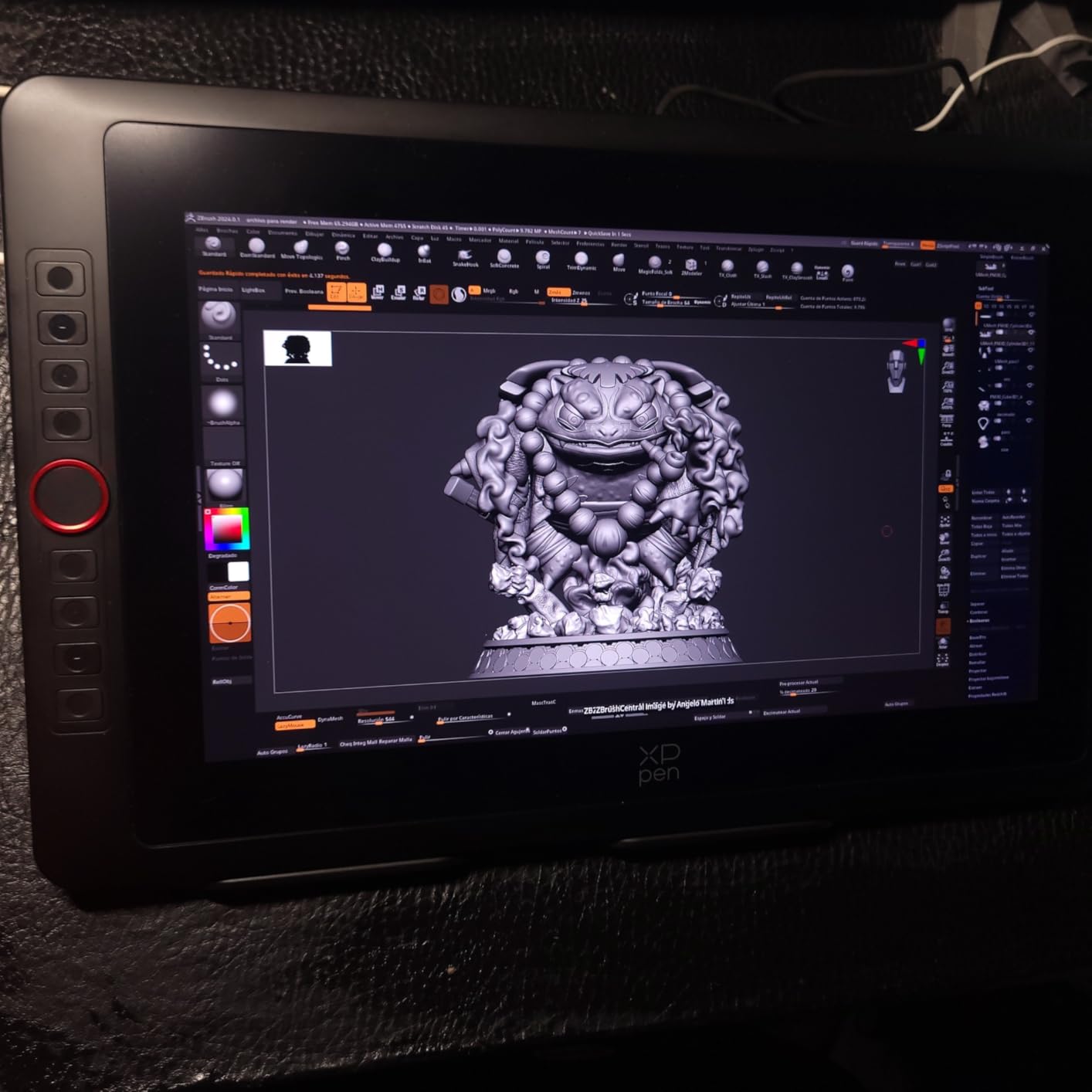
Color accuracy matches the GAOMON with 100 percent sRGB coverage, and the pre-applied anti-reflective screen protector cuts glare in bright studio lighting. The included drawing glove and pen holder round out a complete starter kit.
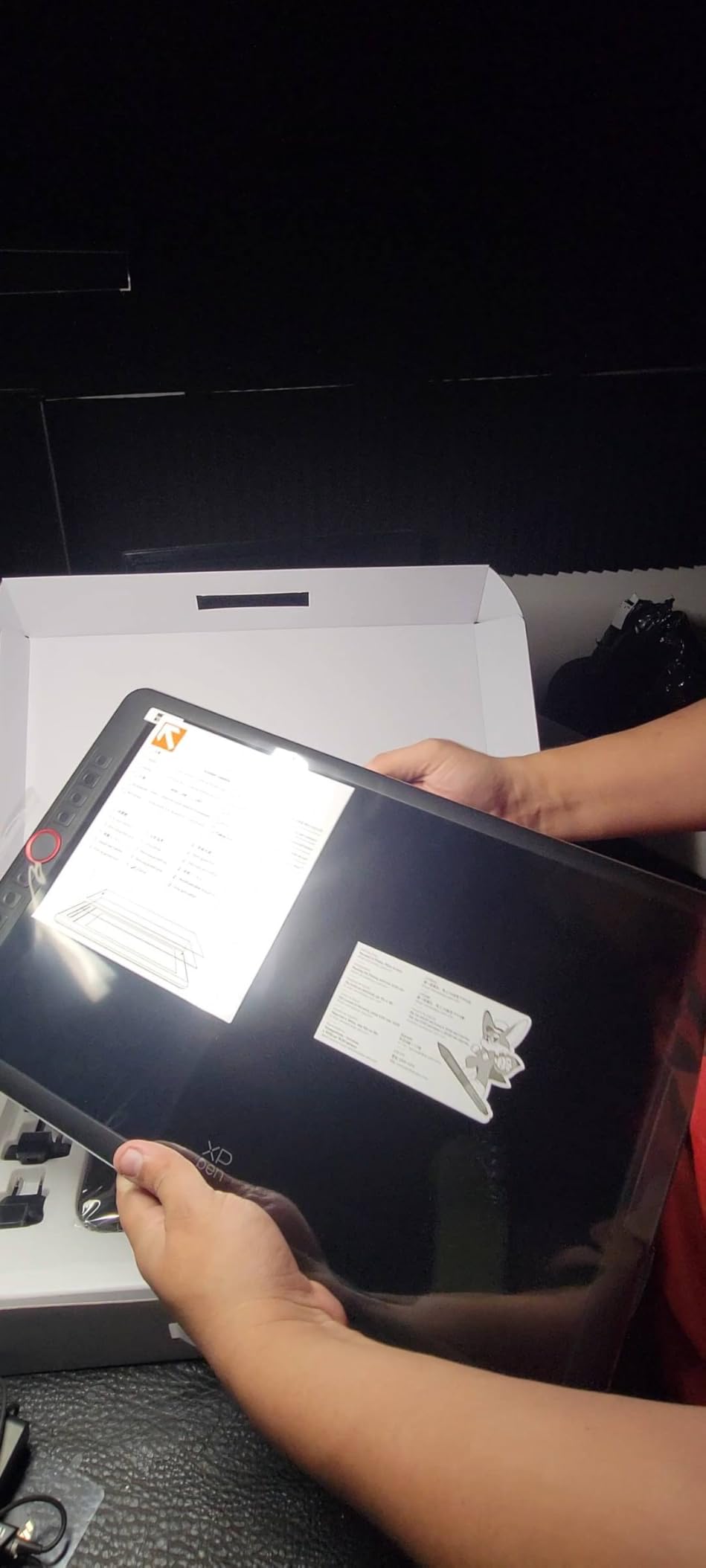
Setup is the main pain point. The Artist12 needs both HDMI and USB connections, plus driver installation that occasionally requires manual tweaking on Mac. A small percentage of users report screen issues developing after extended use, so register your warranty early.
Who Should Buy the XP-PEN Artist12
Students who value the touch bar zoom feature and want a complete accessory kit out of the box should choose this tablet. The eraser-tipped pen alone is a workflow upgrade over styluses that require button-press erasing.
Intermediate illustrators ready for their first screen tablet will find the price-to-feature ratio excellent.
Who Should Skip It
Anyone uncomfortable with driver installation and cable management should look at a simpler plug-and-play pen tablet first. The Artist12 rewards patience during setup.
Students needing tilt support should look at the GAOMON PD1161 or the XPPen Artist 13.3 Pro, since this model does not advertise tilt recognition.
8. XPPen Artist 13.3 Pro – Best Color Accuracy in Mid-Range
XPPen Artist 13.3 Pro V2 Drawing Tablet with Screen, 16K, Full-Laminated
Screen: 13.3 inch Full-Laminated FHD
Pressure: 16384 levels
Tilt: 60 degrees
Color: 123 percent sRGB, 91 percent Adobe RGB
OS: Windows, Mac
Pros
- Fully-laminated screen with minimal parallax
- 123 percent sRGB color accuracy
- Red Dial for zoom brush size and canvas flip
- 60 degree tilt support
- Adjustable stand included
Cons
- Multiple cables can be messy
- Stand has limited adjustability
- Setup may require troubleshooting
- Red Dial can feel clicky
The XPPen Artist 13.3 Pro is the screen tablet I recommend to serious illustration majors who care about color accuracy. At 123 percent sRGB and 91 percent Adobe RGB, this display outperforms tablets costing hundreds more. For portfolio work, color-accurate prints, and client previews, that gamut matters.
The fully-laminated screen means there is almost no gap between the glass and the display, so the parallax (the visual offset between pen tip and cursor) is minimal. The 16384 pressure levels and 60 degree tilt produce some of the most natural digital brushwork I have tested under $250.
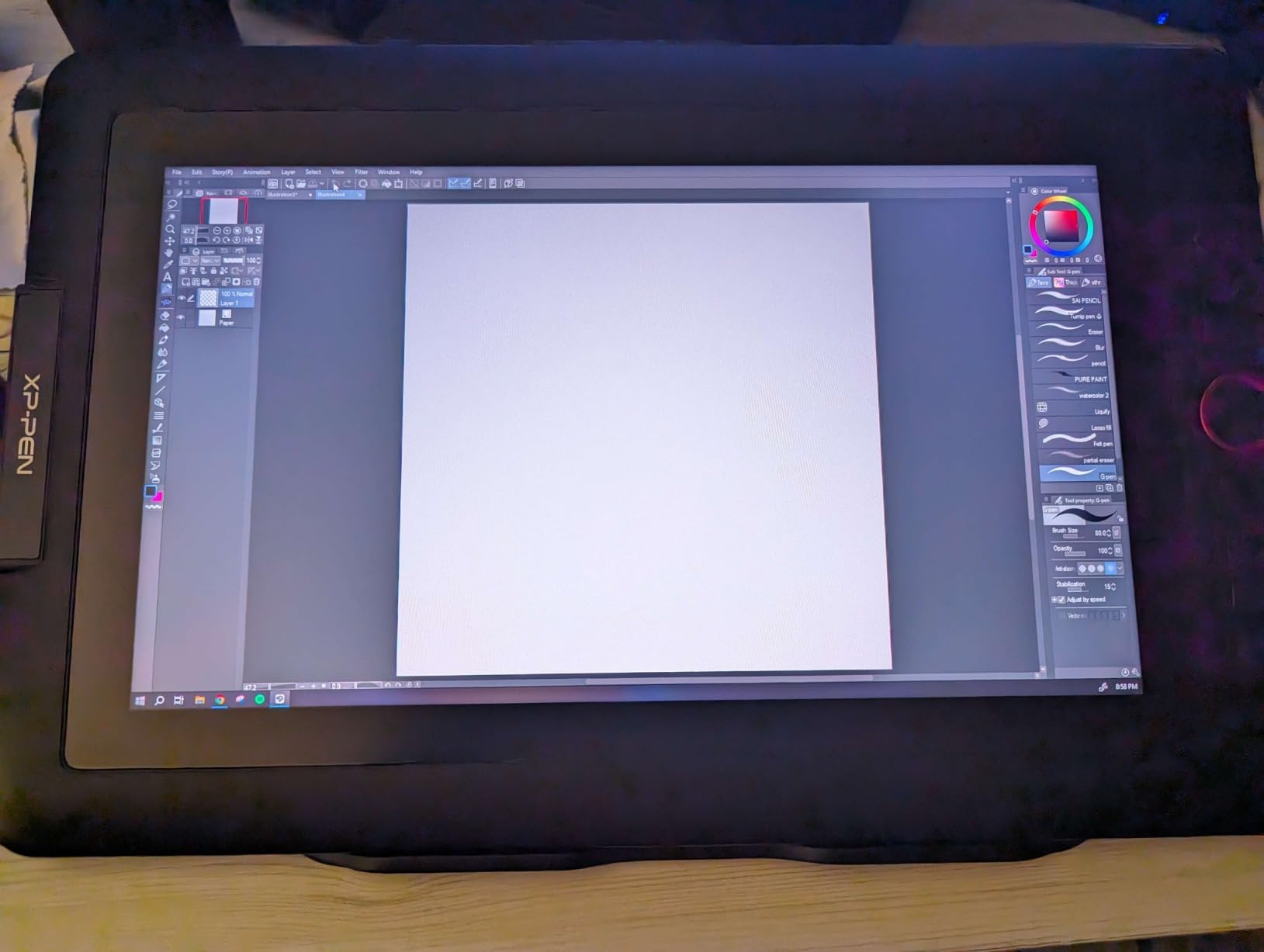
The standout feature is the Red Dial, a physical wheel that controls zoom, brush size, and canvas flip. Once you train your muscle memory to it, the dial genuinely replaces multiple keyboard shortcuts. Eight customizable shortcut keys round out the controls.
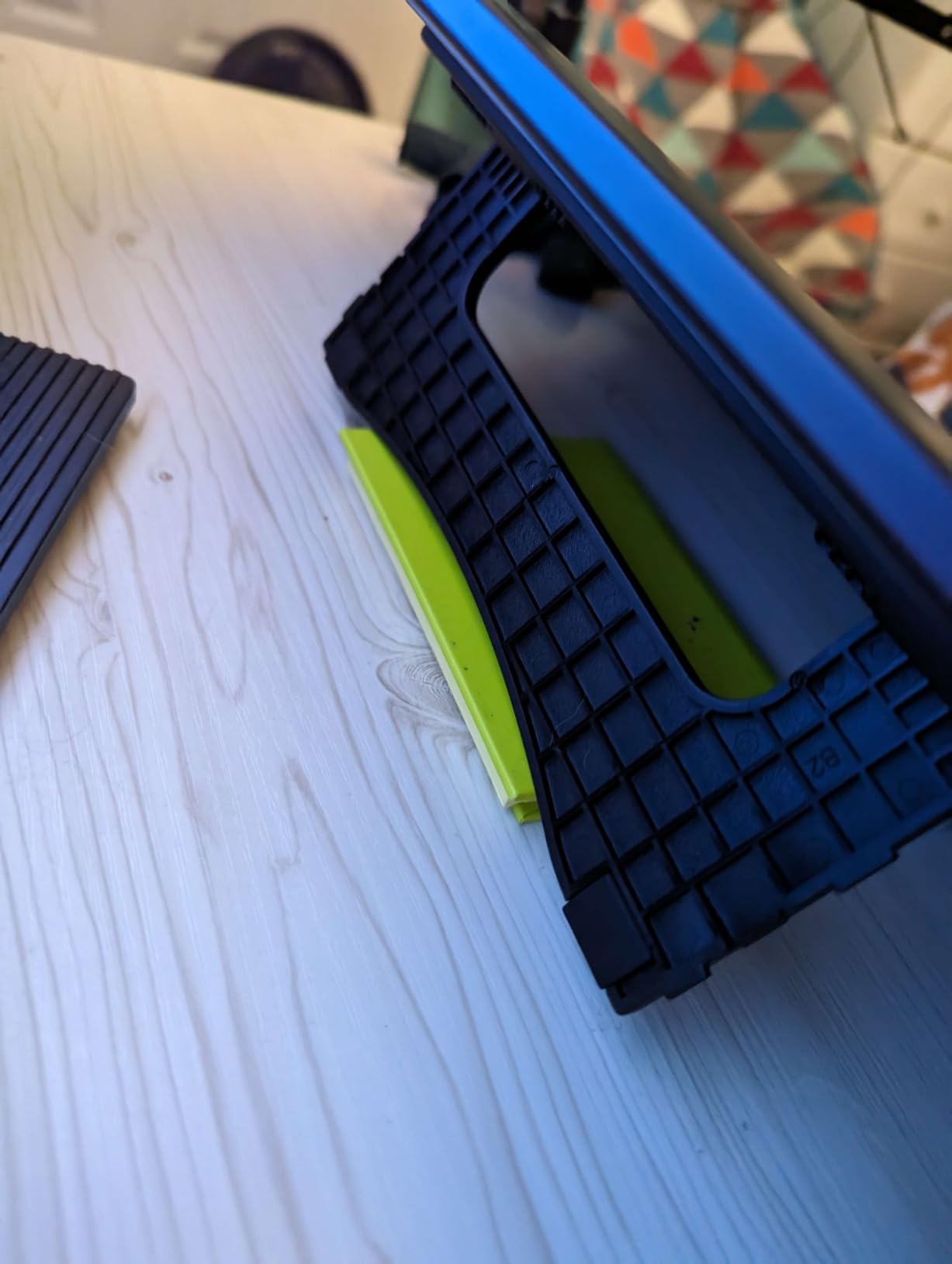
The included adjustable stand is a nice bonus but offers limited angles. Plan on a separate tablet stand if you want full ergonomic control during long studio sessions.
Who Should Buy the XPPen Artist 13.3 Pro
Upper-level illustration students, color-critical painters, and portfolio-bound seniors will get the most out of the color accuracy and lamination. The Red Dial alone makes it worth the price bump over the Artist12.
Students who print their work or do client previews will appreciate the wide color gamut for accurate color matching.
Who Should Skip It
If you only need a screen tablet for casual sketching and note-taking, the GAOMON PD1161 is half the cost and covers most of the same ground.
Users who hate cable clutter should also note that this tablet requires HDMI, USB, and power connections.
9. HUION Kamvas 13 Gen 3 – Best Premium Pen Technology
HUION Kamvas 13 (Gen 3) Drawing Tablet with Screen, Dual Dial, 13.3″, Black
Screen: 13.3 inch Full-Laminated
Pressure: 16384 levels (PenTech 4.0)
Color: 99 percent sRGB, Delta E under 1.5
Dial: Dual dial plus 5 keys
OS: Windows, Mac, Android, Linux
Pros
- PenTech 4.0 with superior pen performance
- 99 percent sRGB with factory calibration report
- Canvas Glass 2.0 reduces sparkle and glare
- Dual dial design for efficient workflow
- USB-C single cable option
Cons
- Screen can warm after extended use
- Maximum brightness limited to 200 nits
- Requires computer connection
- Some calibration may be needed
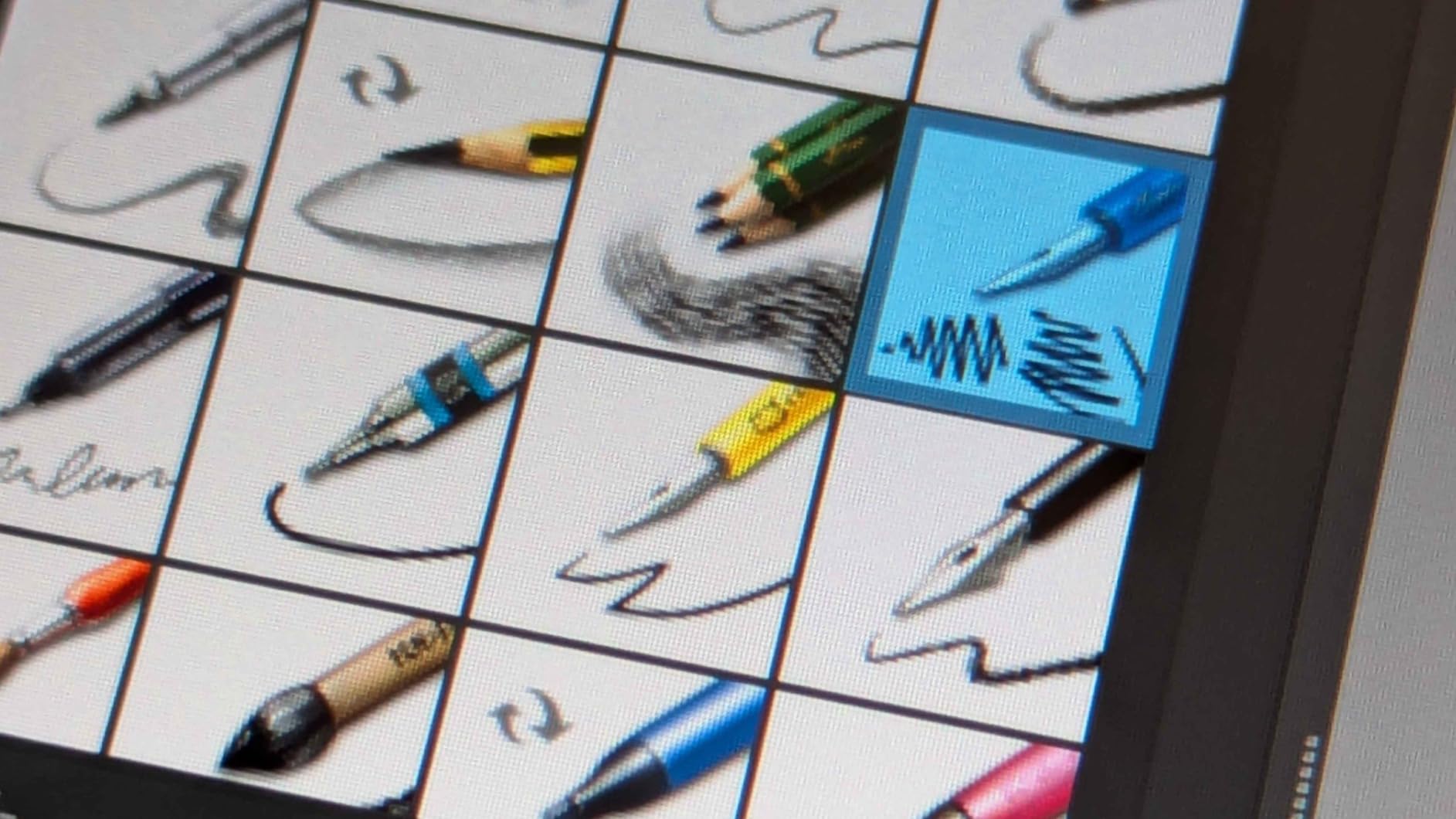
The HUION Kamvas 13 Gen 3 is the newest tablet in this guide and the one that impressed me most in pure pen performance. HUION’s PenTech 4.0 delivers 16384 pressure levels with a 2g initial activation force, meaning the pen registers the lightest touch without skipping. For artists who work with delicate line weight, this is a noticeable step up.
The Canvas Glass 2.0 surface is the second standout. Older anti-glare etched glass sometimes produced a distracting sparkle effect, and this generation nearly eliminates it. The result is a clear, paper-like texture without visual noise.
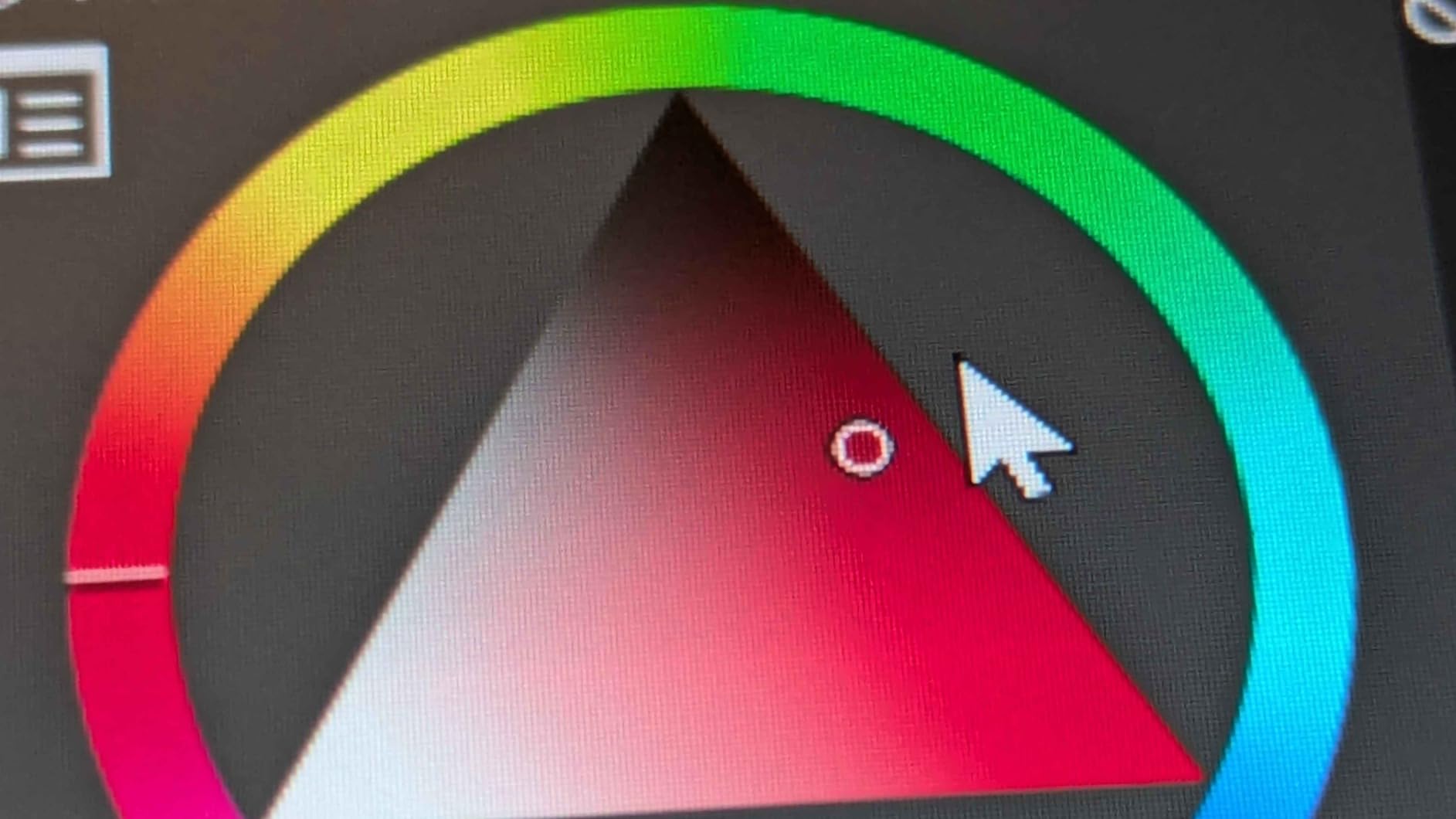
Color accuracy is professional-grade. The 99 percent sRGB coverage ships with a factory calibration report showing Delta E under 1.5, which means colors are accurate enough for client work and portfolio prints without manual calibration.
The dual-dial design plus five programmable keys gives you more physical controls than any other tablet in this guide. Map one dial to brush size and the other to zoom, and you may never touch your keyboard again.
Who Should Buy the HUION Kamvas 13 Gen 3
Serious illustration and concept art students who want professional-grade pen performance without paying Wacom Cintiq prices should look here. The PenTech 4.0 pen is the closest thing to a real brush I have tested at this price.
Color-critical workers will also appreciate the included calibration report and 99 percent sRGB coverage straight out of the box.
Who Should Skip It
If you work in very bright studios, the 200-nit maximum brightness may feel dim. The Wacom One HD has a brighter display, though at a higher price.
Students on a strict under-$200 budget should also consider the XPPen Artist 13.3 Pro, which offers similar screen size for less.
10. Wacom One HD – Best Trusted Brand for Studio Use
Wacom One HD Creative Pen Display, Drawing Tablet with Screen, 13.3″ Graphics Monitor; Works with Mac, PC & Chromebook, Photo/Video Editing, Drawing & Education Old Gen (2019)
Screen: 13.3 inch HD
Pressure: 4096 levels
Lamination: Full
Compatibility: Mac, PC, Chromebook
Pen: Wacom Pen with customizable button
Pros
- Trusted Wacom brand quality and durability
- Excellent build quality
- Works seamlessly across platforms
- Great pen feel and precision
- Includes trial creative software
Cons
- Higher price point
- Only 4096 pressure levels vs competitors
- No touch functionality
- No express keys on tablet body
- Screen brightness could be better
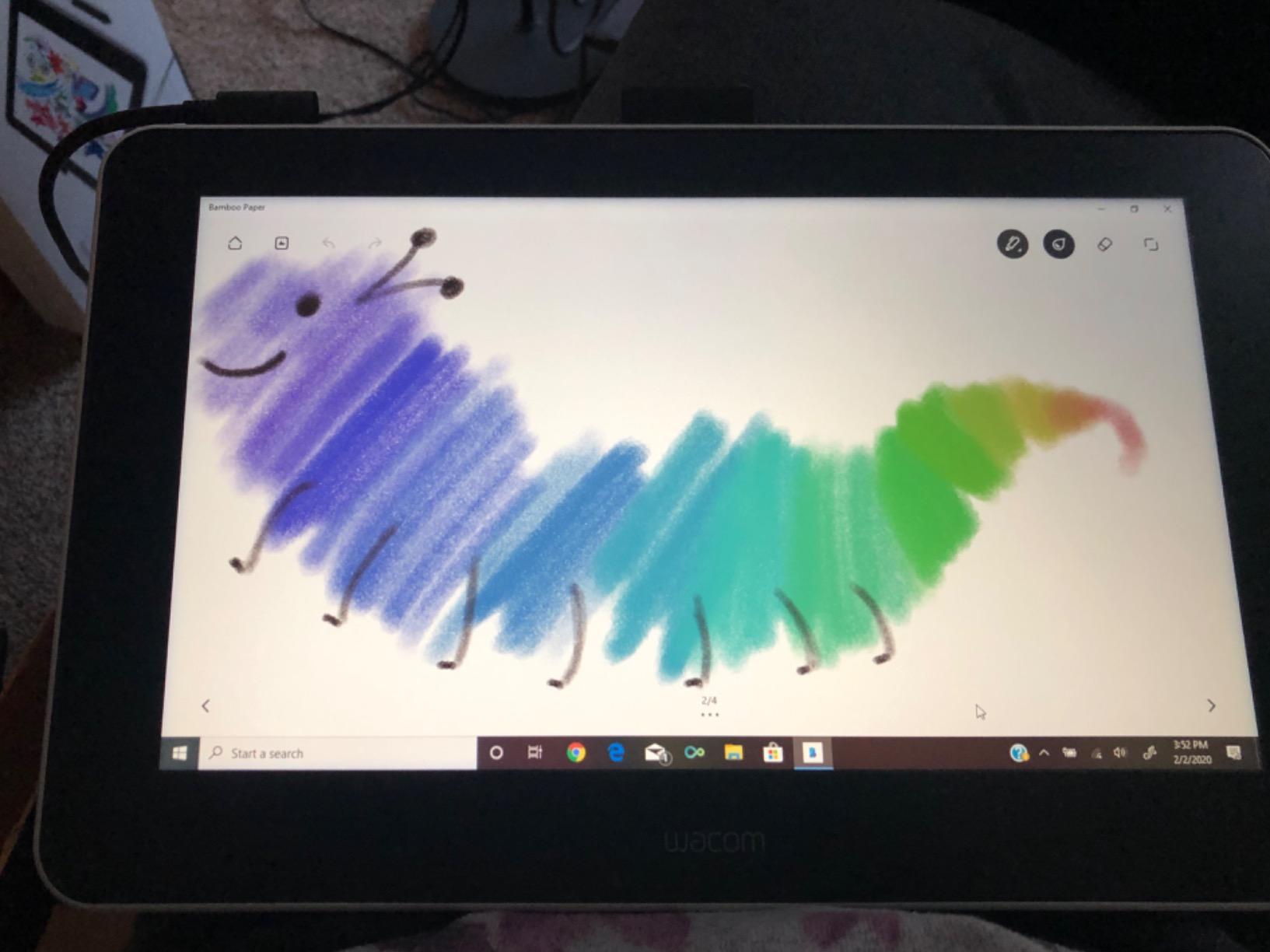
The Wacom One HD is the pick for students who want the reliability of the most trusted name in digital art and are willing to pay for it. Wacom has over 40 years of pen-display experience, and that heritage shows in build quality, driver stability, and the natural feel of the pen on the fully-laminated screen.
With 4096 pressure levels, the Wacom One is technically out-specced by HUION and XP-Pen competitors offering 8192 or more. In practice, Wacom’s pen technology is so refined that the lower number is barely noticeable. The line quality, tilt, and pressure transitions are buttery smooth.
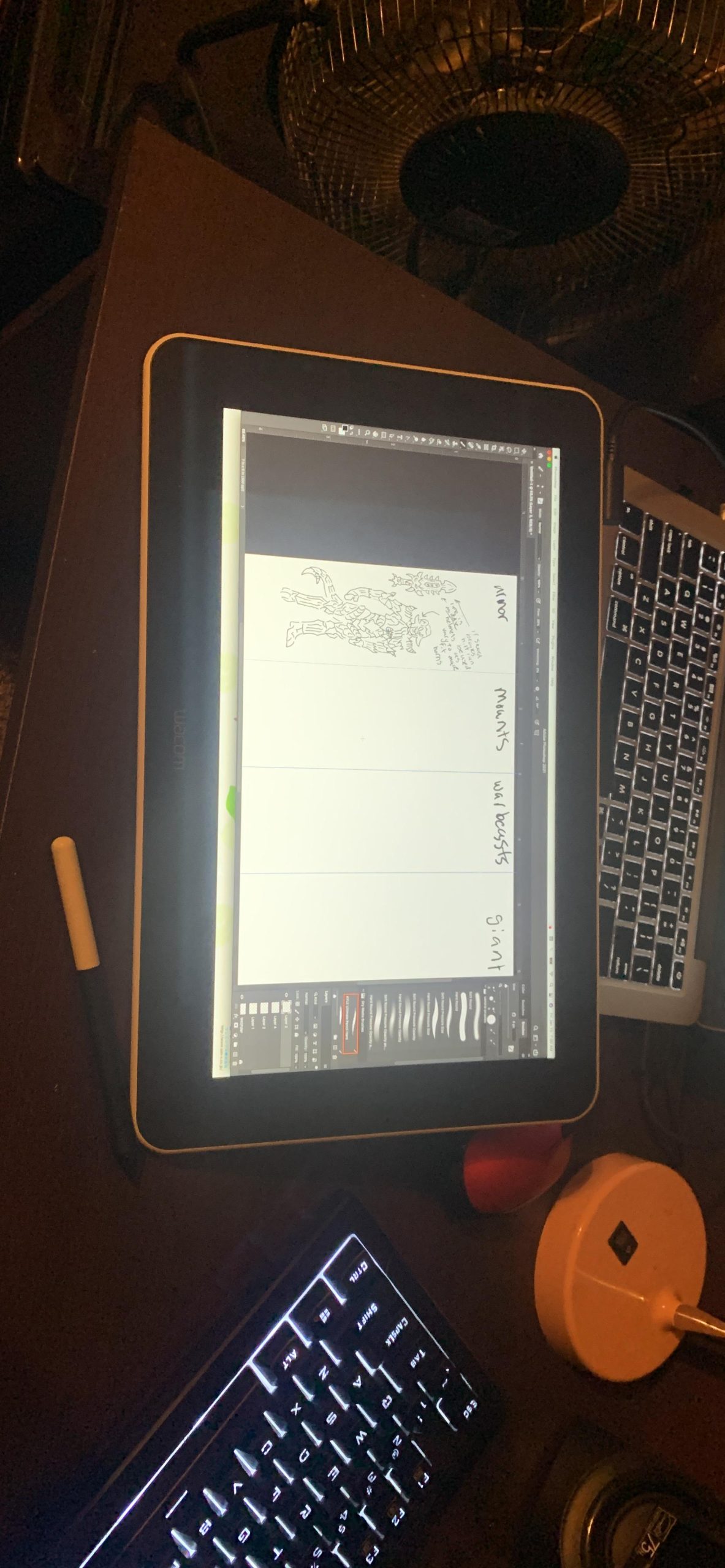
Cross-platform compatibility is a strength. This tablet works seamlessly with Mac, PC, and Chromebook, which makes it a safe pick for students switching between personal laptops and school lab machines. The pen button can be customized for shortcuts, though there are no express keys on the tablet body itself.
The price is the obvious downside. At over $400, the Wacom One costs nearly twice as much as the XPPen Artist 13.3 Pro and HUION Kamvas 13, both of which offer higher pressure sensitivity and more on-tablet controls. You are paying for the brand, the build, and the driver reliability.
Who Should Buy the Wacom One HD
Students investing in a tablet they plan to use through graduation and into professional work will appreciate the durability and cross-platform reliability. Wacom drivers are famously stable, which matters during finals week.
Anyone who has used Wacom products before and wants to stay in that ecosystem should also choose this tablet for consistency.
Who Should Skip It
Budget-conscious students should look at the XPPen Artist 13.3 Pro or HUION Kamvas 13 first. Both deliver similar or better specs for half the price.
Users who need express keys on the tablet itself will have to add an external Wacom ExpressKey Remote, which adds cost.
How to Choose the Best Graphics Tablet for Digital Art
Picking the right graphics tablet comes down to five decisions: screen or no screen, drawing area size, pressure sensitivity, portability, and software compatibility. Here is how we think through each one for student buyers.
Pen Tablet vs Pen Display
A pen tablet (non-screen) like the Wacom Intuos or HUION H640P has no display. You draw on the tablet surface while watching your computer screen. The disconnect takes a few days to learn, but these tablets are cheaper, lighter, and more portable.
A pen display like the GAOMON PD1161 or XPPen Artist 13.3 Pro has a screen built in, so you draw directly on the image. It feels more natural, but you sacrifice portability and pay more.
Drawing Area Size
For note-taking and tight illustration, a 6 by 4 inch area is enough. For sweeping brushwork, landscapes, and full-arm drawing, look for at least 10 by 6 inches. Art school students often outgrow small tablets within a semester.
Pressure Sensitivity
Pressure sensitivity ranges from 4096 to 16384 levels. Higher numbers mean smoother line transitions, but only experienced artists will notice the difference between 8192 and 16384. Anything above 4096 is acceptable for student work.
Portability for Campus Use
If you carry your tablet between dorm, studio, and library, weight and cable count matter. Non-screen tablets like the Wacom Intuos Small weigh under 10 ounces and need only one USB cable. Screen tablets require HDMI, USB, and often a separate power adapter.
Software Compatibility
Most tablets work with Photoshop, Clip Studio Paint, Krita, and Procreate alternatives on desktop. Chromebook users should verify Chrome OS support, since not every tablet lists it. Linux students should look at XP-Pen and HUION, which have the best Linux driver reputations.
Budget Considerations for Students
Under $50 buys a solid non-screen tablet like the HUION H640P or XP-Pen Deco 01 V3. Under $200 unlocks entry-level screen tablets like the GAOMON PD1161 and XP-PEN Artist12. Over $200 reaches color-accurate screen tablets like the XPPen Artist 13.3 Pro and HUION Kamvas 13. Wacom’s premium tier starts above $400.
Watch for back-to-school sales in August and January, when graphics tablets regularly drop 15 to 25 percent. Some manufacturers also offer student discounts through education portals.
Warranty and Durability
Most tablets here include a 12-month manufacturer warranty. Wacom offers the most consistent long-term driver support, while budget brands like UGEE and XP-Pen can lag on updates for older models. Register your product immediately to lock in coverage.
FAQs
Which tablet is better for digital art?
For most art students, the Wacom Intuos Small is the best overall pick because of its reliable pen feel, included Clip Studio Paint license, and plug-and-play Chromebook support. If you want a screen tablet for direct drawing, the XPPen Artist 13.3 Pro offers the best color accuracy in the mid-range tier.
What is the best tablet to use for graphic design?
For graphic design work that involves photo editing, layout, and color matching, a screen tablet with strong color accuracy is ideal. The HUION Kamvas 13 Gen 3 with 99 percent sRGB and PenTech 4.0, or the XPPen Artist 13.3 Pro with 123 percent sRGB, both handle color-critical design tasks well.
What is the difference between a drawing tablet and a graphics tablet?
There is no functional difference between a drawing tablet and a graphics tablet. The terms are used interchangeably to describe a pressure-sensitive input device used for digital art. The more important distinction is between a pen tablet (no screen) and a pen display (built-in screen you draw directly on).
Are digital drawing tablets worth it for art students?
Yes. A graphics tablet is one of the highest-value tools an art student can buy, since it enables pressure-sensitive brushwork that a mouse cannot replicate. Even budget models under $50 like the HUION H640P deliver professional-level pressure sensitivity suitable for class assignments, portfolios, and freelance work.
Do I need a tablet with a screen for digital art?
No. Many professional illustrators work entirely on non-screen pen tablets because they are cheaper, lighter, and reduce neck strain from looking down. A screen tablet is a workflow preference, not a requirement. Try a non-screen tablet first and upgrade if the hand-eye disconnect bothers you.
Final Thoughts on the Best Graphics Tablets for Digital Art in 2026
For most art students in 2026, the best graphics tablets for digital art come down to three picks: the Wacom Intuos Small for beginners who want brand reliability and bundled software, the HUION Inspiroy H640P for the tightest budgets, and the XPPen Artist 13.3 Pro for serious illustrators ready to invest in color accuracy. Pick the one that fits your budget and workflow, register the warranty, and start building that portfolio.