
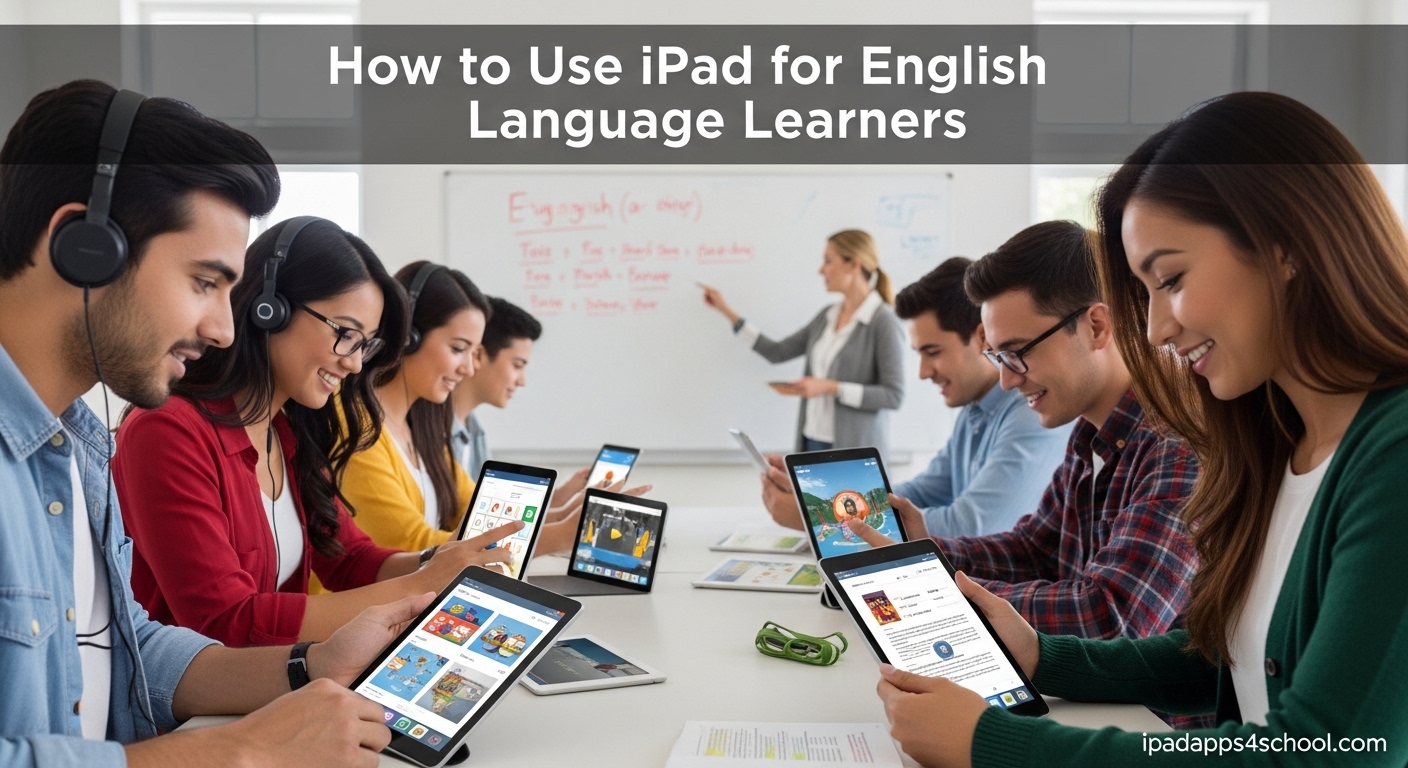
iPad transforms language learning from a textbook exercise into an immersive, multimodal experience. English language learners can practice speaking, build vocabulary, and engage with authentic content all on one device.
In this guide, I will show you exactly how to set up an iPad for English language learners and share the most effective apps and strategies I have discovered through years of working with ELL students. Whether you are a teacher managing a classroom full of iPads or a learner studying independently, these practical steps will maximize your results.
We will cover built-in iPad features that many educators overlook, the best apps for each language skill, and creative classroom activities that get students actually using English rather than just studying it.
Table of Contents
How to Use iPad for English Language Learners
The most effective approach combines iPad’s built-in accessibility features with carefully selected apps that target specific language skills. Start by configuring your device settings for language learning, then layer in apps for vocabulary, speaking practice, reading, and creative production.
Research from Apple Education shows that multimodal learning, engaging visual, auditory, and kinesthetic elements simultaneously, produces stronger language retention than single-method instruction. iPad excels at this by combining text, audio, video, and touch interaction in one portable device.
Built-in Accessibility Features for Language Learning
Your iPad already has powerful tools for supporting English language learners built right into iPadOS. These features cost nothing extra and work across all apps.
Speak Screen and Speak Selection
Speak Screen reads entire web pages, documents, or emails aloud with a simple swipe gesture. English learners hear proper pronunciation while following along with the text, reinforcing the connection between written and spoken English.
To enable Speak Screen, go to Settings > Accessibility > Spoken Content and toggle on Speak Screen. Students can then swipe down with two fingers from the top of the screen to have any text read aloud.
Speak Selection offers similar functionality but only reads highlighted text. This works well when students encounter unfamiliar vocabulary and want to hear pronunciation without listening to entire passages.
Live Text for Vocabulary Building
Live Text recognizes text in photos and camera view, allowing learners to tap words in images for instant translation and definition lookup. Point your iPad camera at any English text, a restaurant menu, street sign, or textbook page, and tap the Live Text icon to interact with the words.
This feature bridges the gap between classroom learning and real-world English exposure. Students can photograph English text they encounter throughout the day and review vocabulary later.
Dictation for Speaking Practice
The built-in Dictation feature converts spoken English into text, giving learners immediate feedback on their pronunciation clarity. Enable it in Settings > General > Keyboard and toggle on Dictation.
I recommend having students dictate short journal entries or responses to prompts. When the iPad misunderstands a word, that signals pronunciation that needs work. Students can retry until the transcription matches what they intended to say.
Visual Accommodations
For students with dyslexia or visual processing challenges, iPad offers several helpful accommodations. Bold Text increases contrast, while Reduce Transparency simplifies backgrounds. Larger text options and different color filters can reduce eye strain during extended reading sessions.
These features make iPad particularly valuable for English language learners who also have learning differences. The device adapts to individual needs rather than forcing a one-size-fits-all approach.
Setting Up Your iPad for English Language Success
Before downloading any apps, configure your iPad to support language learning. These initial settings make a significant difference in daily use.
Language and Region Settings
Set your iPad language to English for maximum immersion, but keep your native language in the Preferred Language Order as a backup. Go to Settings > General > Language and Region.
Enable Dictionary downloads for English by going to Settings > General > Dictionary and selecting English. This allows instant word lookups from any app by selecting text and tapping Look Up.
Configure Do Not Disturb for Study Sessions
Focus modes help eliminate distractions during language practice. Set up a dedicated Study focus that silences notifications and only allows calls from emergency contacts. Schedule it to activate automatically during designated study times.
Students report that having a dedicated focus mode reduces the temptation to check social media and helps them stay engaged with language learning apps for longer periods.
Split View Setup for Multitasking
Split View allows two apps to run side by side, essential for language learning workflows. Practice using this by opening an app, swiping up from the bottom to reveal the Dock, then dragging a second app to the left or right edge of the screen.
Common productive combinations include a dictionary app alongside a reading app, or a video lesson next to a notes app for taking vocabulary lists.
Top Apps for Vocabulary Building
While built-in features provide a foundation, dedicated vocabulary apps accelerate word acquisition through spaced repetition and interactive exercises.
Anki: The Gold Standard for Flashcards
Anki uses spaced repetition algorithms to show vocabulary words right before you would forget them, maximizing retention efficiency. The iPad version syncs across devices and supports images, audio, and custom card layouts.
Create decks organized by theme, such as restaurant vocabulary, academic words, or phrasal verbs. The app tracks which words you find difficult and schedules them for more frequent review.
Quizlet for Collaborative Learning
Quizlet shines in classroom settings where teachers can create study sets and share them with students. The iPad app includes seven study modes including Match, a timed game that gets competitive in class, and Write, which tests spelling.
The app also includes audio pronunciation for most vocabulary terms, helping learners connect spelling with sounds. Free accounts support most features, though Quizlet Plus removes ads and adds offline access.
Padlet for Visual Vocabulary
Padlet creates digital bulletin boards where students can post vocabulary words along with images, example sentences, and even video clips demonstrating usage. Teachers use QR codes to share boards quickly, students scan the code with their iPad camera and contribute immediately.
I have seen teachers create Padlet walls for thematic vocabulary units, such as environmental terms or emotions, with each student responsible for adding three entries with images and original sentences.
Free vs Paid App Comparison
Most essential vocabulary apps offer robust free versions. Anki is completely free on all platforms. Quizlet’s free tier handles classroom needs for most teachers. Padlet offers a limited number of boards for free accounts, enough for occasional projects.
Paid upgrades primarily remove advertisements and add offline functionality. For students with consistent WiFi access, the free versions typically suffice.
Speaking and Listening Practice Apps
Passive vocabulary knowledge only becomes language ability when students actually speak and understand spoken English. These apps target those critical skills.
Duolingo for Structured Practice
Duolingo remains the most popular language learning app for good reason. Its bite-sized lessons build gradually from basic phrases to complex sentences. The speaking exercises require students to repeat phrases aloud, with the app grading pronunciation accuracy.
On iPad, Duolingo takes advantage of the larger screen for clearer presentation of grammar explanations and more comfortable typing practice. The app is entirely free with optional Duolingo Plus for offline lessons and ad removal.
ELSA Speak for Pronunciation
ELSA Speak specializes in pronunciation correction using AI speech recognition. Students read sentences aloud and receive specific feedback on which sounds need improvement. The app identifies problem areas like specific vowel sounds or consonant clusters that challenge non-native speakers.
I recommend ELSA for intermediate learners who have mastered basic vocabulary but struggle with English rhythm and intonation. The detailed feedback helps polish accent issues that hinder comprehension.
Newsy for Authentic Listening
Newsy aggregates news stories from multiple sources and presents them with transcripts. English learners can watch news segments with English subtitles, then review the full text to catch vocabulary they missed in audio.
The app exposes students to natural speech patterns, different accents, and current events vocabulary. Unlike scripted language learning materials, Newsy presents authentic English as native speakers actually use it.
Video Calling Platforms
FaceTime, Skype, and Zoom on iPad enable conversation practice with native speakers or language exchange partners. The tablet form factor works well for these calls, easier to hold than a phone and more portable than a laptop.
Many teachers arrange conversation exchanges between their English learners and students studying the learners’ native language. Both groups benefit from authentic communication practice.
Creative Projects for Language Production
Creating content in English forces learners to actively produce language rather than passively consume it. iPad’s creative apps make this production engaging and shareable.
iMovie for Digital Storytelling
iMovie allows students to create video projects that demonstrate language mastery. Options include vocabulary videos where students film examples of words in action, tone analysis projects where they compile movie clips demonstrating different emotional registers, and original short films with English dialogue.
The app’s trailer templates provide structure for beginners while advanced users can create custom projects. Students export finished videos to share with classmates or submit as assessments.
Apple Pencil for Vocabulary Sketching
For iPad models that support Apple Pencil, drawing apps like Procreate or even the built-in Notes app enable visual vocabulary journaling. Students sketch representations of new words alongside definitions and example sentences.
Research supports dual coding theory: combining verbal and visual encoding produces stronger memory than text alone. Students who draw vocabulary concepts remember them better than those who only write definitions.
Pages for Collaborative Writing
Pages supports real-time collaboration, allowing multiple students to contribute to a shared document simultaneously. Teachers use this for group writing projects, peer editing sessions, and class anthologies of student work.
The comment feature lets teachers provide feedback directly on student writing, with students responding to questions or revising based on suggestions. This creates a conversation about language that extends beyond class time.
Classroom Implementation Strategies
Having the right tools matters less than using them effectively. These strategies maximize iPad’s impact in ELL classrooms.
Bell Ringer Activities
Start each class with a five-minute iPad activity that activates prior knowledge and sets the language learning mindset. Options include quick vocabulary quizzes in Quizlet, dictation practice using the built-in microphone, or watching a short Newsy clip and summarizing it in three sentences.
The key is consistency. When students know the iPad bell ringer routine, they transition into English mode quickly and efficiently.
Station Rotation Model
Divide class time into stations where students rotate through different iPad activities. Station one might be individual vocabulary review in Anki. Station two could be partner conversation practice using FaceTime with remote native speakers. Station three might involve creating vocabulary sketches with Apple Pencil.
This model accommodates different learning preferences while ensuring all students engage with multiple language skills each class period.
Differentiated Instruction
iPad enables true differentiation in ways impossible with traditional materials. Advanced students can work through Duolingo lessons independently while beginners review foundational vocabulary with teacher support. The same app serves different levels by adapting to individual progress.
Struggling students benefit from repeated listening opportunities using Speak Screen. Fast finishers can extend learning by creating iMovie projects demonstrating new vocabulary in context.
Assessment and Progress Tracking
Most language learning apps include analytics showing time spent, skills mastered, and areas needing improvement. Teachers can review this data to identify students who need intervention and celebrate growth.
For formal assessment, have students record themselves speaking using the Voice Memos app and submit audio files for evaluation. This creates a portfolio demonstrating progress over time that written tests cannot capture.
Frequently Asked Questions
Is an iPad good for dyslexia?
Yes, iPad includes several features that support dyslexic English language learners. Speak Screen reads text aloud, helping students connect written words with pronunciation. Live Text allows interaction with printed materials without requiring heavy reading. Bold Text and color filters improve readability. Dictation lets students compose in English without struggling with spelling. These accessibility features make iPad particularly effective for learners with reading differences.
Can I use Duolingo on an iPad?
Yes, Duolingo works excellently on iPad and takes advantage of the larger screen for better lesson presentation. The app is free to download from the App Store and includes all core features without payment. iPad users benefit from clearer grammar explanations, more comfortable typing practice, and the ability to use Split View alongside dictionary apps. Duolingo Plus subscription adds offline access and removes advertisements.
What is the best app to practice English speaking?
ELSA Speak offers the most detailed pronunciation feedback for English speaking practice, using AI to identify specific sound errors and provide targeted exercises. For conversation practice, FaceTime or Zoom enable real-time speaking with native speakers or language exchange partners. Duolingo includes speaking exercises that grade pronunciation accuracy. Newsy helps train listening comprehension which directly supports speaking ability. The best approach combines multiple apps: ELSA for pronunciation drills, conversation platforms for real communication, and Duolingo for structured speaking practice.
What apps do people use to study on an iPad?
English language learners commonly use Anki for vocabulary flashcards with spaced repetition, Quizlet for collaborative study sets and games, Duolingo for structured lessons across all skills, and Newsy for authentic listening practice with transcripts. For speaking, ELSA Speak provides pronunciation correction. For reading, built-in features like Speak Screen and Live Text help with comprehension. Creative apps like iMovie and Pages support language production through video and writing projects. Most successful learners combine 3-4 apps covering vocabulary, grammar, speaking, and listening rather than relying on a single app.
Conclusion
Learning how to use iPad for English language learners opens up possibilities that textbooks and traditional methods cannot match. The combination of built-in accessibility features, carefully selected apps, and creative activities creates an environment where English acquisition happens naturally through engagement rather than forced memorization.
Start with the accessibility settings and built-in features that cost nothing. Then add 2-3 carefully chosen apps based on your specific learning goals. Remember that the device serves the learning, not the other way around.
Whether you are a teacher managing thirty iPads or a student studying independently with one, the strategies in this guide will help you maximize every minute of English practice. Pick one section to implement this week, and build your iPad language learning system gradually for sustainable success.