
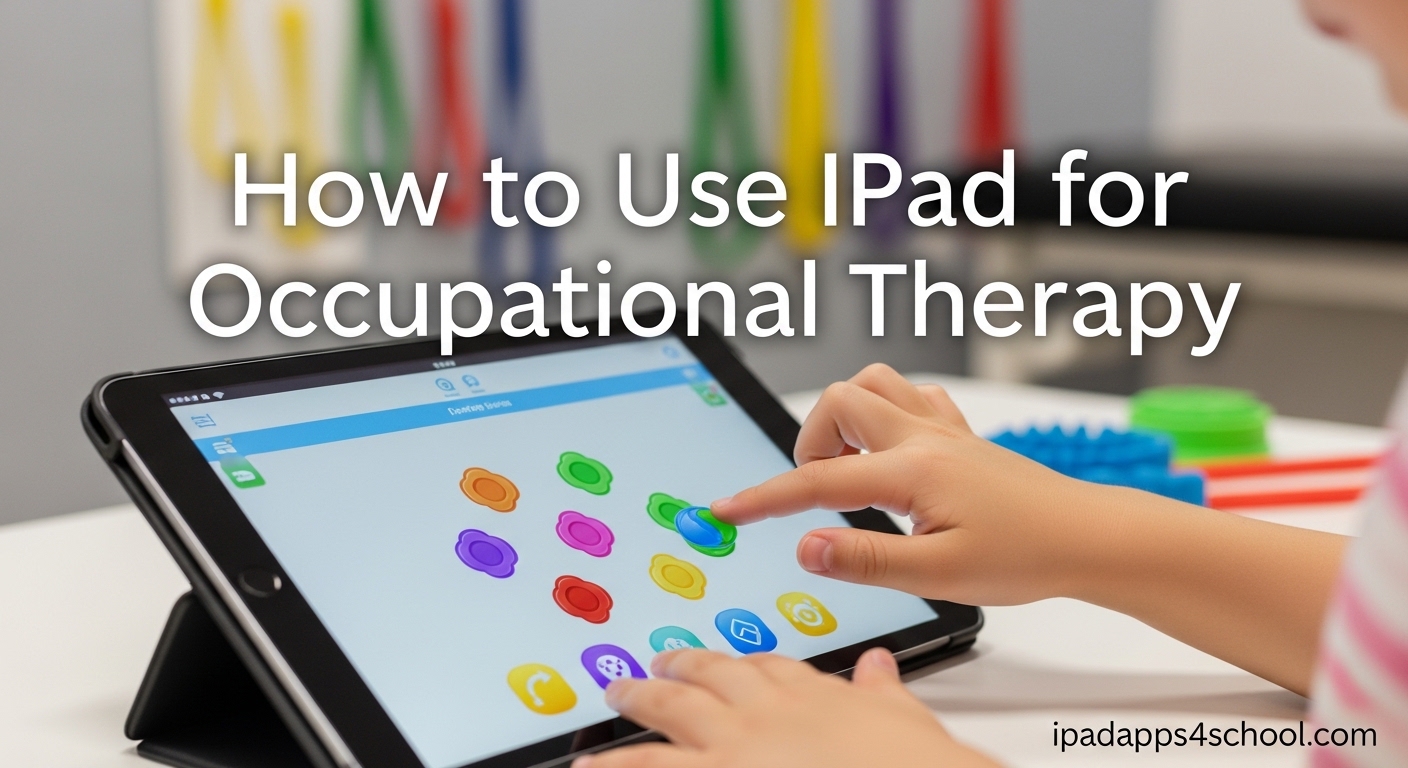
The iPad has transformed how occupational therapists work with clients across all age groups. From pediatric therapy to senior rehabilitation, this versatile device offers interactive, engaging tools that complement traditional therapy methods. This guide covers everything you need to know about using iPad for occupational therapy effectively.
Table of Contents
Benefits of Using iPad for Occupational Therapy
Occupational therapists increasingly incorporate iPads into their practice because these devices offer unique advantages that support therapeutic goals. The portability of an iPad allows therapists to conduct sessions in schools, homes, outpatient clinics, and through teletherapy platforms. This flexibility means therapy can continue beyond the clinical setting and into the client’s natural environment.
The iPad provides extensive customization options through accessibility features and app selection. Therapists can tailor the experience to each client’s specific needs, whether that involves simplifying the interface for senior clients or selecting apps that target particular skills like pincer grasp or visual motor integration. The device serves as a bridge between traditional hands-on therapy and digital engagement.
Perhaps most importantly, iPads increase client engagement and motivation during therapy sessions. Many clients, especially children, find interactive apps more appealing than repetitive therapeutic exercises. Apps can turn skill-building activities into games, making therapy feel less like work. The immediate feedback provided by well-designed apps helps clients track their progress and celebrate achievements.
Progress tracking capabilities in many occupational therapy apps allow therapists to monitor client advancement over time. Apps like Dexteria and other skill-building tools record performance metrics, giving therapists objective data to include in documentation and share with clients and families during care planning meetings.
iPad Apps for Fine Motor Skills Development
Fine motor skills encompass the small movements that involve the hands, fingers, and wrists. These skills are essential for daily activities like buttoning shirts, writing with a pencil, and manipulating small objects. iPad apps provide engaging ways to target finger isolation, pincer grasp, and eye-hand coordination in a therapeutic context.
Apps for Finger Isolation and Pincer Grasp
Finger isolation refers to the ability to move each finger independently, while pincer grasp involves picking up small objects between the thumb and finger. Apps designed for these skills often include activities that require tapping specific areas of the screen, dragging objects along paths, and pinching gestures.
Dexteria and Dexteria Jr. are widely recommended by occupational therapists for developing fine motor skills. These apps provide exercises specifically designed to improve finger isolation, strength, and coordination. The exercises adapt to the user’s performance level, providing appropriate challenge without causing frustration.
Hand-Eye Coordination Exercises
Hand-eye coordination allows us to perform tasks that require visual guidance of hand movements. Apps that target this skill often involve tracing activities, following moving objects, or completing puzzles. These visual motor activities help clients develop the ability to coordinate what they see with the physical actions of their hands.
Bugs and Buttons is an example of an app that combines fine motor practice with visual motor challenges. The app includes activities that require precise tapping, dragging, and tracing movements, all presented in colorful, engaging formats suitable for children and adults with developmental disabilities.
Bilateral Coordination Activities
Bilateral coordination involves using both sides of the body together in a coordinated way. Some iPad apps are designed specifically to encourage bilateral hand use, though most tablet activities naturally promote two-handed coordination as clients stabilize the device with one hand while interacting with the other.
Therapists often incorporate apps that require holding the iPad with both hands while completing tasks, effectively working on bilateral integration as part of the therapeutic activity. This approach combines motor skill development with engaging digital content.
Handwriting and Visual Motor Skills Apps
Handwriting remains a critical skill for academic success and daily communication, and visual motor skills underpin the ability to coordinate visual perception with physical movement. iPad apps provide unique advantages for handwriting instruction and visual motor development that traditional worksheets cannot match.
Handwriting Practice Apps
Handwriting Without Tears: Wet, Dry, Try is a popular app among occupational therapists that teaches letter formation using a multi-sensory approach. The app allows clients to practice letters with various stroke techniques, providing visual guides and audio feedback. The progression from tracing to independent writing supports skill building at the appropriate challenge level.
Other handwriting apps offer similar functionality with different approaches. Some use animated demonstrations of letter formation, while others provide blank writing surfaces that mimic paper. Many apps in this category support both manuscript and cursive handwriting development, allowing therapists to address curriculum requirements for school-age clients.
Visual Motor Integration Tools
Visual motor integration involves the coordination of visual perception with body movement. When a child struggles with visual motor skills, they may have difficulty copying shapes, coloring within lines, or participating in sports. iPad apps can provide structured practice for these skills in engaging formats.
Apps that include dot-to-dot activities, tracing games, and puzzle completion exercises all target visual motor integration. These activities require clients to visually track objects on screen while performing precise motor actions, building neural connections that support overall visual motor development.
Visual Tracking and Scanning Exercises
Visual tracking refers to the ability to follow moving objects with the eyes, while visual scanning involves searching through visual information to find specific details. Both skills are important for reading, writing, and navigating environments safely.
Some occupational therapy apps specifically target these skills through activities that require following moving objects across the screen, finding specific items among distractors, or tracking sequential patterns. These exercises help clients develop the oculo-motor skills necessary for academic and daily task success.
Executive Functioning and Self-Regulation Apps
Executive functioning encompasses the cognitive skills necessary for planning, organizing, and completing tasks. Self-regulation involves managing emotions and behaviors to achieve goals. Both areas are commonly addressed in occupational therapy, and iPad apps provide valuable tools for building these skills.
Task Completion and Sequencing
Many clients receiving occupational therapy services struggle with executive functioning skills like task initiation, sequencing, and completion. Apps that break tasks into smaller steps, provide visual schedules, or offer reward systems for completing activities help address these challenges.
Choiceworks is an app frequently recommended by occupational therapists for supporting executive functioning. The app helps clients understand daily routines, manage expectations, and work through multi-step tasks with visual supports. Therapists use this app to create custom schedules that address each client’s specific needs.
Time Management and Scheduling
Time perception and management skills are essential for independence in daily living. Some clients struggle with understanding time passage, estimating how long tasks take, or managing schedules across multiple commitments. iPad apps can provide structured practice for these skills while offering visual supports that make abstract time concepts more concrete.
Timer-based apps and visual schedule builders help clients learn to manage their time more effectively. These tools are particularly valuable for clients with attention difficulties or those on the autism spectrum who benefit from explicit visual structure.
Emotional Regulation Tools
Emotional regulation is the ability to manage emotional responses appropriately. Apps like Breathe, Think, Do with Sesame Street teach children emotional regulation strategies through interactive storytelling. The app guides children through recognizing feelings, thinking through solutions, and trying calming strategies.
Other apps in this category provide visual supports for emotional expression, mood tracking, or relaxation exercises. These tools can be integrated into therapy sessions or used as part of home programs to extend practice beyond clinical sessions.
Using iPad as an AAC Device
Augmentative and Alternative Communication (AAC) refers to methods of communication that supplement or replace speech when verbal communication is not possible or is insufficient. With the right apps and settings, an iPad can function as a powerful AAC device for clients with communication disabilities.
What is AAC?
AAC encompasses both unaided communication methods like sign language and aided methods like speech-generating devices. For many individuals with communication challenges, an iPad-based AAC system offers a portable, customizable, and socially acceptable communication option.
The advantages of using an iPad as an AAC device include its ubiquity, which reduces the stigma of carrying a specialized communication device. Additionally, iPads offer access to a wide range of communication apps, accessibility features, and the ability to customize vocabulary and layouts to meet individual needs.
Step-by-Step Setup Instructions
To turn an iPad into an AAC device, begin by downloading a dedicated AAC app such as Proloquo2go, TouchChat, or Compass. These apps provide the symbol-based vocabulary and voice output necessary for functional communication. Open the app and create a user profile that reflects the client’s communication needs and abilities.
Next, configure iPad settings to optimize the device for AAC use. Navigate to Settings, then Accessibility, and enable features like Switch Control if the client will use adaptive switches, or VoiceOver for auditory feedback. Consider enabling Guided Access to prevent accidental navigation away from the communication app during use.
Customize the app’s vocabulary and symbol layout based on the client’s communication needs. Most AAC apps allow therapists and caregivers to add custom words, phrases, and symbols. Start with core vocabulary that represents frequently needed messages, then expand as the client develops proficiency with the system.
Recommended AAC Apps
Proloquo2go is one of the most widely used AAC apps, offering symbol-based communication with natural-sounding voice output. The app includes pre-programmed vocabulary sets and allows extensive customization. TouchChat provides similar functionality with a different organization system, allowing therapists to select the approach that best matches each client’s learning style.
For clients with motor impairments, switch-scanning features in these apps allow communication through adaptive switches rather than direct touch. This accommodation extends AAC functionality to individuals who cannot reliably access the touchscreen directly.
iPad Accessibility Setup for Senior Clients
Occupational therapists working with senior clients often need to modify the iPad interface to accommodate age-related changes in vision, motor control, and cognition. Apple’s built-in accessibility features provide powerful tools for creating simplified, senior-friendly iPad configurations.
Simplifying the iPad Interface
Begin by creating a simplified Home screen that includes only the apps the senior client actually needs. Remove or reorganize apps to reduce visual clutter and decision fatigue. Place frequently used apps in obvious locations, and consider creating folders to group related apps together.
Guided Access is one of the most valuable accessibility features for senior clients. This feature locks the iPad to a single app and prevents accidental navigation to other apps or settings. To enable Guided Access, go to Settings, then Accessibility, then Guided Access. Turn on the feature and set a passcode to prevent unauthorized exit from the guided session.
Font and Display Adjustments
Increase text size by going to Settings, then Display and Brightness, then Text Size. Select a larger default text size that makes reading comfortable for the client’s vision needs. Additionally, enable Bold Text in the same menu for improved text contrast.
For clients with significant vision impairment, consider enabling VoiceOver in the Accessibility settings. This feature provides audio descriptions of on-screen content, allowing clients with low vision to navigate the device by listening rather than looking. VoiceOver works with many apps and can be customized with different speech rates and feedback options.
Reducing Motion and Simplifying Gestures
Reduce motion effects by going to Settings, then Accessibility, then Motion, and enabling Reduce Motion. This setting simplifies animations and transitions, making the interface less disorienting for clients who experience motion sensitivity or have difficulty following moving elements on screen.
Consider the client’s motor abilities when selecting an iPad configuration. Some seniors benefit from on-screen alternatives to complex multi-finger gestures. In Accessibility settings, enable AssistiveTouch to provide on-screen button alternatives for gestures like pinch, rotate, and multi-finger swipes. This accommodation can make iPad use possible for clients with limited hand dexterity.
Teletherapy Considerations with iPad
The rise of telehealth has made iPads even more valuable for occupational therapists. Teletherapy allows therapists to conduct sessions with clients who cannot travel to clinical settings, extending the reach of occupational therapy services to underserved areas and increasing appointment flexibility.
For effective teletherapy sessions, ensure the iPad has a stable internet connection and position the device to provide a clear view of both the therapist and any materials being used. Consider using a stand or mount to free the therapist’s hands during sessions. Good lighting on the client’s face and any materials being discussed improves the remote session quality.
Many therapy apps can be shared during teletherapy sessions through screen sharing features in video conferencing platforms. This allows therapists to demonstrate app features in real-time and observe client responses to activities. The interactive nature of apps helps maintain engagement during remote sessions that might otherwise feel disconnected compared to in-person therapy.
Frequently Asked Questions
What is the best app for occupational therapists?
The best occupational therapy apps for iPad include Dexteria for fine motor skills, Handwriting Without Tears for handwriting practice, and Proloquo2go for AAC communication support. The ideal app depends on the specific therapeutic goals and client needs. therapists should evaluate apps based on their target skills, age appropriateness, and evidence base before recommending them to clients.
Can I turn my iPad into an AAC device?
Yes, you can turn an iPad into an AAC device by downloading dedicated apps like Proloquo2go or TouchChat, enabling accessibility features in Settings, and customizing the vocabulary and symbols to match the user’s communication needs. This conversion allows individuals with communication disabilities to use their iPad for functional, augmentative communication in daily life.
How to simplify an iPad for seniors?
To simplify an iPad for senior clients: enable Guided Access to lock the device to one app, increase font sizes in Display settings, enable VoiceOver for audio feedback, and reduce motion effects. You can also create a simplified Home screen with only essential apps. These modifications accommodate age-related changes in vision, motor control, and cognition while maintaining the therapeutic value of the device.
Can you turn an iPad into a home hub?
While iPads can be used as smart home controllers through HomeKit-enabled apps, this is not a primary OT application. iPads are better utilized in therapy for skill development, communication support, and home program activities rather than home automation purposes. The therapeutic value of iPads lies in their apps and accessibility features that support specific developmental or rehabilitation goals.
Conclusion
The iPad has become an invaluable tool in occupational therapy practice, offering versatile solutions for addressing fine motor skills, visual motor development, handwriting, executive functioning, self-regulation, and communication support. The extensive range of apps available allows therapists to customize treatment approaches for each client’s unique needs and goals.
Whether you are an occupational therapy student learning to use technology in practice, a working therapist looking to expand your tool kit, or a caregiver seeking home program resources, the iPad offers accessible and engaging solutions. The key to successful implementation lies in matching apps to therapeutic goals and client abilities while using the device’s accessibility features to create appropriate accommodations.
As telehealth continues to grow and digital therapeutic tools become more sophisticated, the iPad’s role in occupational therapy will only continue to expand. Consider exploring the apps and strategies outlined in this guide to discover how iPad technology can support your therapeutic practice or personal care needs.