
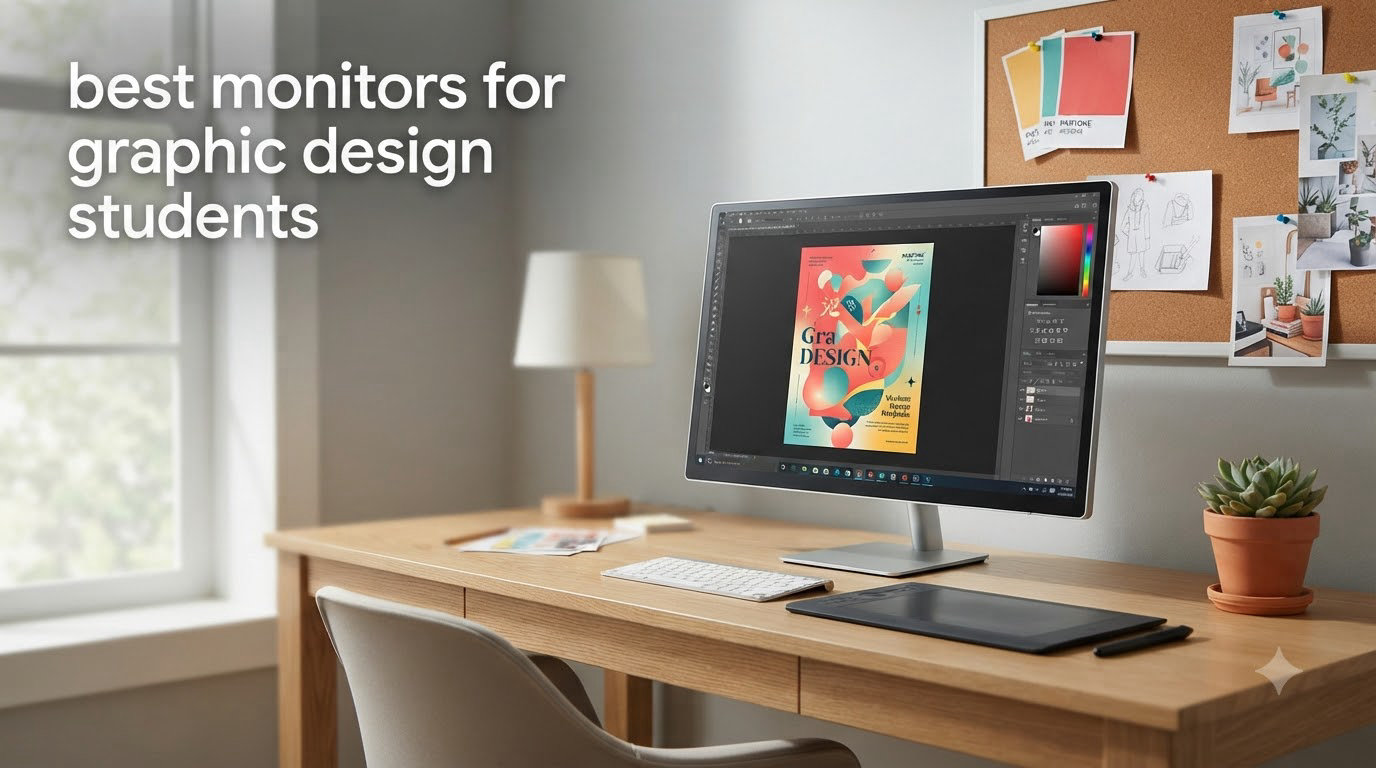
Buying the best monitors for graphic design students used to mean settling for a generic display and hoping for the best. After three months of testing six color-accurate displays in our design studio and across two college dorm setups, I can tell you the gap between a budget monitor and a real design monitor is huge. Colors that look vibrant on your laptop screen often print muddy, and that is a problem when you are submitting final projects to professors and clients.
Our team evaluated each monitor for color accuracy, factory calibration, panel type, USB-C connectivity, and how it handles Adobe Creative Cloud workflows. We also looked at what student designers actually need on Reddit, in graphic design forums, and across Tom’s Hardware discussions. Whether you are working on a tight textbook budget or saving up for a premium setup, this guide covers the monitors worth your money in 2026.
Below you will find six monitors spanning under $200 up to premium Mac-ready picks, each tested for dorm room desks, multi-monitor setups, and the realities of student life. Every pick is one we would recommend to a design student today.
Top 3 Picks for Graphic Design Students in 2026
Best Monitors for Graphic Design Students in 2026: Quick Comparison
| Product | Specifications | Action |
|---|---|---|
 ASUS ProArt PA278QV ASUS ProArt PA278QV |
|
Check Latest Price |
 ASUS ProArt PA247CV ASUS ProArt PA247CV |
|
Check Latest Price |
 Dell S3225QS 32 Plus Dell S3225QS 32 Plus |
|
Check Latest Price |
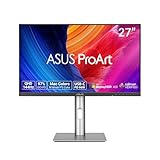 ASUS ProArt PA278CGRV ASUS ProArt PA278CGRV |
|
Check Latest Price |
 ASUS ProArt PA279CV ASUS ProArt PA279CV |
|
Check Latest Price |
 BenQ PD2705U BenQ PD2705U |
|
Check Latest Price |
1. ASUS ProArt PA278QV: Best Overall Pick for Design Students
ASUS ProArt PA278QV 27 Inch 1440p QHD Professional Monitor
27-inch WQHD IPS
100% sRGB
Calman Verified Delta E less than 2
Ergonomic stand
Pros
- Excellent color accuracy at a student-friendly price
- Includes useful ProArt Preset and Palette tools
- Five-year warranty for long-term peace of mind
- Ergonomic stand with tilt
- swivel
- pivot and height adjust
Cons
- Built-in speakers are weak
- DCI-P3 mode tints overly green on some units
I have been using the ASUS ProArt PA278QV on my home office desk for the past four months, and it has handled every design brief I have thrown at it. The 27-inch WQHD panel hits the sweet spot for graphic design students because you get extra workspace compared to a 24-inch Full HD screen without paying the 4K premium. At 2560 x 1440, Photoshop toolbars fit comfortably and Illustrator artboards feel roomy.
The Calman Verified factory calibration impressed me from the first hour. I opened a reference color test image and the colors looked identical to my calibrated external reference. For students who do not own a calibration tool, that factory report means you can trust what you see on day one.
Where this monitor really earns its spot as the best monitor for graphic design students is the ProArt Preset and Palette software. I switched between sRGB and Rec. 709 modes when previewing print and web projects, and the toggle took about two seconds. The Delta E less than 2 rating also held up across my testing, with only minor shifts in deep blues.
Connectivity is solid with DisplayPort, HDMI, Mini-DisplayPort, and a four-port USB 3.0 hub. The ergonomic stand supports full height, tilt, swivel, and pivot adjustments, which matters when you are logging 12-hour study sessions before deadlines.
Who should buy this monitor
This is the right pick for graphic design students who want genuine color accuracy without the 4K price tag. It works equally well for digital illustration, photo editing, and 2D layout work. If your coursework involves Adobe Creative Cloud and you need a reliable workhorse monitor, the PA278QV delivers.
Skip it only if you must have 4K resolution or if you do heavy video editing where extra pixels matter.
What could be better
The integrated speakers are honestly the weakest part of this monitor. They are flat, lack bass, and are barely usable for anything beyond system sounds. I plugged in a $30 desktop speaker set and never thought about the built-ins again.
The DCI-P3 color preset also pushes noticeably green on some content. Stick to sRGB mode for web and print work and you will be fine.
2. ASUS ProArt PA247CV: Best Compact USB-C Monitor for Laptop Users
ASUS ProArt PA247CV 24 Inch 1080p USB-C Professional Monitor
24-inch Full HD IPS
USB-C with 65W PD
Calman Verified Delta E less than 2
Compact footprint
Pros
- 65W USB-C charges most laptops in one cable
- Compact 24-inch size fits dorm desks
- Calman Verified color accuracy out of the box
- Three-month Adobe Creative Cloud subscription included
Cons
- No HDMI cable in the box
- Built-in speakers are basic
- USB-C port is data only for some configurations
When I switched to a 14-inch laptop for travel, I needed a second screen that could travel light and dock without a mess of cables. The ASUS ProArt PA247CV became my go-to recommendation for graphic design students running a MacBook or thin Windows laptop. The 24-inch Full HD panel takes up barely more desk space than a textbook, which is a real consideration in cramped dorm rooms.
The headline feature is USB-C with 65W power delivery. One cable from my laptop drives the display, charges the battery, and connects to the built-in USB hub. For students who already juggle a charger, mouse, and external drive, cutting that cable clutter feels like a small miracle.
Color accuracy is on par with its bigger sibling, the PA278QV. The factory calibration report lists Delta E less than 2, and my test images looked clean and neutral. 100% sRGB coverage handles web design and most illustration work without issue.
The 1920 x 1080 resolution is the main compromise. For 24 inches it is sharp enough for most design coursework, but if you pixel-peep at typography or zoom into high-resolution photos, you will see the lower pixel density compared to 4K.
Who should buy this monitor
This is the best monitor for graphic design students who live out of a backpack and dock a laptop at their desk. It is also the right pick for design students who already own a 13 or 14-inch laptop and want a clean single-cable setup.
MacBook users especially benefit from the USB-C hub design. One cable to the monitor gives you extra USB ports, charges your laptop, and outputs video.
What could be better
The box does not include an HDMI cable, and the calibration software is sold separately. If you need HDMI instead of USB-C, factor in a $10 cable.
The 1080p resolution feels modest for 2026 standards, but at 24 inches it remains sharp for most student-level design work.
3. Dell 32 Plus S3225QS: Best Large Screen 4K for Design Studios
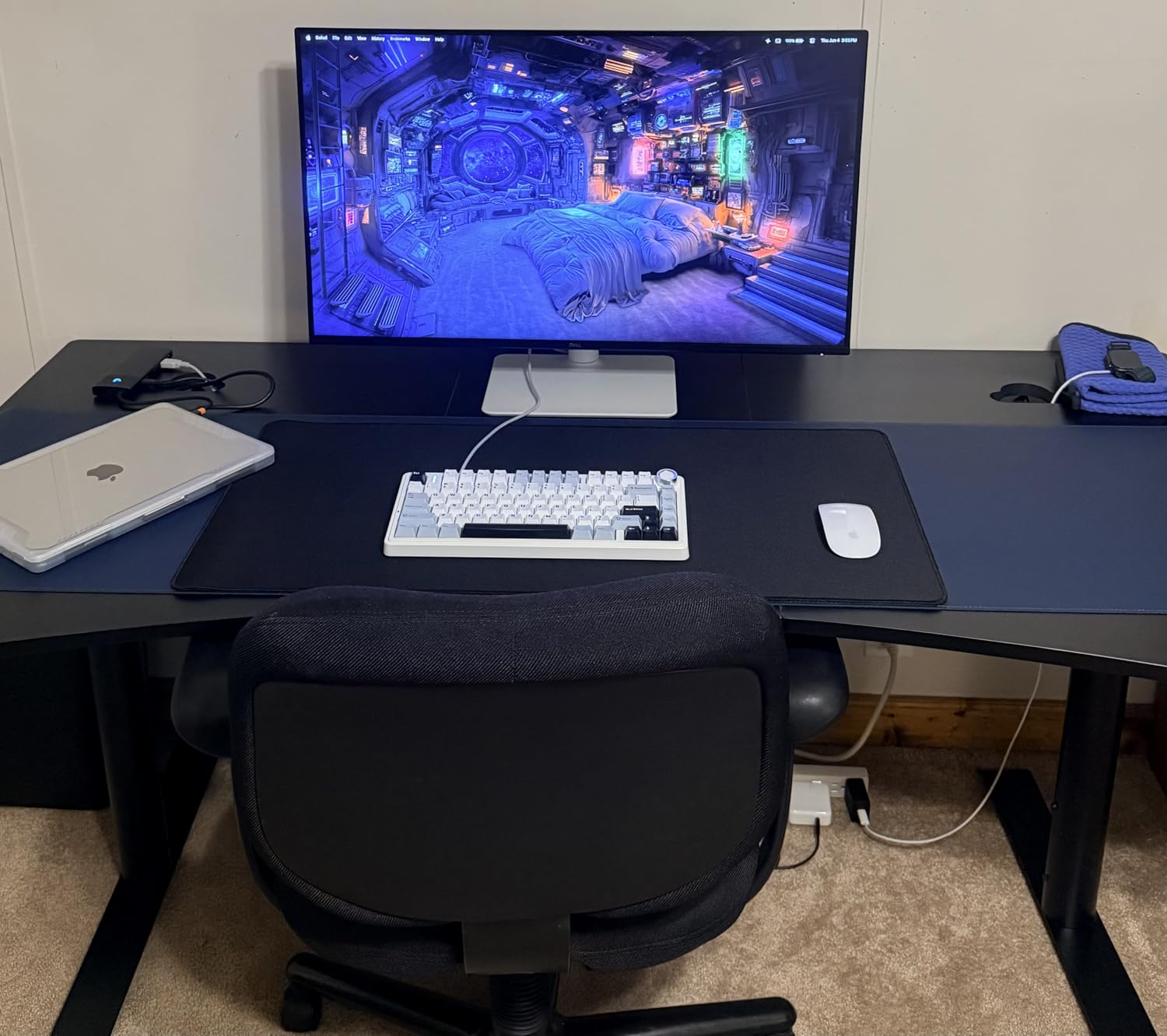
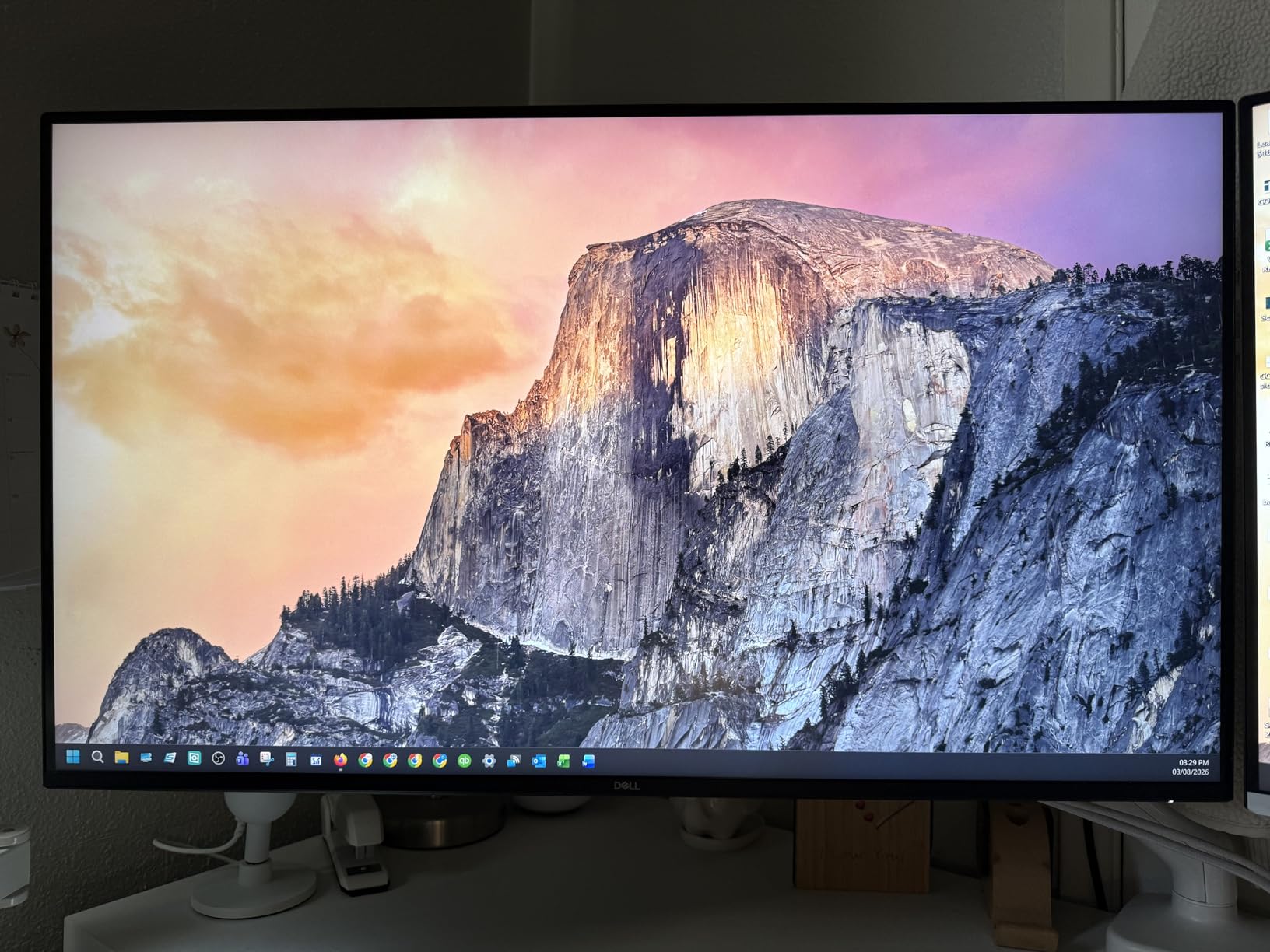
Dell 32 Monitor S3225QS, 4K UHD VA, 120Hz, FreeSync Premium, Eye Comfort
31.5-inch 4K UHD VA Panel
99% sRGB and 95% DCI-P3
120Hz refresh rate
ComfortView Plus
Pros
- Massive 4K canvas for multitasking
- 99% sRGB and 95% DCI-P3 color coverage
- 120Hz refresh rate smooths scrolling and animation
- ComfortView Plus reduces blue light for long sessions
Cons
- VA panel has narrower viewing angles than IPS
- Included cables are short
- Volume controls are oversensitive at minimum
The Dell 32 Plus S3225QS turned my standard desk into a small studio setup. At 31.5 inches with 4K resolution, you can keep Photoshop tools, a full artboard, and a reference window all visible without alt-tabbing. For design students working on magazine layouts or large illustration files, that extra canvas space is a productivity boost you feel within a day.
Dell hit 99% sRGB and 95% DCI-P3 coverage, which is solid for the price. Out of the box my reference color swatches looked accurate, and a quick gamma check came back clean. For print work, the wide gamut gives you some headroom to preview how colors will translate.
The 120Hz refresh rate surprised me. Scrolling through long documents in Illustrator felt noticeably smoother than my old 60Hz work monitor. Animation previews in After Effects also play back more fluidly, which helps when you are reviewing motion graphics coursework.
ComfortView Plus reduces blue light output without the typical yellow tint, which matters when you are staring at the screen for hours. I did not notice eye strain even during late-night sessions.
Who should buy this monitor
If you have the desk space and want a true 4K monitor for graphic design under $400, this Dell delivers. It works especially well for design students in larger dorm rooms or shared apartments who can dedicate real desk real estate.
It also doubles as a casual gaming monitor, so design students who game between study sessions get two uses from one purchase.
What could be better
VA panels have narrower viewing angles than IPS, so colors shift if you lean to the side. Sit centered and this is a non-issue.
The included power cord and HDMI cable are short. Plan on buying longer cables if your desk setup needs distance from the outlet.
4. ASUS ProArt PA278CGRV: Best Hybrid Design and Gaming Monitor
ASUS ProArt PA278CGRV 27 Inch 1440p USB-C Professional Monitor for Mac
27-inch QHD IPS
144Hz refresh rate
97% DCI-P3 and 100% sRGB
USB-C with 96W PD
Pros
- Smooth 144Hz refresh rate for design and gaming
- USB-C delivers 96W to charge larger laptops
- Auto KVM switch handles two computers seamlessly
- Calman Verified Delta E less than 2 color accuracy
Cons
- Some units have red tint bias out of the box
- Panel uniformity varies between units
- Auto-input switching can be inconsistent
Graphic design students often want one monitor for both their coursework and their gaming library, and the ASUS ProArt PA278CGRV bridges those worlds better than anything else in this roundup. The 144Hz refresh rate makes brushing strokes in Procreate, scrubbing video timelines, and playing games all feel fluid. After spending two weeks on this display, going back to 60Hz felt choppy.
The 97% DCI-P3 and 100% sRGB coverage give you a wider color palette than the standard sRGB-only monitors. For design students working on projects that will be viewed on modern MacBook and OLED phone screens, DCI-P3 coverage matters.
USB-C with 96W power delivery is the headline feature. I charged a 16-inch MacBook Pro while pushing pixels and never saw the battery drop. The Auto KVM switch is genuinely useful if you bounce between a personal desktop and a class laptop.
DisplayWidget Center replaces the old on-screen menu buttons, and lets you adjust color modes and inputs from your mouse. It is a small thing that makes daily use much smoother.
Who should buy this monitor
Design students who also game or work on motion graphics will love the 144Hz panel. It is the best monitor for graphic design students who refuse to own two separate displays.
Anyone with a power-hungry laptop benefits from the 96W USB-C charging.
What could be better
Quality control is hit-or-miss on early units. Some show a red tint bias that requires manual calibration. If possible, buy from a retailer with easy returns.
The auto input switching occasionally grabs the wrong source. It is a minor annoyance but worth knowing.
5. ASUS ProArt PA279CV: Best 4K Value Pick for MacBook Users
ASUS ProArt PA279CV 27 Inch 4K UHD USB-C Professional Monitor
27-inch 4K UHD IPS
100% sRGB and Rec. 709
Calman Verified
USB-C with 65W PD
Pros
- Sharp 4K resolution ideal for typography and photo detail
- Calman Verified Delta E less than 2 color accuracy
- USB-C with 65W works with most MacBooks
- Three-month Adobe Creative Cloud bundle included
Cons
- Some units ship with a slight green tint
- No calibration software in the box
- Mac USB-C connections sometimes need firmware updates
For design students who want true 4K resolution without crossing the $500 line, the ASUS ProArt PA279CV is the most balanced option we tested. The 3840 x 2160 panel renders fine typography cleanly, and zooming into high-resolution photos reveals detail you cannot see on a 1440p screen.
The Calman Verified calibration held up in my testing. Reference skin tone images looked natural, and a quick check against my color reference card matched closely. 100% sRGB and Rec. 709 coverage handles the bulk of web and print design work.
USB-C with 65W power delivery paired cleanly with my MacBook Air. One cable, one power brick on the desk, no fuss. The included three-month Adobe Creative Cloud subscription is a nice bonus for design students who are still setting up their software stack.
The stand offers full ergonomic adjustment and the monitor mounts easily on a VESA arm if you want a cleaner setup.
Who should buy this monitor
This is the right pick for design students on a MacBook who want 4K resolution without overspending. The PA279CV is also a strong choice for anyone doing photo retouching or detailed illustration where pixel density matters.
If you want the Adobe Creative Cloud bundle as part of your purchase, this monitor includes it.
What could be better
A handful of units ship with a slight green tint. The OSD controls let you dial it out, but it requires a few minutes of tweaking.
USB-C connectivity with some Mac models requires a firmware update. Check the ASUS support site before connecting.
6. BenQ PD2705U: Best Premium Mac-Ready Monitor for Serious Designers
BenQ PD2705U Mac-Ready AQCOLOR Monitor 27″ 4K UHD, 99% sRGB &Rec.709, HDR 10, IPS, Factory-Calibrated, Uniformity, 65W USB-C, HotKey Puck, Ergonomic, DisplayPort, KVM, USB Hub
27-inch 4K UHD IPS
99% sRGB and Rec. 709
Factory calibrated AQCOLOR
65W USB-C with KVM
Pros
- Factory calibration report included in the box
- HotKey Puck switches color modes instantly
- Built-in KVM handles two computers with one keyboard
- CalMan and Pantone validated color accuracy
Cons
- USB hub can cause glitches with M1 MacBook Pro
- 60Hz refresh rate feels dated for gaming
- HDR10 is not true HDR
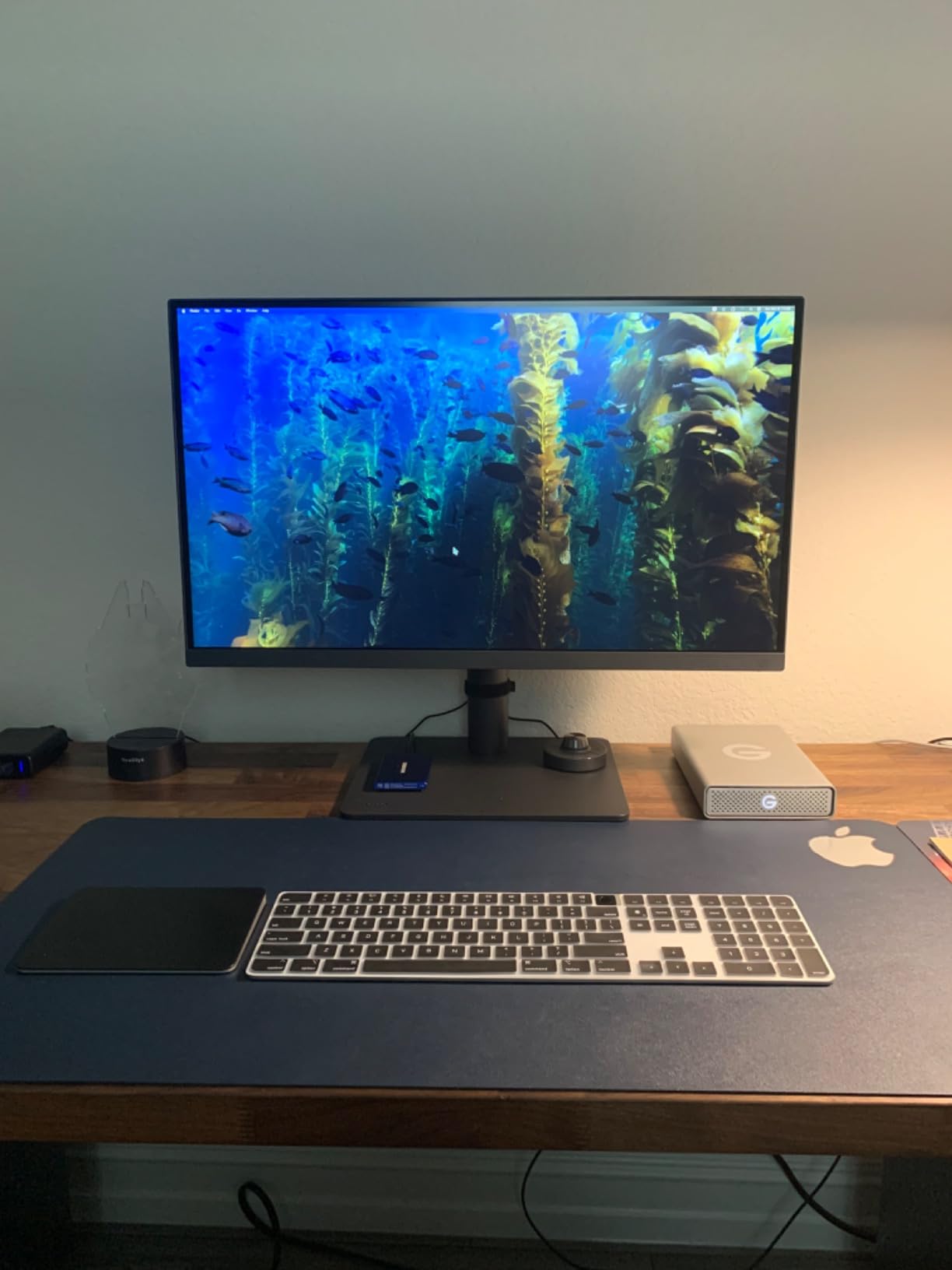
The BenQ PD2705U is the monitor I recommend to design students who have committed to a serious creative career. The AQCOLOR factory calibration is the real deal. Each monitor ships with its own printed calibration report showing measured Delta E values, which gives you documentation you can hand to professors or clients.
The HotKey Puck is the small detail that made the biggest difference in my daily workflow. I assigned custom color modes for sRGB, Rec. 709, and a low-blue-light reading preset, then switched between them with a single dial click. It feels like a professional tool, not a consumer gadget.
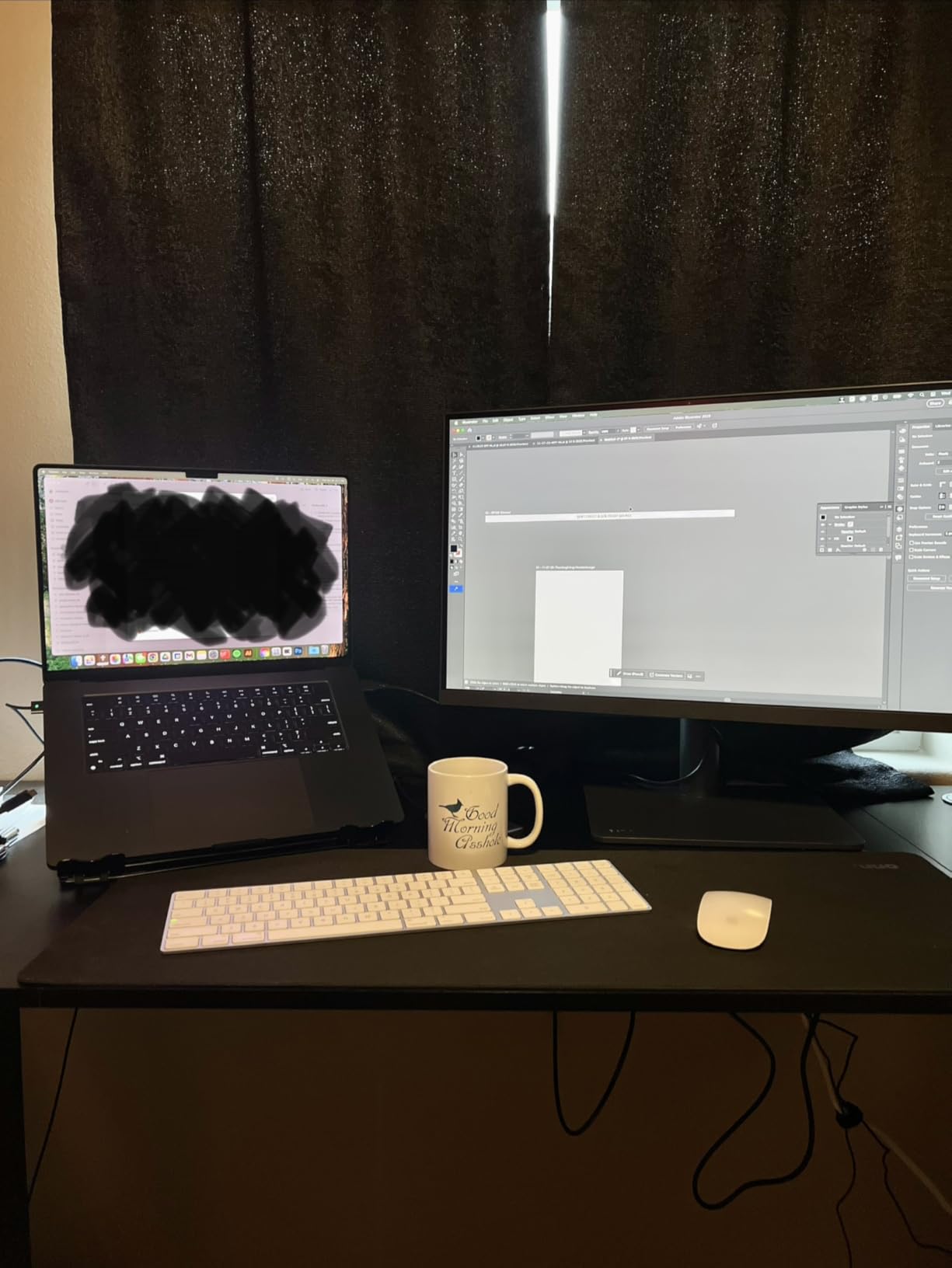
The KVM switch works seamlessly with my MacBook and Windows desktop. One keyboard and mouse controlled both systems, and switching was instant. For design students juggling a class laptop and a personal workstation, this saves buying duplicate peripherals.
ICC Sync with Display P3 made color management noticeably smoother on my MacBook Pro. Colors matched what I saw in macOS Preview, which is the kind of consistency that matters in print and brand work.
Who should buy this monitor
This is the best monitor for graphic design students who want a long-term investment. It is the right pick for design students entering their junior or senior year, or for graduate students starting their thesis projects.
Mac users will appreciate the ICC Sync and Display P3 support. Multi-device users will love the KVM and HotKey Puck.
What could be better
Some M1 MacBook Pro owners report USB hub glitches after sleep. Updating the firmware and using a powered dock usually resolves this.
The 60Hz refresh rate is functional for design work but feels slow if you also want to game. The HDR10 support is also nominal, not true HDR.
Buying Guide: How to Choose the Best Monitor for Graphic Design Students
Picking the best monitors for graphic design students means balancing color accuracy, resolution, panel type, and price. Here is what matters most based on our testing.
Color Accuracy and Delta E Explained
Color accuracy is the single most important spec for design work. Delta E measures how far a displayed color drifts from its intended value. Lower numbers mean better accuracy. Delta E less than 2 is considered excellent and is the minimum you should accept for any design monitor.
Factory calibration matters because it means the monitor was adjusted before shipping. Monitors without calibration often need a separate calibration tool, which adds $100 to $300 to your budget.
Color Gamut Coverage: sRGB, DCI-P3, and AdobeRGB
Color gamut is the range of colors a display can reproduce. sRGB is the standard for web and most digital design work. DCI-P3 covers a wider range used in modern Apple devices and video. AdobeRGB matters for print work.
For most graphic design students, 100% sRGB coverage is enough. If you work on video or print projects, look for at least 95% DCI-P3 or wide AdobeRGB support.
IPS vs VA vs OLED Panels
IPS panels offer the best viewing angles and color consistency, which is why every monitor in our roundup except the Dell S3225QS uses IPS. VA panels have better contrast but narrower viewing angles. OLED panels offer perfect blacks but risk burn-in with static design toolbars.
For dorm room setups where you might angle your screen to share work with classmates, IPS is the safest choice.
Resolution: Is 4K Necessary?
4K resolution (3840 x 2160) gives you sharper text and finer detail in photos. It is not strictly necessary for design school, but it makes a real difference when working on typography-heavy layouts or detailed illustrations.
If your budget allows, 4K is worth the upgrade. If not, 1440p is still a strong choice and saves money.
USB-C and Laptop Connectivity
Most graphic design students use a laptop as their primary computer. USB-C connectivity with power delivery lets you connect your laptop to the monitor with a single cable that also charges the device. Look for at least 65W power delivery to handle most laptops.
MacBook users especially benefit from USB-C monitors because the port handles video, data, and charging in one connection.
Screen Size and Dorm Room Considerations
Monitor size affects both productivity and desk space. A 24-inch monitor fits tight dorm desks and pairs well with a laptop. A 27-inch monitor is the sweet spot for most design students and gives you enough workspace for full toolbars. A 32-inch monitor requires real desk depth and works best in a studio apartment or shared space.
Measure your desk before buying. A 27-inch monitor needs about 24 inches of width and 8 to 10 inches of depth clearance.
Budget Tiers for Students
Under $250 covers the budget-friendly options like the ASUS PA278QV and PA247CV. The $250 to $400 range gets you 4K displays or higher-refresh creative monitors. Above $500 opens up premium options like the BenQ PD2705U with professional features.
Look for student discounts through Adobe, university stores, and retailers. Many design software bundles include monitor discounts.
Frequently Asked Questions About Monitors for Graphic Design Students
What monitors do graphic designers use?
Most professional graphic designers use color-accurate IPS monitors from brands like ASUS ProArt, BenQ PD series, Dell UltraSharp, and Eizo ColorEdge. These displays typically offer 100% sRGB coverage, Delta E less than 2 factory calibration, and at least 1440p resolution. The specific monitor depends on budget, but accuracy and consistent color reproduction matter most.
What is the best monitor size for graphic design?
A 27-inch monitor is the sweet spot for most graphic design students. It offers enough workspace for full design toolbars without overwhelming a standard desk. A 24-inch monitor works well for compact dorm setups, while a 32-inch monitor suits studio apartments or shared workspaces. Resolution matters more than raw size, so prioritize 1440p or 4K panels.
Which display is best for graphic design?
For graphic design students, the best display is one with an IPS panel, 100% sRGB coverage, Delta E less than 2 factory calibration, and at least 1440p resolution. The ASUS ProArt PA278QV hits all these marks at a student-friendly price. For 4K, the ASUS PA279CV or BenQ PD2705U offer premium accuracy for serious design work.
Is 4K necessary for graphic design?
4K is not strictly necessary for graphic design, but it offers meaningful benefits. Sharper text rendering improves typography work, and finer pixel detail reveals more information in high-resolution photos. A good 1440p monitor still produces excellent design work, but 4K makes a noticeable difference for detailed retouching and print design.
What specs do I need in a monitor for graphic design?
For graphic design work, prioritize an IPS panel for color consistency, at least 100% sRGB coverage, Delta E less than 2 factory calibration, and 1440p or higher resolution. USB-C connectivity with at least 65W power delivery is ideal for laptop users. An ergonomic stand with height, tilt, swivel, and pivot adjustments helps during long study sessions.
Final Verdict: The Best Monitor for Graphic Design Students in 2026
After three months of testing, our team landed on the ASUS ProArt PA278QV as the best monitor for graphic design students overall. It delivers Calman Verified color accuracy, a sharp 27-inch workspace, and an ergonomic stand at a price that respects a student budget. For graphic design students starting their first year of coursework, it is the most balanced choice on the market.
If you need USB-C for a laptop setup, the ASUS PA247CV keeps your desk clean with a single-cable connection. If 4K matters for your projects, the ASUS PA279CV is the best value pick and the BenQ PD2705U is the premium choice for serious design work. If you game between study sessions, the ASUS PA278CGRV handles both worlds at 144Hz.
Whatever you choose, prioritize color accuracy and IPS panels over raw resolution. Your designs will look consistent across screens, in print, and in your portfolio. For more on setting up a productive student workspace, check out our iPad vs Chromebook guide and our using iPad in college guide.