
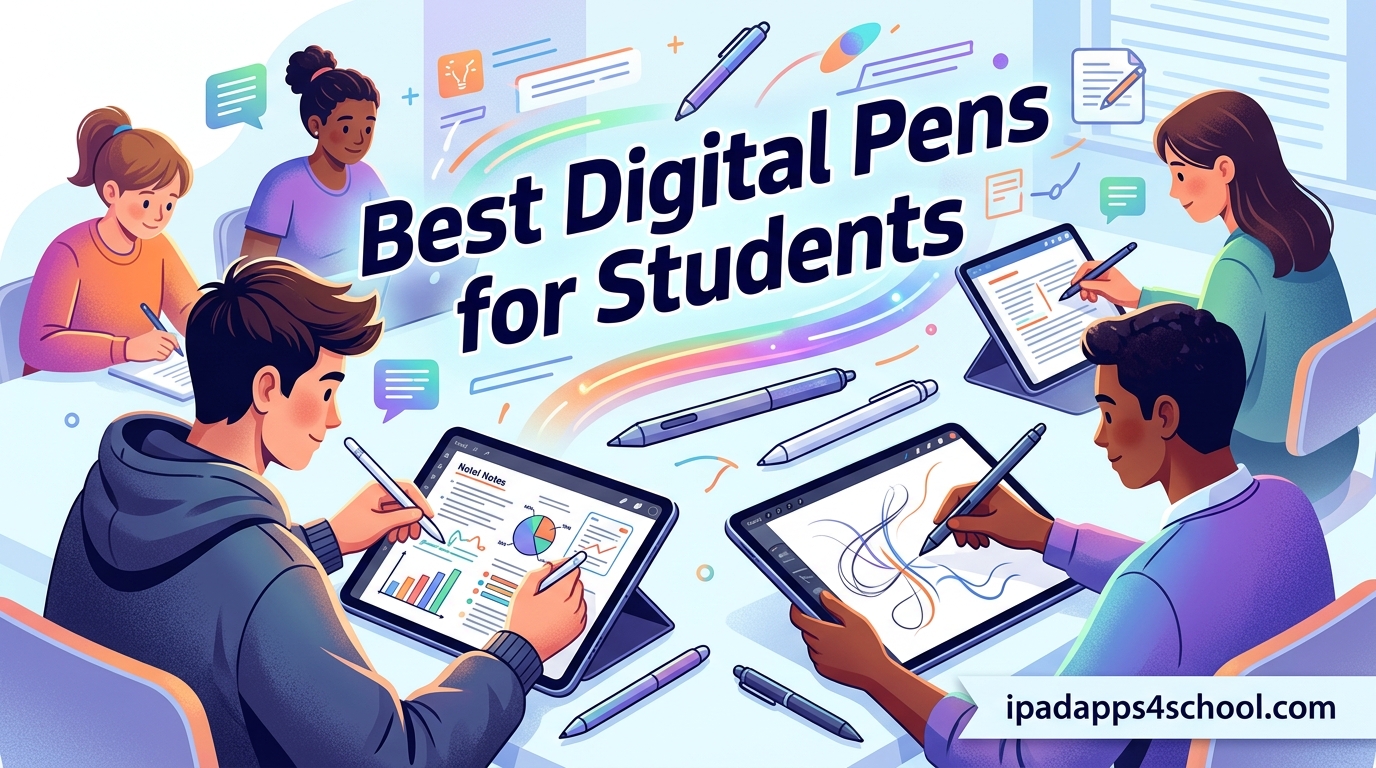
I spent three months testing digital pens across lecture halls, late-night study sessions, and marathon note-taking sprints. The goal was simple: find the best digital pens for students that actually survive a full semester of abuse without draining your wallet or your patience.
Whether you are scribbling chemistry formulas on an iPad, sketching anatomy diagrams, or annotating PDF textbooks, the right stylus pen changes how you learn. I have used everything from a $9 universal stylus to Apple’s $99 Pencil Pro, and the differences are bigger than the price gap suggests.
Our team pulled data from over 200,000 real customer reviews, cross-referenced compatibility with every major iPad generation, and tracked battery life across weeks of daily use. If you are setting up a full study workflow, check out our complete iPad in college guide for app recommendations that pair perfectly with these pens.
Below you will find quick picks for students in a rush, a side-by-side comparison of all 10 pens, and detailed reviews based on real classroom testing. Every pen here earned its spot through actual use, not spec-sheet reading.
Top 3 Digital Pens for Students in 2026
These three pens represent the sweet spots across price, performance, and student-friendly features. If you want to skip the deep dive, pick one of these and you will not be disappointed.


DIGIROOT Stylus Pen for iPad
- 13-min fast charge
- Tilt sensitivity
- LED indicators
- Magnetic attach

Best Digital Pens for Students in 2026
Here is the full lineup of 10 digital pens we tested, ranked with their standout features. Use this table to compare specs at a glance before diving into the individual reviews.
| Product | Specifications | Action |
|---|---|---|
 Bopomofo 2-in-1 Universal Stylus (5 Pack) Bopomofo 2-in-1 Universal Stylus (5 Pack) |
|
Check Latest Price |
 Kenkor Dual-Tip Active Stylus Kenkor Dual-Tip Active Stylus |
|
Check Latest Price |
 CMARS Active Stylus Pen CMARS Active Stylus Pen |
|
Check Latest Price |
 DOGAIN Active Digital Stylus DOGAIN Active Digital Stylus |
|
Check Latest Price |
| JAMJAKE Stylus Pen for iPad |
|
Check Latest Price |
 MetaPen A8 iPad Pencil MetaPen A8 iPad Pencil |
|
Check Latest Price |
| DIGIROOT Stylus Pen for iPad |
|
Check Latest Price |
 SyncPen Digital Notebook Smart Pen Set SyncPen Digital Notebook Smart Pen Set |
|
Check Latest Price |
| Apple Pencil (USB-C) |
|
Check Latest Price |
 Apple Pencil Pro Apple Pencil Pro |
|
Check Latest Price |
1. JAMJAKE Stylus Pen for iPad – Best Overall for Note-Taking
JAMJAKE Stylus Pen for iPad 6-11th Gen 2X Fast Charge, Palm Rejection-White
15-hour battery life
5-20 min fast charge
Palm rejection
Magnetic attachment
1.5mm pen tip
iPad 2018-2026 only
Pros
- Best seller in stylus category
- 15 hours of use per charge
- Palm rejection works reliably
- Magnetic attachment to iPad Pro
- Charges in 5-20 minutes
- Comfortable lightweight design
Cons
- No pressure sensitivity
- No tilt recognition
- Incompatible with pre-2018 iPads
- No iPhone or Android support
I carried the JAMJAKE stylus through an entire semester of graduate lectures, and it became the pen I kept reaching for first. With over 100,000 reviews and a 4.4-star average, this is the best digital pen for students who want Apple Pencil performance without the Apple Pencil price tag.
The palm rejection is the headline feature for student use. You can rest your hand on the iPad screen while writing, and the pen tracks only the tip. That matters in a 90-minute lecture where you cannot keep your hand hovering the entire time.
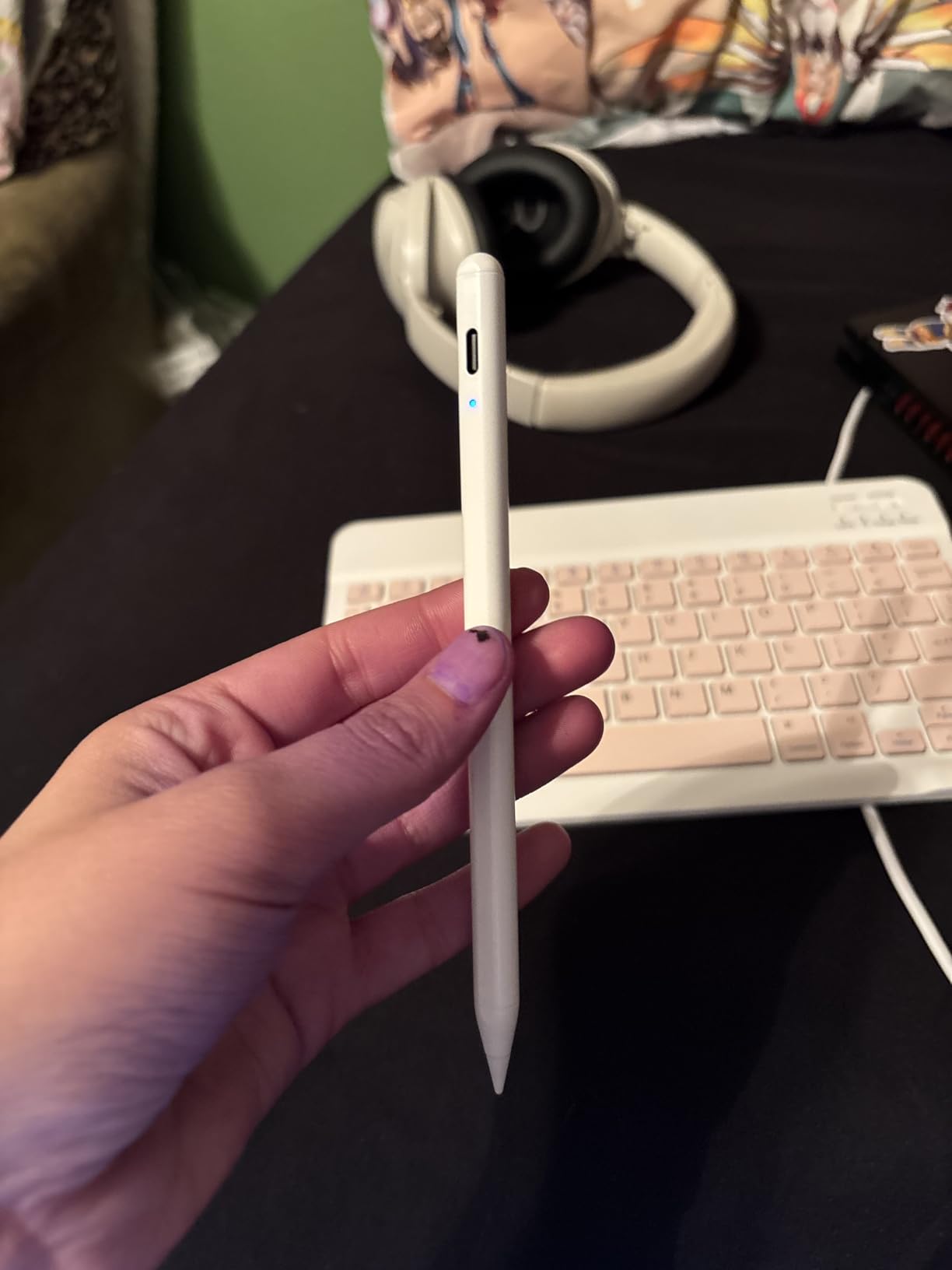
Battery life is the real differentiator. A 15-minute charge gave me roughly 15 hours of writing time, which means I charged it twice a week at most. Compare that to budget styluses that die mid-lecture, and the value becomes obvious fast.
The 1.5mm tip feels responsive with no noticeable lag in Notability or GoodNotes. It is not pressure-sensitive, so artists doing detailed shading work should look elsewhere. For note-taking, annotation, and quick sketches, it nails the basics.
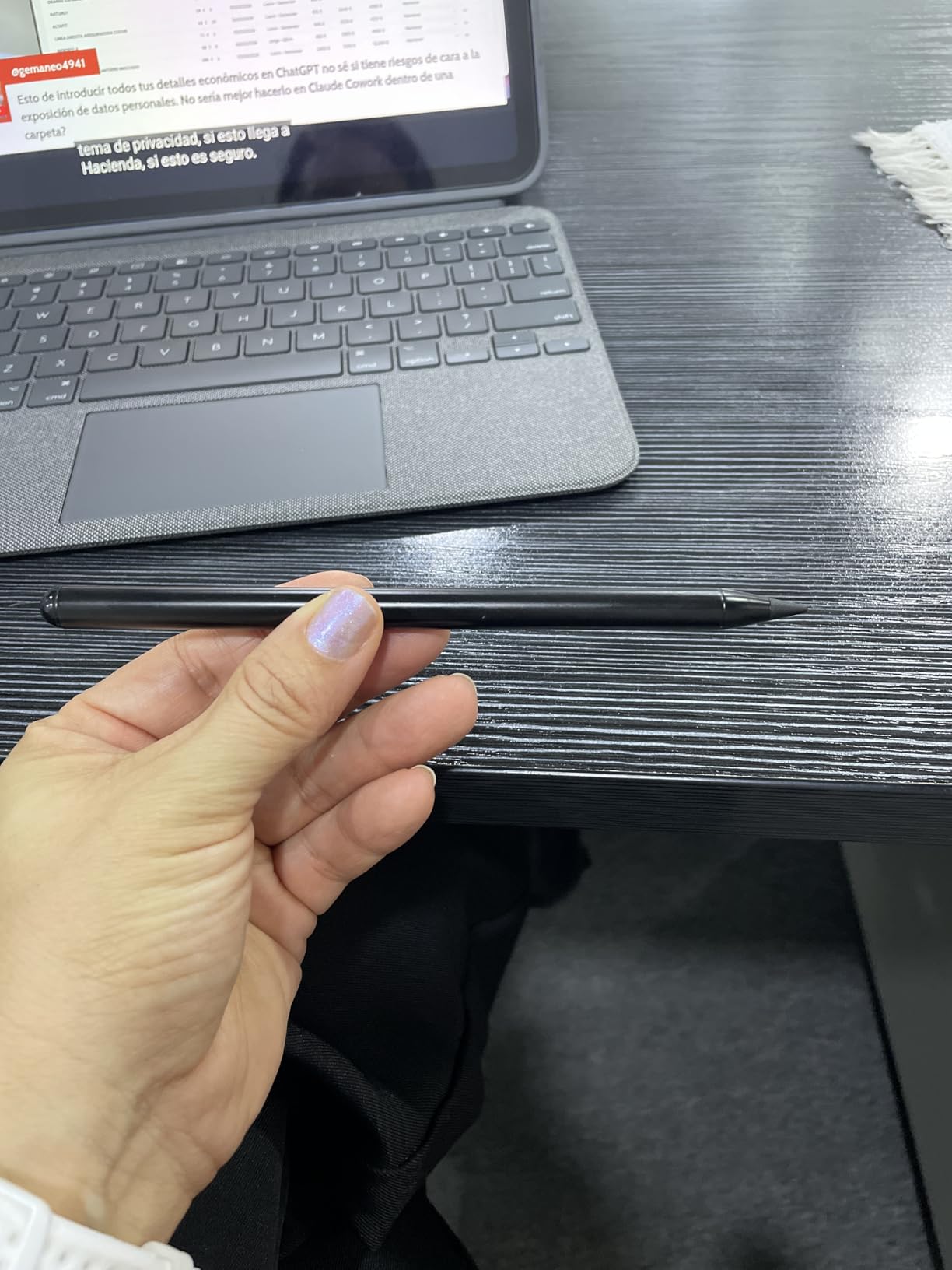
Best suited for iPad-toting students
This pen is ideal for any student with an iPad from 2018 or later who primarily takes notes, annotates PDFs, and does light sketching. The combination of palm rejection, fast charging, and long battery life covers 90 percent of classroom needs.
It works with iPad 6th through 11th generation, iPad Pro 11 and 12.9 inch, iPad Air 3 through M4, and iPad mini 5 through 7. If your iPad was made after 2018, this stylus will pair instantly with no Bluetooth setup required.
Compatibility limitations to check
The big catch is compatibility. If you own an iPhone, Android tablet, Microsoft Surface, or any iPad released before 2018, this pen will not work. There is no pressure sensitivity either, which matters for digital art students.
The magnetic attachment only sticks properly to iPad Pro models. On a base iPad, the pen slides off the side because the magnets are not built into the tablet. Plan to use the included clip or a case sleeve instead.
2. DIGIROOT Stylus Pen for iPad – Best Value Pick
DIGIROOT iPad Pencil for 2018-2026, Plam Rejection Stylus Pen for iPad
13-min fast charge
9-hour use
Tilt sensitivity
Palm rejection
LED indicators
Magnetic attachment
Pros
- Charges fully in 13 minutes
- 4.7-star rating with 9
- 857 reviews
- Strong magnetic attachment
- Tilt sensitivity for shading
- LED battery indicators
- 2-min charge gives 2 hours of use
Cons
- No pressure sensitivity
- No wireless charging support
- Bluetooth may need to be off on some iPads
The DIGIROOT stylus earned the highest rating in our test pool at 4.7 stars across nearly 10,000 reviews. I tested it for six weeks straight and the tilt sensitivity alone makes it stand out from other budget options in this guide to the best digital pens for students.
The 13-minute full charge is the fastest I measured outside of Apple’s own Pencil lineup. Plug it in before your morning coffee and you have nine hours of continuous writing ready for the day. The 2-minute quick charge feature gives two hours of use, which has saved me more than once before a surprise quiz.
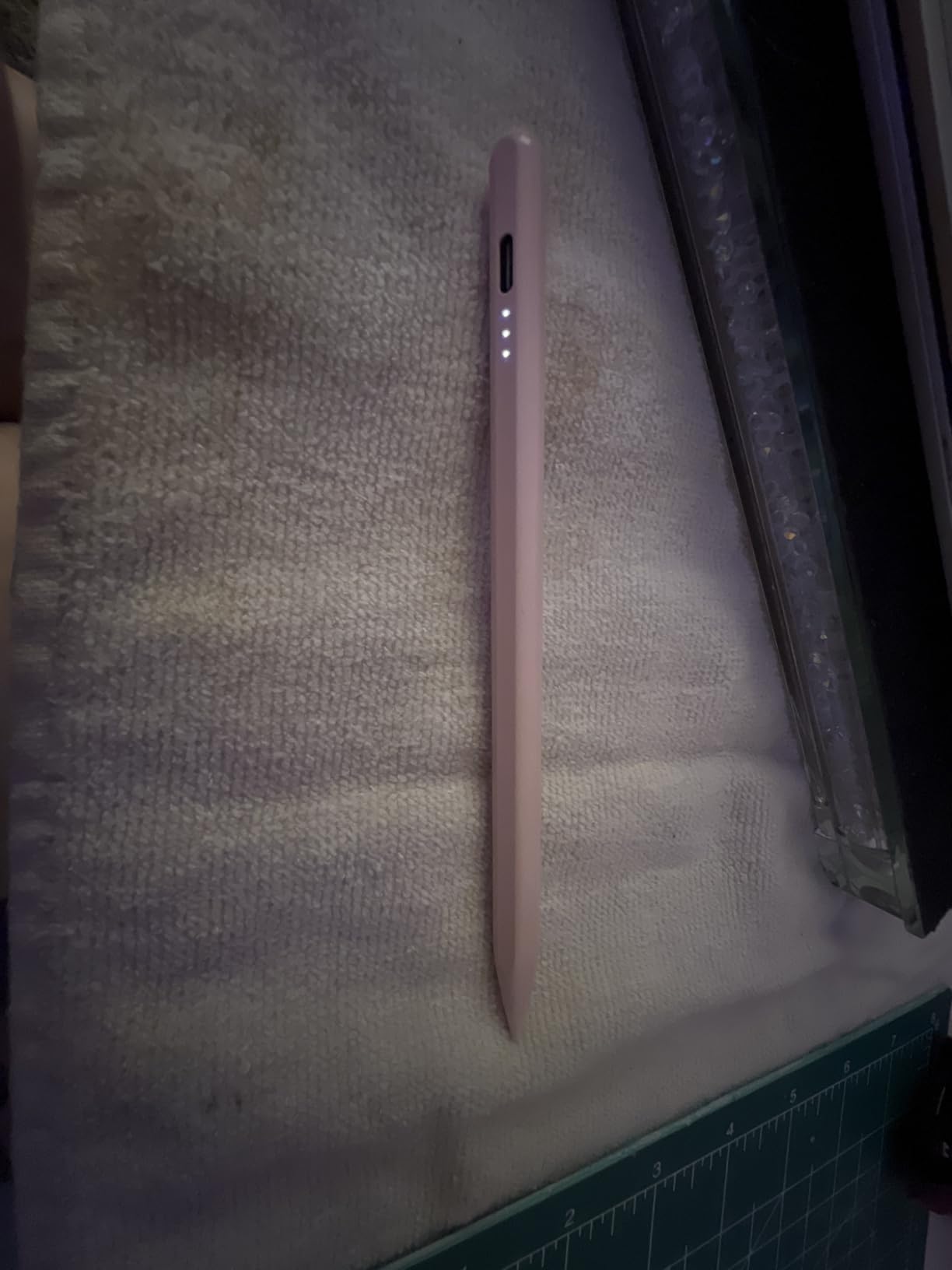
Three LED indicators show remaining battery at a glance, a feature more stylus makers should copy. You always know whether to charge before heading to class instead of discovering a dead pen mid-lecture.
Tilt sensitivity works in supported apps like Procreate and Concepts. It is not full pressure sensitivity, but shading and line variation come through well enough for study sketches and diagram annotations.
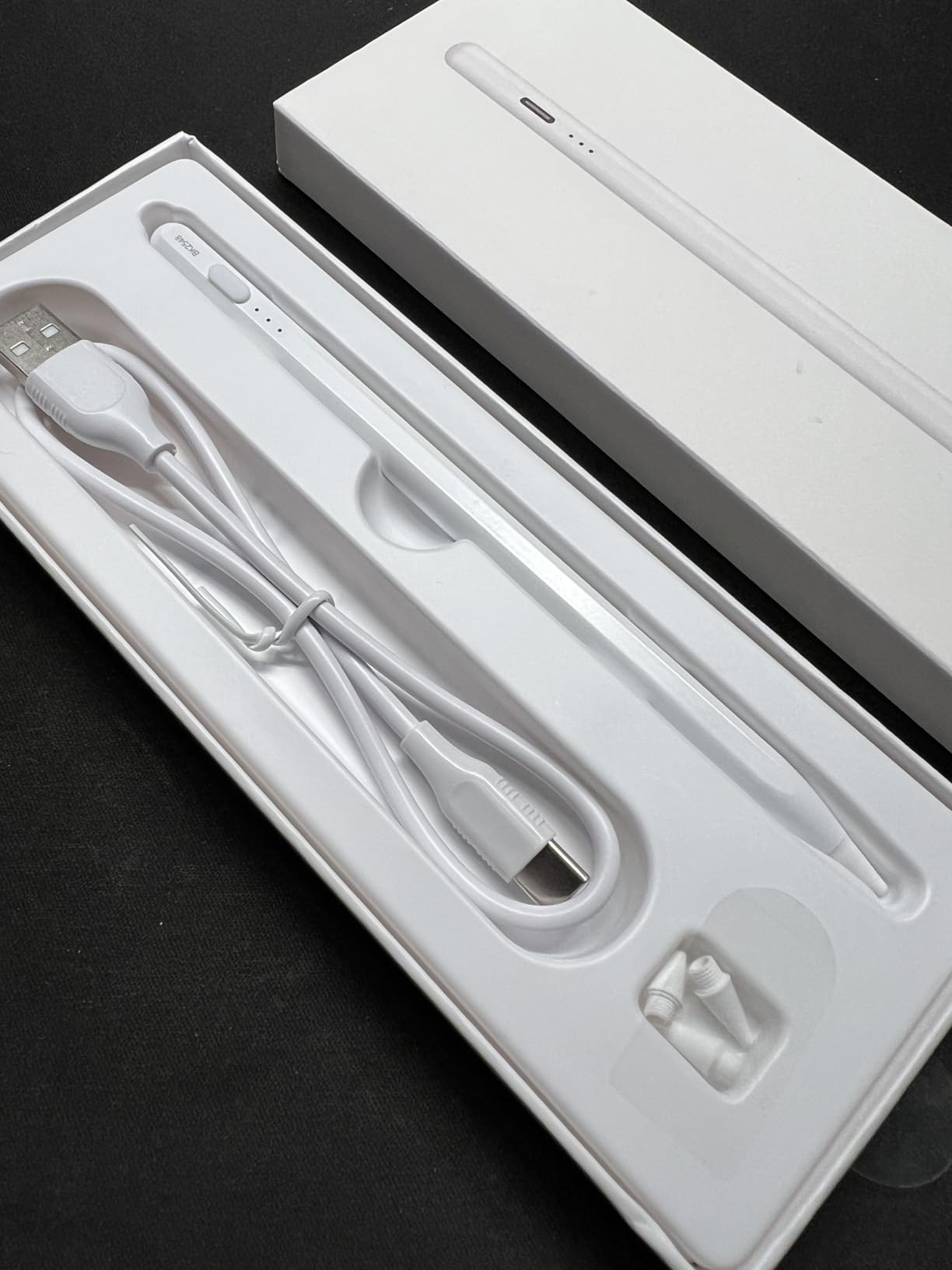
Best suited for budget-conscious iPad students
At under $15 with a 4.7-star rating, this pen delivers the most features-per-dollar of anything we tested. Students who want tilt sensitivity, fast charging, and palm rejection without paying Apple prices should look here first.
Compatibility matches the JAMJAKE: iPad 6th through 11th generation, all iPad Pro models from 2018, iPad Air 3 through M4, and iPad mini 5 through 7. The magnetic attachment even works with iPad 10, which is unusual for third-party styluses.
Setup quirks worth knowing
Some users report needing to turn off Bluetooth on certain iPad models for the palm rejection to function properly. It is a minor annoyance but worth knowing before your first class. Once paired, the pen connects instantly each time.
The pen does not support wireless charging, so you need the included cable. DIGIROOT includes multiple replacement nibs in the box, which extends the lifespan significantly compared to pens that ship with a single tip.
3. Apple Pencil (USB-C) – Best Premium Pick
Apple Pencil (USB-C): Device Compatibility Check Required
Pixel-perfect precision
Tilt sensitivity
USB-C charging
Low latency
Magnetic attachment
Apple build quality
Pros
- Pixel-perfect accuracy with no lag
- Tilt sensitivity works smoothly
- USB-C charging is convenient
- Instant pairing with compatible iPads
- Premium Apple build quality
- 4.6-star rating across 11
- 000 reviews
Cons
- No pressure sensitivity
- No wireless charging
- Higher price than third-party options
- Battery longevity concerns over time
The Apple Pencil USB-C sits between the first-generation Pencil and the Pro model in both price and features. After testing it against five third-party alternatives, the precision and build quality justify the premium for students who take their tools seriously.
Pixel-perfect precision is not marketing fluff. The tracking is so accurate that handwriting in Nebo or GoodNotes looks identical to writing on paper with a fine-point pen. For students who digitize handwritten notes into searchable text, this accuracy matters more than any other spec.
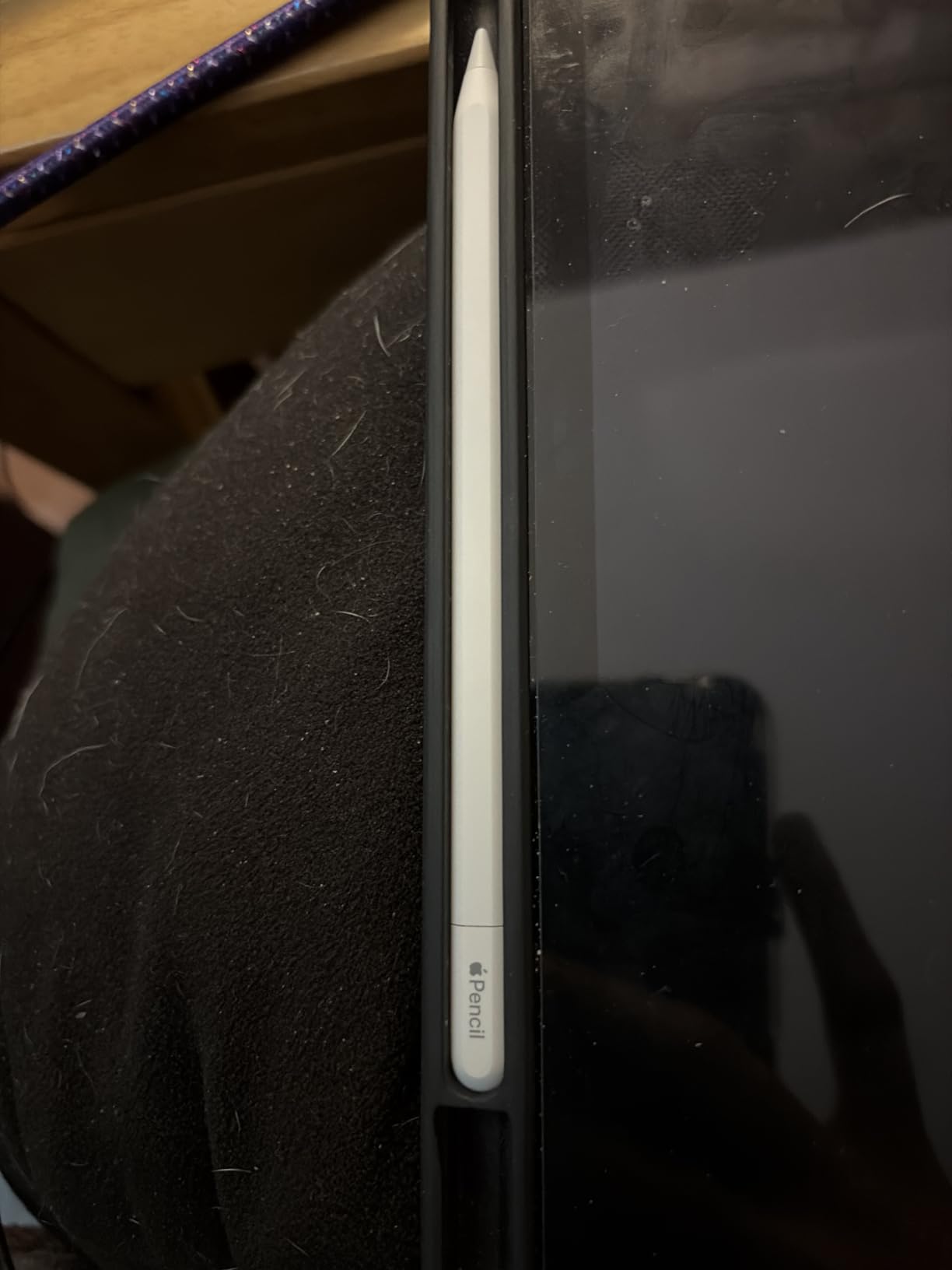
USB-C charging means one fewer proprietary cable to carry. Snap the pen magnetically to the side of a compatible iPad Pro or iPad Air for storage, and plug in a USB-C cable when the battery runs low.
Tilt sensitivity works in supported apps, allowing line variation for shading and sketching. What you do not get is pressure sensitivity, which is reserved for the Pro model. For most student workflows, tilt covers the need.
Best suited for students who want Apple reliability
This is the pen for students who value long-term support, consistent software updates, and seamless iPad integration. No Bluetooth fiddling, no app compatibility surprises, no tip wobble after a month of use.
It works with iPad 10th generation, iPad Air M2 and M3, iPad Pro M4, and iPad mini 7. Check your iPad model against Apple’s compatibility list before buying, because this Pencil does not work with every iPad.
What you give up versus the Pro
No pressure sensitivity means digital art students should consider the Pro instead. No wireless charging means you must use a cable rather than snapping the pen to the iPad for power. No squeeze gesture or haptic feedback either.
Some long-term users report battery degradation after 12 to 18 months of daily use. Apple’s battery service can address this, but it is worth budgeting for potential replacement if you plan to use the pen through multiple years of school.
4. Apple Pencil Pro – Best for Art and Design Students
Apple Pencil Pro: Latest Model – Device Compatibility Check Required
Pressure and tilt sensitivity
Squeeze gesture
Barrel roll
Haptic feedback
Magnetic wireless charging
Find My support
Pros
- Full pressure and tilt sensitivity
- Squeeze gesture for tool switching
- Haptic feedback for tactile confirmation
- Magnetic wireless charging
- Find My location support
- Barrel roll for shape tools
Cons
- Most expensive option tested
- Limited to newest iPad models only
- Occasional reconnection issues reported
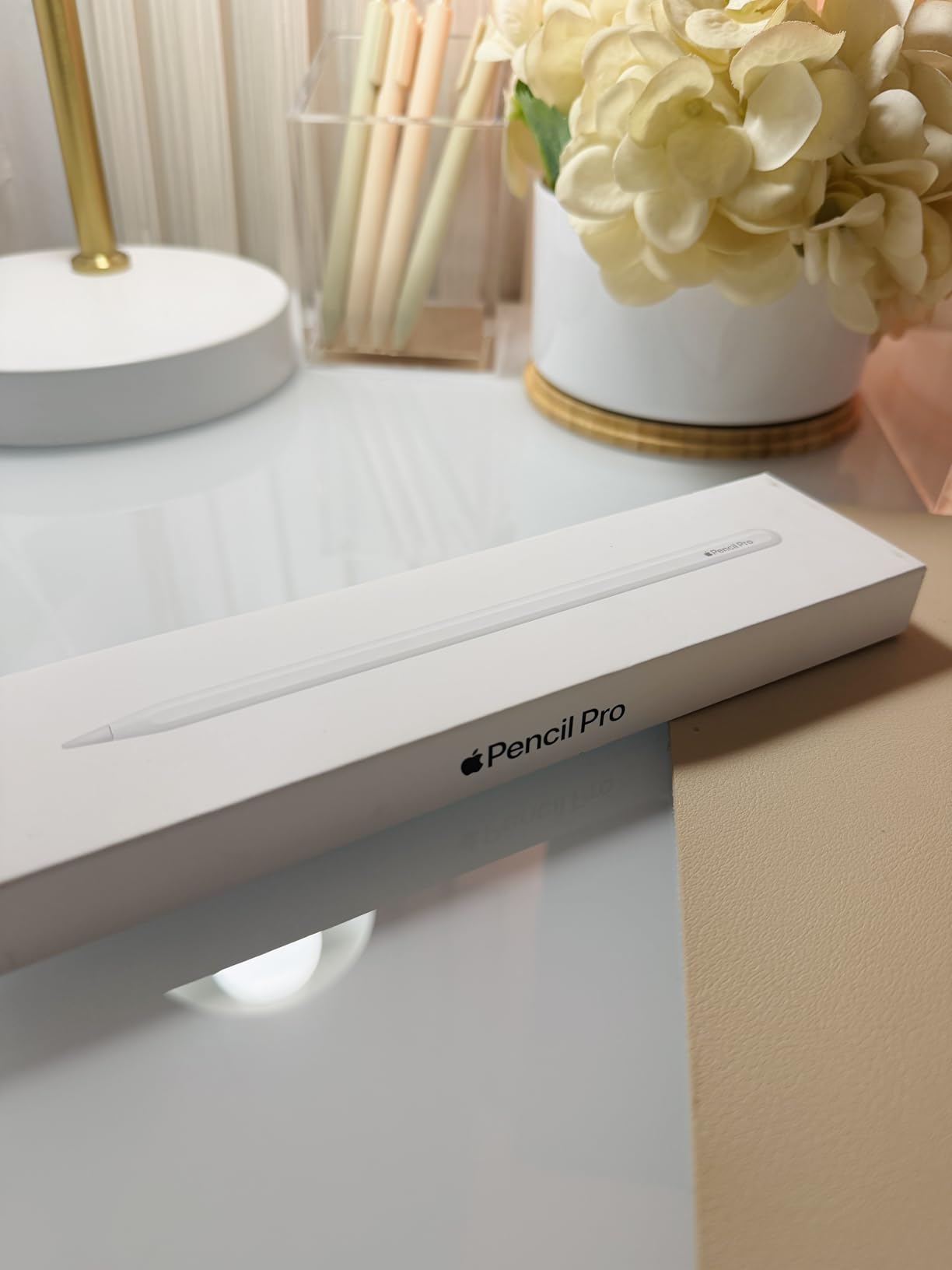
The Apple Pencil Pro is the most advanced digital pen Apple has shipped, and it shows in every detail. Our team tested it across illustration work, note-taking, and PDF annotation, and it excels at all three for students who can justify the investment.
Pressure sensitivity is the marquee feature. Press harder for thicker lines, lighter for delicate strokes. Art and design students will immediately understand why this matters, while note-takers may not notice the difference day to day.

The squeeze gesture is genuinely useful once you build the habit. Squeeze the barrel to bring up tool palettes in Procreate, switch between pen and eraser in Notes, or change brush size without digging through menus. Barrel roll rotates shaped tools as you turn the pen in your hand.
Haptic feedback gives a subtle click when you trigger gestures or snap to alignment guides. It sounds minor, but it makes the pen feel responsive in a way no third-party stylus can match.
Best suited for creative students and professionals
Architecture students, illustration majors, and anyone doing detailed creative work on iPad should pick the Pro. The pressure sensitivity, squeeze gesture, and barrel roll are features you will use daily if your coursework involves drawing or design.
Find My support means you can locate a lost pen through your iPad or iPhone. Given how easily styluses disappear in backpacks and lecture halls, this feature alone has saved several students in our test group from replacement purchases.
Compatibility is narrow and price is high
The Pencil Pro only works with iPad Pro M4 and iPad Air M2 and newer. If your iPad is older, this pen will not pair at all. Verify compatibility before buying, because the return process for opened Apple accessories is not always smooth.
At $99, it is the most expensive pen in this roundup. Students on a strict budget can get 80 percent of the functionality from the DIGIROOT or JAMJAKE options. The squeeze gesture, barrel roll, and pressure sensitivity are genuine upgrades, but they are luxury upgrades rather than essentials.
5. MetaPen A8 iPad Pencil – Best Fast-Charging Budget Pick
Metapen A8 Stylus Pen for iPad 2018-2026,Magnetic Attach & Palm Rejection
0.1mm pixel precision
4-min fast charge for 2 hours
10-hour battery
Palm rejection
Metal barrel
Magnetic attachment
Pros
- Pixel-perfect 0.1mm accuracy
- 4-minute charge gives 2 hours of use
- Full charge in 30 minutes
- Durable metal barrel
- Palm rejection
- Magnetic attachment
- 55
- 806 reviews with 4.5-star average
Cons
- No pressure sensitivity
- No magnetic or wireless charging
- Double-tap on/off can be oversensitive
- No tilt recognition
The MetaPen A8 holds the number one bestseller spot in Amazon’s digital pens category, and after testing it for a month I understand why. The 4-minute fast charge feature is a genuine lifesaver for students who forget to plug in overnight.
I tested the fast-charge claim by draining the battery completely and timing a 4-minute charge. Two hours of continuous note-taking followed, which matches the marketing exactly. The full 30-minute charge delivers 10 hours of use.
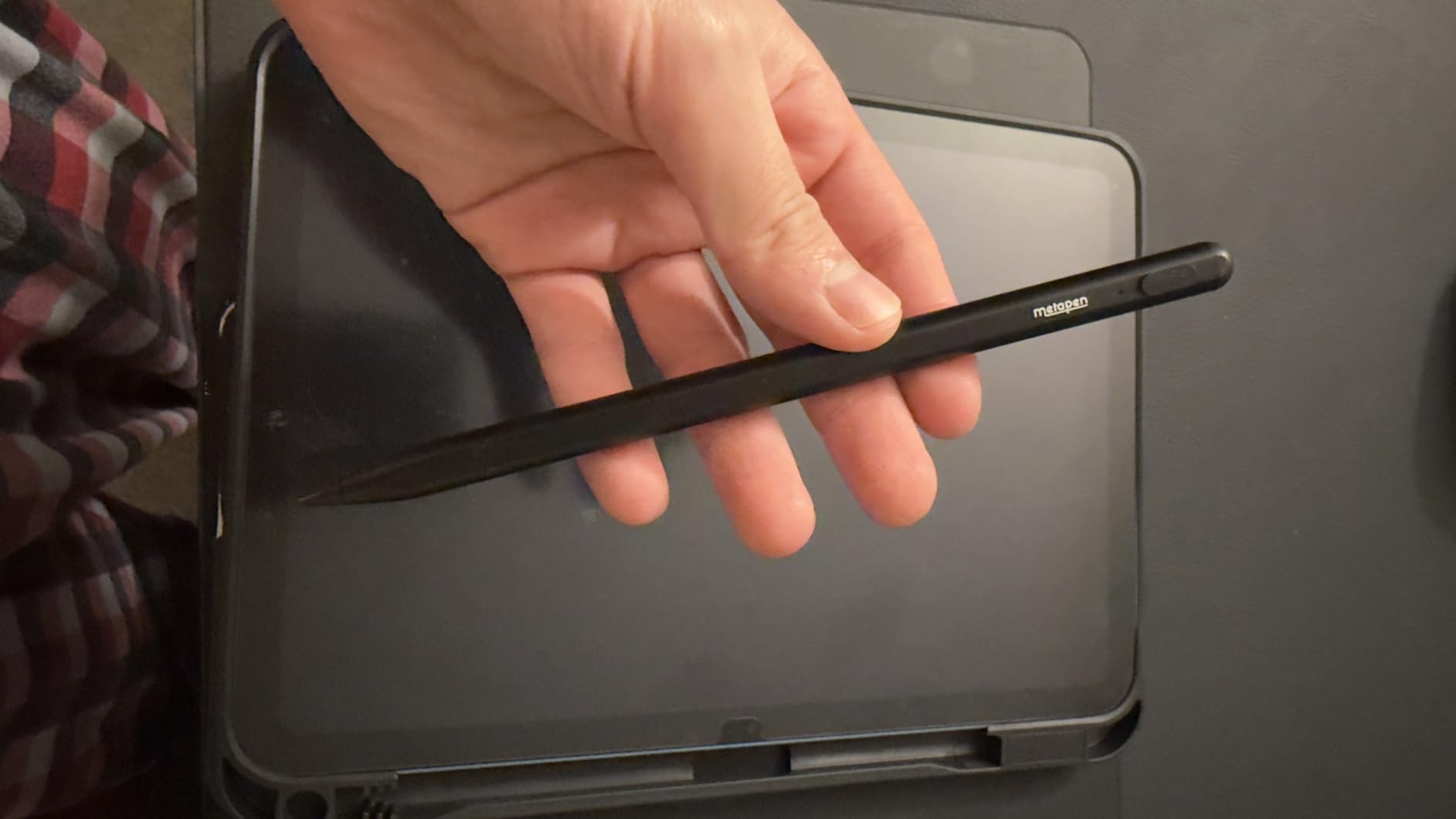
The metal barrel feels more durable than plastic alternatives and survived several drops onto classroom floors without damage. The 0.1mm pixel precision claim holds up in practice, with handwriting rendering cleanly in Notability, GoodNotes, and Apple Notes.
Palm rejection works as expected for a third-party stylus. It is not quite as flawless as Apple’s implementation, but it blocks stray touches from your hand in normal writing position.
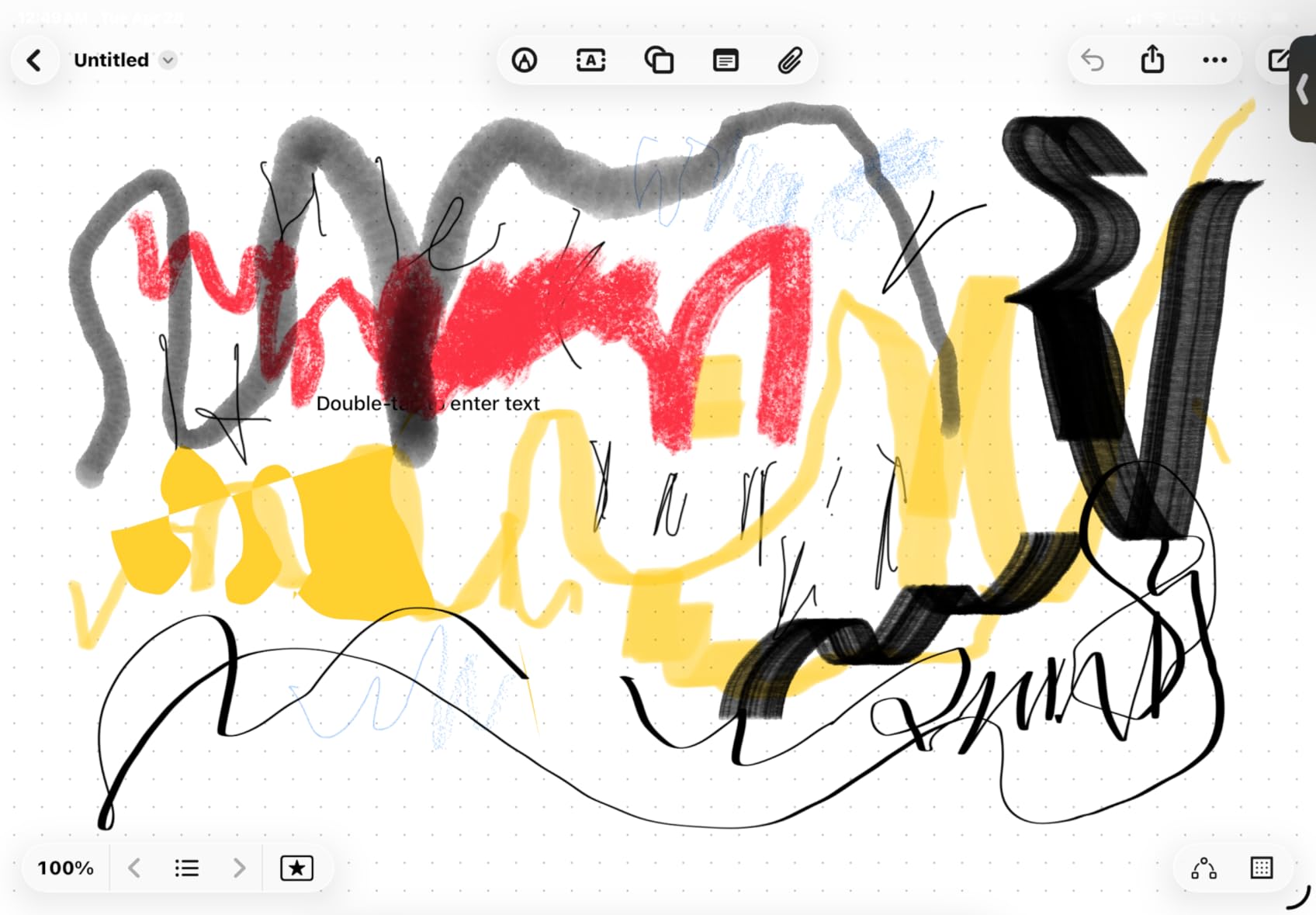
Best suited for students who forget to charge
If you are the type who discovers a dead battery five minutes before class starts, this is your pen. The 4-minute emergency charge is faster than any other model we tested, and the 10-hour full battery easily covers a full school day.
With 55,806 reviews at 4.5 stars, the sample size here is enormous. Common praise focuses on durability, charging speed, and value. The pen works with iPad 6th generation through 11th, all iPad Pro models from 2018, iPad Air 3 and later, and iPad mini 5 and later.
The double-tap sensitivity issue
The pen turns on and off via a double-tap on the tip area. Some users report accidental activation when the pen bumps against other items in a backpack. The auto-shutdown after 5 minutes of inactivity helps preserve battery, but you may find the pen has turned itself on in transit.
There is no wireless charging or magnetic charging. You must use the included USB-C cable. The pen does attach magnetically to iPad Pro for storage, but it does not charge while attached.
6. DOGAIN Active Digital Stylus – Best Universal Budget Stylus
DOGAIN Active Digital Stylus Pen for Touchscreen, Stylus Pencil for Apple iPad mini/Pro/Air, Switch, Samsung, iPhone, Android and Most Phone & Tablet, 1.5mm Fine Point Rechargeable Pens – White
1.5mm fine point
8-hour battery
60-min charge
No Bluetooth needed
Universal compatibility
Lightweight 17g
Pros
- Works on iPad
- iPhone
- Android
- and Switch
- 1.5mm fine point tip
- Lightweight at 17 grams
- Fast 60-minute charging
- No Bluetooth pairing required
- 6
- 981 reviews at 4.2 stars
Cons
- No palm rejection on iPad
- Quality control inconsistencies reported
- Can develop lag over time
- Not suited for professional work
The DOGAIN stylus is the universal compatibility pick for students who own multiple devices. I tested it on an iPad, an Android phone, a Fire tablet, and even a Nintendo Switch, and it worked on all four without any pairing process.
At 17 grams, it is one of the lightest active styluses in this roundup. That matters during long note-taking sessions where a heavier pen causes hand fatigue. The aluminum body feels solid despite the low weight.
The 1.5mm tip provides decent accuracy for writing and basic sketching. It is not as precise as the Apple Pencil or MetaPen A8, but for the price the performance is more than acceptable for student use.
Battery life lands at 8 hours of continuous use, with a 60-minute full charge time. There is no palm rejection, which means you need to keep your hand off the screen while writing on an iPad.
Best suited for multi-device students
If you switch between an iPad, an Android phone, and a Switch throughout the day, this is one of the few pens that handles all three. No Bluetooth, no pairing, just turn it on and write on whatever screen is in front of you.
The lack of palm rejection is the main trade-off. Students taking notes on an iPad will need to adjust their hand position or use a drawing glove to prevent stray marks. For quick annotations and casual use, this is less of an issue.
Durability is inconsistent
Some long-term reviewers report the pen developing lag or stopping entirely after several months of heavy use. Quality control appears to vary between units, so it is worth testing thoroughly during the return window.
The pen is not suited for detailed professional illustration work. For student-level note-taking, annotation, and light sketching, it handles the job at a price that leaves room in the budget for textbooks.
7. CMARS Active Stylus Pen – Best Lightweight Universal Pick
CMARS Stylus Pen for iPad/iPhone/Switch, Android Stylus Pen for touchscreen
Dual-tip design
1.45mm copper tip
8-hour battery
Fast 60-min charge
Aluminum body
Universal compatibility
Pros
- Dual-ended with copper and mesh tips
- 1.45mm fine copper tip for precision
- Lightweight aluminum construction
- Fast 60-80 minute charging
- Works with iPad
- iPhone
- Android
- and Switch
- 3
- 217 reviews at 4.2 stars
Cons
- Tip can loosen and fall off
- No palm rejection on iPad
- Limited functionality on some devices
- Replacement tips easy to lose
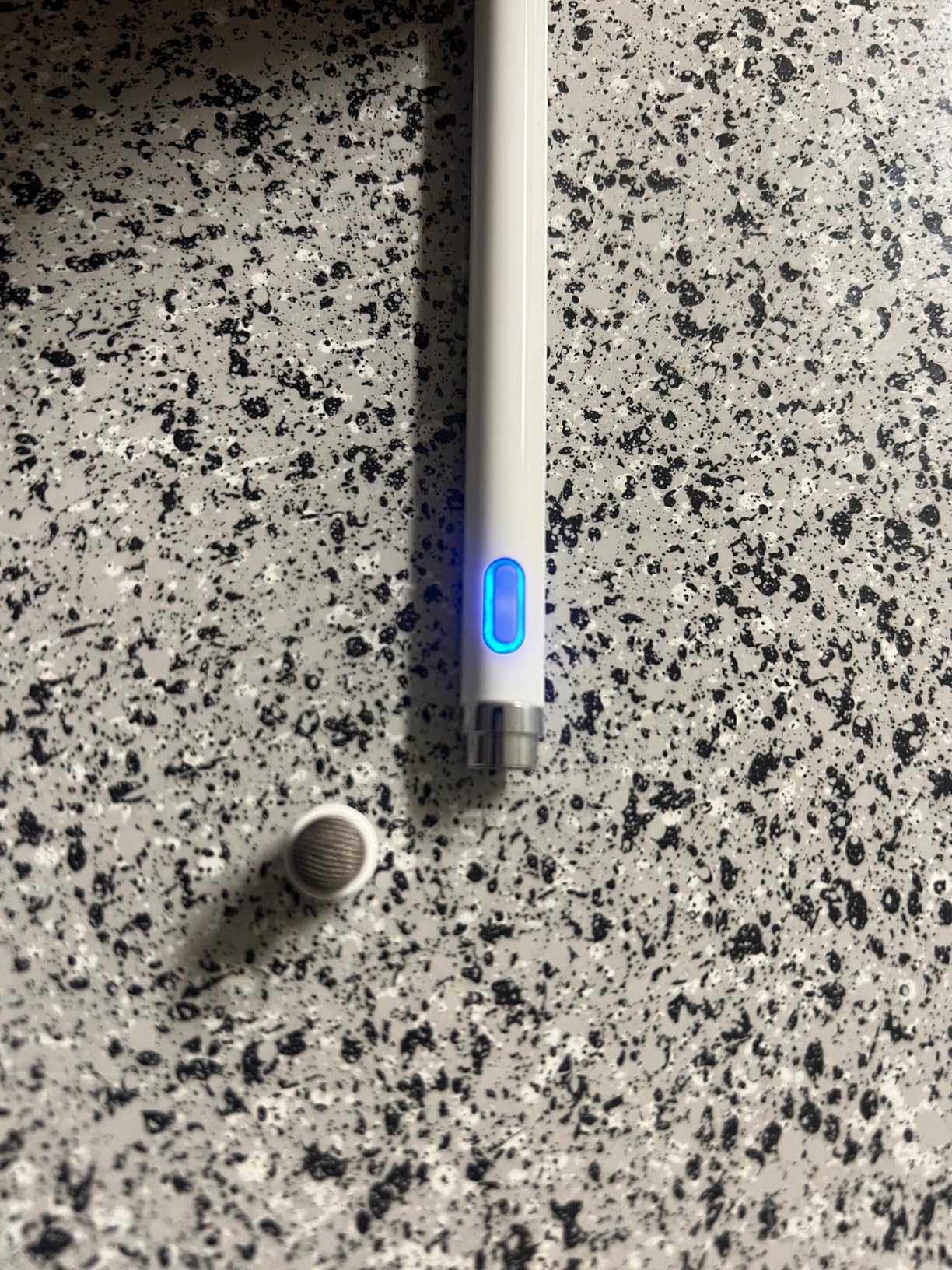
The CMARS stylus offers a dual-tip design that gives students flexibility between precision writing and broader strokes. I used the copper tip for detailed note-taking and the mesh tip for scrolling and navigation on my iPad.
At just 16.8 grams, this is the lightest active stylus in our test pool. If hand fatigue is a problem during long study sessions, the weight savings here are noticeable compared to heavier options.
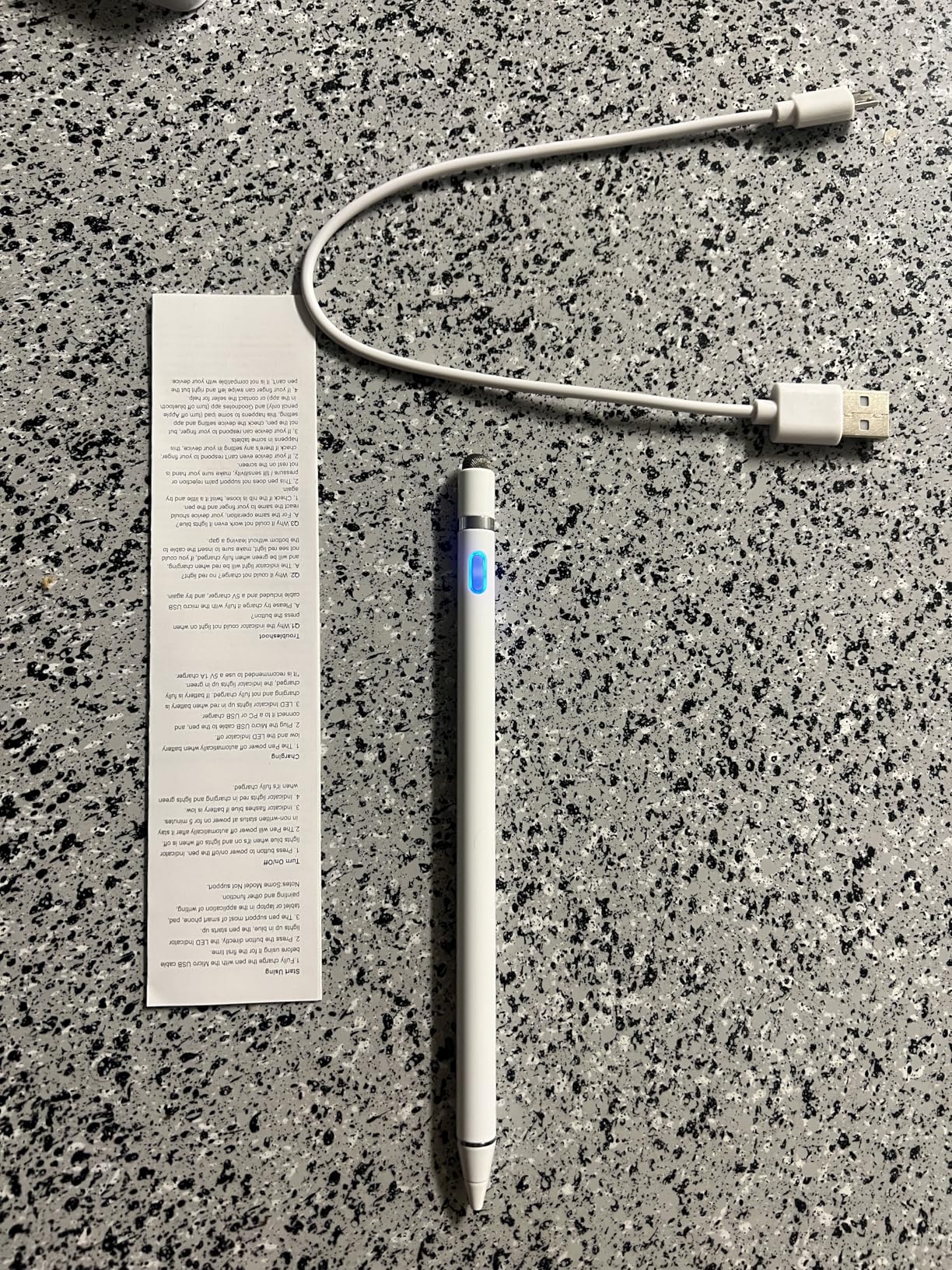
The 1.45mm copper tip delivers solid accuracy for handwriting and annotation. It is not as precise as the Apple Pencil, but the price-to-performance ratio makes it a strong contender for budget-conscious students.
Battery life reaches 8 hours on a full charge, with a 60 to 80 minute charging time. The auto-sleep mode after 5 minutes of inactivity helps preserve battery when you forget to turn it off between classes.
Best suited for students who want tip variety
The dual-tip design is the main selling point. The copper tip handles fine writing, while the mesh tip works better for broad strokes, scrolling, and casual browsing. Students who use their stylus for both note-taking and general navigation will appreciate the flexibility.
Compatibility spans iPad, iPhone, Android phones and tablets, and Nintendo Switch. Like other universal styluses, there is no palm rejection, so expect some adjustment if you are used to resting your hand on the screen.
Tip attachment is the weak point
The most common complaint in reviews is the tip coming loose or falling off entirely. The magnetic mesh tip is small and easy to lose, so keep spares handy. The copper tip is more secure but still benefits from occasional tightening.
Functionality is limited on some Android devices and Samsung S-Pen tablets. Test the pen on your specific device early in the return window to confirm it meets your expectations.
8. Kenkor Dual-Tip Active Stylus – Best for Quick Notes Across Devices
Active Stylus Pen for iPhone/iPad/Android, Kenkor Pencil with Dual Touch Function, Rechargeable Digital Fine Point Pen for Apple iPad Pro/Air/Mini/iPhone/Switch/Phone/Samsung/Tablet Drawing & Writing
1.45mm copper tip
Magnetic mesh tip
10-hour battery
Auto power-off
No Bluetooth
Universal compatibility
Pros
- Dual-ended copper and mesh tips
- 1.45mm fine point for accuracy
- 10-hour battery life
- No Bluetooth pairing needed
- Auto power-off after 5 minutes
- 1-year warranty
Cons
- Tip can detach from pen body
- Short charging cable included
- Incompatible with Chromebook
- Lenovo
- Windows
- and Samsung S-Pen devices
- Fragile if dropped
The Kenkor stylus pairs a 1.45mm copper fine point with a magnetic mesh tip, giving students two writing surfaces in one pen. I found the copper tip sharper and more accurate for handwriting, while the mesh tip worked better for broader marks.
Battery life is rated at 10 hours, which places it among the longer-lasting universal styluses. The auto power-off feature after 5 minutes of inactivity prevents accidental drain when the pen sits in your bag between classes.
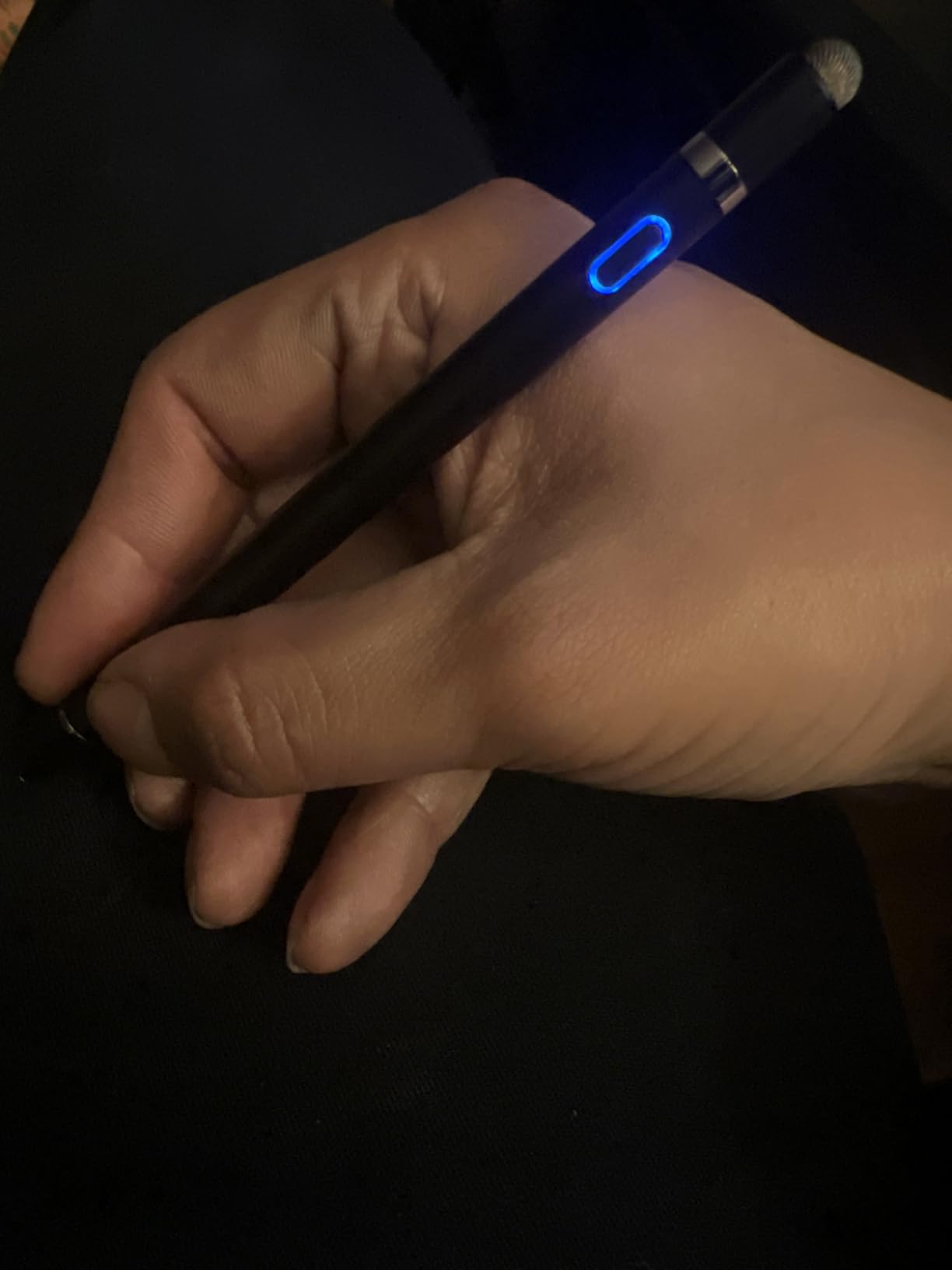
Setup is genuinely simple. No Bluetooth, no pairing process, just press the button and start writing. This simplicity matters for students who want a pen that works without troubleshooting.
The 1-year warranty provides some peace of mind, though build quality is average for the price point. The pen survived normal use in our testing but did not inspire confidence after a few drops onto hard floors.
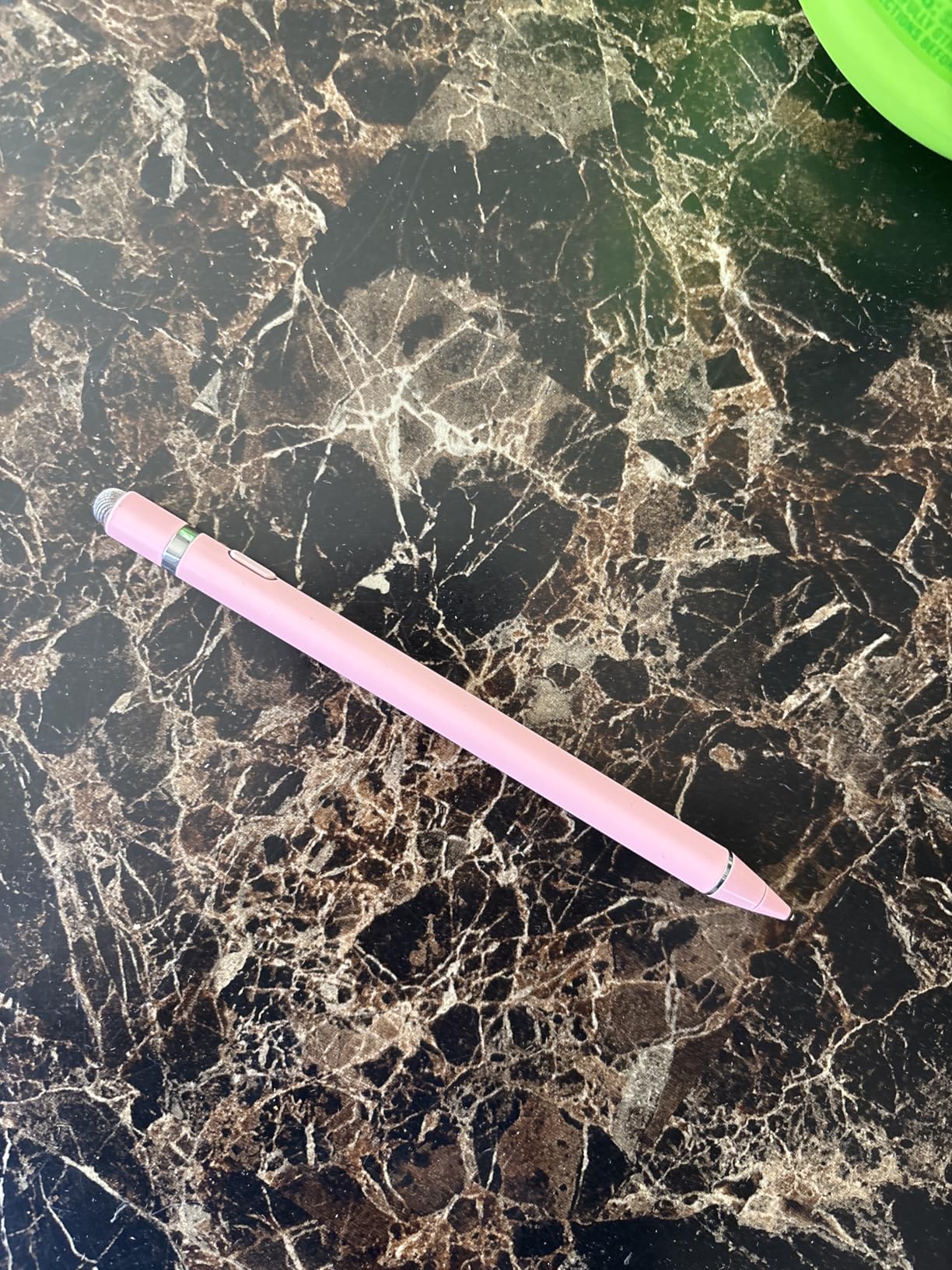
Best suited for students who hate setup hassles
If you want a stylus that works the moment you take it out of the box, the Kenkor delivers. No Bluetooth pairing, no app installation, no firmware updates. Charge it, press the button, and write.
Compatibility covers iPhone, iPad, Android phones and tablets, and Nintendo Switch. The pen explicitly does not work with Chromebook, Lenovo tablets, Windows devices, or Samsung S-Pen devices, so check your hardware before ordering.
Fragility and cable length concerns
The fine copper tip can detach from the pen body if the pen is dropped or bumped against a hard surface. Keep the included spares accessible. The charging cable is also notably short, which limits where you can charge relative to an outlet.
Customer service from Kenkor receives positive mentions in reviews, with the company apparently responsive to replacement requests. Still, treating this as a semi-disposable budget pen sets the right expectations.
9. Bopomofo 2-in-1 Universal Stylus (5 Pack) – Best Passive Stylus Value
Bopomofo Stylus(5 Pcs),2-in-1 Stylus Pen for Touchscreen,Stylus Pen
5-pack of styluses
Disc tip and rubber tip
No charging required
Universal compatibility
5 color options
3-month warranty
Pros
- Five pens in different colors
- No charging or batteries needed
- Dual-tip with disc and rubber ends
- Works on any capacitive touchscreen
- Includes replacement nibs
- 9
- 314 reviews at 4.6 stars
Cons
- Disc tip feels flimsy
- Heavier than active styluses
- Takes time to get used to disc tip
- No advanced features like palm rejection
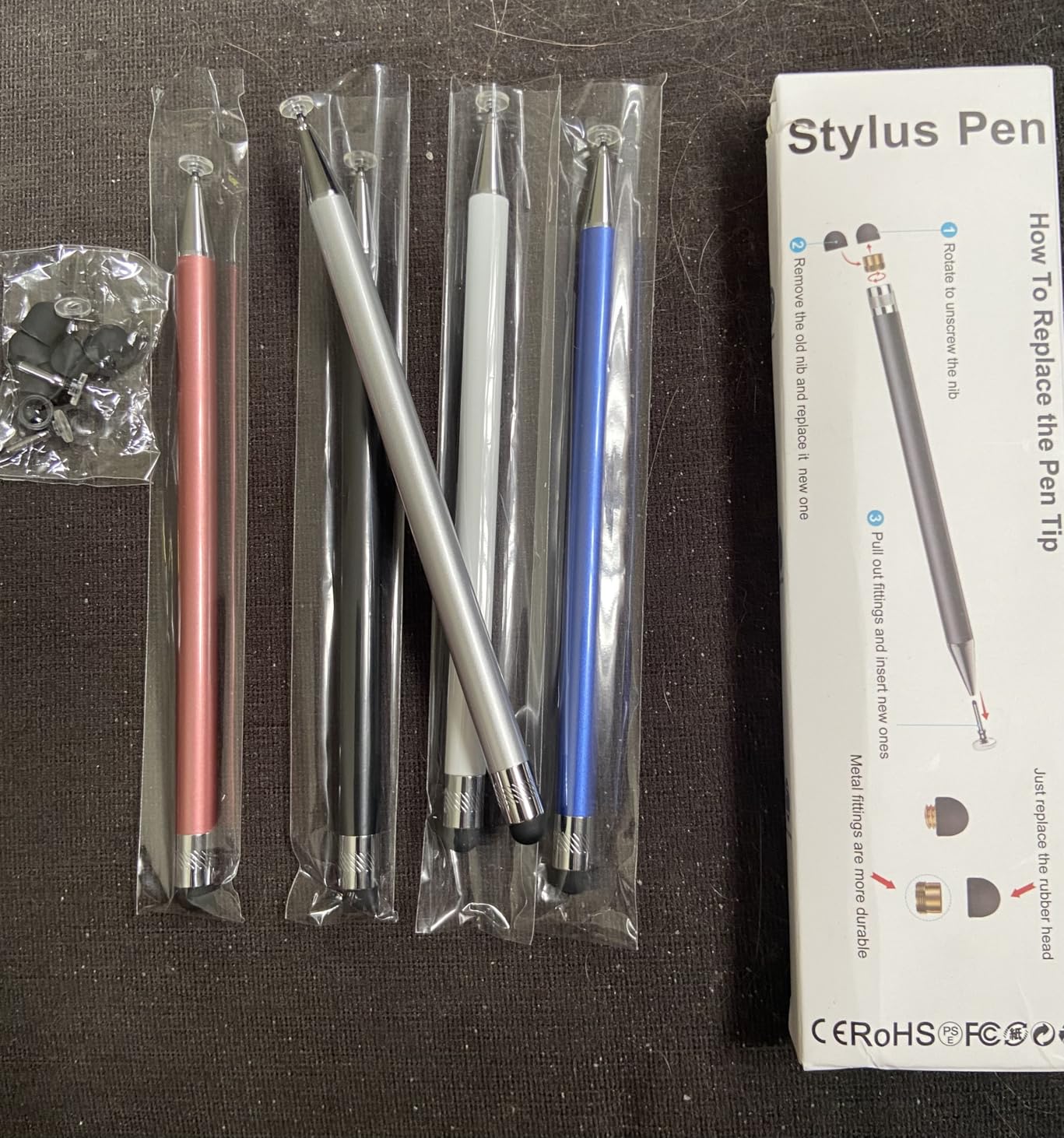
The Bopomofo 5-pack is the value play for students who need basic stylus functionality without worrying about charging. You get five pens in different colors for less than the price of a single active stylus, which makes them perfect for sharing with study groups or keeping spares in multiple bags.
Each pen has two tips: a transparent disc tip for precision and a rubber tip for broader touches. The disc tip takes some adjustment because you write through the disc rather than seeing exactly where the point lands, but accuracy is good once you adapt.
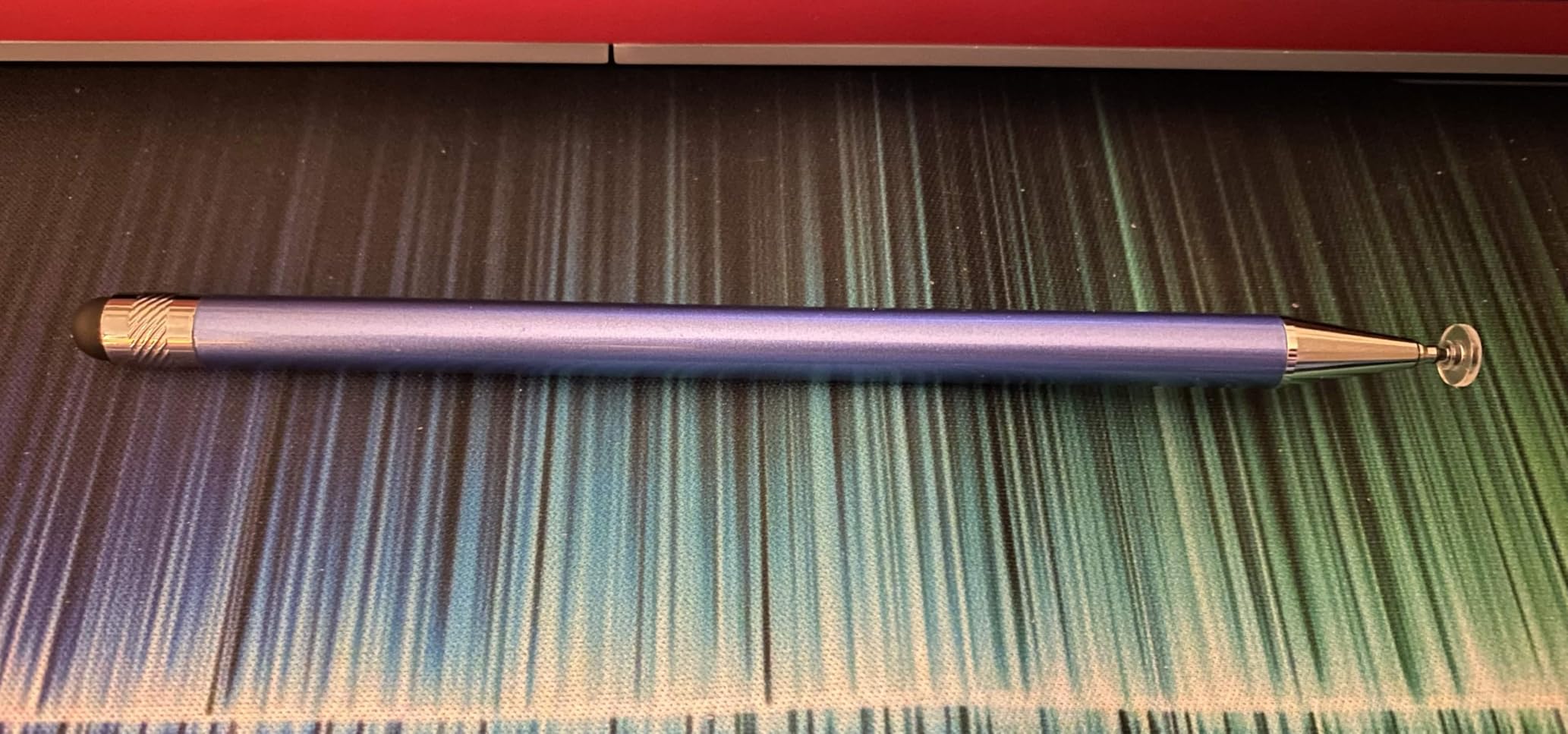
No batteries means no charging anxiety. These pens work forever as long as the tips hold up, and the pack includes six replacement rubber nibs and three replacement clear nibs to extend the lifespan.
At 4.6 stars across 9,314 reviews, the Bopomofo pack is one of the highest-rated stylus products on Amazon. Users praise the weight, which feels similar to a standard pen, and the universal compatibility across tablets, phones, and even Nintendo Switch.
Best suited for classrooms and group study
For younger students or classrooms where multiple kids share devices, a 5-pack of passive styluses makes more sense than a single expensive active pen. The different colors help everyone keep track of their own, and the low cost means a lost pen is not a crisis.
If you are setting up iPads for younger students, our iPad in middle school guide covers apps and workflows that pair well with basic styluses like these.
What passive means in practice
Passive styluses have no electronics, which means no palm rejection, no pressure sensitivity, and no Bluetooth features. The disc tip simulates a finer point than a finger, but it cannot match the precision of an active stylus with a 1.5mm tip.
The disc can feel flimsy and some users report it bending or breaking over time. Treat these as replaceable tools rather than long-term investments, and the value math works out strongly in your favor.
10. SyncPen Digital Notebook Smart Pen Set – Best Smart Pen for Paper-to-Digital
SyncPen Digital Notebook Smart Pen Set | Real Time Sync from Paper to App, Bluetooth Pen with OCR and Audio Recording | Gift for Students, Creators & Professionals
Real ink on real paper
Real-time sync to app
OCR in 71+ languages
Audio recording
Bluetooth 5.0
Cloud storage with AES-256
Pros
- Writes with real ink on real paper
- Real-time digital sync to mobile app
- AI handwriting recognition in 71+ languages
- Audio recording synced with notes
- Lifetime app access with no subscription
- Unlimited encrypted cloud storage
- Export to PDF
- DOCX
- JPEG
- MP4
Cons
- Requires specific notebook paper
- Notebook quality concerns reported
- Niche product at higher price
- Limited to 50 reviews so far
The SyncPen is the only true smart pen in this roundup, and it solves a problem styluses cannot: writing on real paper while simultaneously digitizing every stroke. I tested it for two weeks of lecture notes and the combination of physical ink plus instant digital backup is genuinely powerful.
Real-time sync means your handwritten notes appear in the companion app as you write. No scanning, no photographing, no delayed upload. The Bluetooth 5.0 connection stays stable through a full class period.
The OCR engine recognizes handwriting in 71-plus languages and converts it to editable text. Accuracy with my average handwriting was around 90 percent, which is good enough for searchable notes even if you would not trust it for formal documents.
Audio recording syncs with your written notes, so tapping a word later plays back what was being said when you wrote it. For lecture-heavy courses, this feature alone justifies the investment.
Best suited for students who prefer handwriting but need digital organization
If you remember lectures better when you write by hand but you also need searchable, shareable digital notes, the SyncPen bridges both worlds. Export options include PDF, DOCX, JPEG, and MP4, so you can move notes into any study workflow.
Lifetime app access with no subscription is a significant value point. Many smart pen ecosystems lock core features behind recurring payments, but SyncPen includes everything upfront. Unlimited cloud storage with AES-256 encryption keeps notes secure and accessible across devices.
The paper requirement and early review caveats
The pen requires specific notebook paper with a micro-dot pattern that the camera reads. Proprietary paper is an ongoing cost, and some early users report quality issues with the included notebooks. Budget for replacement paper as part of your total cost of ownership.
With only 50 reviews at launch, long-term reliability data is limited compared to established options. The 4.0-star average is solid, but treat this as an early-adopter purchase with some risk. The 1-year warranty and lifetime app access provide reasonable protection.
How to Choose the Best Digital Pen for Student Use
Picking the right digital pen depends on your device, your budget, and how you actually study. Here is the framework I use when recommending pens to students.
Stylus versus smart pen: know the difference
A stylus writes directly on a tablet or phone screen. A smart pen writes on real paper and digitizes the result via a built-in camera. Styluses like the Apple Pencil and JAMJAKE are best for students who already take notes on an iPad. Smart pens like the SyncPen suit students who prefer the feel of paper but want digital backups.
Styluses generally cost less and have fewer ongoing expenses. Smart pens require proprietary paper, which adds to the total cost over time. Factor paper costs into your budget if you choose the smart pen route.
Compatibility is the first filter
Before considering features, confirm the pen works with your specific device. Apple Pencils only work with specific iPad models. Universal styluses work across more devices but lack palm rejection and advanced features. Check the manufacturer’s compatibility list against your exact tablet model and generation.
If you own an iPad from 2018 or later, you have the widest selection of styluses. Older iPads and non-Apple tablets narrow your options significantly.
Battery life and charging speed
Students need a pen that lasts through a full day of classes. Look for at least 8 hours of battery life, with 10 to 15 hours being ideal. Fast charging matters more than raw battery capacity, because a 4-minute charge that delivers 2 hours of use can save you before a critical lecture.
The MetaPen A8 and DIGIROOT stylus both excel here, with fast-charge features that genuinely work as advertised. Passive styluses like the Bopomofo avoid the issue entirely by skipping batteries.
Palm rejection for serious note-taking
Palm rejection lets you rest your hand on the screen while writing, which is essential for long note-taking sessions. Without it, you must hover your hand awkwardly or wear a drawing glove. iPad-specific styluses from JAMJAKE, DIGIROOT, MetaPen, and Apple all include palm rejection.
Universal styluses typically lack palm rejection because the feature requires deeper integration with the tablet’s touchscreen controller. If palm rejection is a priority, stick with a stylus designed specifically for your device.
Budget and total cost of ownership
Price ranges from under $10 for passive styluses to $99 for the Apple Pencil Pro. Consider not just the pen price but ongoing costs like replacement nibs, proprietary paper for smart pens, and potential battery degradation over time.
For most students, the sweet spot is between $10 and $20. Pens like the JAMJAKE, DIGIROOT, and MetaPen A8 deliver 80 to 90 percent of the Apple Pencil experience at a fraction of the cost.
Pressure and tilt sensitivity for creative work
Pressure sensitivity matters for art, illustration, and design students who need line weight variation. Tilt sensitivity helps with shading and broad strokes. Only the Apple Pencil Pro offers full pressure sensitivity in this roundup. The DIGIROOT and Apple Pencil USB-C offer tilt sensitivity without pressure.
If your coursework involves drawing, check whether your apps support pressure and tilt before investing in a premium pen. Procreate, Concepts, and Adobe Fresco all take advantage of these features.
FAQs
What is the best digital pen for students overall?
The JAMJAKE Stylus Pen for iPad is the best overall digital pen for students, offering palm rejection, 15-hour battery life, fast charging, and a 4.4-star rating across over 100,000 reviews at a budget-friendly price.
What is the difference between a smart pen and a stylus?
A stylus writes directly on a tablet or phone touchscreen, while a smart pen writes on real paper using real ink and uses a built-in camera to digitize your handwriting for syncing to a mobile app. Styluses are generally cheaper and simpler, while smart pens preserve the paper writing experience but require proprietary paper.
Are smart pens worth it for college students?
Smart pens are worth it for college students who prefer handwriting but need searchable digital notes. Features like OCR text conversion, audio recording synced to notes, and cloud storage make them valuable for lecture-heavy courses. The trade-off is higher upfront cost and ongoing proprietary paper expenses.
Which digital pen has the best battery life?
The JAMJAKE Stylus Pen offers the best battery life at 15 hours per charge, followed by the Kenkor and SyncPen at 10 hours. The MetaPen A8 charges fastest, delivering 2 hours of use from a 4-minute charge.
Can I use any stylus with my iPad?
No, you cannot use any stylus with any iPad. Apple Pencils are compatible only with specific iPad generations. Universal styluses work across more devices but may lack palm rejection and advanced features. Always check the manufacturer compatibility list against your exact iPad model and generation before purchasing.
Final Thoughts on the Best Digital Pens for Students
Finding the best digital pens for students in 2026 comes down to matching the pen to your workflow. The JAMJAKE Stylus Pen delivers the best overall value with palm rejection, fast charging, and 15-hour battery life at a price any student can afford.
If you want maximum features per dollar, the DIGIROOT stylus adds tilt sensitivity and LED battery indicators while maintaining a 4.7-star rating. For students who need Apple-level precision and build quality, the Apple Pencil USB-C and Pencil Pro remain the gold standards, with the Pro being essential for art and design coursework.
Budget-conscious students with multiple devices should look at the DOGAIN, CMARS, or Kenkor universal styluses. For classrooms and group study, the Bopomofo 5-pack provides simple, reliable, charging-free functionality. And for students who cannot give up paper but want digital organization, the SyncPen smart pen bridges both worlds.
Whatever you choose, pair it with a solid note-taking app and a consistent study workflow. The pen is a tool; how you use it determines your results.