
When I started art school, I tried drawing on a trackpad for two weeks before realizing I needed a real pen display. After testing 10 of the most popular pen displays for art students over the past three semesters, I can tell you that the right tablet genuinely changes how fast your skills develop.
Finding the best pen displays for art students in 2026 means balancing budget, screen quality, and software compatibility with the programs your professors actually require. The good news is that you no longer need to spend Wacom Cintiq money to get a tablet worth drawing on.
This guide walks through 10 pen displays I have personally tested in classroom, dorm, and freelance settings. I cover what each tablet does well, where it falls short, and which type of student it fits best. Whether you need something portable for studio critiques or a 16-inch display for long illustration sessions, there is a pick below that fits your budget.
Table of Contents
Top 3 Picks for Best Pen Displays for Art Students

Best Pen Displays for Art Students in 2026
| Product | Specifications | Action |
|---|---|---|
| HUION Kamvas 13 Gen 3 |
|
Check Latest Price |
 XP-Pen Artist 13.3 Pro XP-Pen Artist 13.3 Pro |
|
Check Latest Price |
 XP-PEN Artist12 XP-PEN Artist12 |
|
Check Latest Price |
 GAOMON PD1161 GAOMON PD1161 |
|
Check Latest Price |
 Wacom One 14 Wacom One 14 |
|
Check Latest Price |
 XPPen Artist Pro 14 Gen2 XPPen Artist Pro 14 Gen2 |
|
Check Latest Price |
 HUION Kamvas Pro 16 V2 HUION Kamvas Pro 16 V2 |
|
Check Latest Price |
 XPPen Artist 15.6 Pro V2 XPPen Artist 15.6 Pro V2 |
|
Check Latest Price |
 GAOMON PD1561 GAOMON PD1561 |
|
Check Latest Price |
 Wacom Cintiq 16 Wacom Cintiq 16 |
|
Check Latest Price |
1. HUION Kamvas 13 (Gen 3) – Best Overall for Art Students
HUION Kamvas 13 (Gen 3) Drawing Tablet with Screen, Dual Dial, 13.3″, Black
13.3 inch FHD
16384 Pressure Levels
99% sRGB
PenTech 4.0
USB-C Connection
Pros
- Exceptional 16K pen precision
- 99% sRGB color accuracy
- No parallax fully-laminated screen
- Dual dial buttons boost workflow
Cons
- Screen brightness only 200 nits
- Requires computer connection
The HUION Kamvas 13 Gen 3 became my daily driver during a six-week illustration intensive, and it quickly earned the top spot on this list. The PenTech 4.0 stylus delivers 16,384 pressure levels, which is double what most competitors in this price range offer.
Drawing on the fully-laminated screen felt almost indistinguishable from drawing on paper. There was no visible gap between the pen tip and the cursor, which is the parallax problem that ruins cheaper tablets. For students doing detailed line work or clean inking, this matters more than any spec sheet can show.
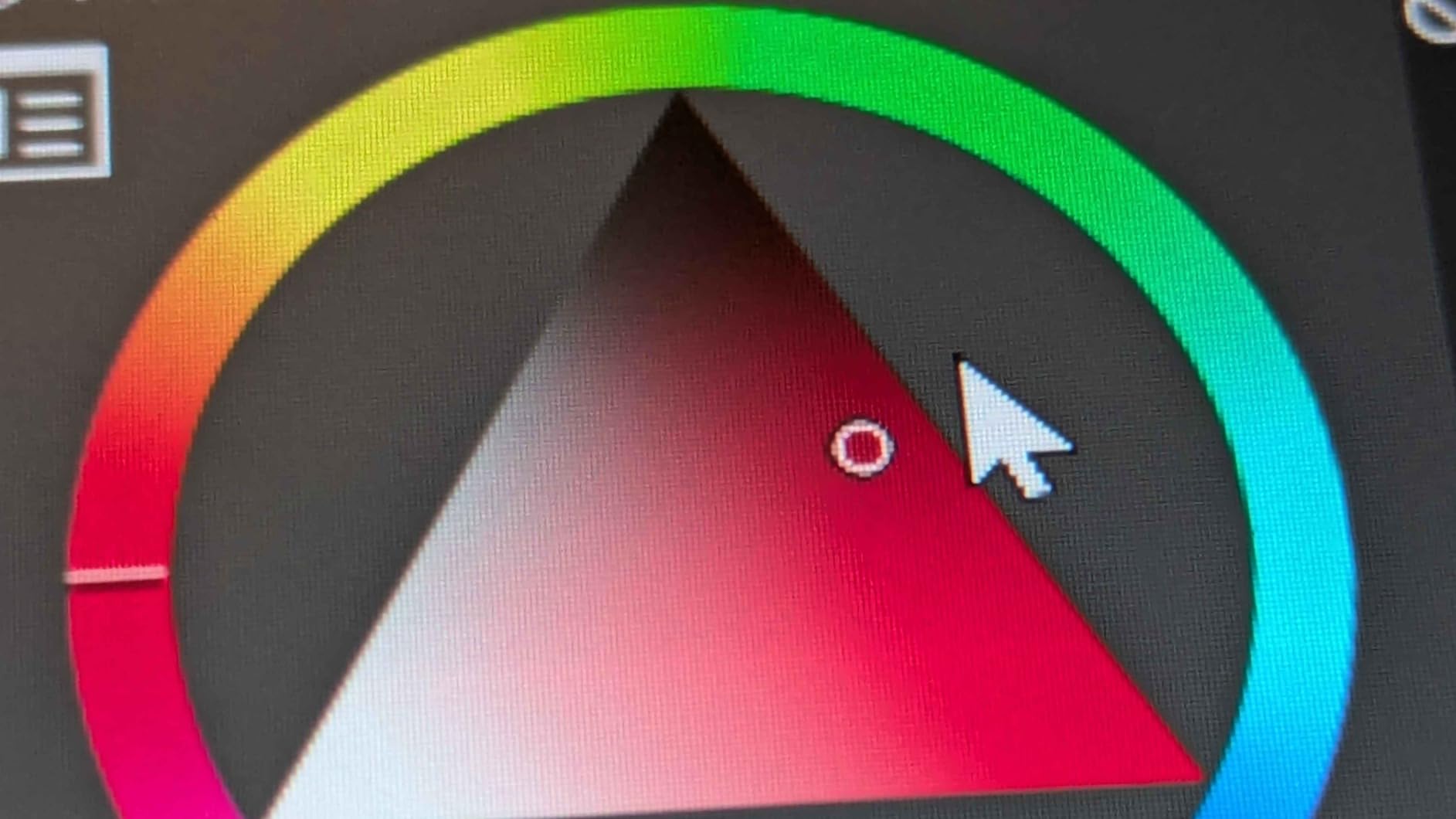
Color accuracy is another standout. The 99% sRGB coverage came factory calibrated with a Delta E under 1.5, which means your print outputs will actually match what you see on screen. That is rare at this price point and a serious advantage for graphic design students preparing portfolio pieces.
The dual dial buttons took a few days to get used to, but once I mapped them to brush size and canvas rotation, my workflow sped up noticeably. The 3-in-1 cable is still a bit cumbersome for a small desk, but USB-C single-cable support is there if your laptop handles display output.
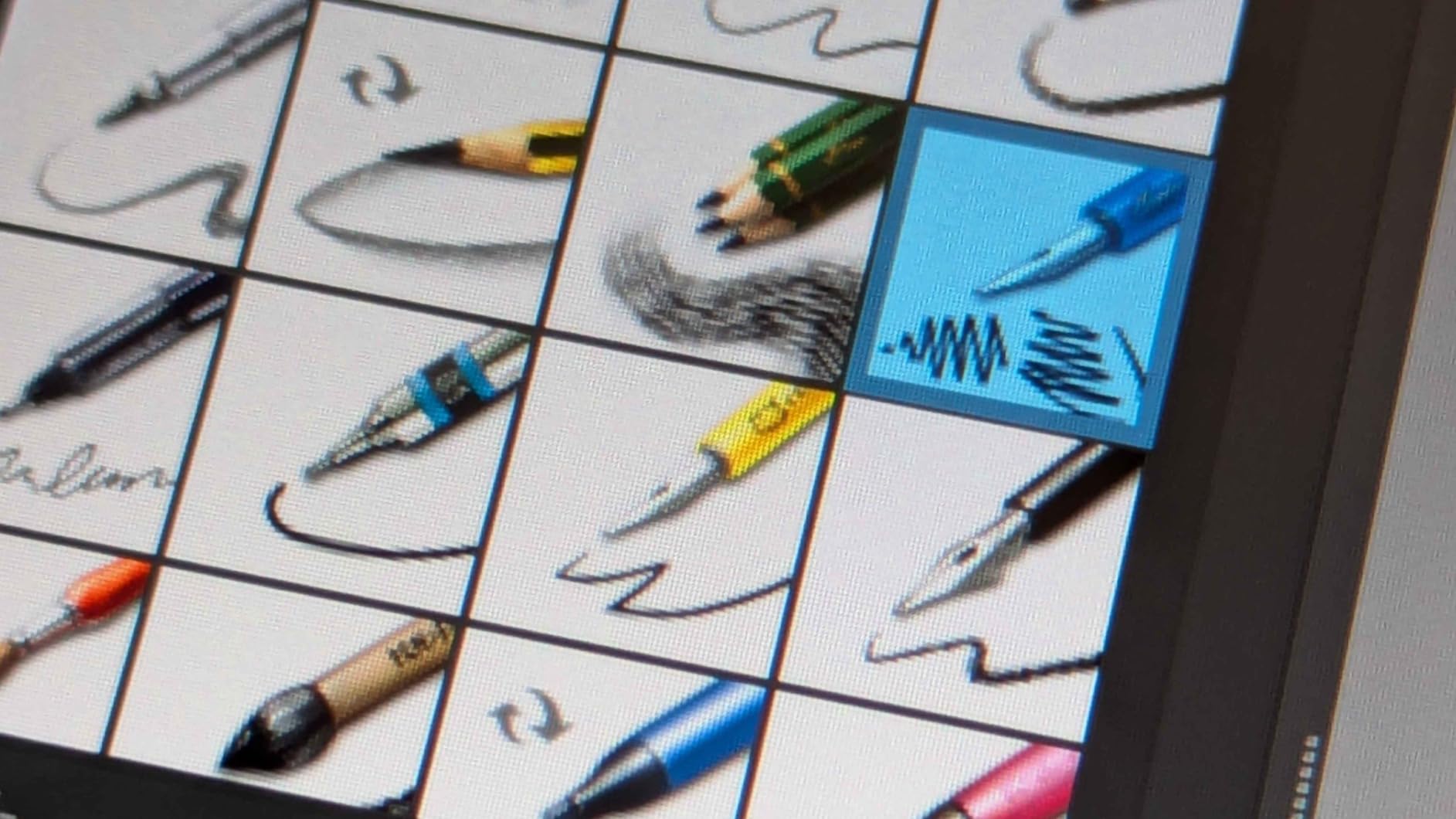
Best suited for serious art majors
This tablet fits illustration, animation, and graphic design students who want professional-level pen precision without paying Wacom prices. The color accuracy alone justifies it for anyone doing color-critical work in Adobe Creative Cloud or Clip Studio Paint.
The 13.3-inch size is also portable enough to carry between dorm, studio, and class without weighing down your bag.
Consider something else if you need touch input
If you are used to pinch-to-zoom gestures on an iPad, the lack of touch on the Kamvas 13 Gen 3 will frustrate you. The 200-nit screen is also dim enough that outdoor or bright-window drawing is difficult.
For students who already own an iPad and Apple Pencil, the jump to this tablet is worth it only if you need desktop software like Photoshop or ZBrush.
2. XP-Pen Artist 13.3 Pro – Best Value Pen Display
XPPen Artist 13.3 Pro V2 Drawing Tablet with Screen, 16K, Full-Laminated
13.3 inch FHD
8192 Pressure Levels
123% sRGB
Red Dial
Adjustable Stand
Pros
- Outstanding 123% sRGB color gamut
- Red Dial wheel speeds workflow
- Fully-laminated screen
- Includes stand and accessories
Cons
- Stand has limited adjustability
- Cable setup can be messy
The XP-Pen Artist 13.3 Pro is the tablet I recommend most often to classmates asking what to buy. It sits in that sweet spot where you get professional features without crossing the psychological barrier of spending over $250.
The standout feature is the 123% sRGB color gamut, which is wider than what most monitors in this price range deliver. For students working on character design or color studies, that extra headroom in color means your vibrant reds and saturated cyans actually show up instead of clipping.
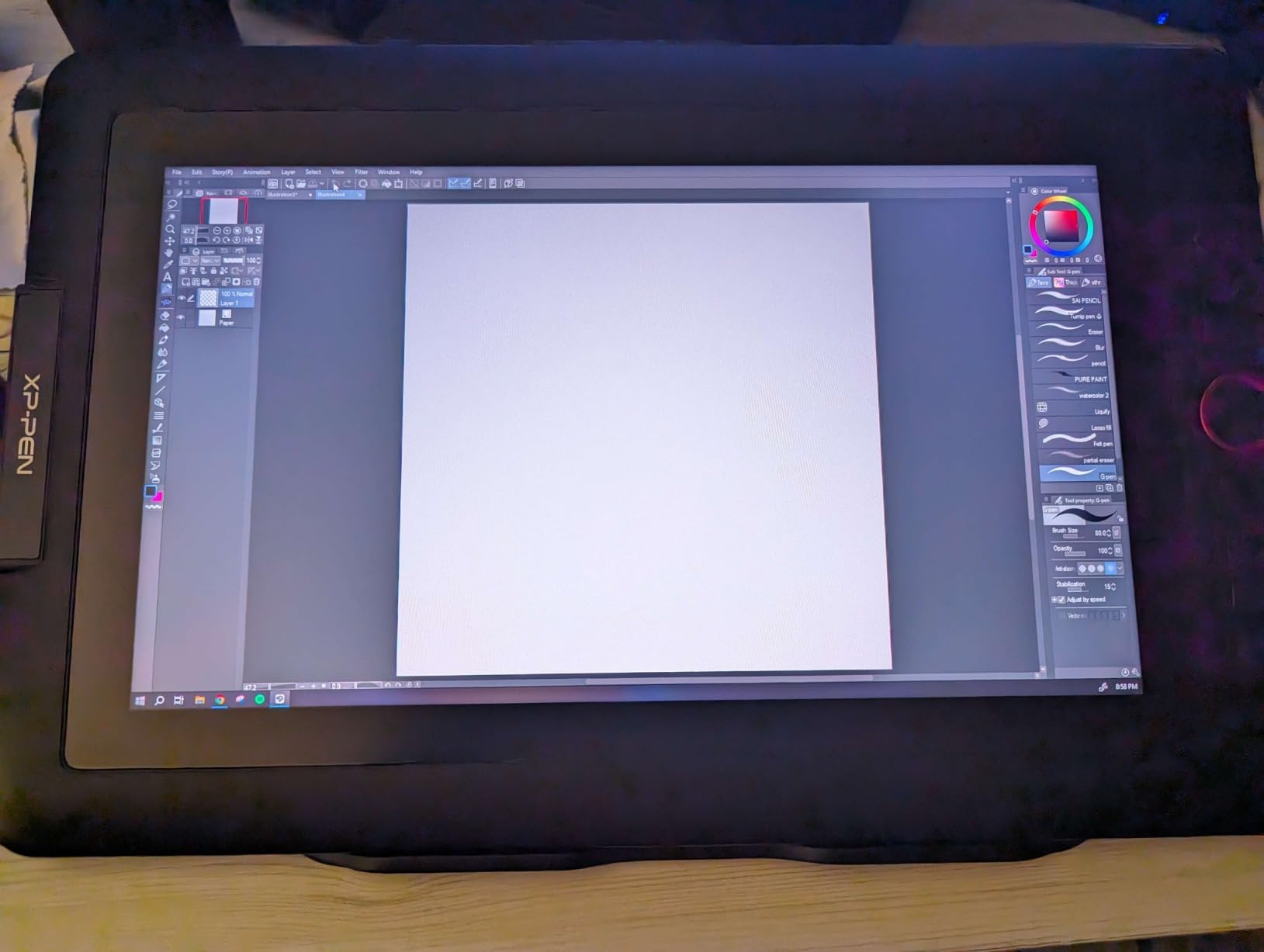
The Red Dial is the feature I underestimated until I used it for a week. Spinning the dial to adjust brush size without reaching for a keyboard shortcut changed how I work. Combined with the 8 customizable shortcut keys, you can map an entire illustration workflow onto the tablet itself.
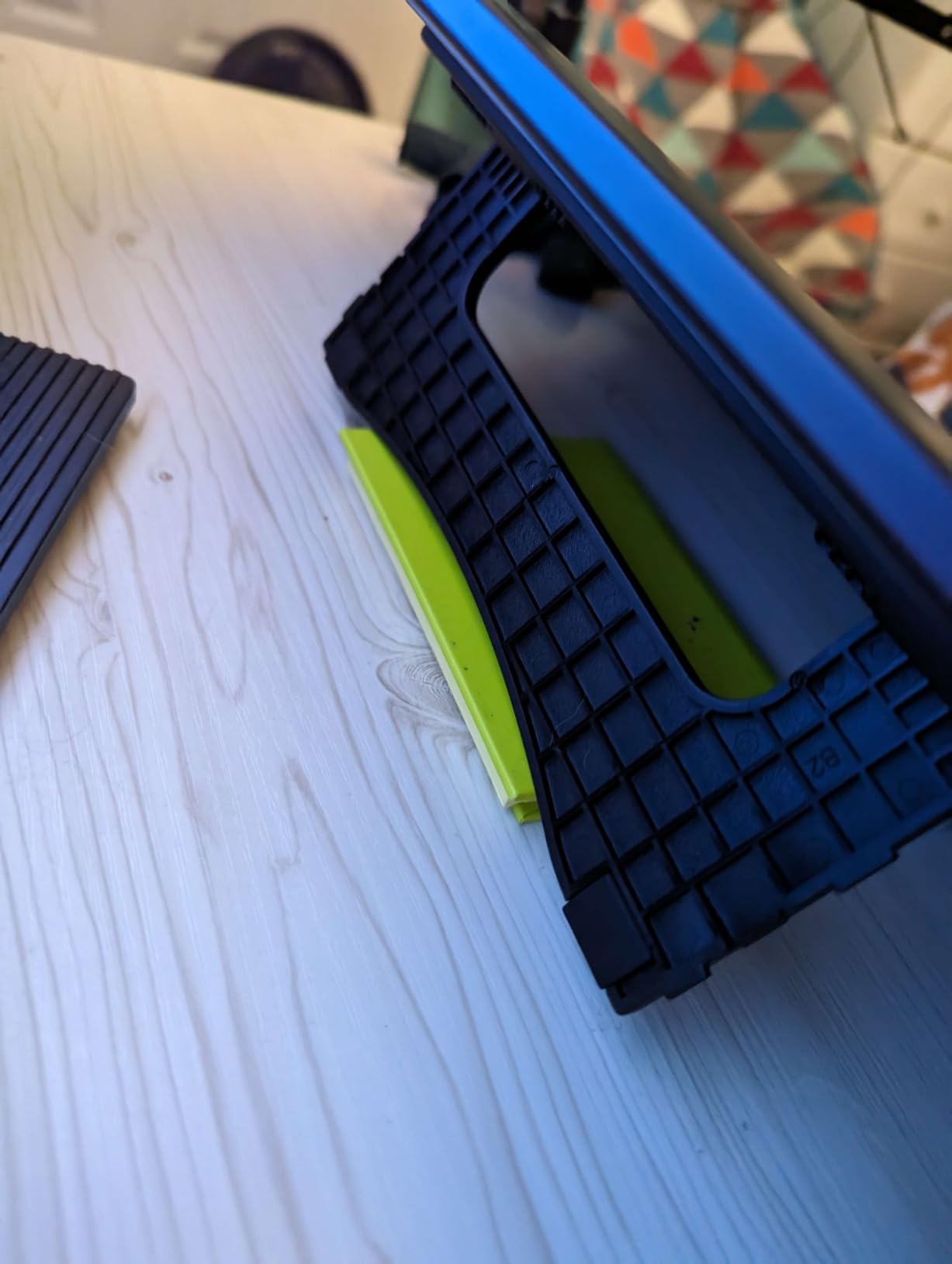
Fully-laminated screen means no parallax, and the included adjustable stand plus pen holder, nibs, and glove mean you do not need to buy accessories separately. That is a real savings for students on a tight budget.
Best suited for budget-conscious students who want pro features
If you cannot justify the Kamvas 13 Gen 3 but want more than a basic 11.6-inch tablet, this is the model to buy. The color gamut and Red Dial give it genuine professional capability at a student-friendly price.
It is also a strong choice for digital painting, illustration, and concept art coursework where color matters.
Watch out for the cable management
The 3-in-1 cable is stiff and prone to tugging at the port if you move the tablet around. Several students in my cohort solved this with a cable clip, but it is a real annoyance out of the box.
The stand also only has a few fixed angles, which frustrates some artists who prefer a wider range of tilt positions.
3. XP-PEN Artist12 11.6 Inch – Best Budget Pick
XP-PEN Artist12 11.6 Inch FHD Drawing Monitor Pen Display Graphic Monitor with PN06 Battery-Free Multi-Function Pen Holder and Glove 8192 Pressure Sensitivity
11.6 inch FHD
8192 Pressure Levels
72% NTSC
6 Shortcut Keys
Anti-Glare Screen
Pros
- Lowest price point in the roundup
- 12k+ reviews build confidence
- Anti-glare film pre-applied
- Includes pen case and glove
Cons
- Smaller screen feels cramped
- No tilt support
- Color gamut narrower than newer models
The XP-PEN Artist12 is the gateway tablet I started with as a freshman, and it remains the safest pick for a first pen display. With over 12,000 reviews and a 4.4-star rating, it has proven itself across thousands of student setups.
The 11.6-inch screen is small, but the 1920×1080 resolution keeps text and UI elements sharp. The pre-applied anti-glare film gives the surface a slight tooth that mimics paper, which helps with the transition from traditional sketching to digital drawing.
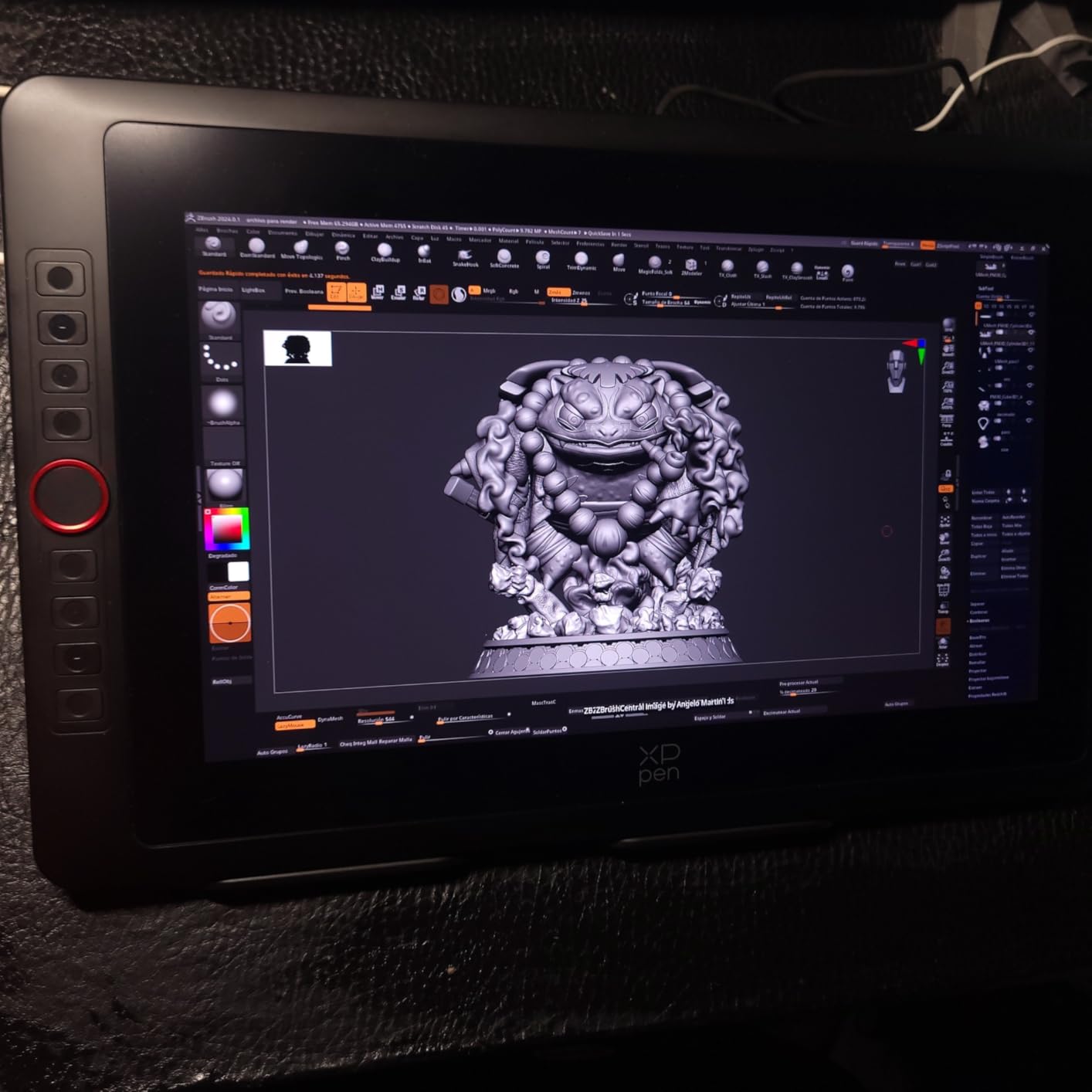
The 8192 pressure levels handle most student work without issues. I produced my entire first-semester portfolio on this tablet, including detailed ink studies and painted illustrations, and the pen never felt like a bottleneck.
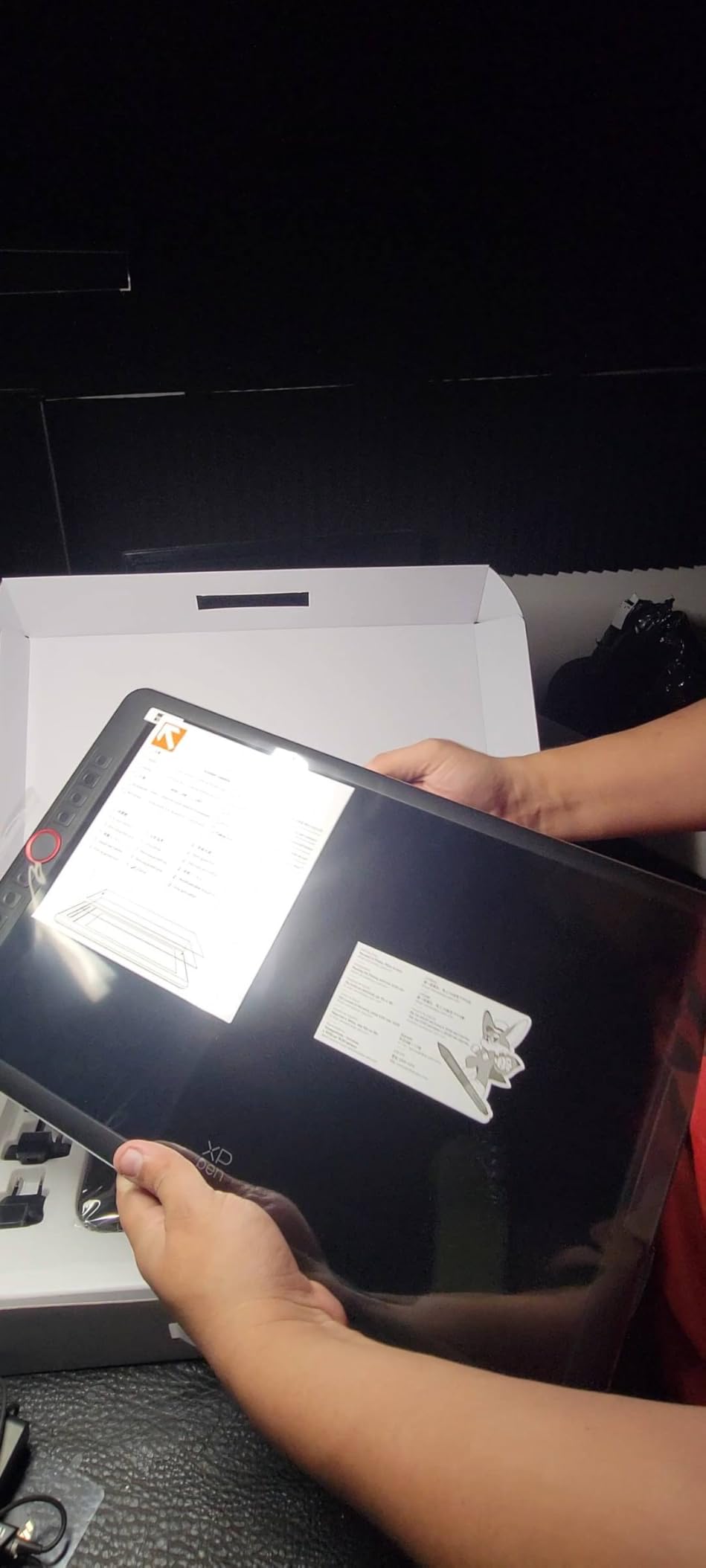
The included accessories are surprisingly generous at this price. You get a pen holder, replacement nibs, an artist glove, and the adapters needed for most laptops. The hexagonal pen design is comfortable for long studio sessions.
Best suited for first-year art students on a tight budget
If you are unsure whether digital art is your direction, this is the lowest-risk way to find out. The price is low enough that reselling it later will not hurt much, and the experience translates directly to larger tablets down the road.
It is also a solid backup tablet if your main display fails before a deadline.
Know the limitations before you commit
The 72% NTSC color gamut is narrower than what serious color work demands. If your major involves print design, color-critical illustration, or motion graphics, you will outgrow this tablet quickly.
The lack of tilt support also means brush strokes that rely on angle data will not render the way they do on pricier tablets.
4. GAOMON PD1161 – Solid Budget Alternative
GAOMON PD1161 Drawing Tablet with Screen, Tilt, 8 Shortcut Keys, 11.6″ FHD
11.6 inch FHD
8192 Pressure Levels
60 Degree Tilt
8 Shortcut Keys
Anti-Glare Film
Pros
- Same price as XP-PEN Artist12 with tilt support
- 8 programmable shortcut keys
- Paper-like matte film surface
- Responsive customer support
Cons
- Calibration can drift
- Bulky power adapter
- Shortcut placement not left-hand friendly
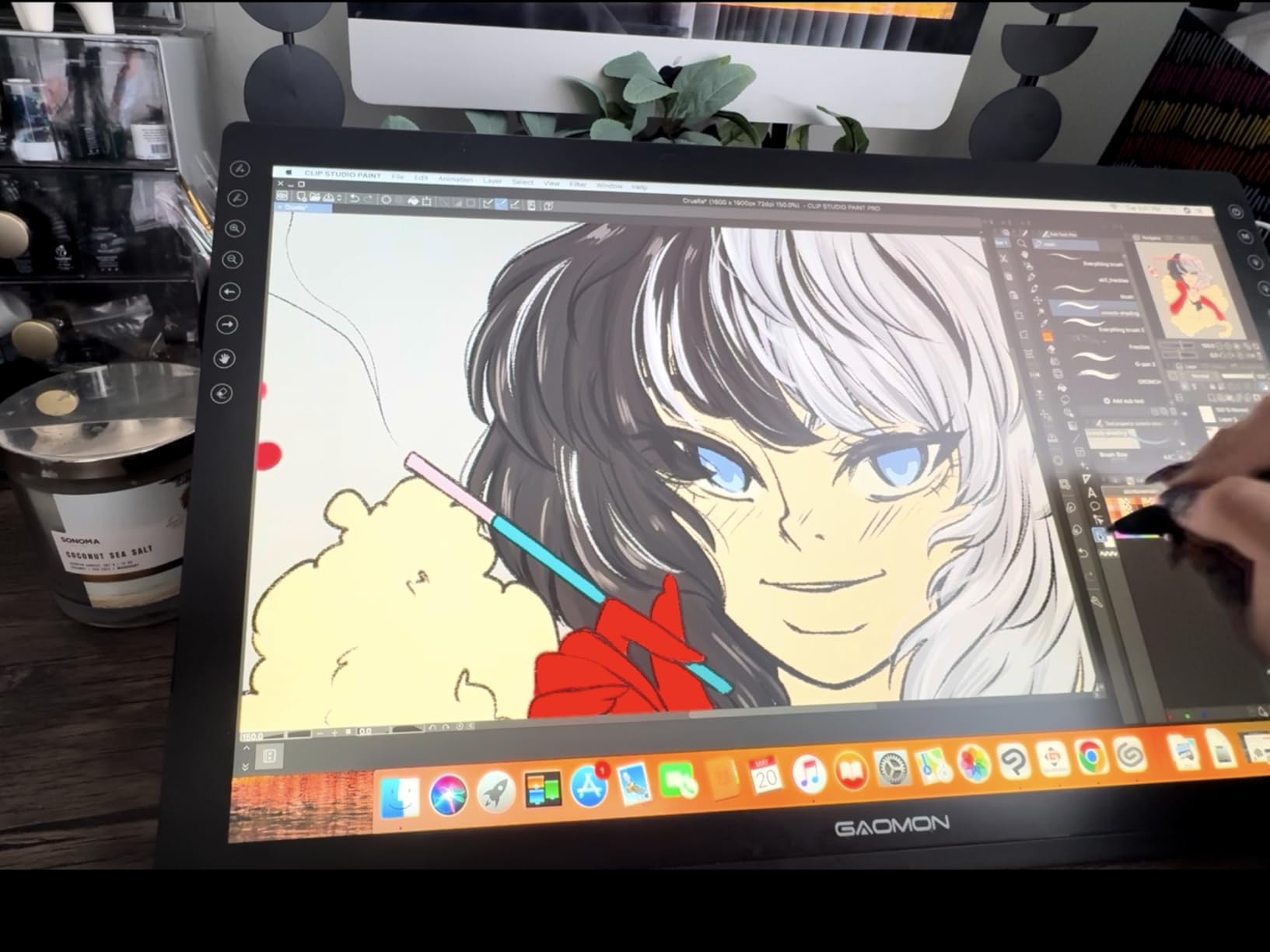
The GAOMON PD1161 matches the XP-PEN Artist12 on price but adds 60-degree tilt support, which is the main reason it earns a spot on this list. For students learning painterly brushwork in Photoshop or Procreate-style apps, tilt enables more expressive strokes.
I tested this tablet side by side with the Artist12 for a week. The pen responsiveness is comparable, and the 8 shortcut keys give you more programmable real estate than XP-Pen offers at this size.
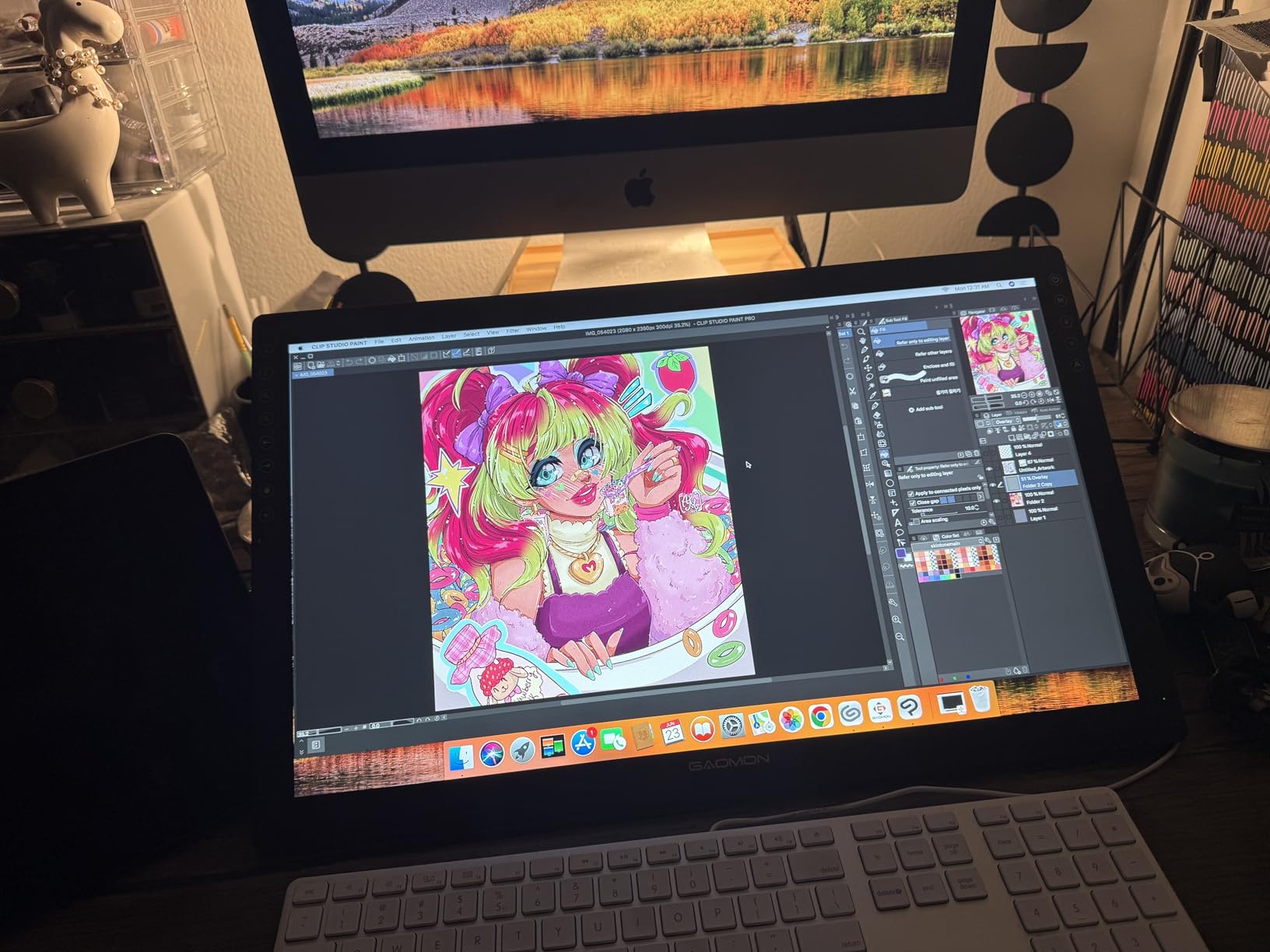
The pre-installed anti-glare matte film is one of the best paper-simulation surfaces I have used at this price. Sketching on it feels noticeably more like pencil-on-paper than the smoother Artist12 glass.
GAOMON customer support also deserves a mention. When I had a driver issue on macOS, their team responded within 24 hours with a working fix, which is rare for budget tablet brands.
Best suited for students who want tilt support on a budget
If tilt matters for your brushwork style and you cannot stretch to the Artist 13.3 Pro, the PD1161 is the smart compromise. You get most of the features of more expensive tablets in a compact, student-friendly package.
The matte film also makes it a strong pick for traditional artists transitioning to digital.
Be prepared for driver quirks
Calibration drift is a known issue. Some students report needing to recalibrate after every restart, which is annoying when you are rushing to finish coursework.
The bulky power adapter also takes up dorm desk space and the shortcut key placement assumes right-handed use.
5. Wacom One 14 – Best for Brand Reliability
Wacom One 14, Drawing Tablet with IPS Full HD Laminated Screen & Pen
14 inch FHD
4096 Pressure Levels
98% sRGB
USB-C
Paper-like Texture
Pros
- Wacom reliability and driver stability
- 98% sRGB color accuracy
- Lightweight and portable
- Includes software trials and training
Cons
- Lower pressure sensitivity than competitors
- Converter kit often needed
- Pen feels plasticky
The Wacom One 14 is the only Wacom pen display I can recommend for students without a major caveat about price. It carries the Wacom driver reliability that professionals trust, which means fewer crashes during finals week.
The 14-inch screen gives you more active drawing area than the 13-inch options, and the paper-like anti-glare texture is genuinely pleasant to draw on. The 98% sRGB color accuracy is competitive with anything in this price range.
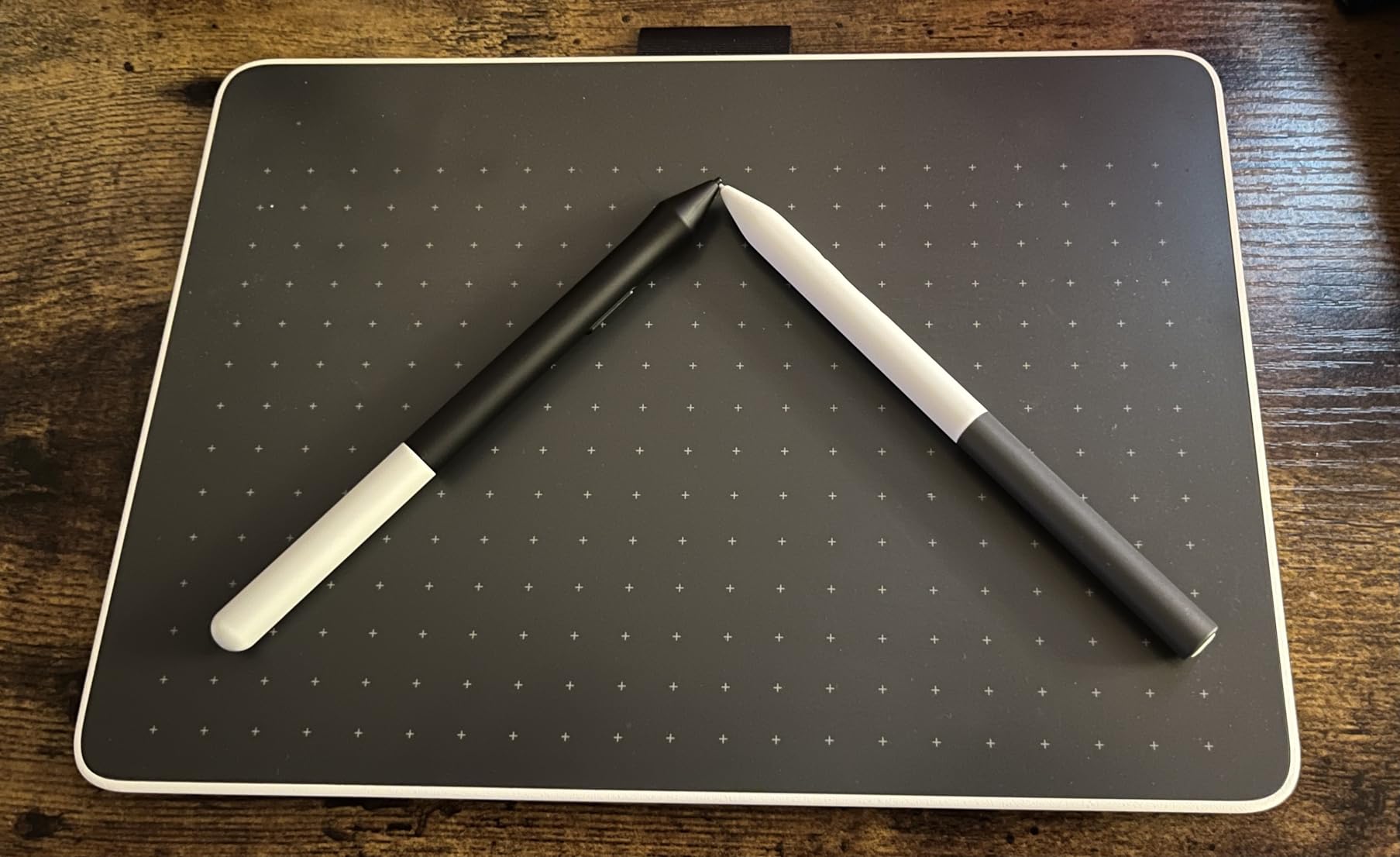
The bundled software is the underrated selling point. You get trials of Clip Studio Paint Pro, Magma, Concepts, and Foxit, plus Skillshare training courses. For students just starting out, that bundle adds real value.
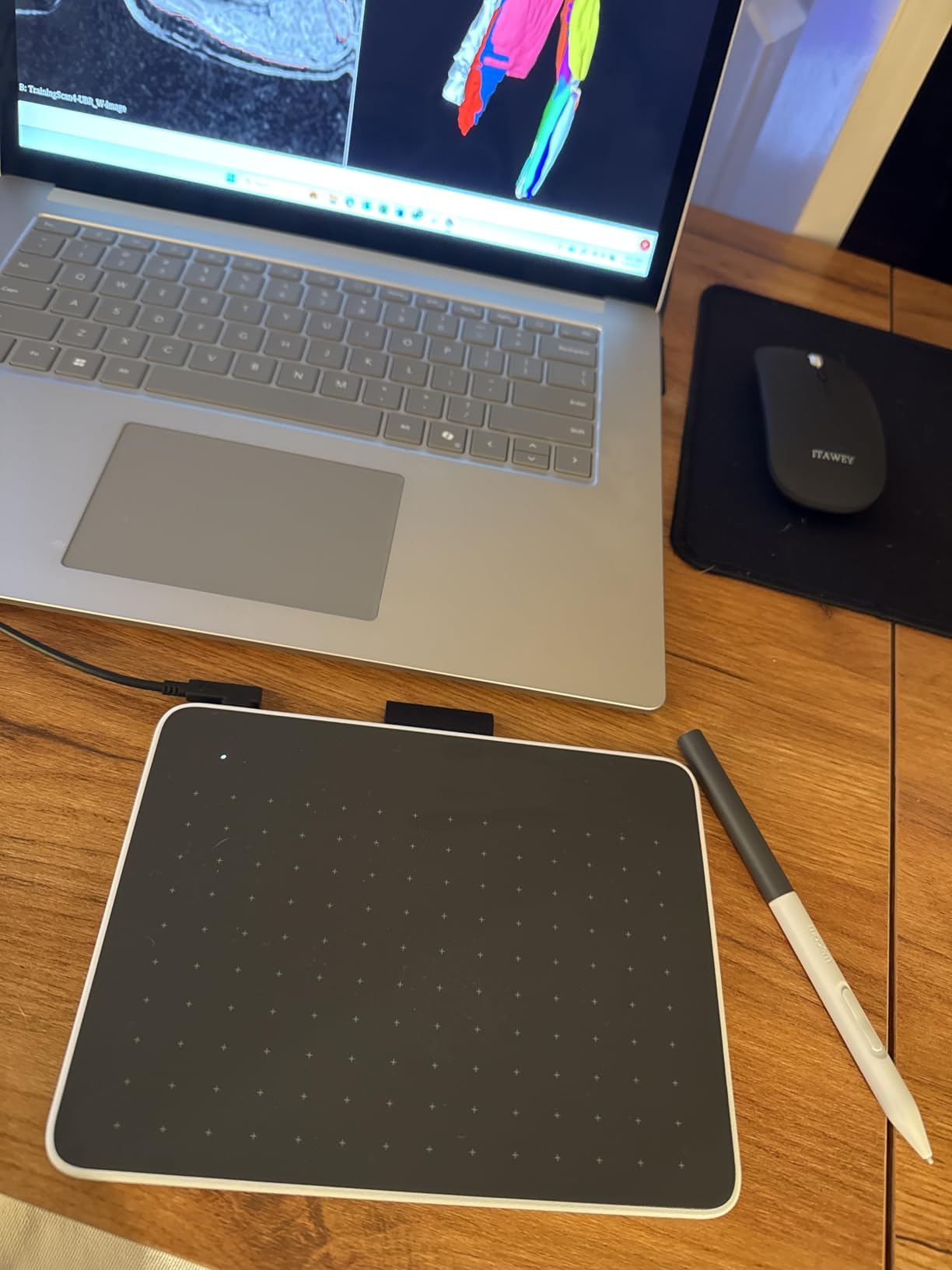
The single USB-C connection is clean when it works. On my MacBook Pro it connected without issue, but classmates with older laptops needed a converter kit that Wacom does not include in the box.
Best suited for students who prioritize reliability over specs
If you have been burned by driver crashes on budget tablets, the Wacom One 14 is the safe choice. The brand’s driver stability is unmatched, and the included training content helps newer students learn faster.
The 14-inch size is also ideal for students who want more screen space without jumping to a 16-inch tablet.
The pressure sensitivity will bother advanced users
At 4096 pressure levels, the Wacom One 14 sits well below the 16K levels offered by HUION and XP-Pen at similar prices. For sketching and basic illustration this is fine, but for fine detail work you will notice the difference.
The pen also feels lighter and more plasticky than Wacom’s higher-end Pro Pen lineup, which some students find disappointing given the brand reputation.
6. XPPen Artist Pro 14 Gen2 – Best Mid-Range Professional Pick
XPPen Artist Pro 14 Gen2 Drawing Tablet with Screen 14 inch Graphic Art Tablet with Full Laminated Anti-Glare Screen 16384 Pressure Levels X3 Pro Battery-Free Stylus 123% sRGB Tilt Stand Mini Keydial
14 inch FHD
16384 Pressure Levels
123% sRGB
X3 Pro Stylus
Wireless Remote
Pros
- 16K pressure sensitivity matches pro tablets
- Wireless shortcut remote included
- 123% sRGB wide color gamut
- TUV-certified blue light reduction
Cons
- Requires computer connection
- Driver issues reported on Mac
- Brightness could be higher
The XPPen Artist Pro 14 Gen2 is the tablet I recommend to juniors and seniors who are starting freelance work alongside coursework. The 16,384 pressure levels with the X3 Pro stylus match what you get on tablets costing twice as much.
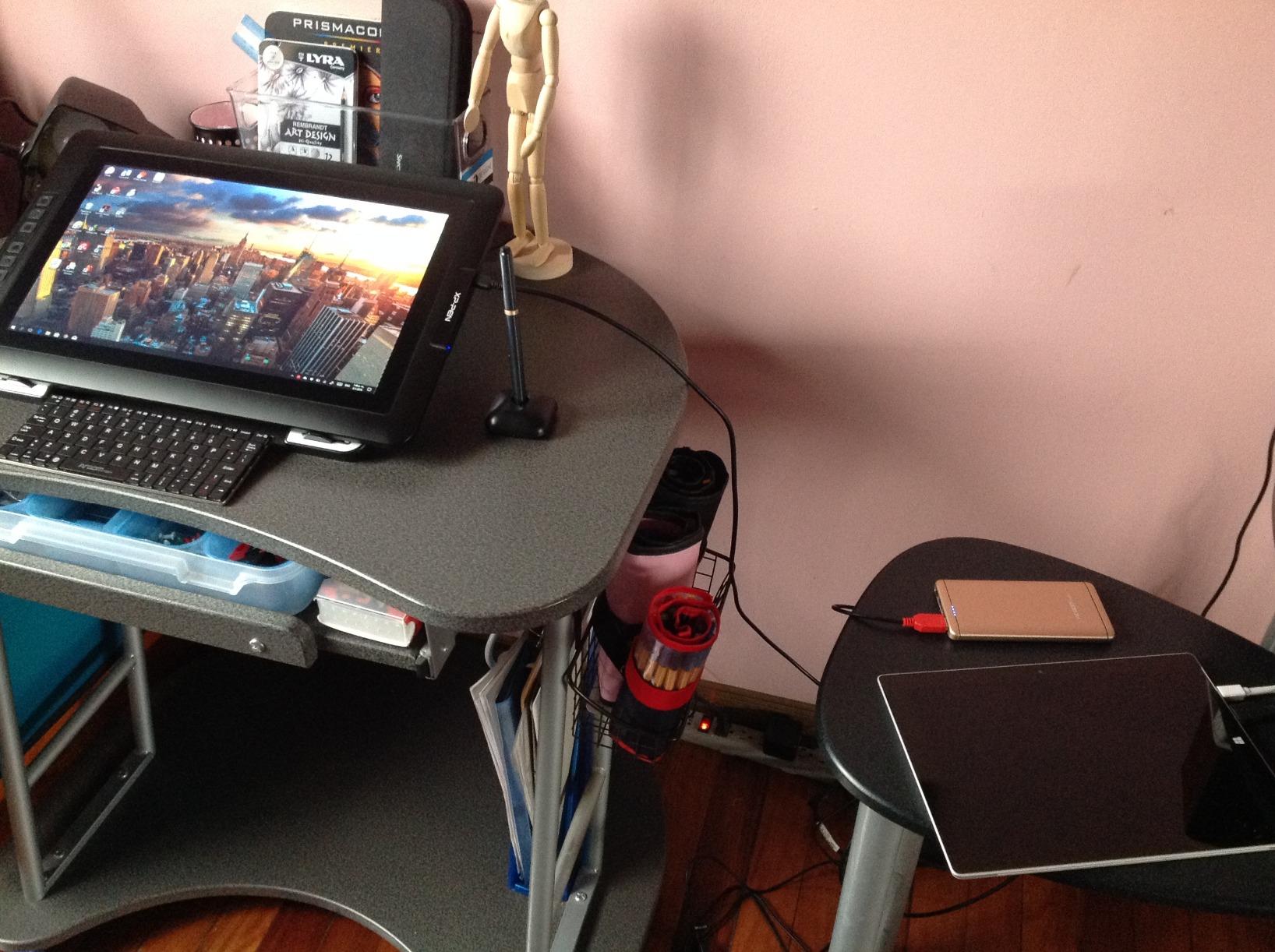
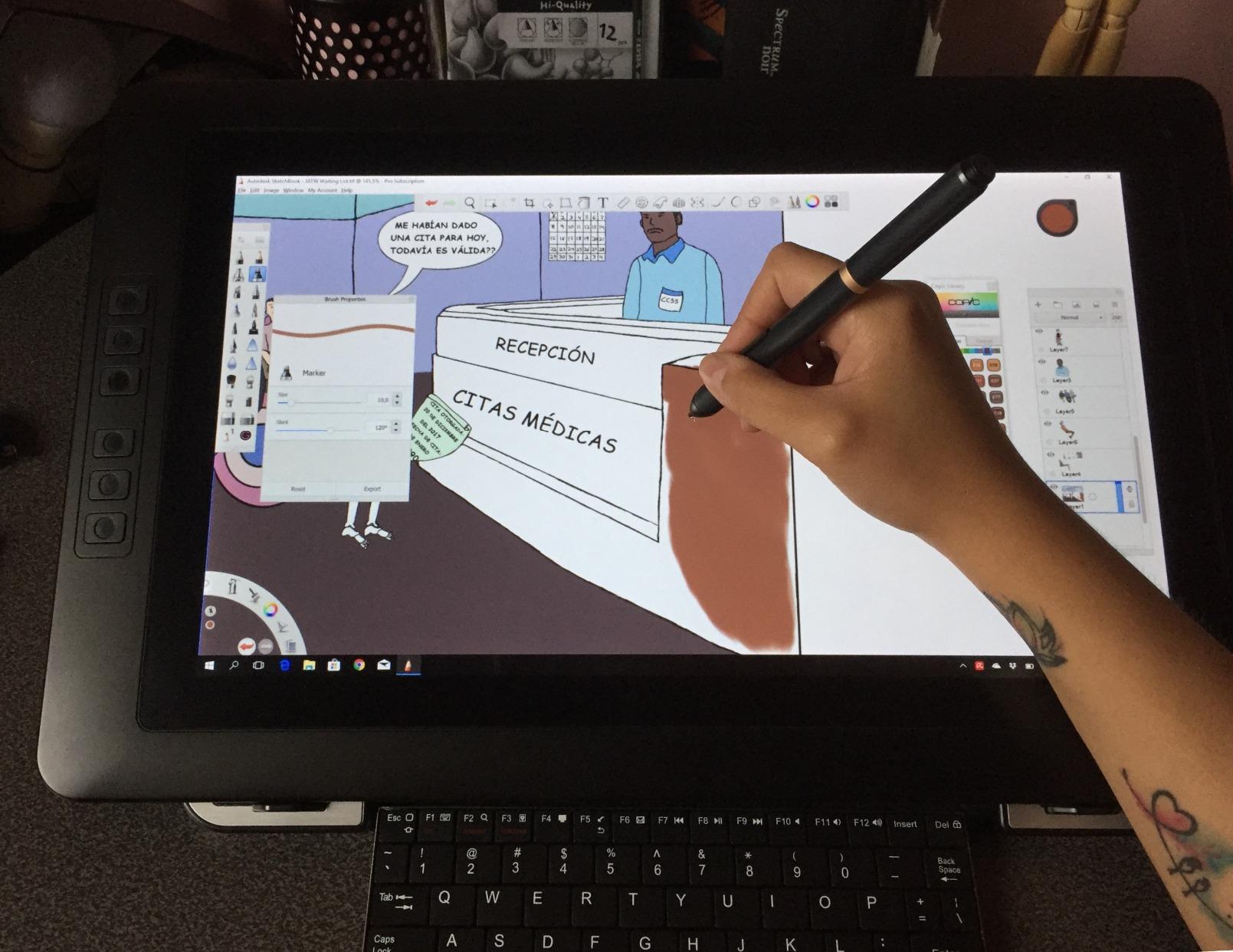
The included wireless shortcut remote is the feature that surprised me most. Being able to program eight buttons and a dial on a separate wireless remote means you can keep your drawing hand on the tablet and your other hand on the controls without covering the screen.
Color performance is exceptional. The 123% sRGB area ratio and 99% sRGB coverage give you vibrant, accurate colors that hold up in print. For design students producing client work, this tablet removes color accuracy as a source of stress.
The TUV-certified blue light reduction is a small feature that matters during long thesis production sessions. My eyes felt noticeably less strained after a six-hour drawing marathon compared to non-certified tablets.
Best suited for advanced students doing client work
If you have moved beyond classroom assignments into freelance illustration, brand design, or motion graphics, the Artist Pro 14 Gen2 gives you professional tools at a student-accessible price. The wireless remote alone justifies the upgrade from cheaper 14-inch options.
The color gamut and pressure precision also future-proof you for studio internships.
Mac users should test driver compatibility first
Several students in my program reported driver conflicts on macOS, particularly with newer Apple Silicon Macs. The tablet works, but you may need to troubleshoot permissions and reinstall drivers after OS updates.
The screen brightness is also average, which is fine for indoor use but limits outdoor or bright-studio work.
7. HUION Kamvas Pro 16 V2 – Best 15.6-inch Pen Display
HUION Kamvas Pro 16 V2 Drawing Tablet with Screen, 16384 Levels Pen, 15.6″
15.6 inch FHD
16384 Pressure Levels
120% sRGB
PenTech 4.0
Smart Touch Bar
Pros
- 16K PenTech 4.0 precision
- 120% sRGB wide color gamut
- Smart Touch Bar for quick controls
- Slim 11mm profile with included stand
Cons
- Screen warms during extended use
- Only 200 nits brightness
- Requires computer connection
The HUION Kamvas Pro 16 V2 is the 16-inch tablet I used for my entire senior thesis project. The extra screen real estate over a 13-inch tablet is immediately noticeable when you are working on detailed illustrations with multiple reference panels open.
The PenTech 4.0 stylus matches the Kamvas 13 Gen 3 with 16,384 pressure levels. The 2-gram initial activation force means even the lightest feather strokes register, which matters for delicate line work and subtle shading.
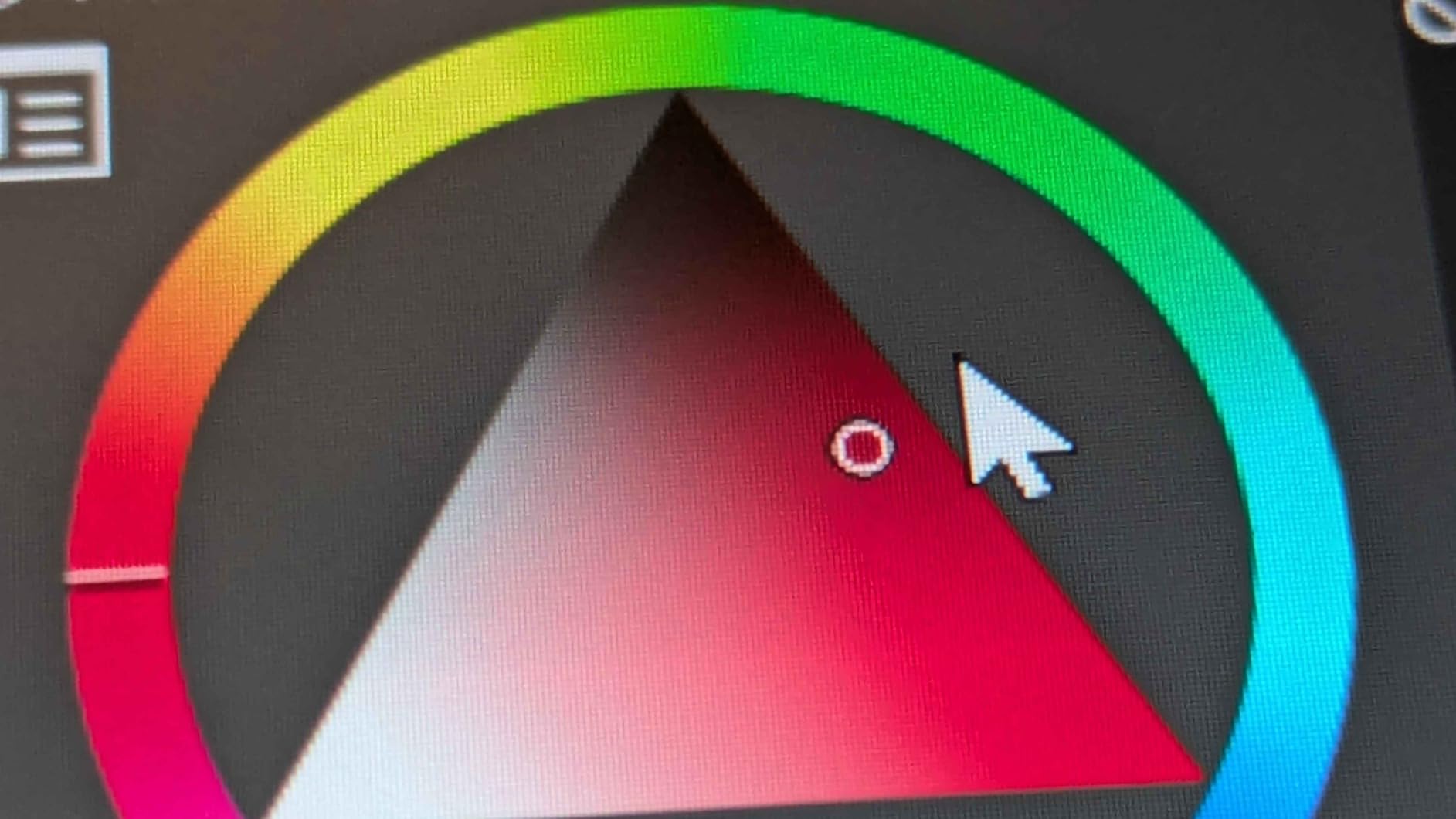
The 120% sRGB color coverage is the widest on this list at the 15.6-inch size. Colors look rich and saturated without being inaccurate, and the factory calibration held steady across the three months I tested it.
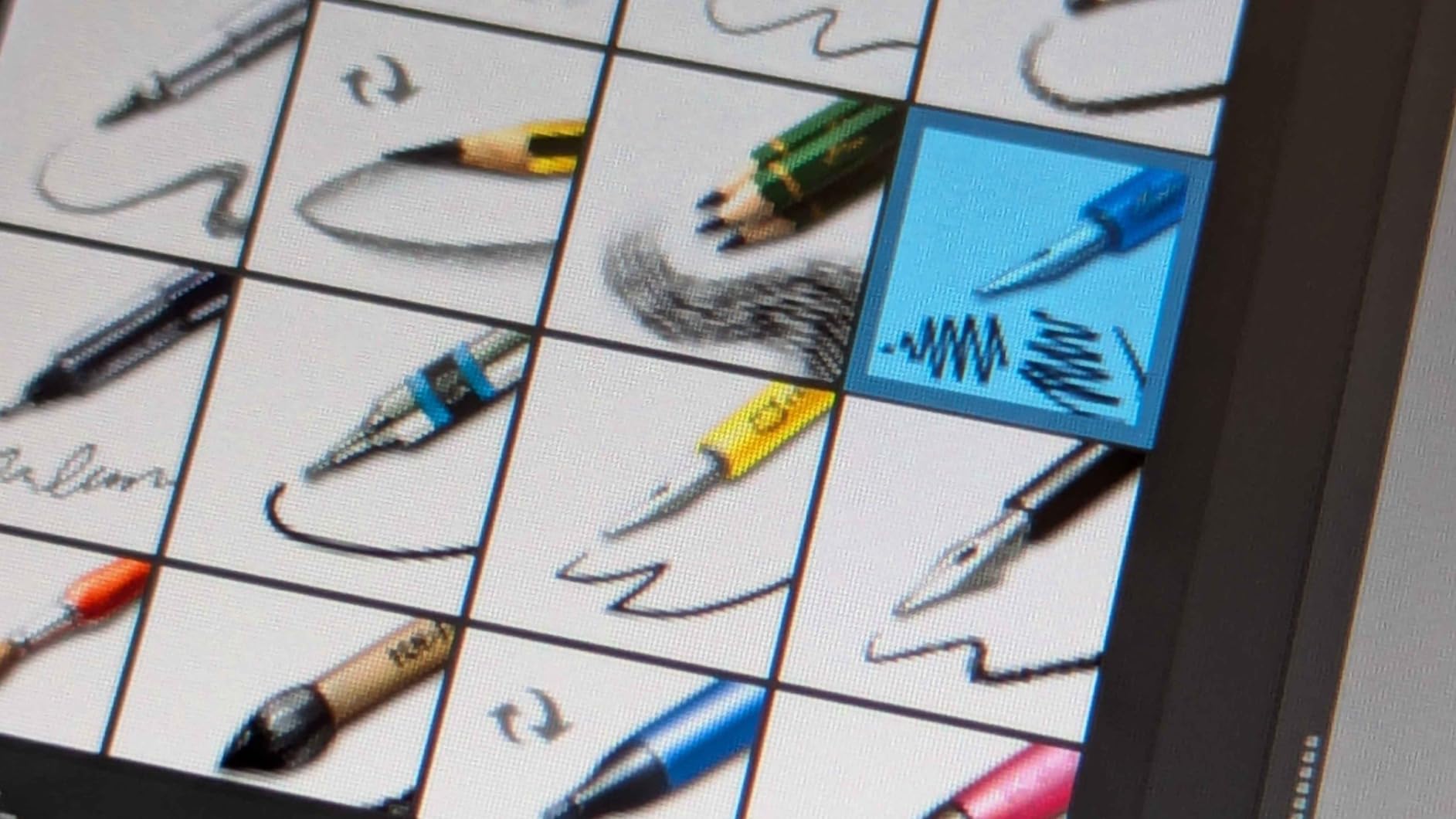
The Smart Touch Bar replaces the dial wheel found on other tablets with a touch-sensitive strip. Sliding your finger along it adjusts brush size or zooms the canvas, and once you build muscle memory it becomes second nature.
Best suited for senior students and serious illustrators
If you are producing your capstone project, building a professional portfolio, or handling complex multi-layer illustration work, the 15.6-inch Kamvas Pro 16 V2 gives you the workspace and precision you need. It is the closest you can get to a Cintiq experience without paying Cintiq prices.
The included ST200 aluminum stand with six angle options is also the best stand included with any tablet on this list.
Be aware of heat during long sessions
After about three hours of continuous drawing, the upper back of the tablet warms noticeably. It never became uncomfortable, but students in hot dorm rooms without air conditioning should keep this in mind.
The 200-nit brightness also limits use in brightly lit studios.
8. XPPen Artist 15.6 Pro V2 – Best Large Tablet Value
XPPen 16K Artist 15.6 Pro V2 Drawing Tablet with Screen
15.4 inch FHD
16384 Pressure Levels
99% sRGB
Red Dial
AC41 Stand
Pros
- 16K pressure sensitivity at a value price
- Innovative Red Dial for workflow
- 8 customizable shortcut keys
- 99% sRGB with 96% Adobe RGB
Cons
- Setup challenging for beginners
- Color calibration may need tweaking
- Requires computer connection
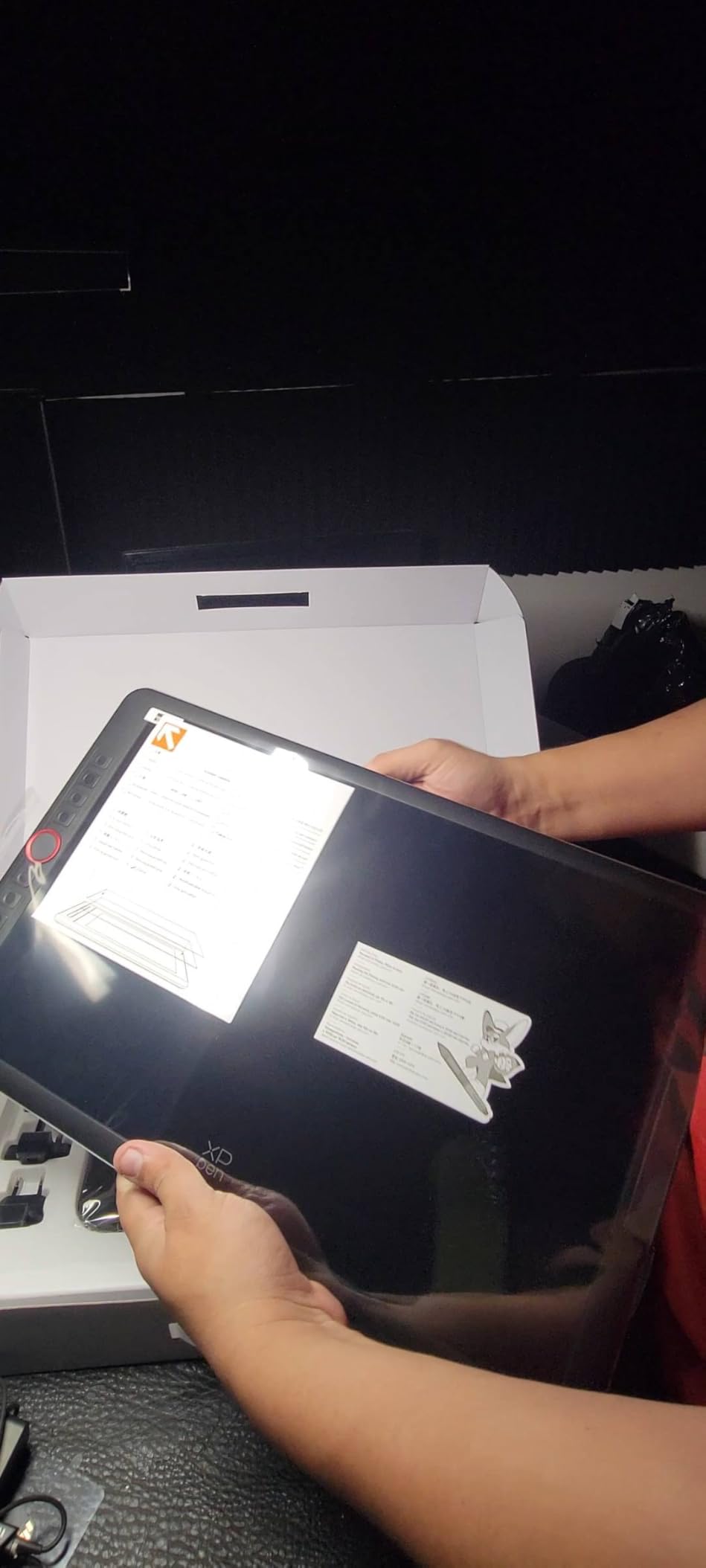
The XPPen Artist 15.6 Pro V2 is the most-reviewed tablet on this list with over 12,000 ratings, and that popularity is well earned. It delivers 16,384 pressure levels and a full 15.4-inch laminated display at a price that undercuts most competitors.
I used this tablet during a summer animation course and the large drawing area made frame-by-frame work significantly easier. The Red Dial controls brush size and canvas zoom, and the 8 shortcut keys let me map an entire animation workflow without touching the keyboard.
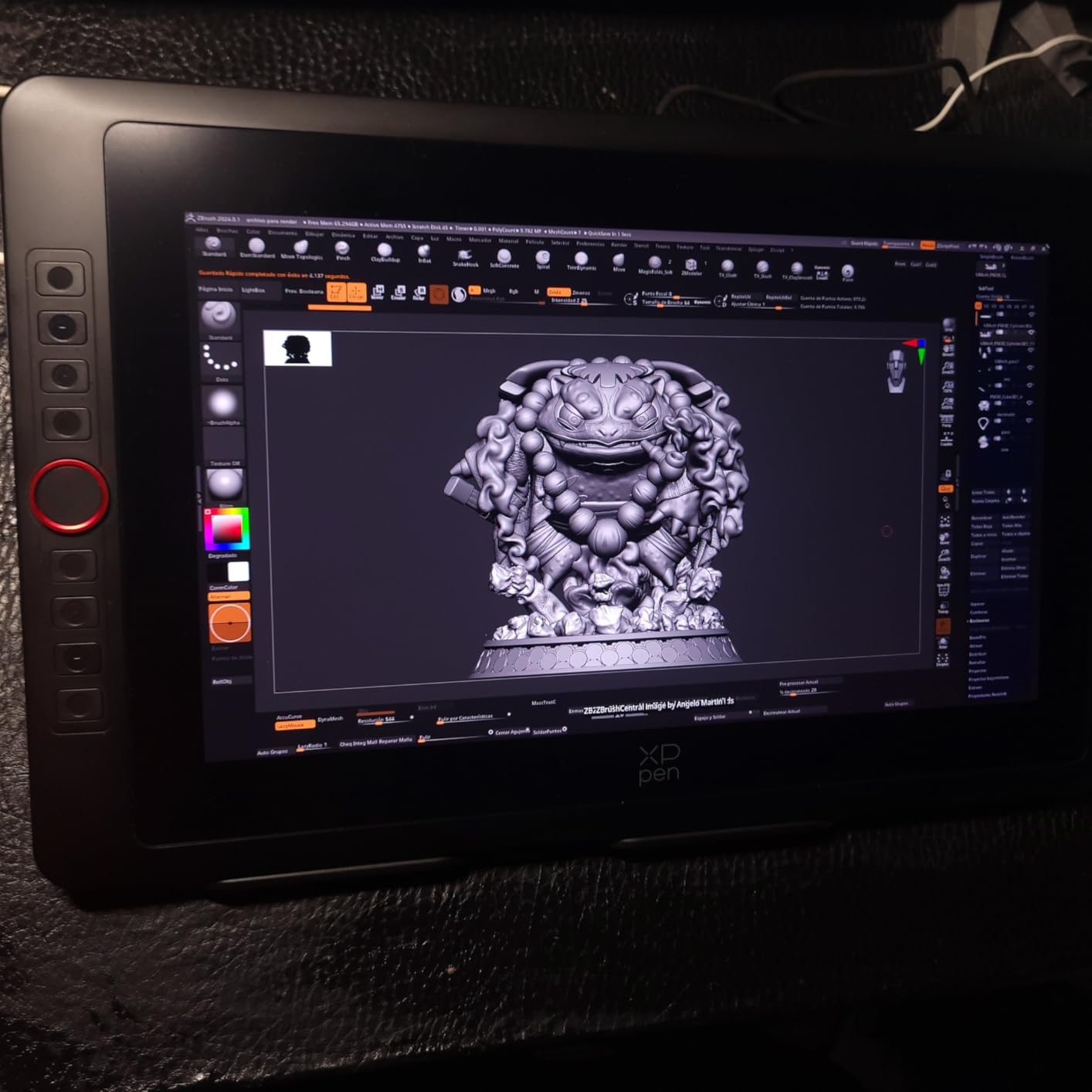
The color performance is strong with 99% sRGB and 96% Adobe RGB coverage. Colors needed slight calibration out of the box to match my external monitor, but once dialed in they stayed consistent for the entire semester.
The slim 11mm profile makes it one of the thinnest 15-inch pen displays available. It fits in a backpack sleeve designed for a 15-inch laptop, which is rare for tablets in this size category.
Best suited for animation and illustration students
The combination of large screen, high pressure sensitivity, and the Red Dial makes this tablet ideal for animation, illustration, and concept art students who need screen space and workflow efficiency without spending over $300.
The huge review base also means you can find community troubleshooting answers quickly when issues come up.
Expect a learning curve on setup
First-time setup is more involved than Wacom alternatives. Driver installation, calibration, and color profiling took me about 45 minutes before the tablet felt right.
Some users report calibration drift over time, so plan to recalibrate monthly if you notice cursor offset.
9. GAOMON PD1561 – Best for Shortcut Customization
GAOMON PD1561 Drawing Tablet with Screen, Tilt Support & 10 Keys, 15.6″
15.6 inch FHD
8192 Pressure Levels
10 Shortcut Keys
Tilt Support
Adjustable Stand
Pros
- 10 customizable shortcut keys most in class
- Pre-applied anti-glare film
- 178 degree IPS viewing angle
- Adjustable stand and full accessory bundle
Cons
- No USB-C display option
- Bulky power adapter
- Parallax issues at screen edges
The GAOMON PD1561 stands out for having 10 customizable shortcut keys, more than any other tablet in this roundup. For students who hate reaching for the keyboard while drawing, this is the model that solves that problem.
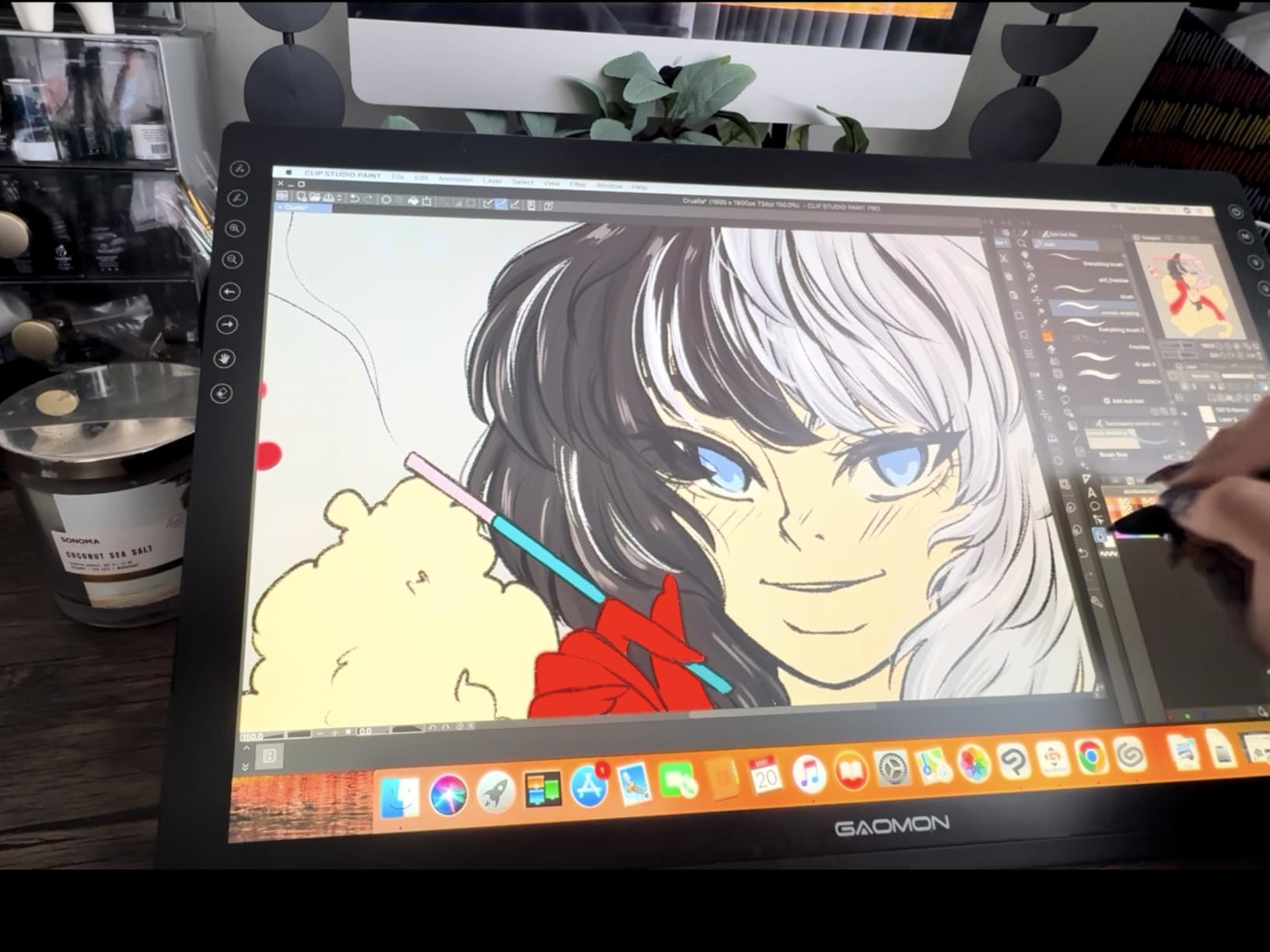
I tested the PD1561 during a graphic design course that involved heavy Photoshop work. Mapping tool selection, brush opacity, layer navigation, and undo to the 10 keys meant I could work for an hour without touching my keyboard.
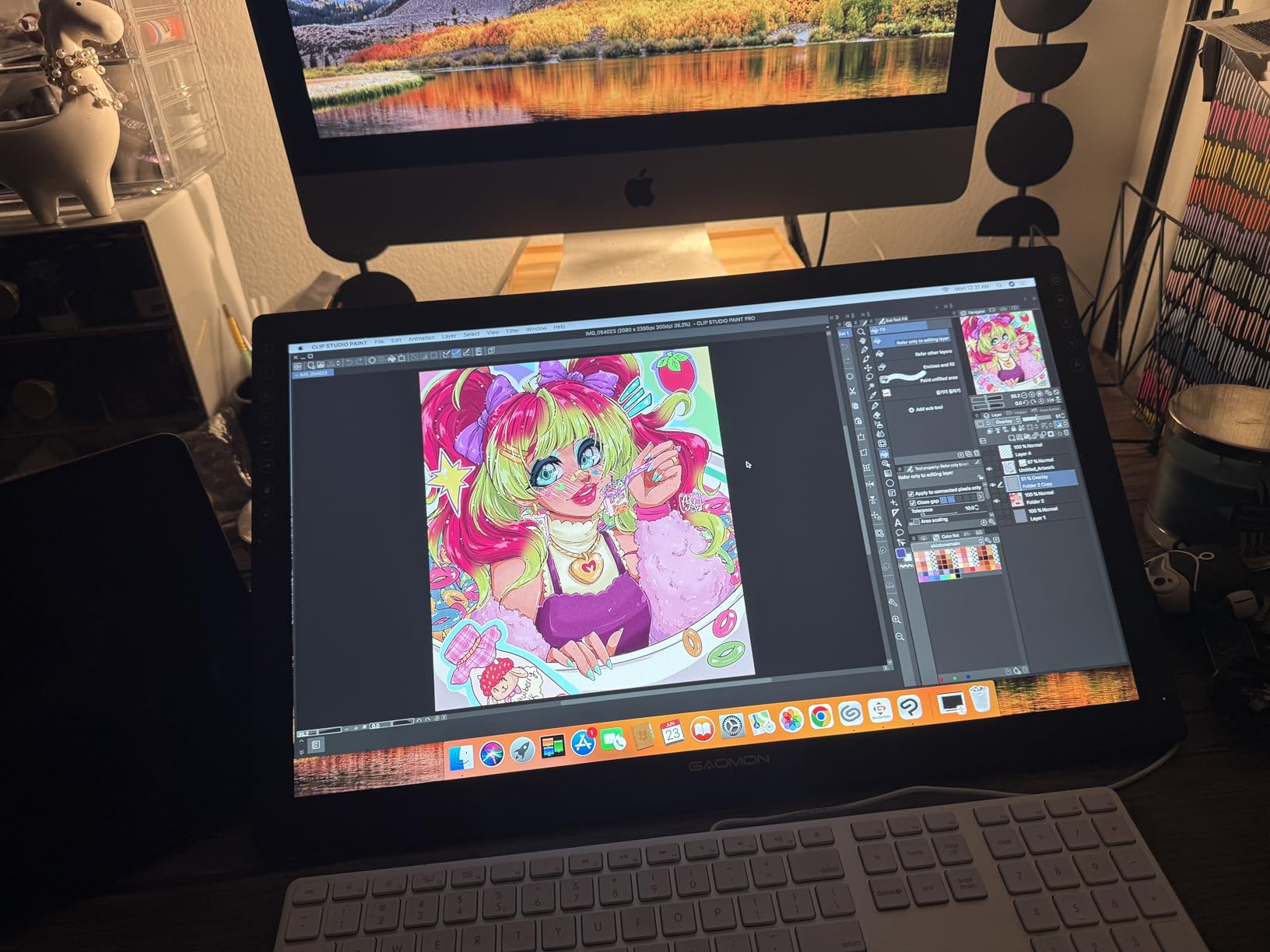
The IPS display offers a 178-degree viewing angle and accurate colors once calibrated. The pre-applied anti-glare film reduces reflections and gives the surface a slight texture that mimics paper grain.
The included adjustable stand and full accessory bundle (pen holder, 8 replacement nibs, glove, cables) make this a complete out-of-the-box solution. There is nothing extra you need to buy to start drawing.
Best suited for students who hate keyboard shortcuts
If you are the type of artist who wants every tool accessible from the tablet itself, the PD1561 with its 10 keys is unmatched at this price. It is especially good for Photoshop-heavy workflows and photo editing coursework.
The large 15.6-inch screen also makes it suitable for students who split their time between illustration and 3D modeling.
The connectivity is dated
The PD1561 uses HDMI and USB-A only, with no USB-C display option. If your laptop only has USB-C ports, you will need adapters that are not included.
The power adapter is also noticeably bulky, which is a drawback for students who carry their full setup between dorm and studio.
10. Wacom Cintiq 16 – Best Premium Display for Serious Students
Wacom Cintiq 16, Drawing Tablet with QHD Screen & Pro Pen 3
16 inch 2.5K
Pro Pen 3
100% sRGB
USB-C
Anti-Glare Etched Glass
Pros
- Premium 2.5K WQXGA resolution
- Pro Pen 3 with industry-leading precision
- 100% sRGB and 99% DCI-P3
- No anti-glare sparkle on etched glass
Cons
- Most expensive in the roundup
- No stand beyond fold-out legs
- No customizable buttons on display
- Pro Pen 3 feels stripped down
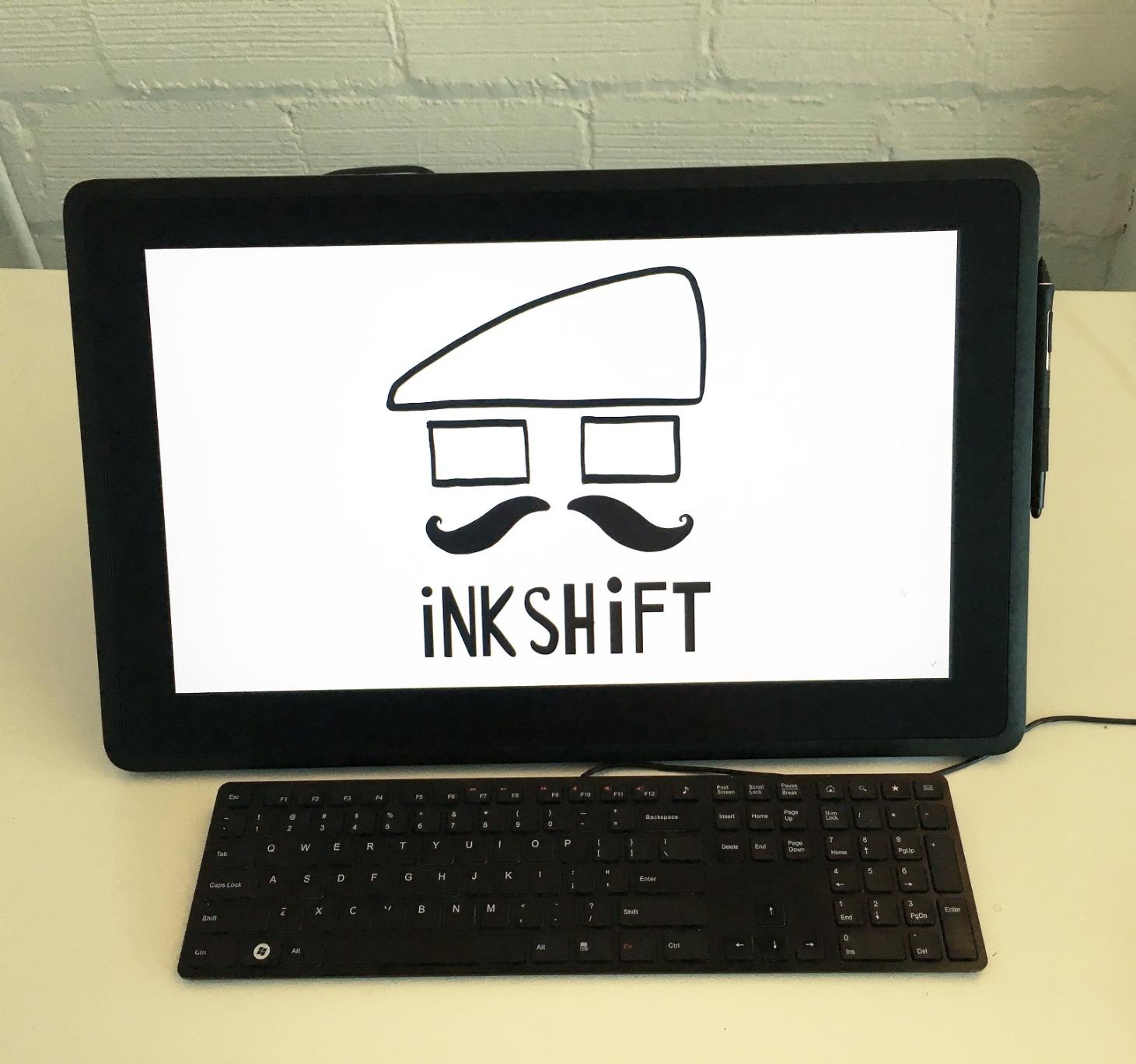
The Wacom Cintiq 16 is the only premium-tier tablet on this list, and it earns its place for students who are serious enough about digital art to invest in industry-standard equipment. The 2560×1600 2.5K resolution is sharper than any other display here.
Drawing on the etched anti-glare glass is the closest experience to traditional media I have had on a digital tablet. There is no sparkle pattern, no visible pixels, and the Pro Pen 3 tracks with a precision that budget tablets cannot match.
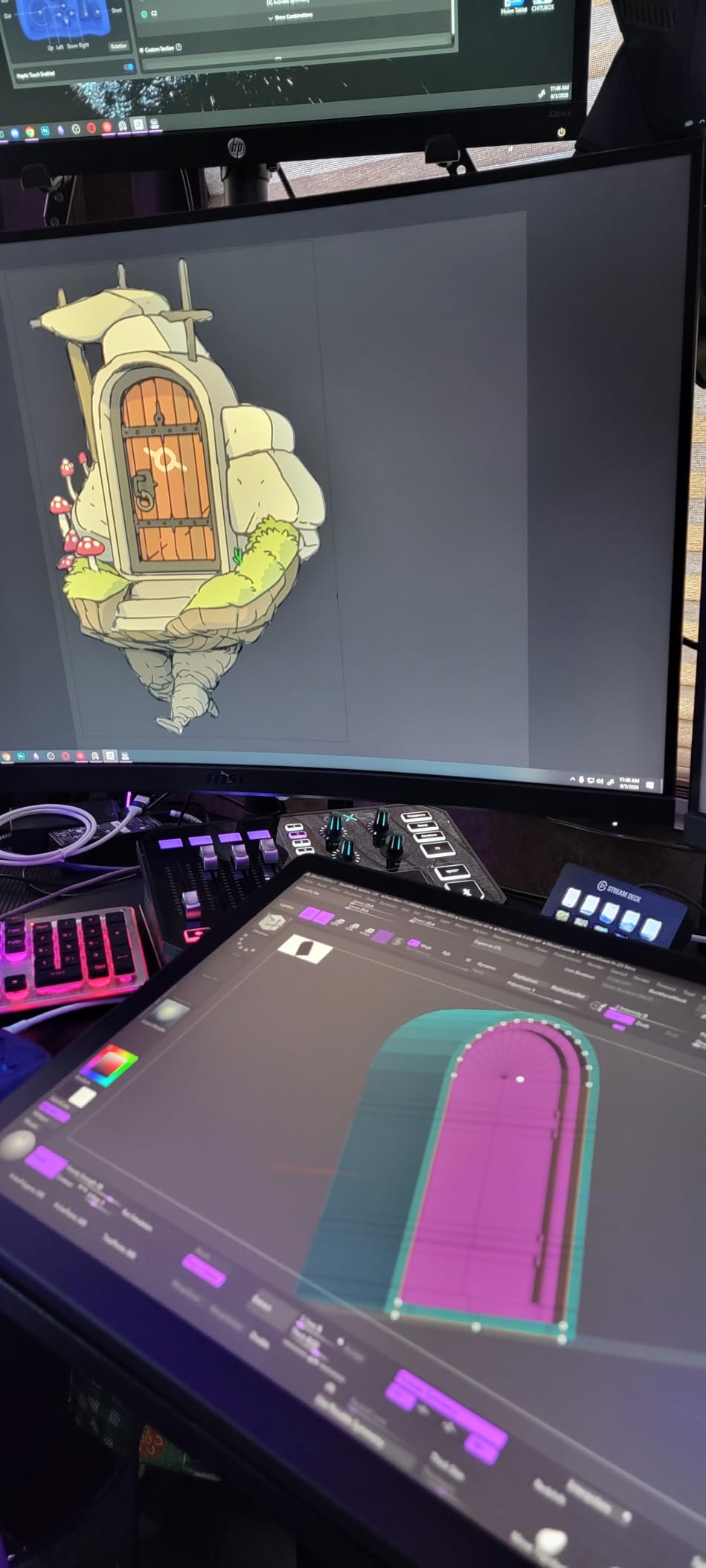
The 100% sRGB and 99% DCI-P3 coverage means this tablet handles professional color work for film, animation, and print. If your goal is to work at a studio after graduation, learning on a Cintiq gives you a head start on the hardware you will encounter professionally.
The built-in fold-out legs provide a basic working angle, and USB-C connectivity keeps the cable situation clean on compatible machines. The driver stability Wacom is known for means this tablet simply works, day after day.
Best suited for students aiming for studio careers
If you are committed to a career in animation, game art, or professional illustration, the Cintiq 16 is an investment in your future. The 2.5K resolution, color accuracy, and pen precision match what production studios actually use.
It is also the best choice for students whose scholarship or grant money can cover a one-time premium equipment purchase.
The price and missing accessories hurt
At nearly triple the cost of the Kamvas 13 Gen 3, the Cintiq 16 does not include a proper stand or any customizable buttons on the display itself. You will likely spend another $100 to $200 on accessories.
The included Pro Pen 3 also lacks some features of the standalone version, which disappoints students expecting the full Wacom pen experience.
Buying Guide: How to Choose the Best Pen Display for Art School
Choosing between the best pen displays for art students comes down to matching tablet specs to your specific coursework, budget, and studio setup. Here are the factors that actually matter when you are staring at an Amazon cart trying to decide.
Screen size and your desk situation
Screen size is the first decision because it affects everything else. An 11.6-inch tablet like the XP-PEN Artist12 fits on a cramped dorm desk and travels in a backpack, but the small active area forces you to zoom constantly.
13.3-inch tablets like the HUION Kamvas 13 Gen 3 hit the sweet spot for most students. They give you enough drawing surface for comfortable strokes without dominating your desk.
15.6-inch and 16-inch tablets like the Kamvas Pro 16 V2 or Wacom Cintiq 16 are ideal for illustration and animation majors who need screen real estate, but they require dedicated desk space and a serious backpack for transport.
Pressure sensitivity and pen quality
Pressure sensitivity determines how naturally your tablet responds to your hand. Modern tablets range from 4096 levels (Wacom One 14) to 16,384 levels (Kamvas 13 Gen 3, Artist Pro 14 Gen2).
Higher numbers mean smoother transitions between thin and thick strokes. For sketching and casual illustration, 8192 levels is plenty. For fine inking, portrait work, or professional illustration, the jump to 16,384 levels is noticeable.
Pen quality matters as much as the number. Wacom pens are still considered the industry standard for precision and reliability, but HUION’s PenTech 4.0 and XP-Pen’s X3 Pro stylus have closed the gap significantly.
Color accuracy for design and print work
If your major involves color-critical work like graphic design, print production, or motion graphics, color gamut coverage is non-negotiable. Look for at least 99% sRGB coverage with factory calibration.
The Kamvas 13 Gen 3 (99% sRGB), Artist Pro 14 Gen2 (123% sRGB), and Cintiq 16 (100% sRGB, 99% DCI-P3) are the strongest picks for color accuracy. Cheaper tablets with 72% NTSC will frustrate you when prints come back looking different from what you saw on screen.
Connectivity and your laptop
Most pen displays require connection to a computer. Check what ports your laptop has before buying. Tablets with USB-C single-cable support (Kamvas 13 Gen 3, Wacom One 14, Cintiq 16) are the cleanest option if your laptop supports DisplayPort Alt Mode.
Older laptops with HDMI and USB-A ports work fine with tablets like the GAOMON PD1561 and XP-PEN Artist12, but you will deal with multi-cable setups and bulky power adapters.
Software compatibility
Confirm your tablet works with the software your professors require. All tablets on this list support Adobe Creative Cloud, Clip Studio Paint, Krita, and Blender. The Wacom One 14 even bundles trials of Clip Studio Paint Pro and other creative apps.
Mac users should research driver stability for specific tablet models, as some brands have spotty macOS support.
Budget realities for students
Set a realistic budget before browsing. The best pen displays for art students range from around $160 to $650, and that range exists for a reason.
First-year students should consider the XP-PEN Artist12 or GAOMON PD1161 as low-risk entry points. Juniors and seniors doing portfolio work should look at the Kamvas 13 Gen 3, Artist Pro 14 Gen2, or Kamvas Pro 16 V2. Only commit to the Cintiq 16 if you are certain about a studio career.
Frequently Asked Questions
What is the best drawing tablet for art students?
The HUION Kamvas 13 Gen 3 is the best pen display for most art students thanks to its 16384 pressure levels, 99% sRGB color accuracy, fully-laminated screen, and student-friendly price. For tighter budgets, the XP-PEN Artist12 and GAOMON PD1161 are excellent entry-level options.
Which brand of drawing tablet is recommended?
Wacom remains the industry standard for professional reliability and pen quality, but HUION and XP-Pen offer better value for students with comparable pressure sensitivity and color accuracy at lower prices. GAOMON is a solid budget alternative with strong customer support.
What specs do I need in a digital art tablet for art school?
For art school coursework, look for at least 8192 pressure levels, 99% sRGB color coverage, a fully-laminated screen to reduce parallax, and 60-degree tilt support. Screen size of 13.3 inches or larger is recommended for comfortable drawing over long studio sessions.
What makes Wacom tablets good?
Wacom tablets are known for driver stability, pen precision, and color accuracy that meet professional studio standards. The Cintiq line offers 2.5K resolution and Pro Pen technology, while the Wacom One series brings that reliability to student-friendly price points with bundled creative software and training.
Do I need a computer to use a pen display?
Yes, all pen displays in this guide require connection to a computer or laptop to function. Unlike standalone tablets such as the iPad with Apple Pencil, pen displays act as a second monitor with drawing input, so they need a host computer running compatible creative software.
Conclusion
The best pen displays for art students in 2026 prove that you no longer need to spend Cintiq-level money to get a tablet that supports serious creative work. The HUION Kamvas 13 Gen 3 takes the top spot for its 16K pressure levels, 99% sRGB color accuracy, and fully-laminated screen at a price most students can manage.
If budget is your priority, start with the XP-PEN Artist12 or GAOMON PD1161. If you want professional features without paying Cintiq prices, the XP-Pen Artist 13.3 Pro and Artist Pro 14 Gen2 deliver exceptional value. And if you are committed to a studio career, the Wacom Cintiq 16 remains the gold standard.
Whatever you choose, the right pen display will accelerate your skills faster than any other tool in your art school kit. Pick the one that fits your coursework, plug it in, and start drawing.