
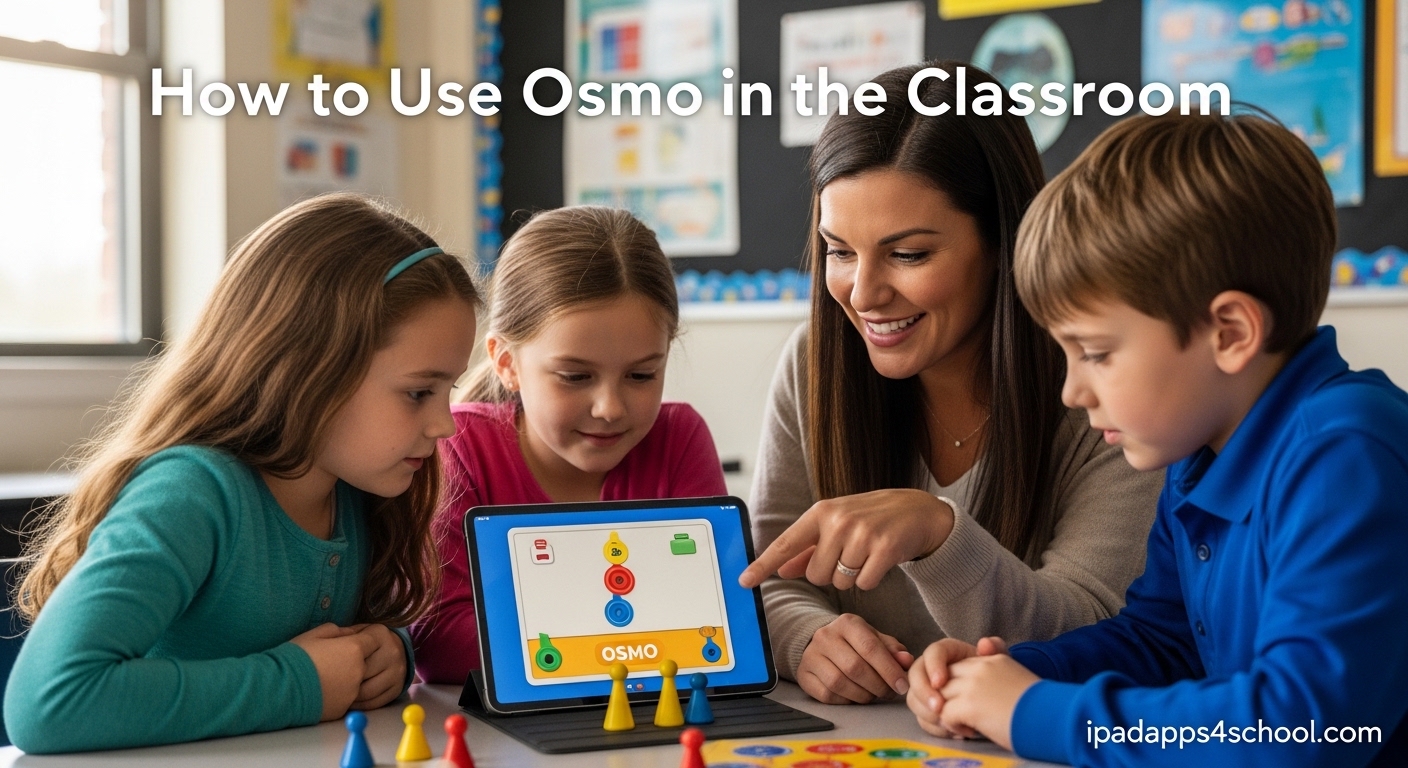
If you are looking for a way to bring hands-on learning into your classroom, Osmo offers one of the most effective solutions available. This innovative system transforms any iPad into an interactive learning station where students manipulate physical objects that appear on screen. In this guide, I will walk you through everything you need to know about how to use Osmo in the classroom effectively.
Table of Contents
What is Osmo and How Does it Work?
Osmo is an educational gaming system that combines physical play with digital interaction. The setup includes a reflective mirror that clips onto your iPad’s camera and a base that holds the device steady. When students place physical objects like letter tiles, number pieces, or tangrams on the table in front of the iPad, the camera tracks their movements and responds in real-time on the screen.
The technology uses artificial intelligence to recognize objects, their positions, and how students interact with them. This means when a student places an “A” tile in front of the iPad, the Words app recognizes it and responds accordingly. The combination of tactile physical pieces with instant digital feedback creates a learning experience that keeps students engaged while reinforcing academic concepts.
Our team has tested Osmo across multiple grade levels and found that the system works best for students ages 4 through 10. The physical tiles are large enough for small hands to manipulate easily, and the games automatically adjust difficulty based on student performance. More than 15,000 schools have adopted Osmo as part of their educational technology toolkit.
Osmo Apps and What They Teach
Each Osmo app focuses on different learning objectives. Understanding what each app offers helps you match the right tool to your curriculum goals.
Osmo Words
Words challenges students to build words using letter tiles. The app displays a picture and a blank space, and students race against the clock to spell the word correctly. You can use the built-in word lists or create custom word lists at my.playosmo.com to align with your current vocabulary studies. This makes Words ideal for literacy centers, spelling practice, and English language learners.
Osmo Numbers
With Numbers, students arrange physical number tiles to solve math problems displayed on screen. The app covers addition, subtraction, multiplication, and even early division concepts. What I love about Numbers is how it helps students visualize mathematical relationships without the pressure of timed drills. The difficulty adapts automatically as students improve.
Osmo Tangram
Tangram uses the classic puzzle pieces to teach geometry and spatial reasoning. Students arrange physical tangram pieces to match shapes shown on the screen. This builds foundational geometry skills and helps students understand how shapes can combine and separate. Tangram works well for students who struggle with traditional paper-based geometry exercises.
Osmo Masterpiece
Masterpiece turns your iPad into a drawing tool that teaches art and visualization. Students choose an image and the app projects it onto the screen as a lightbox-style guide. They then trace or draw freehand while the app records their process. This is perfect for art integration and helps students build confidence in their drawing abilities.
Osmo Newton
Newton challenges students to guide falling balls into targets by drawing obstacles and using physical objects. The app teaches physics concepts like gravity, trajectory, and momentum through playful experimentation. Students can use any object, including their own hands, to redirect the balls.
Osmo Coding
Coding introduces programming concepts through hands-on puzzle solving. Students arrange coding blocks to create sequences that control a character on screen. The blocks teach logical thinking, problem-solving, and basic coding concepts like loops and conditions. This app works with the separate Coding Starter Kit that includes additional game pieces.
How to Set Up Osmo in Your Classroom
Setting up Osmo for classroom use takes about 15 minutes per device. Follow these steps to get started quickly.
Step 1: Gather Your Materials
You will need an iPad (generation 5 or later works best), the Osmo base and reflector mirror, and the specific game kit you want to use. Each kit includes the physical pieces and access to the corresponding app. Check that your iPad has a working camera before you begin.
Step 2: Download the Osmo Apps
Search for “Osmo” in the App Store and download the apps for the kits you own. All Osmo apps are free to download, but you need the physical game pieces to play. Create a teacher account at playosmo.com to access additional features like custom word lists and progress tracking.
Step 3: Assemble the Base and Reflector
Place your iPad in the Osmo base with the screen facing forward. Attach the reflector mirror to the top of the iPad, positioning it so it angles down toward the table surface. The camera should now be able to see the area in front of the iPad where students will place game pieces.
Step 4: Calibrate and Test
Open any Osmo app and follow the on-screen calibration instructions. This helps the system recognize where the play area begins. I recommend testing each app before students use it for the first time. Calibrate again if you move the iPad to a different position or lighting condition.
Step 5: Create Student Accounts
For tracking progress and personalizing learning, create individual student accounts within the Osmo apps. This allows students to continue at their own difficulty level across sessions. Our team found that even young students can navigate the account system with minimal guidance.
Classroom Implementation Tips
Having Osmo in your classroom is only the first step. How you integrate it into your daily routine determines its effectiveness as a learning tool.
Start with One App Focus
Rather than introducing all apps at once, pick one app that aligns with your current curriculum. If you are teaching spelling, start with Words. For math units, begin with Numbers. This focused approach helps students master the mechanics before adding complexity. Once students are comfortable, you can rotate apps based on learning objectives.
Use Learning Centers
Osmo works perfectly as a learning center rotation. Set up a station with the Osmo equipment and have small groups work through activities while you instruct other groups. The instant feedback nature of Osmo means students can work somewhat independently, giving you time to work with students who need more direct support.
Manage Game Pieces Strategically
Classroom storage solutions matter with Osmo. I recommend keeping each kit in its own labeled container with the pieces sorted into compartments. Before students begin, count the pieces and establish rules about what happens if pieces go missing. Losing a letter tile can render a kit incomplete.
Set Time Limits
While students enjoy Osmo, it is important to set clear time expectations. The games can be immersive, and some students have difficulty transitioning when time is up. Use a visual timer and give warnings before rotation time. Most sessions of 15 to 20 minutes work well for elementary students.
Progress Through Difficulty Levels
Each Osmo app offers multiple difficulty settings. Start students at a comfortable level and increase difficulty as they demonstrate mastery. The apps track progress automatically, so you can review student performance data to make informed decisions about advancement.
Using Osmo with Special Needs Students
Osmo has become a valuable tool in special education classrooms. The hands-on approach combined with immediate visual and audio feedback creates an engaging learning environment that works well for many learners.
One of the most significant benefits teachers report is how Osmo fosters independence. Students can work through problems at their own pace without waiting for teacher assistance. The instant feedback lets them self-correct immediately, building confidence and reducing frustration.
For students with fine motor challenges, the large physical tiles are easier to manipulate than pencils or small objects. The Words app helps students with letter recognition and phonemic awareness through repetitive play. Numbers builds foundational math concepts without requiring extensive writing. Tangram develops spatial reasoning that many students struggle to acquire through traditional instruction.
Special education teachers particularly recommend the Little Genius kit for young learners and students with developmental delays. The games are colorful and engaging without being overwhelming, and the difficulty progression is gradual enough for students who need extra time to master concepts.
Grade Level Recommendations
Osmo apps work across multiple grade levels, but some apps fit certain ages better than others.
For kindergarten through second grade, Words and Numbers offer the best learning outcomes. The letter and number tiles reinforce foundational skills, and the colorful visuals keep young learners engaged. Masterpiece also works well for early finishers or art integration time.
For third through fifth grade, Tangram and Newton become more valuable as students develop stronger abstract thinking skills. The geometry and physics concepts in these apps align well with STEM curriculum goals. Coding also works for this age group if you have the additional kit.
Middle school students can benefit from Osmo as well, particularly for intervention support or STEM extension activities. The visual and hands-on approach helps students who have not grasped concepts through traditional instruction.
FAQ
Can Osmo games be used in schools?
Yes, Osmo games are widely used in schools. More than 15,000 schools have adopted Osmo as part of their educational technology programs. The system works well for classroom use when properly set up with teacher accounts and managed through learning centers.
How does Osmo learning work?
Osmo uses a reflective mirror that clips to an iPad camera to track physical objects placed in front of the screen. When students manipulate game pieces like letter tiles or tangrams, the system recognizes them and responds in real-time through the corresponding app, creating an interactive learning experience.
What are the 5 C’s for teachers?
The 5 C’s that Osmo addresses in the classroom are: Creativity (through Masterpiece and creative play), Critical thinking (problem-solving in all apps), Communication (collaborative play and word building), Collaboration (partner activities), and Confidence (building independence through instant feedback).
Why did Osmo go out of business?
Osmo filed for bankruptcy in 2024 but has since been revived and continues operating. The company faced financial challenges but has maintained its commitment to educational gaming. The apps and website continue to function, and the company still supports schools and educators using Osmo products.
What age is Osmo appropriate for?
Osmo works best for students ages 4 through 10, which covers kindergarten through fifth grade. The physical tiles and game design appeal to young learners, while the difficulty progression keeps them challenged as they grow. Older students can benefit from Osmo for intervention or STEM extension activities.
Do schools need multiple Osmo bases?
The number of Osmo bases depends on your classroom setup and how you plan to use the system. If Osmo will be a center rotation, one or two bases can serve the class through structured rotations. If you want multiple students working simultaneously, you will need more bases. Each kit includes one base, and additional bases can be purchased separately.
Final Thoughts on Using Osmo in the Classroom
Osmo offers a unique blend of hands-on physical play with digital engagement that few other educational tools match. The system has proven itself in thousands of classrooms, and our testing confirms that students remain engaged while building real academic skills.
The key to success with Osmo in your classroom is thoughtful implementation. Start with clear learning objectives, introduce apps gradually, and use the progress tracking features to inform your instruction. With proper setup and management, Osmo can become one of the most valuable tools in your educational technology arsenal.
Whether you are teaching foundational literacy skills with Words, building mathematical understanding with Numbers, or developing spatial reasoning with Tangram, Osmo provides the interactive learning experience that helps students grasp concepts through play rather than rote memorization.