
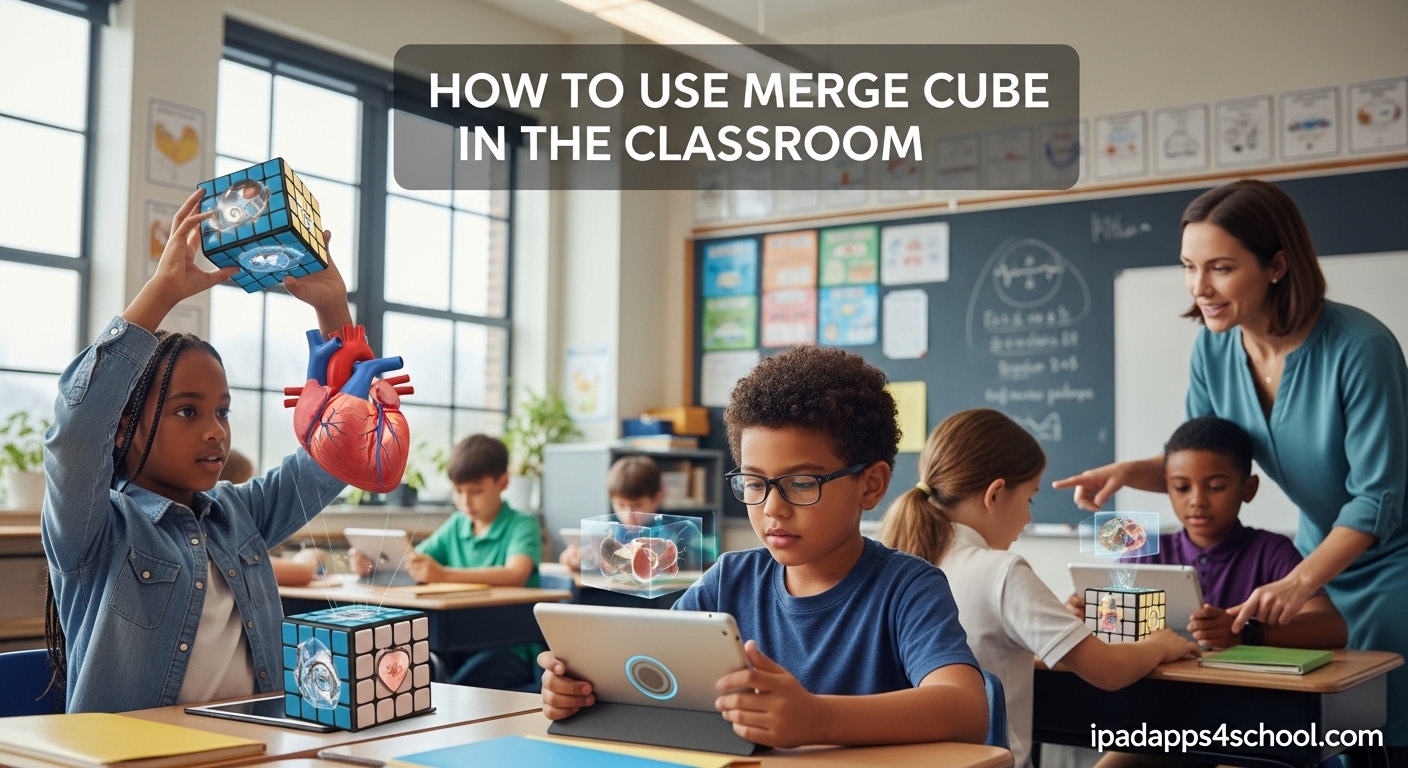
If you are looking for a way to bring augmented reality into your lessons, the Merge Cube offers one of the most engaging options available for K-12 classrooms. This foam cube, when paired with the right apps, transforms into a 3D hologram that students can hold, rotate, and explore from every angle. In this guide, I will walk you through everything you need to know about using Merge Cube in the classroom, from setup to lesson ideas that will captivate your students.
Table of Contents
What is Merge Cube and How Does It Work?
Merge Cube is a foam cube designed specifically for augmented reality education. When you hold the cube in front of a tablet or smartphone camera and open a compatible Merge EDU app, the cube becomes a digital 3D object. Students can literally hold holograms in their hands, rotate them 360 degrees, and interact with scientific concepts in ways that were previously impossible in a traditional classroom setting.
The technology works by having the app recognize the unique pattern printed on each face of the cube. This pattern acts as a trigger, telling the app which 3D model to display. The device camera tracks the cube’s position and orientation, overlaying the digital object on top of it. The result is a compelling AR experience that feels magical to students.
What makes Merge Cube particularly valuable for education is how it appeals to visual and kinesthetic learners. Instead of looking at a static image on a screen, students physically manipulate the object. They can examine a human heart from all angles, explore the layers of the Earth’s atmosphere, or hold a DNA strand in their hands. This hands-on approach to digital content has shown remarkable engagement levels, especially in special education settings where keeping students focused can be challenging.
How to Set Up Merge Cube in Your Classroom
Setting up Merge Cube in your classroom is straightforward, though taking time to prepare properly will save you frustration later. Here is the step-by-step process our team has refined through trial and error.
Step 1: Check Device Compatibility
Before purchasing cubes, verify that your devices support AR. You need a tablet or smartphone with a camera and AR capabilities. Most iOS devices from iPhone 6S onward and iPads from 2016 onward work, as do many Android devices from the past five years. The Merge EDU apps require iOS 13 or Android 7.0 and higher.
Step 2: Download the Merge EDU Apps
Head to the App Store or Google Play and download the free Merge EDU app. This hub app gives you access to all Merge content and serves as your account management tool. Download individual experience apps based on your curriculum needs, such as Merge Explorer, Object Viewer, or HoloGLOBE.
Step 3: Create Your Teacher Account
Open the Merge EDU app and tap Sign Up. Select Teacher Account and fill in your details. You will receive an activation email, though in our experience the account often works immediately without verification. Once logged in, you can create classes, add students, and assign activities.
Step 4: Add Your Students
From your teacher dashboard, select Add Class and give it a name. You can manually add students or generate a class join code that students use on their own devices. For younger students, having them log in individually takes more class time but gives you better control over progress tracking.
Step 5: Distribute Your Merge Cubes
Merge Cubes come in single units or class packs of 12 or 24. We recommend having at least one cube per student or one per pair, depending on your device availability. Each cube needs its own AR-enabled device to work simultaneously, so plan your device rotation accordingly.
Step 6: Launch Your First AR Experience
Have students open the Merge EDU app and select an experience. They hold the cube about 8-12 inches from the device camera and wait for the AR layer to attach. If the AR layer loses tracking, a common issue teachers report, students simply move the cube slightly until the pattern re-registers. This adjustment usually takes less than a minute for students to learn.
Best Merge Cube Apps for Education
The Merge EDU ecosystem offers several apps, though it is worth noting that some Merge Cube apps have been discontinued over the years. Here are the apps that remain active and valuable for classroom use in 2026.
Merge Explorer
Merge Explorer serves as the main content library and the gateway to most Merge AR experiences. This app contains science simulations, anatomical models, geographical features, and interactive lessons aligned to standards. Students can measure objects, create stamps, and record videos of their AR experiences to share with the class.
The water cycle simulation has proven particularly effective for elementary science, while the molecular models work well for middle and high school chemistry. Merge Explorer receives regular updates, though the pace has slowed compared to earlier years.
Object Viewer
Object Viewer lets you explore 3D models of various objects without requiring the physical cube. While useful for teachers demonstrating concepts, students generally prefer the tangible cube experience. Object Viewer works well for previewing content before using physical cubes or for schools that have not yet purchased cubes.
HoloGLOBE
HoloGLOBE brings geographical and geological data to life. Students can explore Earth’s major geological features, view weather patterns, and examine ocean topography. This app works exceptionally well for earth science and geography units, giving students a visual understanding of concepts that would otherwise require extensive imagination.
AnatomyAR+
For biology classes, AnatomyAR+ provides detailed human anatomical models. Students can explore body systems layer by layer, zoom into specific organs, and rotate models to understand spatial relationships. This app has shown particularly strong engagement in health science courses and for students learning medical terminology.
It is worth mentioning that several formerly popular Merge apps have been discontinued and removed from app stores. If students ask about specific apps that no longer exist, acknowledge that the Merge platform has consolidated its offerings. The remaining apps cover most core educational needs, though some specialized content may no longer be available.
Merge Cube Classroom Integration Strategies
Successfully integrating Merge Cube into your curriculum requires more than just handing out cubes. Here are strategies our team has found effective across different grade levels and subject areas.
Science Lessons
Science is the natural fit for Merge Cube, and the apps reflect this focus. For elementary students, the water cycle, plant parts, and animal habitats provide concrete visual references. Middle school students benefit from exploring the periodic table, molecular structures, and Earth layers. High schoolers can examine human body systems, geological formations, and physics concepts like simple machines.
When planning a science unit, identify three to five key concepts where the cube adds value beyond static images. For example, when teaching the water cycle, having students hold a moving water droplet as it travels through the cycle creates a memorable learning moment that textbooks cannot replicate.
STEM and Engineering
Merge Cube supports STEM education by letting students interact with 3D models before creating their own. In engineering units, have students first explore existing designs through the cube, then sketch their own modifications. The ability to examine objects at any angle helps students understand form and function relationships.
Geography and Social Studies
While Merge Cube has a stronger science focus, geography applications exist. HoloGLOBE lets students explore terrain, and teachers have reported success using the cube to teach about landforms, ocean zones, and atmospheric layers. For history, the cube works best for architectural concepts or artifacts where 3D models exist.
Special Education
Forum discussions consistently highlight special education success with Merge Cube. Students who struggle with traditional instruction often engage deeply with the AR experience. The tactile nature of holding the cube while seeing digital content appeals to multiple learning modalities simultaneously. For students with attention difficulties, the novelty and interactivity maintain focus longer than passive video watching.
Pair Programming and Collaboration
Rather than giving each student a cube, consider pairing students at one device. One student holds the cube and narrates observations while the other operates the device and takes notes. This structure promotes academic dialogue and ensures both students remain engaged throughout the lesson.
Troubleshooting Common Merge Cube Issues
Even with preparation, you will encounter technical issues. Here is how to address the most common problems teachers face with Merge Cube.
The AR Layer Is Not Recognizing the Cube
If the app fails to recognize the cube, first check that the cube pattern is clean and undamaged. Fold lines and wrinkles from storage can interfere with recognition. Ensure adequate lighting, avoiding both very dim and very bright spots. Hold the cube at the recommended 8-12 inch distance from the camera. If problems persist, the camera lens may need cleaning.
The Cube Keeps Losing the AR Layer
This issue frustrates many teachers, and forum discussions confirm it is the most common complaint. The AR tracking drops when the camera struggles to see the pattern clearly. Solutions include moving more slowly, ensuring consistent lighting, and avoiding backgrounds with many similar patterns. Some teachers have found success by using a solid-color background like a desk mat or plain table.
Apps Are Not Working or Showing Errors
If an app displays error messages or crashes, first check for app updates in your device app store. Some older Merge apps have been discontinued and may show errors even if previously installed. If an app fails to work, try uninstalling and reinstalling it. For school-owned devices, ensure your device software is current, as outdated operating systems sometimes cause compatibility issues.
Device Compatibility Questions
When Merge Cube does not work on a specific device, verify the device meets minimum requirements. AR functionality requires a camera and sufficient processing power. School Chromebooks generally do not support Merge Cube since most run web-based operating systems without AR capabilities. If your school uses iPads, confirm they are not too old for ARKit support.
The AR Experience Is Choppy or Laggy
Close other apps running in the background, as Merge EDU apps require significant processing power. Restart the device if performance remains poor. For older devices, reducing the quality settings within the app may help, though not all apps offer this option.
Free Printable Merge Cube Alternative
For teachers wanting to try Merge Cube concepts before purchasing, or for schools with limited budgets, a printable paper cube template exists. While not as durable as the foam version, the paper cube works with many Merge apps and lets students experience AR at no cost.
You can download the printable template from Merge EDU’s official resources. Print on cardstock for durability, fold carefully along the lines, and secure with tape. The paper cube works best for individual exploration or short activities, as the foam cube handles repeated classroom use better.
Some schools have even experimented with 3D printed cubes, which offer durability between foam and paper. Forum discussions indicate that creative teachers have had success with self-made cubes for specific applications where multiple cubes would be cost-prohibitive.
Pairing Merge Cube with Other AR Tools
Merge Cube works well alongside other AR coloring apps like Quiver, which adds another dimension to visual learning. Students can color worksheets and see their creations come to life in 3D, then transition to Merge Cube for science content. This variety helps maintain student interest across multiple lessons and can be especially valuable for teachers developing complete AR curriculum units.
FAQ
Can merge cube be used in the classroom?
Yes, Merge Cube is designed specifically for classroom education. It works with a range of Merge EDU apps that contain science simulations, anatomical models, and interactive lessons aligned to educational standards. Teachers report high student engagement, particularly in science, STEM, and special education settings.
How do you use the merge cube?
To use Merge Cube, download a Merge EDU app from the App Store or Google Play, hold the cube 8-12 inches from your device camera, and wait for the AR layer to attach. Students can then rotate the cube to explore 3D objects from all angles. The cube works with any AR-enabled iOS or Android device.
Why is my merge cube not working?
Common reasons Merge Cube may not work include insufficient lighting, a damaged or dirty cube pattern, holding the cube at the wrong distance, or using an incompatible device. Try cleaning the cube surface, adjusting lighting, holding the cube at 8-12 inches from the camera, and ensuring your device meets minimum requirements (iOS 13+ or Android 7.0+).
What subjects can you learn with Merge Cube?
Merge Cube supports learning across multiple subjects including science (water cycle, Earth layers, weather patterns), biology (human anatomy, body systems), chemistry (molecular structures, periodic table), and geography (terrain, landforms, ocean zones). The STEM applications include engineering concepts and design thinking activities.
Conclusion
Merge Cube offers a unique way to bring augmented reality into your classroom without requiring expensive hardware or extensive technical knowledge. The setup process takes less than an hour, and the learning curve for both teachers and students is minimal. With apps covering science, biology, chemistry, and geography, the cube fits naturally into existing curriculum units.
The key to success is starting simple. Choose one or two concepts where the cube adds clear value, try it with your students, and expand from there. Pay attention to the troubleshooting basics, and you will minimize disruptions. Most teachers who try Merge Cube report that their students ask for more AR lessons, which is perhaps the strongest endorsement of all.
If you have been considering bringing augmented reality into your teaching but felt overwhelmed by the technology, Merge Cube provides an accessible entry point. Your students will engage with content in ways that static images and videos cannot replicate, and you might find yourself as excited about the possibilities as they are.