
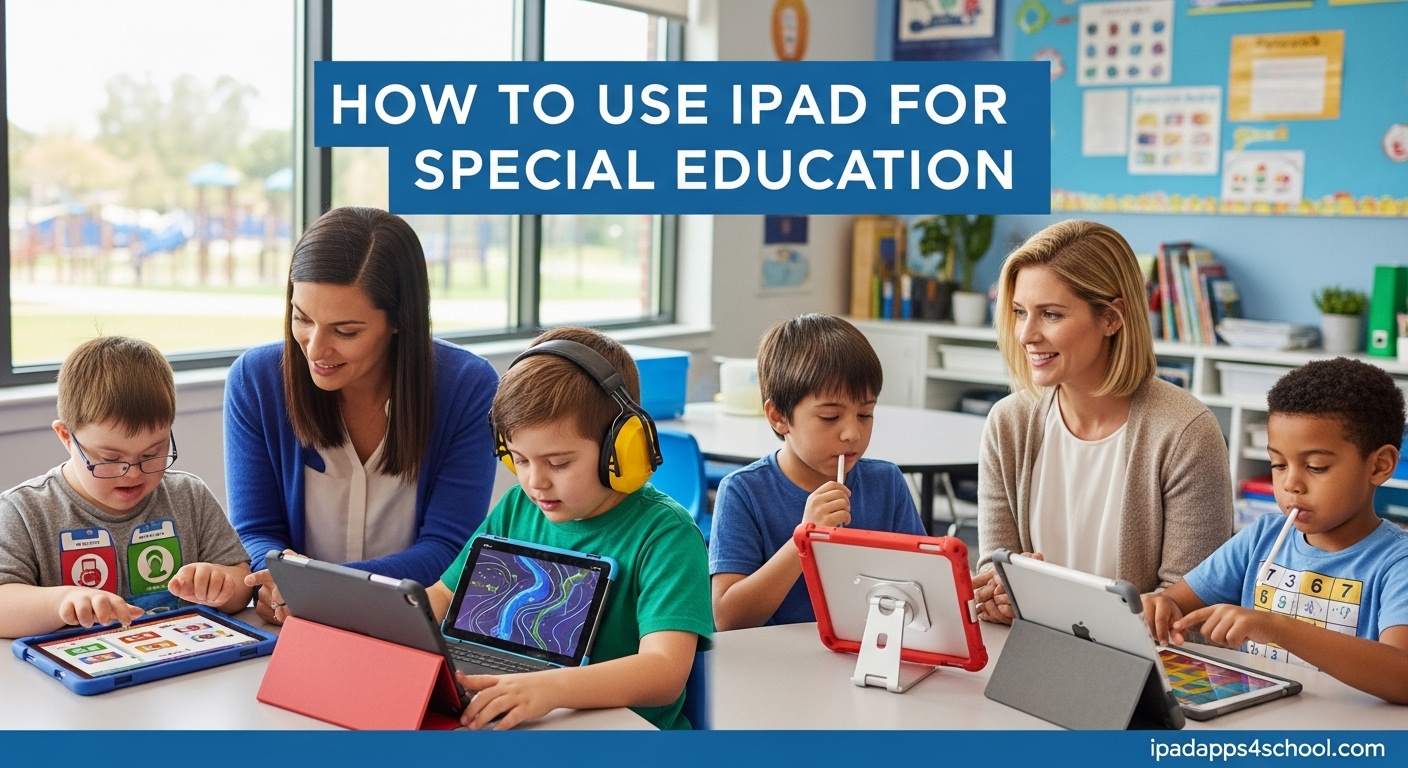
The iPad has revolutionized how students with disabilities learn, communicate, and develop essential skills. For educators and parents working with special needs children, understanding how to use iPad for special education effectively can open doors to previously inaccessible educational experiences. From communication challenges to physical limitations, the iPad offers a versatile platform that adapts to nearly every student’s unique needs through its comprehensive suite of accessibility features and specialized applications.
In this comprehensive guide, you will learn how to configure an iPad specifically for special education environments, navigate the essential accessibility features that support students with various disabilities, discover effective apps for communication and learning, and implement classroom management strategies that maximize educational outcomes. Whether you are a teacher setting up devices for your classroom, a parent adapting technology for home use, or an administrator planning your school’s assistive technology program, this guide provides the practical knowledge you need to make the most of iPad technology for special needs students.
Table of Contents
Understanding Guided Access: Your First Line of Defense
Guided Access is perhaps the most critical feature when using iPad for special education students. This built-in accessibility tool allows you to restrict the iPad to a single app, control which features are available, and prevent students from accidentally navigating away from educational content. For students with cognitive disabilities, autism, or attention challenges, Guided Access transforms the iPad from a distraction-filled general device into a focused learning instrument.
What is Guided Access and Why It Matters for Special Education
Guided Access is a feature embedded within iPadOS that enables educators and parents to limit device functionality to specific apps or even specific features within apps. When enabled, the feature essentially creates a locked-down environment where the student can only interact with preselected content. This eliminates the overwhelming temptation to browse the App Store, check email, or access social media during learning sessions.
For students with autism spectrum disorders, Guided Access addresses a common challenge: the need for predictability and structure. By consistently presenting the same app or activity, students can focus on learning rather than navigating complex interfaces. The feature also supports students with attention deficit disorders by reducing the number of choices and potential distractions available during instruction.
Step-by-Step Guided Access Setup
Setting up Guided Access requires a few preliminary steps before you can begin using the feature effectively. Follow these detailed instructions to configure Guided Access on your iPad:
Step 1: Enable Guided Access in Settings
Open the Settings app on your iPad and tap Accessibility, then tap Guided Access under the General section. Toggle Guided Access to ON. You will also want to toggle on Accessibility Shortcut, which allows you to quickly enable Guided Access by triple-clicking the side button or Home button depending on your iPad model.
Step 2: Set a Guided Access Passcode
Tap Passcode Settings, then tap Set Guided Access Passcode. Choose a passcode that only you know—this prevents students from accidentally or intentionally ending a Guided Access session. For additional security, you can enable Face ID or Touch ID to end Guided Access sessions as well.
Step 3: Start a Guided Access Session
Open the app you want the student to use, then triple-click the side button or Home button. A session will begin, and the student can only interact with that app. To end the session, triple-click again, enter your passcode or use biometric authentication, and tap End in the top left corner.
Customizing Guided Access for Individual Student Needs
During a Guided Access session, you can further restrict the interface by tapping Options in the bottom left corner. From here, you can disable the Touch screen entirely, disable motion sensors to prevent accidental screen rotations, disable software keyboards if you want to use only external input devices, and set time limits that will automatically end the session. These customization options make Guided Access adaptable across a wide range of disability categories and learning objectives.
For students with physical disabilities who benefit from switch control, Guided Access compatibility ensures that assistive switches can fully interface with the locked app. This integration makes the iPad a viable AAC device alternative, providing a more affordable option for communication support compared to dedicated speech generating devices.
Essential Accessibility Features for Special Needs Students
Beyond Guided Access, iPadOS includes an extensive collection of accessibility features designed to support users with vision, hearing, speech, motor, and cognitive disabilities. These features work independently or in combination to create personalized user experiences that address specific student needs. Understanding the full scope of these features helps educators and parents select the right combination of tools for each learner’s situation.
Vision Accessibility Features
Apple’s commitment to visual accessibility has resulted in one of the most comprehensive screen reading systems available on any mobile device. VoiceOver, Apple’s screen reader, provides spoken descriptions of everything on the screen, enabling students with visual impairments to navigate iPad independently. The feature supports dozens of languages and offers adjustable speaking rates, pitch, and voice selection.
Zoom functionality enlarges the screen content up to five times the standard size, helping students with low vision read text and see images more clearly. You can activate Zoom by triple-tapping the screen with three fingers, then dragging to navigate. Combined with VoiceOver, students who need both magnification and audio guidance can access educational content effectively.
Display accommodations allow you to customize how colors appear on screen. For students with color blindness or light sensitivity, you can reduce white point, invert colors, increase contrast, or apply color filters. These adjustments can reduce visual stress and improve readability without requiring special apps or external filters.
Speech and Communication Features
For students with speech impairments or communication challenges, iPad offers robust text-to-speech capabilities. Speak Selection reads selected text aloud, giving non-verbal students a way to communicate by typing or selecting pre-written phrases. The feature supports numerous languages and offers voice options that range from standard robotic tones to more natural-sounding voices available for download.
The iPad’s built-in AAC capabilities extend further through Switch Control, which enables navigation through on-screen elements using external switches or head movements tracked through the camera. Students who cannot use touch interfaces can still fully operate the iPad through scanning patterns that move highlight selections through choices until the student indicates a selection through their configured switch input.
Motor and Physical Accessibility Features
Assistive Touch transforms the iPad into a highly customizable interface for users with limited motor control. When enabled, a virtual menu appears on screen that allows students to perform complex gestures like pinch, rotate, and multi-finger swipes through simple taps on the screen or connected adaptive devices. You can adjust the sensitivity of touch detection to accommodate students with tremors or limited hand coordination.
Touch Accommodations address challenges with unintentional touch inputs. You can configure the iPad to ignore taps that occur in rapid succession, require a certain amount of contact surface area, or delay touch response to allow students to position their hands more comfortably before registering input. These subtle adjustments prevent frustration when students brush the screen accidentally or struggle with precise finger placement.
Switch Control support extends to Bluetooth-connected switch devices, head pointers, and other adaptive input devices. Students can use one or multiple switches to navigate interfaces, select items, and execute gestures. The comprehensive switch support makes the iPad accessible to users with severe physical disabilities, including those with cerebral palsy, spinal cord injuries, and degenerative conditions.
Cognitive and Learning Accessibility Features
For students with cognitive disabilities, iPadOS provides features that simplify navigation, reduce cognitive load, and support consistent routines. The Accessibility Shortcut, accessible by triple-clicking the side button or Home button, provides quick access to frequently used features like VoiceOver, Invert Colors, Guided Access, and Switch Control. This one-handed access prevents students from getting lost in Settings menus while still allowing educators quick configuration changes.
Reduce Motion, when enabled, minimizes the parallax effects, transitions, and animated elements throughout iPadOS. Students who experience motion sickness or become overwhelmed by visual movement can navigate without distracting animations. The feature creates a more static, predictable interface that reduces anxiety and cognitive load during learning sessions.
Bold Text and increased text size options improve readability for students with cognitive processing differences. Combined with the other accessibility features, these adjustments create a highly individualized device that supports diverse learning needs without requiring special education-specific hardware.
Best Apps for Special Education Classrooms
While iPad’s built-in features provide substantial support, specialized apps extend the device’s capabilities into targeted interventions for communication, behavior management, academic skills, and social development. Understanding which apps work best for specific disability categories and learning objectives helps educators and parents build effective digital toolkits for their students.
Communication and AAC Apps
Alternative and Augmentative Communication apps transform the iPad into a powerful speech-generating device for students who cannot speak or have limited verbal abilities. These AAC apps provide symbol-based or text-based communication interfaces where students select images, words, or phrases that the iPad then speaks aloud. Many AAC apps offer customization options for vocabulary, symbol sets, and layout to match individual communication needs.
When selecting AAC apps, consider the student’s cognitive level, motor abilities, and communication goals. Some apps use photographs of actual objects and environments, which can be more meaningful for students with autism who struggle with abstract symbols. Other apps use standardized symbol sets like Picture Communication Symbols or Boardmaker, which offer consistency across settings and enable students to communicate using shared visual languages.
Visual Schedule and Social Stories Apps
Visual schedules help students with autism and other developmental disabilities understand daily routines, anticipate transitions, and reduce anxiety about upcoming activities. iPad apps designed for visual scheduling allow educators and parents to create picture-based schedules that students can review independently. Some apps automatically advance through schedules, helping students transition between activities without constant verbal prompts.
Social stories apps provide a digital format for creating and delivering personalized social narratives. Educators can use these apps to prepare students for new experiences, explain social situations, or teach expected behaviors through stories that combine images, text, and sometimes audio narration. The portability of iPad means social stories can accompany students to community locations, medical appointments, and other environments where the narrative content applies.
Academic and Learning Support Apps
Academic apps for special education should align with Individualized Education Program goals and provide adaptive difficulty levels that match each student’s current abilities. Apps that address reading readiness, math foundations, and writing skills should offer multiple entry points so students can engage with content at their appropriate level without experiencing constant failure or excessive ease.
When evaluating academic apps, look for features that support diverse learning needs: text-to-speech for reading support, customizable difficulty settings, progress tracking for data collection, and reward systems that motivate without causing behavioral escalation. The best academic apps maintain student engagement through clear feedback, appropriate challenge, and positive reinforcement.
Classroom Management Strategies for iPad Use
Successfully integrating iPads into special education classrooms requires thoughtful management systems that ensure devices enhance rather than disrupt learning. Effective classroom management addresses physical organization, instructional integration, and behavioral expectations for iPad use.
Setting Up the Learning Environment
Physical positioning of iPads during instruction significantly impacts student engagement and behavior outcomes. Consider whether standing desks, floor time, or traditional desk seating best supports each student’s learning style and physical needs. Some students benefit from iPad stands that position the device at comfortable viewing angles, while others need the stability of a flat desk surface.
Establish clear, consistent procedures for retrieving and returning iPads at the beginning and end of each session. Students should understand exactly where devices are stored, how to carry them safely, and what their workspace should look like during iPad activities. Consistent routines reduce transition time and behavioral issues that arise from uncertainty.
Managing Multiple iPads in a Classroom
Classrooms with multiple iPads benefit from systematic organization and labeling systems. Color-coded cases or labels make it easy to assign specific devices to specific students, track usage for data collection, and prevent confusion during transitions. Some programs use number-based systems where each student is assigned a device number that corresponds to their seat location or schedule slot.
Charging station organization ensures all devices are ready for use. Establish nightly charging routines and designate responsibility for plugging in devices at the end of each school day. Some classrooms rotate charging duty among students as a vocational skill building activity. Whatever system you choose, consistent implementation prevents the frustration of finding dead batteries during instructional time.
Parent and Caregiver Coordination
Home-school communication about iPad use strengthens the impact of technology interventions. Share information about which apps students are using at school, what skills they are developing, and how parents can reinforce these skills at home. When parents understand the purpose behind iPad activities, they can provide more meaningful support and avoid undermining school interventions with inconsistent approaches.
Consider sending weekly or monthly updates that highlight student progress, suggest home activities, and explain any specific configurations or accessibility settings that need to remain consistent across settings. Parents may need guidance on maintaining Guided Access passcodes and avoiding changes to accessibility settings that would disrupt school-based interventions.
Funding Options for Obtaining iPads
Acquiring iPads for special education use involves significant expense, but numerous funding sources exist for qualifying students and programs. Understanding these options helps educators and parents access technology that might otherwise be financially out of reach.
School District and IEP Funding
Individualized Education Program teams can include assistive technology as a related service or accommodation in a student’s educational plan. When an IEP team determines that an iPad or specific app is necessary for a student to receive free appropriate public education, the school district is responsible for providing and maintaining that technology. Parents who believe their child would benefit from technology inclusion should request an IEP meeting to discuss assistive technology needs.
Districts may also purchase class sets of iPads for special education classrooms using special education funds, Title funds, or grants. These shared devices can support multiple students across different programs while maximizing available budget resources.
Insurance and Medical Coverage
Some private insurance plans and Medicaid programs cover assistive technology devices when prescribed by a physician as medically necessary. Documentation requirements typically include a letter of medical necessity from the student’s doctor, evaluations supporting the need for the specific technology, and information about how the device will address functional limitations. Families should contact their insurance provider to understand coverage policies and documentation requirements.
Durable medical equipment classifications may apply to iPads configured as AAC devices, potentially increasing the likelihood of insurance coverage. However, coverage policies vary significantly between insurance providers, and pre-authorization should be obtained before purchase to avoid unexpected denials.
Nonprofit and Grant Programs
Several nonprofit organizations provide technology funding or devices directly to qualifying families. Organizations focused on specific disabilities, such as autism advocacy groups or organizations serving individuals with physical disabilities, may have equipment programs that include iPads. State-level vocational rehabilitation agencies may also provide funding for technology that supports employment preparation for older students.
Grant programs through educational foundations, corporate giving programs, and community organizations offer additional funding opportunities. Educators and parents can search database services that aggregate grant opportunities, though competitive application processes mean multiple applications may be necessary before receiving funding.
FAQs
Can insurance cover an iPad for autism or special needs?
Some insurance plans and Medicaid programs cover assistive technology when prescribed as medically necessary. Documentation from physicians and evaluation specialists typically supports coverage requests. Contact your specific insurance provider to understand their coverage policies for assistive technology devices.
How do I get a free iPad for my special needs child?
Funding options include school district IEP provisions, nonprofit programs, state vocational rehabilitation services, and grant programs. School districts may provide devices as part of a child’s Individualized Education Program when assistive technology is identified as a necessary service or accommodation.
What accessibility features help students with cognitive disabilities?
Guided Access, VoiceOver, reduced motion settings, bold text, and increased text sizes all support students with cognitive disabilities. These features reduce cognitive load, provide predictable interfaces, and help students focus on learning content rather than navigation.
How do I set up Guided Access for a student with autism?
Enable Guided Access in Settings, set a passcode, open the desired app, triple-click the side button to start a session. Customize options like time limits and touch restrictions based on the student’s needs. Consistent use of Guided Access creates predictable, focused learning environments.
Conclusion
Using iPad for special education offers unprecedented opportunities to support students with diverse needs through personalized technology. The combination of built-in accessibility features, specialized apps, and effective classroom management strategies creates a powerful framework for learning and development. As you implement the techniques in this guide, remember that successful technology integration happens incrementally—start with foundational features like Guided Access, gradually incorporate additional tools as you observe what works for each student, and continuously evaluate outcomes against IEP goals.
The iPad’s versatility makes it suitable for students across all disability categories and age ranges, from preschool through secondary transition. Whether your priority is communication support, academic access, behavior management, or independent living skill development, the strategies outlined here provide a starting point for building effective special education technology programs. With patience, consistent implementation, and ongoing evaluation, iPad technology can transform educational experiences for students who need it most.