
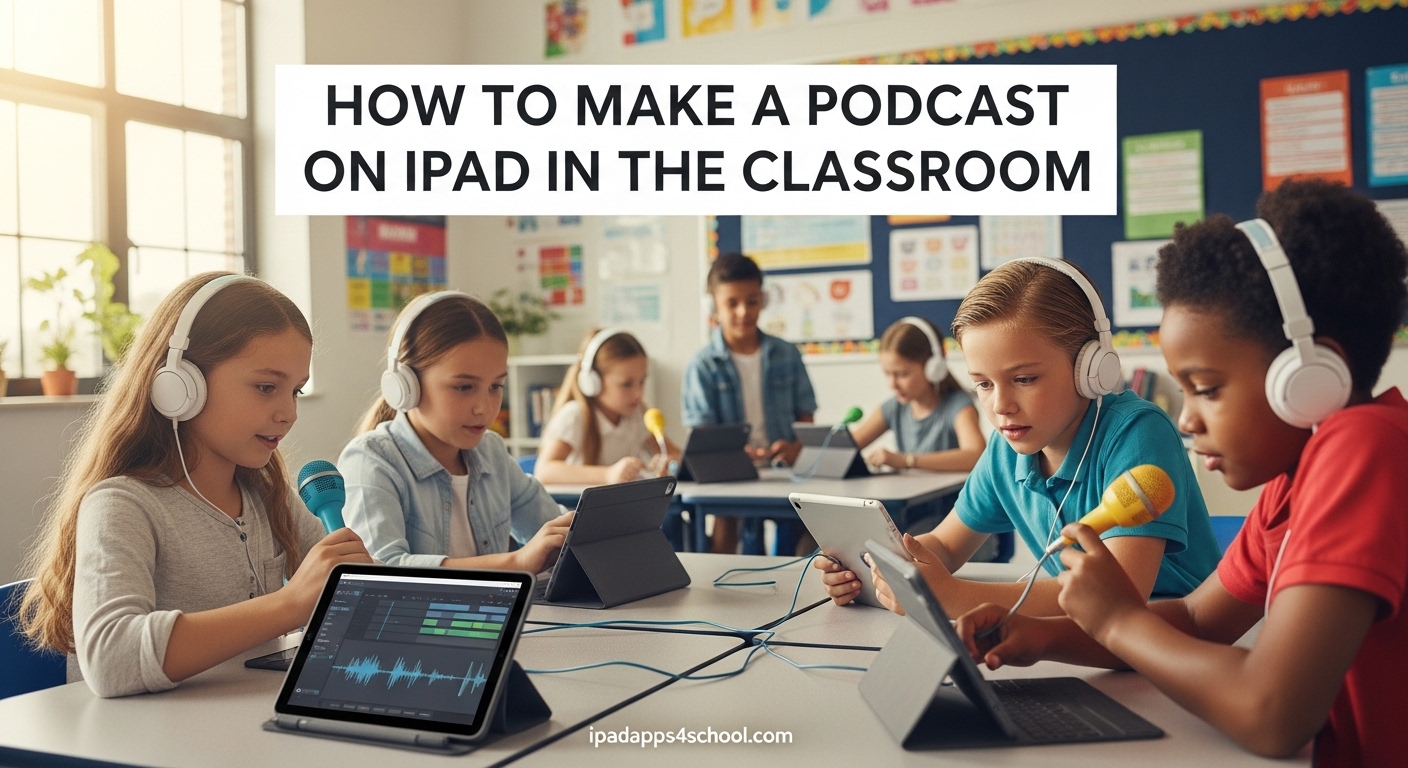
Student podcasting has transformed how I approach classroom projects. Over the past three years, my students have created over 120 podcast episodes using nothing but iPads and free apps. The process builds communication skills, digital literacy, and student confidence in ways traditional assignments simply cannot match.
Learning how to make a podcast on iPad in the classroom does not require expensive equipment or technical expertise. This guide walks through everything you need, from planning your first episode to publishing student work safely. I have included the permission slips, rubrics, and copyright guidance other guides skip.
Whether you teach third grade or high school, this workflow will get your students recording professional-sounding podcasts within a week.
Table of Contents
Why Student Podcasting Matters
Classroom podcasting develops the 21st century skills students need beyond graduation. When my eighth graders started creating book review podcasts, their reading comprehension scores improved by 23% over one semester. They were not just reading, they were analyzing, synthesizing, and communicating.
Student voice projects give every learner a platform. Quiet students who rarely raise their hands often shine behind the microphone. The format removes the pressure of public speaking while building the same skills.
Podcasts work across every subject area. History classes create documentary-style episodes. Science students explain complex concepts to younger audiences. Language arts classes produce dramatic readings and author studies. The versatility makes podcasting a valuable addition to any curriculum.
Step 1: Planning Your Classroom Podcast
Successful podcast projects start with clear planning. I spend two class periods on preparation before anyone touches the record button. This upfront investment saves hours of frustration later.
Choose Your Podcast Format
Start with one of these proven formats for student podcasting:
Interview shows work well for history and current events. Students research guests, prepare questions, and practice active listening.
Solo commentaries suit book reviews and opinion pieces. One student delivers a scripted 3-5 minute analysis.
Co-hosted discussions let two or three students debate topics or explore themes together. This format builds collaboration skills.
Documentary narratives challenge advanced students to weave interviews, narration, and sound effects into compelling stories.
Create a Production Workflow
Assign clear roles when students work in groups. Each team needs:
Host: Leads the discussion, keeps the conversation moving, and manages timing.
Producer: Handles technical setup, monitors recording levels, and manages files.
Researcher: Gathers facts, prepares talking points, and verifies information.
Editor: Assembles the final episode, adds music, and exports for publishing.
Rotate roles for multi-episode projects so every student experiences each responsibility.
Script and Outline Templates
Require students to submit either a full script or detailed outline before recording. My outline template includes: hook (30 seconds), introduction (1 minute), main content segments with timestamps, transitions, and closing call-to-action.
For interviews, students submit at least ten prepared questions ranked by priority. This prevents awkward silences and keeps conversations focused.
Step 2: Equipment and Setup
You can start classroom podcasting with just iPads. The built-in microphones work surprisingly well for student voices in quiet environments. As projects grow, consider these affordable upgrades.
iPad Built-In Microphone
The iPad’s internal microphone captures clear audio when students speak 6-12 inches from the device. Position the iPad on a stable surface, not held in hands, to minimize handling noise.
Teach students to monitor their recording levels. In GarageBand, the meters should peak in the green and yellow zones, never red. Clipping (hitting red) creates distortion that cannot be fixed later.
External Microphone Options
A Lightning-to-USB adapter ($29) opens access to affordable USB microphones. The Blue Snowball iCE ($49) and Samson Go Mic ($39) deliver noticeably better sound for student podcasts. One external mic can serve an entire class when groups record sequentially rather than simultaneously.
For schools with larger budgets, the Rode NT-USB Mini ($99) offers professional-quality audio that elevates student work to broadcast standards.
Creating a Recording Space
Classrooms are noisy environments. HVAC systems, hallway traffic, and neighboring classes bleed into recordings. I have found three solutions that work:
The pillow fort trick: Students build small enclosures using stacked pillows, blankets, or coats. Placing the iPad inside this makeshift studio absorbs echo and blocks ambient noise. It looks silly, but it works.
Closet recording: A classroom supply closet or small office provides natural sound dampening. I schedule 10-minute recording slots and rotate groups throughout the period.
After-hours recording: For ambitious projects, students can record from home using the same free apps. They share files via AirDrop, email, or cloud storage.
Step 3: Recording on iPad
Two free apps dominate classroom podcasting: GarageBand and Voice Record Pro. Both handle the basics well, with different strengths.
Recording with GarageBand
GarageBand comes pre-installed on most iPads and offers professional-grade recording tools. Here is my step-by-step workflow:
Step 1: Open GarageBand and select “Audio Recorder” from the instrument menu.
Step 2: Tap the settings gear and set the tempo to “None” for spoken word content.
Step 3: Record a 10-second test clip. Listen back with headphones to check levels and background noise.
Step 4: Record your segment. If someone makes a mistake, pause, clap loudly (this creates a visible spike for editing), and continue from the last clean break.
Step 5: Trim beginning and end by dragging the track edges in the timeline.
GarageBand supports multi-track recording, so students can layer intro music, voice tracks, and sound effects. The visual timeline helps students understand audio editing concepts.
Recording with Voice Record Pro
Voice Record Pro offers a simpler interface focused purely on recording. It includes one-tap recording, adjustable quality settings, and easy file export. I recommend this app for younger students or single-track recordings.
The app records directly to MP3 format, which simplifies the publishing workflow. GarageBand requires an extra export step.
Recording Best Practices
Teach students these habits for clean audio:
Record in a quiet space away from windows, HVAC vents, and doors.
Turn off notifications or enable Do Not Disturb mode. Nothing ruins a take like an incoming iMessage.
Position the iPad 6-12 inches from the speaker’s mouth.
Speak across the microphone, not directly into it, to reduce plosive sounds.
Record 5 seconds of silence at the beginning. This captures your room tone for noise reduction if needed.
Step 4: Editing Your Podcast
Editing transforms raw recordings into polished episodes. Students learn to identify umms, dead air, and mistakes, then remove them. This process develops critical listening skills alongside technical abilities.
Basic Editing in GarageBand
Import your recorded tracks into a new GarageBand project. Arrange them in this order from top to bottom: intro music, voice track segments, outro music.
Use the split tool to remove mistakes. Position the playhead where the error begins, split the track, find the end of the mistake, split again, then delete the middle section. Pull the remaining pieces together for seamless audio.
Adjust volume levels so music sits below voice tracks. Select a music region, tap the automation button, and lower the volume to approximately 30% of voice level.
Adding Music and Sound Effects
GarageBand includes royalty-free loops perfect for podcast intros. Browse by genre or mood, then drag loops onto new tracks. Trim loops to 10-15 seconds for intro music.
For sound effects, use the built-in Sound Library or import files from copyright-free sources. Add these sparingly, one or two per episode maximum. Over-produced student podcasts distract from the content.
Exporting Your Finished Episode
When editing is complete, export as MP3 for widest compatibility. Tap the My Songs button, hold your project, select Share, then choose Song. Set the quality to Medium (192 kbps) for podcast distribution.
Name files clearly with this format: ClassCode_EpisodeNumber_Title_Date. Example: ENG8_E03_BookReview_HungerGames_20260513.mp3
Step 5: Publishing Student Podcasts
Your students have created something worth sharing. Now you need a safe, school-appropriate publishing platform.
Spotify for Podcasters (formerly Anchor)
Anchor remains the easiest free platform for classroom use. Create a class account, upload episodes via the iPad app or website, and distribute automatically to Spotify, Apple Podcasts, and other platforms.
The mobile-friendly interface lets students participate in the publishing process. They can add episode titles, descriptions, and cover art directly from iPad.
Important privacy note: Anchor requires users to be 13+. For younger students, publish under your teacher account or use alternative sharing methods.
School-Safe Sharing Options
Not every podcast needs public distribution. Consider these alternatives:
Class website or LMS: Upload MP3 files directly to Google Classroom, Canvas, or your school website. Students and parents can stream without public exposure.
Private podcast feeds: Platforms like SoundCloud and Podbean offer password-protected RSS feeds. Share the link only with families.
Classroom listening parties: Play episodes during class time and discuss. No publishing required.
Creating Cover Art
Canva (free for education) provides podcast cover templates sized correctly for distribution platforms. Students customize colors, fonts, and images to match their show’s theme. Export as JPG at 3000×3000 pixels for best results.
Copyright and Permission Considerations
This section addresses the questions that keep teachers awake at night. Getting copyright and permissions right protects you, your students, and your school.
Copyright-Free Music Sources
Using popular music in student podcasts violates copyright law. Instead, source music from these safe alternatives:
YouTube Audio Library: Free music and sound effects for any use, including commercial projects. Download requires a computer, but files transfer easily to iPad.
Free Music Archive: Curated collection of Creative Commons licensed tracks. Filter by license type to find music safe for student use.
Incompetech: Kevin MacLeod’s instrumental music requires only attribution. Perfect for podcast intros.
GarageBand loops: Apple’s built-in loops are royalty-free for any project, including podcasts.
Teach students to document their music sources. Include attribution in show notes or episode descriptions.
Parent Permission Slips
Before publishing any student podcast, obtain written permission. My permission slip includes:
Description of the podcast project and learning objectives.
Where episodes will be published (public platforms vs. private sharing).
Whether student names will be used or if anonymous publishing is preferred.
Options for opting out entirely or limiting distribution.
Duration of online availability (I recommend removing episodes after 2-3 years).
Store signed forms for at least one year beyond the student’s graduation.
Student Privacy and Anonymity
COPPA (Children’s Online Privacy Protection Act) and FERPA (Family Educational Rights and Privacy Act) govern student information sharing. For students under 13, avoid public platforms entirely or publish under your teacher account without identifying information.
Offer anonymity options for all students. Some may use pseudonyms, first names only, or initials. Respect student comfort levels with public exposure.
Never publish personal details like addresses, phone numbers, or specific locations beyond general school identification.
Classroom Management Tips
Recording podcasts with 30 students requires different strategies than solo recording. Here is what works in my classroom.
Managing Multiple Recording Groups
When half the class records while others work independently, noise management becomes critical. I use these techniques:
Schedule recording in 15-minute blocks. Two groups record while others complete written work or research.
Create a recording rotation chart posted on the wall. Students check their scheduled time and prepare materials in advance.
Designate recording zones with visual cues. When the “Recording in Progress” sign hangs on the door, hallway noise stops.
Use the pillow fort method to isolate sound. Multiple groups can record simultaneously in different corners of the room.
Time Management Strategies
Podcast projects take longer than expected. My first project ran three weeks over schedule. Now I plan for:
Research and scripting: 3-4 class periods
Recording: 2-3 class periods (with multiple takes expected)
Editing: 2 class periods
Peer review and revision: 1 class period
Publishing and celebration: 1 class period
Build in buffer days for technical problems and absent students.
Troubleshooting Common Issues
Low audio levels: Check that students speak close to the microphone and project their voices. Boosting quiet recordings in editing introduces hiss and noise.
Background noise: Record during lunch, planning periods, or after school when possible. The pillow fort trick solves most classroom noise issues.
File management: Students lose recordings. Require immediate AirDrop sharing to your teacher device or cloud backup after each session.
App crashes: GarageBand occasionally loses work. Teach students to save projects frequently using the My Songs button.
Assessment and Rubrics
Podcast projects deserve clear assessment criteria. Students need to know what separates excellent work from adequate work.
Podcast Project Rubric Template
I assess student podcasts across four categories, each worth 25 points:
Content (25 points):
Excellent (23-25): Clear thesis, well-supported arguments, accurate information, engaging delivery
Proficient (20-22): Clear purpose, mostly accurate information, adequate support
Developing (17-19): Purpose somewhat unclear, some factual errors, weak support
Beginning (0-16): Unclear purpose, significant errors, insufficient content
Organization (25 points):
Excellent (23-25): Strong hook, logical flow, smooth transitions, memorable conclusion
Proficient (20-22): Clear beginning/middle/end, adequate transitions
Developing (17-19): Some organization, abrupt transitions, weak conclusion
Beginning (0-16): Disorganized, hard to follow, missing elements
Delivery (25 points):
Excellent (23-25): Enthusiastic tone, appropriate pacing, clear pronunciation, minimal filler words
Proficient (20-22): Generally clear delivery, some filler words, adequate energy
Developing (17-19): Monotonous or rushed, frequent ums/ahs, some unclear speech
Beginning (0-16): Mumbled, too fast/slow, excessive filler words
Production Quality (25 points):
Excellent (23-25): Clean audio, appropriate music, seamless editing, professional feel
Proficient (20-22): Clear audio, adequate music, minor editing issues
Developing (17-19): Some audio problems, music too loud/quiet, noticeable edits
Beginning (0-16): Poor audio quality, missing elements, distracting errors
Self and Peer Assessment
Before submitting final episodes, students complete a self-assessment using modified rubric criteria. This reflection builds metacognition and often improves final submissions.
Peer assessment using listening protocols helps students develop critical listening skills. Partners listen to each other’s episodes and provide structured feedback on content clarity and engagement.
FAQ
Can you use an iPad to make a podcast?
Yes, iPads are excellent podcasting devices for students. The built-in microphones record clear audio, and free apps like GarageBand and Voice Record Pro provide professional recording and editing tools. With a Lightning-to-USB adapter, you can even connect external microphones for broadcast-quality recordings.
Can a 12 year old start a podcast?
Absolutely. Twelve-year-olds create podcasts regularly, though platforms like Spotify for Podcasters (Anchor) require users to be 13+. Teachers can publish under their accounts, or families can create private podcast feeds. COPPA regulations require additional privacy considerations for children under 13.
Do I need a license to have a podcast?
No license is required to create or publish a podcast. However, you need proper permissions for music (use copyright-free sources), and schools should obtain parent permission before publishing student voices publicly. Some music libraries require attribution rather than payment.
How can teachers use podcasts in the classroom?
Teachers use podcasts for book reviews, historical documentaries, science explanations, current events discussions, student interviews, and language practice. Podcasts work across all subjects and build communication, research, and digital literacy skills. They also give quiet students a platform to share their voices.
What is the best free app for recording podcasts on iPad?
GarageBand is the best free app for classroom podcasting on iPad. It comes pre-installed on most devices, offers multi-track recording, includes royalty-free music loops, and exports directly to MP3. Voice Record Pro is a simpler alternative for single-track recordings with younger students.
How do I get permission to publish student podcasts?
Create a permission slip that explains the project, where podcasts will be shared, whether names will be used, and how long episodes remain online. Offer anonymity options and include an opt-out choice. Store signed forms for at least one year beyond student graduation.
Conclusion
Learning how to make a podcast on iPad in the classroom opens new possibilities for student engagement and skill building. The tools are free, the learning curve is gentle, and the results impress parents and administrators alike.
Start small. Record one class podcast together before assigning individual projects. Learn the apps alongside your students. Expect technical hiccups and embrace them as teaching moments.
Within a few weeks, your students will be producing episodes that sound professional and demonstrate deep learning. The skills they develop, researching, writing, speaking, editing, and publishing, will serve them long after the school year ends.
Now grab an iPad, find a quiet corner, and start recording. Your students have stories worth sharing.