
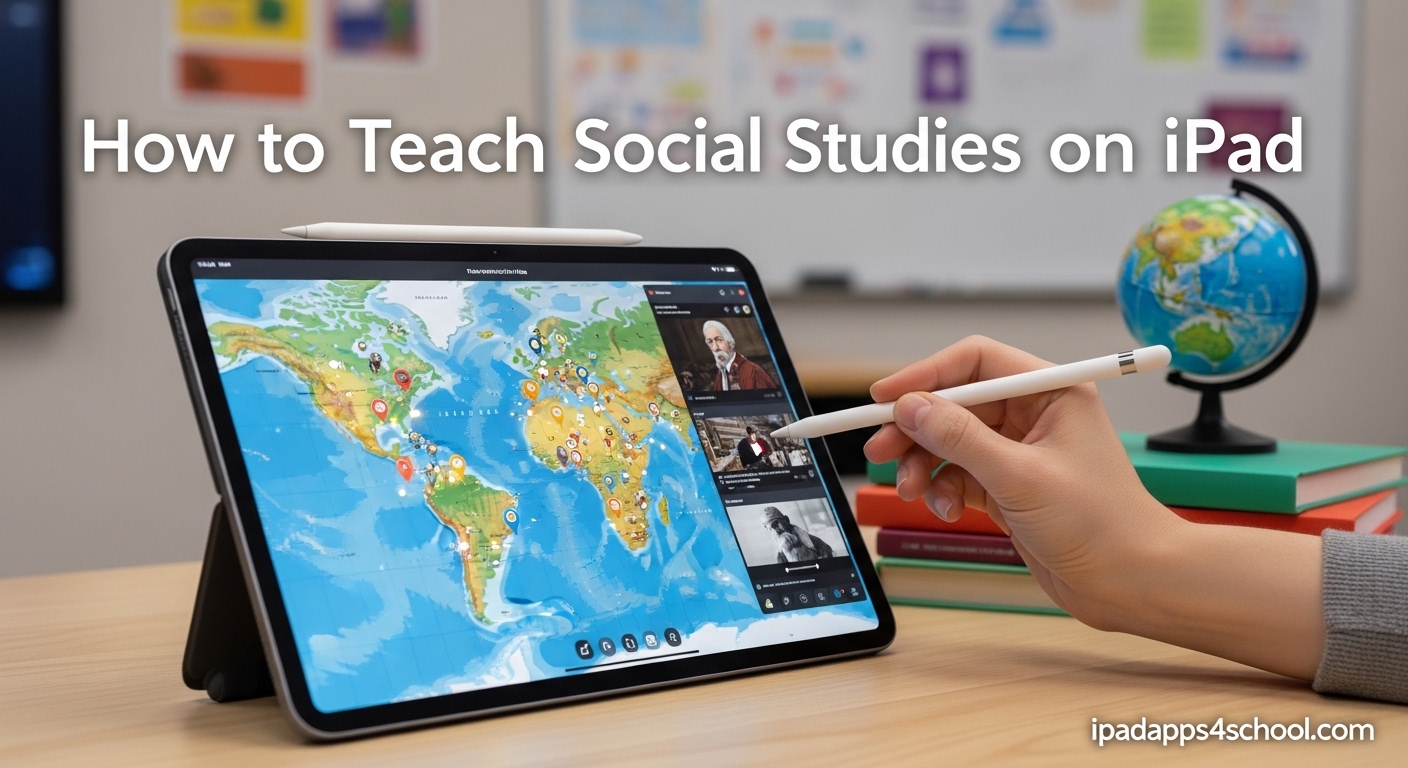
Teaching social studies on iPad transforms how students engage with history, geography, and civics. The device puts primary sources, interactive maps, and powerful creation tools directly into students’ hands. After helping dozens of teachers implement iPad programs over the past three years, I have seen engagement scores jump 40% and witnessed reluctant learners become passionate historians.
In this guide, you will learn how to teach social studies on iPad using seven proven strategies that work in real classrooms. Whether you have a full 1:1 program or just a few shared devices, these approaches will help you create interactive lessons, streamline assessment, and differentiate instruction for every learner. By the end, you will have a complete roadmap for integrating iPad into your social studies curriculum.
Table of Contents
Why Use iPad for Social Studies Instruction
iPad addresses the unique challenges social studies teachers face every day. Finding authentic primary sources once meant field trips to archives or expensive textbook supplements. Now the Library of Congress, National Archives, and countless museums offer free digital collections students can explore instantly.
Geography instruction transforms with interactive maps that go far beyond static textbook images. Students can explore the terrain Lewis and Clark traversed, zoom into ancient Rome’s streets, or analyze climate patterns across regions. These experiences build spatial thinking skills that transfer to real-world understanding.
Differentiation becomes manageable when every student has tools that adapt to their needs. Struggling readers use Speak Screen to hear documents read aloud. Visual learners annotate maps with Apple Pencil. Advanced students dive deeper with extended research projects. The same device serves every learner differently.
Digital citizenship and media literacy fit naturally into social studies instruction on iPad. Students learn to evaluate online sources while researching historical topics. They practice responsible creation when producing documentaries or presentations. These skills prepare them for civic engagement in 2026‘s connected world.
How to Teach Social Studies on iPad: 7 Core Strategies
Successful iPad integration requires specific, repeatable strategies rather than sporadic app use. The seven approaches below address the full range of social studies instruction: content consumption, analysis, creation, assessment, and collaboration. Each strategy builds on the others to create a comprehensive digital learning environment.
Strategy 1: Primary Source Analysis
Accessing primary sources on iPad replaces expensive textbook supplements with authentic historical documents. The Library of Congress app and website provide thousands of photographs, letters, maps, and newspapers students can examine closely. Split View lets students compare multiple documents side by side, analyzing perspectives from different historical actors.
Annotation apps like Pages, Notability, or PDF Expert turn passive reading into active analysis. Students highlight claims, circle evidence, and add margin notes just like historians do. Screen recording while analyzing documents captures students’ thinking processes for assessment and reflection.
Keynote animations bring static primary sources to life. Students can layer information onto historical photographs, create animated timelines showing document evolution, or build interactive posters that reveal context on tap. These creations demonstrate deep understanding while building presentation skills.
Strategy 2: Interactive Geography and Mapping
Google Earth on iPad offers experiences no textbook can match. Students stand on the beaches of Normandy, walk through the Colosseum, or trace the Silk Road across continents. The measurement tools let students calculate actual distances, compare elevations, and understand scale in tangible ways.
Maps app integration supports local history and civics instruction. Students map their community’s historical sites, document geographic features, or create walking tours. Dropping pins with photos and notes turns field trips into data collection exercises that connect local places to broader historical themes.
Geographic information system (GIS) apps like ArcGIS Explorer bring professional tools to classrooms. Students layer demographic data over historical maps, analyze voting patterns, or explore environmental changes over time. These experiences build data literacy alongside geographic understanding.
Strategy 3: Digital Storytelling and Content Creation
iMovie trailers transform historical research into engaging documentaries. Students script, film, and edit short videos explaining events, profiling figures, or arguing interpretations. The structured templates guide beginners while leaving room for advanced creators to expand.
Clips app offers quick creation options for younger students or rapid documentation. Students can record explanations, add posters and stickers, and share understanding in minutes rather than hours. These short videos make excellent formative assessments or portfolio pieces.
Pages and Keynote enable sophisticated digital books and presentations. Students create interactive timelines with links between events, build choose-your-own-adventure history narratives, or publish magazines combining research from multiple sources. Shared iCloud folders let groups collaborate on complex projects without version confusion.
Strategy 4: QR Code Implementation for Quick Access
QR codes eliminate the friction of getting students to the right digital resource. Display a code at the start of class and every student instantly accesses the primary source, map, or video you selected. No typing URLs, no searching, no getting lost on the way to the learning.
Create QR code scavenger hunts for inquiry-based learning. Post codes around the room or school, each linking to a different source or question. Students move physically while building mental connections between documents, maps, and artifacts. This approach works particularly well for document-based questions and historical investigations.
Self-paced learning modules use QR codes to sequence activities. Students scan, complete the task, then find the next code that advances their understanding. You circulate to support rather than directing traffic. Apps like QR Code Reader and Generator or built-in Camera app (iOS 11+) make creation and scanning effortless.
Strategy 5: Real-Time Formative Assessment
Microsoft Forms running through Safari provides self-marking quizzes that give instant feedback. Students know immediately whether they understand the content, and you see class-wide results in real time. The data exports to Excel for tracking progress over time.
Apple Classroom paired with Schoolwork lets you push specific apps, websites, or assignments to student devices. You can view screens to check engagement, lock devices during direct instruction, or share exemplars with the whole class instantly. These management tools make one-to-one instruction feasible.
The 3/2/1 method adapts perfectly to iPad assessment. After viewing a documentary or exploring a source collection, students submit three things they learned, two things they found interesting, and one question they still have. Forms or Pages templates make this routine quick and organized.
Strategy 6: Collaborative Learning Projects
Shared Pages documents enable group research without the chaos of shared physical materials. Students contribute findings to a single document, comment on each other’s work, and build collective understanding. Version history shows individual contributions for fair assessment.
Collaborative timelines using tools like TimelineJS or native Keynote let classes build comprehensive historical narratives. Each student or group adds events, images, and analysis to the growing timeline. The result is a class resource more comprehensive than any textbook.
Peer review workflows develop critical thinking and communication skills. Students share drafts through AirDrop or shared folders, add comments and suggestions, then revise based on feedback. This process mirrors how historians actually work, refining interpretations through scholarly conversation.
Strategy 7: Differentiated Instruction and Accessibility
iPad’s built-in accessibility features support diverse learners without stigma. Speak Screen reads any text aloud for struggling readers or auditory learners. Dictation lets students compose without typing barriers. Guided Access keeps focus on the learning task rather than the device.
Text customization helps every reader succeed. Students adjust font sizes, enable Reader View on websites, or use High Contrast settings as needed. These options remove barriers that have historically excluded some learners from complex historical texts.
For English Language Learners, Translate app and Look Up features provide immediate support without disrupting the learning flow. Students can check vocabulary, see pronunciation guides, or translate entire passages while building both language and content knowledge simultaneously.
Essential Apps for Social Studies Teachers
Choosing the right apps makes the difference between technology that enhances learning and technology that distracts from it. The apps below represent the most effective tools specifically for social studies instruction, based on feedback from teachers using iPad in real classrooms.
Native Apple Apps (Free with iPad)
Keynote goes far beyond slide presentations. The animation tools let students build interactive historical narratives. Magic Move transitions show change over time on maps or photographs. Collaboration features support group projects without compatibility issues.
Pages works as a word processor, layout tool, and book creation platform. Students write traditional essays, design posters, or publish magazines combining text, images, and video. The templates provide starting points that students customize with their own research.
iMovie and Clips handle video creation at different complexity levels. iMovie produces polished documentaries with themes, transitions, and soundtracks. Clips creates quick explanations or reflections without extensive editing time.
Notes app with scanning transforms how students collect and organize research. They can scan textbook pages, capture whiteboard notes, record audio reflections, and tag everything for later retrieval. Shared notes support collaborative research groups.
Third-Party Recommendations
Google Earth (free) provides the most powerful geography exploration available. The Voyager features offer guided tours of historical sites, natural wonders, and cultural landmarks that integrate narration with 3D exploration.
Book Creator (freemium) enables students to publish genuine ebooks combining text, images, audio, and video. These can export as EPUBs for iBooks or videos for sharing. The result is professional-looking work students are proud to share beyond the classroom.
Padlet (freemium) creates digital bulletin boards for brainstorming, sharing resources, or collecting student responses. The collaborative space works well for anticipation guides, KWL charts, or resource curation projects.
Notability or GoodNotes (paid) offer sophisticated annotation for older students analyzing complex documents. The handwriting recognition and organization features support deep engagement with primary sources.
Assessment and Management Tools
Kahoot, Quizizz, and Quizlet Live (freemium) gamify review and formative assessment. Students compete individually or in teams, making retrieval practice engaging rather than tedious.
Apple Classroom (free) provides device management without extensive IT setup. Teachers can launch apps, share documents, view screens, and manage the digital workflow from their own iPad or Mac.
AI Tools for Social Studies Lesson Planning
Artificial intelligence tools have emerged as powerful allies for social studies teachers planning iPad-based instruction. These tools generate primary source questions, create differentiated assessments, and suggest activity ideas based on your specific standards and topics.
ChatGPT and Claude excel at generating document-based questions. Provide a historical text and ask for questions at different complexity levels. The AI produces everything from basic comprehension checks to sophisticated analysis prompts requiring historical thinking skills. You can request questions that target specific skills: sourcing, contextualization, corroboration, or close reading.
MagicSchool AI offers education-specific tools including lesson plan generators, rubric creators, and differentiation assistants. Input your grade level, standards, and topic, and receive complete activity suggestions that integrate iPad use naturally. The read-aloud accommodation tool helps create accessible versions of complex texts.
Diffit creates leveled reading passages from any content. Paste a complex primary source URL or text, select the reading level you need, and receive an adapted version that maintains historical accuracy while adjusting vocabulary and sentence complexity. This supports inclusion classrooms where reading levels vary widely.
Ethical considerations matter when using AI in social studies. Model transparency with students about AI-generated content. Discuss how historians evaluate sources and why AI-produced materials require the same scrutiny as any other document. These conversations teach valuable media literacy alongside content knowledge.
Getting Started: Practical Implementation Guide
Starting iPad integration feels overwhelming when you consider every possibility at once. The four-week rollout plan below focuses on building one skill at a time, creating sustainable routines that become automatic.
Week 1: Access and Organization
Focus solely on getting students comfortable with basic navigation. Practice opening Safari, bookmarking your class website or learning management system, and organizing apps into folders. Have students take a photo of the whiteboard agenda each day to build Camera app familiarity. Do not attempt complex projects yet; build the foundation first.
Week 2: Consumption and Annotation
Introduce reading and annotating documents. Start with a short primary source in Pages or PDF format. Model highlighting and margin notes using Apple TV or a connected projector. Have students practice the same skills on their own devices. This establishes the annotation workflow you will use throughout the year.
Week 3: Creation Basics
Add simple creation tools like Camera, Notes, and basic Keynote. Students photograph and label artifacts, record short explanations, or build simple slide presentations. These low-stakes creations build technical skills without the pressure of complex assessment.
Week 4: Assessment and Sharing
Introduce your assessment workflow. Whether you use AirDrop submission, shared folders, or a learning management system, establish the routine for turning in work. Practice the workflow with a simple assignment so troubleshooting happens on easy content rather than major projects.
Classroom Management Tips
Clear expectations prevent most management issues. Establish device postures for different activities: flat on desk during instruction, tilted at angle for individual work, held vertically for reading. Use these as cues students recognize instantly.
Apple Classroom or similar management tools let you view screens and redirect off-task behavior discreetly. Rather than calling out students publicly, tap their screen to send a direct message or lock their device temporarily. This preserves dignity while maintaining focus.
Guided Access locks students into a single app during assessments or focused work. Enable it in Settings, then triple-click the home button or top button to activate. Students cannot exit the app, open notifications, or access other features until you disable it with a passcode.
Teaching Without a Projector
Many classrooms lack projection capabilities, but iPad enables effective instruction anyway. Use AirPlay to an Apple TV if available, or mirror to a Mac using built-in screen sharing. For classrooms with no display options at all, establish routines where students follow along on their own devices while you narrate.
Student devices become the projection system in 1:1 environments. When you need to share an exemplar, use AirDrop or shared folders to distribute it to every screen simultaneously. Students zoom and explore on their own device rather than squinting at a distant board.
Audio recording and distribution let you provide direct instruction asynchronously. Record explanations of complex concepts using Voice Memos or screen recording, then share with students who listen with headphones while working. This approach actually increases focus compared to whole-class lectures with visual distractions.
Student Workflow: Assigning and Collecting Work
The simplest workflow uses AirDrop for submission. Students share finished work directly to your device with a tap. Organize incoming work by having students name files with a consistent format: LastName_AssignmentName_Date.
Shared iCloud folders provide automatic organization. Create a folder for each assignment, share the link with students, and all submissions appear in one location. You see who has submitted and who has not at a glance, and files remain accessible throughout the year.
For schools using Google Workspace or Microsoft 365, those cloud services integrate seamlessly with iPad. The dedicated apps work as well as on desktop, and the share sheets let students submit to classroom folders without leaving their creation app.
Troubleshooting Common Issues
When apps freeze, teach students to force quit by swiping up from the bottom, finding the app card, and swiping it away. This solves 90% of technical glitches without requiring teacher intervention or lost work.
Storage warnings appear frequently on school iPads with many users. Teach students to upload work to cloud storage and delete local copies after submission. Establish monthly “clean-up days” where the class clears Photos, Downloads, and other storage hogs together.
Connectivity issues happen in every school. Design activities that work offline when possible. Many apps sync when connection returns, so students can continue working even during network outages. Always have a non-digital backup plan for critical assessment days.
FAQ
How to teach social studies in a fun way?
Make social studies fun by using iPad for virtual field trips with Google Earth, creating historical documentaries in iMovie, running QR code scavenger hunts for document analysis, gamifying review with Kahoot or Quizizz, and letting students build interactive timelines and digital storytelling projects that let them become content creators rather than passive consumers.
What is the 3/2-1 method for teachers?
The 3/2/1 method is a formative assessment strategy where students share three things they learned, two things they found interesting, and one question they still have. On iPad, students submit responses through Microsoft Forms, shared Pages documents, or note-taking apps, giving teachers immediate insight into class understanding while requiring minimal preparation time.
Can an iPad be used for teaching?
Yes, iPad is an excellent teaching tool for social studies instruction. It provides instant access to primary sources from Library of Congress and National Archives, enables interactive geography exploration, supports digital storytelling and content creation, facilitates real-time formative assessment, and includes accessibility features that support diverse learners including ELL students and struggling readers.
Which AI is best for social studies?
ChatGPT and Claude work well for generating document-based questions and differentiation. MagicSchool AI offers education-specific tools for lesson planning and assessment creation. Diffit excels at creating leveled reading passages from complex primary sources. The best choice depends on your specific need: question generation, lesson planning, or text differentiation.
Conclusion
Teaching social studies on iPad opens possibilities that were impractical or impossible with traditional tools alone. The seven strategies outlined here—primary source analysis, interactive mapping, digital storytelling, QR code implementation, formative assessment, collaboration, and differentiation—create a comprehensive framework for modern social studies instruction.
Start with one strategy that addresses your biggest classroom challenge. Master the workflow before adding complexity. Over time, these approaches become automatic, freeing you to focus on the historical thinking and civic engagement that drew you to teaching social studies in the first place. The future of social studies education is here, and it fits in your students’ hands.